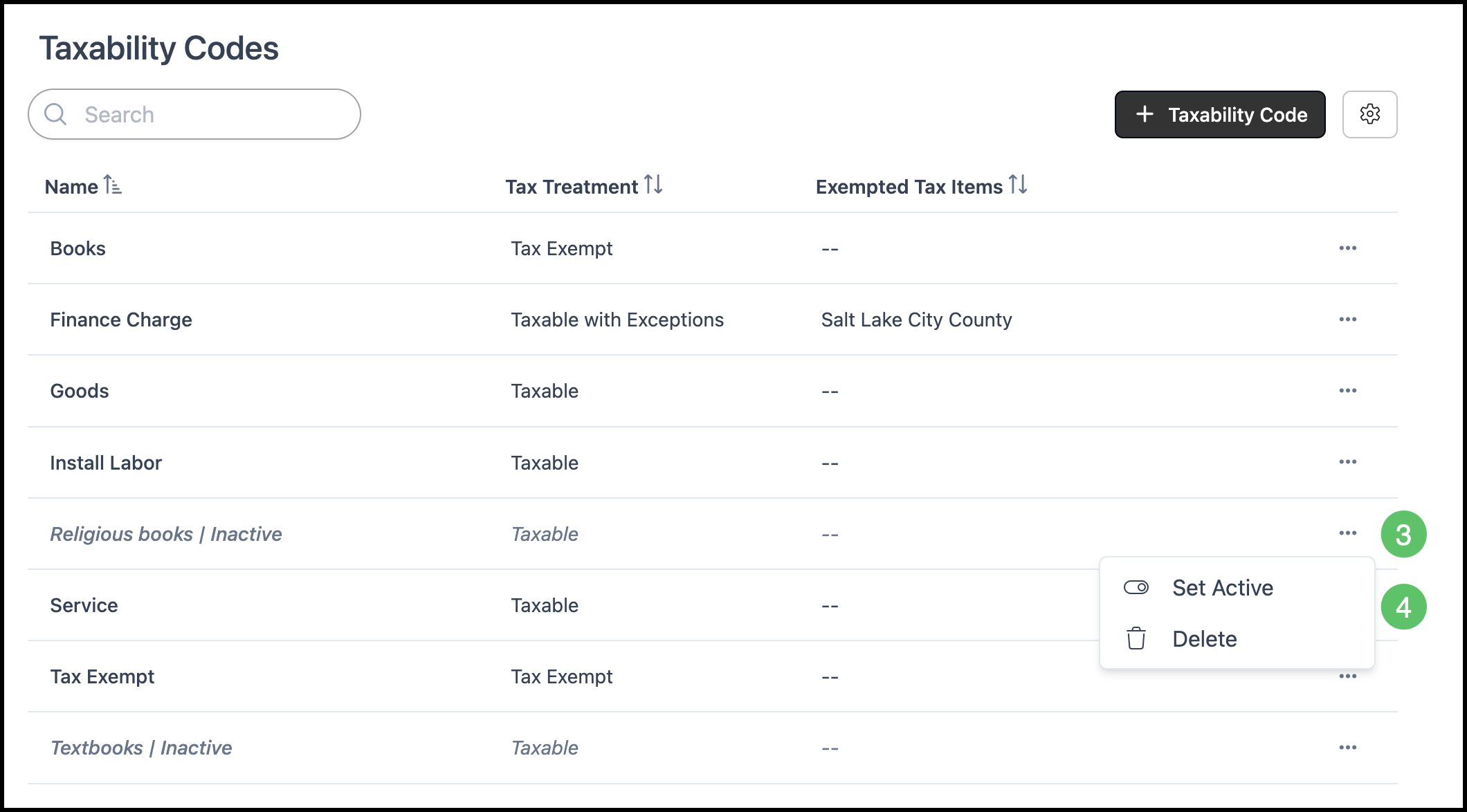
Taxability Codes are used to group types of offerings together to determine whether an item is taxable, taxable with exceptions, or tax exempt. A Taxability Code is assigned in Assemblies and used for calculating applicable sales tax.
Note: The system comes with default Taxability Codes for Goods, Service, and Tax Exempt, however additional Taxability Codes can be added.
Table of Contents
- Creating Taxability Codes
- Customize Taxability Codes
- Deactivate, Reactivate, or Delete Taxability Codes
- Related Articles
Creating Taxability Codes
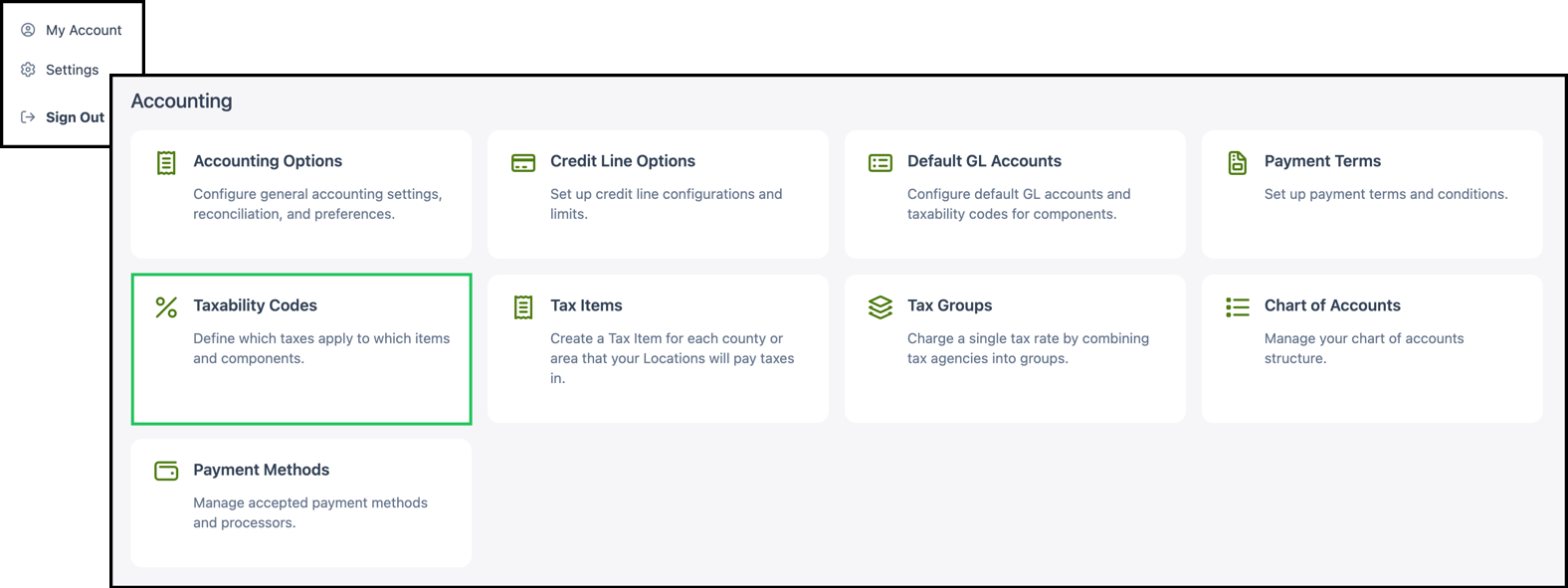
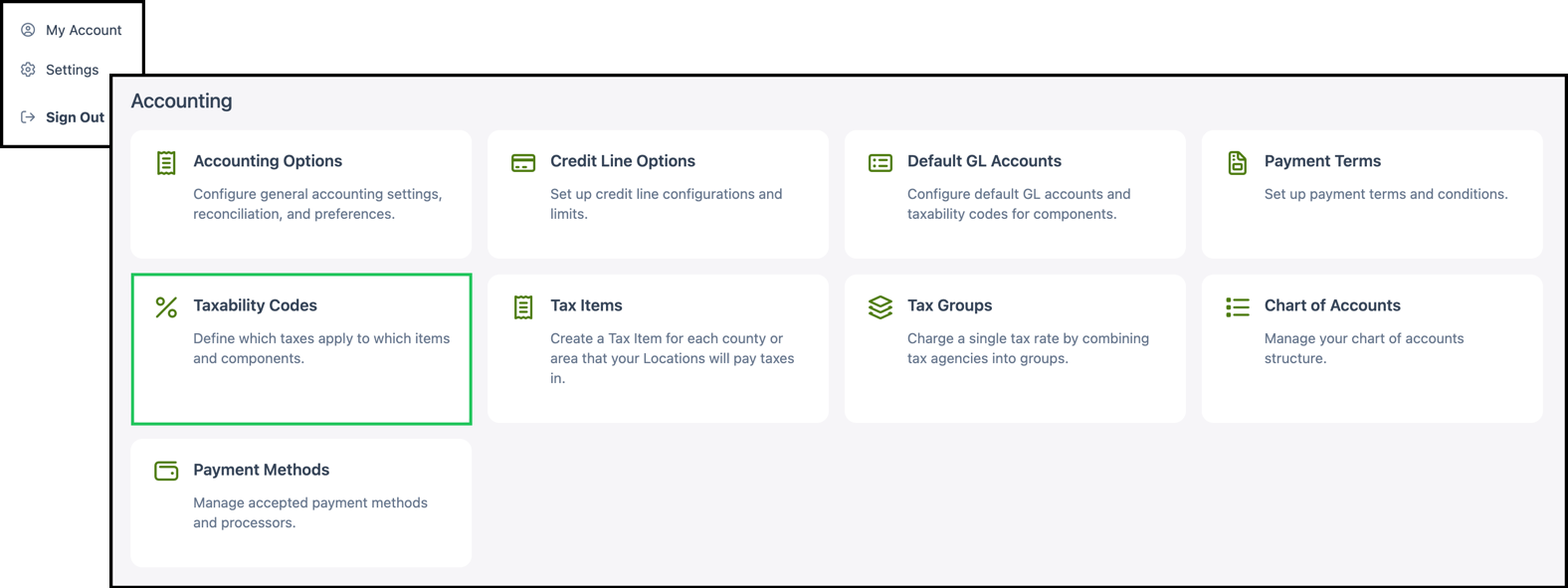
Navigate to System Settings / Accounting / Taxability Codes.
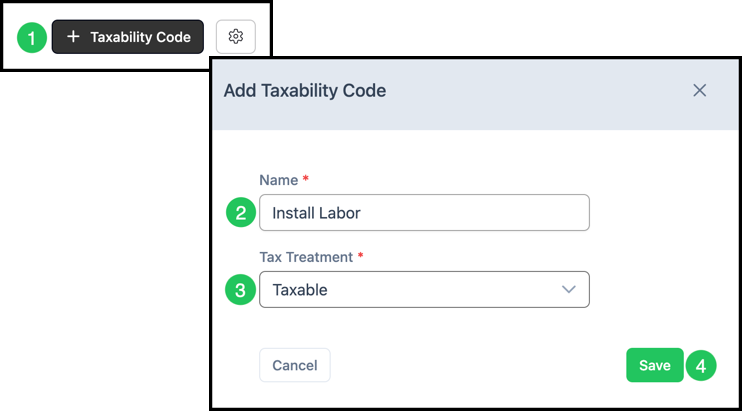
1. Click the Taxability Code button.
2. Name - Enter a name that will identify the type of tax code. This field is required.
3. Tax Treatment - Select the treatment that determines the taxability of the code (for example, Taxable or Tax Exempt). This field is required.
4. Click Save.
Customize Taxability Codes
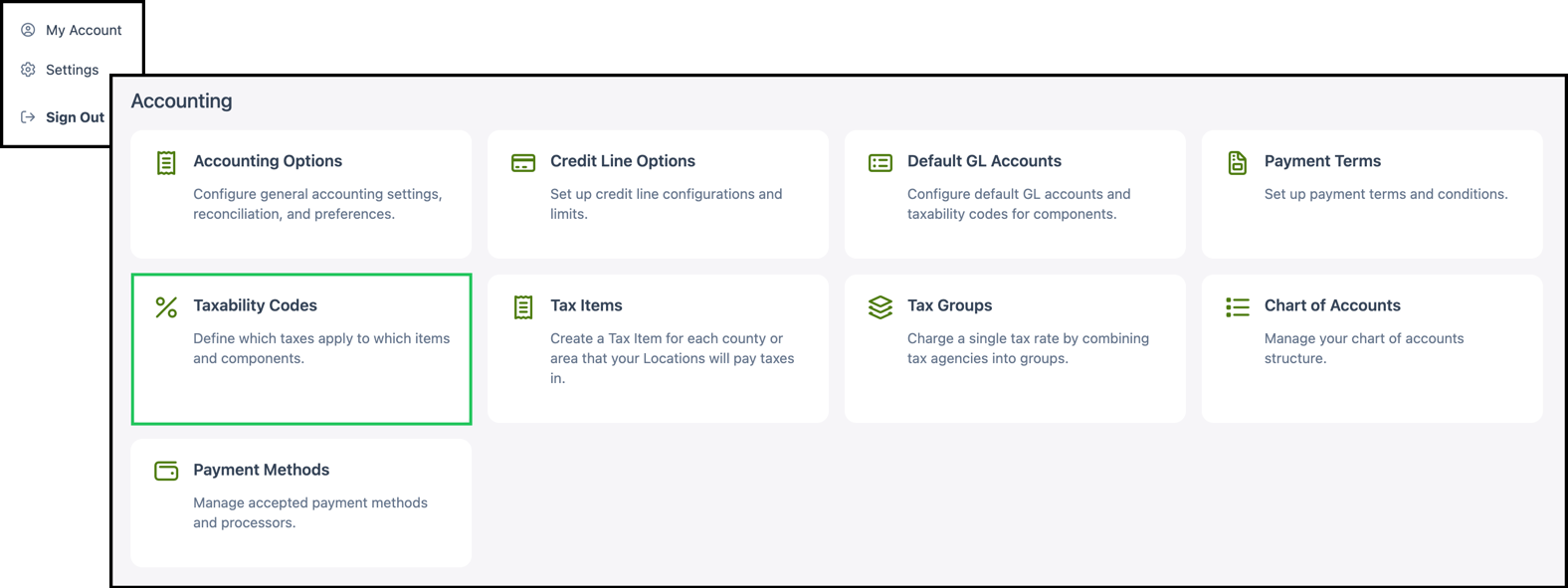
Navigate to System Settings / Accounting / Taxability Codes.
1. Click the row for the code that needs to be customized.
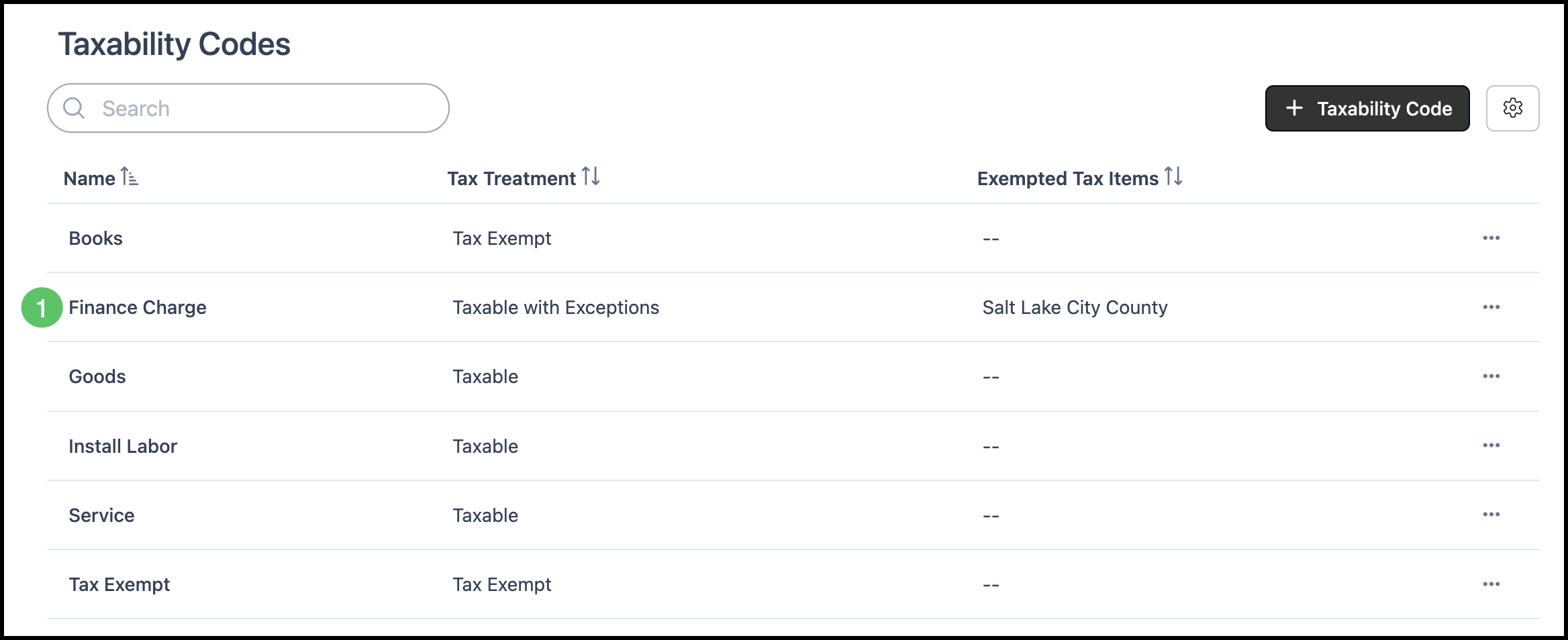
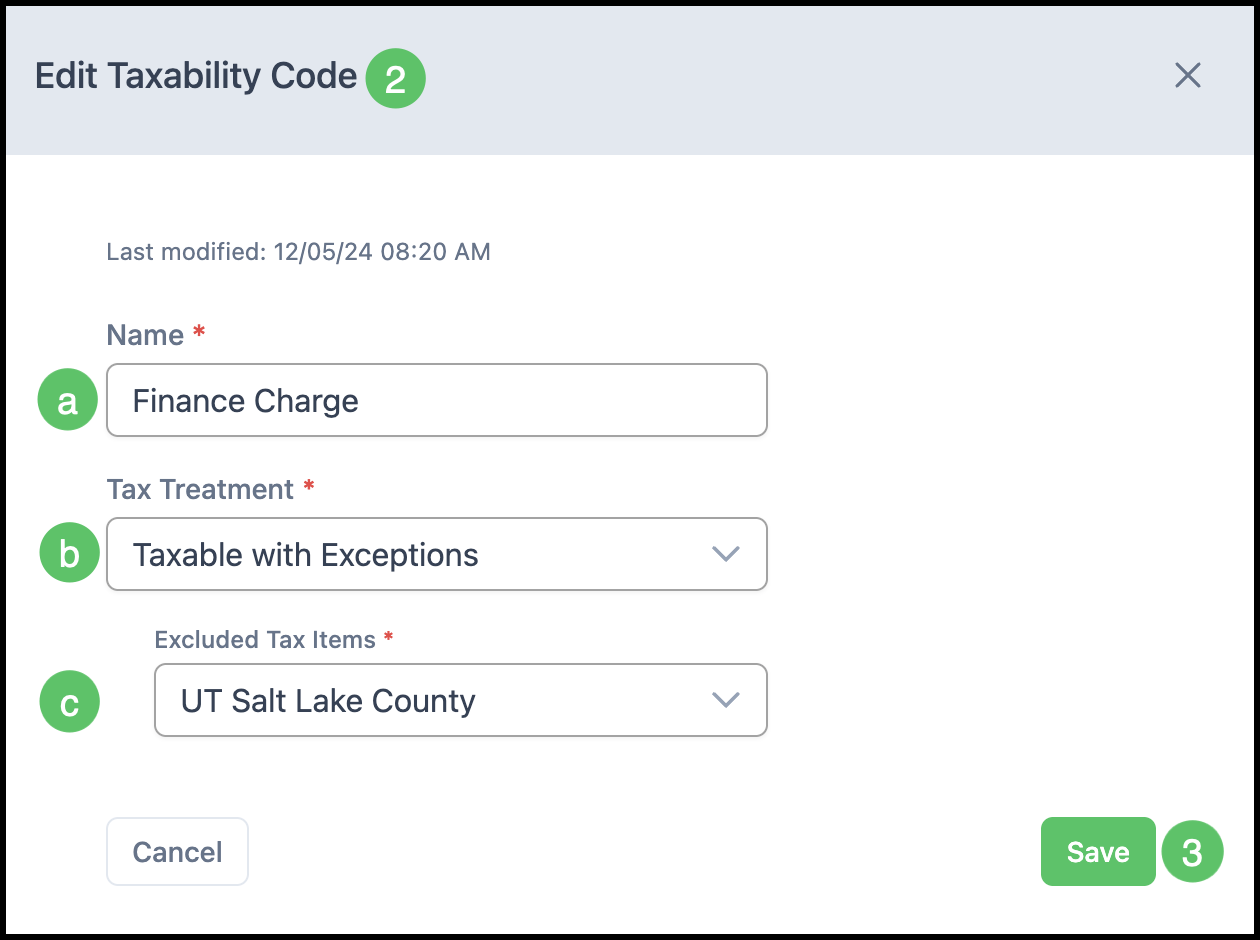
2. The Edit Taxability Code dialog will open. Update the fields as needed.
a. Name - The name that identifies the type of tax code.
b. Tax Treatment - The treatment that determines whether the code is taxable, taxable with exceptions, or tax exempt.
c. Excluded Tax Items - If applicable, add or change exempted tax items for codes that are taxable with exceptions.
Note: Excluded Tax Items are visible when Taxable with Exceptions is chosen.
3. Click Save.
Deactivate, Reactivate, or Delete Taxability Codes
Set a code inactive or delete:
Navigate to System Settings / Accounting / Taxability Codes.
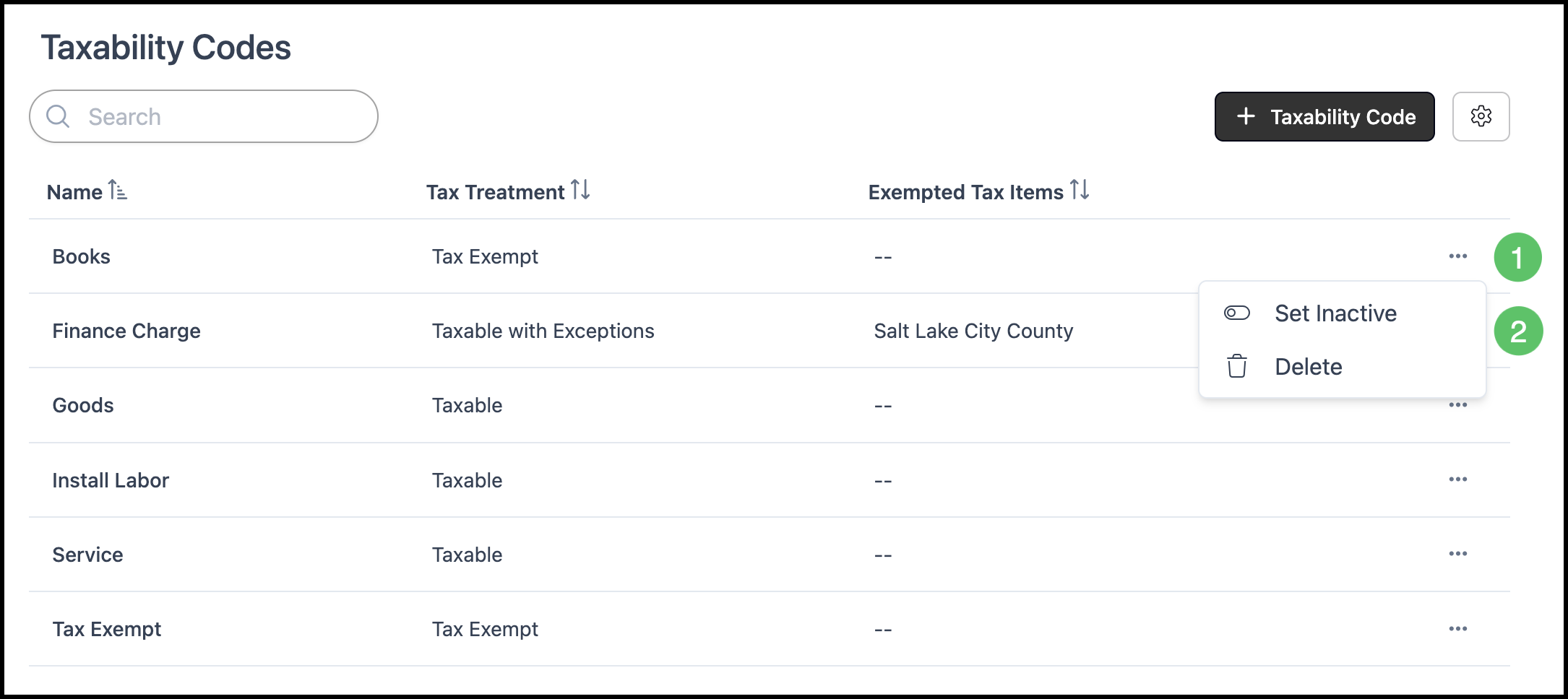
1. Find the code in the list and click the More Actions button for that row.
2. Select Set Inactive or Delete.
Note: Deleting a code is permanent. To use it again, you will need to re-enter it manually.
Reactivate or delete an inactive code:
1. Click Search Settings icon.
2. Check Show Inactive Records so inactive codes are visible.
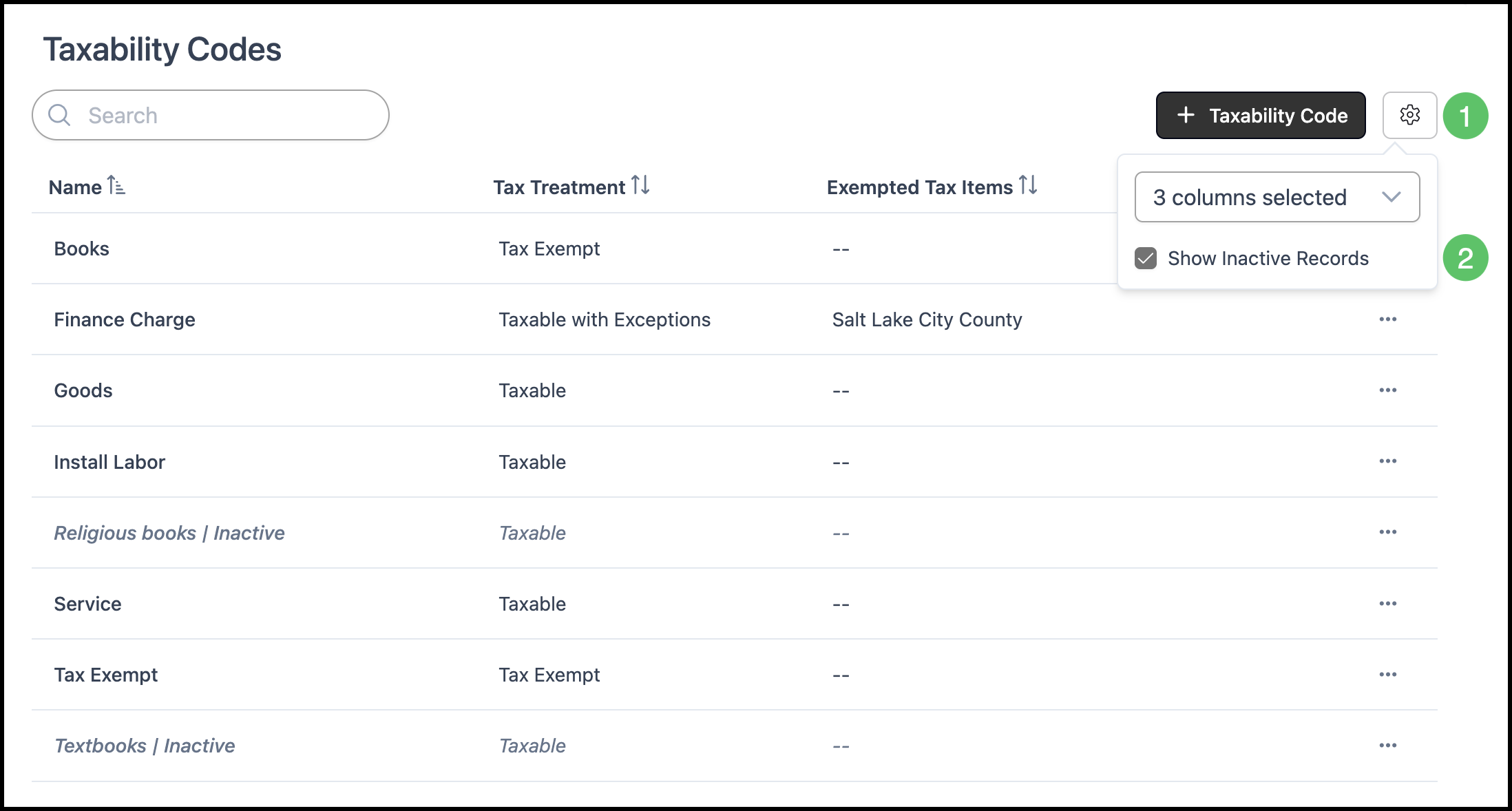
3. Find the inactive code in the list and click the More Actions button for that row.
4. Select Set Active to reactivate the code or Delete.
Note: Deleting a code is permanent. To use it again, you will need to re-enter it manually.