
Lists throughout CoreBridge EVO include Search, column filters, and Search Settings so you can find records and control which columns appear. This article uses Sales / Orders as the example. The same pattern appears on other lists, including Estimates, Companies, and Contacts.
Table of Contents
- Important Information
- Search Screens
- Searching a List
- Choosing Columns with Search Settings
- Filtering a Column
- Reviewing Applied Filters
- Clearing Filters
- Frequently Asked Questions
- Related Articles
Important Information
Search on a list looks at information in the columns that are currently shown. If a column is hidden, that column is not included in the search.
Column filters update the list after you click Apply. Selecting a value in the filter menu does not change the list until Apply is clicked.
Search Settings column choices are saved for you on that list.
Quick Search in the header is a different control. It finds records across the system. For more information, see System Navigation Overview.
Search Screens
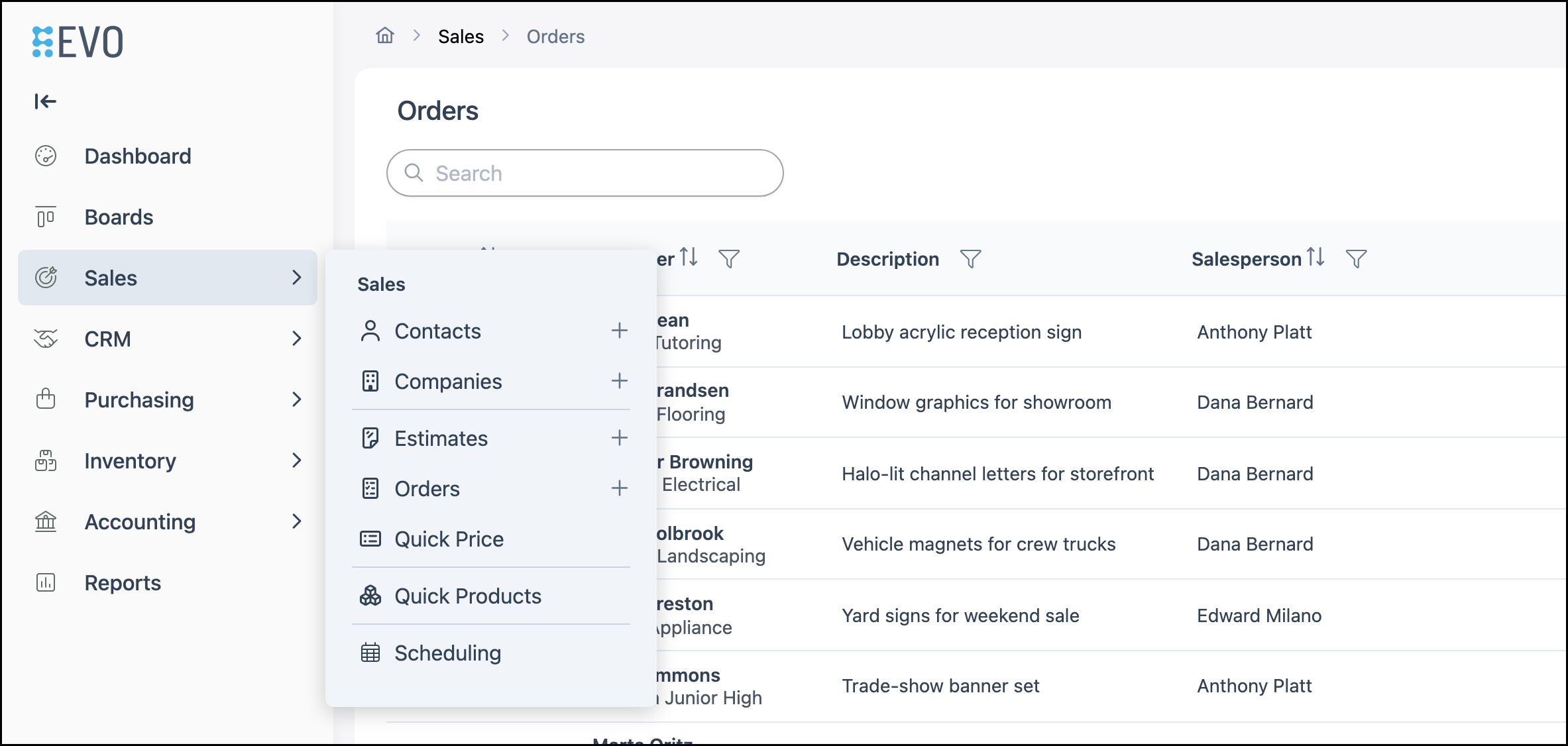
Navigate to Sales / Orders.
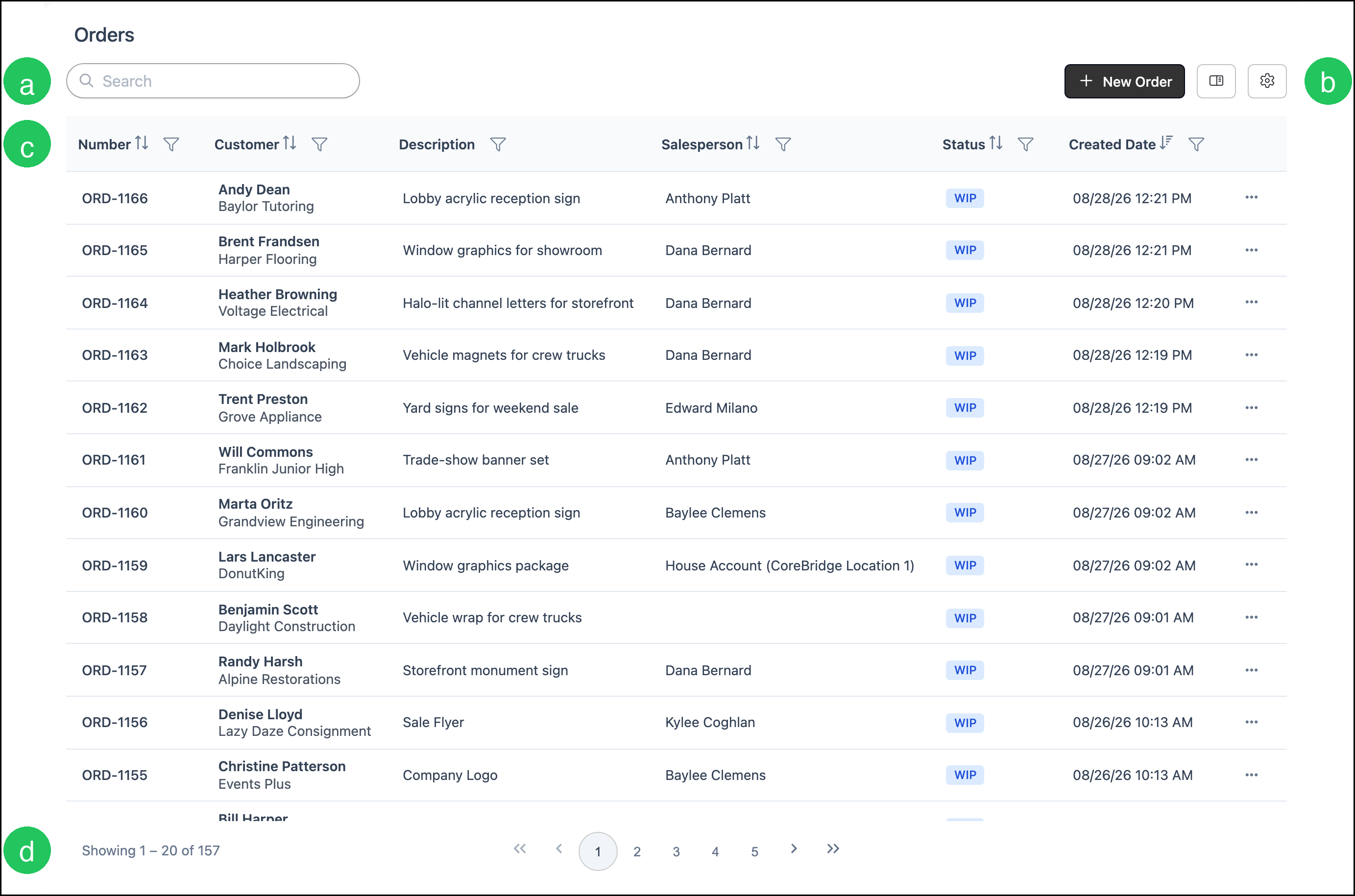
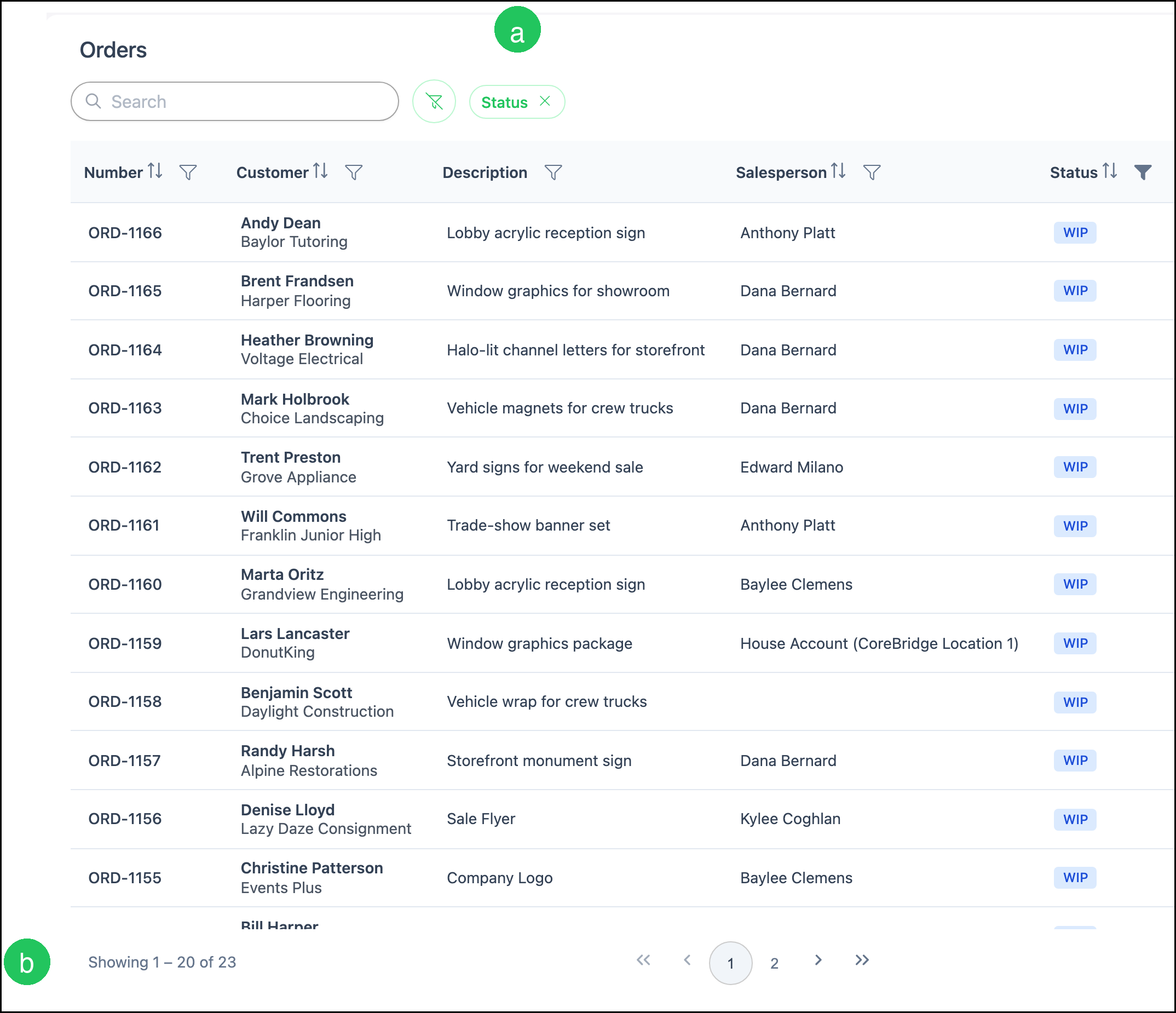
The list includes these search and filter controls:
a. Search finds records using text in the columns that are currently shown.
b. Search Settings chooses which columns appear on the list.
c. Show Filter Menu on a column header opens that column’s filter.
d. The result count shows how many records match the current search and filters.
Searching a List
1. In Search, enter the text you want to find.
Example: A Company name such as Harper Flooring.
a. The result count updates to show how many records match.
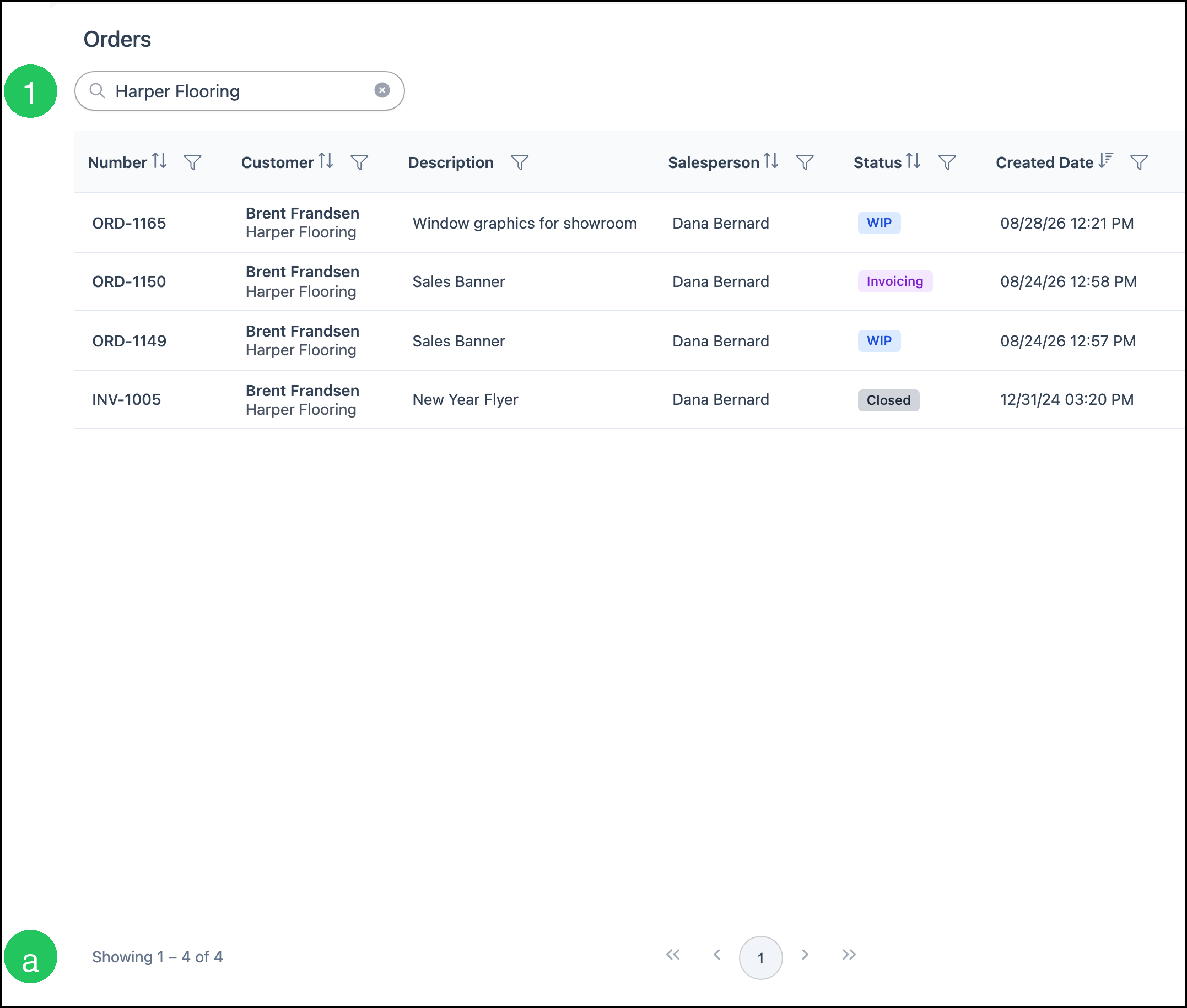
Note: Clear Search with the X in the field when you are ready to see the full list again.
Choosing Columns with Search Settings
1. Click Search Settings.
2. Select the columns you want to show. Clear a column to hide it.
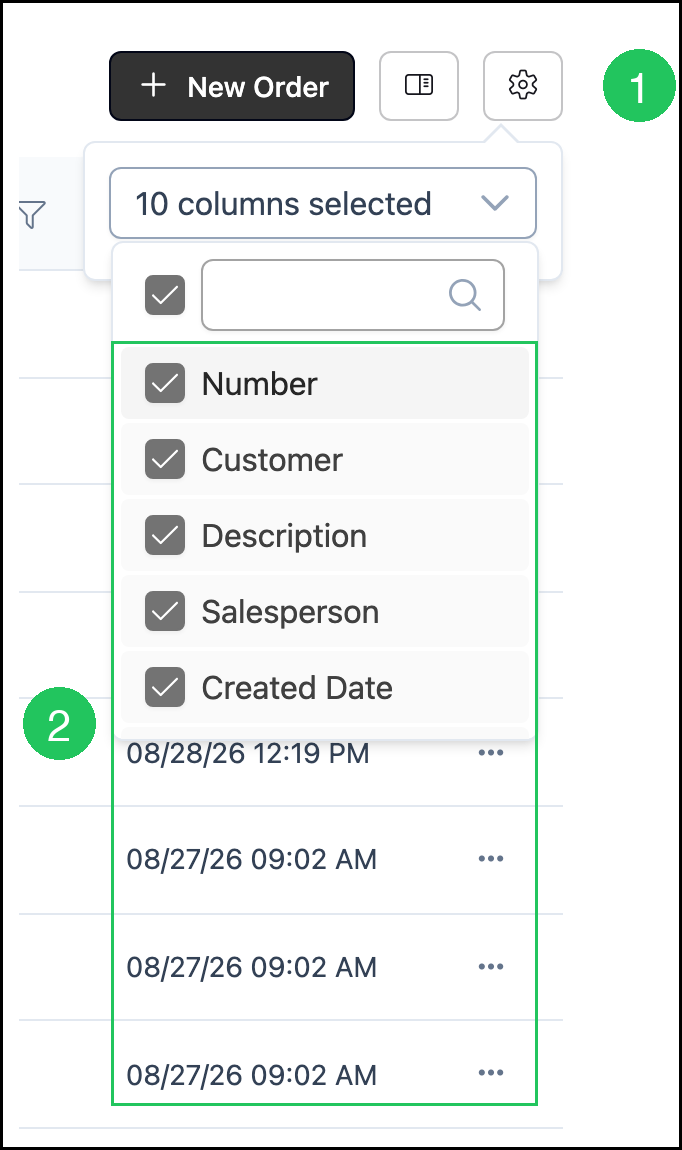
Note: A column must be shown before you can search or filter on it. For example, add Status with Search Settings if you need it on the Orders list.
Filtering a Column
This example filters the Status column on Orders. Other list columns use the same Show Filter Menu control. For more information on Orders status filters, see Filtering Orders by Status.
1. Click Show Filter Menu on the column header.
2. Select one or more values.
Example: WIP.
3. Click Apply.
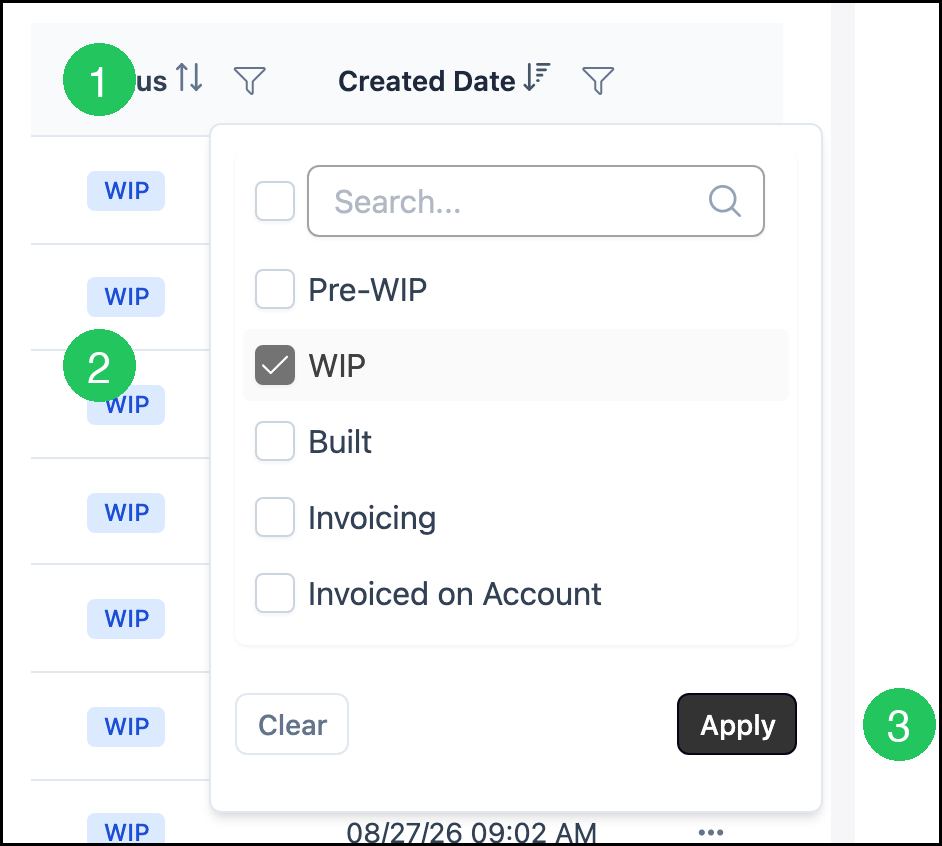
Note: You can combine filters on more than one column. Apply each column filter after you select its values.
Reviewing Applied Filters
After a column filter is applied, the list shows only matching records.
a. A filter chip appears for the filtered column.
b. The result count updates to show how many records match.
Clearing Filters
1. Click the X on a filter chip to remove that column’s filter.
2. Click the clear filters control next to Search to remove all column filters at once.
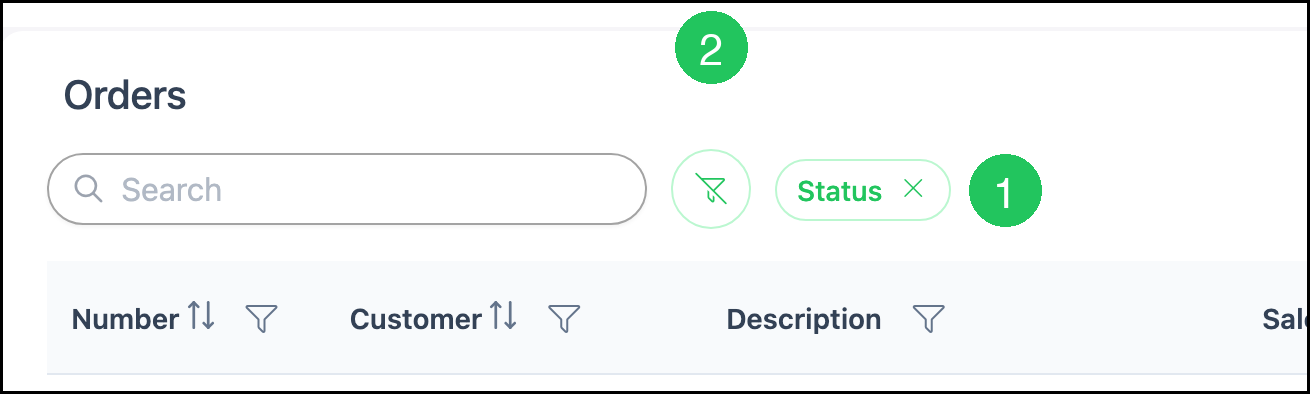
Note: You can also click Show Filter Menu on the column, click Clear, then click Apply.
Frequently Asked Questions
1. What is the difference between Search on a list and Quick Search?
Answer: Search on a list finds records in the columns shown on that list. Quick Search in the header finds records across the system, such as Orders, Estimates, Companies, and Contacts. For more information, see System Navigation Overview.
2. Why didn’t the list change after I selected a filter value?
Answer: Column filters apply after you click Apply. Select the values you want, then click Apply.
3. Why don’t I see a column I expect?
Answer: Columns can be hidden. Click Search Settings and select the column to show it.
4. Can I use Search and column filters together?
Answer: Yes. Enter text in Search and apply column filters. The list shows records that match both.
5. Do my Search Settings apply for everyone in the shop?
Answer: No. The columns you show or hide with Search Settings are saved for you on that list.
Related Articles
Estimates Overview
Filtering Orders by Status
Orders Overview
System Navigation Overview