
When you email an Estimate or Order to a customer from CoreBridge, you can send a copy of that email to yourself or to any other address using the CC or BCC fields. You can add the address on a single email, or set a default CC or BCC on an Email Template so it is added automatically every time that template is used.
Table of Contents
- Important Information
- Send Yourself a Copy on a Single Email (CC / BCC)
- Set a Default CC or BCC on an Email Template
- Keep a Permanent Record of Sent Emails
- Frequently Asked Questions
- Related Articles
Important Information
CC (carbon copy) shows the address to the customer and to everyone else on the email. BCC (blind carbon copy) hides the address from the customer and from other recipients.
A CC or BCC address you enter on a single email applies only to that send. A default CC or BCC on an Email Template is added automatically whenever that template is used. You can still change or remove it on a single email before you send.
Note: Email Template changes save automatically. There is no Save button on the Template tab.
Send Yourself a Copy on a Single Email (CC / BCC)
Use this when you want a copy of one email. This example uses an Estimate. The same envelope control is available on Orders.
Navigate to Sales / Estimates and open the Estimate you want to email.
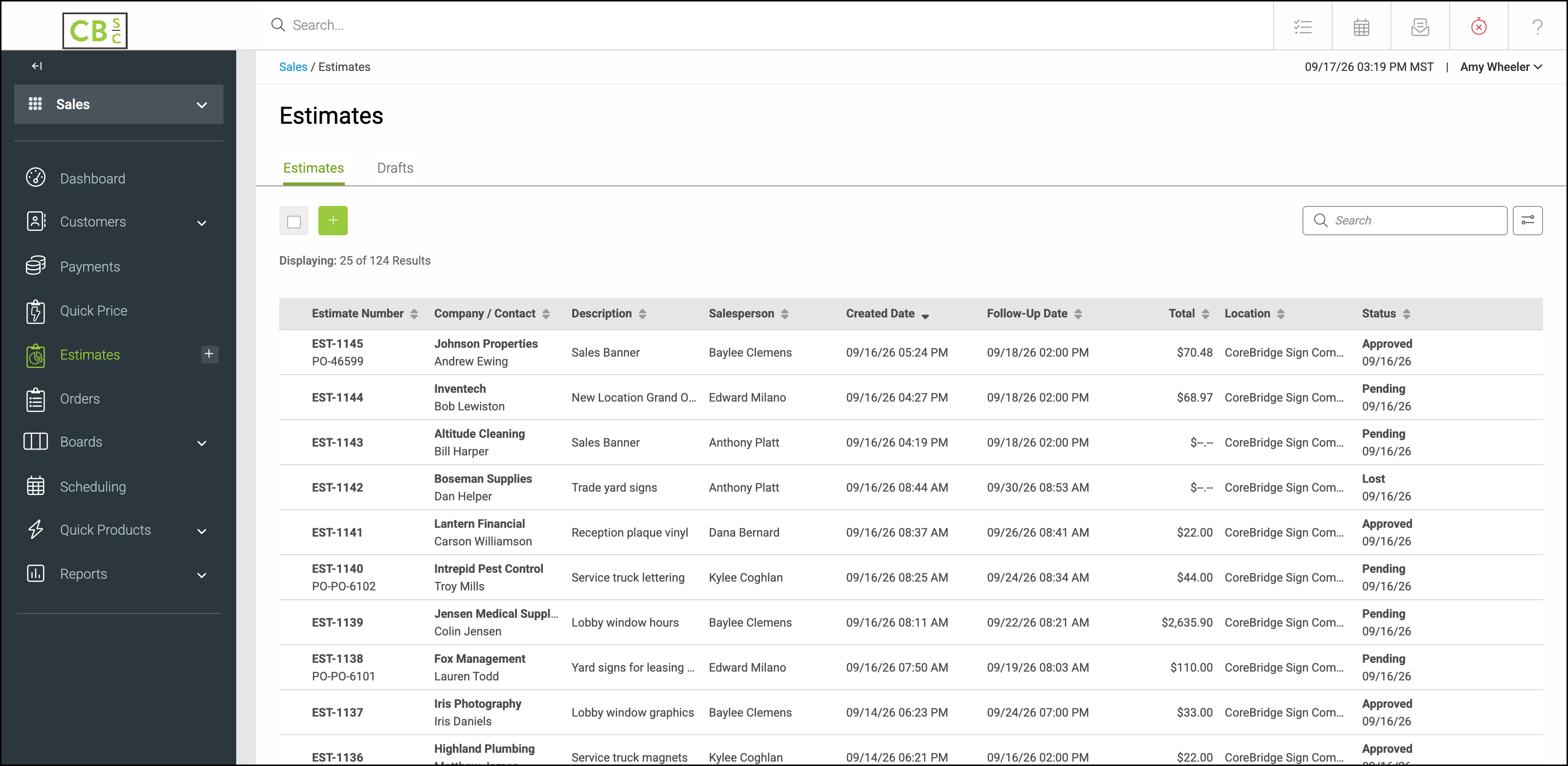
1. Click the envelope icon.

2. Select the email template you want to send (for example, Email Estimate, or Blank to start from scratch).
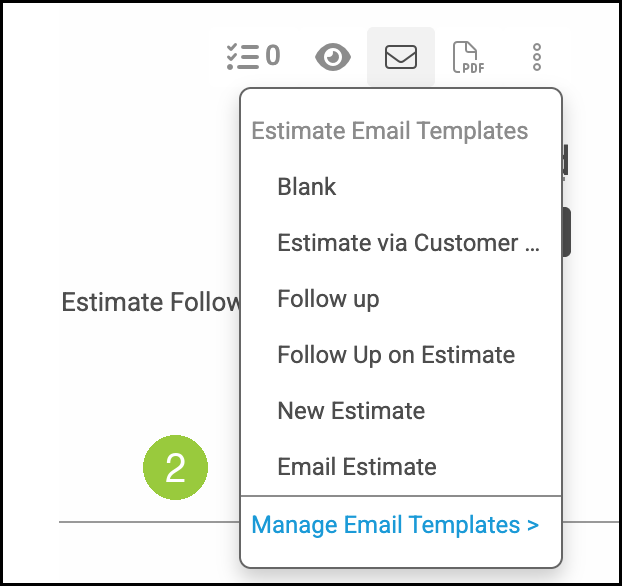
The New Email window opens.
3. Click CC or BCC.
4. Enter the email address you want to copy in the Cc or Bcc field. You can add more than one address.
5. Click Send Email. A copy of the email is delivered to the address you entered.
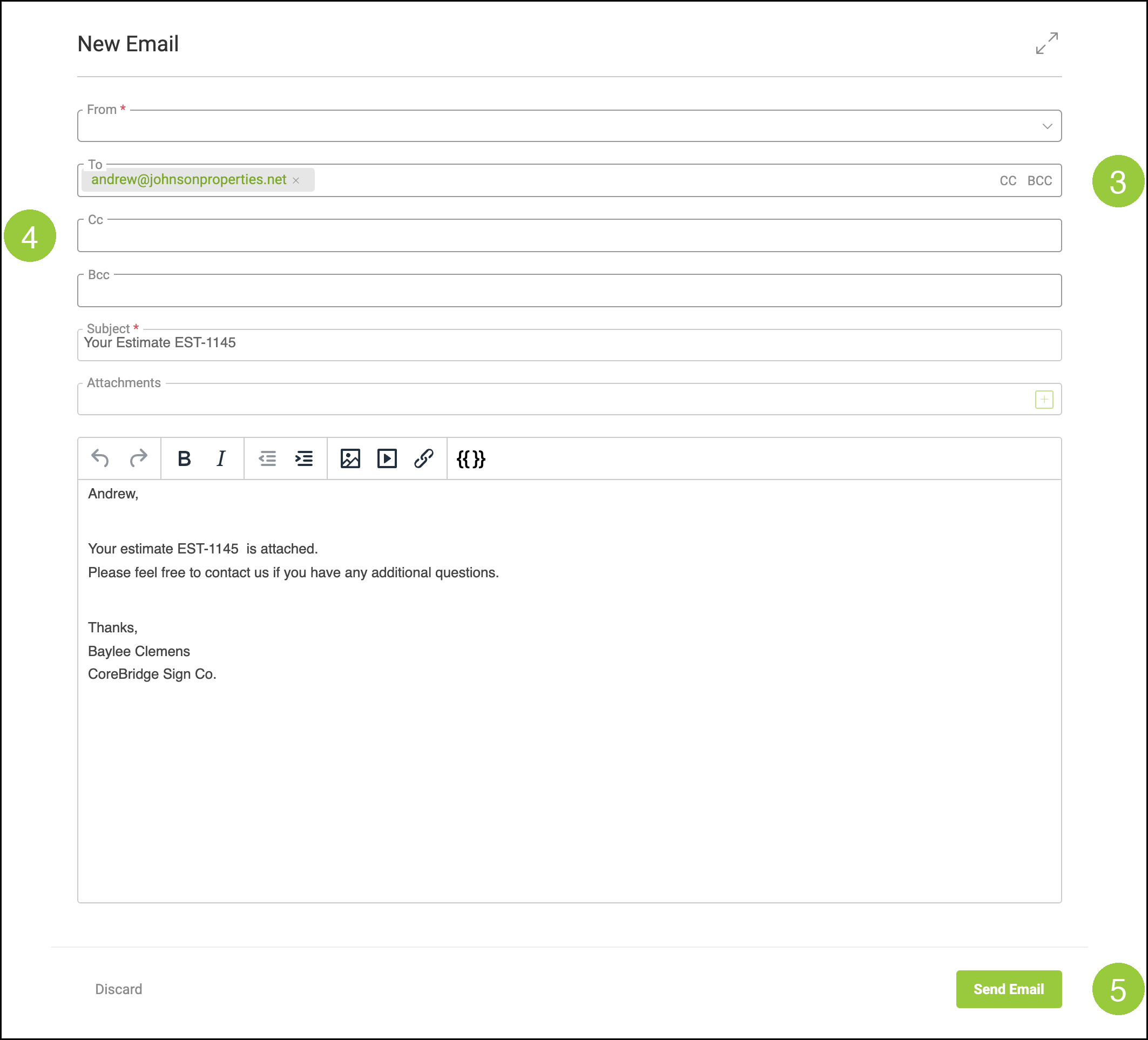
Note: Entered this way, the CC or BCC address applies only to that one email. To have it added automatically every time, set a default on the email template.
Set a Default CC or BCC on an Email Template
Adding a CC or BCC address to an Email Template fills that address every time the template is used, so you are copied automatically without entering it each time. For more information on templates, see Email Templates.
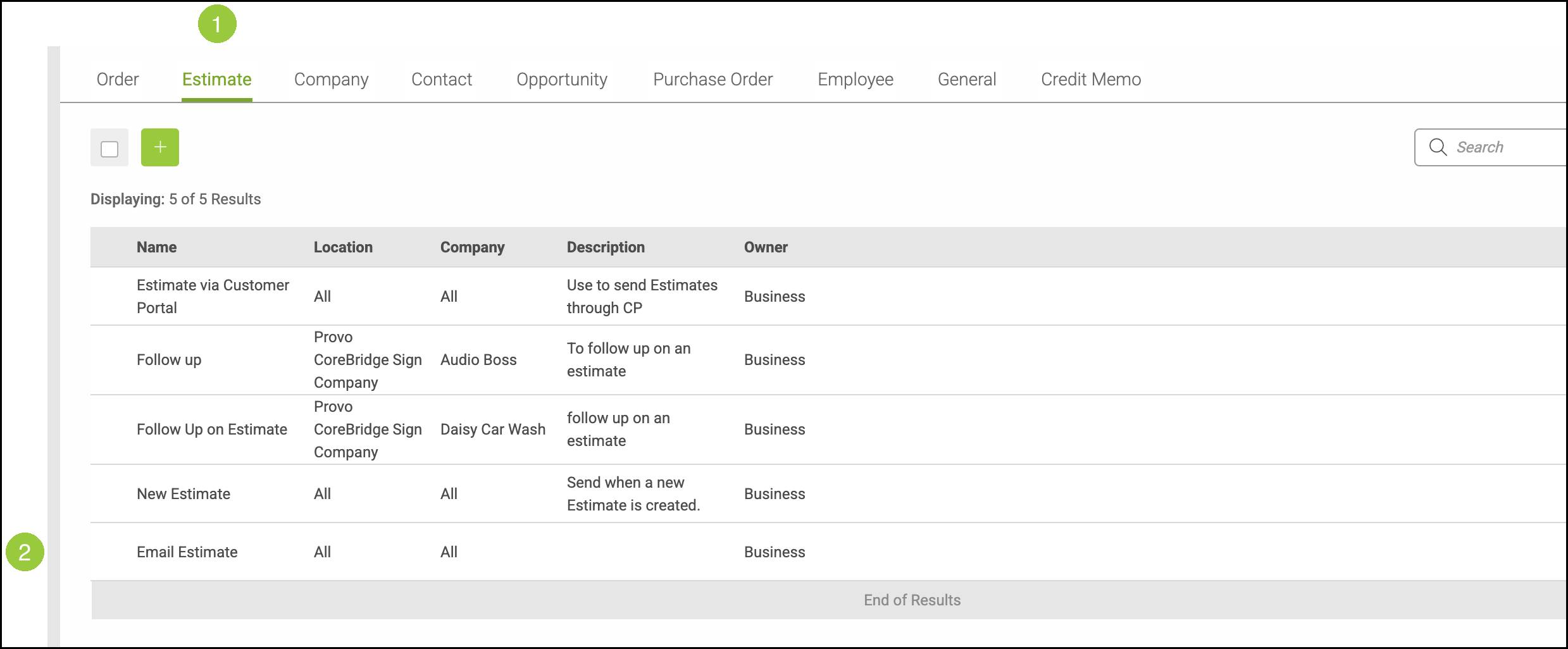
Navigate to Settings / System / Email Templates.
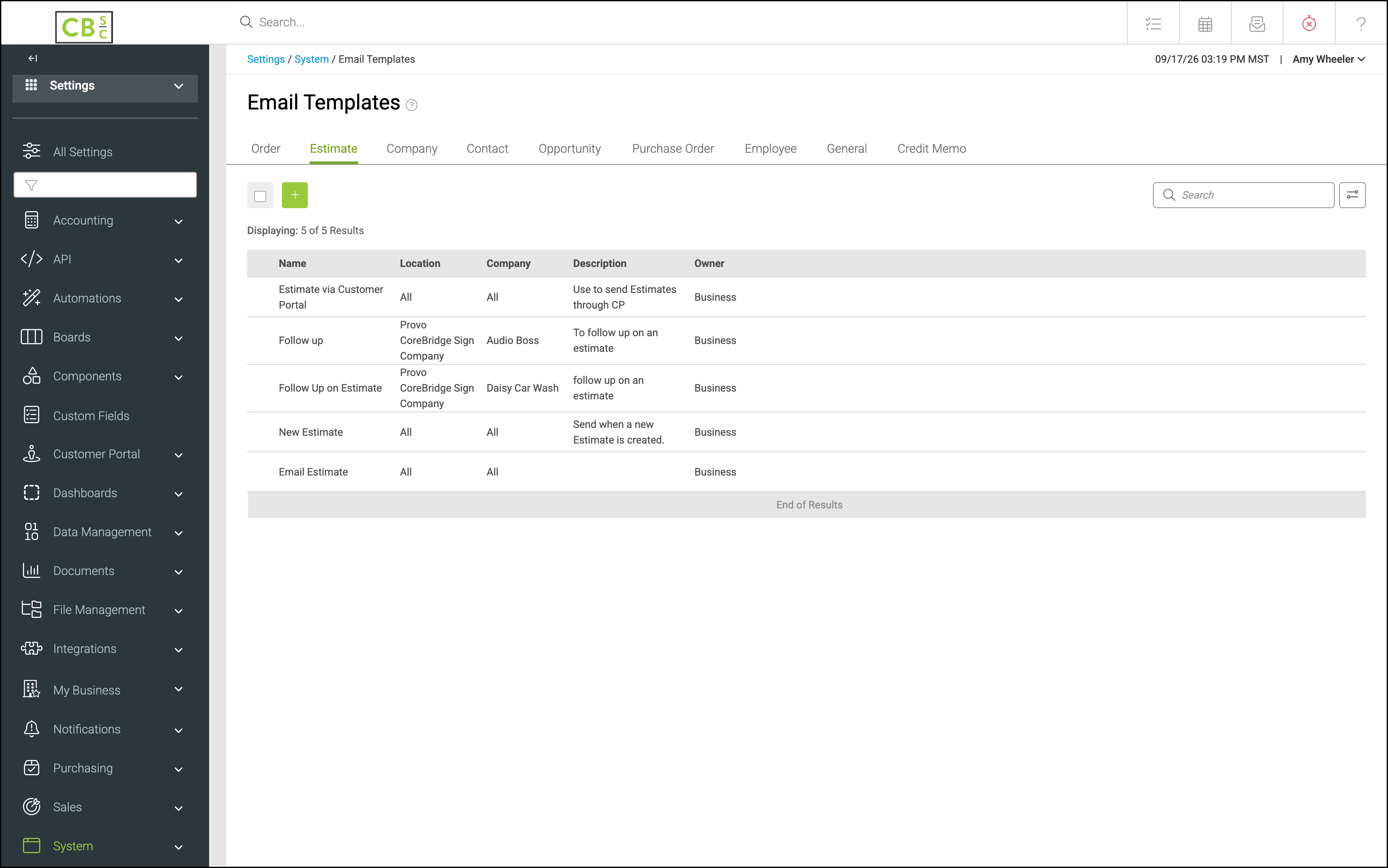
1. Click the record-type tab for the template you use (for example, Estimate or Order).
2. Click the template you want to update (for example, Email Estimate).
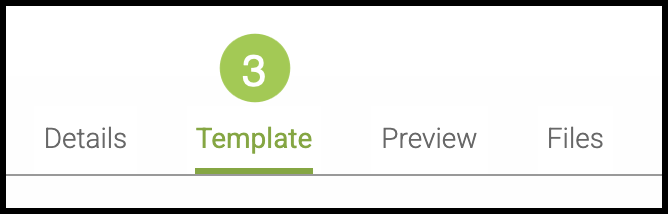
3. Click the Template tab.
4. Next to Default To Address, click CC or BCC.
5. Enter the address you want copied on every send. You can enter a specific email address or a merge field.
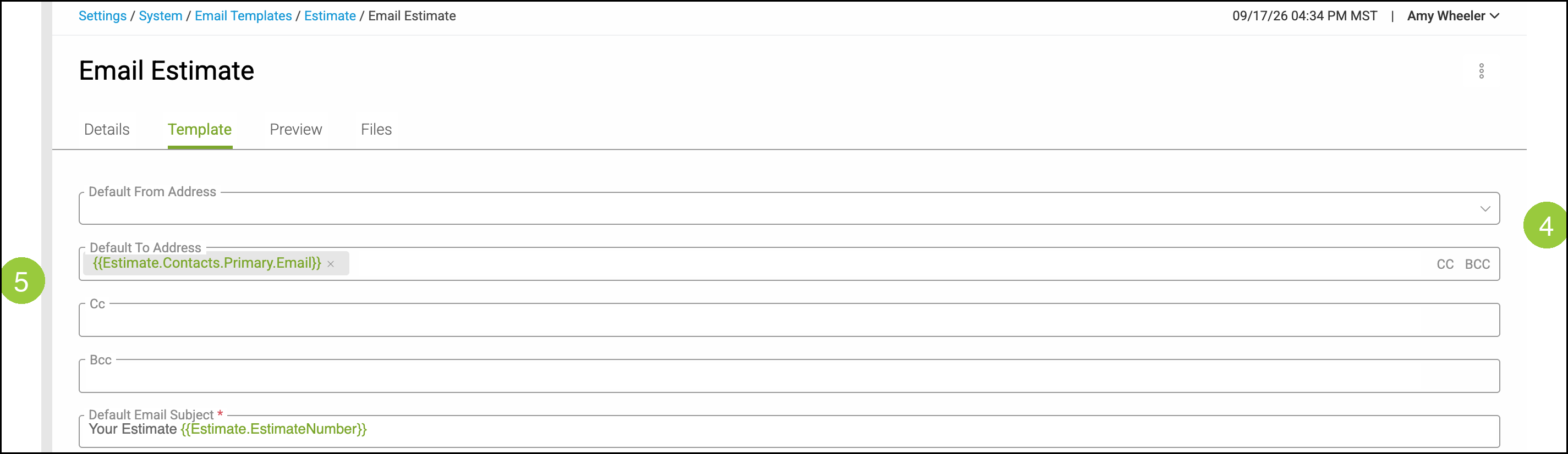
Note: Changes save automatically. From then on, that address is filled in the Cc or Bcc field whenever you send using this template. A default CC or BCC applies only to the template you edit. Repeat these steps on each template you want copied.
Keep a Permanent Record of Sent Emails
CC and BCC send a copy to the addresses you enter. That is different from keeping a copy in the Sent folder of the mailbox you send from.
If you would like a lasting record of every message the system sends on your behalf, set up your business email as an Email From Address under Settings / System / Email From Addresses. Once the address is authorized, outgoing messages are sent through your own mailbox, so a copy is saved in that mailbox's Sent folder. For more information, see Setting up Email From Addresses.
Frequently Asked Questions
1. What is the difference between CC and BCC?
Answer: Addresses in Cc are visible to everyone on the email, including the customer. Addresses in Bcc are hidden from the customer and from other recipients.
2. If I add a CC or BCC on one email, will it be used the next time I send?
Answer: No. A CC or BCC you enter on a single email applies only to that send. To copy an address every time, add it as a default on the Email Template.
3. Does a default CC or BCC apply to every Email Template?
Answer: No. A default applies only to the template you edit. Repeat the steps on each Estimate, Order, or other template you want copied.
4. How do I keep a copy of sent emails in my mailbox Sent folder?
Answer: Set up an authorized Email From Address under Settings / System / Email From Addresses. When you send from that address, a copy can appear in that mailbox's Sent folder. CC and BCC are separate from that Sent copy.