Use Chat to add internal notes to Contacts, Companies, Estimates, and Orders. Record important details, reminders, and next steps to keep your team informed. Notes remain on the record where they are added and are visible only to your team.
Important Information
- A note is for your team. It does not appear on customer documents.
- Each note shows who added it and the time it was added.
- Adding a note, marking it important, and removing it work the same way on a Contact, a Company, and an Order.
- An Estimate uses the same steps as an Order.
- A note stays in the Chat where it was added.
- On an Order, type @ to mention a person, a role, or a team.
- On an Order, the info icon says the conversation stays on that Order.
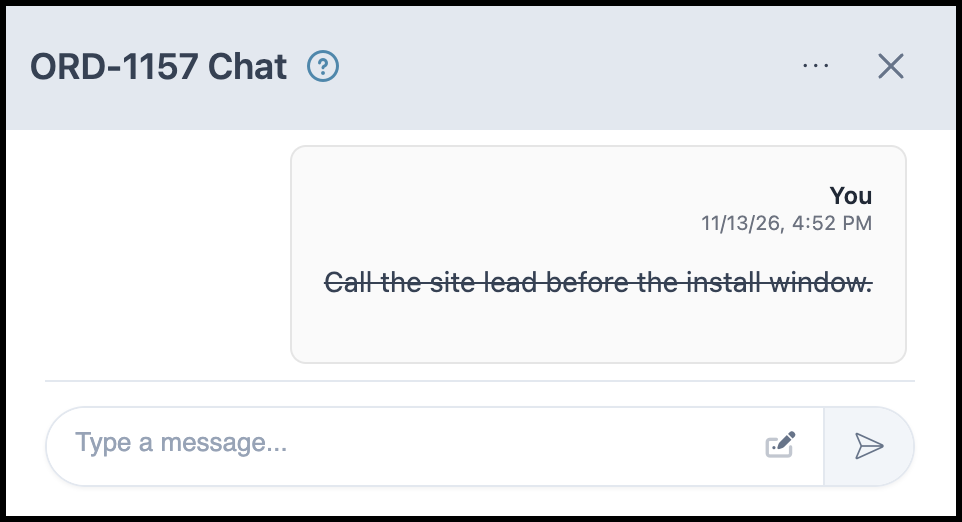
- Chat actions includes Show Hidden, which displays a removed note with a line through the text.
Opening Chat on a Company
Navigate to Sales / Companies and select the Company.
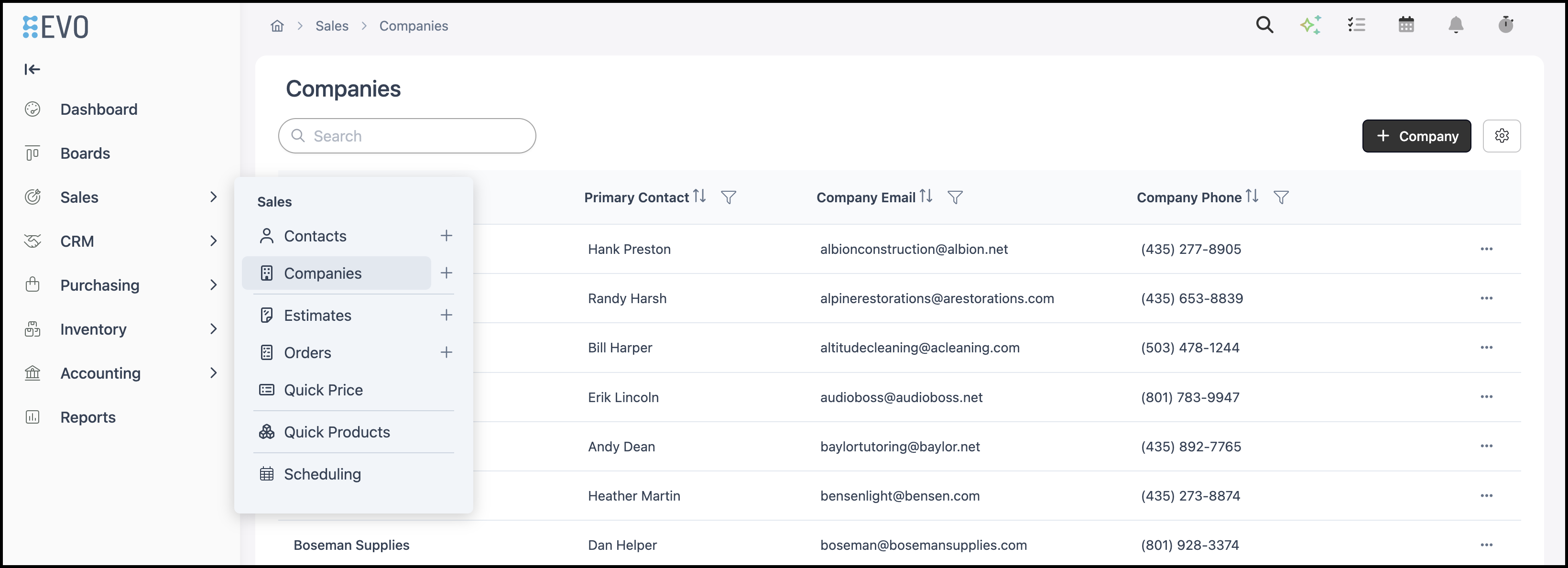
1. Click Chat.
The panel title is the Company name followed by Chat.
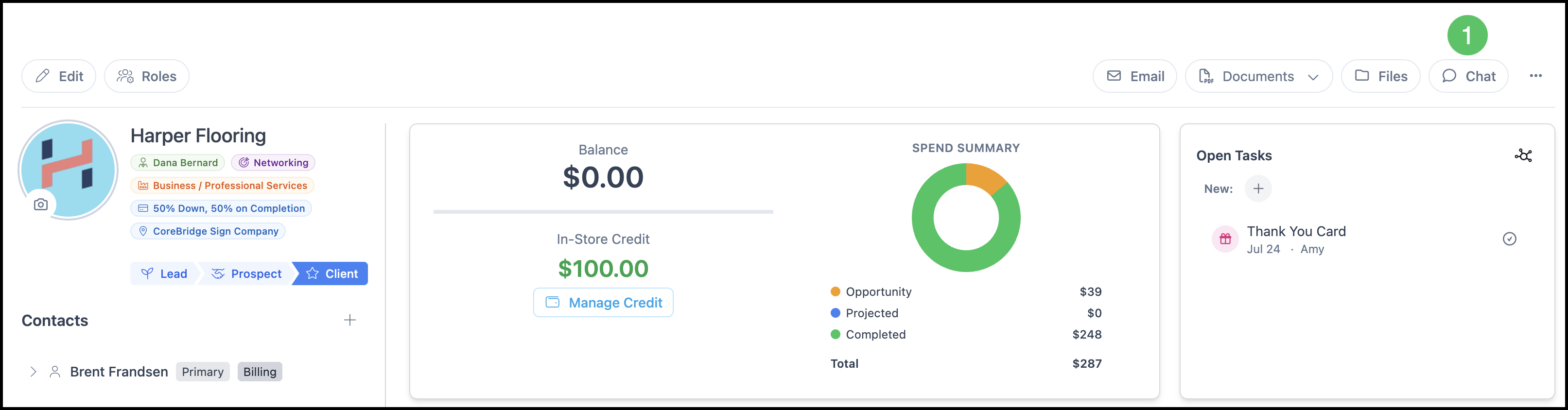
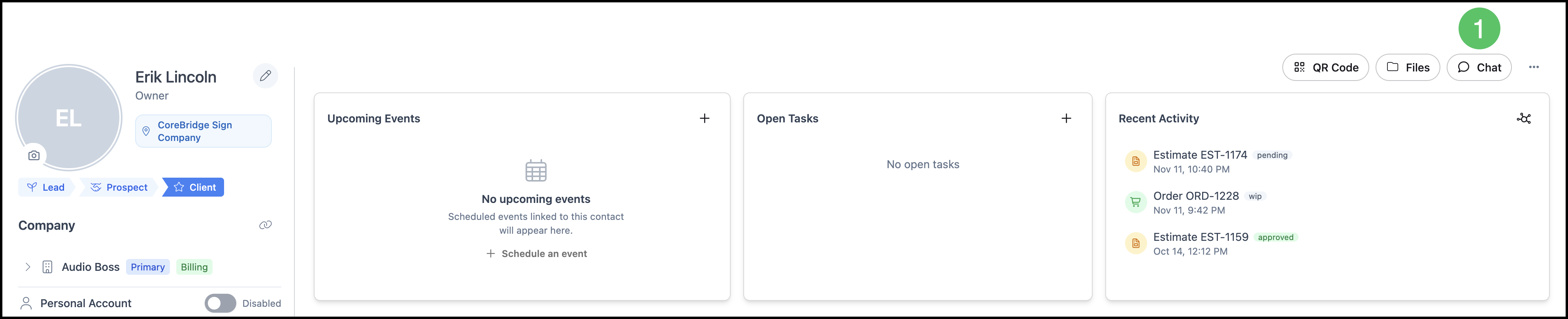
Opening Chat on a Contact
Navigate to Sales / Contacts and select the Contact.
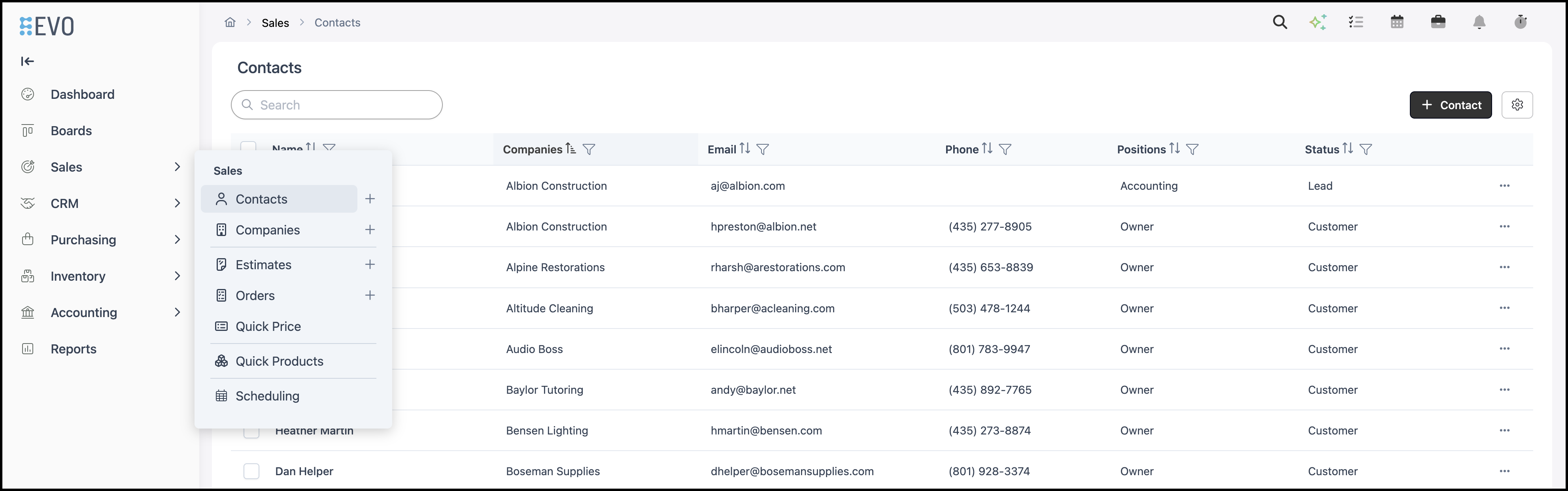
1. Click Chat.
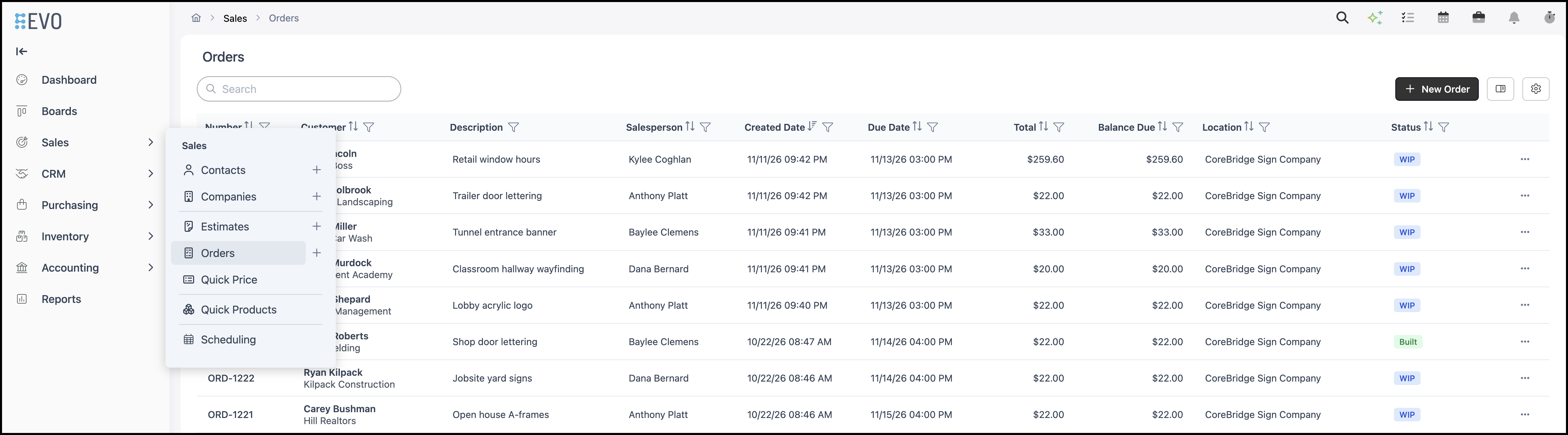
Opening Chat on an Order
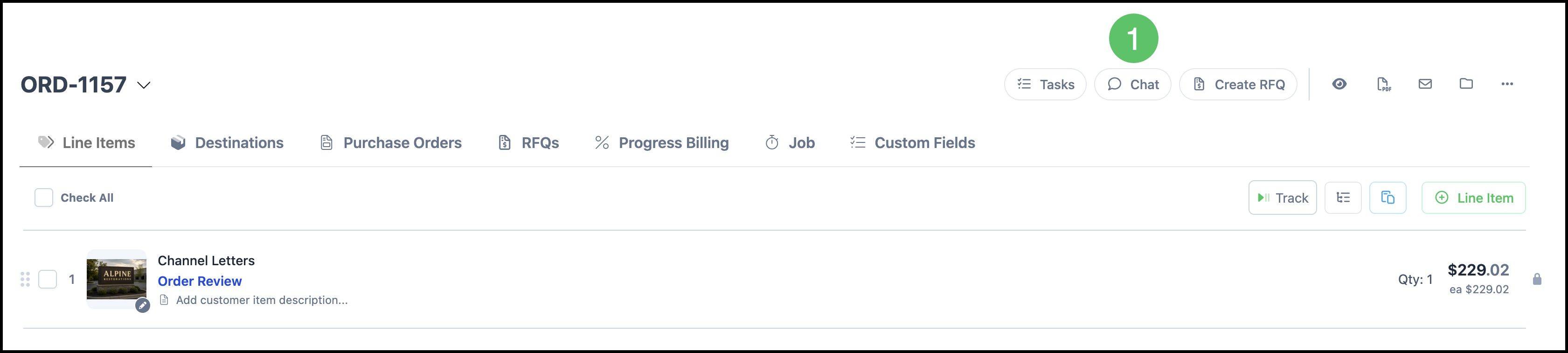
Navigate to Sales / Orders and open the Order.
1. Click Chat.
Adding a Note
These steps are the same on a Contact, a Company, and an Order.
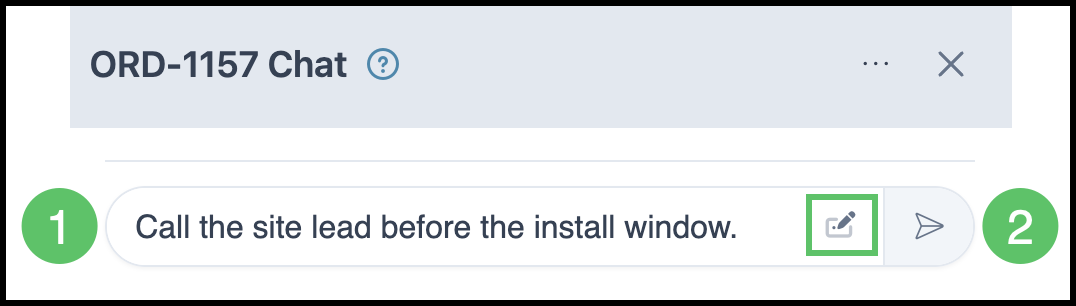
1. Enter the note in the message field.
Note: Rich Text Editor opens bold, italic, underline, a list, a link, and Insert Table.
2. Click Post.
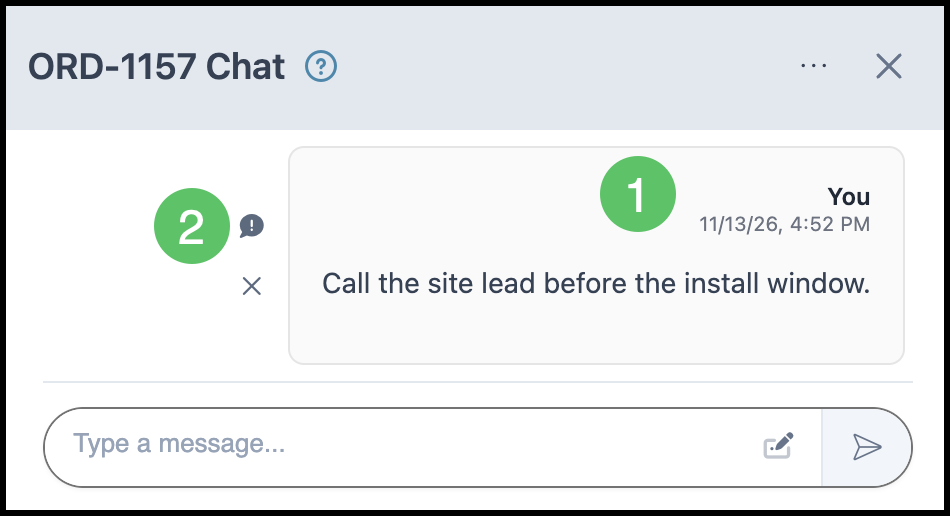
Marking a Note as Important
1. Hover over the note.
2. Select the Important icon. An orange icon appears beside the note. Select the icon again to clear it.
Removing a Note
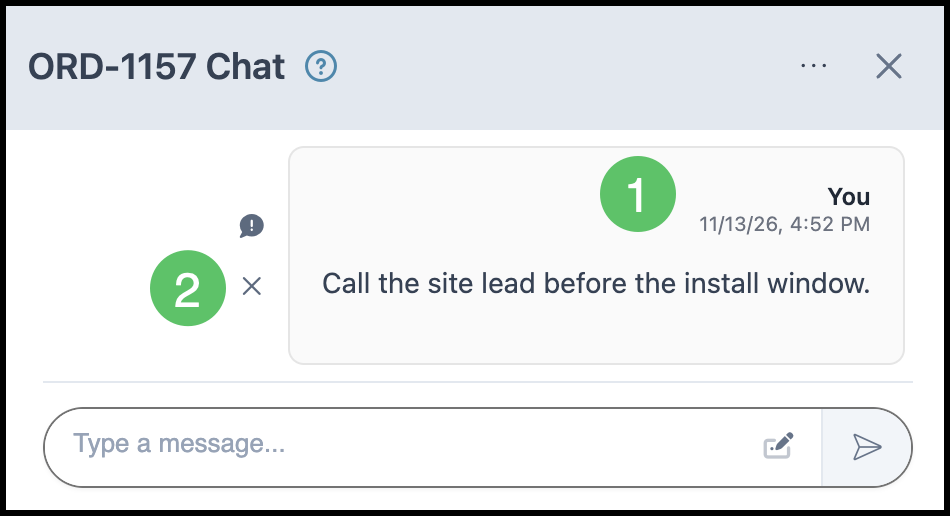
1. Hover over the note.
2. Select the X icon. The note leaves the list.
Note: Chat actions includes Show Hidden, which displays a removed note with a line through the text.
Example: