
Statement Document Defaults set the starting page, language, layout, and content for every Statement. They are configured in Document Settings on the Statement document type. Those defaults apply when a Statement is prepared for email, the online portal, or print and download.
Table of Contents
- Important Information
- Opening Statement Settings
- Page
- Language
- Layout
- Content
- Saving
- Frequently Asked Questions
- Related Articles
Important Information
- Statement Document Defaults apply to every Statement. They are separate from the individual templates in Documents. See Document Options.
- Include turns an option on for this document type. Unchecking Include hides the option and turns Editable on Document off.
- Editable on Document, when on, allows the setting to be changed while the Statement is prepared. When it is off, the value set here is always used. This control is unavailable while Include is unchecked.
- Default is the starting value for this document type.
- The invoice table always includes Invoice, Description, Invoice Date, Due Date, Amount, Paid, and Balance. Aging always includes Current, 1-30, 31-60, 61-90, Over 90, and Amount Due.
Opening Statement Settings
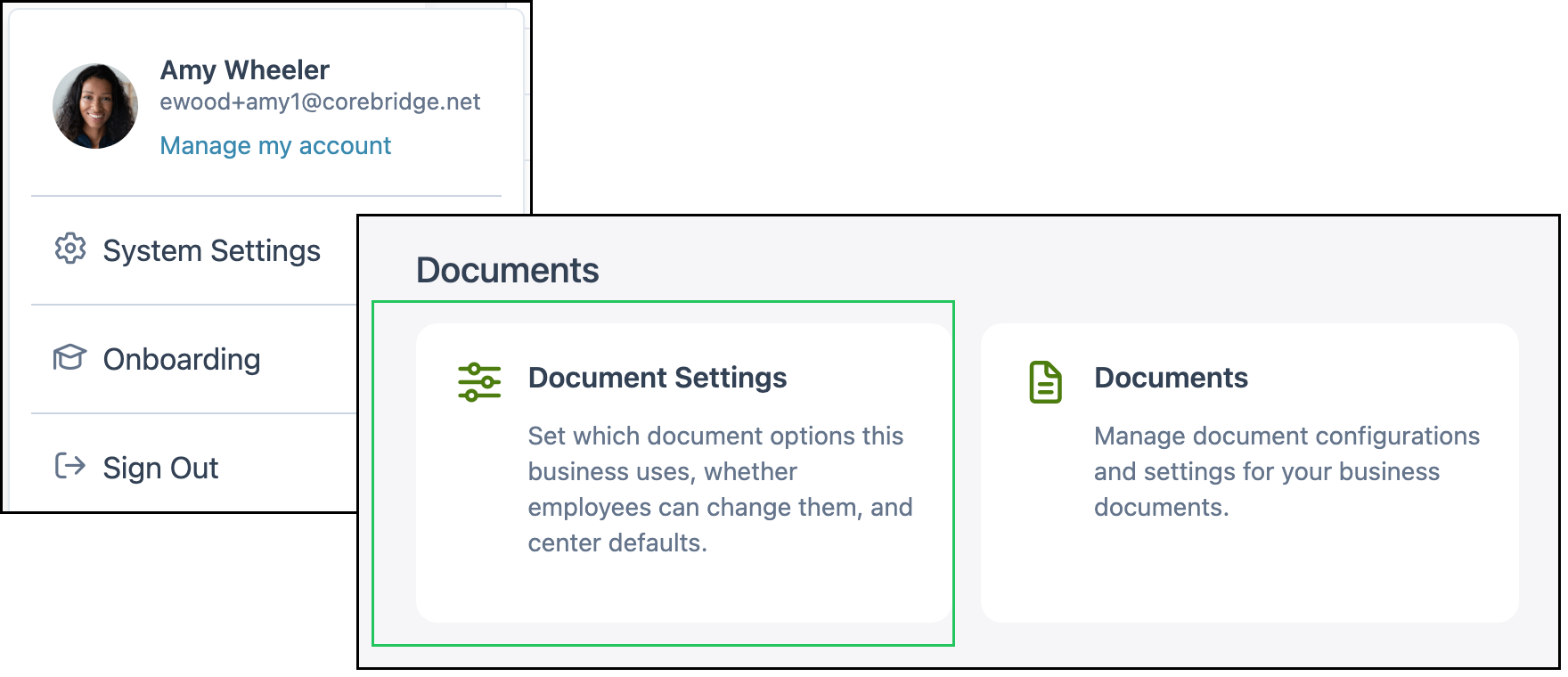
Navigate to System Settings / Documents / Document Settings.
1. Click Statement.
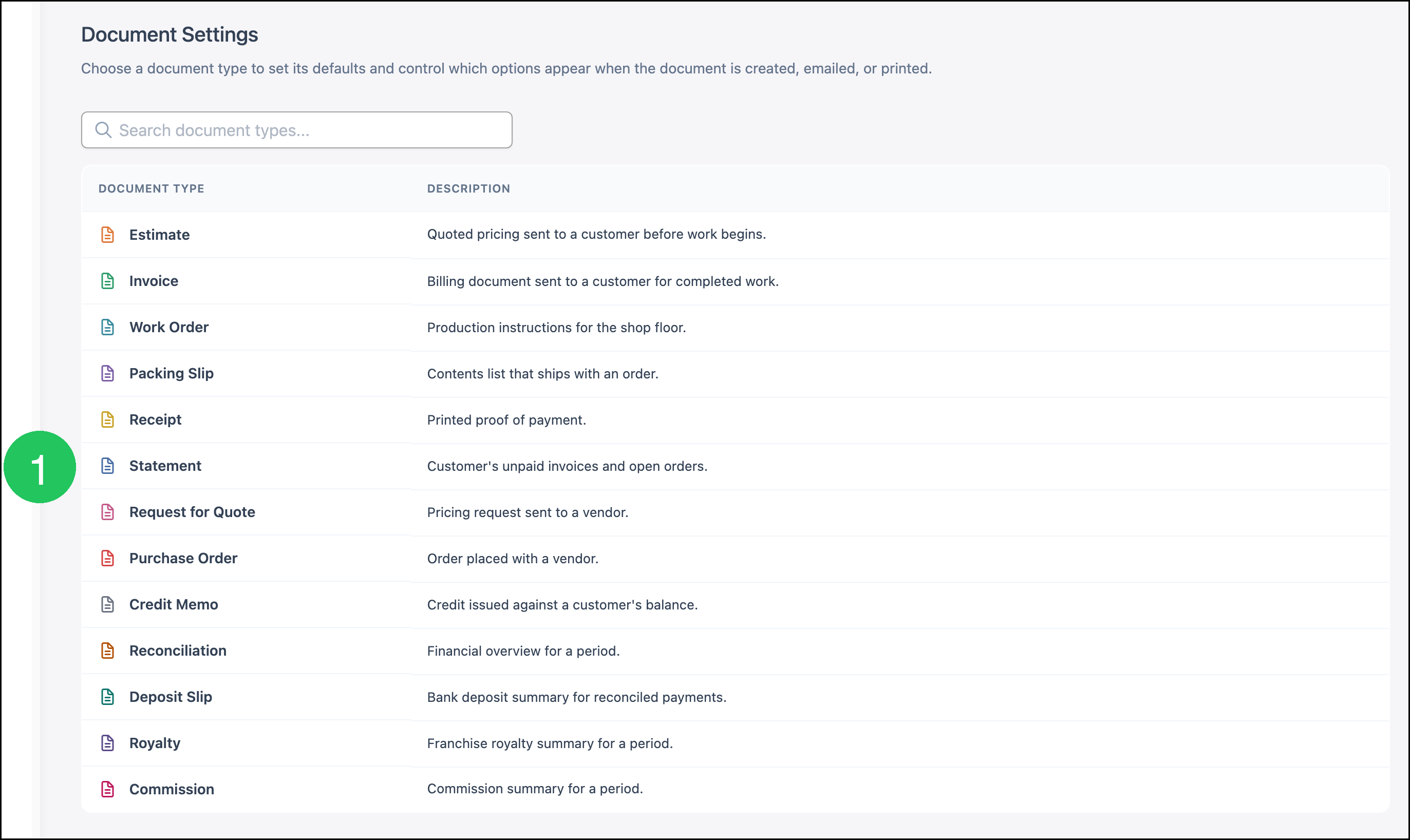
Statement Settings opens. Page, Language, Layout, and Content are the four areas for this document type.
Page
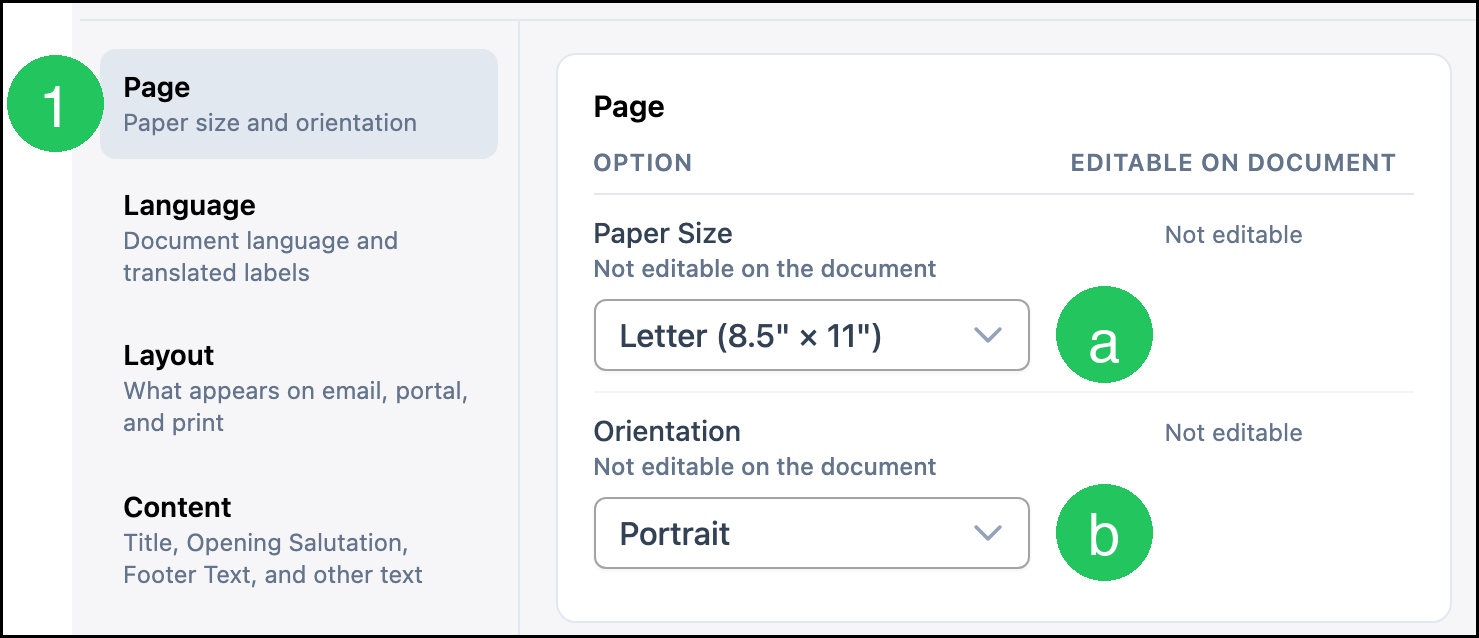
1. Click Page. Page is already open when Statement Settings first loads.
a. Paper Size is the page size. It is not editable on the document. This example uses Letter (8.5" × 11").
b. Orientation is Portrait or Landscape. It is not editable on the document. This example uses Portrait.
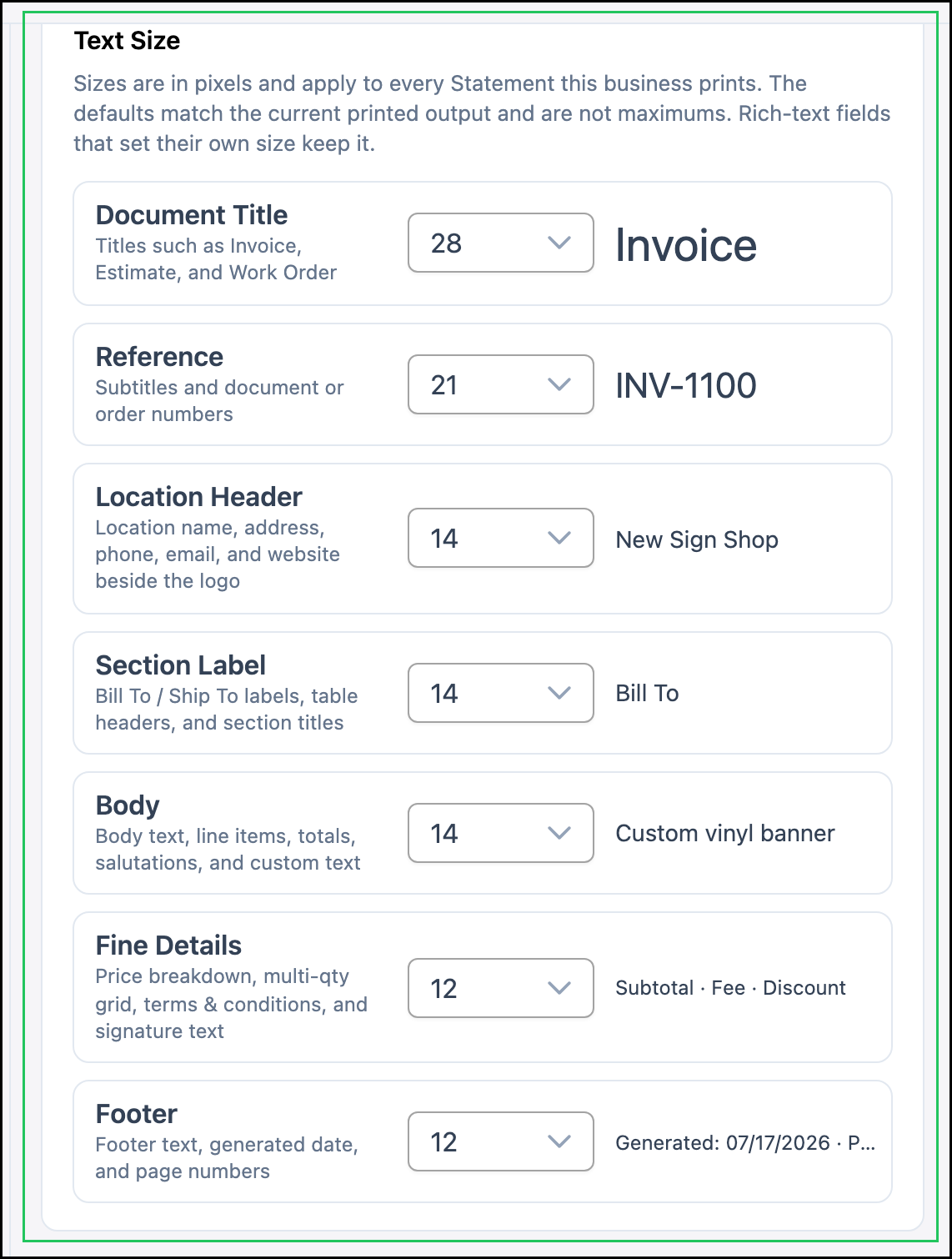
Text Size sets the type size, in pixels, for each role on the Statement. The sizes apply to every Statement. A rich-text field that sets its own size keeps that size.
Language
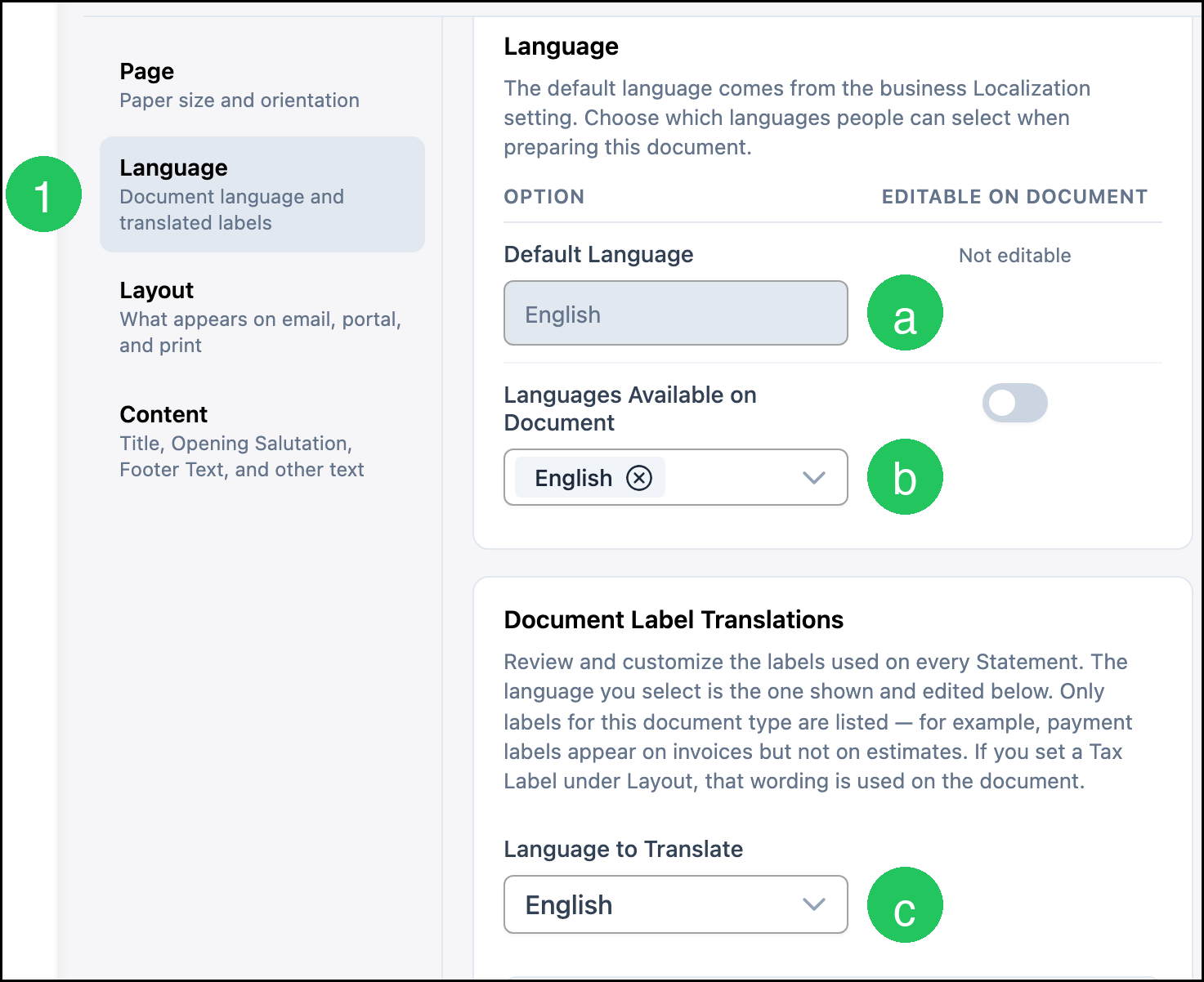
1. Click Language.
a. Default Language comes from the business Localization setting. It is not editable on the document.
b. Languages Available on Document lists the languages people can select while preparing the Statement.
c. Language to Translate is the language shown in Document Label Translations.
d. Custom Text replaces the printed wording for that label. This example uses Billed To for Bill To and Date for Statement Date.
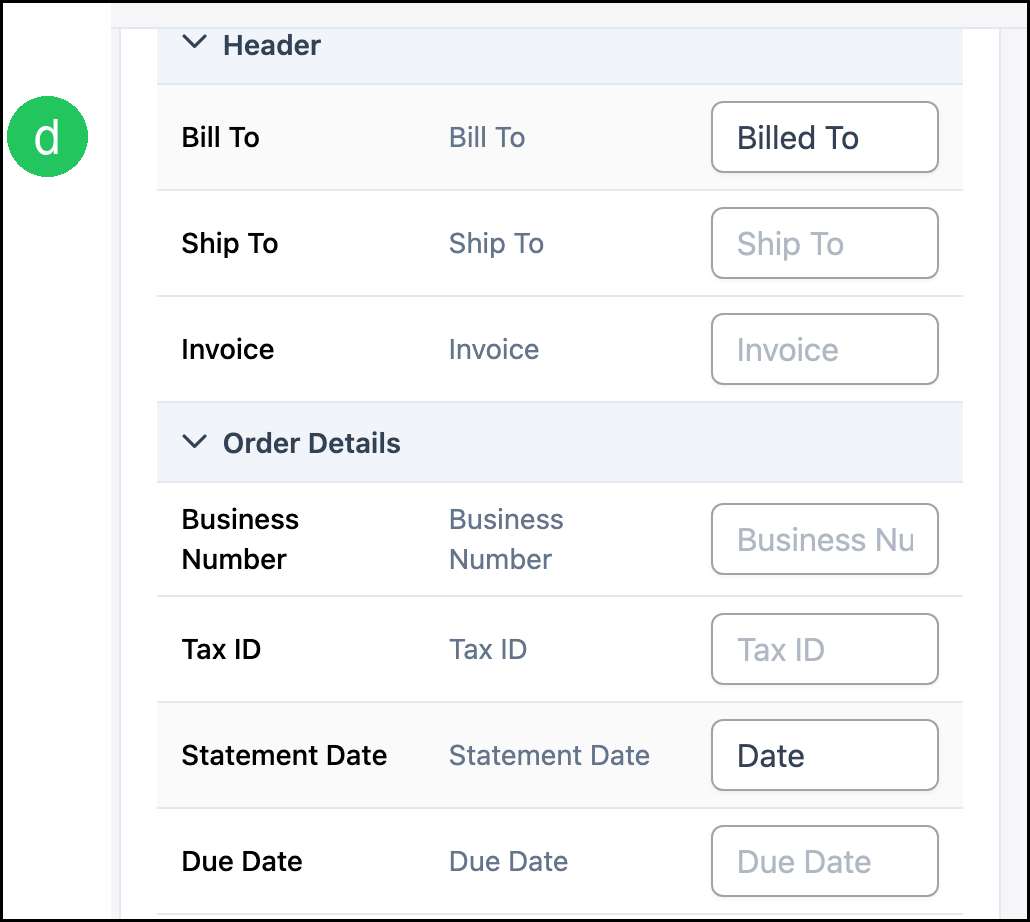
Note: Only labels for this document type are listed.
Layout
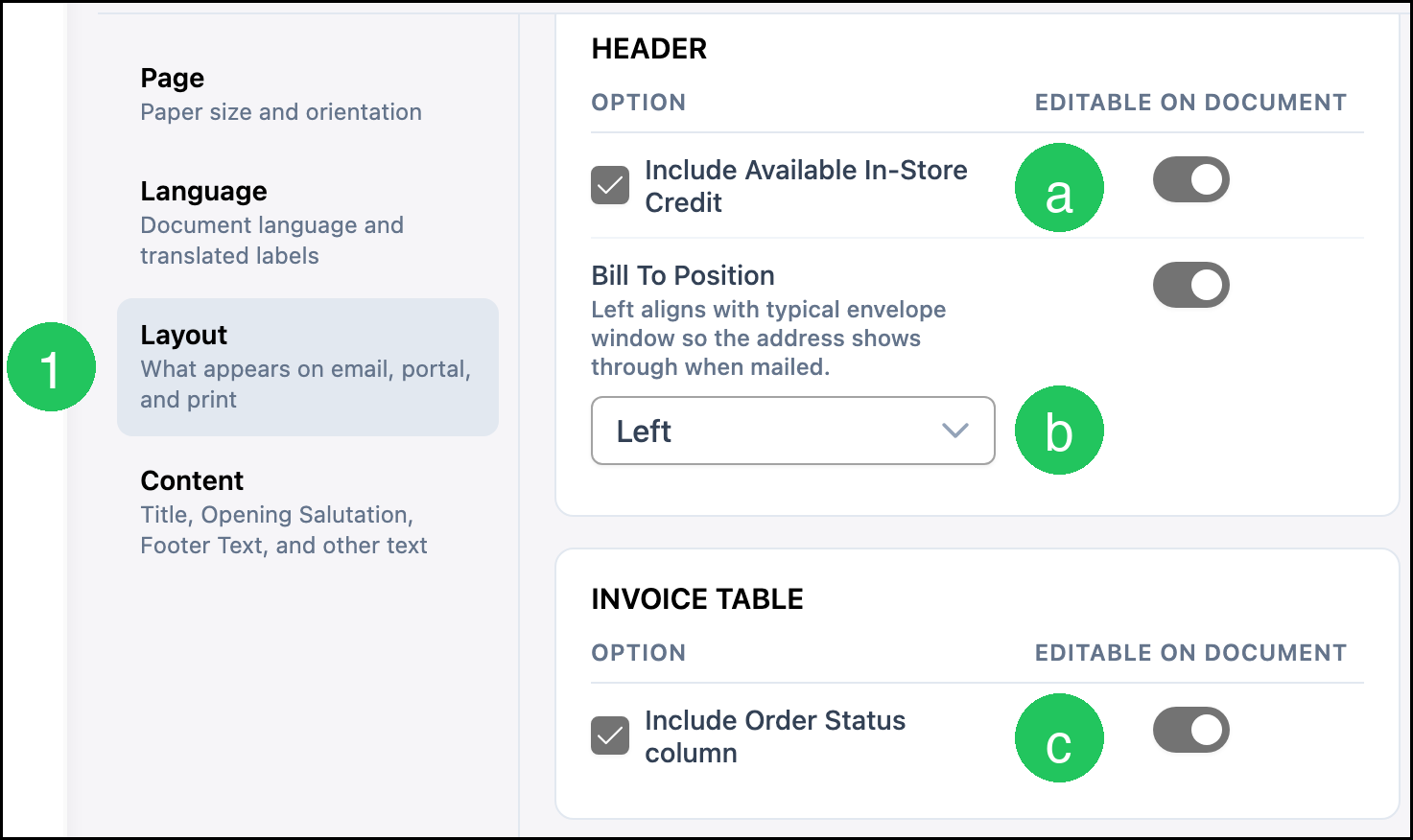
1. Click Layout.
a. Include Available In-Store Credit shows the company's available in-store credit on the Statement. See Using In-Store Credit.
b. Bill To Position places the bill-to address at the Left, Center, or Right. Left aligns with a typical envelope window so the address shows through when mailed.
c. Include Order Status column adds an Order Status column to the invoice table.
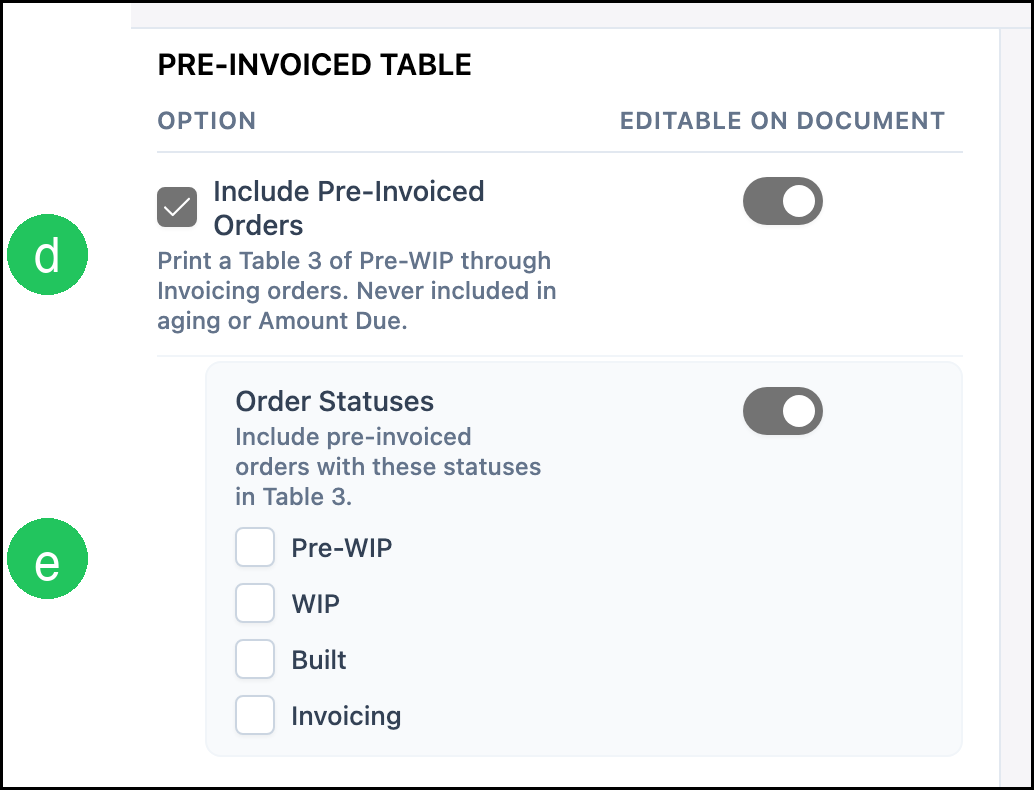
d. Include Pre-Invoiced Orders prints a table of orders from Pre-WIP through Invoicing. Those orders are not included in aging or Amount Due.
e. Order Statuses chooses which of those statuses are included: Pre-WIP, WIP, Built, and Invoicing.
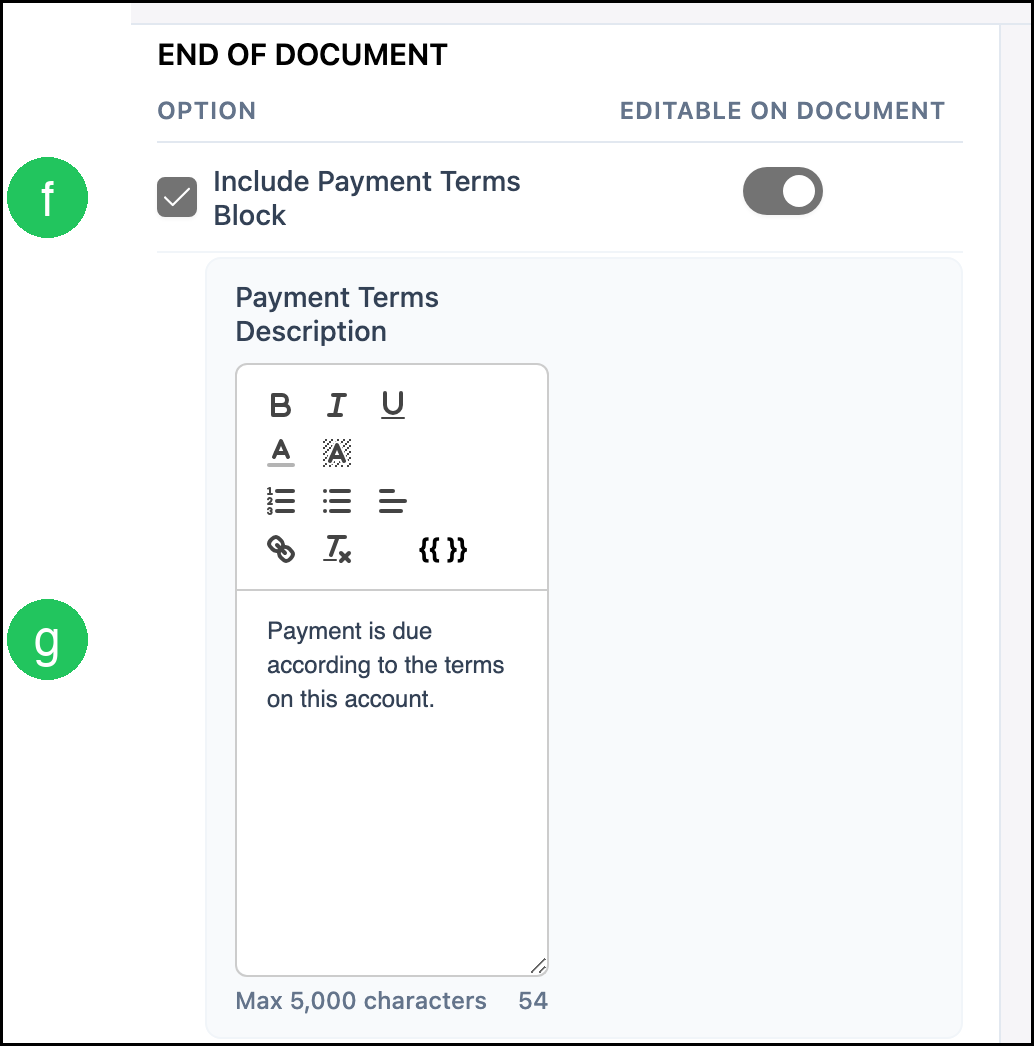
f. Include Payment Terms Block shows the payment terms at the end of the Statement.
g. Payment Terms Description is the payment terms text. It allows up to 5,000 characters.
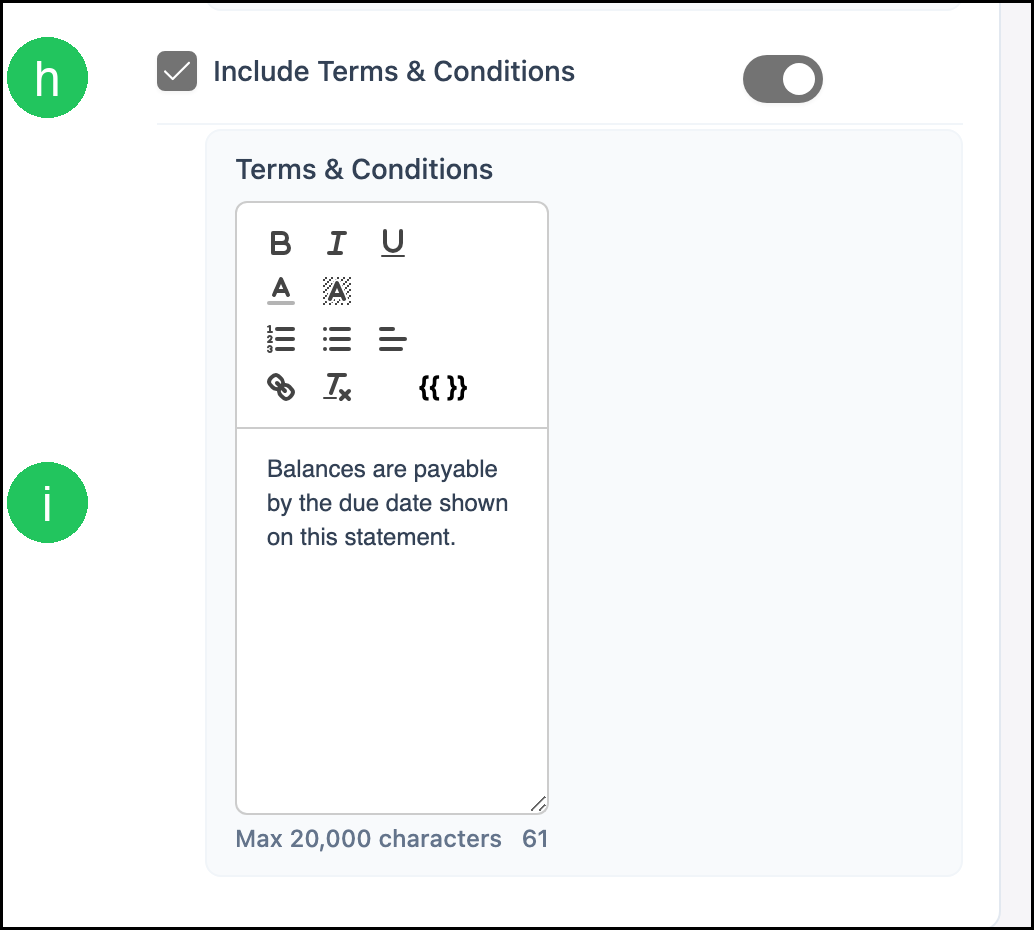
h. Include Terms & Conditions shows the terms and conditions at the end of the Statement.
i. Terms & Conditions is that text. It allows up to 20,000 characters.
Content
1. Click Content.
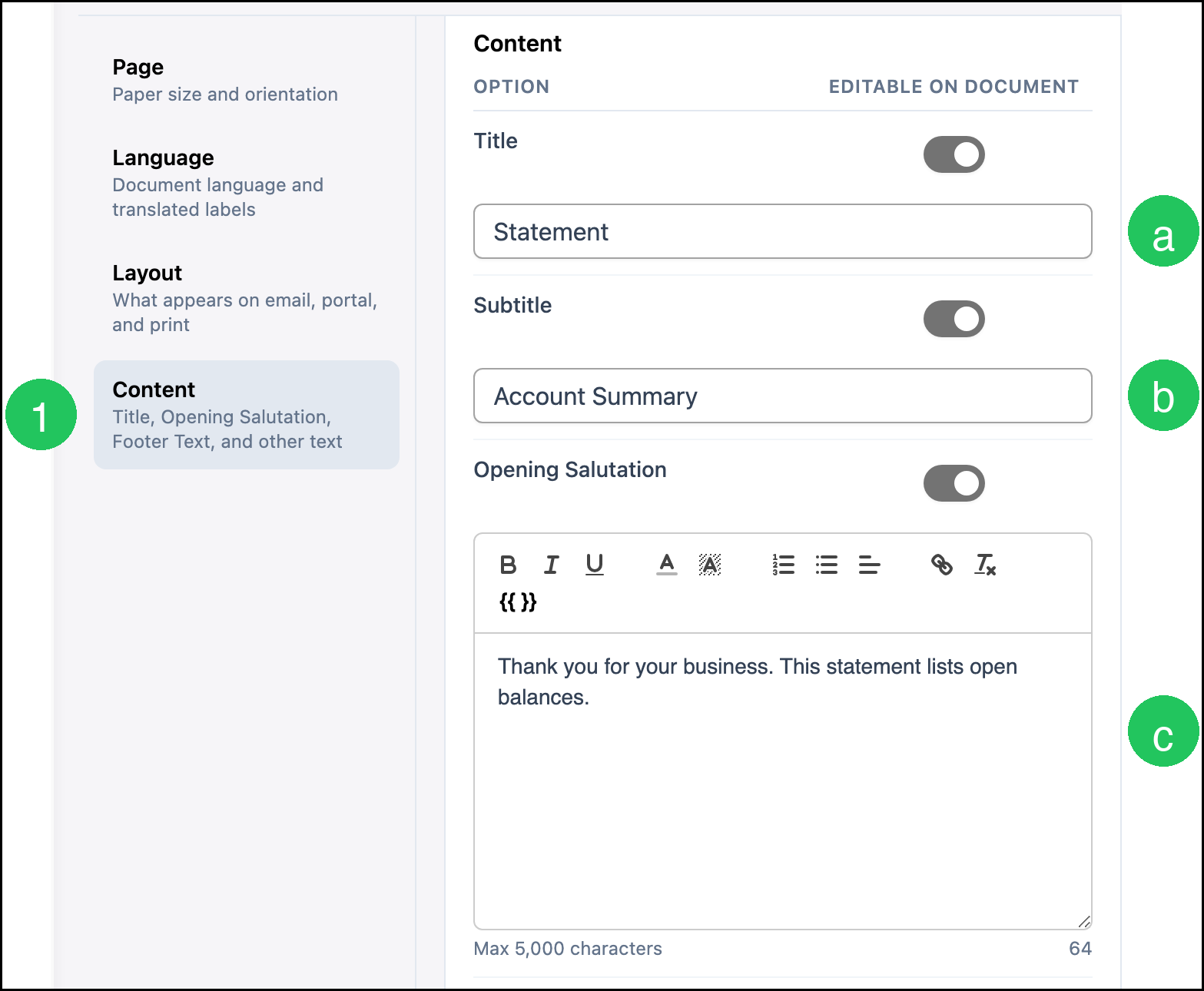
a. Title is the document title. This example uses Statement.
b. Subtitle is the line under the title. This example uses Account Summary.
c. Opening Salutation is the greeting at the start of the Statement.
Custom Text 1 and Custom Text 2 hold extra text. Each allows up to 5,000 characters. Footer Text allows up to 100 characters. Opening Salutation allows up to 5,000 characters.
Saving
1. Click Save.
Note: Click Discard to revert unsaved changes.
Frequently Asked Questions
1. Do these settings change one Statement or every Statement?
Answer: They apply to every Statement. A change here is the starting setup the next time a Statement is prepared.
2. Where is one Statement template changed?
Answer: Templates are managed in Documents. See Document Options.
3. Are pre-invoiced orders included in Amount Due?
Answer: No. Include Pre-Invoiced Orders prints them in a separate table. They are not included in aging or Amount Due.
4. How are printed words such as Bill To or Amount Due changed?
Answer: Open Language, choose Language to Translate, enter the wording in Custom Text, and click Save.