
On the Order tab of Workflow Statuses, you can hide Pre-WIP or Invoicing for your business. When a stage is hidden, it is removed from order workflows, search filters, and status dropdowns.
This article shows how to hide a stage and how to show it again.
Table of Contents
- Important Information
- Hiding Invoicing or Pre-WIP
- Showing Invoicing or Pre-WiP
- Frequently Asked Questions
- Related Articles
Important Information
- Only Pre-WIP and Invoicing on the Order tab have a visibility switch. Other Order stages, such as WIP and Built, stay visible.
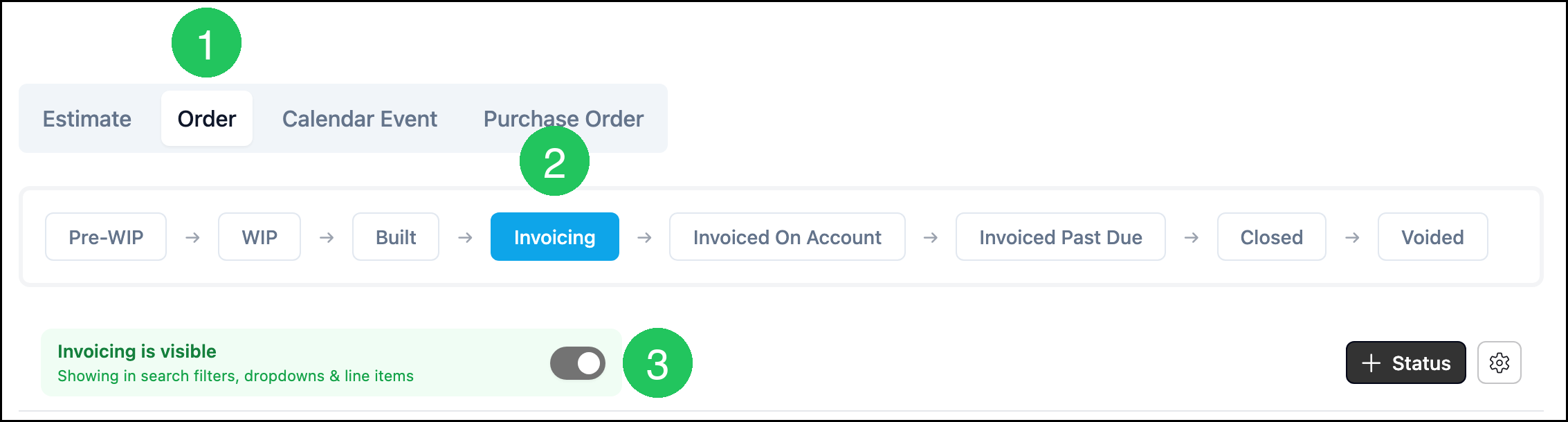
- When the stage is shown, the banner reads Invoicing is visible (or Pre-WIP is visible) and Showing in search filters, dropdowns & line items. When it is hidden, the banner reads Invoicing is hidden (or Pre-WIP is hidden) and Not appearing in search filters, dropdowns & line items.
- Hiding a stage does not delete its item statuses. Those statuses still appear on the Workflow Statuses page.
Hiding Invoicing or Pre-WIP
Navigate to System Settings / Workflow / Workflow Statuses.
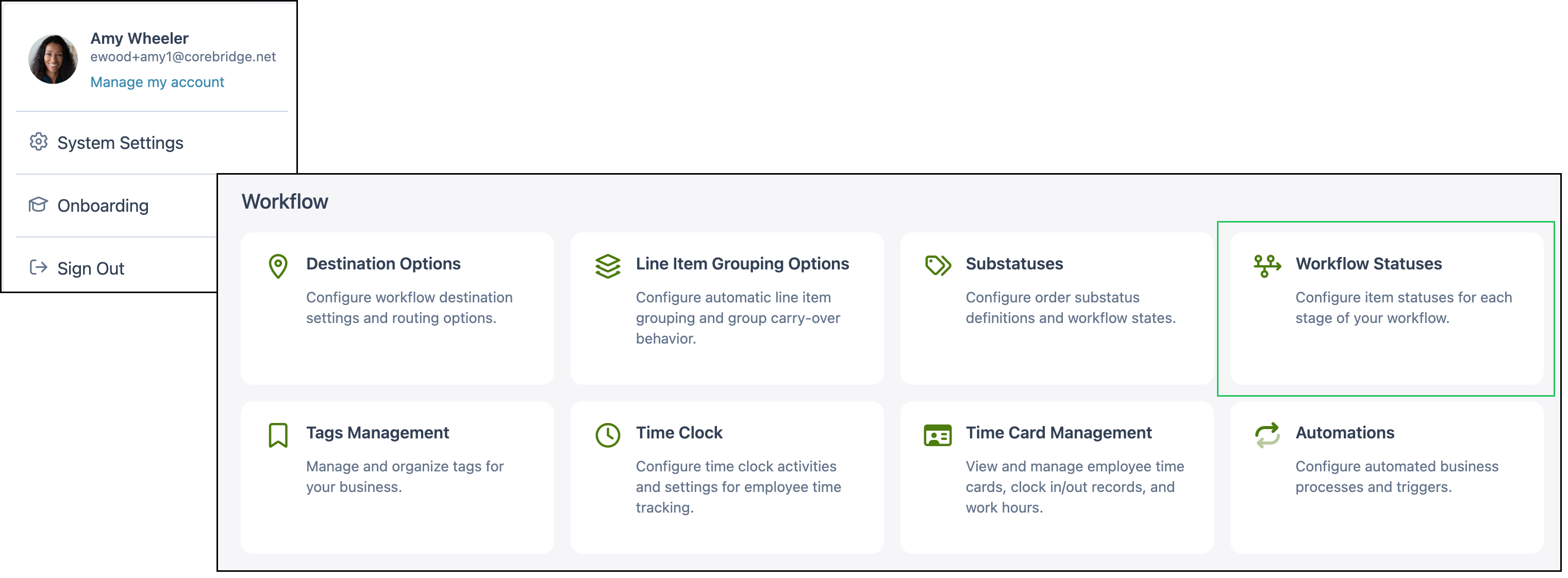
Note: This example uses Invoicing. The same steps apply to Pre-WIP.
1. Select Order.
2. Select Invoicing or Pre-WIP.
3. Click the switch so the banner no longer reads that the stage is visible. The Hide window opens.
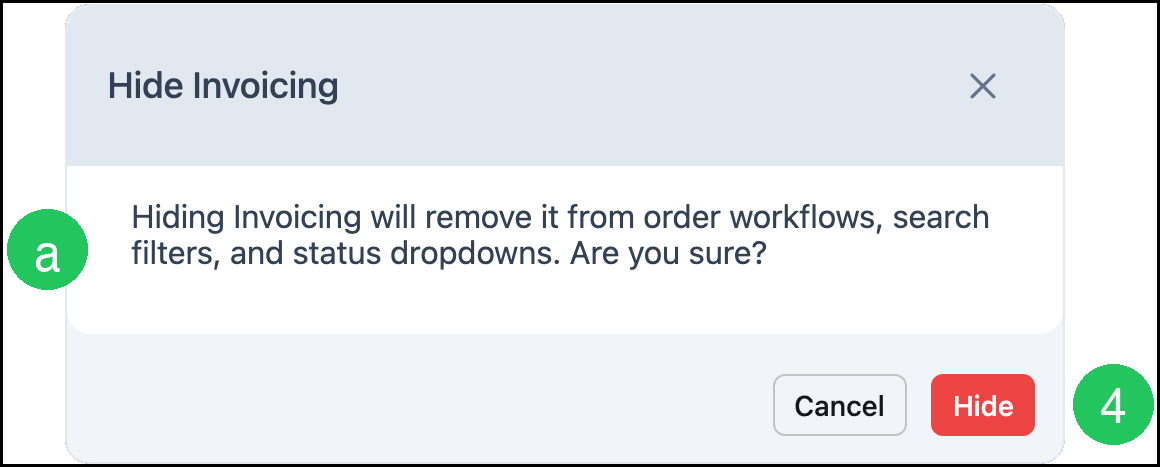
The Hide Invoicing window opens (or Hide Pre-WIP if you selected Pre-WIP).
a. The message explains that hiding the stage removes it from order workflows, search filters, and status dropdowns.
4. Click Hide.
Showing Invoicing or Pre-WiP
On Workflow Statuses:
1. Select Order.
2. Select the hidden Invoicing or Pre-WIP stage.
3. Click the switch so the banner reads Invoicing is visible (or Pre-WIP is visible).
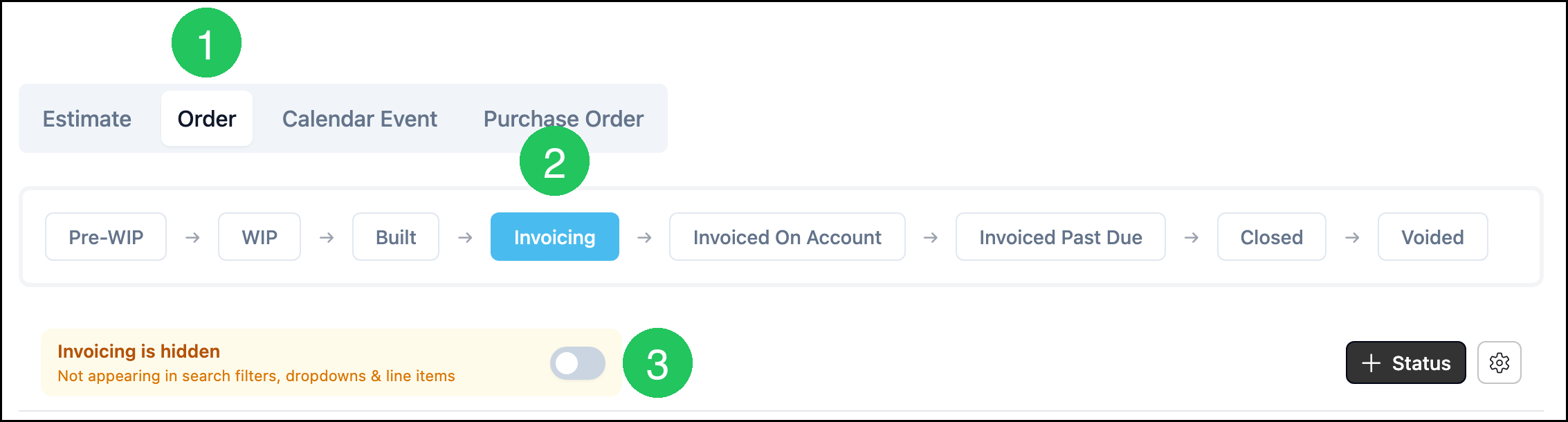
Note: Showing a stage does not open a confirmation window.
Frequently Asked Questions
1. Which order stages can I hide?
Answer: Only Pre-WIP and Invoicing on the Order tab have a visibility switch. Other stages stay visible.
2. How do I show a hidden stage again?
Answer: On the Order tab, select the hidden stage, then click the switch so the banner reads that the stage is visible.
3. What happens when I hide Invoicing or Pre-WIP?
Answer: The stage is removed from order workflows, search filters, and status dropdowns. Item statuses for that stage remain on the Workflow Statuses page.