
Order Fees and Line Item Fees let you add charges at the order level or on individual line items. This article explains how to set up these fees in System Settings and how to apply them on an Estimate or Order.
Table of Contents
- Navigating to Order & Line Item Fees
- Setting Up Order Fees
- Setting Up Line Item Fees
- Applying Fees on an Estimate or Order
- Related Articles
Navigating to Order & Line Item Fees
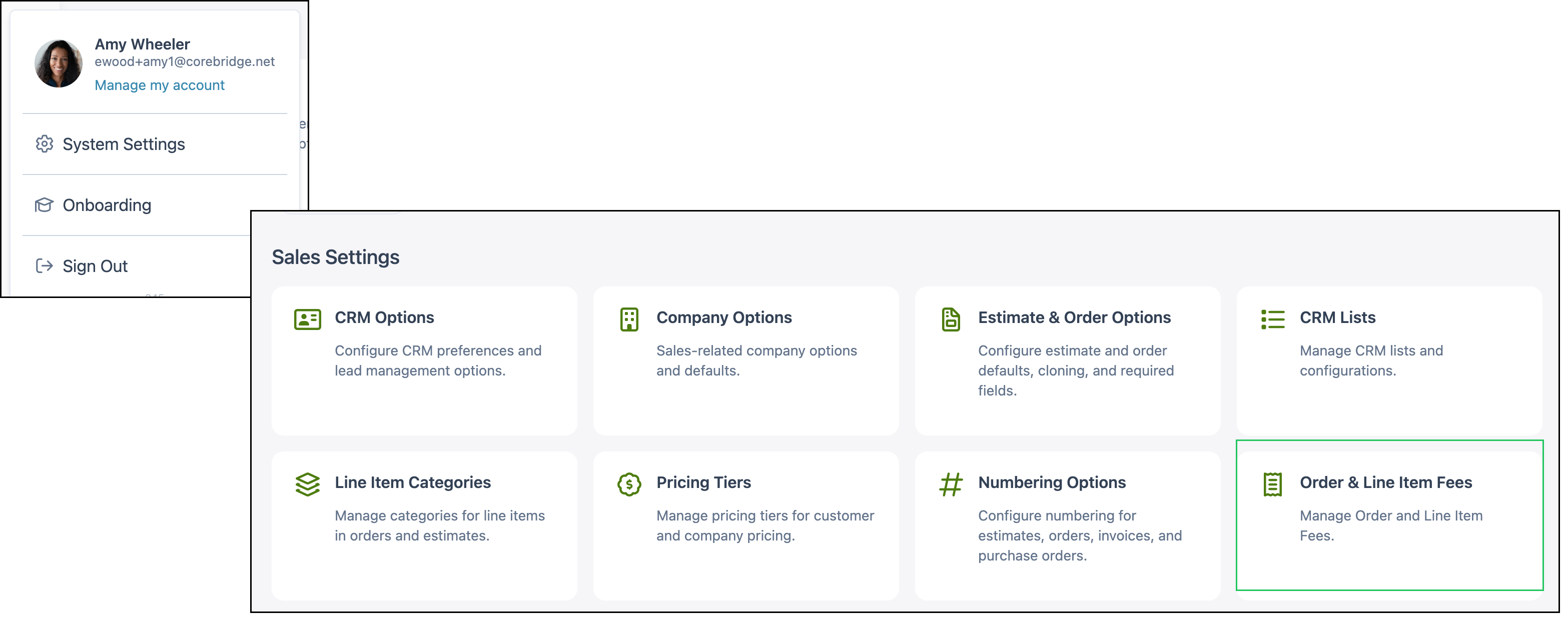
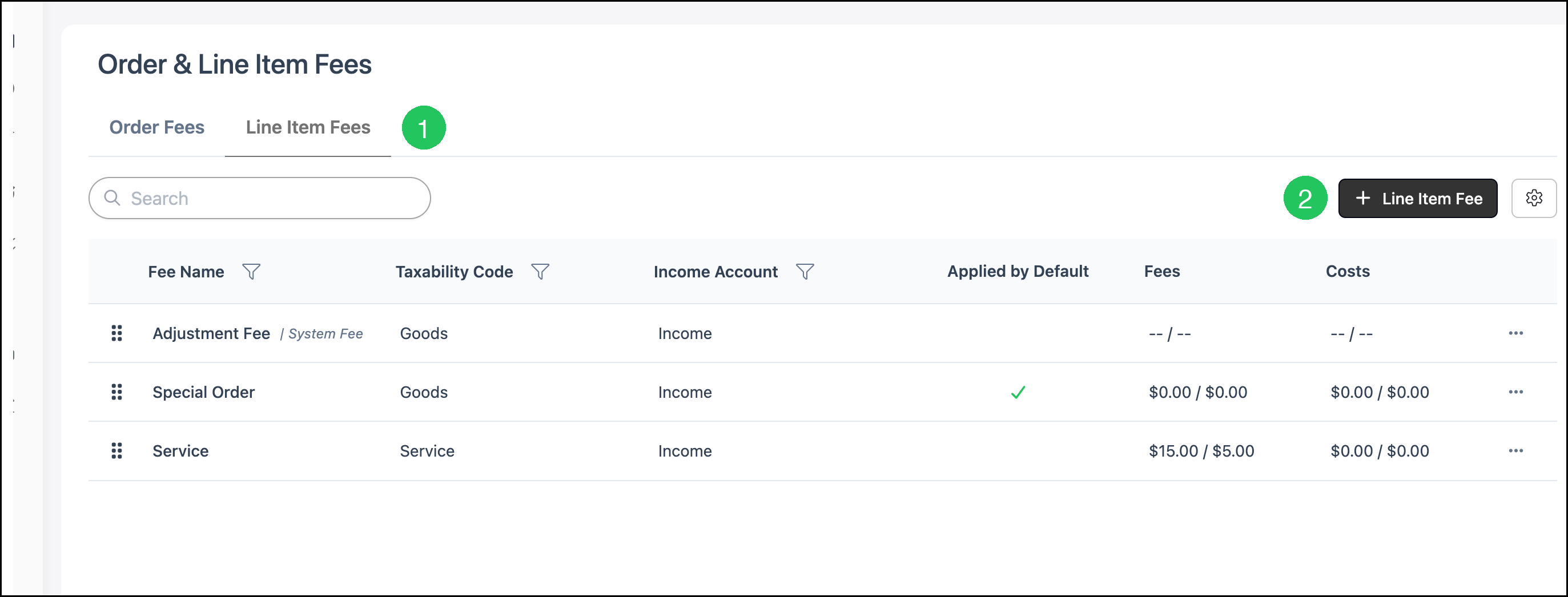
Navigate to System Settings / Sales Settings / Order & Line Item Fees.
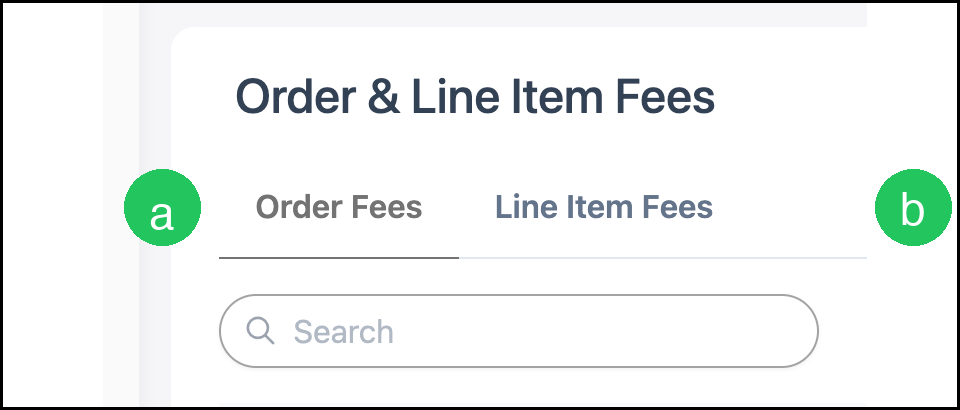
The Order & Line Item Fees screen includes two tabs:
a. Order Fees - Fees that apply to the overall Estimate or Order.
b. Line Item Fees - Fees that apply to individual line items.
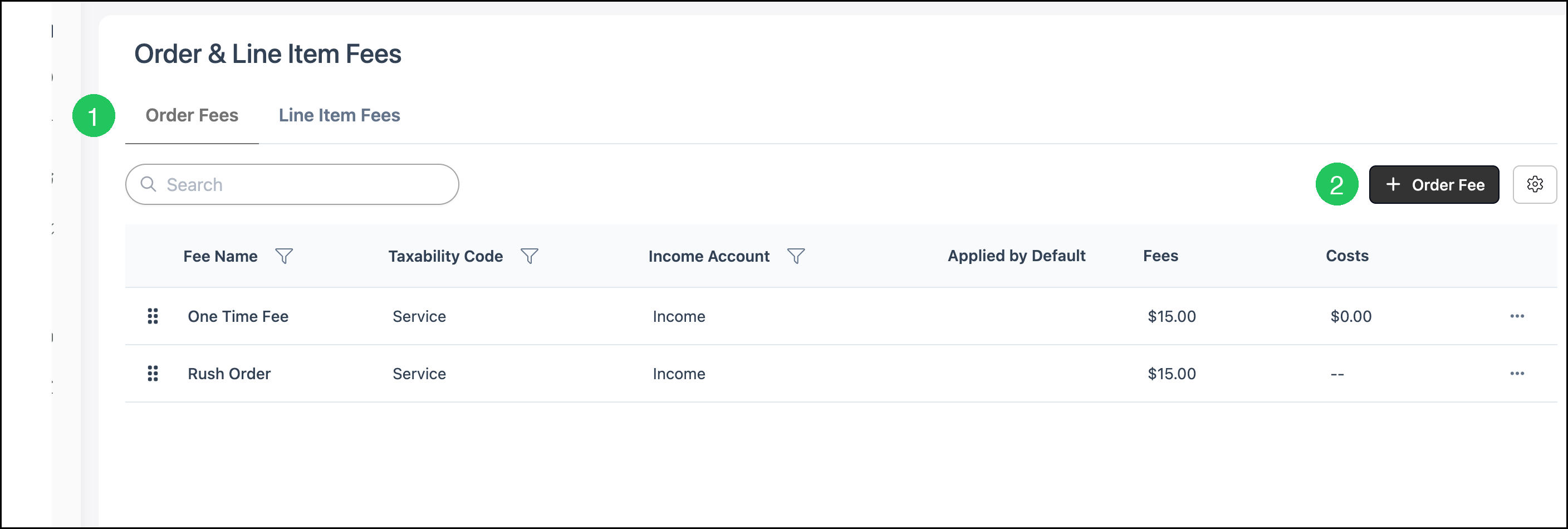
Setting Up Order Fees
1. Select the Order Fees tab.
2. Click Order Fee to create a new fee, or select an existing fee to edit it.
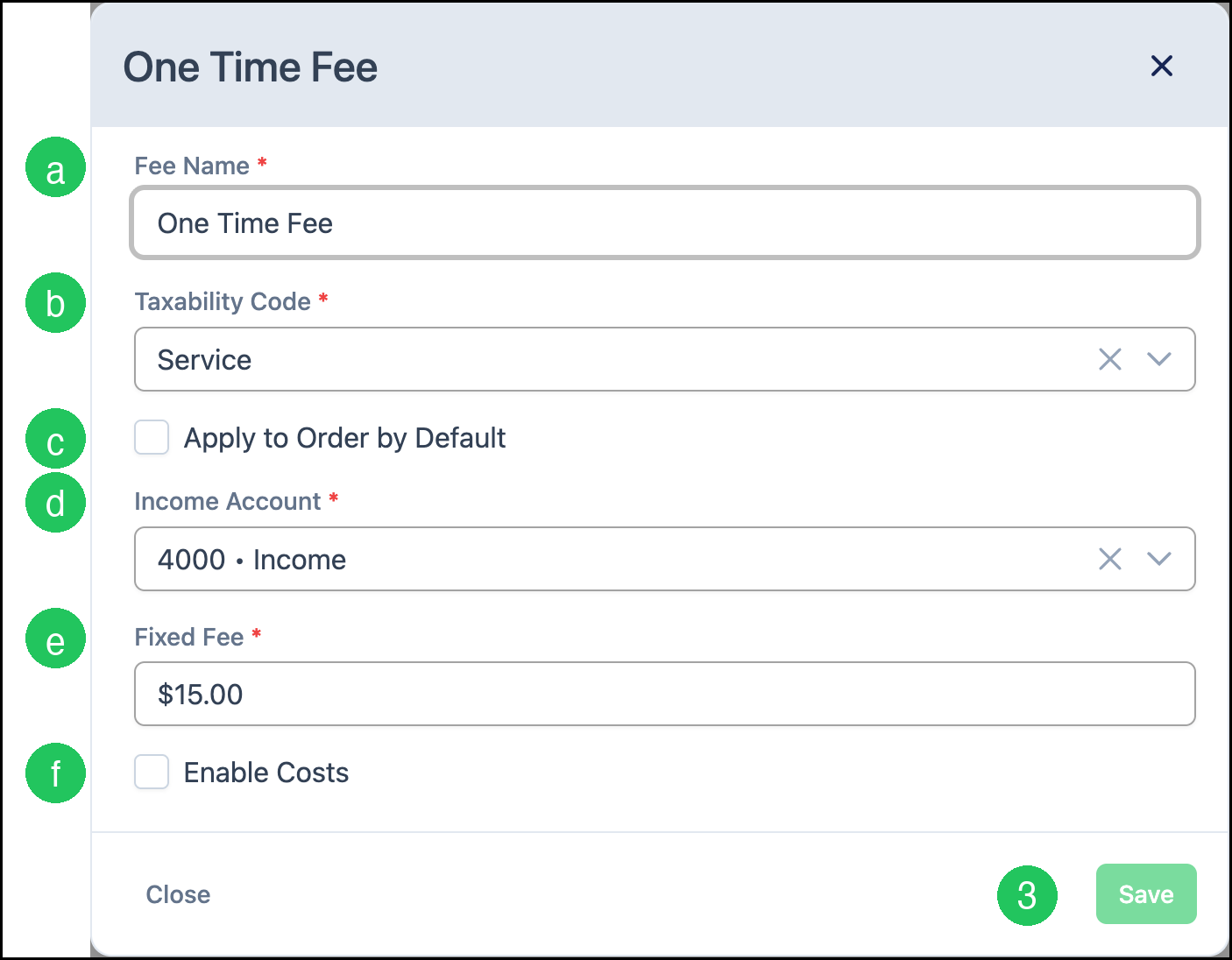
Complete the fields in the dialog:
a. Fee Name - The name of the fee as it appears in Order Entry and reporting.
b. Taxability Code - Determines whether the fee is taxable or tax exempt. This can be overridden during Order Entry when needed.
c. Apply to Order by Default - When selected, the fee is automatically added to each new Order. Users with the correct permissions can remove it.
d. Income Account - The GL Account used for financial reporting. This can be overridden during Order Entry when needed.
e. Fixed Fee - The default fee amount. This can be overridden during Order Entry when needed.
f. Enable Costs - When selected, the fee also records cost. Additional cost fields appear for the expense account and fixed cost.
3. Click Save.
Setting Up Line Item Fees
1. Select the Line Item Fees tab.
2. Click Line Item Fee to create a new fee, or select an existing fee to edit it.
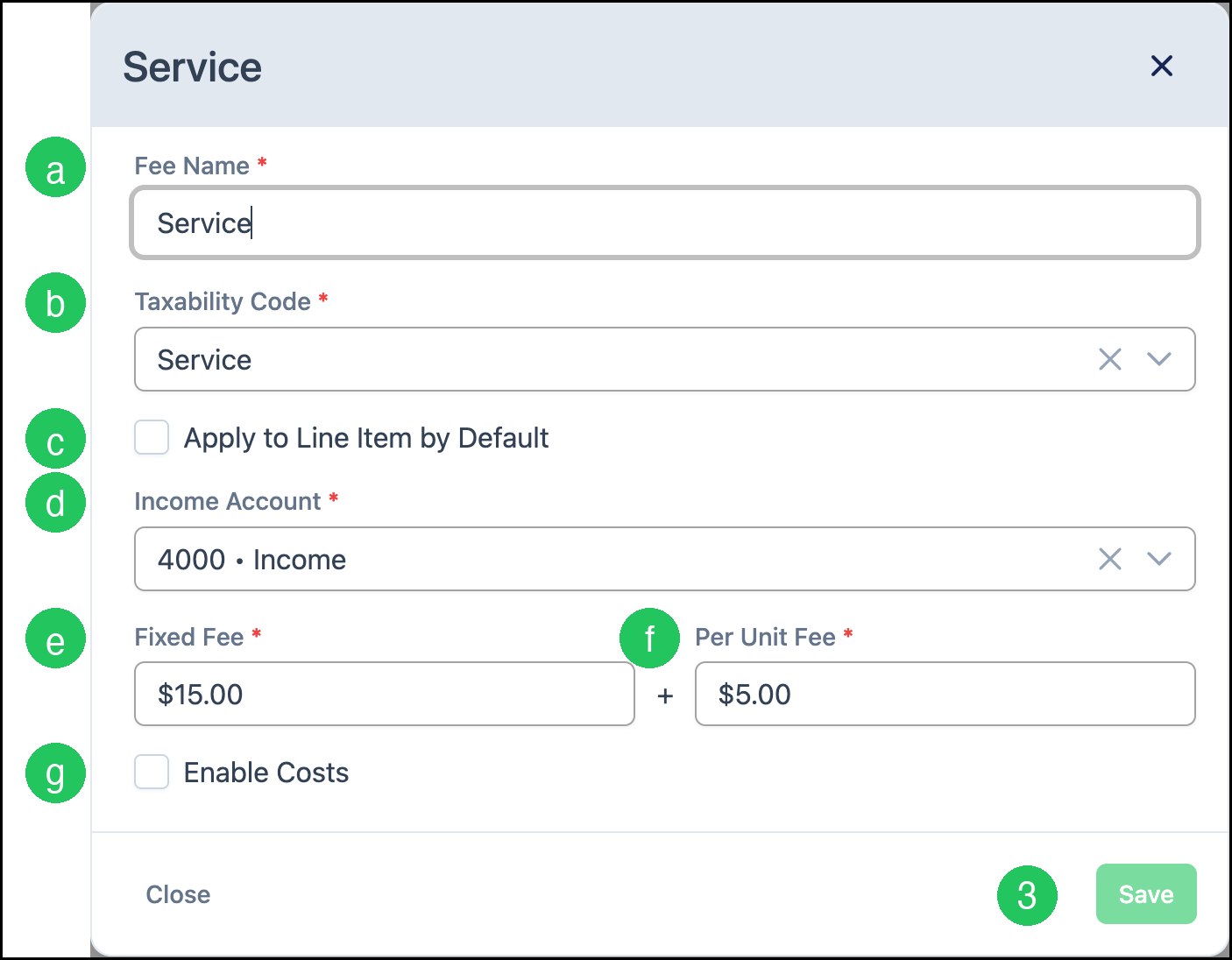
Complete the fields in the dialog:
a. Fee Name - The name of the fee as it appears in Order Entry and reporting.
b. Taxability Code - Determines whether the fee is taxable or tax exempt. This can be overridden during Order Entry when needed.
c. Apply to Line Item by Default - When selected, the fee is automatically added to each new line item. Users with the correct permissions can remove it.
d. Income Account - The GL Account used for financial reporting. This can be overridden during Order Entry when needed.
e. Fixed Fee - A default amount charged once per line item.
f. Per Unit Fee - A default amount charged for each unit of the line item quantity. For example, a Per Unit Fee of $0.50 on a line item with a quantity of 10 calculates to $5.00, plus any Fixed Fee.
g. Enable Costs - When selected, the fee also records cost. Additional cost fields appear for the expense account, fixed cost, and per unit cost.
Note: The total fee amount can be overridden during Order Entry when needed. Cost amounts cannot be overridden during Order Entry.
3. Click Save.
Applying Fees on an Estimate or Order
Fees configured in System Settings can be reviewed and managed from an Estimate or Order.
1. Open an Estimate or Order.
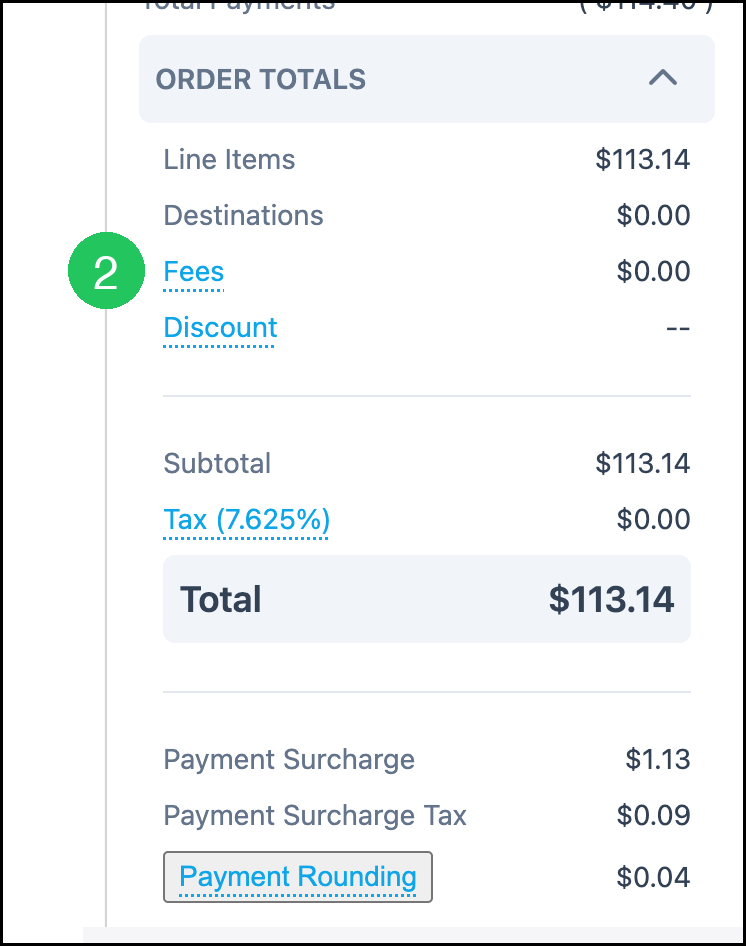
2. In the Order Totals (or Estimate Totals) section, click Fees.
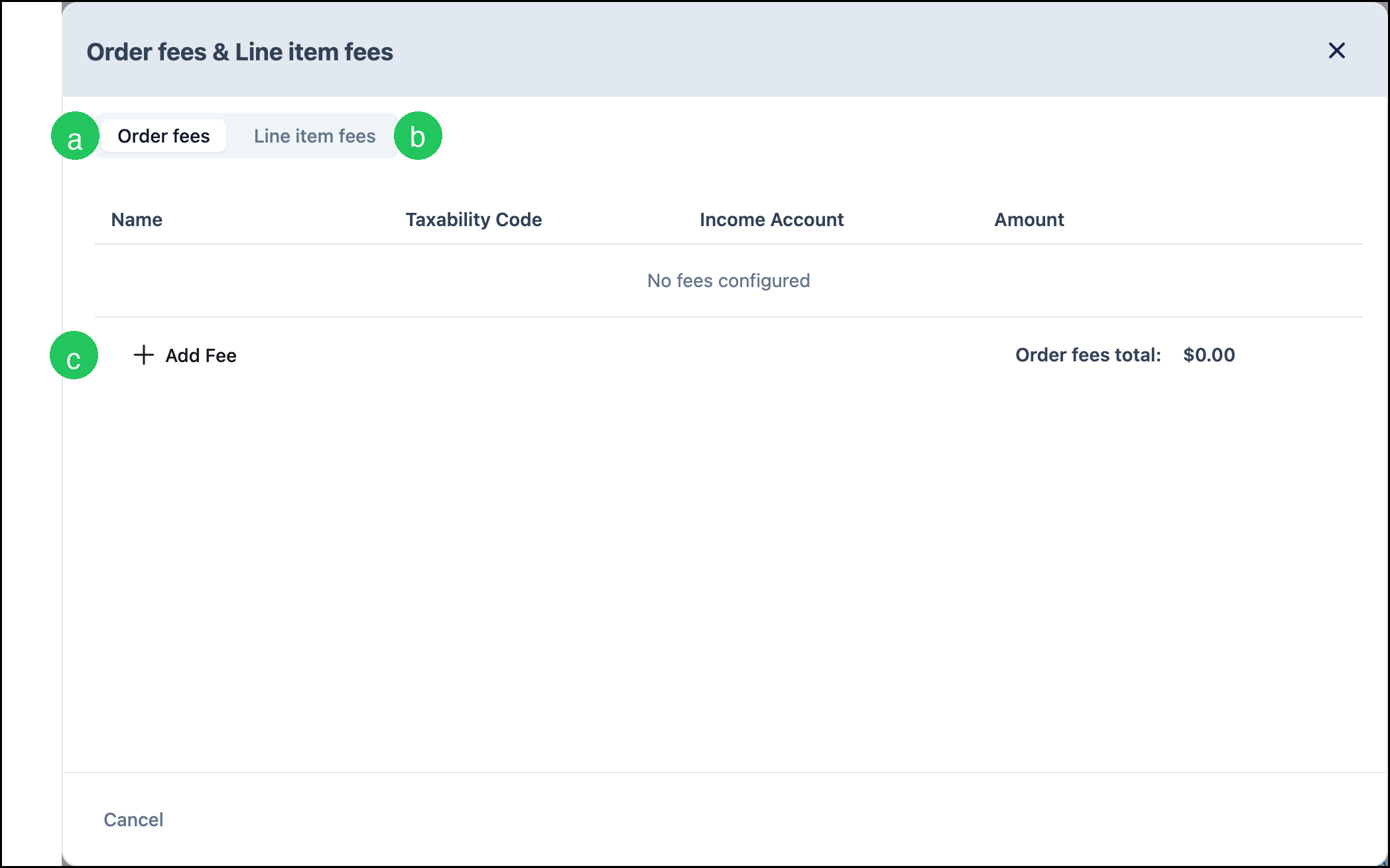
The Order fees & Line item fees dialog opens.
a. Order fees - View and manage fees that apply to the overall Estimate or Order.
b. Line item fees - View and manage fees that apply to line items.
c. Add Fee - Adds a fee to the Estimate or Order.
Note: Payment Surcharge amounts shown in Order Totals are a separate feature from Order Fees and Line Item Fees.