Documents are used to relay information to the customer regarding various transactions such as Estimates, Orders, and Invoices.
Documents can be viewed and sent from Estimates and Orders.
Table of Contents
Using Documents
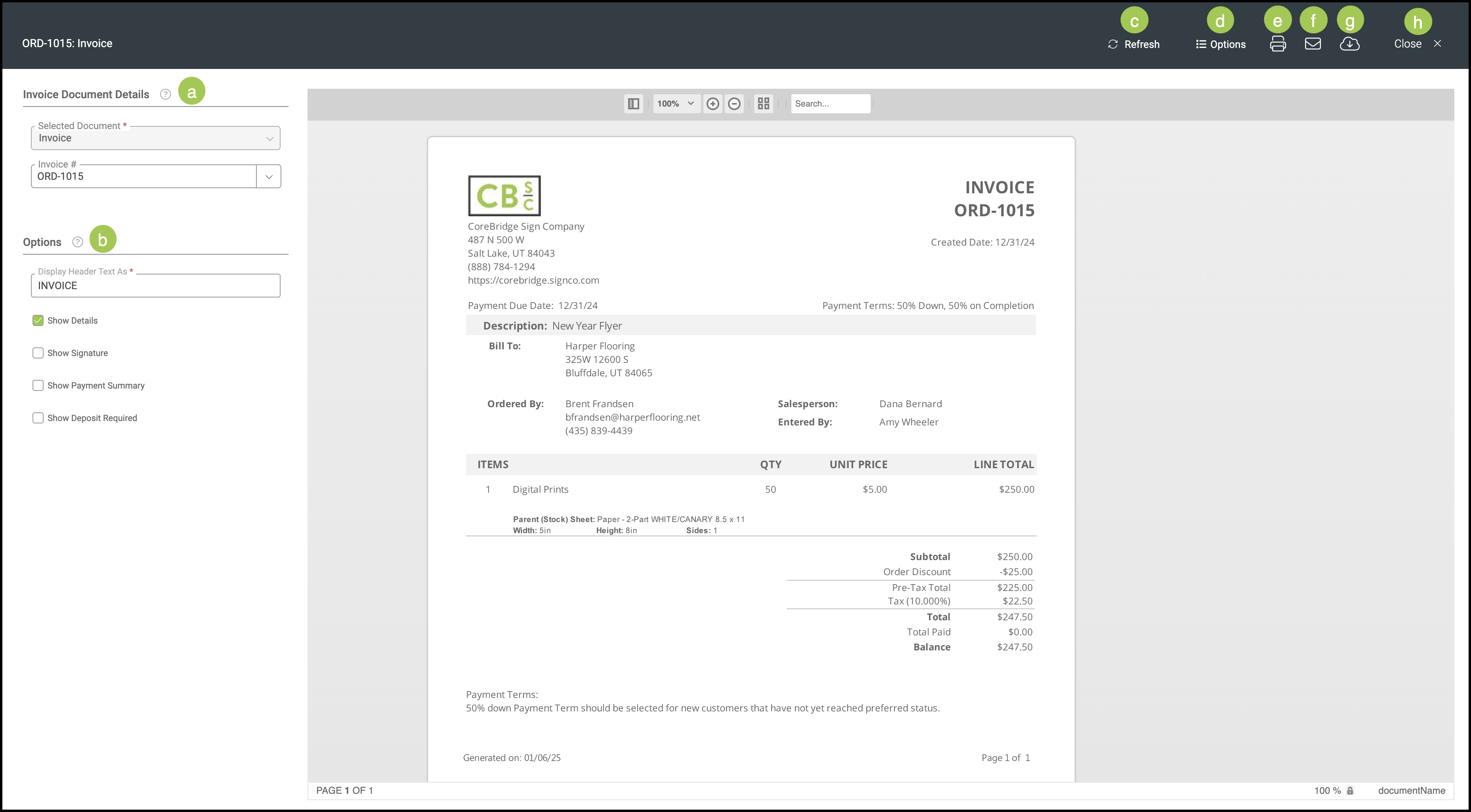
Begin by navigating to Sales / Orders or Estimates and selecting the appropriate Order or Estimate.
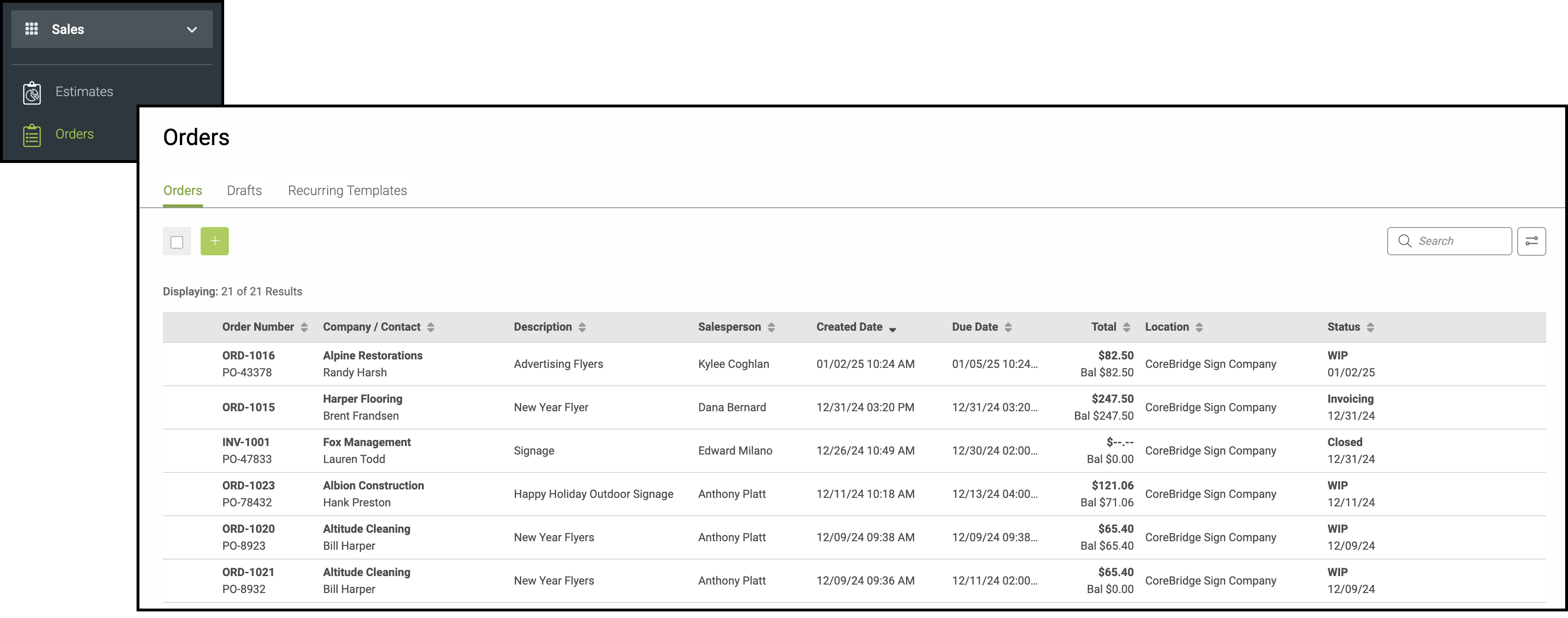
1. Click on the PDF icon at the top right of the Order or Estimate you have selected.
2. Select the appropriate Document from the list. Click Manage Documents if you do not see the necessary Document on the list.
Note: Clicking on one of the Documents listed will open that Document in a new tab with several options.
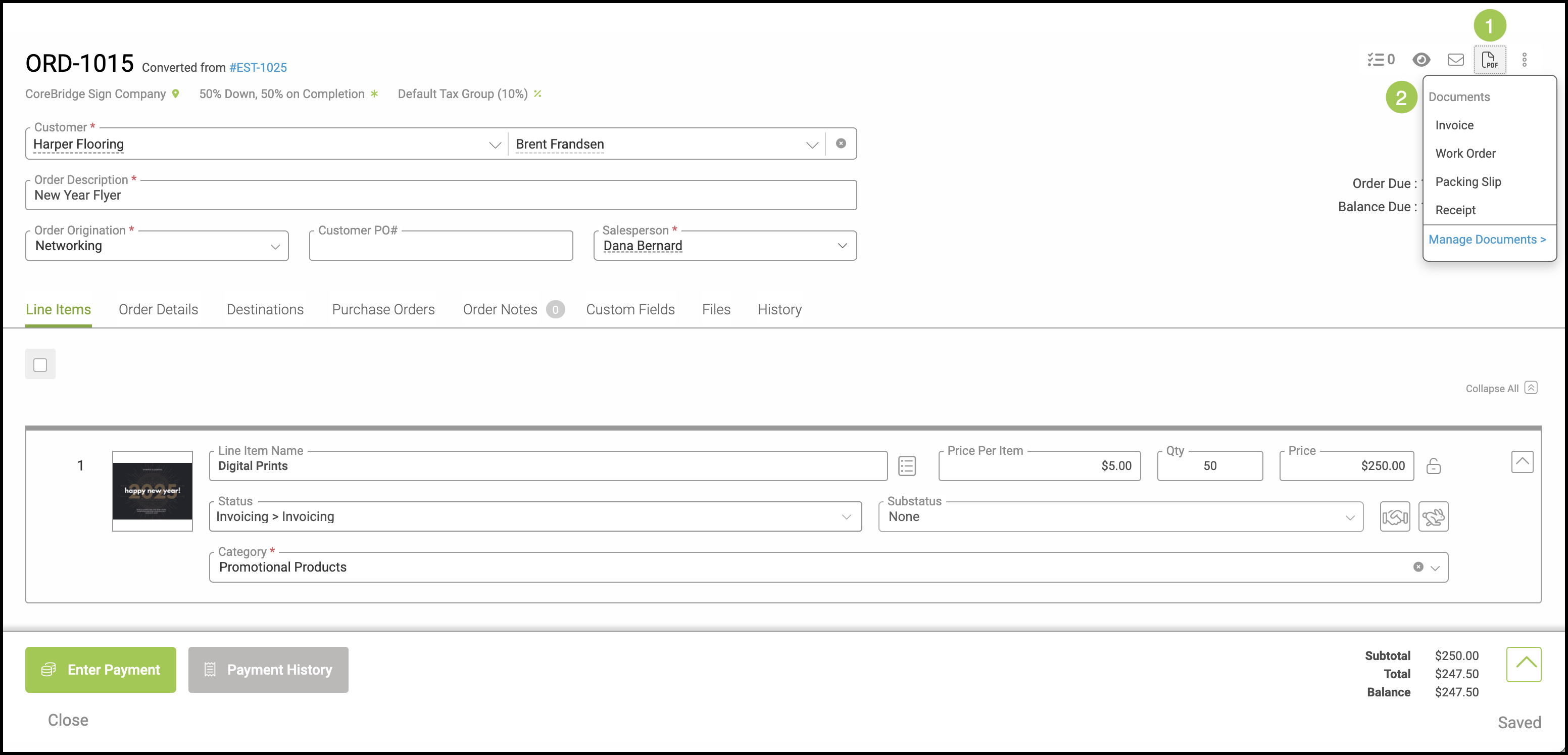
a. Document Details - These details include the type of Document you have selected as well as the Order or Estimate this Document is based on.
Note: The Selected Document cannot be changed from this screen, however, you may use the second dropdown to move to another Order or Estimate from this screen.
b. Options - Specific options will vary depending on the Document selected.
Note: Changes made here will immediately reflect on the preview to the right.
c. Refresh - Click here to quickly reload your screen.
d. Options - Clicking this will either expand or hide the Options bar on the left of the preview.
e. Print - Click here to print this Document.
f. Email - Click here to email this Document.
g. Download - Click here to download this Document.
h. Close - You may close this tab by clicking here.
Note: Closing the tab does not exit out of the Order or Estimate.