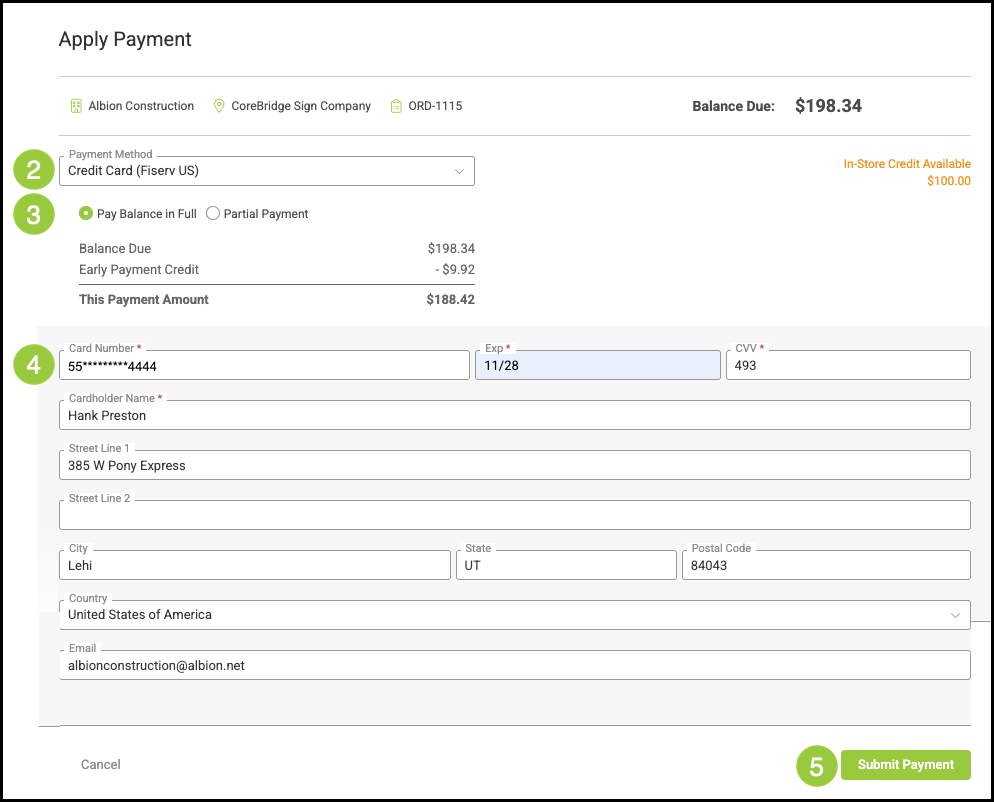
Payments can be recorded internally through the Payments section of the Sales module or applied directly from an Order. This article provides an overview of each payment method.
Additionally, customers may submit payments through their Customer Portal when payment options are enabled and configured in the system. For more information, please see Entering Payments in the Customer Portal.
Table of Contents
Entering Payments Through the Payments Section
Navigate to Sales / Payments and click the Green Plus button.
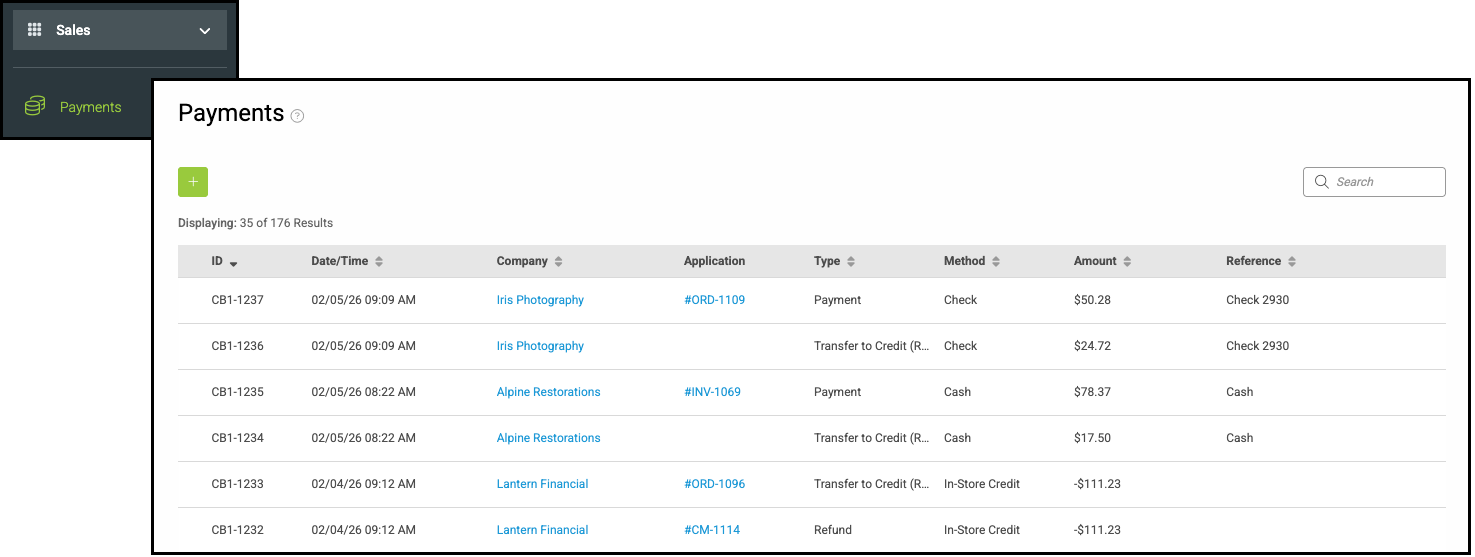
1. Select the Company.
2. Enter Payment Amount.
3. Select one or more Orders to apply the payment toward.
4. Click Continue.
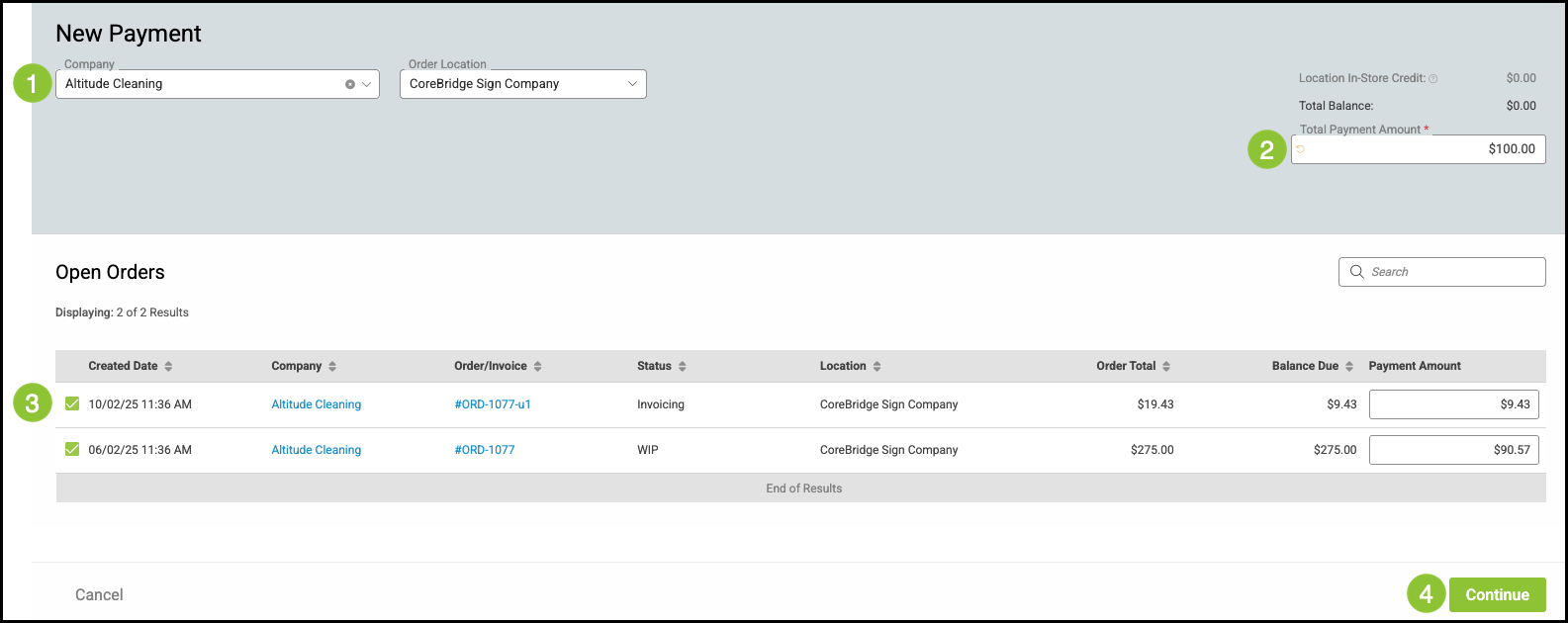
5. Select Payment Method.
Note: For more information about each method, please see Payment Methods.
6. Fill in the required fields.
Note: These fields will vary depending on the Payment Method chosen.
7. Click Submit Payment.
Entering Payment Through an Order
Navigate to Sales / Orders and select the appropriate Order.
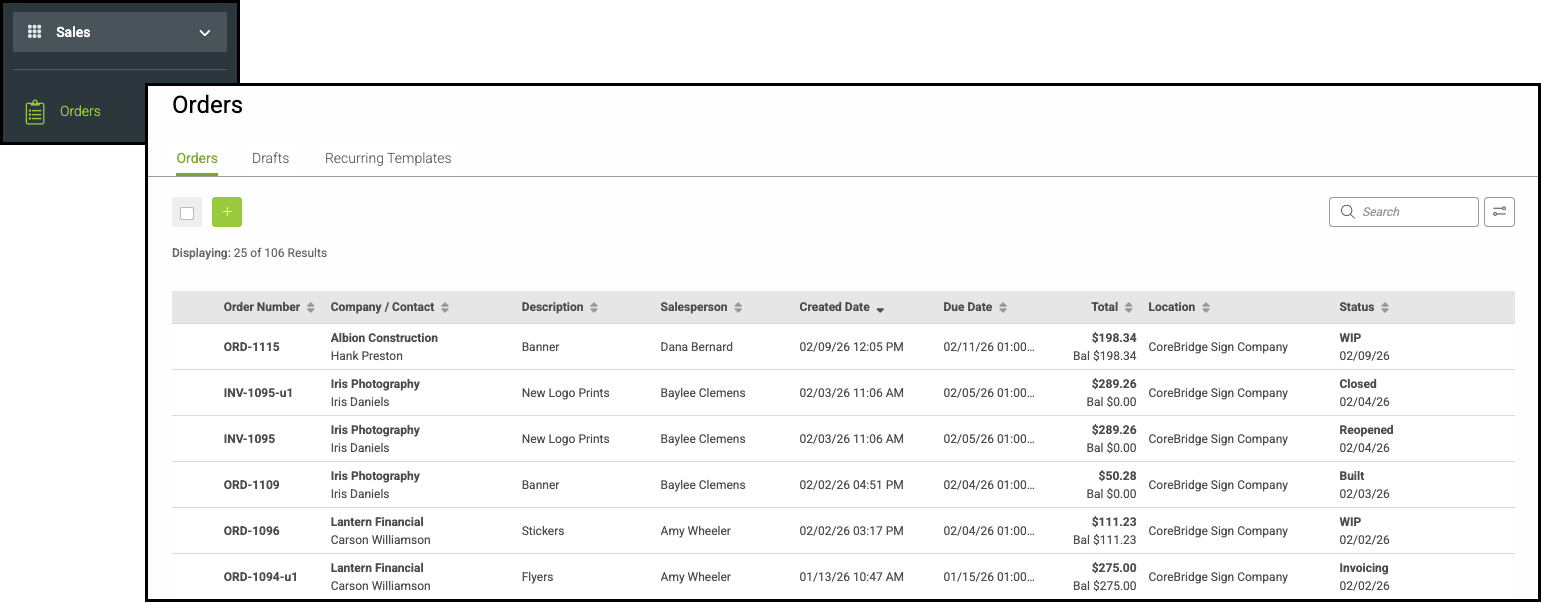
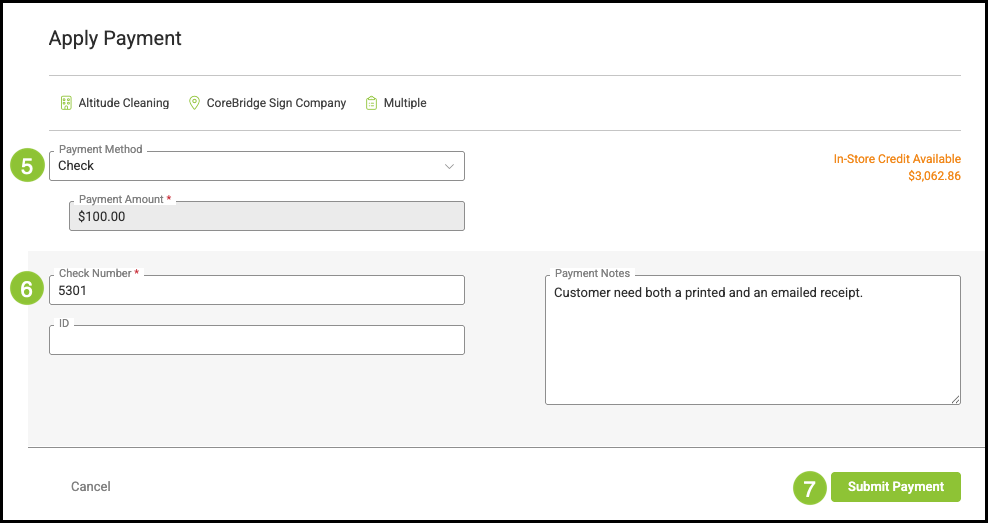
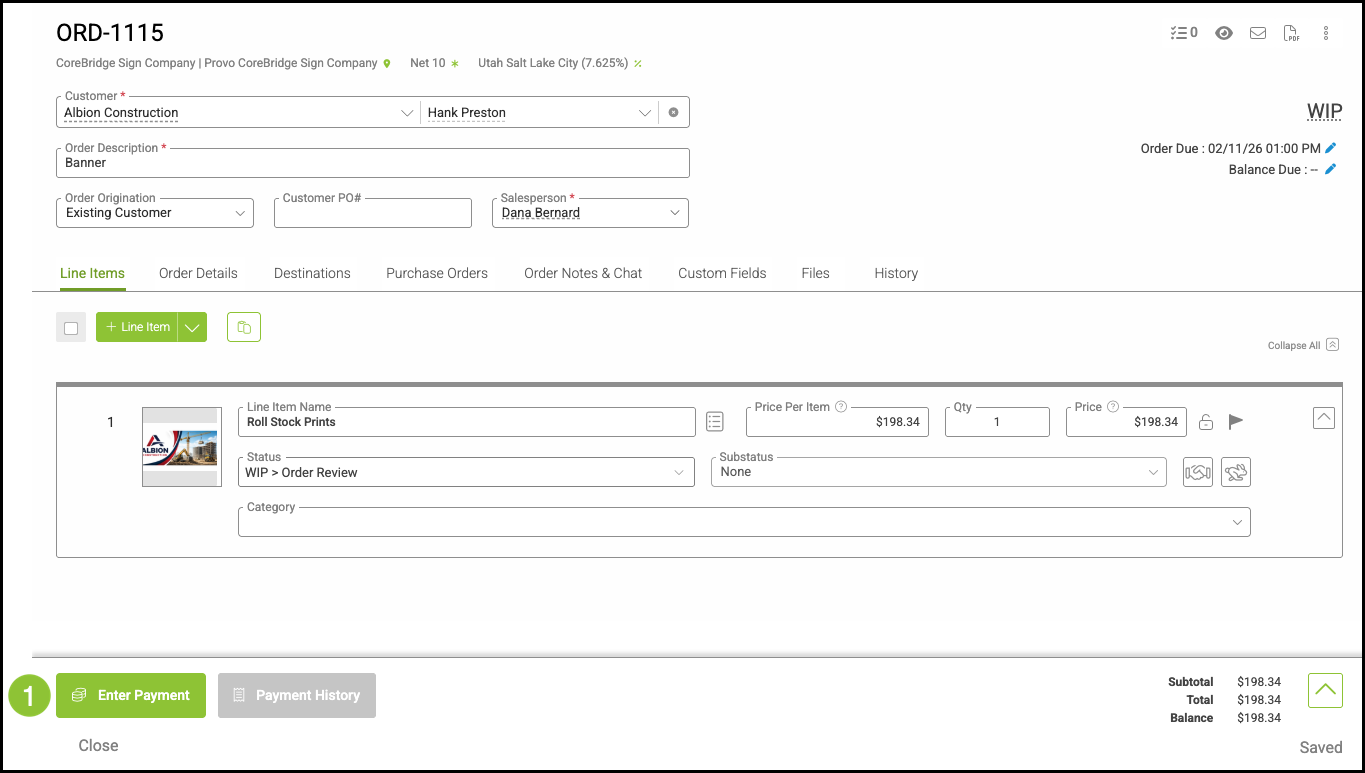
1. Click Enter Payment.
2. Select Payment Method.
Note: For more information about each method, please see Payment Methods.
3. Choose to pay the full or a partial amount.
Note: If Partial Payment is selected, an additional field will display where the payment amount can be entered.
4. Fill in the required fields.
Note: These fields will vary depending on the Payment Method chosen.
5. Click Submit Payment.