Drill Downs allow you to move from a high-level summary view in a report or dashboard into the detailed records that make up a specific value. This makes it easier to investigate trends, totals, and anomalies without leaving the report.
Important Information
Drill Downs are available in multiple report visualizations.
Drill Downs provide a way to move from summarized report data to the detailed records behind a specific value.
Drill Downs are interactive and are accessed directly from charts and tables within a report or dashboard.
Drill Down views show only the data that contributes to the selected chart segment or table value.
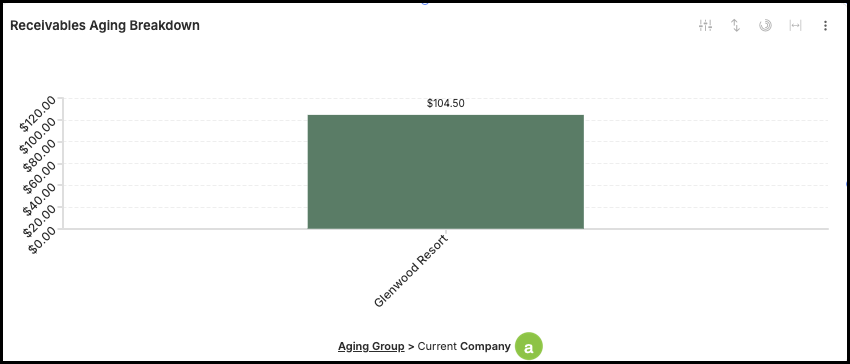
Navigation breadcrumbs display the drill path and allow you to return to higher-level summary views.
Drill Down views are temporary unless changes are saved, and may reset when the page is refreshed or exited.
Table of Contents
- Important Information
- How to Drill Down in a Chart
- How to Drill Down in a Table
- Downloading Drill Down Data
- Related Articles
How to Drill Down in a Chart
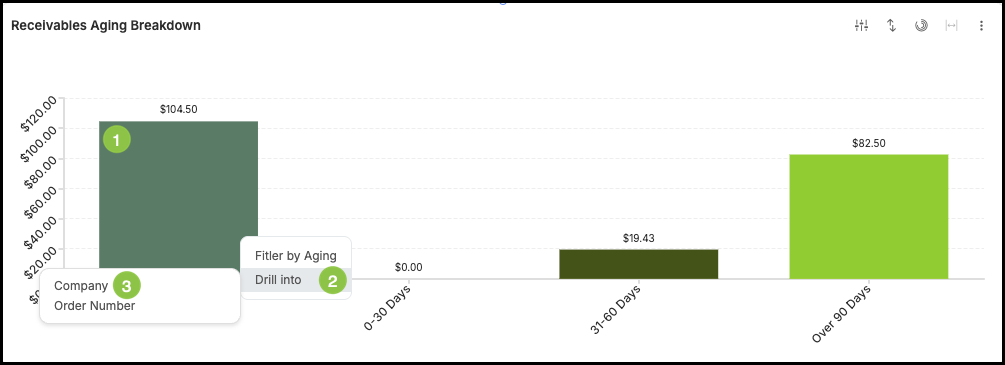
Drill Into options:
Are based on the dataset used by the chart.
Match the fields available when adding a filter.
1. Click a specific segment, bar, point, or value.
2. Choose Drill Into from the available options.
3. Select the field you want to drill into from the submenu.
a. A drill path will display, allowing you to return to previous views.
How to Drill Down in a Table
Drill Downs help explain large totals by showing detailed activity.
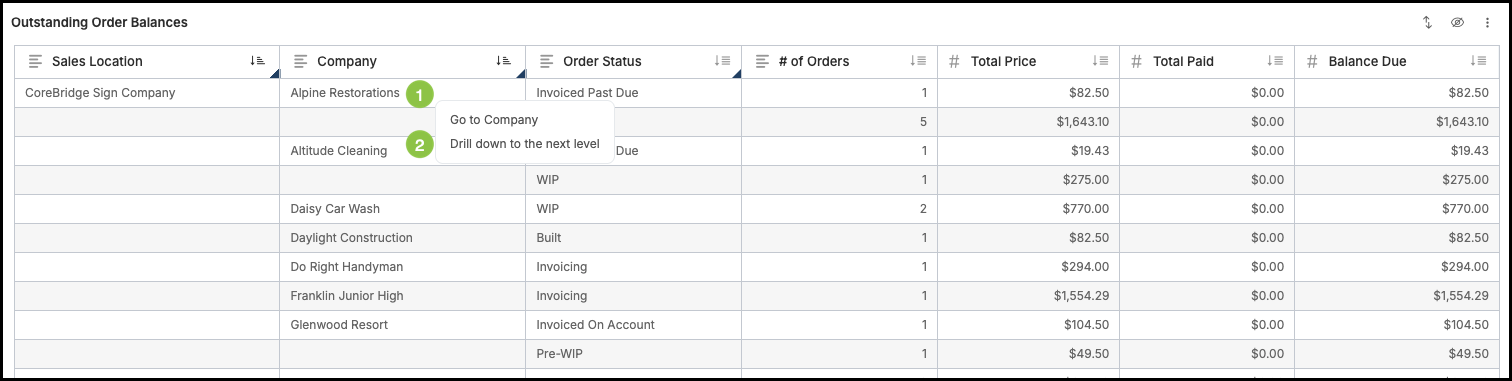
Fields with a black triangle in the corner are summary fields.
Summary fields indicate the table is grouped by those values.
Drill Down options are limited to the fields the table is grouped by.
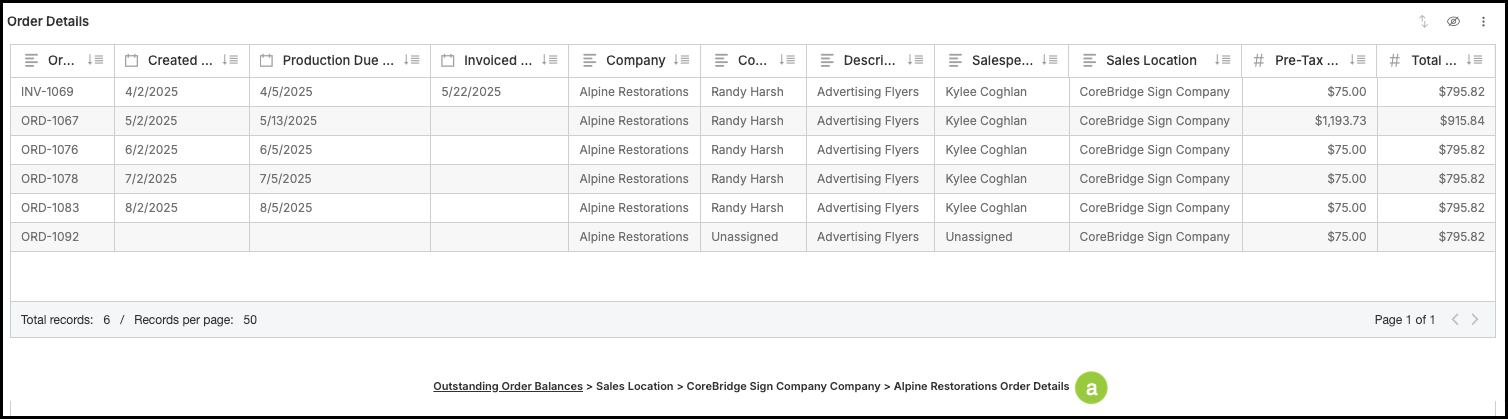
1. Click on a summarized value.
2. Choose Drill Down to the next level.
a. A drill path will display, allowing you to return to previous views.
Downloading Drill Down Data
Drill Down views can be exported for further analysis.
The export reflects only the Drill Down selection.
Dashboard-level filters do not dynamically update the drilled report.
The data exported already reflects filters applied at the summary level.
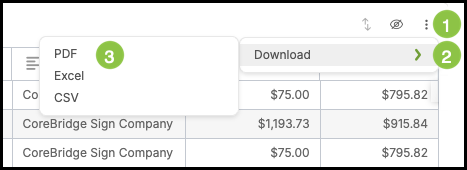
1. Click on the ellipsis.
2. Click Download.
3. Select the format.