
CRM Activity Setup stores the activity types and outcomes used when a CRM activity is logged. Each type and outcome has a name, an icon, a color, and an Active setting. Active types and outcomes are available in Log Activity.
Table of Contents
- CRM Activity Setup Screen
- Adding an Activity Type
- Editing an Activity Type
- Outcomes
- Adding an Outcome
- Editing an Outcome
- Frequently Asked Questions
- Related Articles
CRM Activity Setup Screen
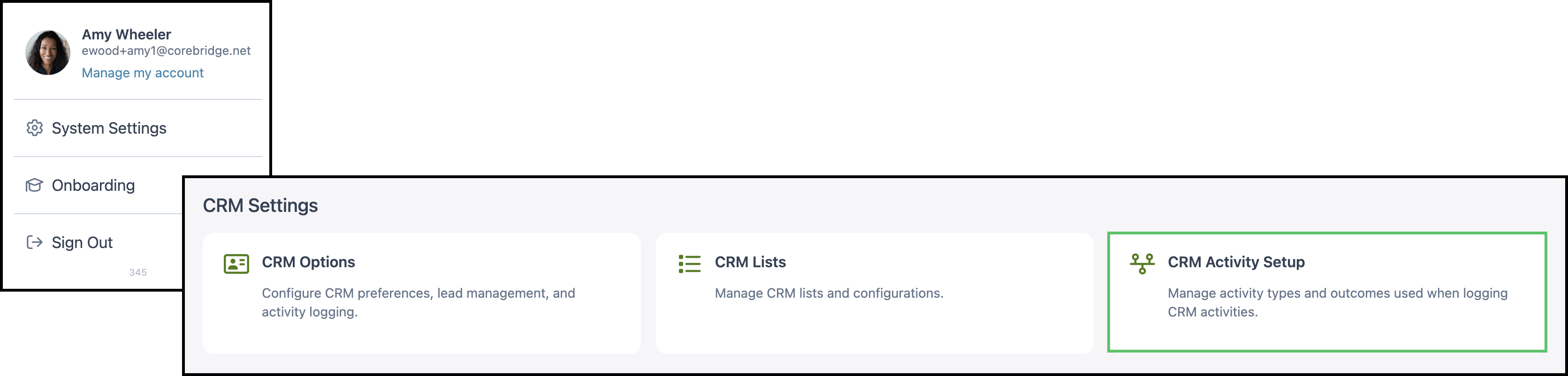
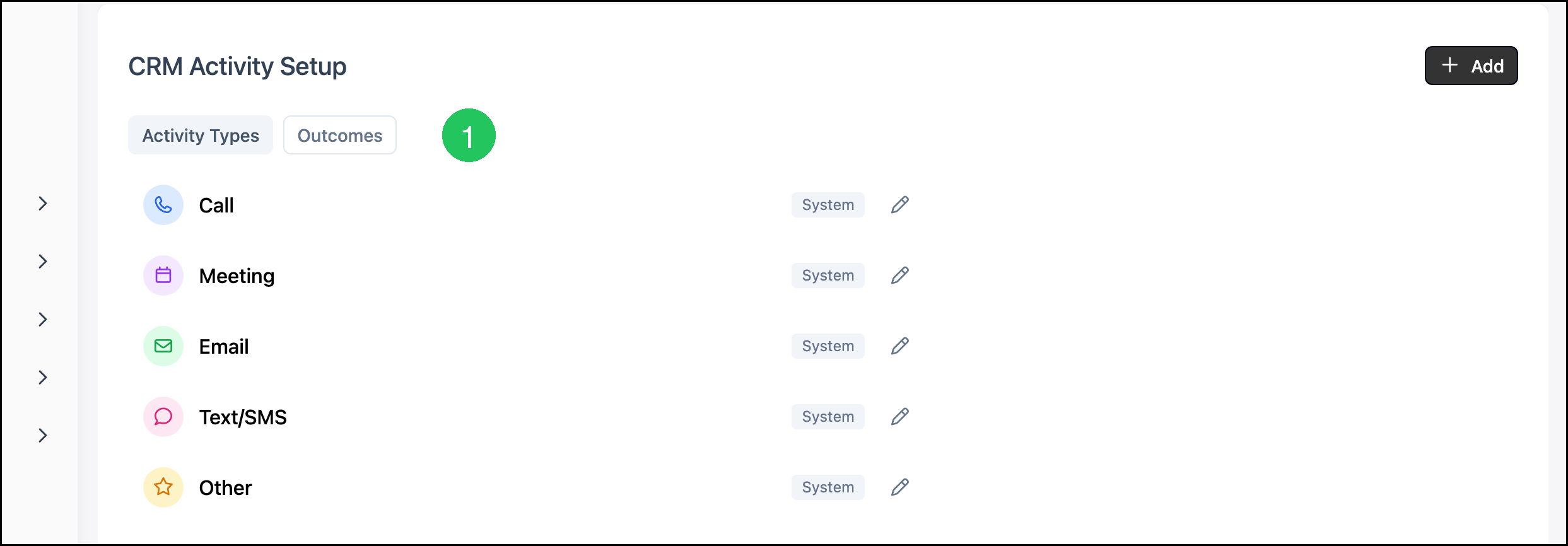
Navigate to System Settings / CRM Settings / CRM Activity Setup.
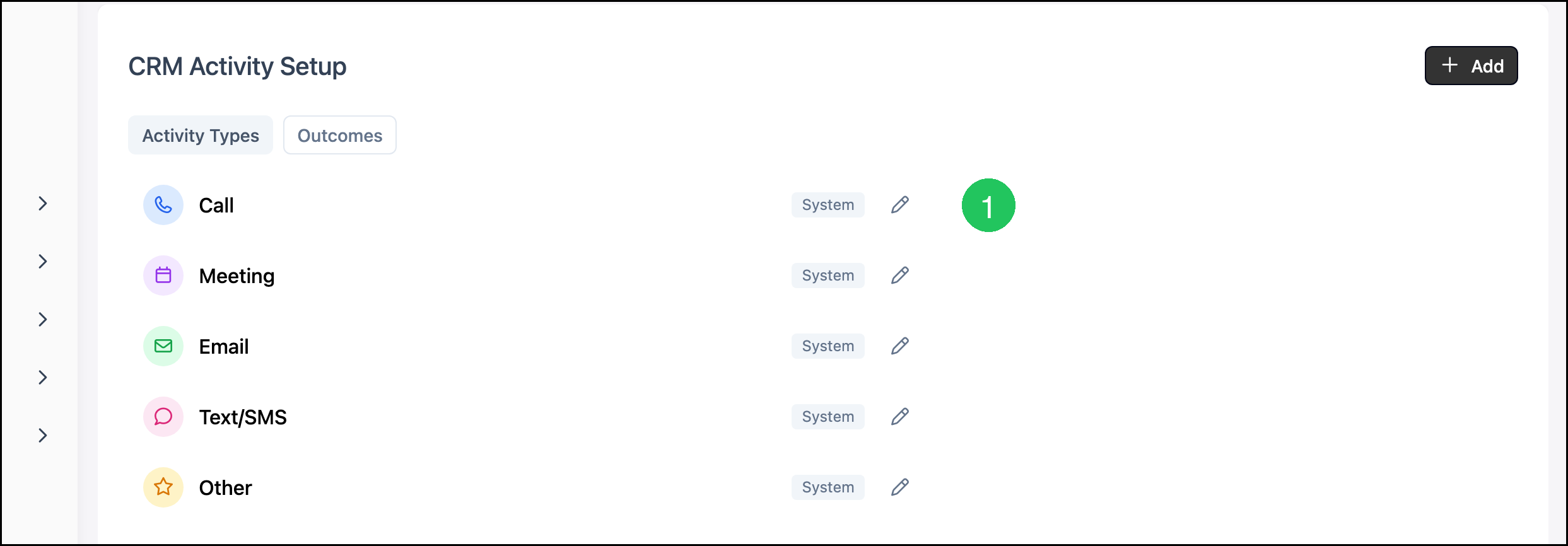
a. Add opens a dialog for a new activity type or outcome. The open tab decides which one is created.
b. Activity Types and Outcomes switch the list on this screen.
c. The icon and color identify the type on this list and in Log Activity.
d. System marks a type that comes with CoreBridge. A type you add does not show System.
e. Edit opens that type.
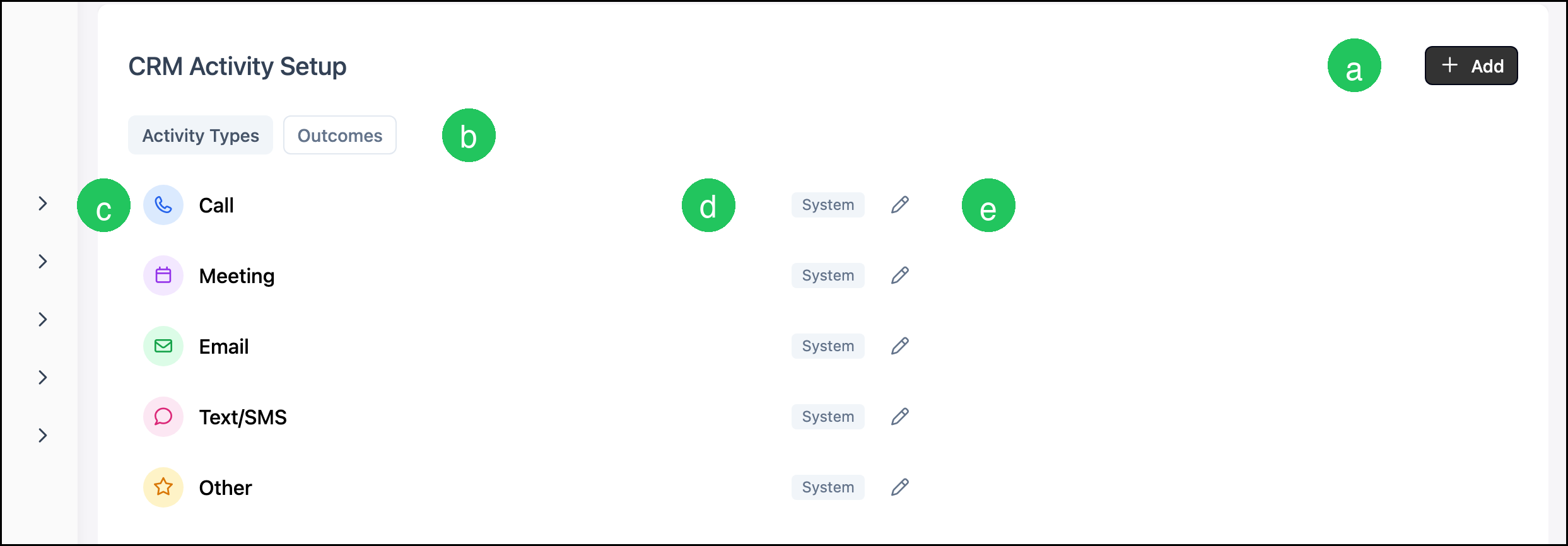
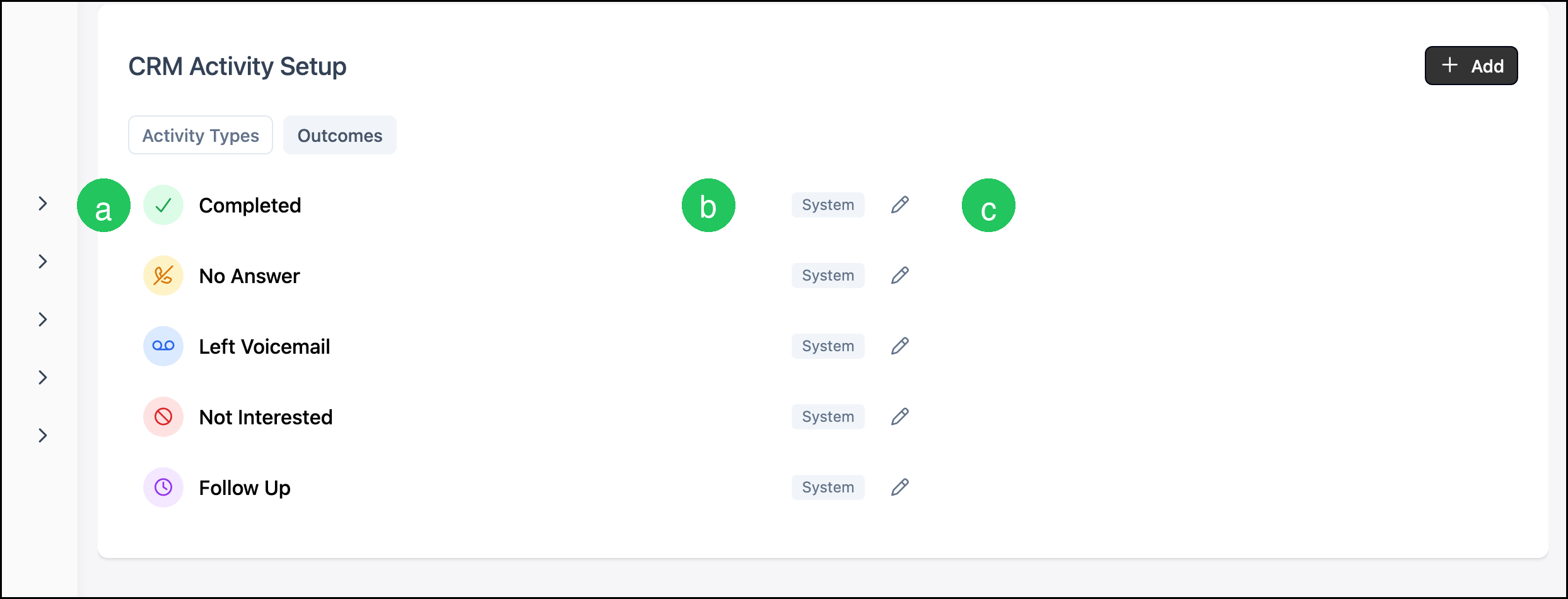
Activity Types includes Call, Meeting, Email, Text/SMS, and Other. Outcomes includes Completed, No Answer, Left Voicemail, Not Interested, and Follow Up.
A type or outcome with Active off stays on this list with an Inactive label. It is left out of Log Activity.
Adding an Activity Type
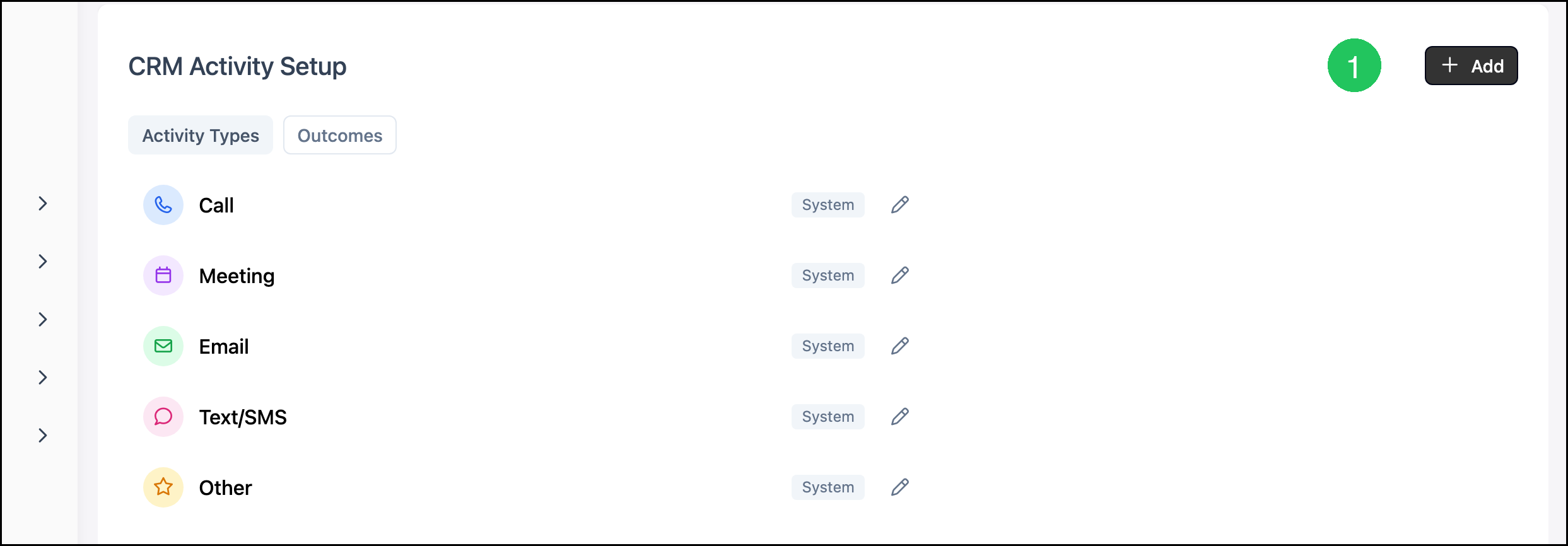
1. Click Add.
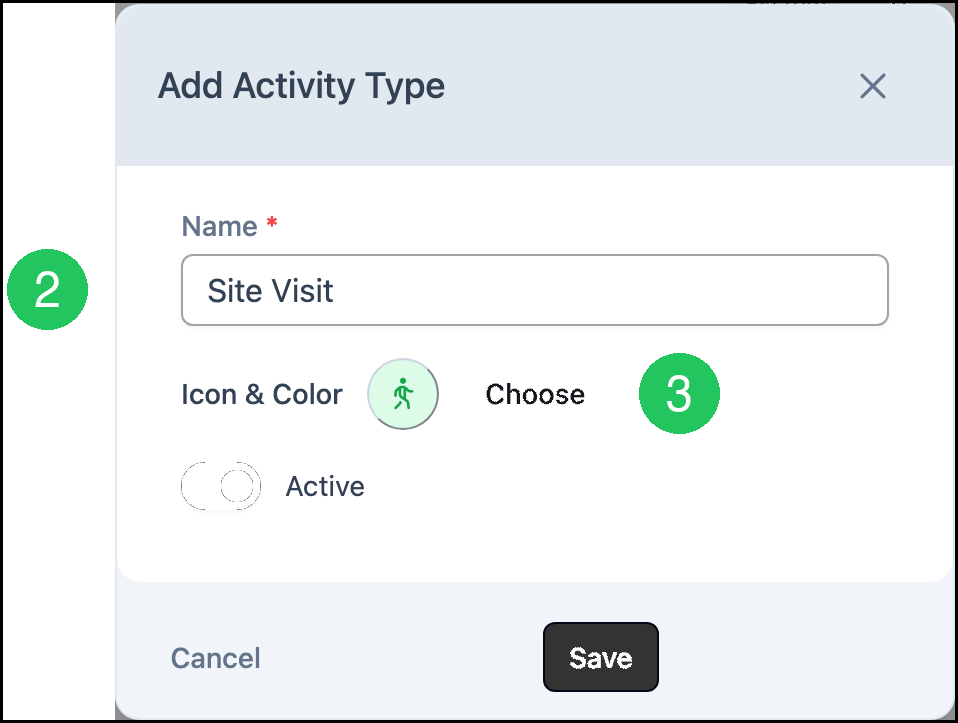
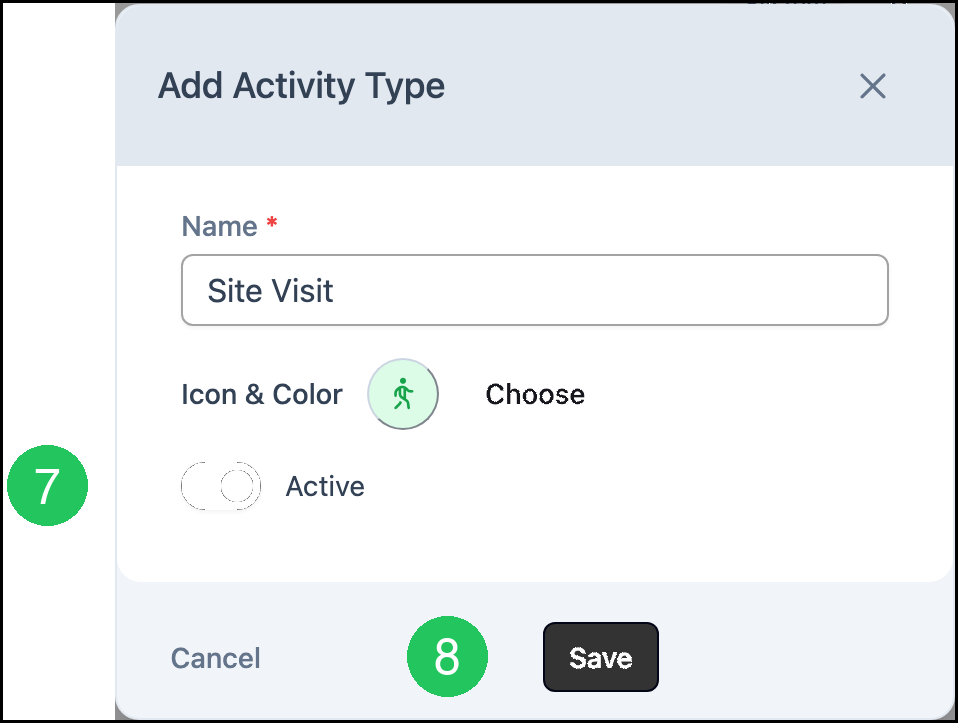
2. Enter a Name.
3. Click Choose.
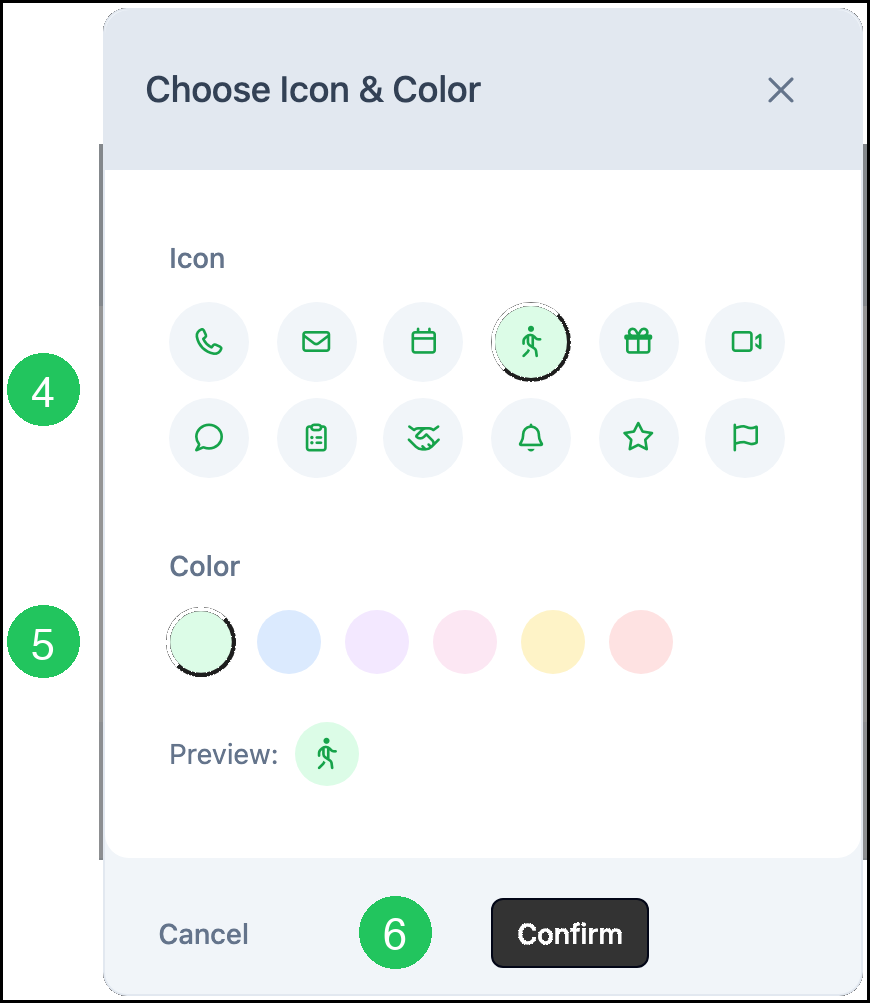
Choose Icon & Color opens.
4. Select an icon.
5. Select a color.
6. Click Confirm.
7. Leave Active on to include this type in Log Activity. Turn Active off to leave the type off that list. The type stays on CRM Activity Setup with an Inactive label.
8. Click Save.
Editing an Activity Type
1. Click Edit on the activity type.
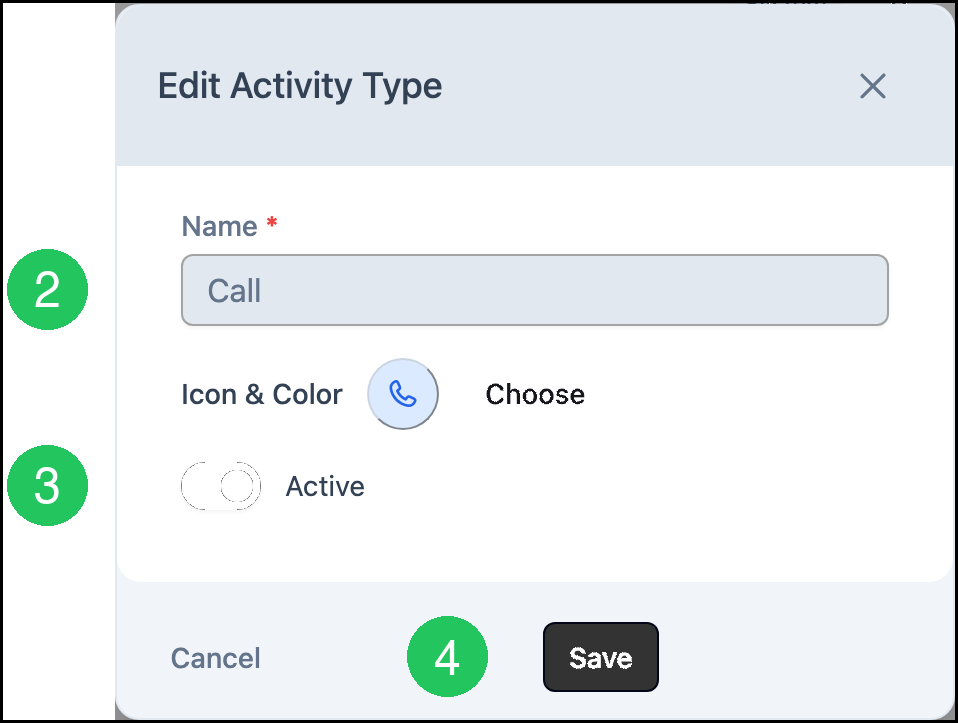
2. Change Name when the type is one you added. The name of a System type stays as it is.
3. Turn Active on or off.
4. Click Save.
Note: Icon and color are changed from Choose, the same way as when the type is added.
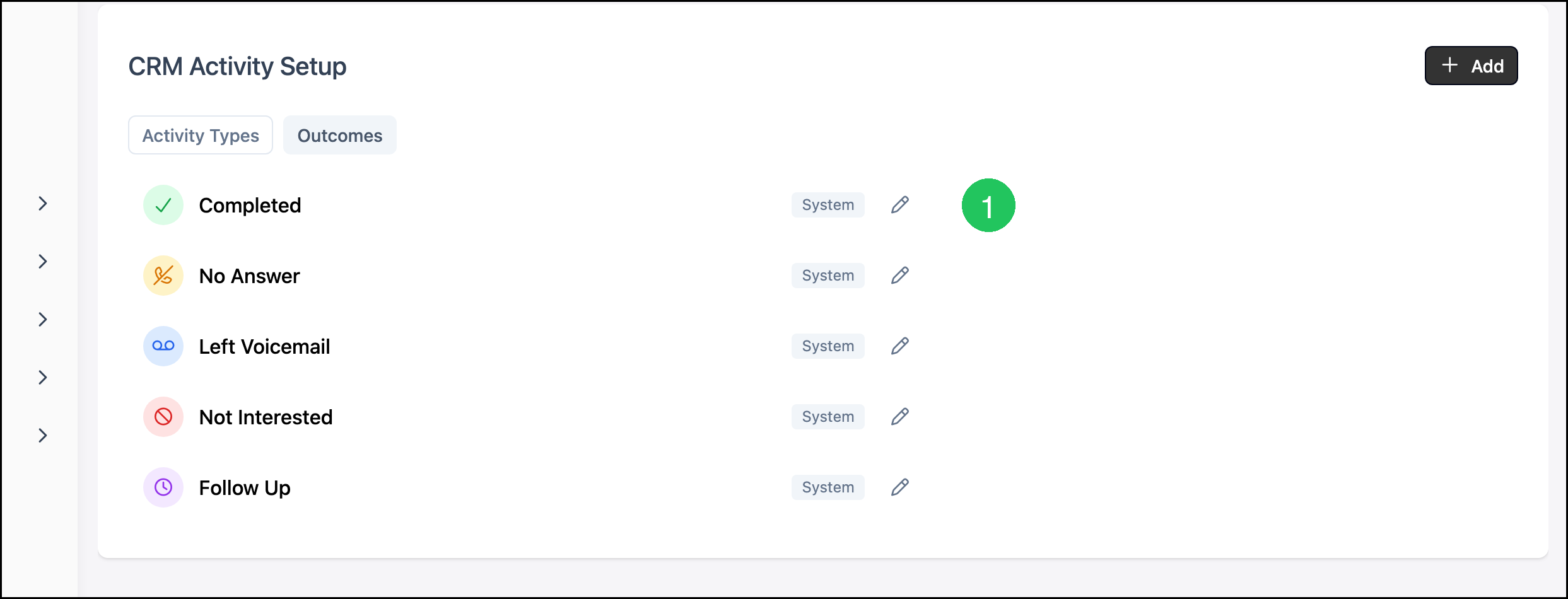
Outcomes
1. Click Outcomes.
a. The icon and color identify the outcome on this list and in Log Activity.
b. System marks an outcome that comes with CoreBridge.
c. Edit opens that outcome.
Adding an Outcome
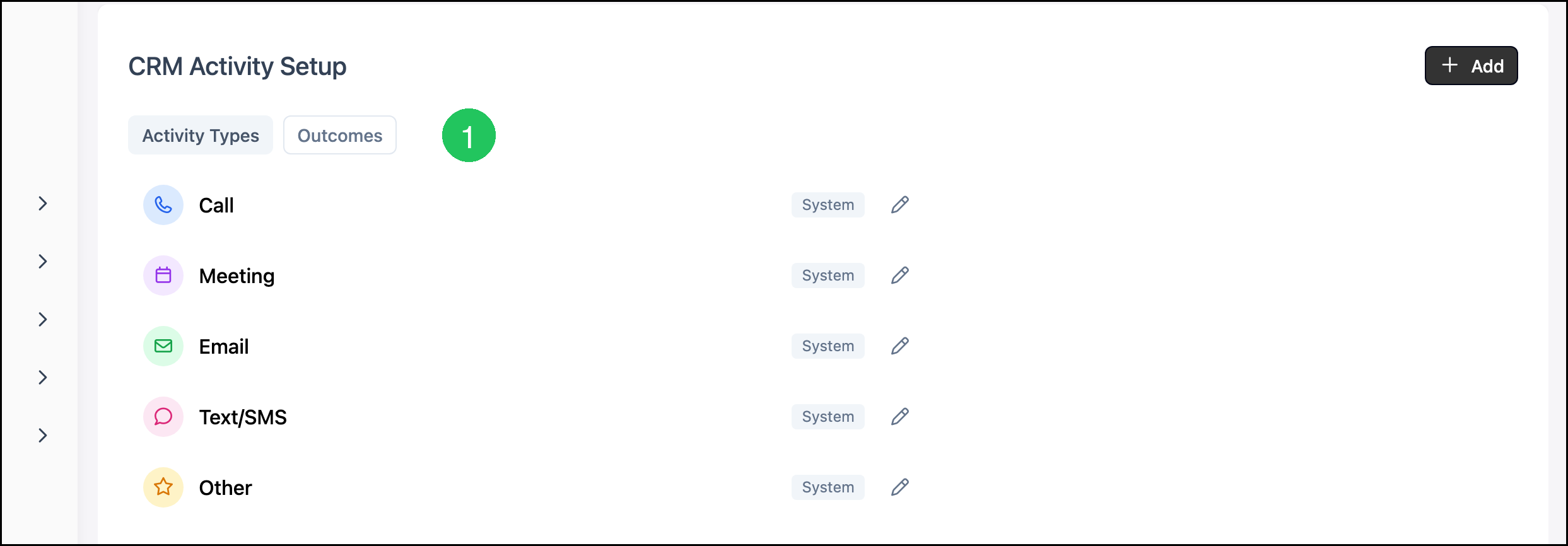
1. Click Outcomes.
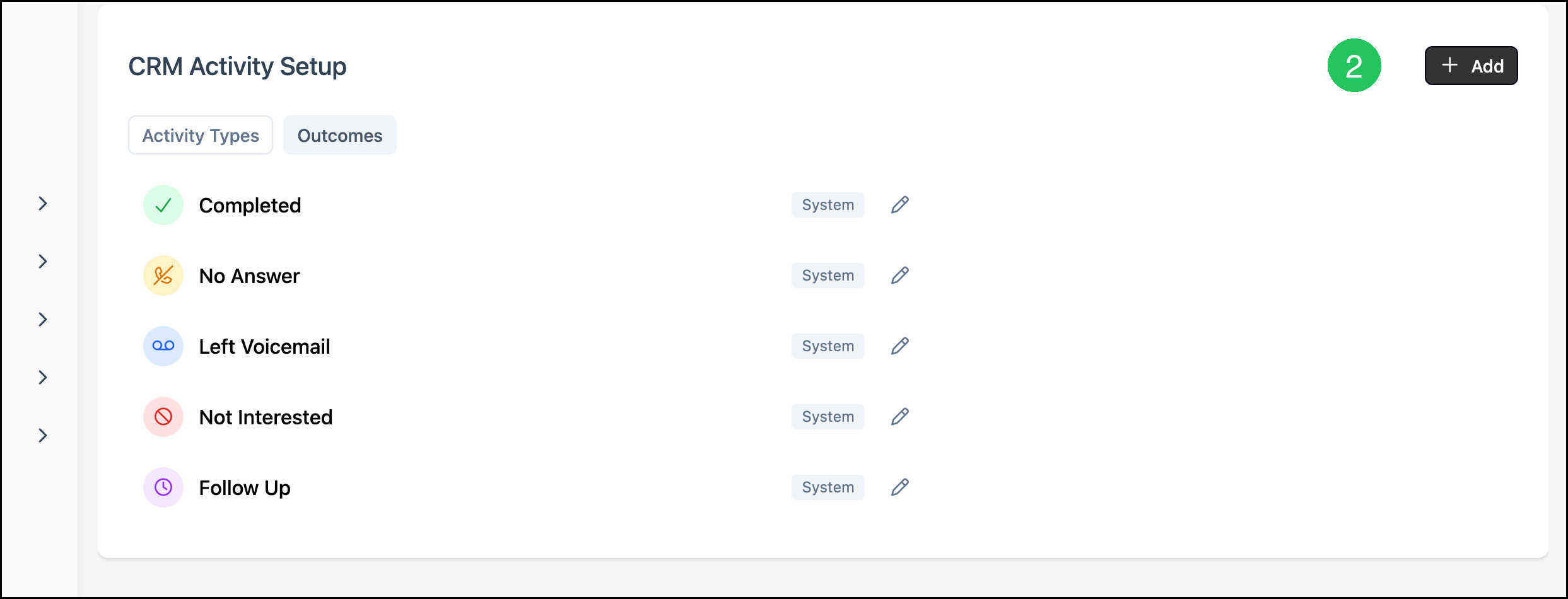
2. Click Add.
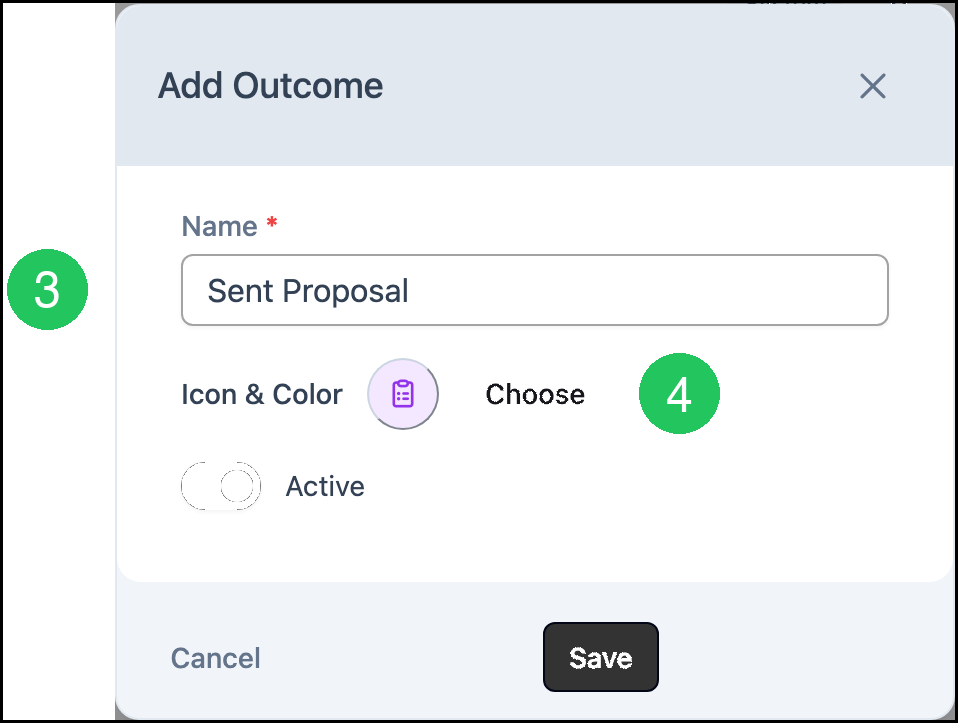
3. Enter a Name.
4. Click Choose.
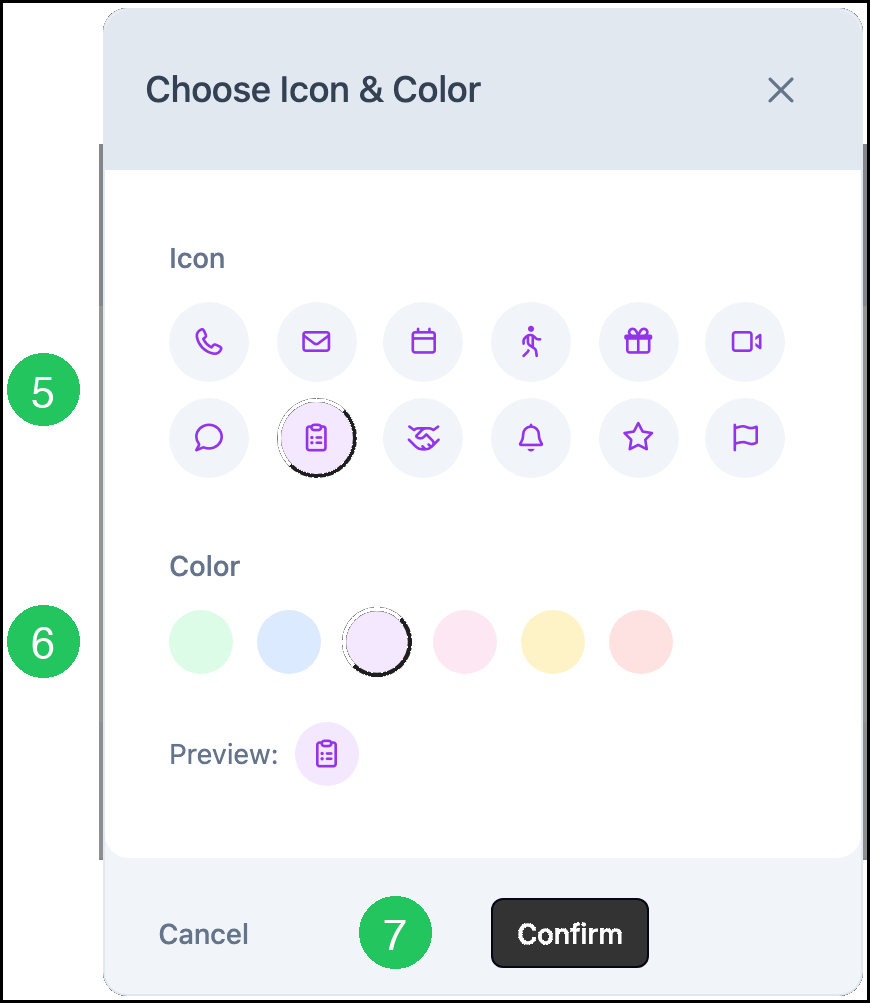
5. Select an icon.
6. Select a color.
7. Click Confirm.
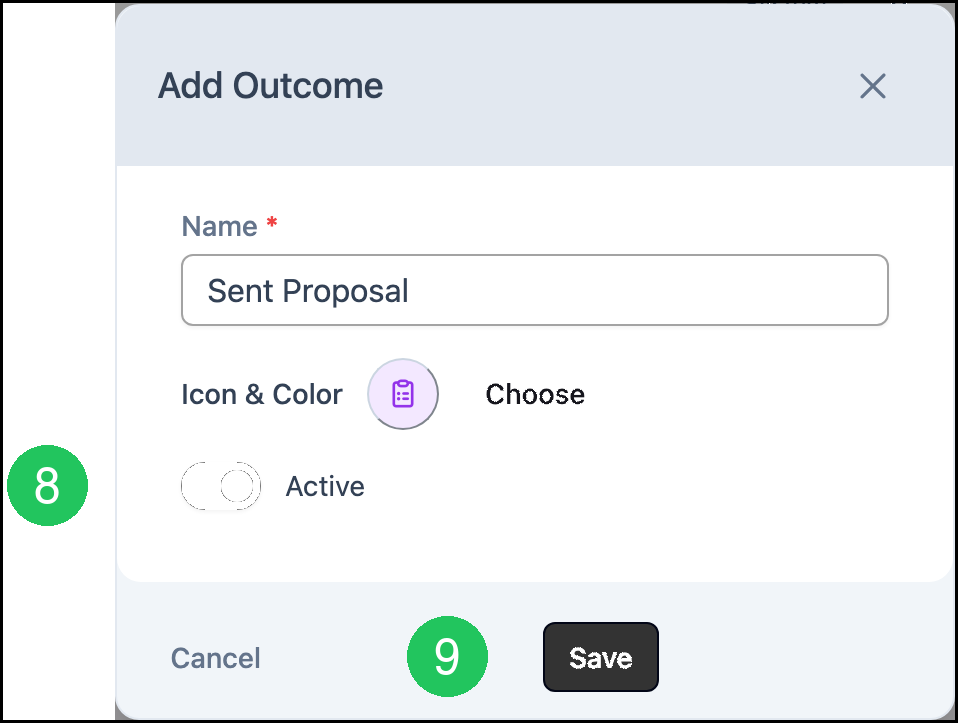
8. Leave Active on to include this outcome in Log Activity. Turn Active off to leave the outcome off that list.
9. Click Save.
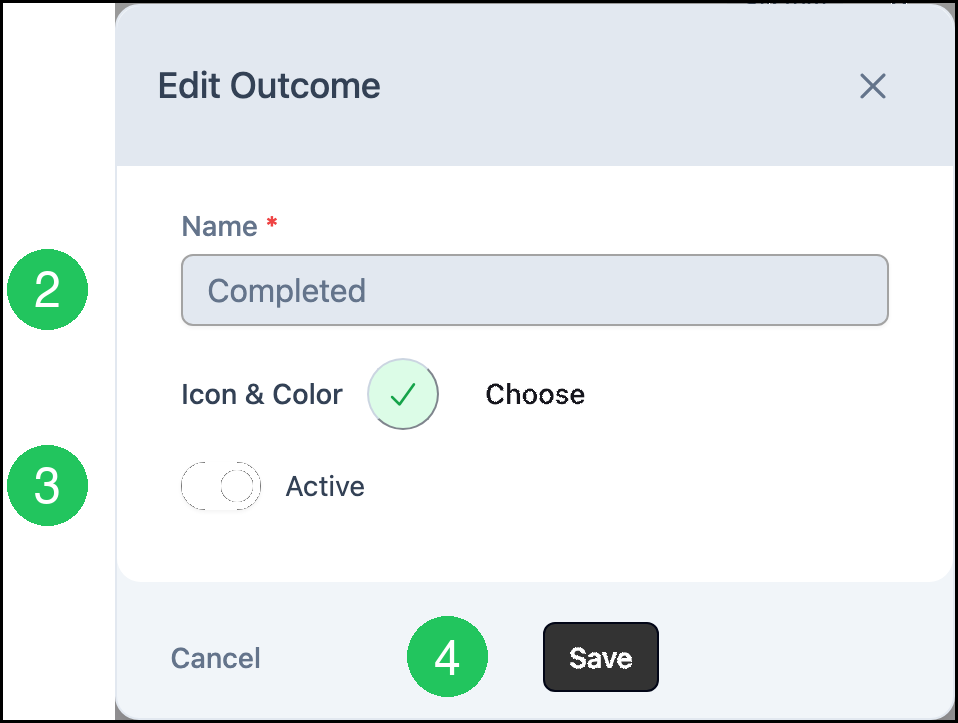
Editing an Outcome
1. Click Edit on the outcome.
2. Change Name when the outcome is one you added. The name of a System outcome stays as it is.
3. Turn Active on or off.
4. Click Save.
Note: Icon and color are changed from Choose, the same way as when the outcome is added.
Frequently Asked Questions
1. Where do activity types and outcomes appear?
Answer: Active types and outcomes appear in Log Activity. Log Activity is in More Actions on a Company and on a Contact. See Additional Contact Features.
2. What does the Inactive label mean?
Answer: The type or outcome stays on CRM Activity Setup and is left out of Log Activity. Turn Active on to include it again.
3. Can the name of a System type or outcome be changed?
Answer: The name stays as it is. Icon, color, and Active can still be changed. A type or outcome you added can be renamed.
4. When is an outcome required?
Answer: When Require outcome when logging activity is on in CRM Options. See CRM Options.
5. How is a type or outcome you added removed?
Answer: Those rows include Delete. Delete removes the row immediately. A System row does not include Delete.