
CRM Lists provides the Industries and Originations stored on a Company. The lists are maintained on the CRM Lists screen, where parent labels and sub-labels can be added. Origination and Industry on a Company use the values from these lists.
Table of Contents
- Adding Industries or Originations
- Editing or Deleting Industries or Originations
- Customer Information Options
- Frequently Asked Questions
- Related Articles
Adding Industries or Originations
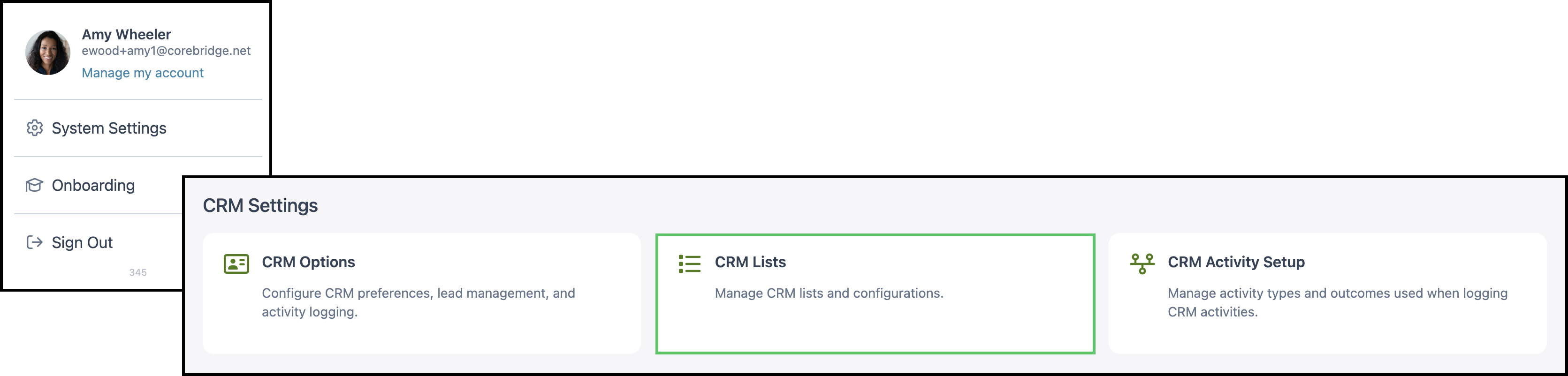
Navigate to System Settings / CRM Settings / CRM Lists.
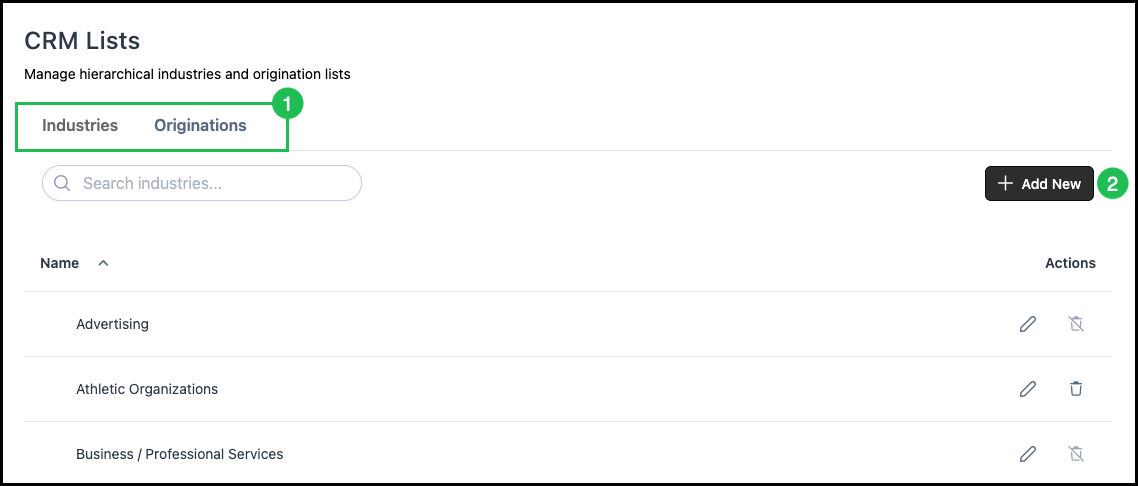
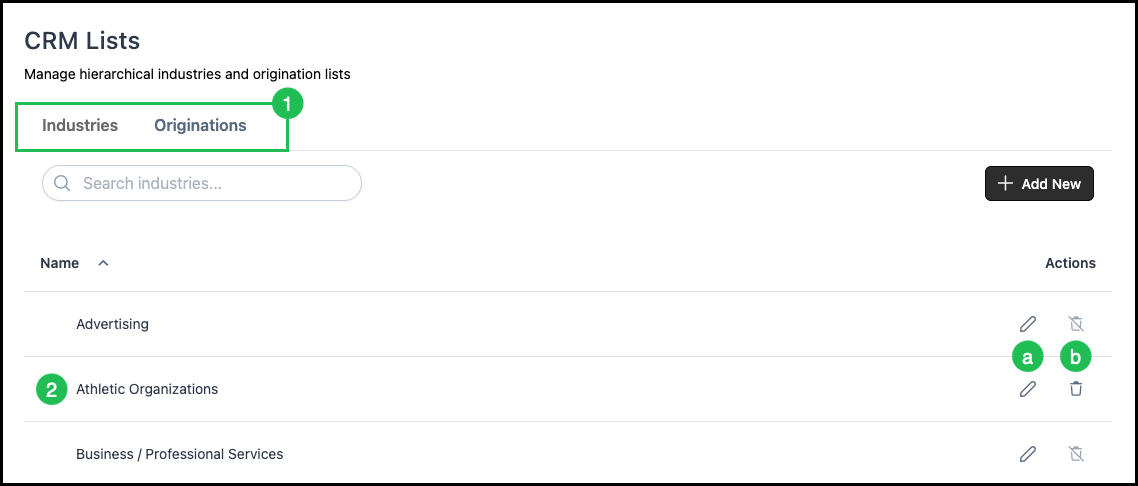
1. Select the Industries or Originations tab.
Note: The two tabs have the same layout and functionality. Only the type of list changes.
Note: More Actions includes History, which opens Change History for the selected tab.
2. Click Add New.
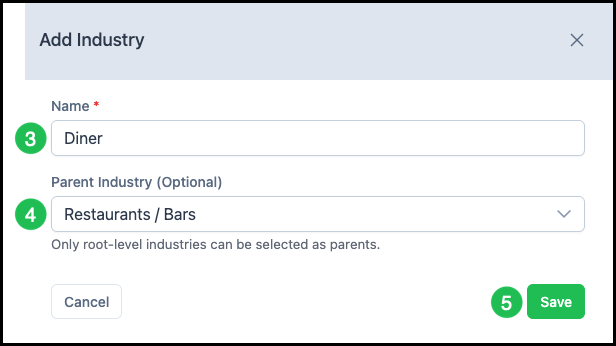
3. In the dialog, enter a Name for the new Industry or Origination. This field is required.
4. Optionally, select a Parent Industry or Parent Origination when this label should be a sub-label under an existing parent.
- When no parent is selected, the new label is a root-level item.
- Only root-level Industries or Originations can be selected as parents.
5. Click Save.
Editing or Deleting Industries or Originations
An Industry or Origination can be edited or deleted from the list. Delete stays unavailable while the item is on a Company record. Pointing at Delete shows that message.
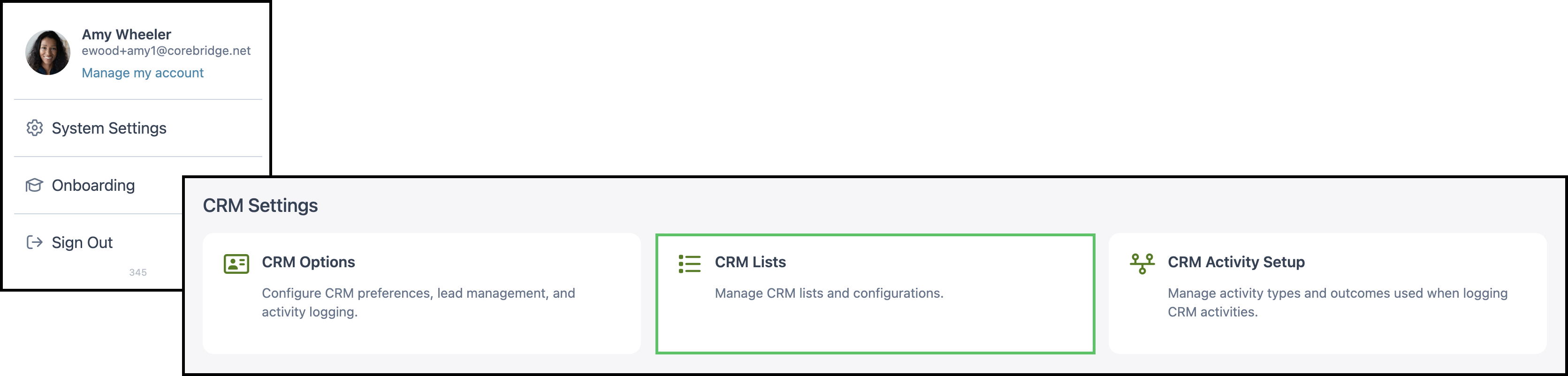
Navigate to System Settings / CRM Settings / CRM Lists.
1. Select the Industries or Originations tab.
Note: The two tabs have the same layout and functionality. Only the type of list changes.
2. Locate the row for the Industry or Origination to change.
a. Click Edit to change the name or parent.
b. Click Delete to remove the item.
Note: Delete is unavailable while the item is on a Company record.
Customer Information Options
The values maintained on CRM Lists are the choices for Origination and Industry when a Company is added or edited. The steps below edit an existing Company.
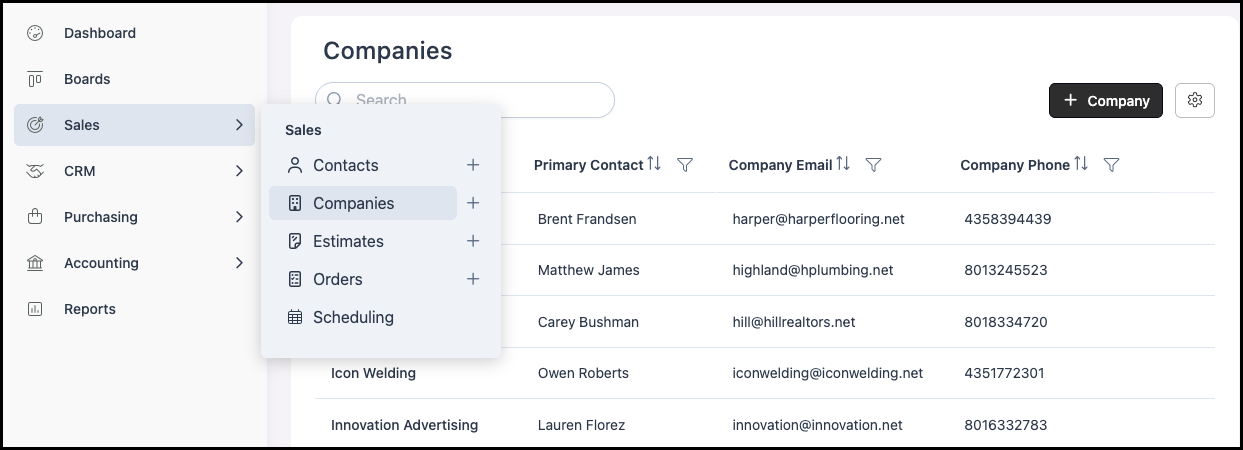
Navigate to Sales / Companies and select the Company.
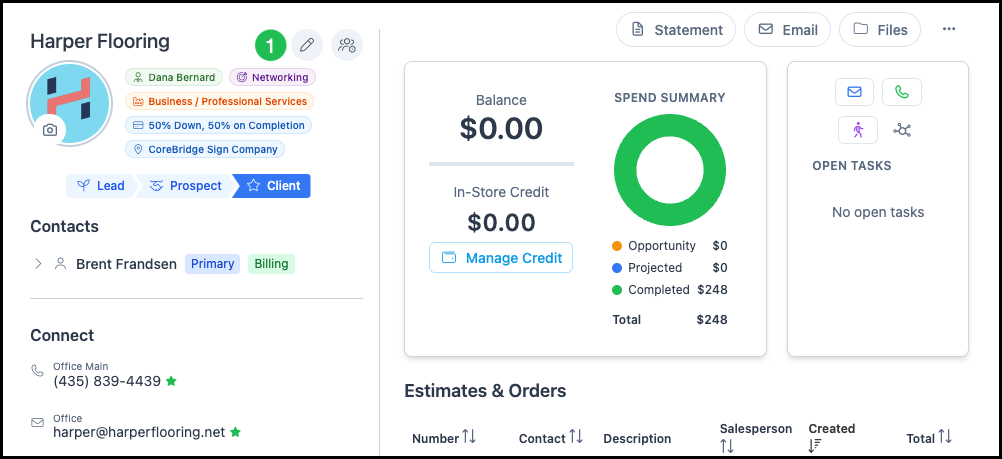
1. Click the Edit icon.
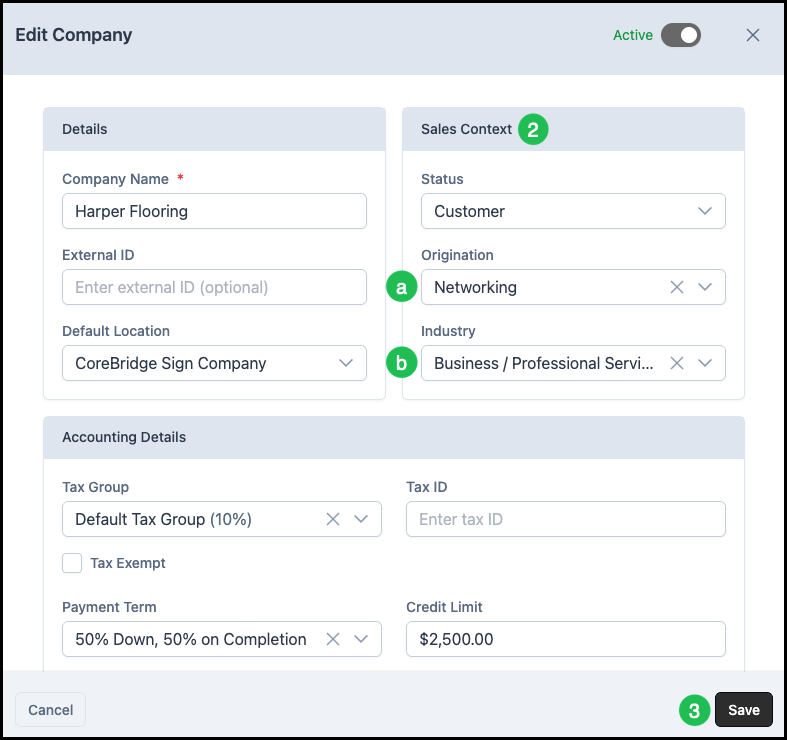
2. Edit the Sales Context information as needed.
a. Origination is how the Company heard about the business. The choices come from the Originations list.
b. Industry is the Company's main industry. The choices come from the Industries list.
3. Click Save.
Frequently Asked Questions
1. Why is Delete unavailable for an Industry or Origination?
Answer: Delete stays unavailable while that value is on a Company record. Pointing at Delete shows the message.
2. Where do CRM Lists appear on a Company?
Answer: Origination and Industry in Sales Context use the active values from CRM Lists.