The Microsoft Calendar integration connects CoreBridge calendars with Microsoft Outlook or Microsoft 365 calendars so events your team creates in CoreBridge appear in Outlook, keeping schedules aligned across both systems.
Note: CoreBridge can help with integration setup and how the integration works within the system. Questions related to Microsoft or Microsoft 365 should be directed to Microsoft.
Table of Contents
- Before You Begin
- Benefits of Integrating with Microsoft Calendar
- How to Integrate CoreBridge with Microsoft Calendar
- Link a CoreBridge Calendar to Microsoft Calendar
- Using Microsoft Calendar Sync
- Related Articles
Before You Begin
Microsoft Calendar is a free integration in the Integrations Marketplace. Your business must have the Microsoft Calendar integration enabled before the card appears or can be installed.
You need access to Settings and permission to install and configure integrations. Each CoreBridge calendar links to Microsoft separately—plan OAuth sign-in per calendar you want to sync.
Benefits of Integrating with Microsoft Calendar
Connecting Microsoft Calendar keeps production and sales schedules visible wherever your team plans their day in Outlook or Microsoft 365.
- Visible scheduling in Outlook. Keep install appointments, production blocks, and meetings visible in Microsoft Calendar.
- Automatic outbound sync. Sync events created in CoreBridge to Microsoft Calendar automatically when a calendar is linked.
- Flexible calendar mapping. Link multiple CoreBridge calendars to different Microsoft calendars when needed.
How to Integrate CoreBridge with Microsoft Calendar
This section explains how to install the Microsoft Calendar integration from the Integrations Marketplace.
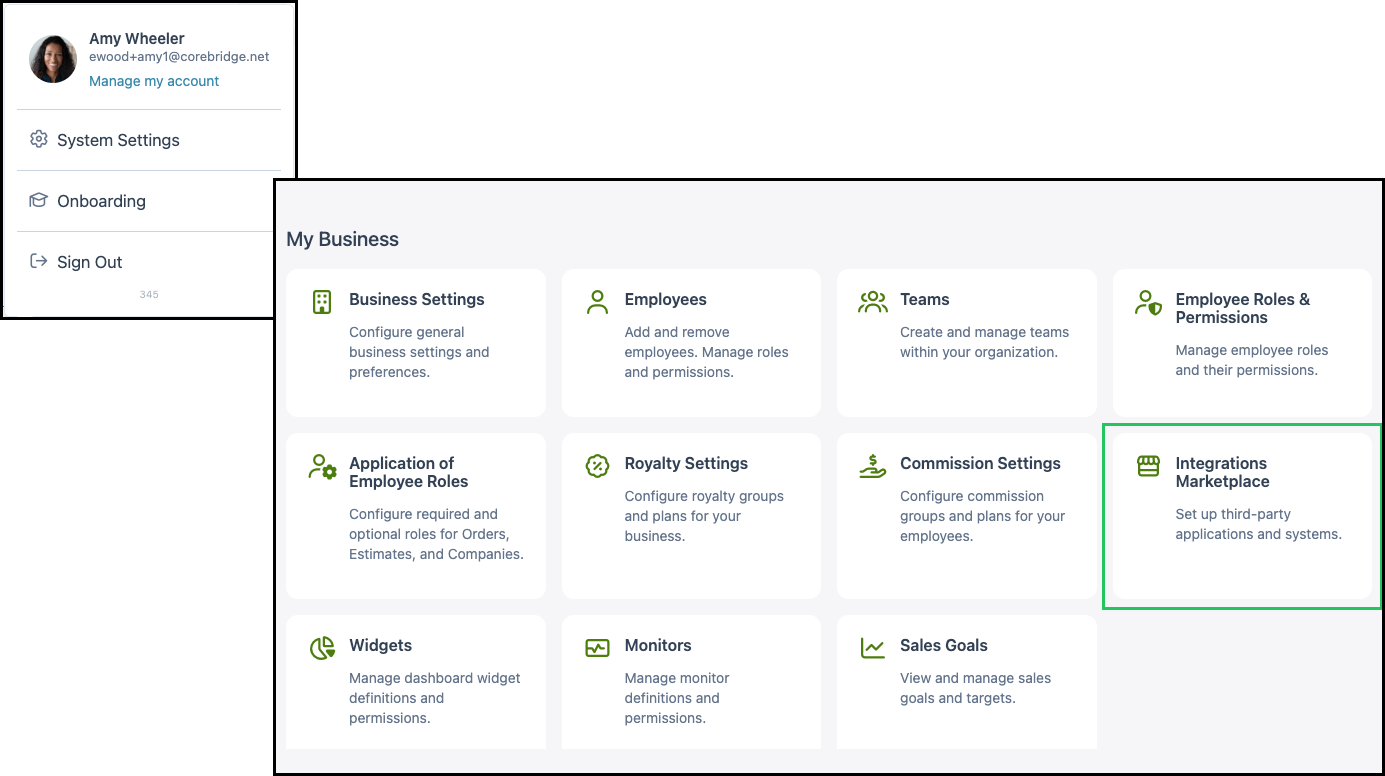
Navigate to System Settings / My Business / Integrations Marketplace.
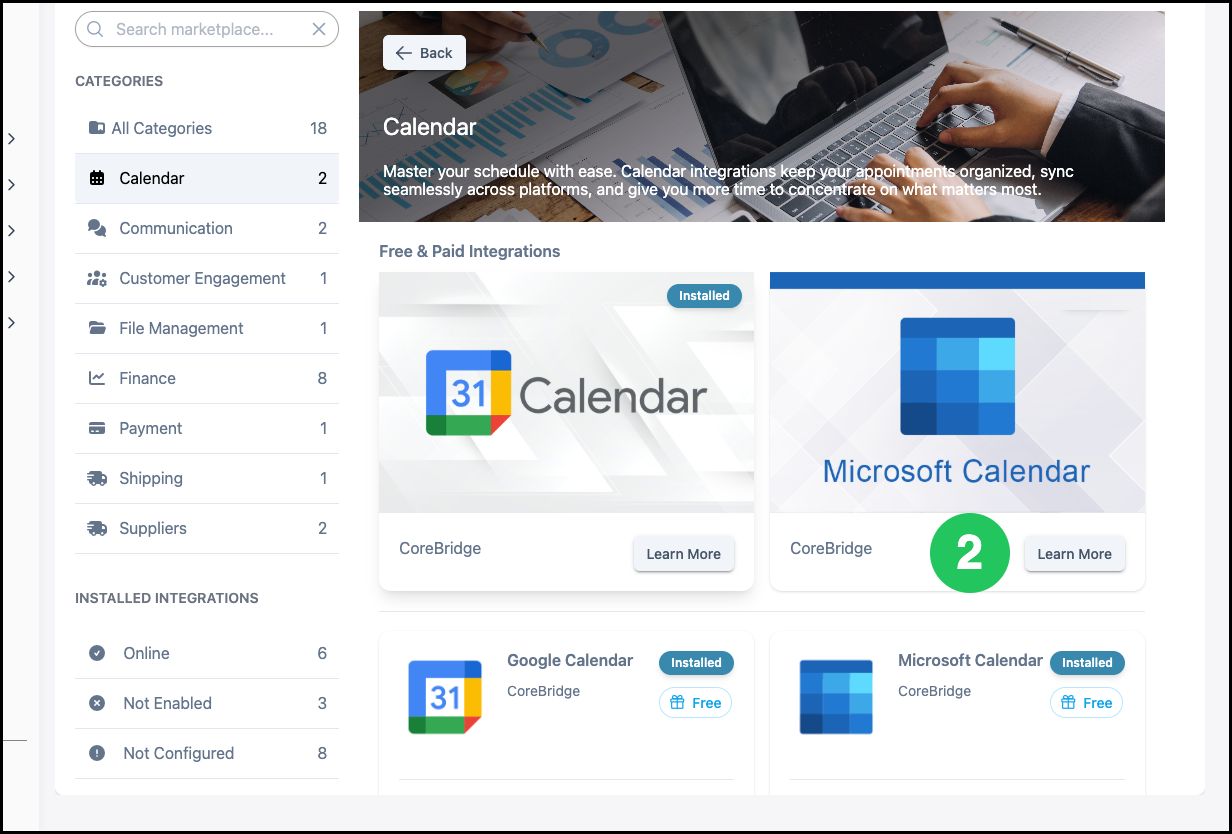
1. Click the Calendar category, or type Microsoft Calendar in Search marketplace.
Note: You can also find Microsoft Calendar using the Search marketplace bar or by browsing All Categories.

2. Click the Microsoft Calendar card.
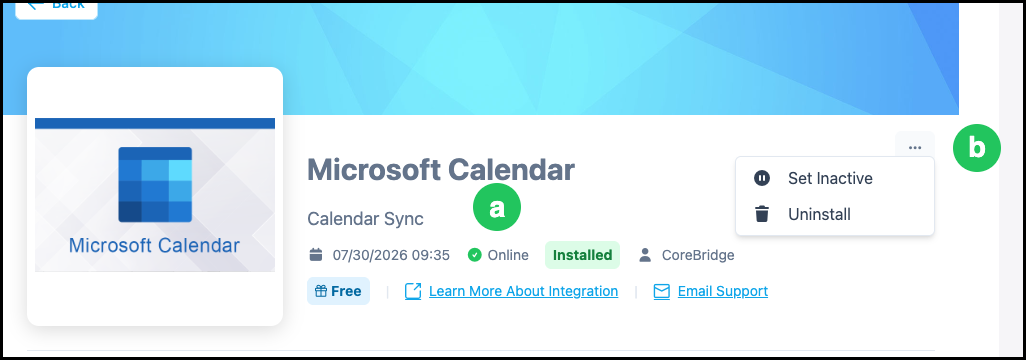
3. Click Install.
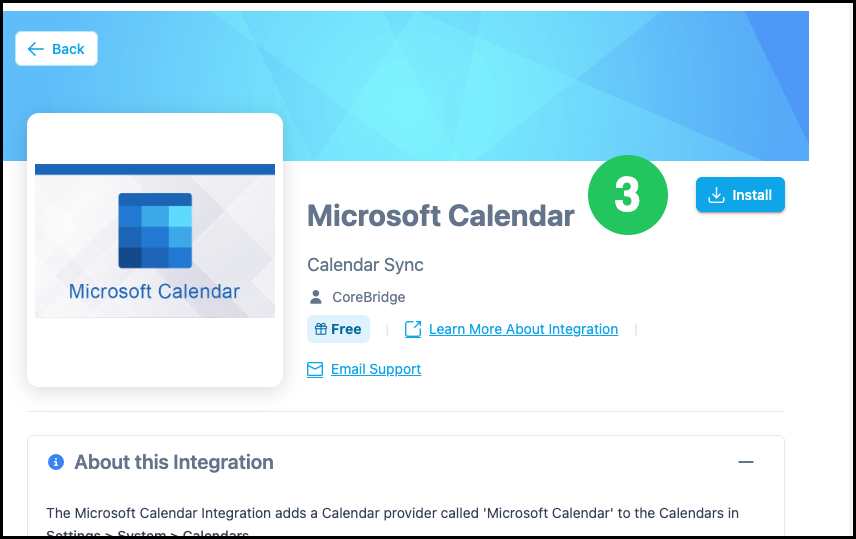
a. After installation, the integration detail screen shows Online when the integration is active.
b. The More Actions menu has options to Set Inactive or Uninstall.
Link a CoreBridge Calendar to Microsoft Calendar
Each CoreBridge calendar connects to one Microsoft calendar. Repeat these steps for every calendar you want to sync.
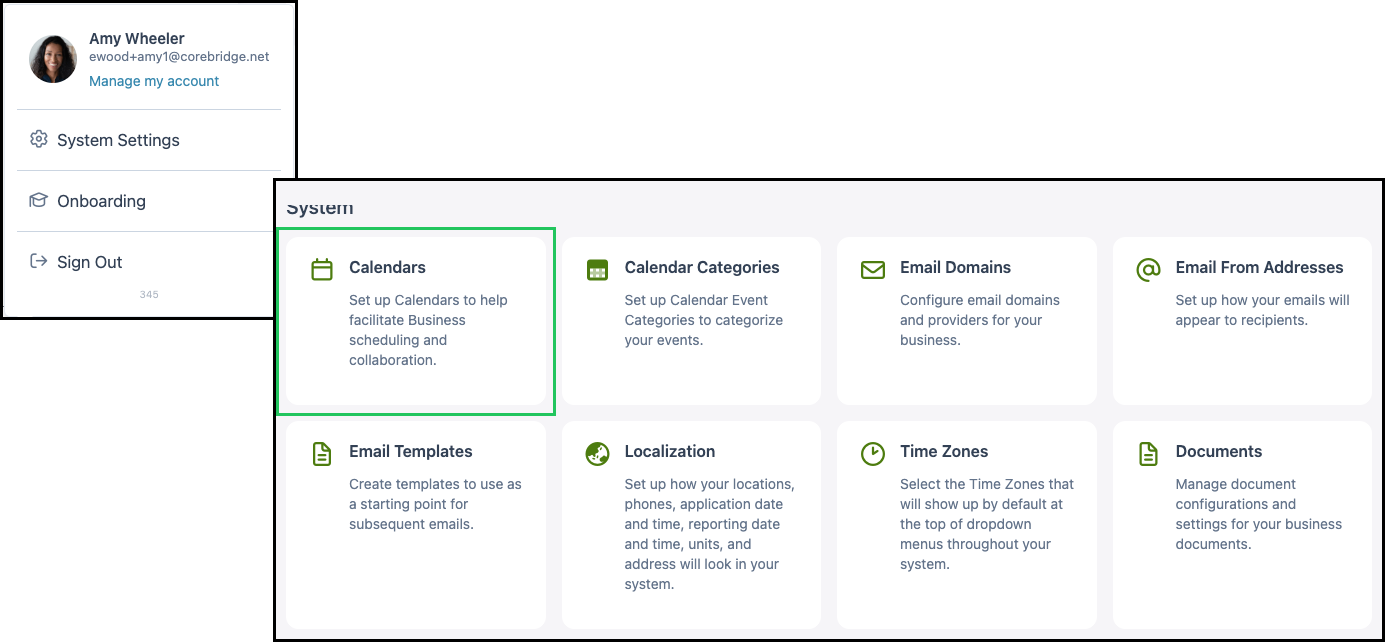
Navigate to System Settings / System / Calendars
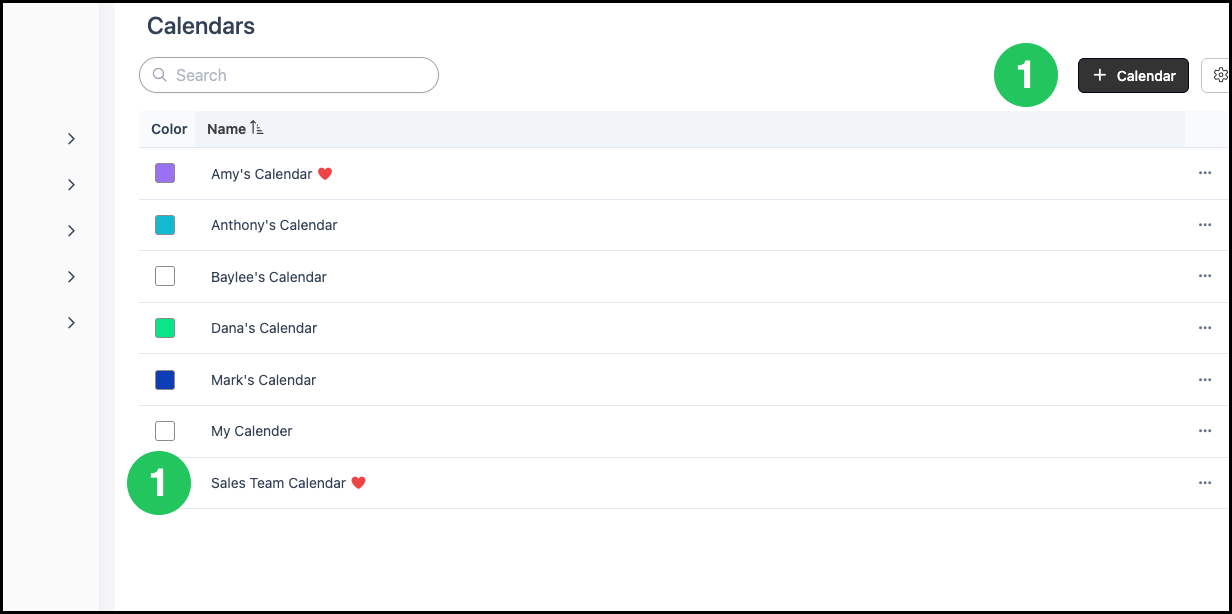
1. Select the Calendar to link—or click Add Calendar to create one first.
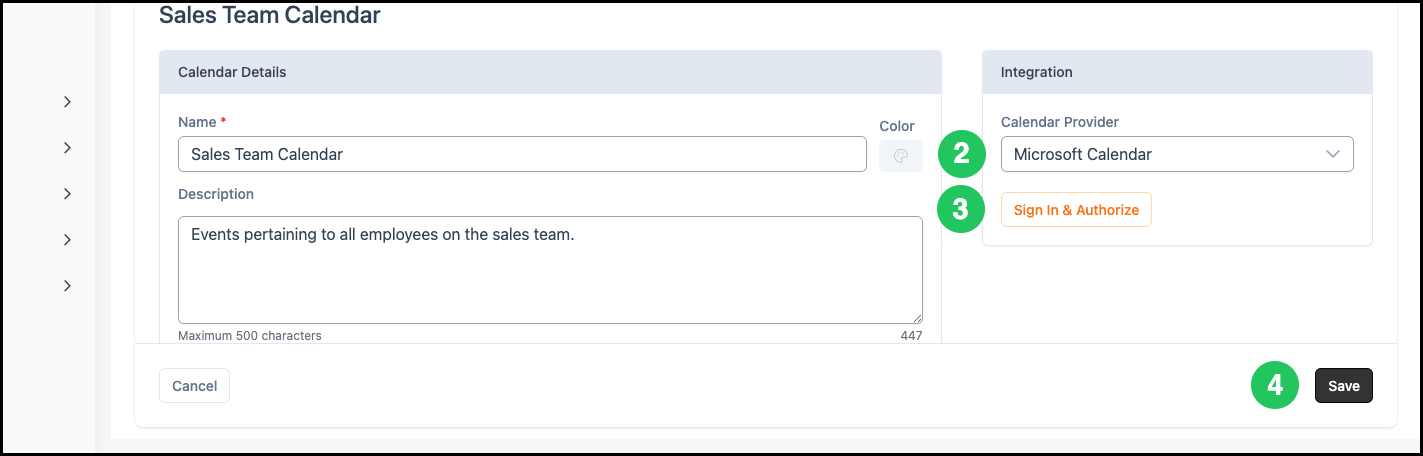
2. In the Integration section, select Microsoft Calendar from the Calendar Provider dropdown.
3. Click Sign In & Authorize and complete the Microsoft authorization in the browser window.
4. Click Save.
Using Microsoft Calendar Sync
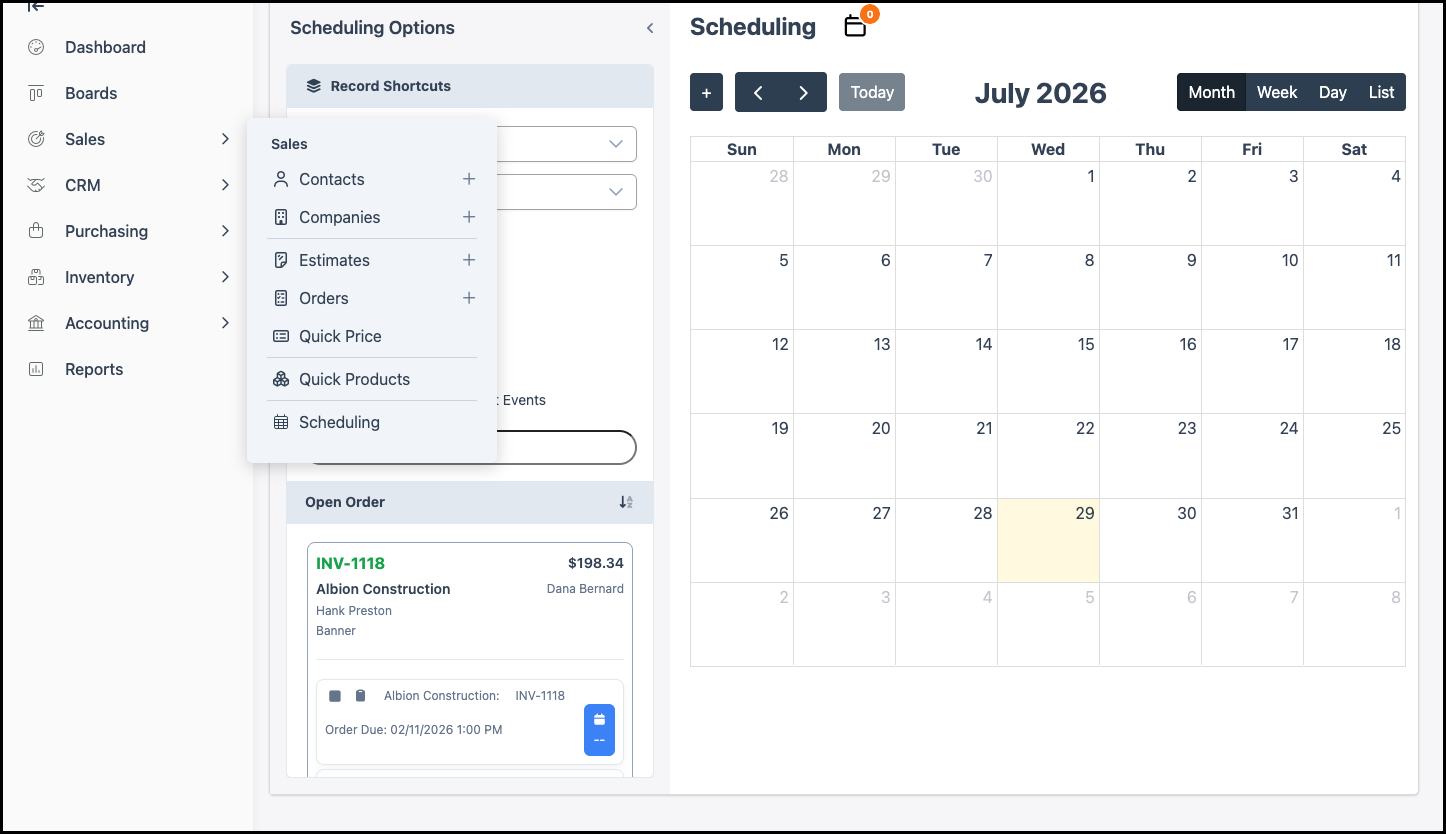
Navigate to Sales / Scheduling.
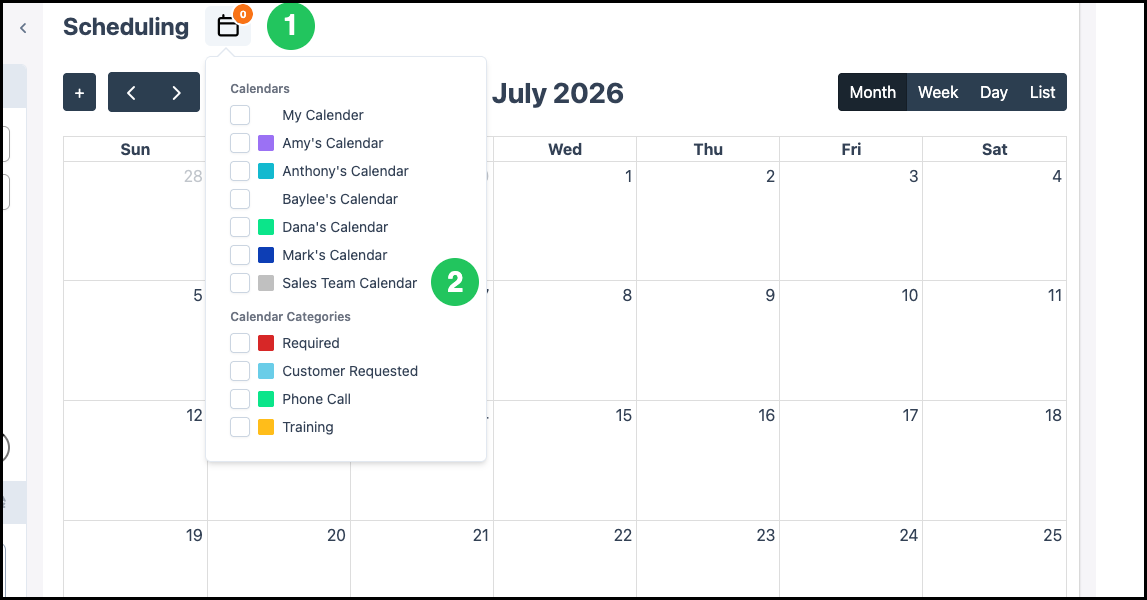
1. Click the Calendar icon.
2. Select the linked calendar(s) to display.
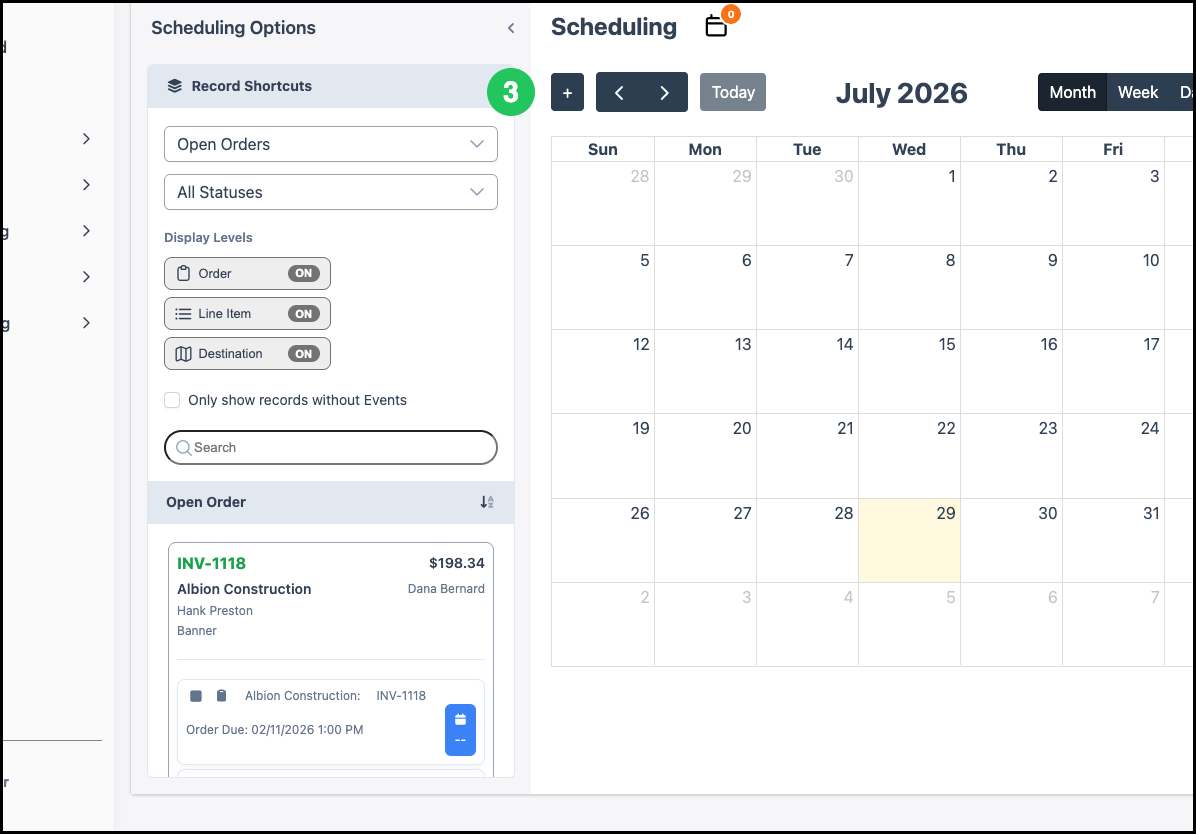
3. Click the Add button or click a date to add an event.
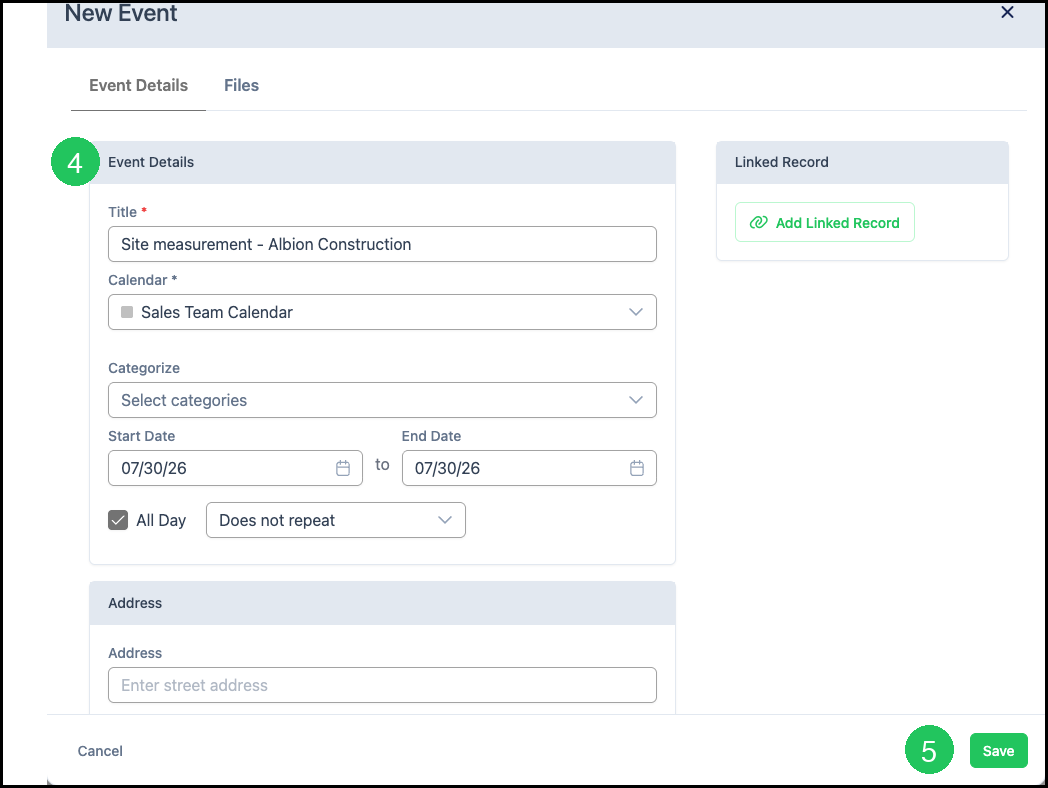
4. Enter Event Details.
5. Click Save.
Note: Events created in CoreBridge on a linked calendar sync to Microsoft Calendar automatically.