
A Contact screen holds the person's details, Chat, activity, and Estimates & Orders after the Contact is created. The screen includes linked Companies, Connect information, Addresses, upcoming events, tasks, and a spend summary. When a Personal Account is enabled, pricing, payment terms, and Company Flags for that account are on Personal Account Details.
Table of Contents
- Accessing a Contact
- Contact Heading
- Contact Details
- Customer Overview and Activity
- Personal Account
- Estimates & Orders
- Frequently Asked Questions
- Related Articles
Accessing a Contact
Navigate to Sales / Contacts.
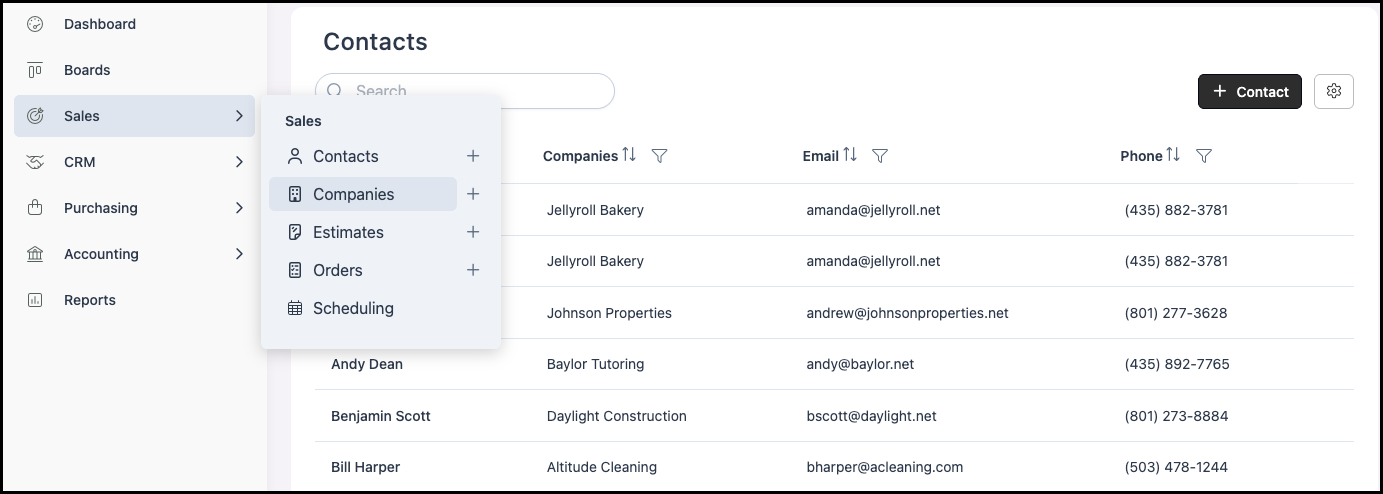
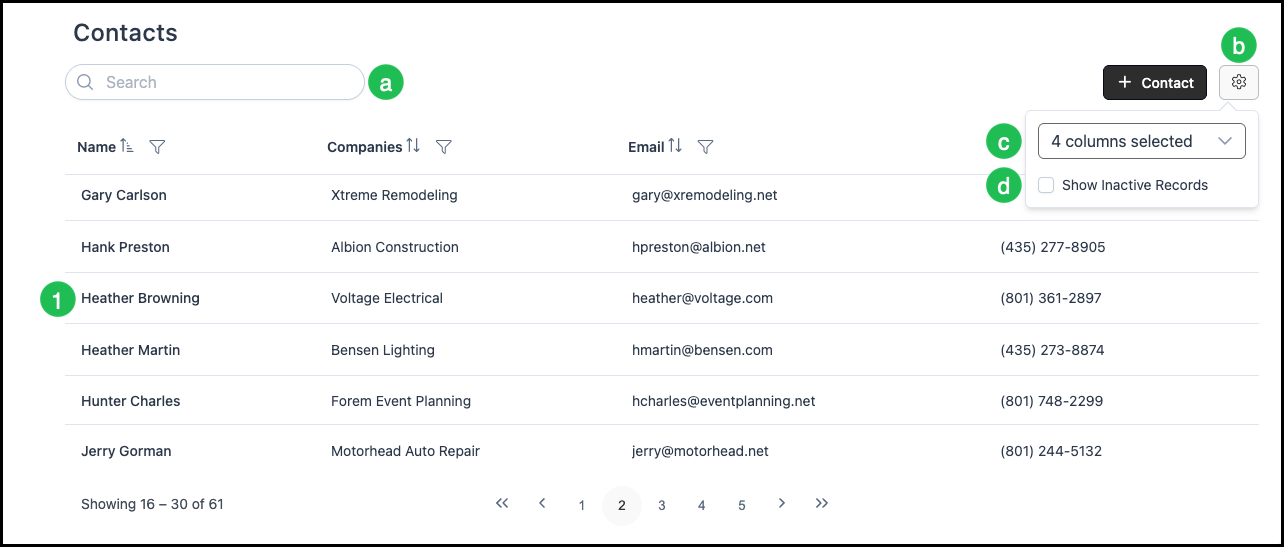
1. Select the Contact to open. Clicking the Contact name opens the Contact screen.
a. Search finds a Contact by name or other criteria.
b. Search Settings opens more list options.
c. Choose which columns appear on the Contacts list.
d. Show Inactive Records includes inactive Contacts in the list.
Contact Heading
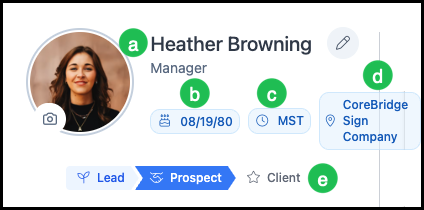
The heading at the top of the Contact screen shows the details saved for that Contact.
a. Contact name and position in the Company. The pencil opens the edit dialog for the name and related heading details.
b. Birthdate
c. Timezone. This is useful when the Contact is in a different timezone.
d. Location that handles business with this Contact.
e. Status in the lifecycle: Lead, Prospect, or Client.
Contact Details
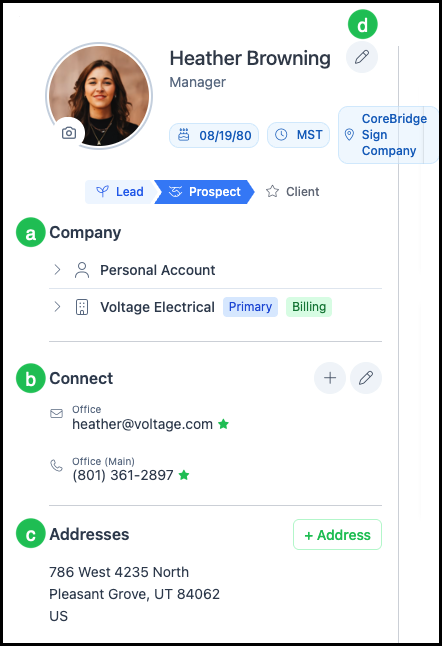
The left side of the Contact screen shows the information entered for the Contact, plus linked Companies, Connect, and Addresses.
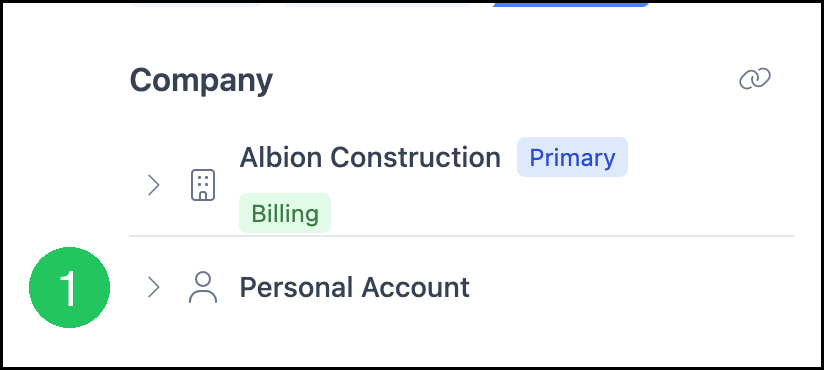
a. Company lists Companies linked to this Contact. Each Company name opens that Company. Primary and Billing appear where they apply. Personal Account is listed with the Companies.
b. Connect shows email addresses and phone numbers, such as Office, Office (Main), Personal, or Home.
Note: Enter only numbers for phone fields. The system formats them from localization settings.
c. Addresses shows addresses saved for the Contact.
d. The pencil opens a dialog to edit the Contact details.
Note: A Contact that is not linked to a Company does not show a Company list. Personal In-Store Credit on this screen shows the Contact's credit balance. Custom Fields configured for Contacts appear below the activity cards.
Customer Overview and Activity
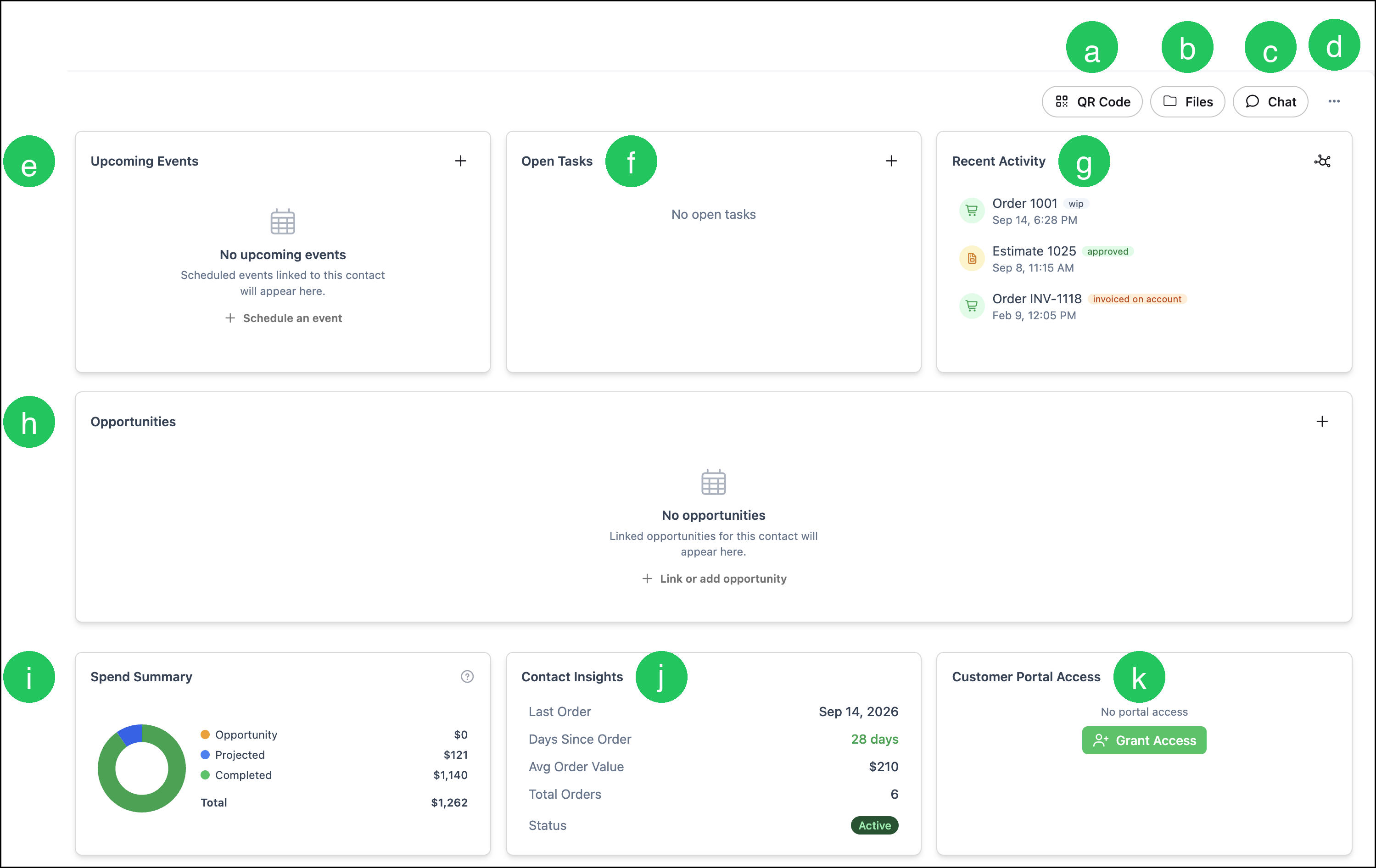
The right side of the Contact screen shows shortcuts, scheduled work, and a summary of business with this Contact.
a. QR Code opens a code you can scan to add this Contact.
b. Files opens the files stored with this Contact.
c. Chat opens the internal conversation for this Contact.
d. More Actions includes Set Inactive, Schedule Event, History, Log Activity, and Link Opportunity.
Note: Set Inactive is unavailable while the Contact has active Orders or Estimates.
e. Upcoming Events lists Calendar events linked to this Contact. Selecting an event opens it in Scheduling.
f. Open Tasks lists tasks for this Contact that are not complete. When there are none, the card shows that there are no open tasks.
g. Recent Activity lists recent tasks, Orders, and Estimates for this Contact. The icon on the card opens Activity, where you can filter by source. Scroll the list to load older activity.
h. Opportunities lists CRM opportunities linked to this Contact.
i. Spend Summary shows Opportunity, Projected, Completed, and Total for this Contact.
j. Contact Insights shows Last Order, Days Since Order, Avg Order Value, Total Orders, and Status.
k. Customer Portal Access shows whether this Contact can sign in to the Customer Portal. Grant Access sends an invitation when the Contact does not have access yet. When access is already granted, use this card to manage or rescind it.
Personal Account
A Personal Account stores accounting details for the Contact, including pricing, payment terms, tax, and credit settings. Company Flags for that account open from Personal Account Details.
1. Under Company, click Personal Account.
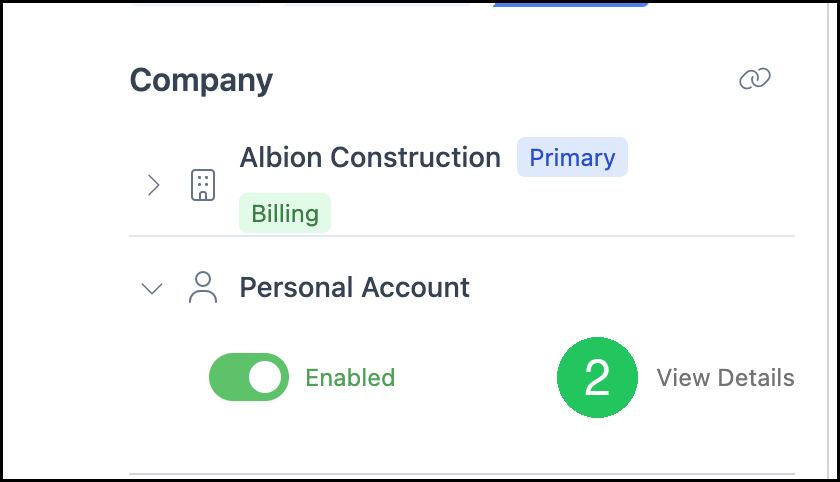
2. Click View Details.
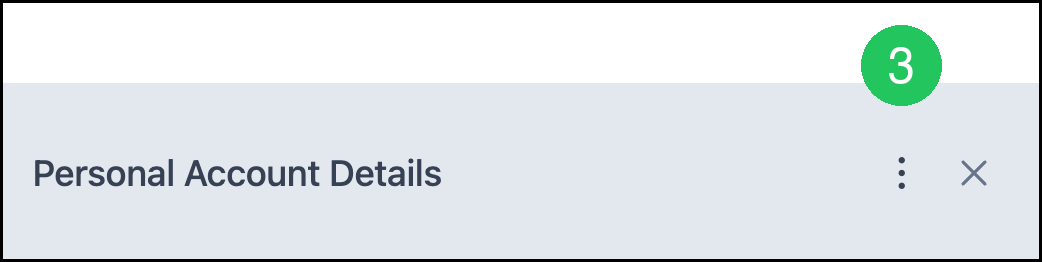
Personal Account Details opens. It includes customer information, accounting details such as Pricing Tier, Payment Term, Credit Limit, and Tax Group, and roles.
3. Click More Actions.
4. Click Company Flags.
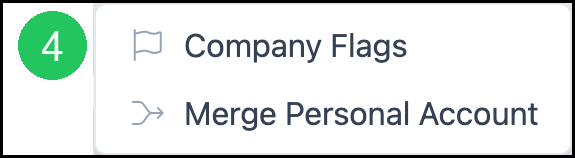
Company Flags opens for this Personal Account. Add, mark, or remove flags the same way as on a Company. See Company Flags.
Note: Merge Personal Account is also in this menu.
Estimates & Orders
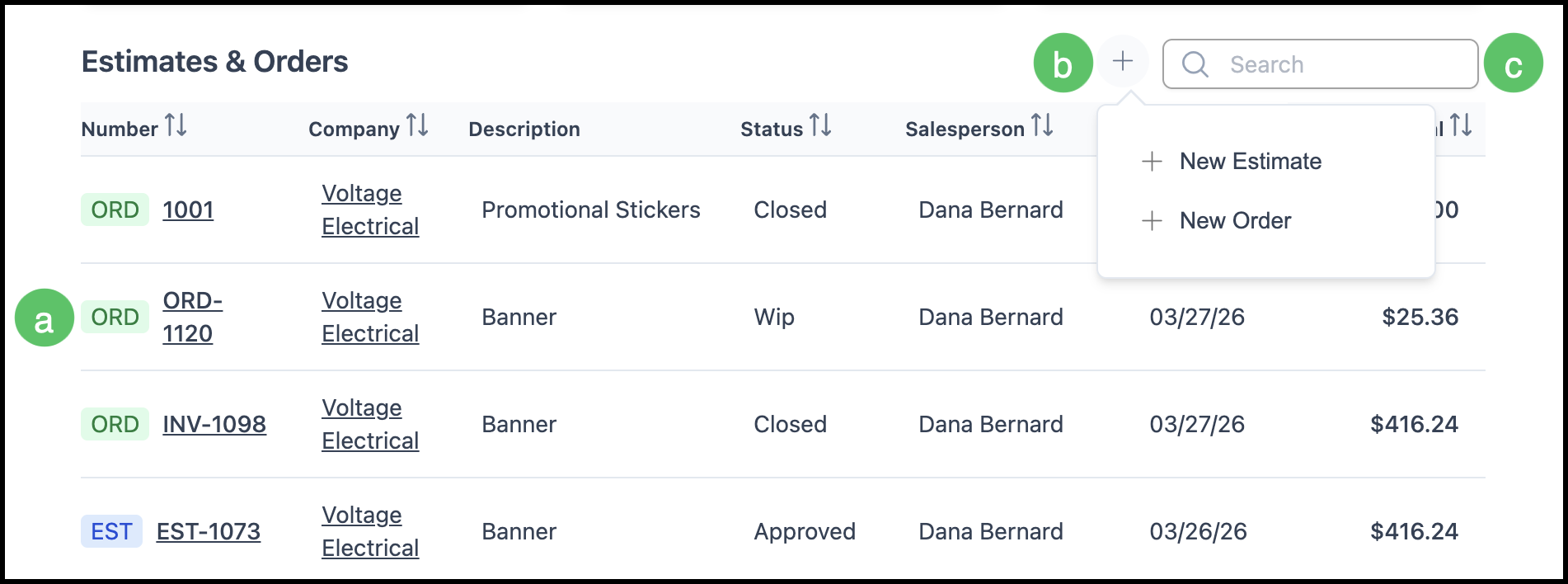
The Estimates & Orders section lists Estimates and Orders for this Contact. For more on those records, see Estimates Overview and Orders Overview.
a. Each row is an estimate or an order. Click the row or the number to open that record.
b. The plus opens New Estimate or New Order from this Contact screen.
c. Search finds an Estimate or Order by number or key phrase.
Frequently Asked Questions
1. Where are Company Flags for a Personal Account?
Answer: On the Contact screen, expand Personal Account, click View Details, then More Actions, then Company Flags. Flags on a Company record are opened from Sales / Companies. See Company Flags.