
The Customer Portal gives your customers a convenient way to review Orders and Estimates, download documents, add comments, approve proofs or request changes, and make online payments. This article explains what customers can access through a shared link and after signing in, as well as how to navigate and use the Customer Portal.
Table of Contents
- Before You Begin
- Important Information
- Opening a Shared Link
- Comments
- Proof Approval
- Request Changes
- Signing In
- Home
- Orders
- Estimates
- Payments
- Frequently Asked Questions
- Related Articles
Before You Begin
- Customers can open a single Order or Estimate from a Customer Portal Link, or sign in after you grant portal access on the Contact. For the steps to send a link or grant access, see How to Invite Customers to the Customer Portal.
- What appears in the portal (including history, reorder, and online payments) depends on Customer Portal Options. For more information, see Customer Portal Options.
- Approve and Request changes are available when a Line Item is waiting for customer approval. For more information, see Customer Portal Approval Process.
Important Information
Customers reach the Customer Portal in two ways:
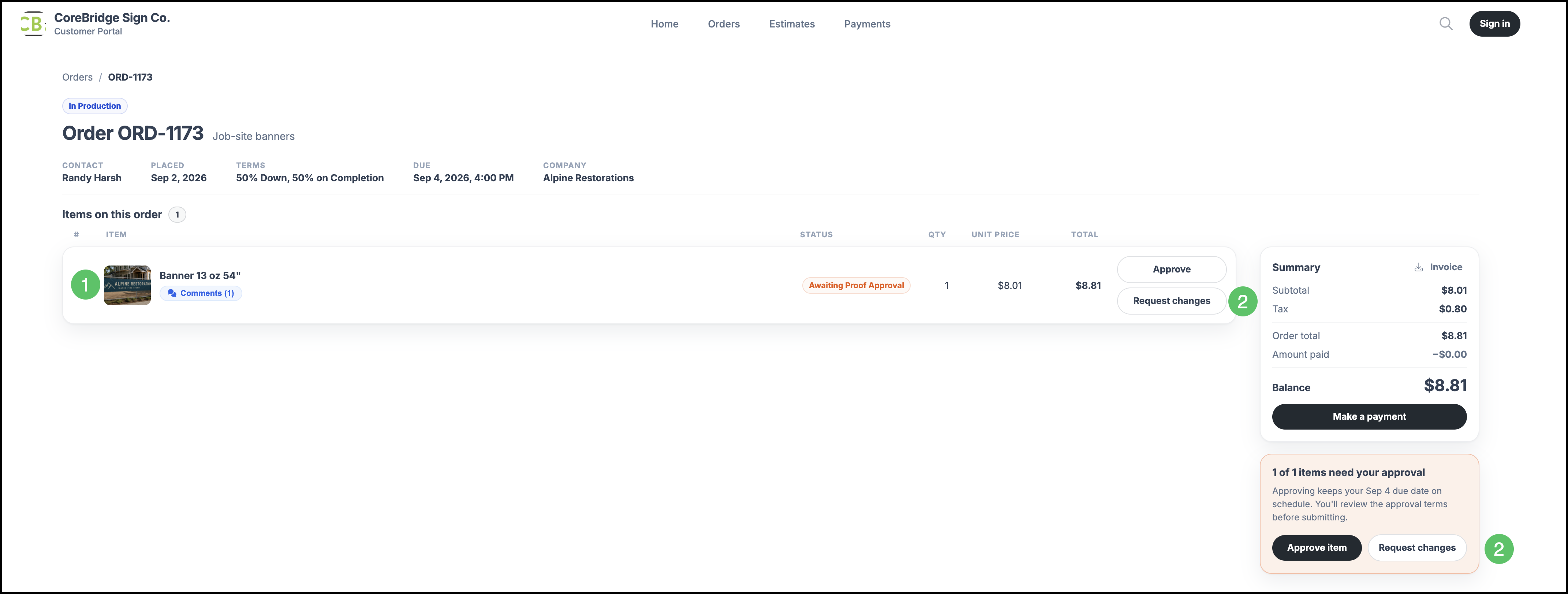
Customer Portal Link - Opens one Order or Estimate. The customer can review that document, add comments, view proofs, and pay when a balance is due, without signing in.
Grant Access Sign-in - Opens the full Customer Portal for that Contact, including lists of Orders, Estimates, and payments for the Company.
Opening a Shared Link
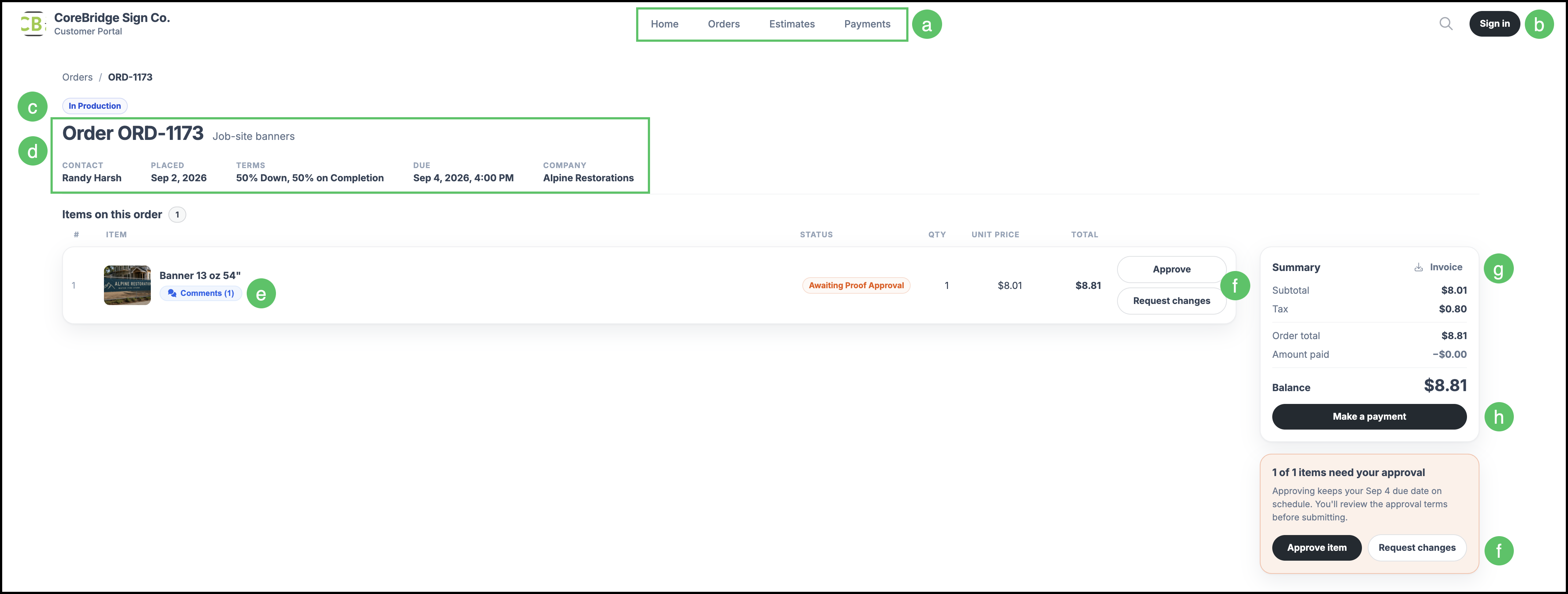
When a customer opens a Customer Portal Link, they see that Order or Estimate. They do not need to sign in to review it.
a. Navigation tabs - These options become available after sign-in.
b. Sign in - Opens the Customer Portal login so the customer can access the full portal.
Note: This requires permission given with the Grant Access button found on the Contact page. For more information, see How to Invite Customers to the Customer Portal.
c. Status - This displays the status of the Estimate or Order.
d. Document number, status, description, and header details.
e. Comments - This opens a window allowing a conversation regarding this Estimate or Order.
f. Approve or Request changes - These are available when there is an item is waiting for Customer approval and are available in multiple locations on the screen, either by individual Line Item or on the record level.
g. Invoice - This allows the Customer to download the invoice for this item.
h. Make a payment - This is available when there is a balance and online payments are enabled. For the payment steps, see Paying Through the Customer Portal.
Comments
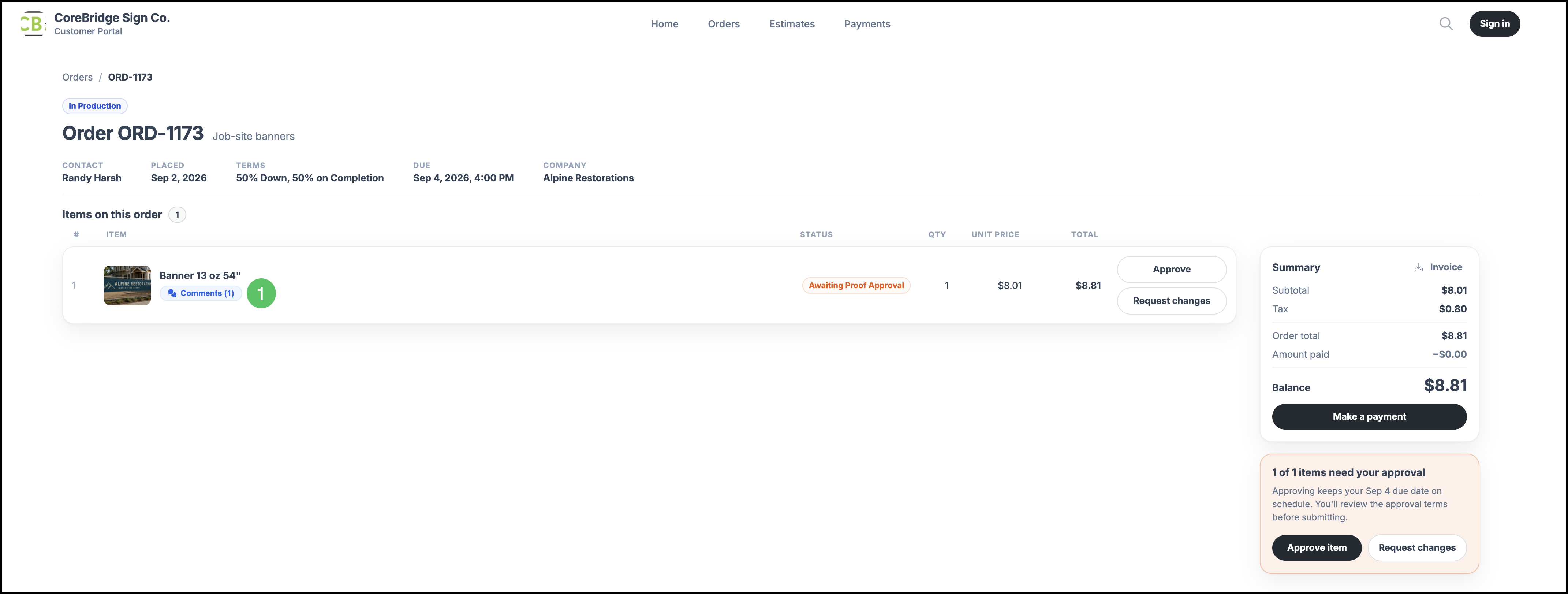
Customers use Comments on a Line Item to leave a note or request information about that item.
1. Click Comments.
2. Enter a comment in the field.
3. Click Post Comment.
Note: Previous comments are available with details such as who posted and a time stamp.
Proof Approval
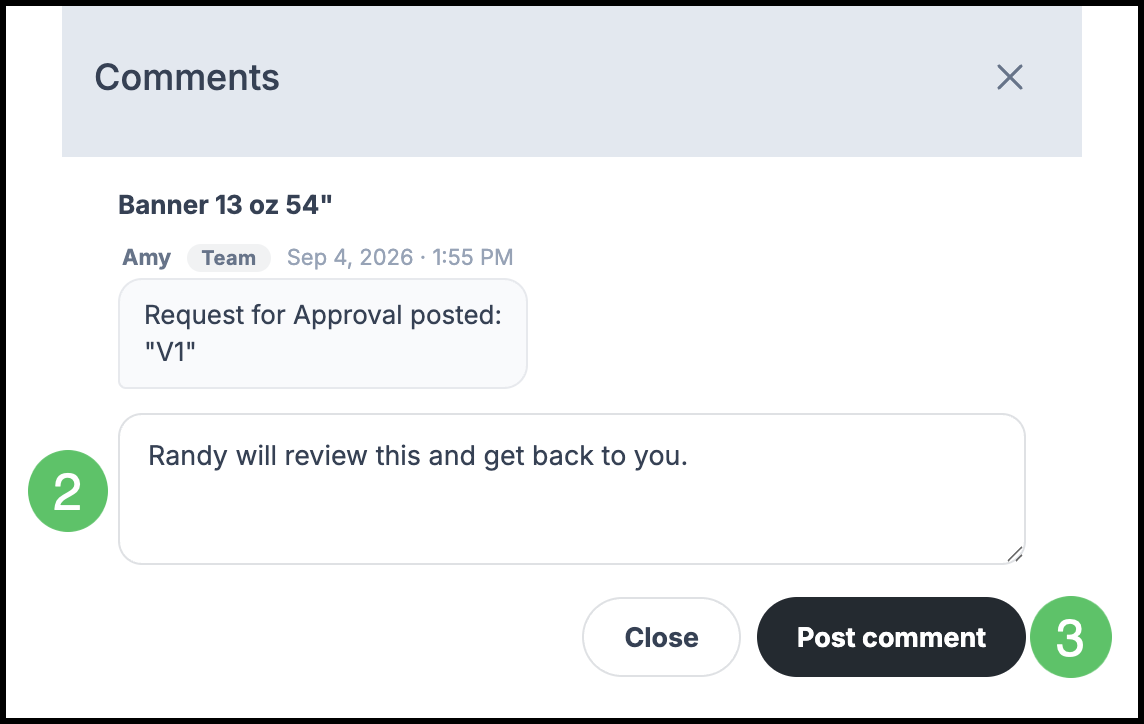
When a proof file is attached to a Line Item, the Customer can open the thumbnail to review the artwork.
Note: This is also available when signed into the Customer Portal.
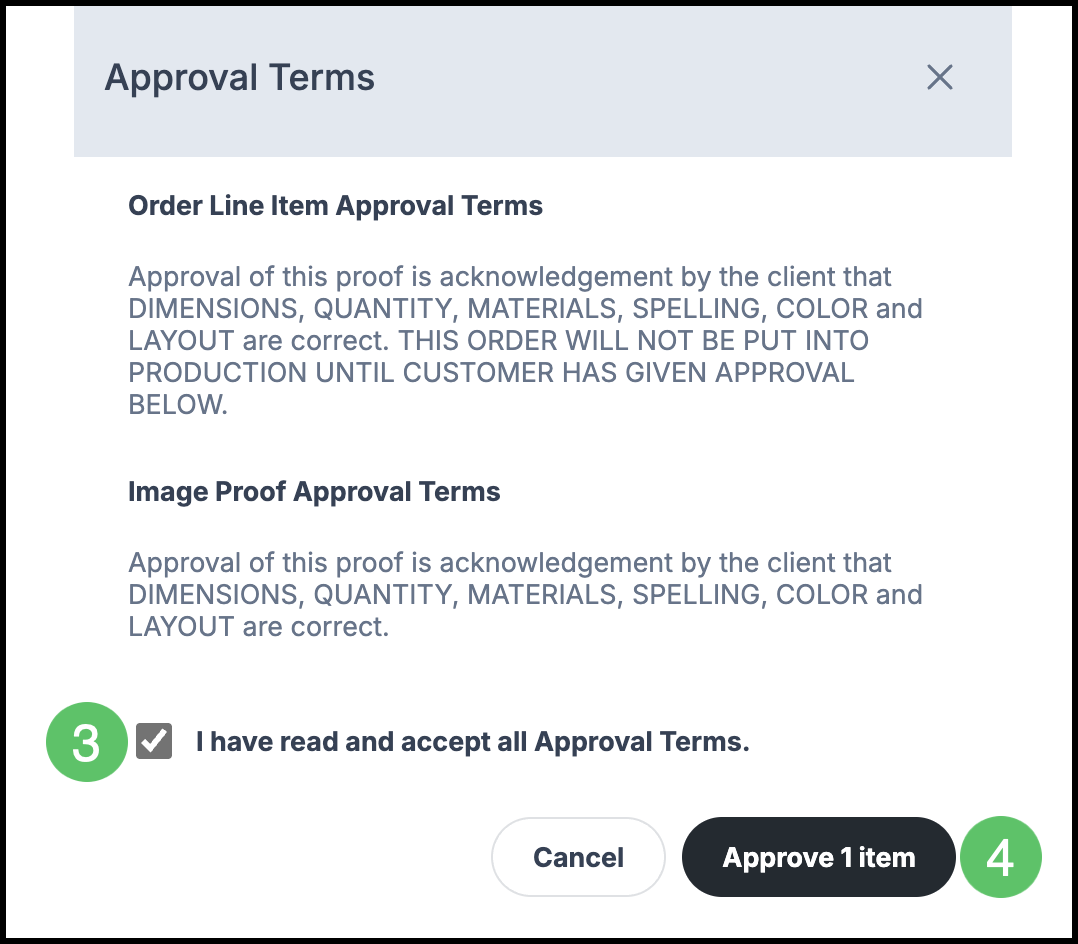
1. Review the proof by clicking on the thumbnail.
2. Select Approve on the Line item or Approve item.
3. Accept Approval Terms.
4. Click Approve.
Request Changes
When a proof file is attached to a Line Item, the Customer can open the thumbnail to review the artwork and request changes, if needed.
Note: This is also available when signed into the Customer Portal.
1. Review the proof by clicking on the thumbnail.
2. Click Request changes.
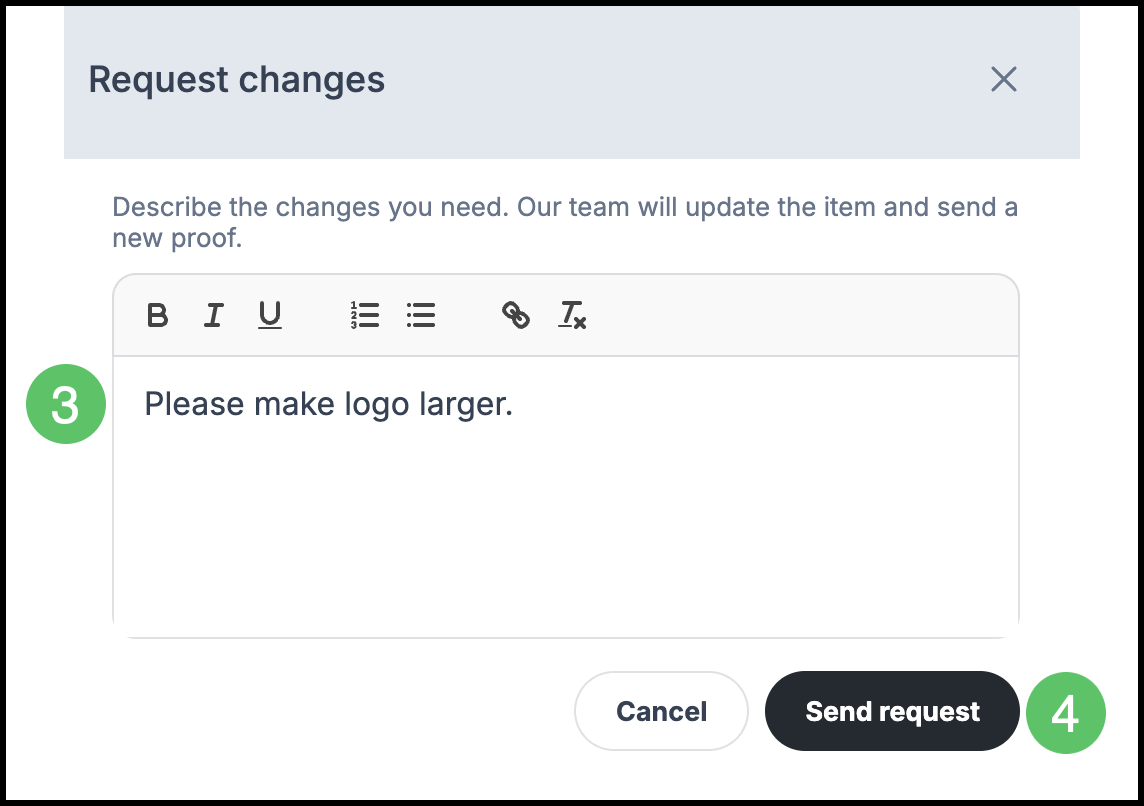
3. Enter the change request.
4. Click Send request.
Signing In
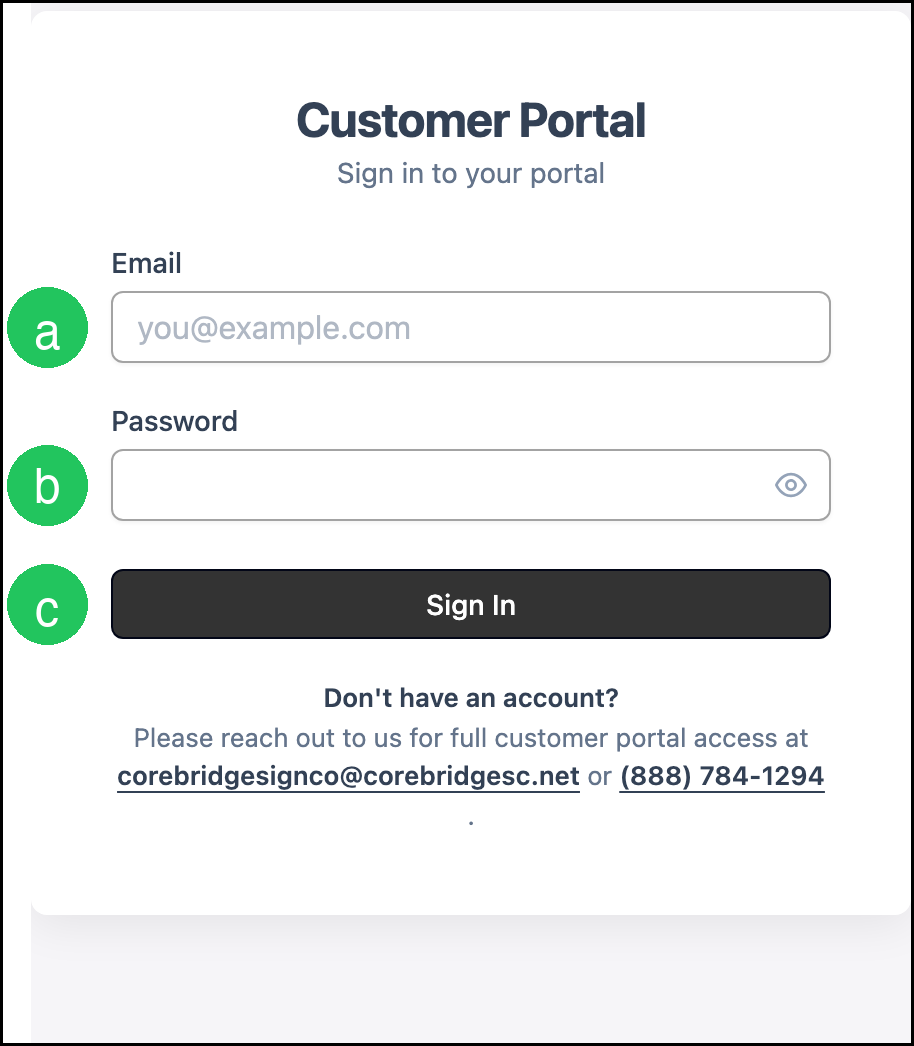
Customers sign in with the username from Grant Access (usually the Contact email) and the password they set from the invitation or a Password Reset. They can click Sign in from a shared link.
a. Email - The Customer Portal username.
b. Password.
c. Sign In - Signs the customer in to the full Customer Portal.
Note: If the customer does not have an account, the login screen tells them to reach out for full Customer Portal access.
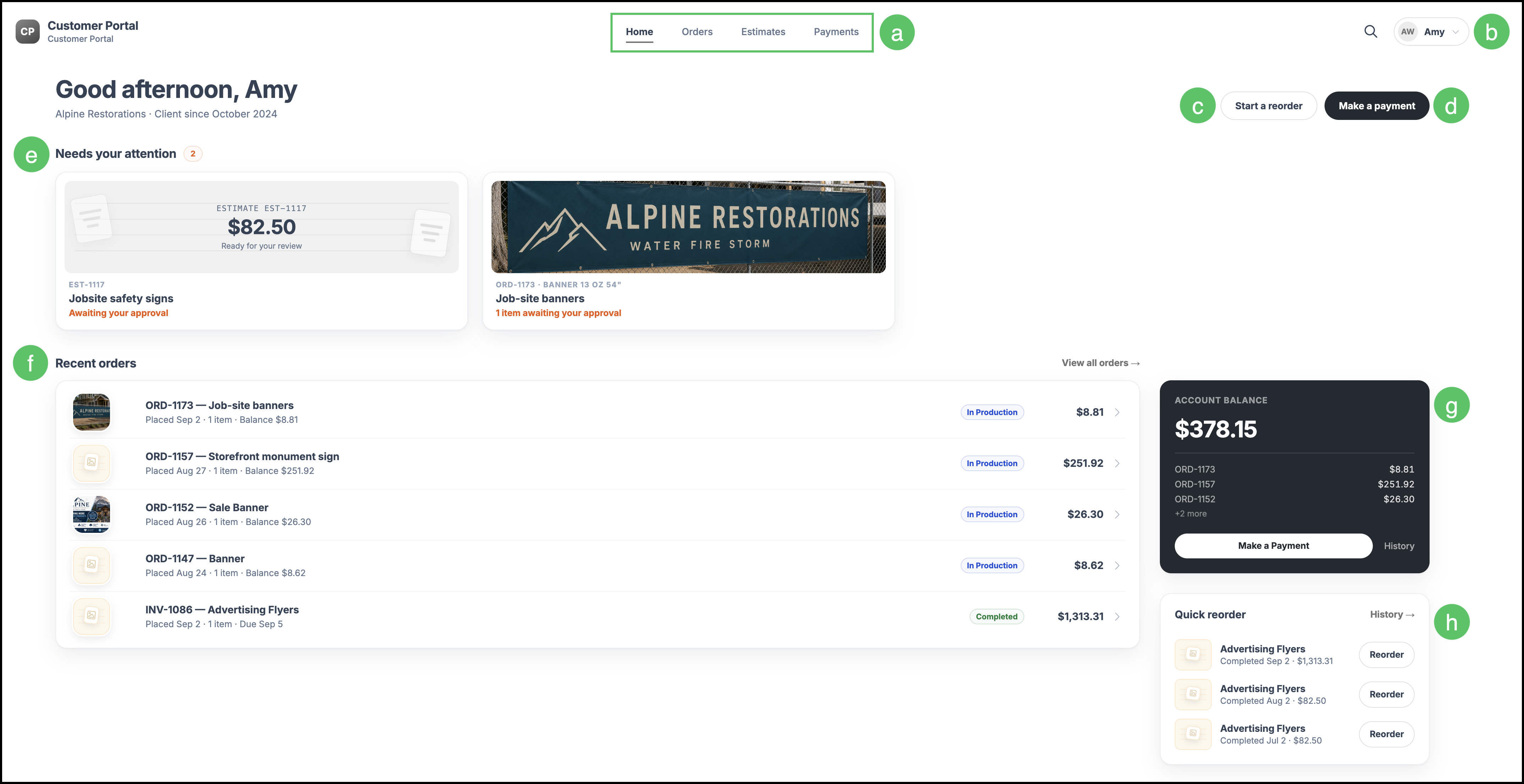
Home
After the customer signs in, Home is the starting screen for that Contact and Company.
a. Home, Orders, Estimates, and Payments tabs allow you to navigate through the portal.
b. My Profile - The name in the header opens options to change appearance (Light, Dark, or System), and Sign Out.
c. Start a reorder - This opens the Orders page with the Completed tab selected, allowing you to select one for reorder.
d. Make a payment - Opens Payments when the Company has a balance. Start a reorder starts a reorder when reordering is enabled.
e. Needs your attention - Items requiring attention will be posted here on cards. Clicking on them opens up the Order or Estimate.
f. Recent orders - Recent Orders for the Company. The customer can open an Order from this list.
g. Account Balance - Open balances for the Company, with Make a Payment and a link to payment history.
h. Quick reorder lists recent completed products when reordering is enabled.
Note: If the Contact is linked to more than one Company, they select the Company before these lists fill in.
Orders
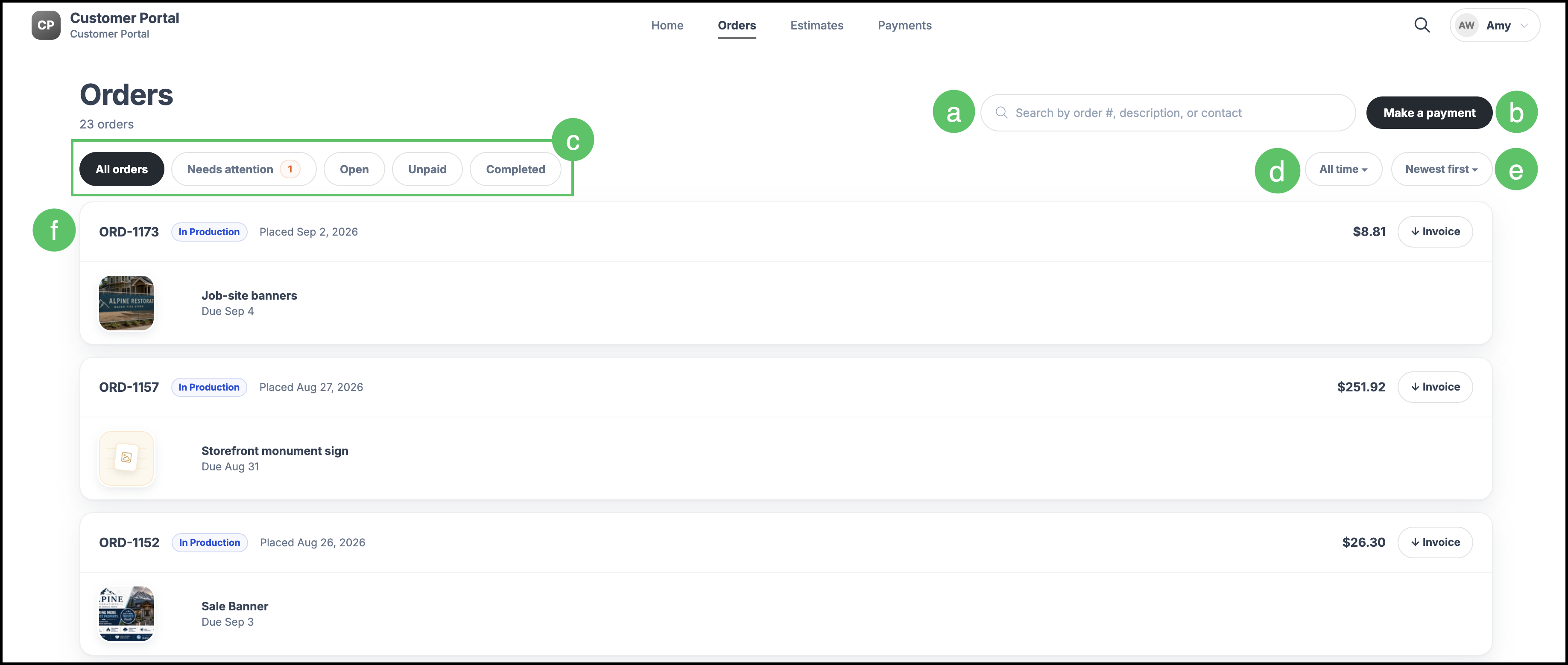
Customers use Orders to find and open Orders for the Company.
a. Search bar - Allows you to search for a specific Order.
b. Make a payment - Opens a screen allowing you to complete a payment on an Order. For more information, please see Paying Through the Customer Portal.
c. Tabs include All orders, Needs attention, Open, Unpaid, and Completed, allowing you to filter the Order list based on status or action needed.
d. Date Range - Allows you to select the window of time shown.
e. Sort Order - Allows you to select the order in which the records are shown.
f. Orders - Quick options are shown on each row depending on the Status, like the option to download an Invoice or Reorder.
Note: Clicking on an Order opens it up with more details. This screen is shown above in the Opening a Shared Link section.
Estimates
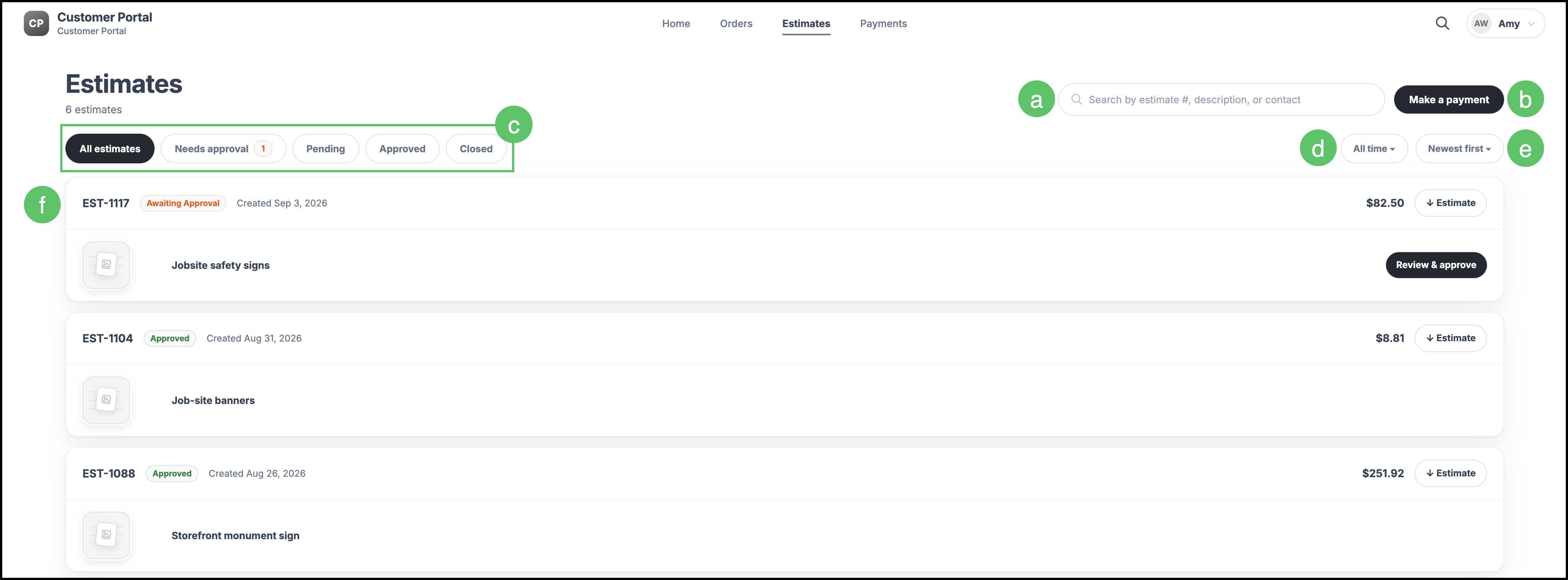
Customers use Estimates to find and open Estimates for the Company.
a. Search bar - Allows you to search for a specific Estimate.
b. Make a payment - Opens a screen allowing you to complete a payment on an Estimate. For more information, please see Paying Through the Customer Portal.
c. Tabs include All estimates, Needs approval, Pending, Approved, and Closed allowing you to filter the Estimate list based on status or action needed.
d. Date Range - Allows you to select the window of time shown.
e. Sort Order - Allows you to select the order in which the records are shown.
f. Estimates - Quick options are shown on each row depending on the Status, like the option to download an Estimate or Review and approve.
Note: Clicking on an Estimate opens it up with more details.
Payments
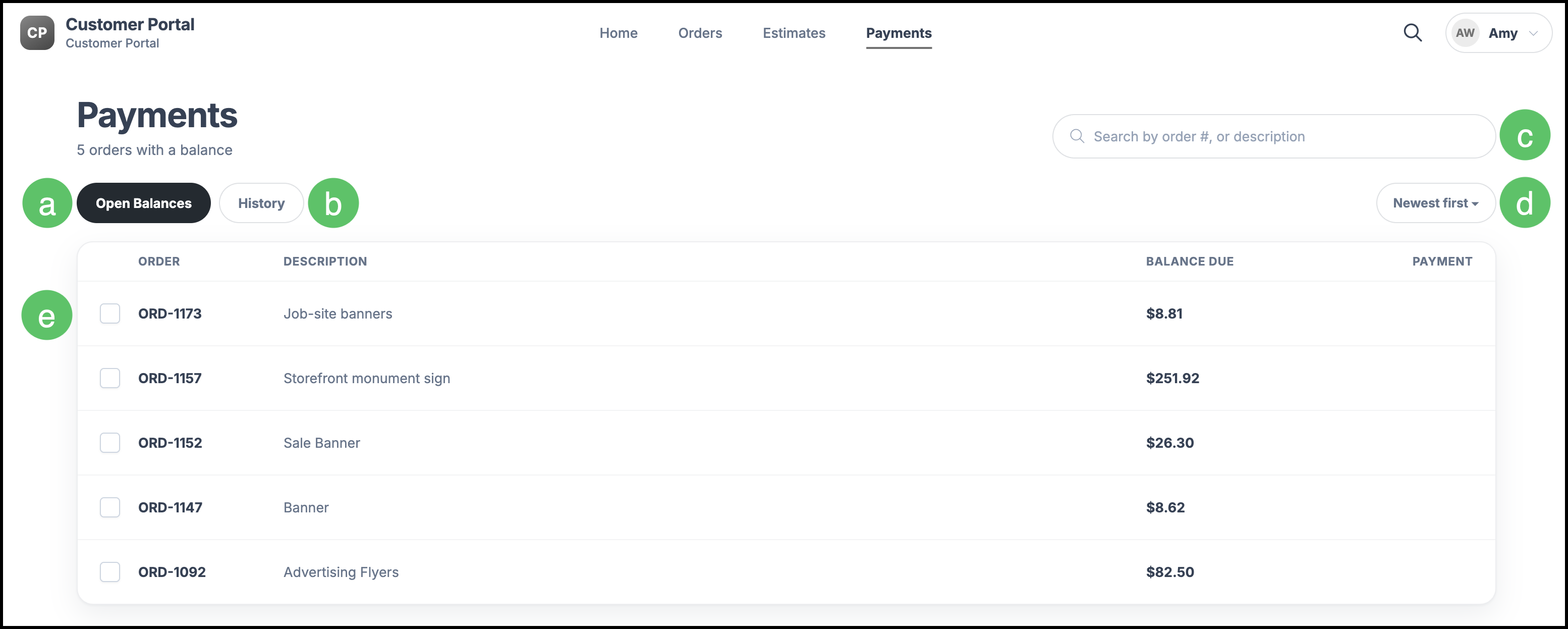
Customers use Payments to review open balances and payment history. For the steps to pay, see Paying Through the Customer Portal.
a. Open Balances - Lists Orders with a remaining balance. Customers select what to pay, then click Pay now.
b. History - Lists closed Orders.
c. Search - Allows you to search for a specific record.
d. Sort Order - Allows you to select the order in which the records are shown.
e. Selecting an Order allows you to make a payment.
Frequently Asked Questions
1. What is the difference between a Customer Portal Link and signing in?
Answer: A Customer Portal Link opens one Order or Estimate. Signing in opens the full Customer Portal for that Contact, including Home, Orders, Estimates, and Payments.
2. Why is Search unavailable on a shared link?
Answer: Search is available after the customer signs in. On a shared link, the customer is viewing one document.
3. Why are Approve and Request changes unavailable?
Answer: Those actions are available when the Line Item is waiting for customer approval. For more information, see Customer Portal Approval Process.
4. Why does a customer not see History or Reorder?
Answer: Order History, Estimate History, Payments History, and reorder are turned on in Customer Portal Options. If an option is off, that section does not appear in the portal.
Related Articles
Customer Portal Approval Process
How to Invite Customers to the Customer Portal