
Time Zones set the clock CoreBridge uses for a Location, and for an Employee who works on a different clock. Time Zones are available on each Location, on each Employee, and as favorites for time zone lists. Favorite time zones appear first in those lists, while Default Timezone stays on the Location and each Employee time zone stays on that Employee.
Table of Contents
- Important Information
- Set Default Timezone on a Location
- Set a Time Zone on an Employee
- Choose Favorite Time Zones
- Frequently Asked Questions
- Related Articles
Important Information
- A time zone tells CoreBridge which clock to use for a Location, and for an Employee who should follow a different clock.
- Set Default Timezone on each Location that should keep its own clock. This is especially useful when you have more than one Location.
- Set a time zone on an Employee when that person works in a different time zone from the Location they belong to. The Employee header shows the current time zone next to the name, position, and Location.
- Favorite time zones are separate from both of those. They sit at the top of time zone lists throughout CoreBridge. Saving a favorite does not change Default Timezone on a Location or on an Employee.
Set Default Timezone on a Location
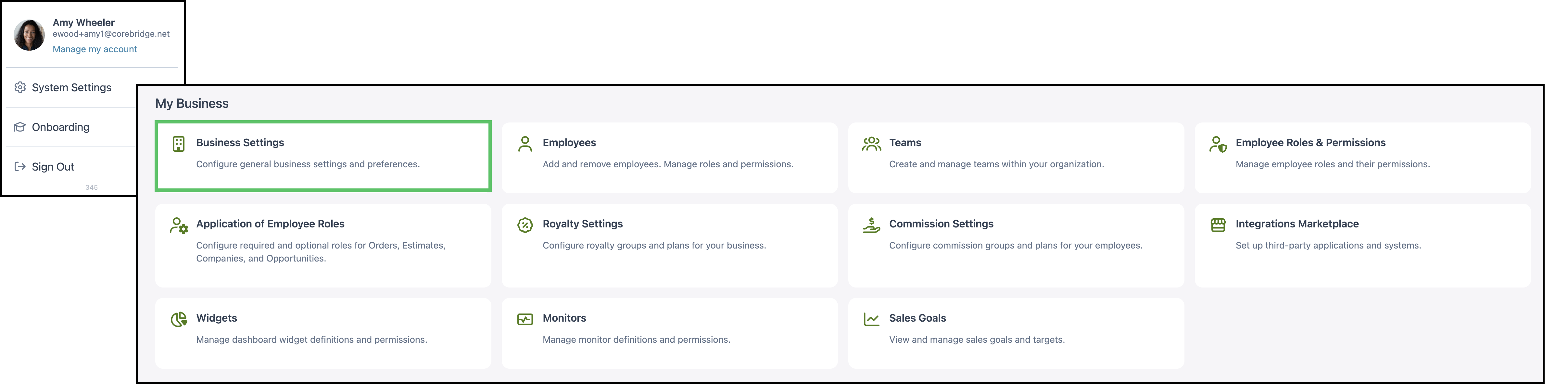
Navigate to System Settings / My Business / Business Settings.
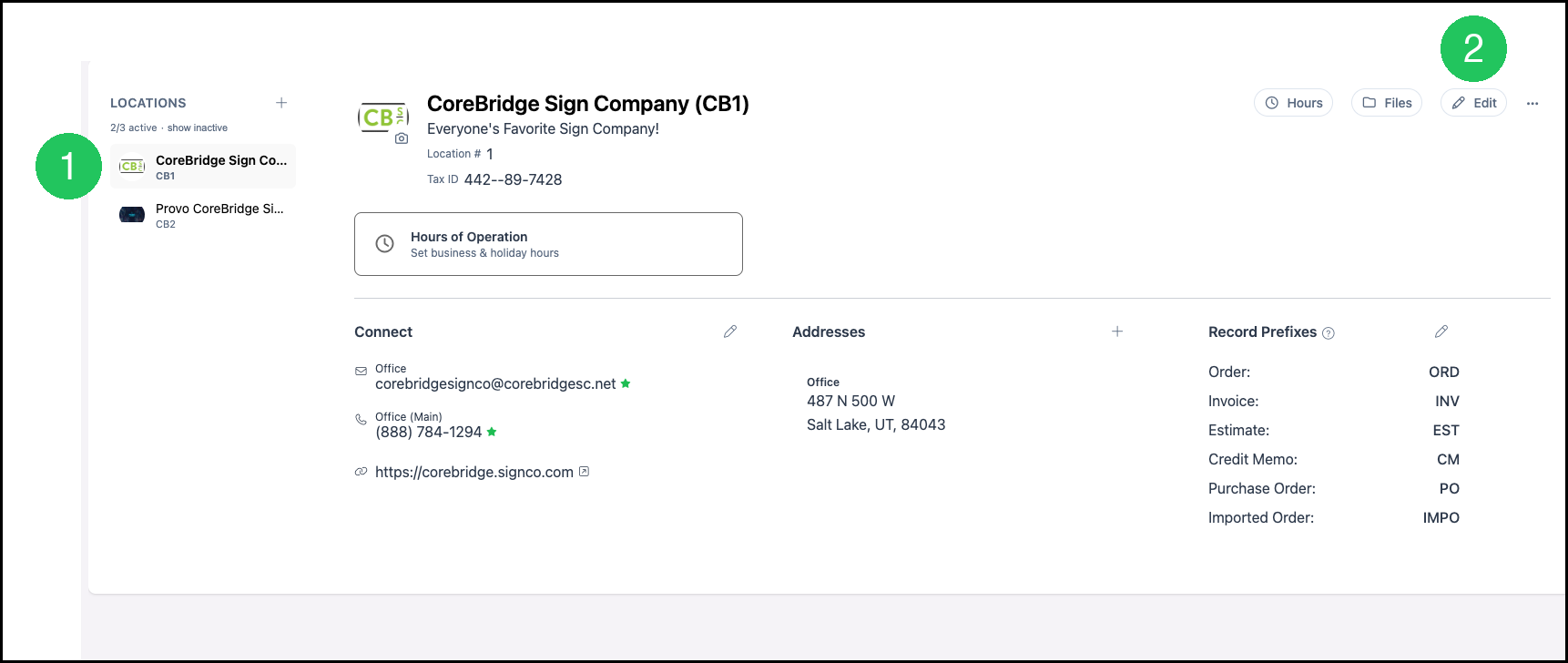
1. When more than one Location is listed, select the Location under Locations. The details open.
2. Click Edit. The Edit Location Details dialog opens.
3. Select the time zone this Location runs on from Default Timezone.
4. Click Save.
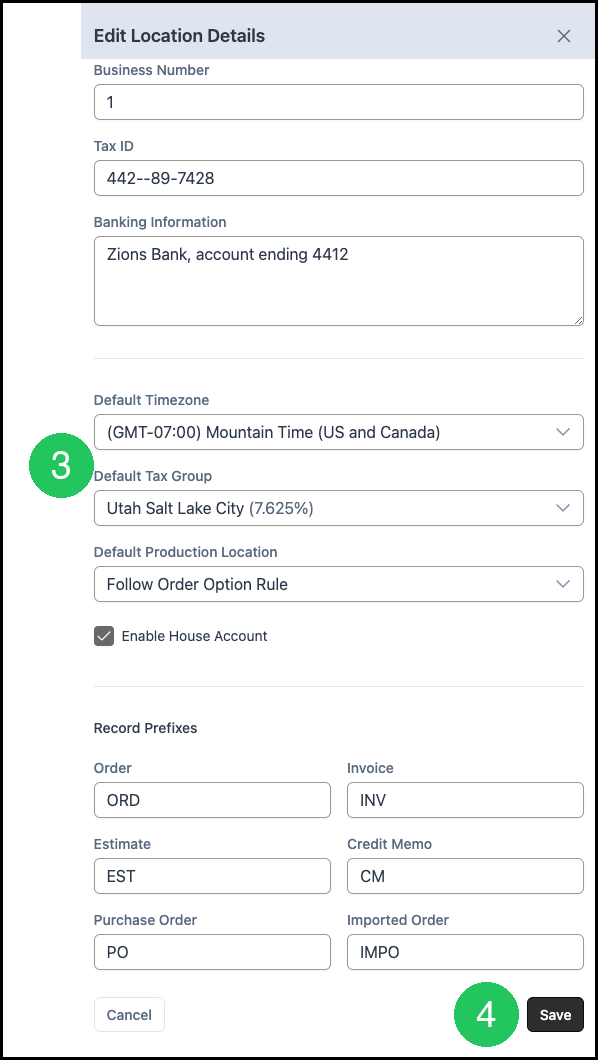
Repeat that for each Location that should keep its own clock. For more information on the rest of the Location record, please see Location Details.
Set a Time Zone on an Employee
Navigate to System Settings / My Business / Employees.
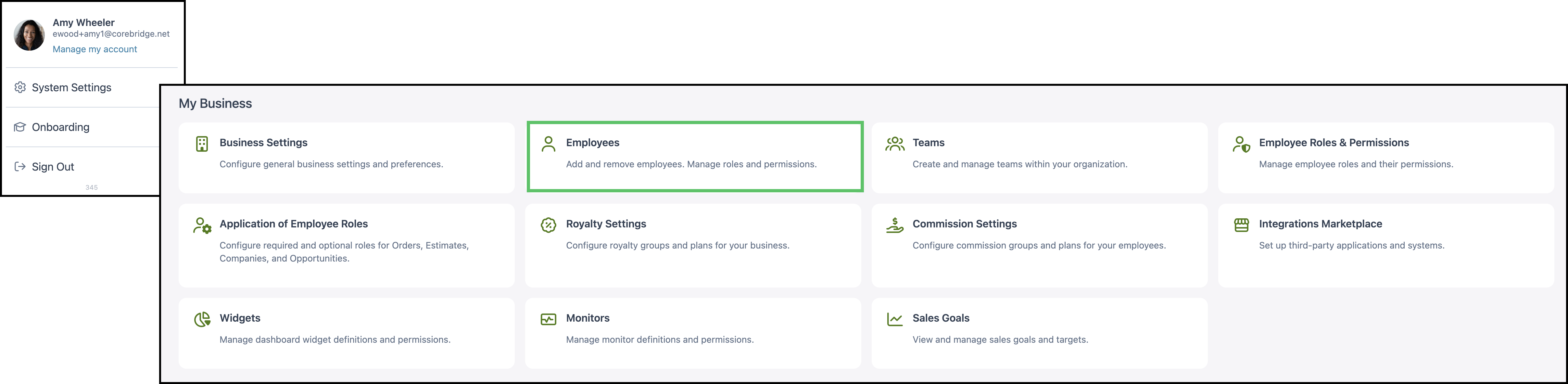
1. Select the Employee.
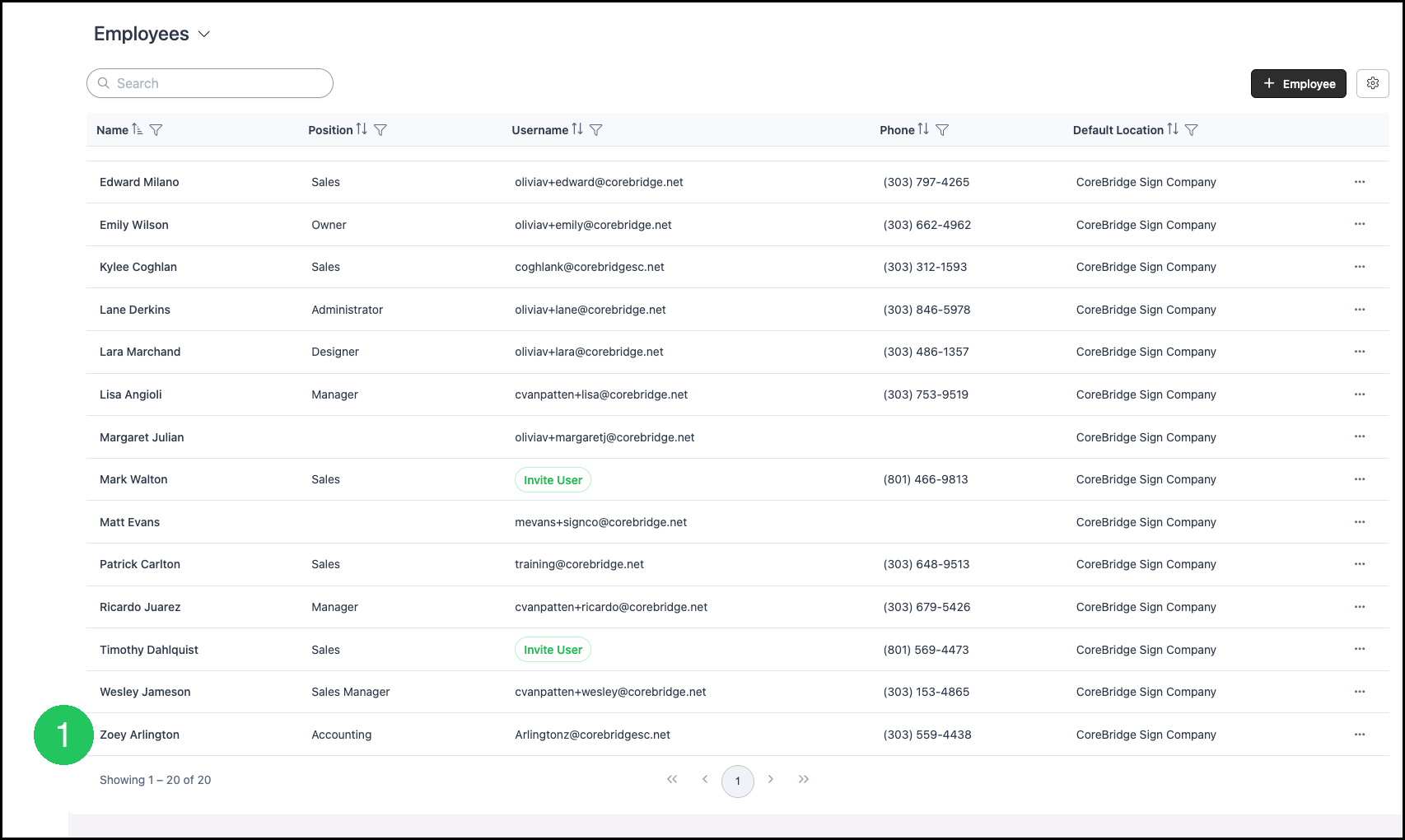
2. Click the Edit icon. The Edit Employee dialog opens.

3. Select the time zone in Default Timezone.
4. Click Save.
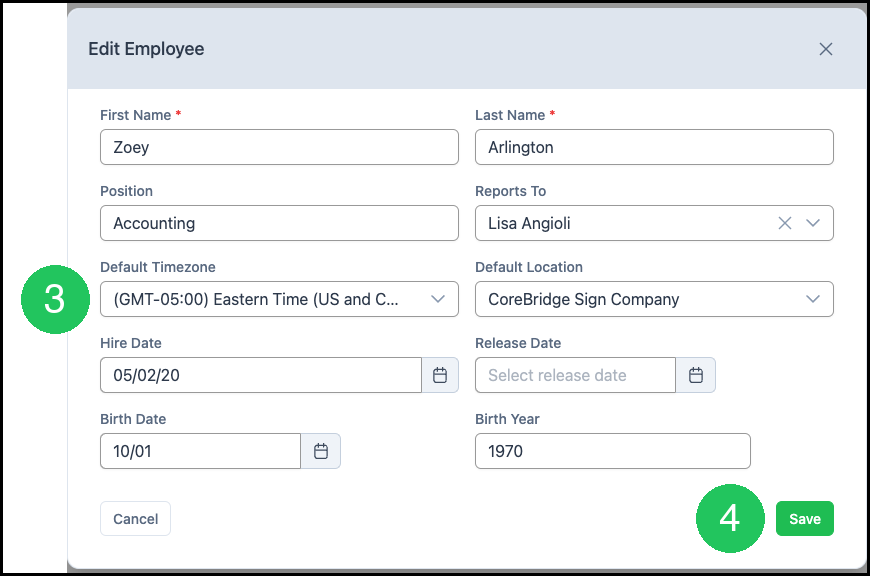
Use this when someone works in a different time zone from the Location they belong to. For more information on the rest of the Employee record, please see Managing Employees.
Choose Favorite Time Zones
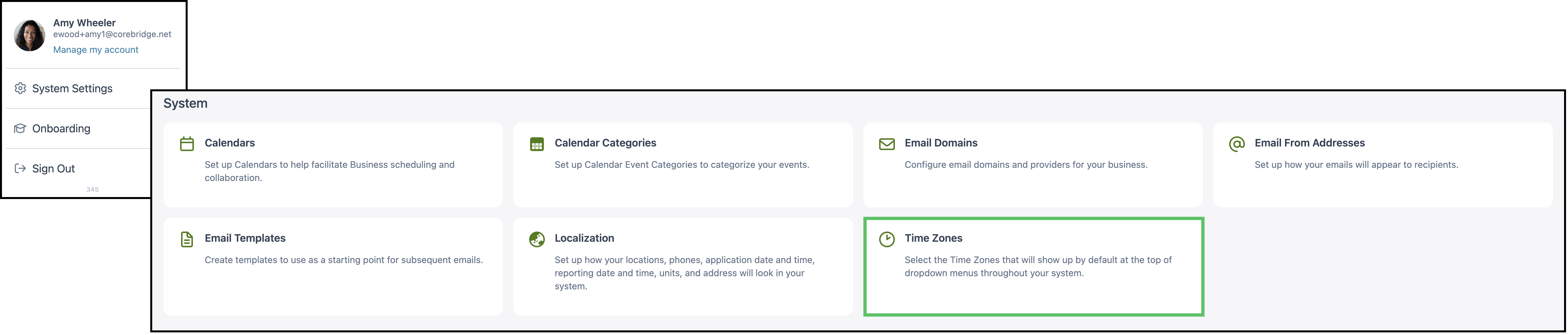
Navigate to System Settings / System / Time Zones.
1. Open the region, such as North America.
2. Select the time zones that should show first in time zone lists.
3. Click Save.
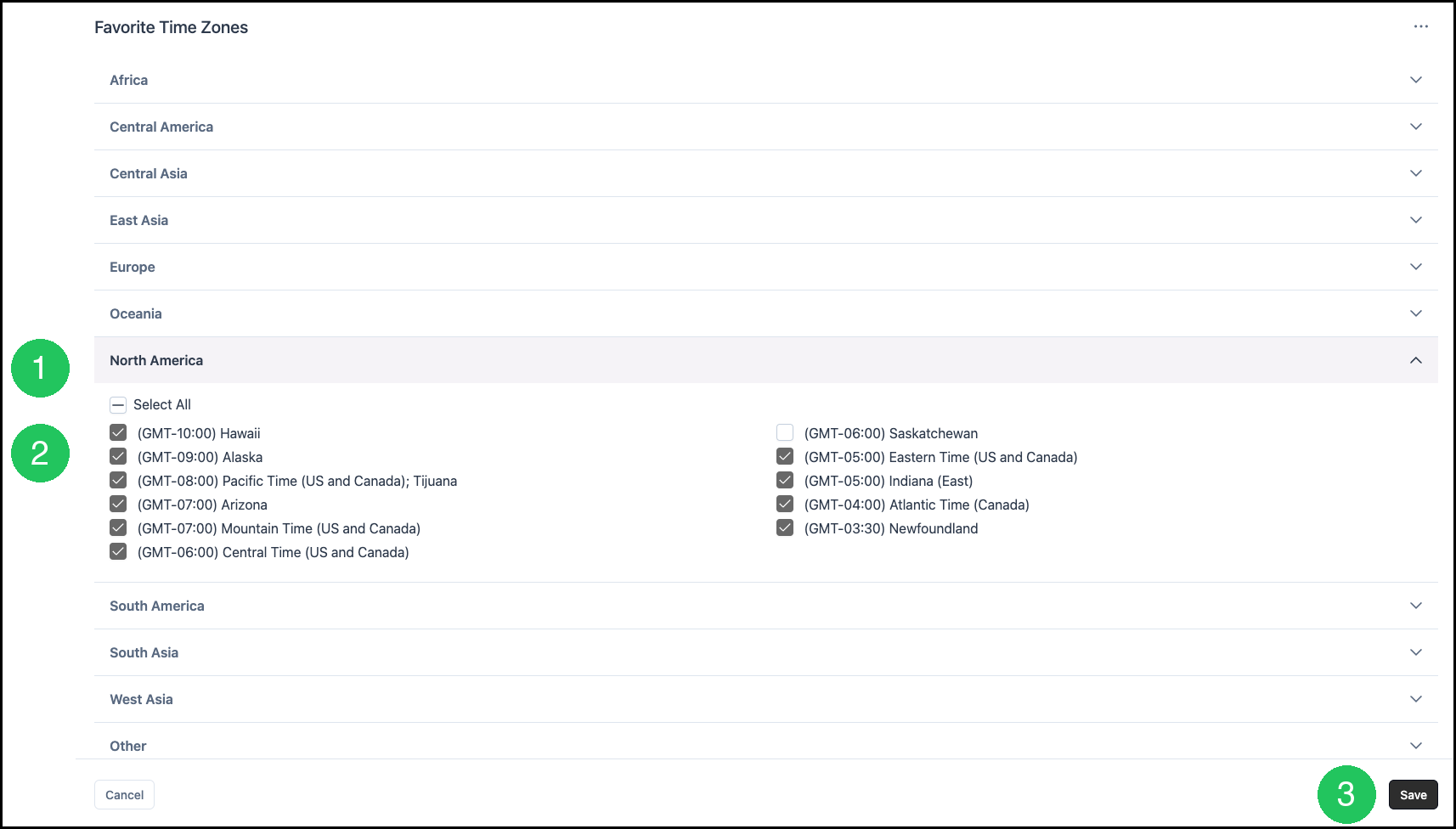
Those favorites sit at the top of the list, so the ones your team uses are easy to reach. Default Timezone stays on the Location, and each Employee time zone stays on that Employee.
Frequently Asked Questions
1. What is the difference between Default Timezone and a favorite time zone?
Answer: Default Timezone is the clock for a Location or an Employee. A favorite time zone only changes which time zones appear first in time zone lists. Saving favorites does not change Default Timezone.
2. When should an Employee use a different time zone from the Location?
Answer: Set a time zone on the Employee when that person works in a different time zone from the Location they belong to.
3. Do I set Default Timezone on every Location?
Answer: Set Default Timezone on each Location that should keep its own clock. When you have more than one Location, repeat the Location steps for each one.