Location Details stores the name, contact information, addresses, tax and time zone defaults, record prefixes, and banking details for each Location. Location Details is configured in Business Settings. Each Location distinguishes records when the business has more than one sales center or office.
Note: Add Location on the Locations list creates another Location when the business can add one.
Table of Contents
Accessing Location Details
Navigate to System Settings / My Business / Business Settings.
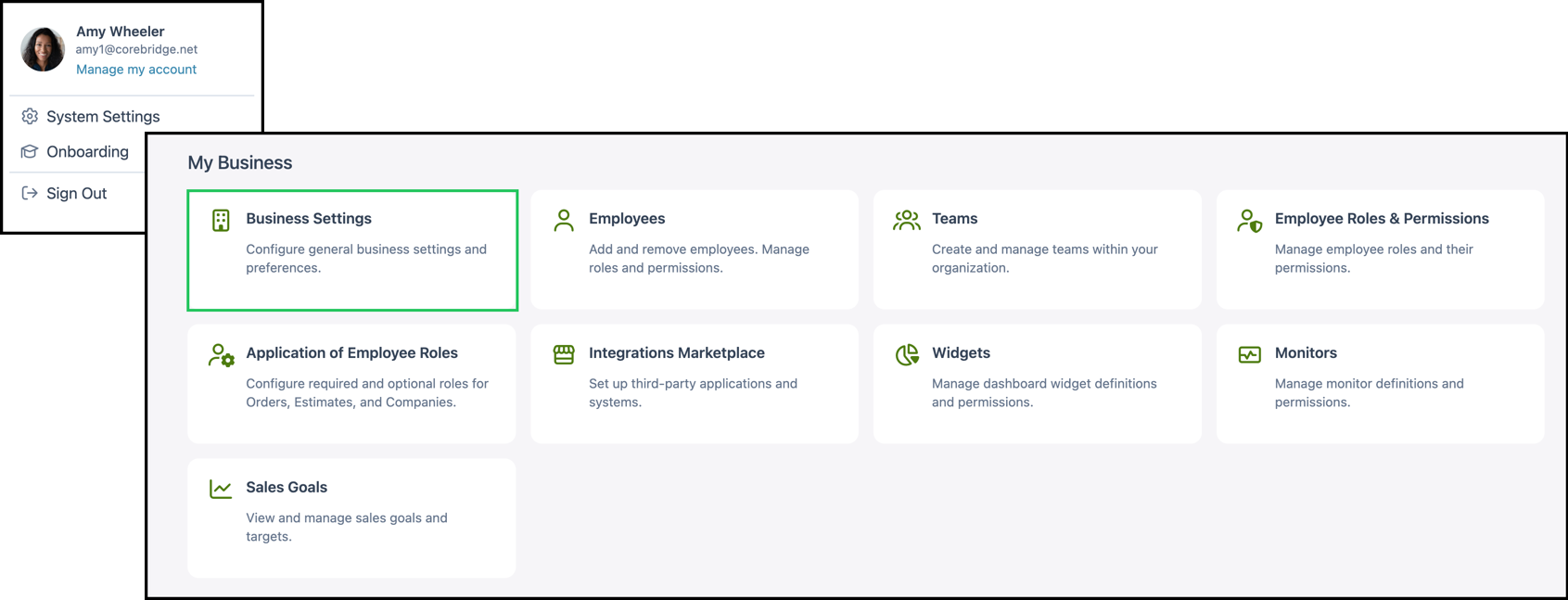
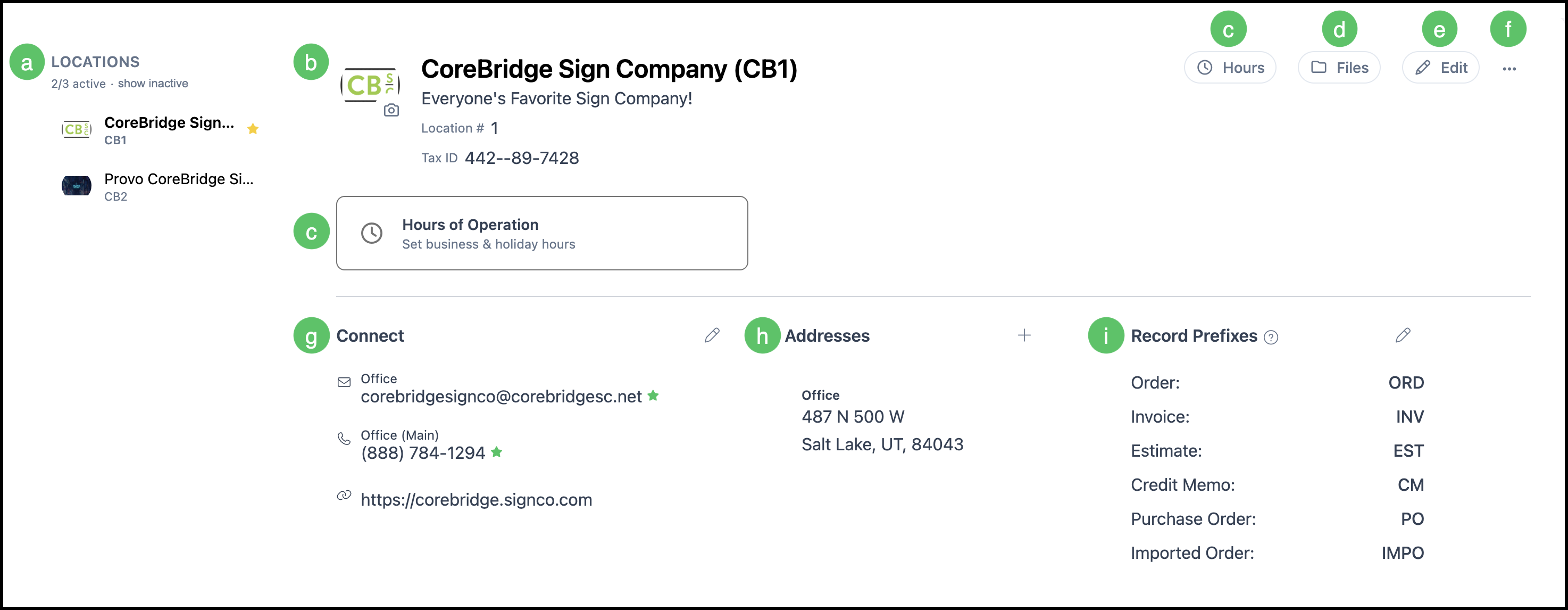
From this screen, you can view and update the current Location's details. If your business has more than one Location, the All Locations section lists them so you can switch between them.
a. All Locations lists your Locations. From here you can see how many Locations exist and select a Location to view or edit its details.
Note: Inactive Locations can be viewed by clicking show inactive.
b. Location Details shows the Location name at the top of the screen. Optional company information, such as a slogan, abbreviation, or Location Number, appears with it.
c. Hours of Operation is where Sales Center Hours and Production Hours are defined for each day of the week.
d. Files stores files for this Location.
e. Edit opens the Edit Location Details Side Panel. From here you can configure information such as Location Name, Default Timezone, and Default Tax Group.
Note: For more information, see Edit Location Details Side Panel below.
f. More Actions provides access to the record History.
g. Connect stores contact information for this Location.
h. Addresses lists the physical or mailing addresses for the Location. Additional addresses can be added with the Plus button.
Note: Additional options appear on hover. For more information, see Addresses below.
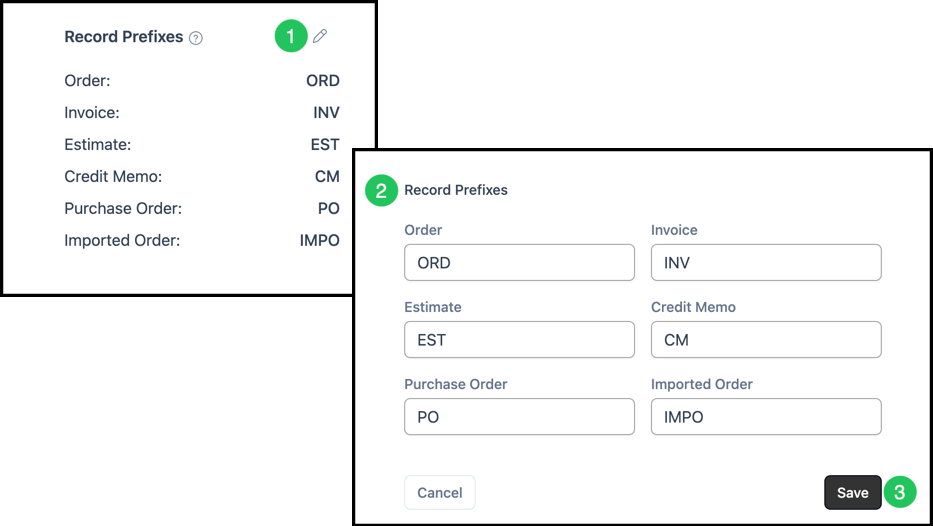
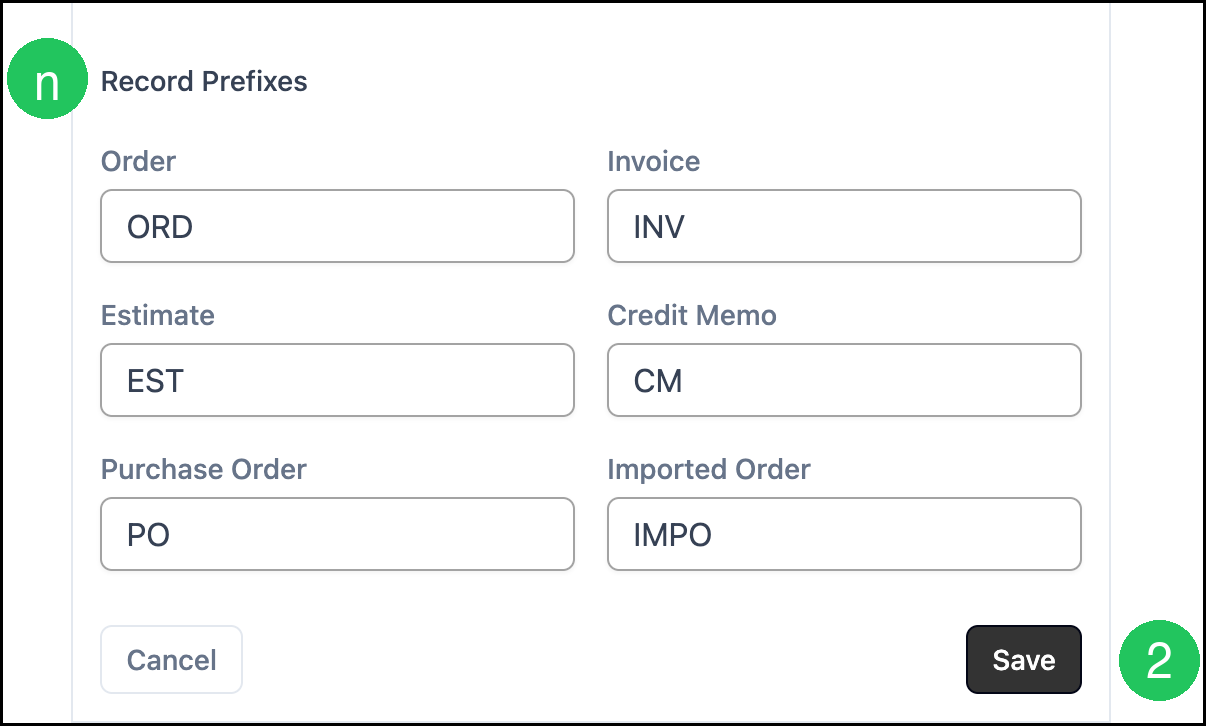
i. Record Prefixes are the characters that appear before record numbers for this Location, such as Order, Invoice, Estimate, Credit Memo, Purchase Order, and Imported Order. Prefixes can be edited from the Edit icon in this area or from Edit, which opens the Edit Location Details Side Panel.
Edit Location Details Side Panel
The Edit Location Details Side Panel is where the basic information for the Location is entered.
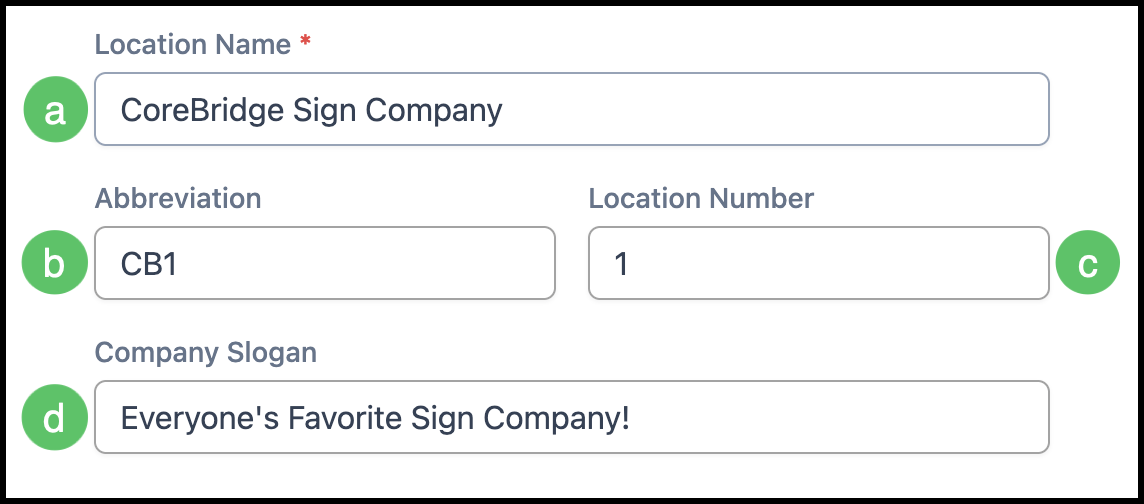
Note: Fields marked with a red asterisk are required.
1. Click Edit.
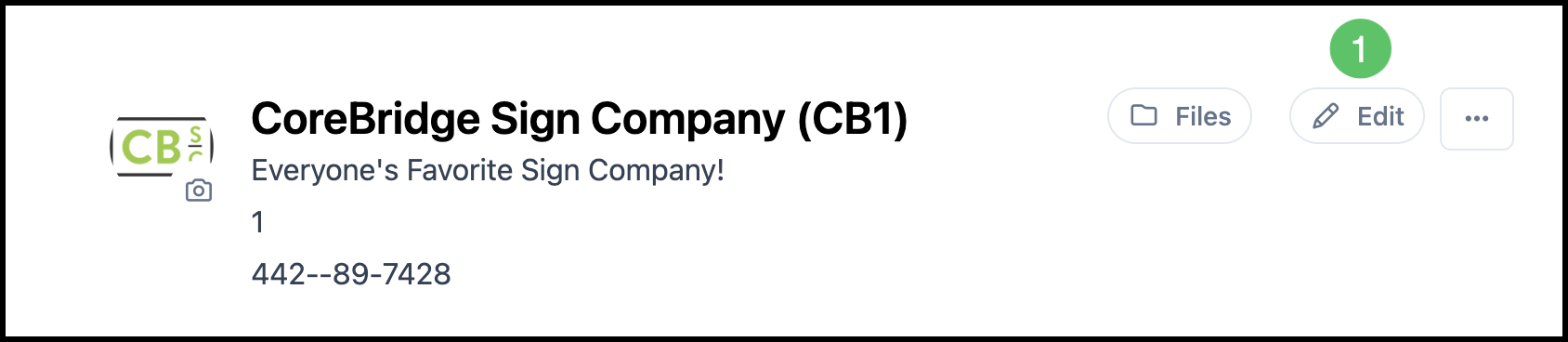
a. Location Name is the name of the Location.
b. Abbreviation is a short version of the Location Name.
c. Location Number can differentiate Locations when the business has more than one.
d. Company Slogan is the company tagline or slogan.
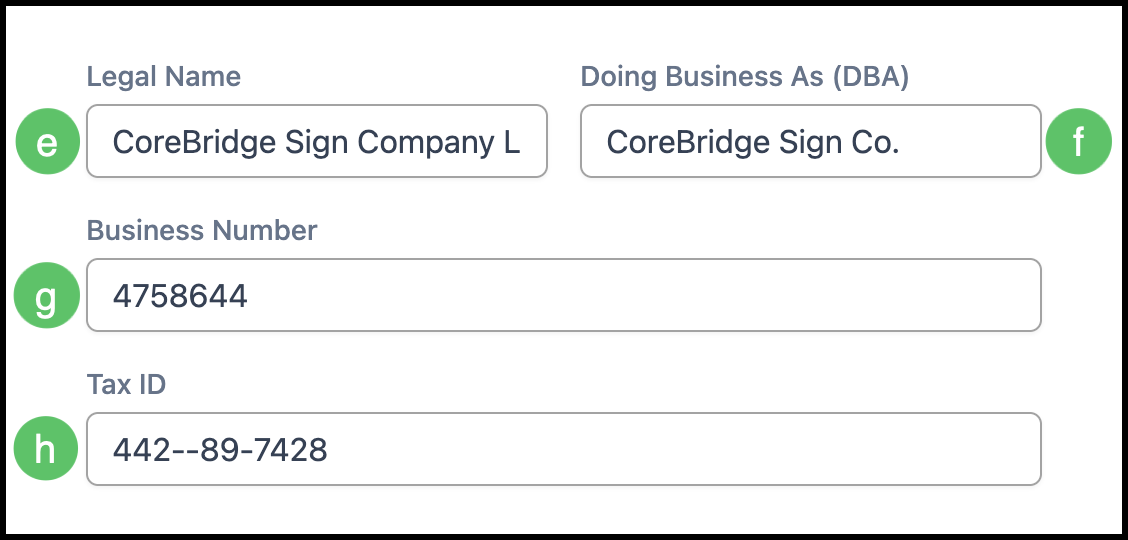
e. Legal Name is the name your government recognizes for the business.
f. Doing Business As (DBA) records the name the business operates under when that name is separate from the Legal Name.
g. Business Number stores an alternate identification number for this Location.
h. Tax ID is the government tax identification number for this Location.
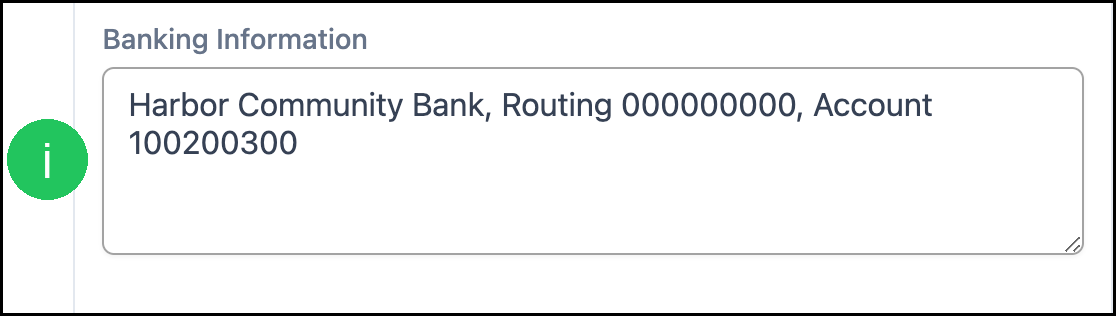
i. Banking Information stores the bank details for this Location.
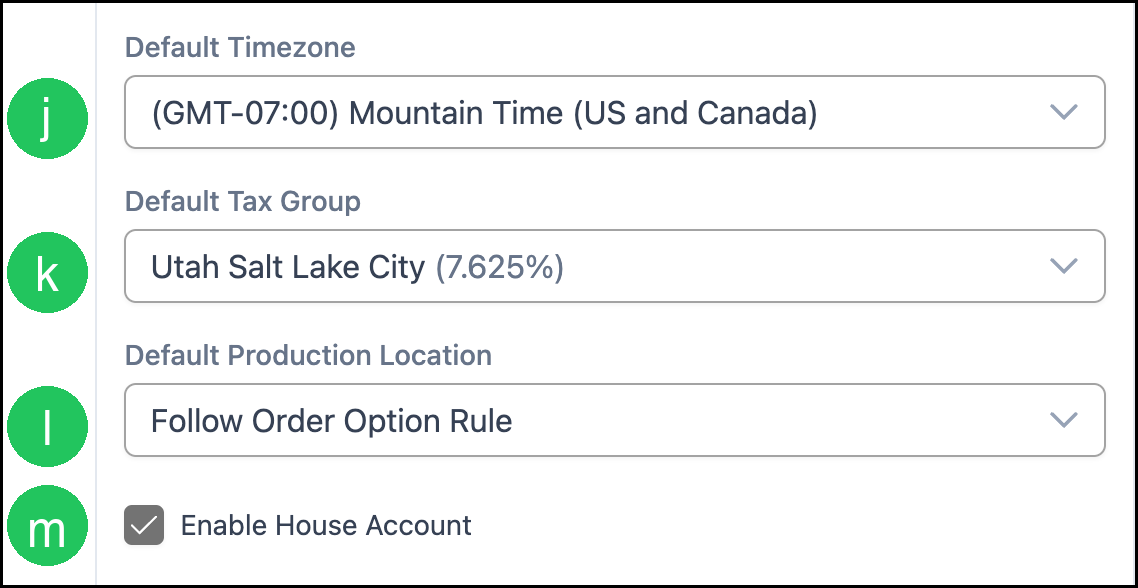
j. Default Timezone is the time zone for this Location.
k. Default Tax Group is the tax group for this Location.
l. Default Production Location is the production Location used for this Location.
Note: Follow Order Option Rule uses the same default defined in Business Settings / Sales Settings / Estimate and Order Options / Orders.
m. Enable House Account allows a shared account for customers, such as walk-ins, instead of requiring each transaction to use an individual customer profile.
n. Record Prefixes are the characters that appear before record numbers for this Location. They identify the type of record, such as Estimate, Order, or Invoice, and which Location the record belongs to when the business has more than one Location.
2. Click Save.
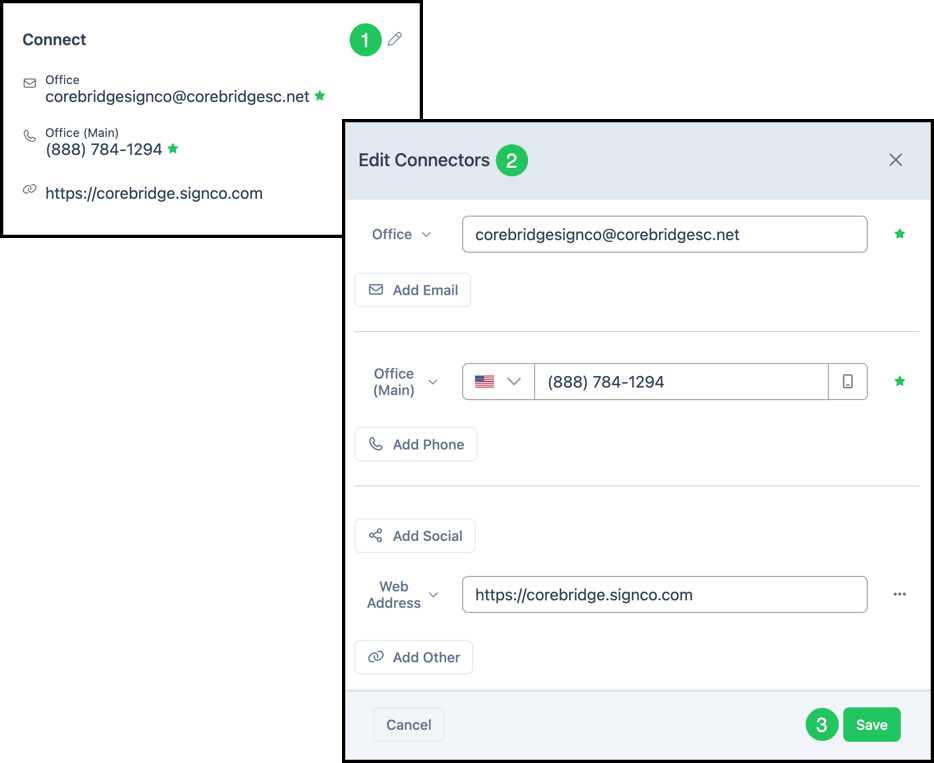
Connect
Connect is where contact information for the Location is entered.
1. Click the Edit icon.
2. Add or edit connectors using the controls in this section.
3. Click Save.
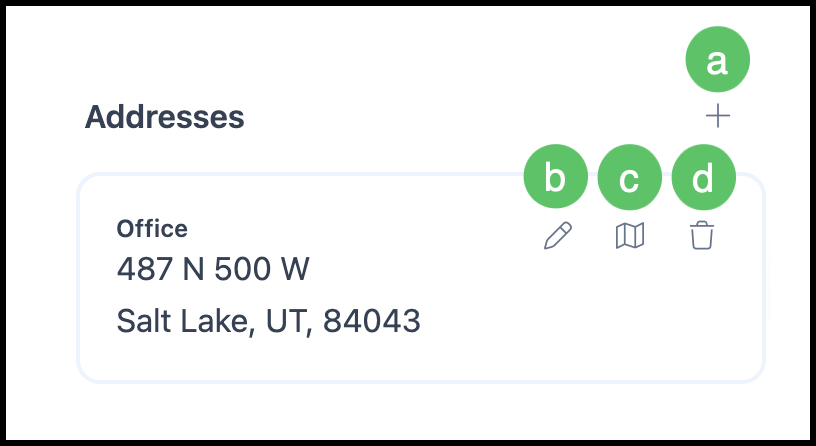
Addresses
a. The Plus button adds another address.
b. The Edit icon edits a saved address.
c. The Map icon opens this address on a map in a new tab.
d. The Delete icon removes the address.
Note: Edit, Map, and Delete appear on hover.
Record Prefixes
1. Click the Edit icon.
Note: The Edit icon opens the Edit Location Details Side Panel, where the Record Prefixes can be changed.
2. Update the Record Prefixes.
3. Click Save.