Open navigation

Using Statuses

Statuses help you track progress and communicate the current stage of work across CoreBridge EVO. After your administrator configures workflow statuses and substatuses, you can apply item status and item substatus values on line items and on calendar events so teams stay aligned.

This article describes where those fields appear in EVO, how they differ from the legacy interface, and how to update them on estimates, orders, purchase orders, and calendar events.


Table of Contents


Estimates, Orders, and Purchase Orders


The same basic idea applies to estimates, orders, and purchase orders: each line item can have its own item status and item substatus. The example below uses an estimate; repeat the same pattern on an order or a purchase order.


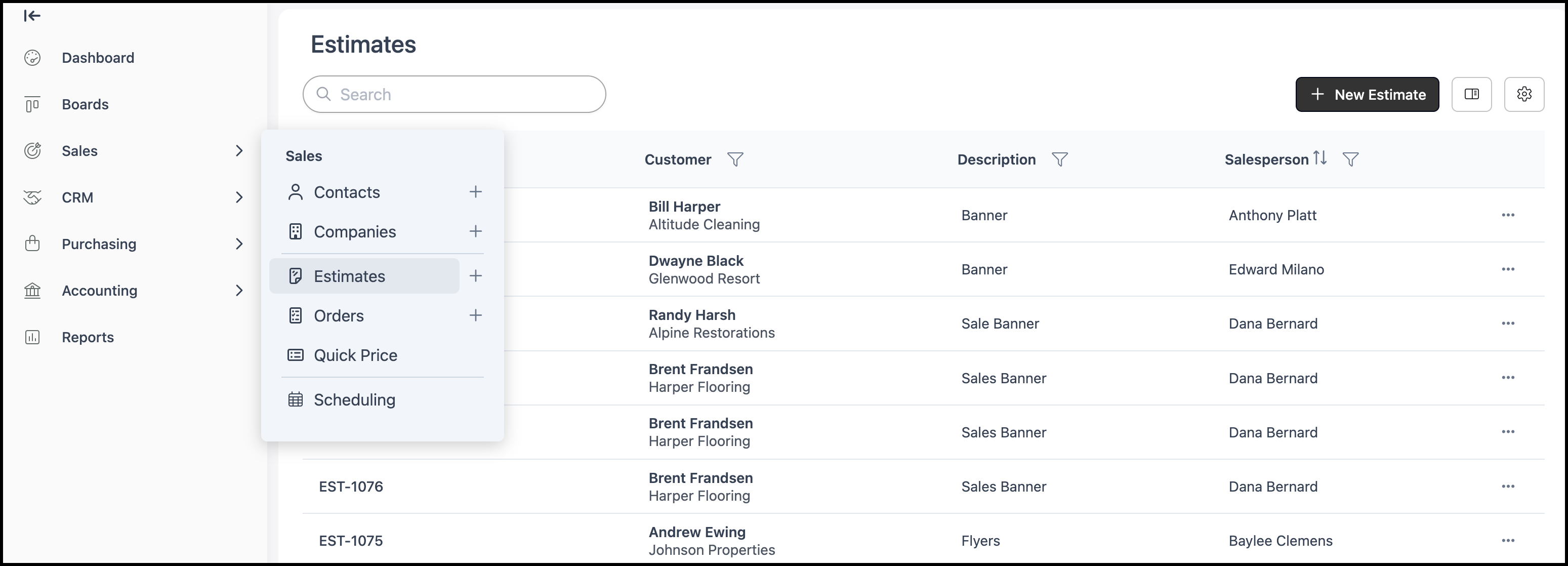
Navigate to Sales / Estimates (or Sales / Orders, or Purchasing / Purchase Orders) and open the document you want to update.


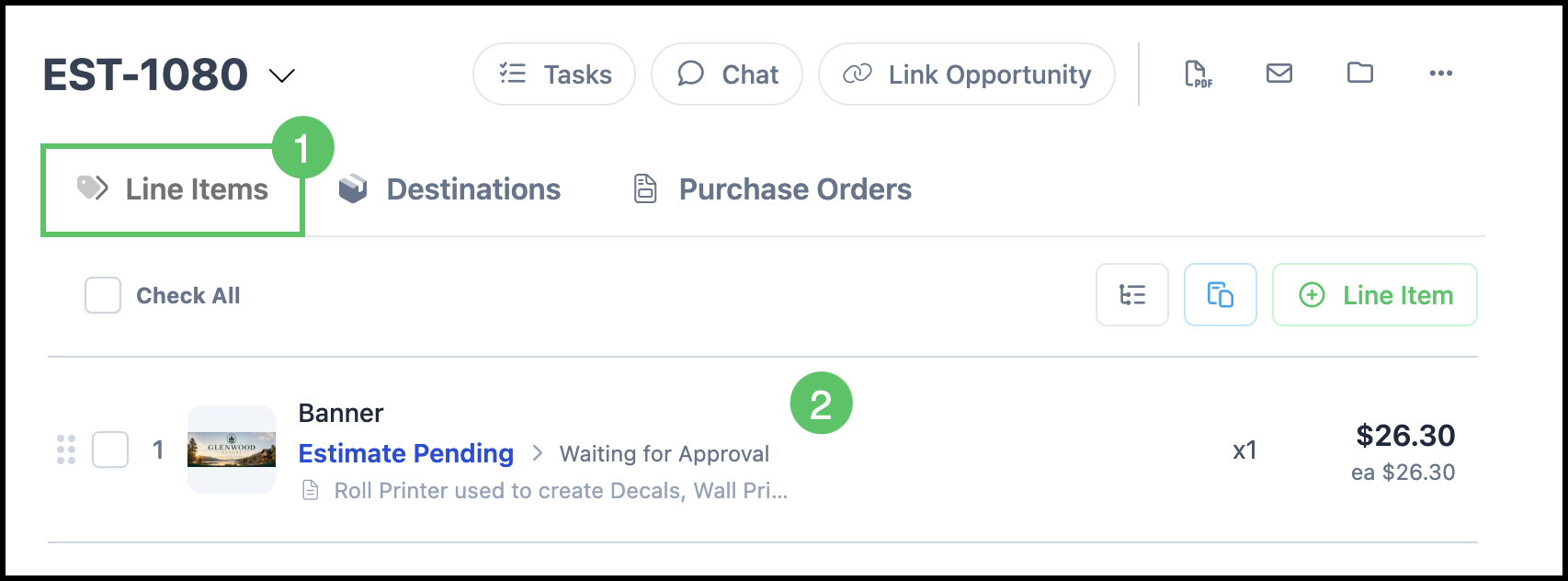
1. Select the Line Items tab.

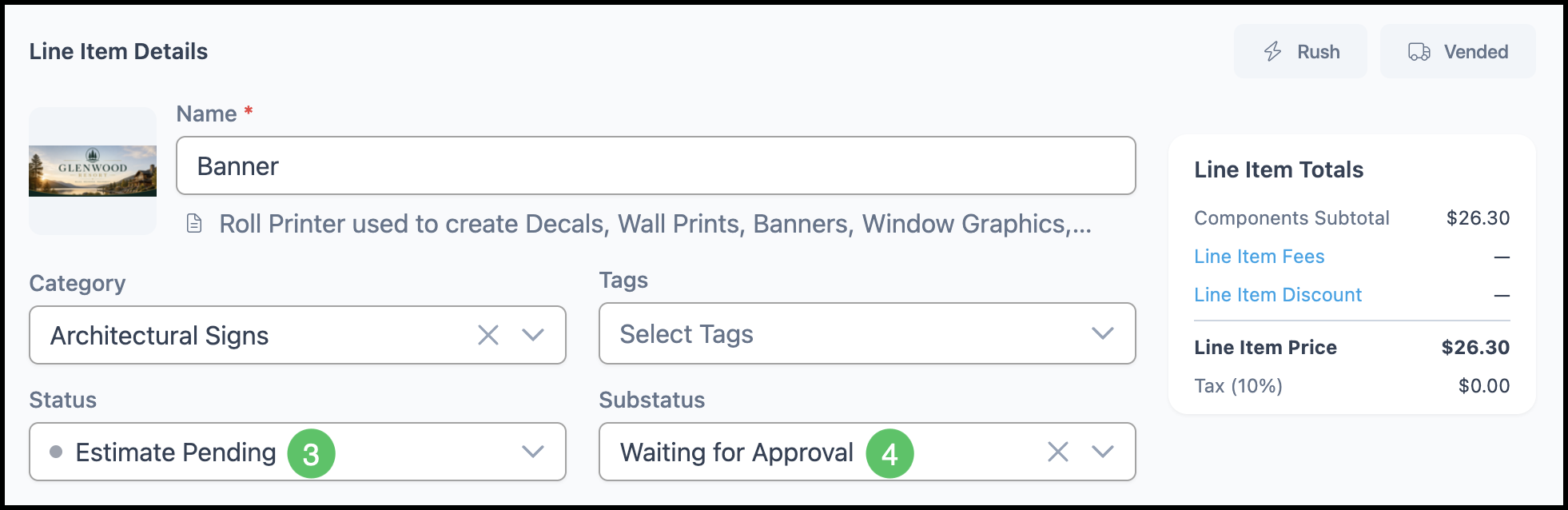
2. Click the line item you want to update. In EVO, the Line Item Details panel opens on the side of the screen. Status and substatus are edited here rather than only from inline controls in the line list (the list may still show the current status as a short label next to the line name).

3. In Line Item Details, open the Status field and choose the item status you want.

4. Open the Substatus field and choose the item substatus you want.

5. Save or apply your changes as prompted by the page (for example, use any Save control shown for the line item or document).


Note: Header-level values such as estimate or order document status (for example Awaiting Approval or WIP on the summary) are separate from per-line item status and item substatus. Use the Status and Substatus fields in Line Item Details when you need to update line-level workflow.


Calendar Events


You can assign item status and item substatus on calendar events when your organization uses calendars in EVO. The exact navigation to open a calendar depends on how calendars are set up for your business (for example, scheduling or calendar features your administrator enables).


1. Open the calendar you use for scheduling and select an event.

2. Open the event for editing (for example, choose Edit or an equivalent control on the event).

3. Set Status from the status list.

4. Set Substatus from the substatus list.

5. Save the event.


Note: Status and substatus can often be chosen when you first create an event, not only when editing an existing one.


Note: Which calendar event status values appear in the list are configured under Settings / Workflow / Workflow Statuses. On that page, open the Calendar Event tab to review or manage the status ladder for calendar events. In the legacy app, a similar concept appeared as Settings / Workflow / Statuses / Calendar Events; EVO consolidates this into Workflow Statuses with separate tabs per record type.


Note: Substatus choices are configured under Settings / Workflow / Substatuses. A substatus must be linked to a status before it can appear together with that status on events and line items.

Modified on: 2026-04-17 15:07:15 -0600

Did you find it helpful? Yes No

Send feedback
Sorry we couldn't be helpful. Help us improve this article with your feedback.