Components are the building blocks used to create your products and services. Each Component can consist of Materials, Labors, Machines, or Products, allowing you to accurately define how items are produced or delivered. The system comes pre-populated with a variety of commonly used Components, giving you a solid starting point to customize and build your offerings to suit your needs.
Table of Contents
Materials
Materials are the physical items used in the production of a product or the delivery of a service. These are tangible resources that can be tracked for cost and inventory purposes. Examples include vinyl, acrylic, aluminum sheets, banner material, ink, or paper stock. By defining Materials in your system, you can help support accurate job costing, inventory management, and pricing.
For more information, please see Materials Overview.
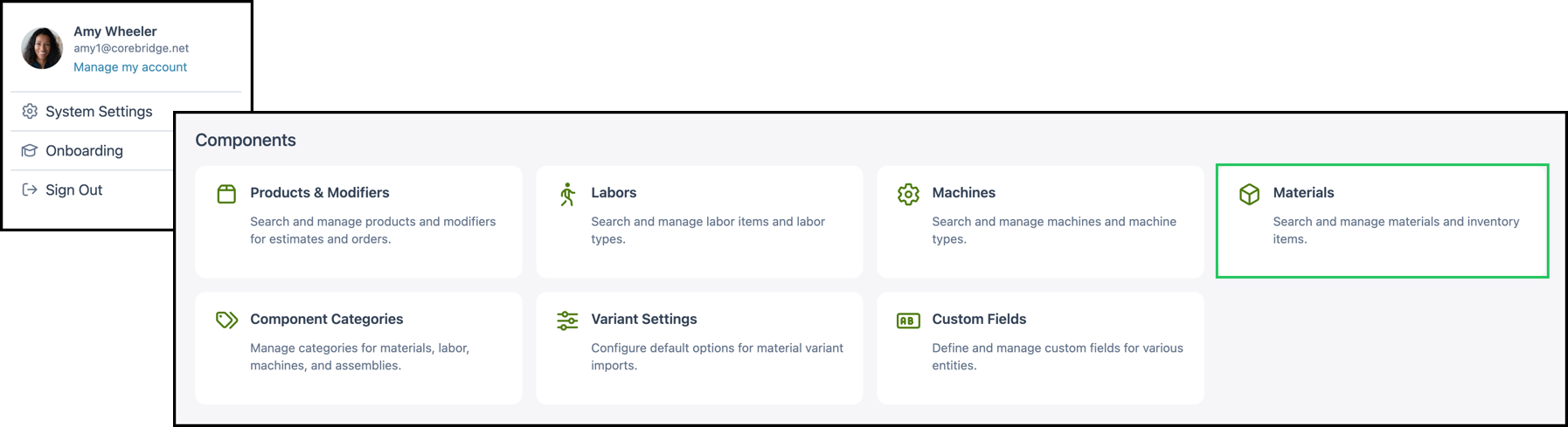
Navigate to System Settings / Components / Materials.
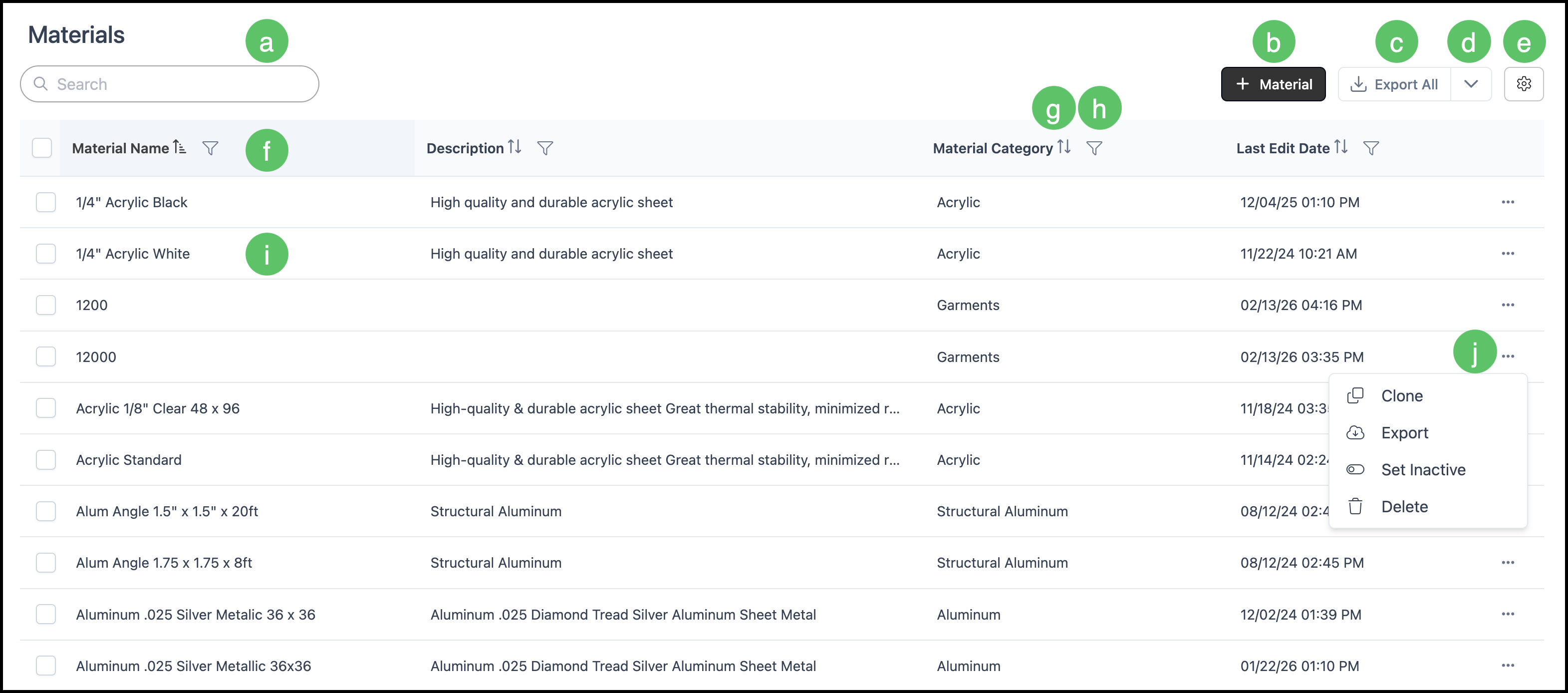
a. The Search box allows you to find a specific Material.
b. The Add Material button allows you to add a new Material.
c. Export All allows you to quickly export your Material list.
d. This dropdown allows you to access the Material Import Template and begin the process of a bulk Materials import.
e. The Search Settings icon allows you to choose which columns are displayed and whether inactive records are included in the display.
f. Columns can be reordered and resized as needed so that important information is available at a glance.
g. Each column header has an Order icon that allows you to sort ascending or descending.
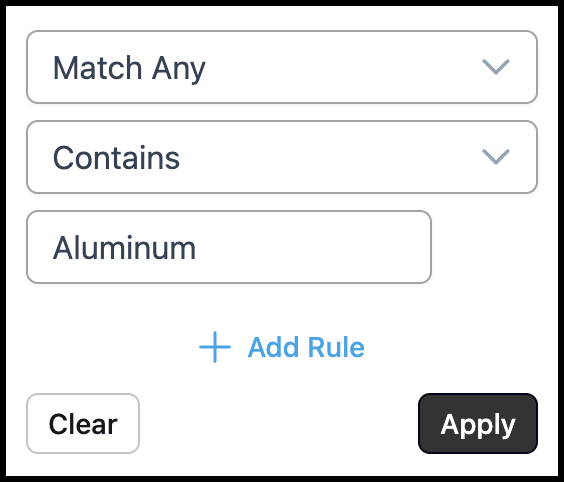
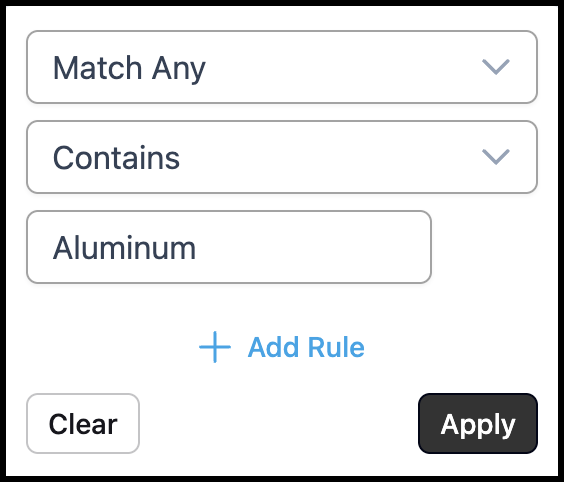
h. Each column header has a Filter icon allowing you to customize the display by setting rules. See example below.
i. Clicking a Material row opens the Material Details page allowing you to view and edit this Material.
j. Each row includes an ellipsis that opens a menu with Clone, Set Inactive and Delete options.
Note: The Delete option is unavailable for Materials that are currently in use
Example:
Labors
Labors represent the time and effort required by staff to complete a task or part of a job. In EVO, Labor Components are used to account for the human work involved in producing a product or delivering a service. This can include tasks such as graphic design, installation, printing setup, or finishing work like trimming and laminating. Tracking Labor accurately can help support proper job costing and scheduling across your workflow.
For more information, please see Labors Overview.
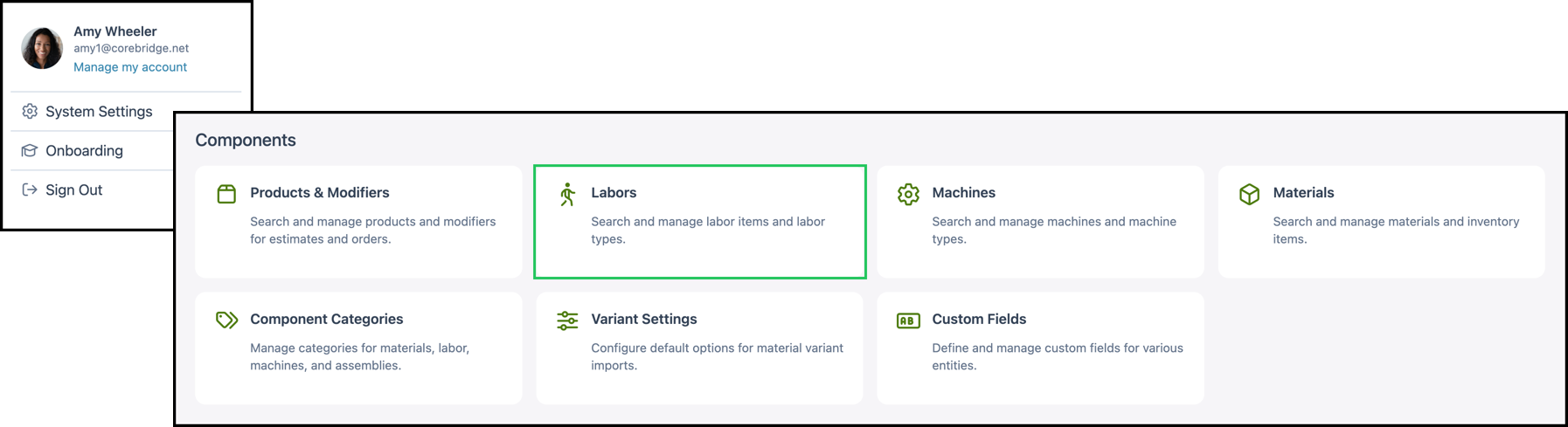
Navigate to System Settings / Components / Labors.
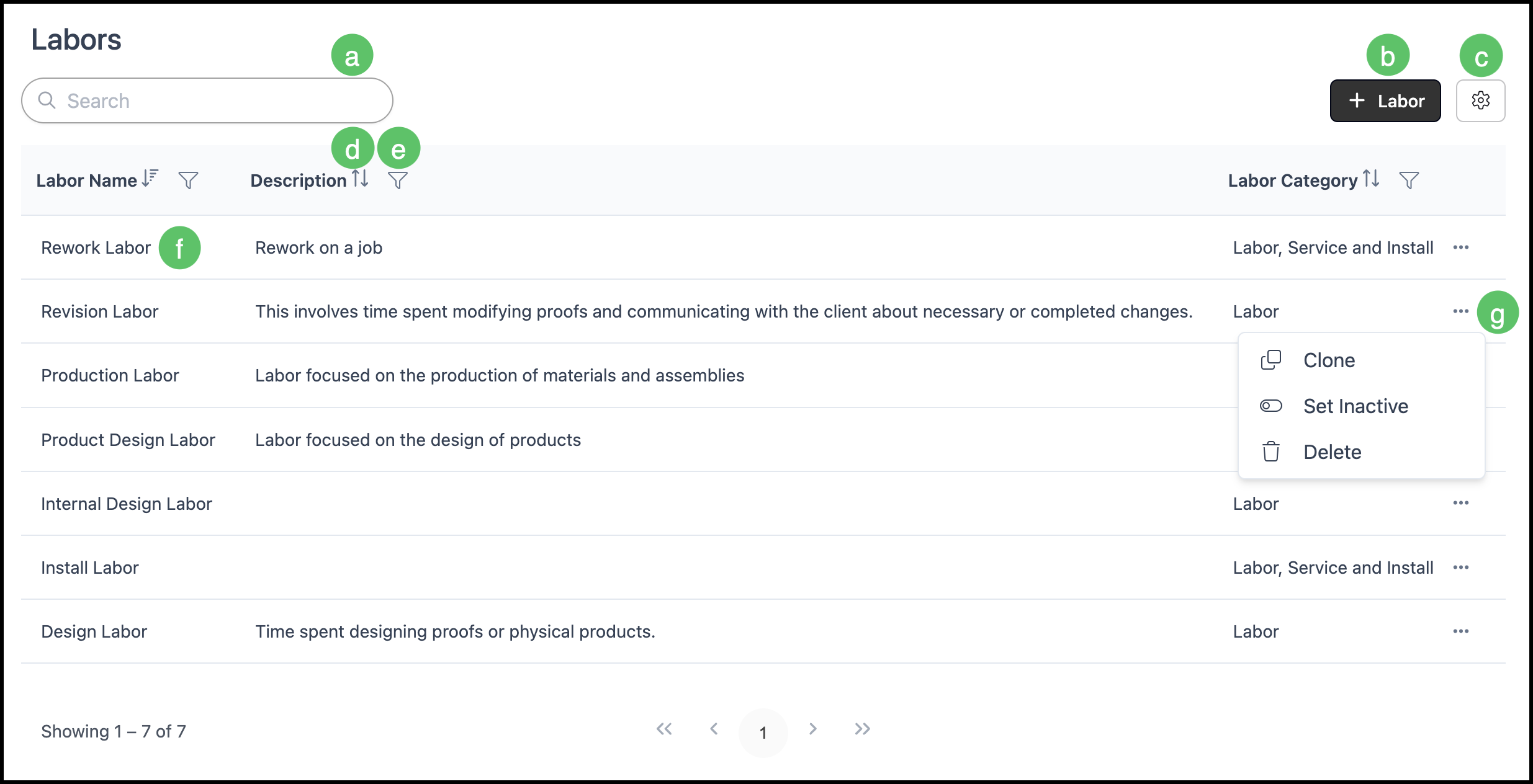
a. The Search box allows you to find a specific Labor.
b. The Add Labor button allows you to add a new Labor.
c. The Search Settings icon allows you to choose which columns are displayed and whether inactive records are included in the display.
d. Each column header has an Order icon that allows you to sort ascending or descending.
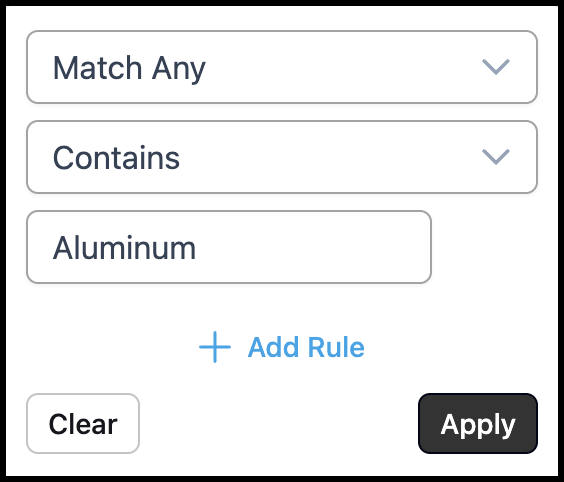
e. Each column header has a Filter icon allowing you to customize the display by setting rules. See example below.
Note: Columns can be reordered and resized as needed.
f. Clicking a Labor row opens the Labor Details page allowing you to view and edit this Labor.
g. Each row includes an ellipsis that opens a menu with Clone, Set Inactive and Delete options.
Note: The Delete option is unavailable for Labors that are currently in use.
Example:
Machines
Machines refer to the equipment or devices used during the production process. In EVO, Machine Components help you track the use of specialized tools or systems that contribute to job completion. This can include items like large-format printers, CNC routers, laminators, or plotters. Associating Machines with jobs can help support more accurate costing and production capacity planning.
For more information, please see Machines Overview.
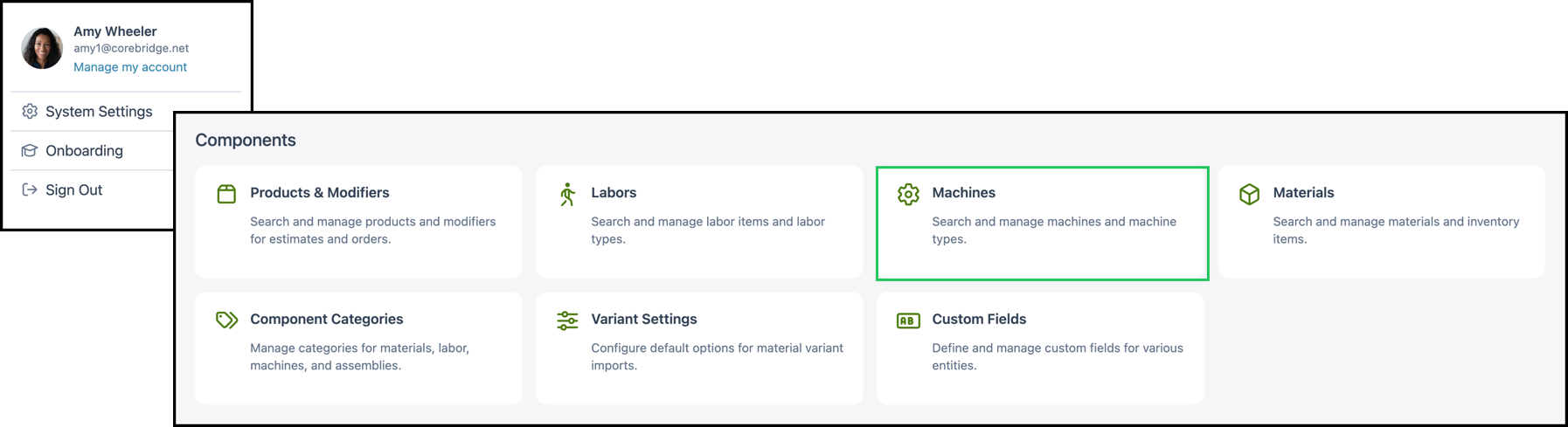
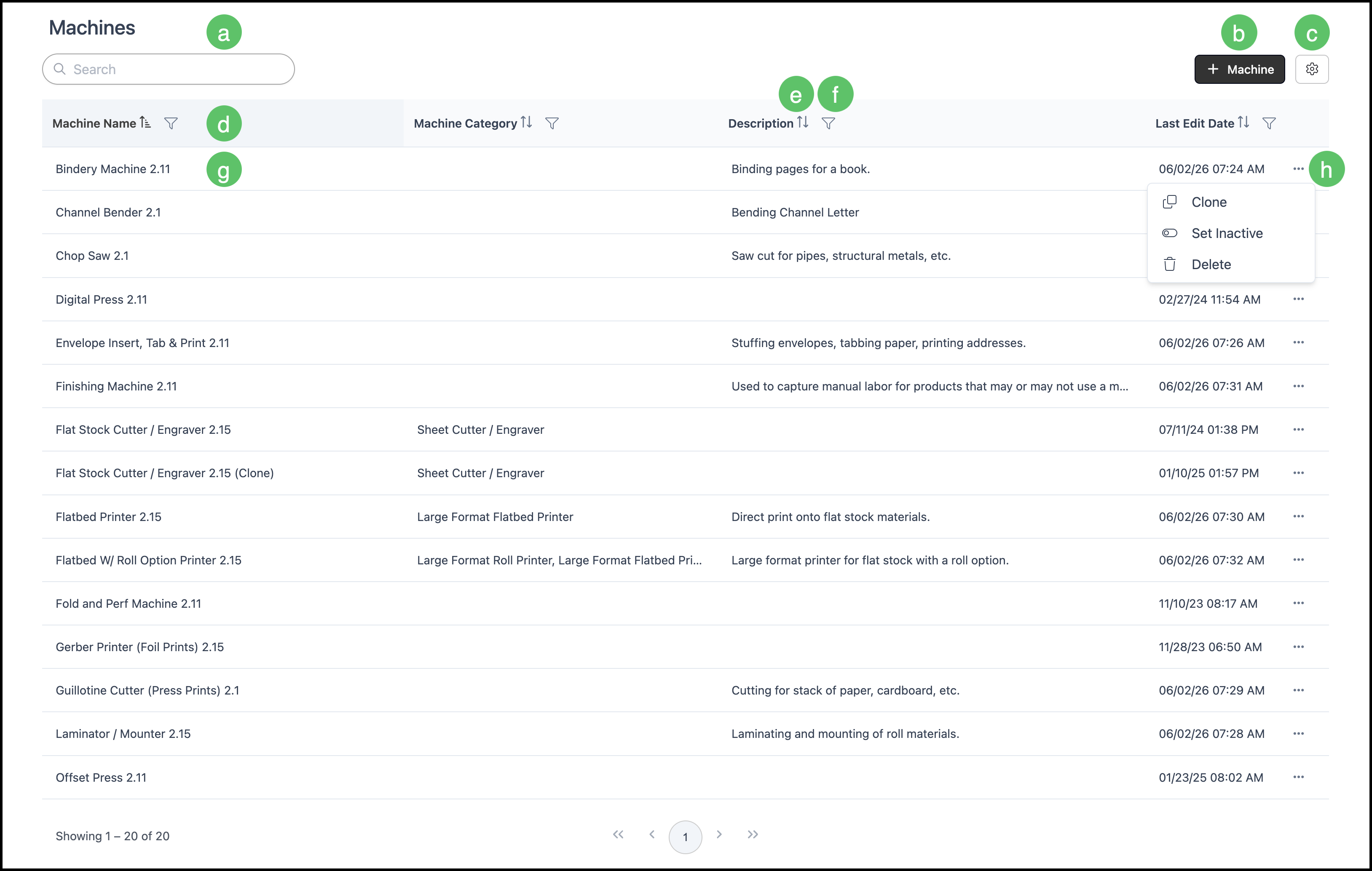
Navigate to System Settings / Components / Machines.
a. The Search box allows you to find a specific Machine.
b. The Add Machine button allows you to add a new Machine.
Note: Your CoreBridge system comes with an example Machine for every type of Machine in the sign industry. The recommended best practice is to clone an existing Machine that is similar to the Machine you are adding, then updating necessary details.
c. The Search Settings icon allows you to choose which columns are displayed and whether inactive records are included in the display.
Note: We recommend including the Description column in the view to quickly distinguish between Machines.
d. Columns can be reordered and resized as needed.
e. Each column header has an Order icon that allows you to sort ascending or descending.
f. Each column header has a Filter icon allowing you to customize the display by setting rules. See example below.
g. Clicking a Machine row opens the Machine Details page allowing you to view and edit this Machine.
h. Each row includes an ellipsis that opens a menu with Clone, Set Inactive and Delete options.
Note: The Delete option is unavailable for Machines that are currently in use.
Example:
Products and Modifiers
Products and Modifiers combine Labor, Machines, and Materials into reusable structures. They provide a consistent framework for estimating, pricing, and production.
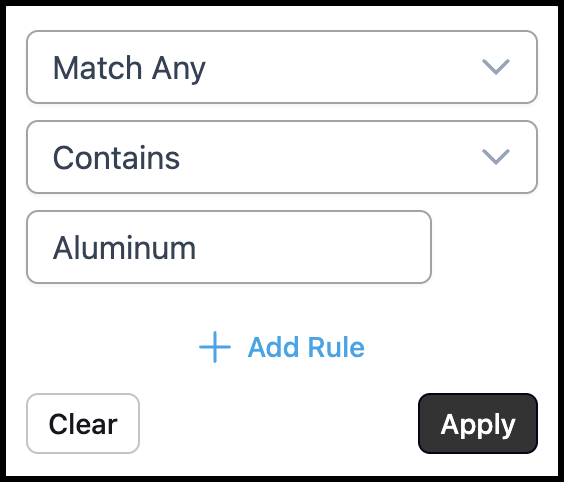
Navigate to System Settings / Components / Products & Modifiers.
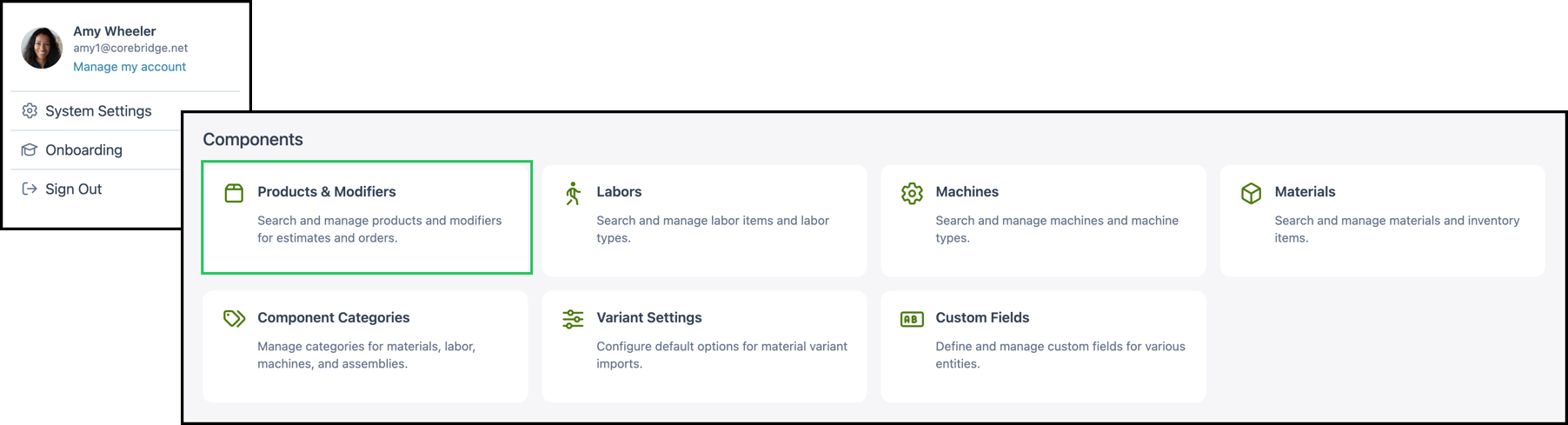
a. The Search box allows you to find a specific Machine.
b. The Add Product and Add Modifier buttons allow you to add a new Products and Modifiers.
Note: Your CoreBridge system comes example Products and Modifiers. The recommended best practice is to clone an existing Product or Modifier that is similar to the one you are adding, then updating necessary details.
c. The Search Settings icon allows you to choose which columns are displayed and whether inactive records are included in the display.
Note: We recommend including the Description column in the view to quickly distinguish between Products and Modifiers.
d. Columns can be reordered and resized as needed.
e. Each column header has an Order icon that allows you to sort ascending or descending.
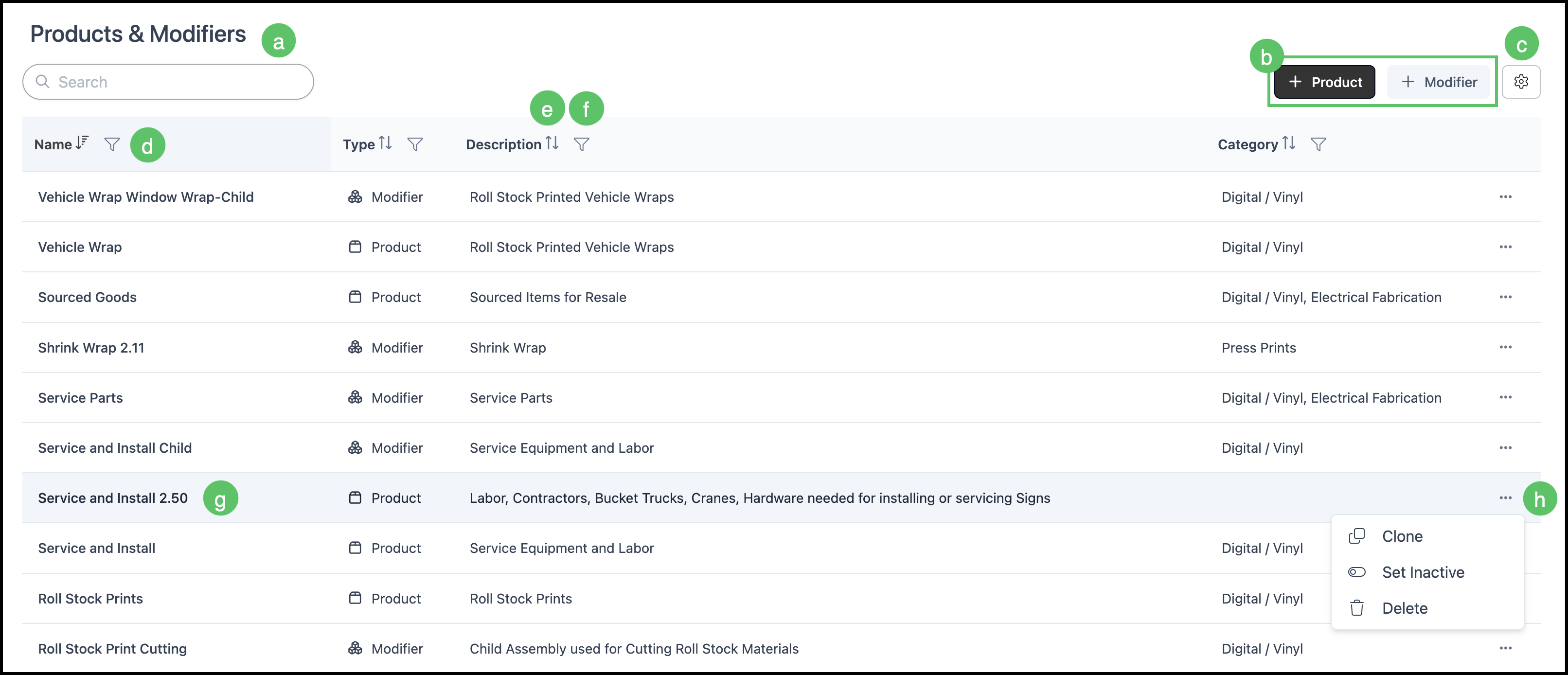
f. Each column header has a Filter icon allowing you to customize the display by setting rules. See example below.
g. Clicking a row opens the Details page allowing you to view and edit the Product or Modifier.
h. Each row includes an ellipsis that opens a menu with Clone, Set Inactive and Delete options.
Note: The Delete option is unavailable for Products and Modifiers that are currently in use.
Example:
Component Categories
Component Categories help you organize your Materials, Labors, Machines, and Products / Modifiers into logical groups for easier reference and management. Component Categories can also provide flexibility when creating Assemblies by allowing you to work with structured sets of Components that align with your business operations.
For more information, please see Component Categories Overview.
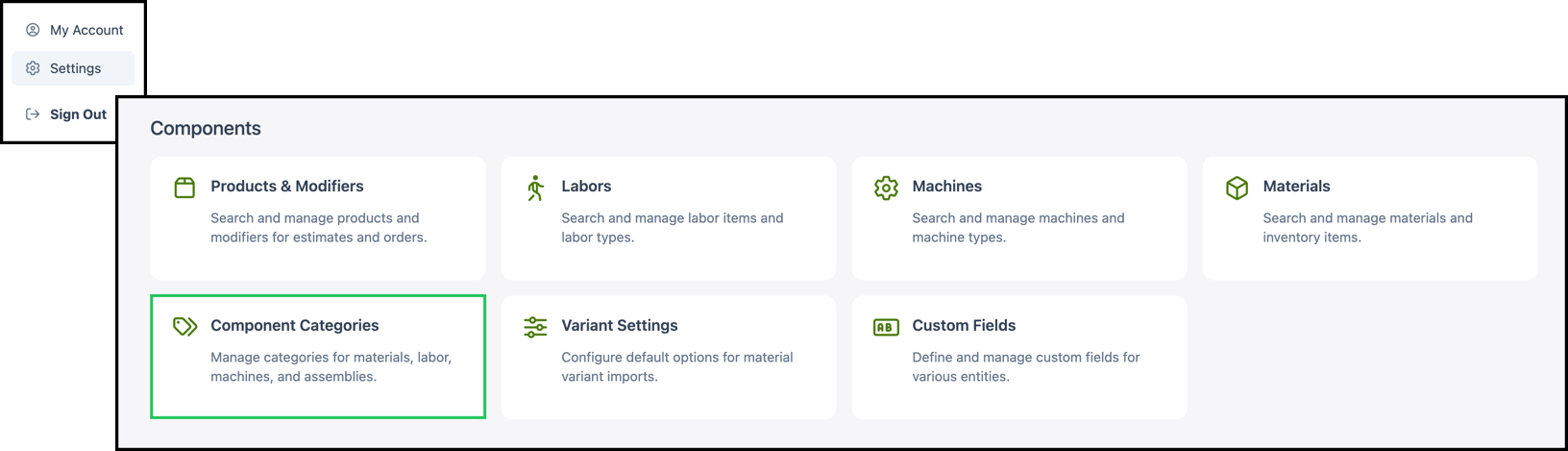
Navigate to Settings / Components / Component Categories.
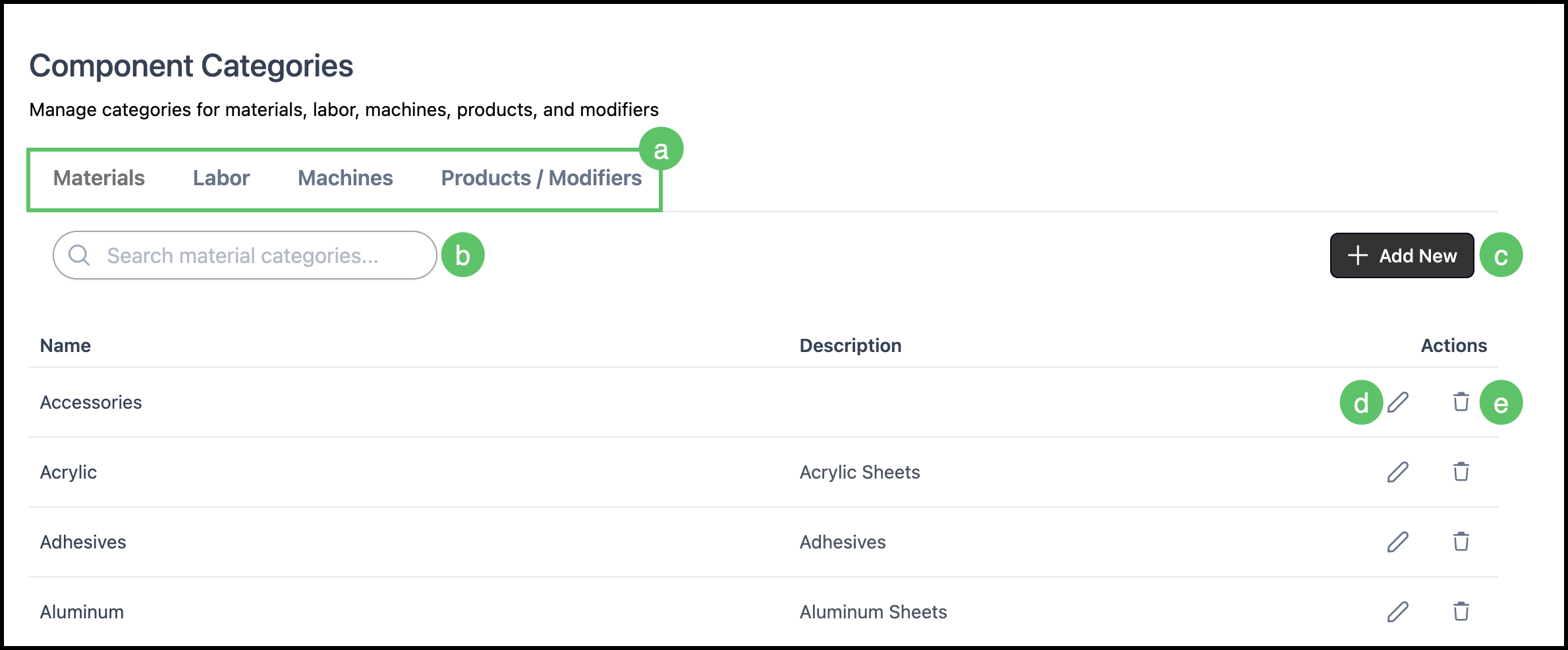
a. Tabs are available at the top of the page to switch between category types.
b. The Search box allows you to find a specific Component Category.
c. The Add New button allows you to add a new Component Category.
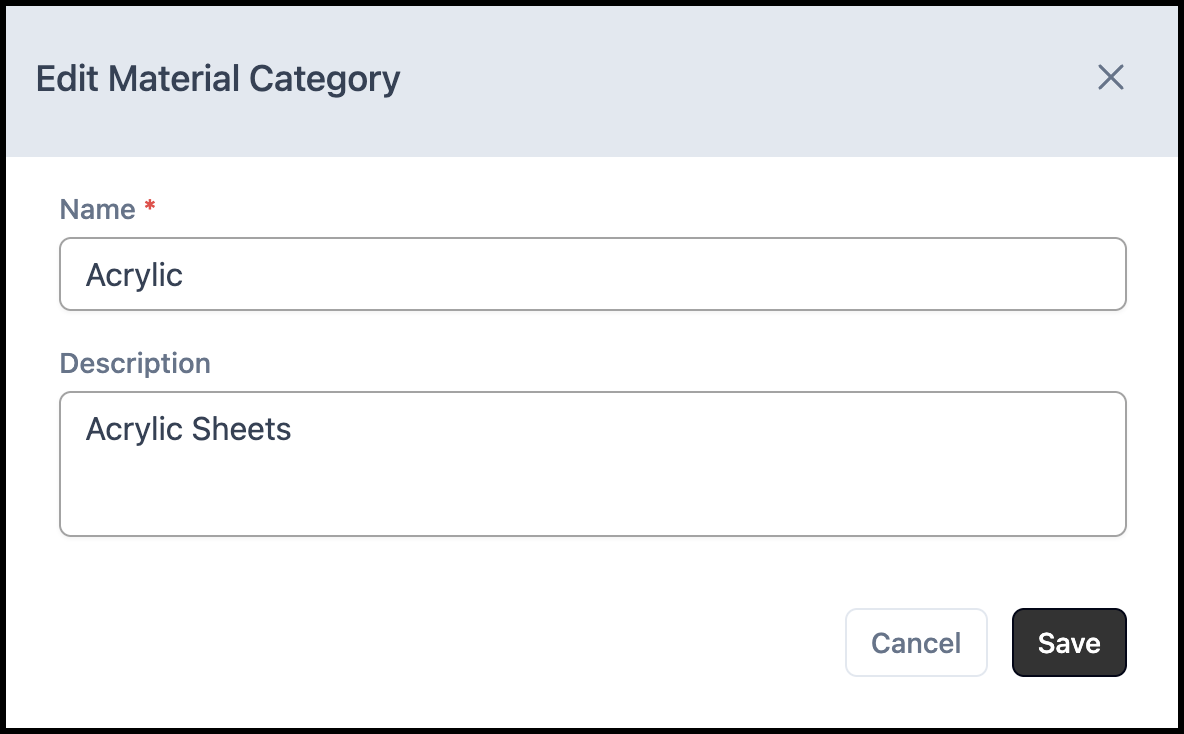
d. The Edit icon opens a dialog box allowing you to make changes to the Name or Description of this Component Category. See example below.
Note: Changes must be manually saved.
e. The Delete icon removes this Component Category.
Example: