
In CoreBridge EVO, categories are applied while creating or editing an event. Administrators manage the master list in System Settings / Calendar Categories.
Table of Contents
Managing Calendar Categories During Event Creation
Apply categories whenever you add or change an event from Sales / Scheduling or from Calendars.
Note: This article will use Scheduling as the example.
Navigate to Sales / Scheduling.
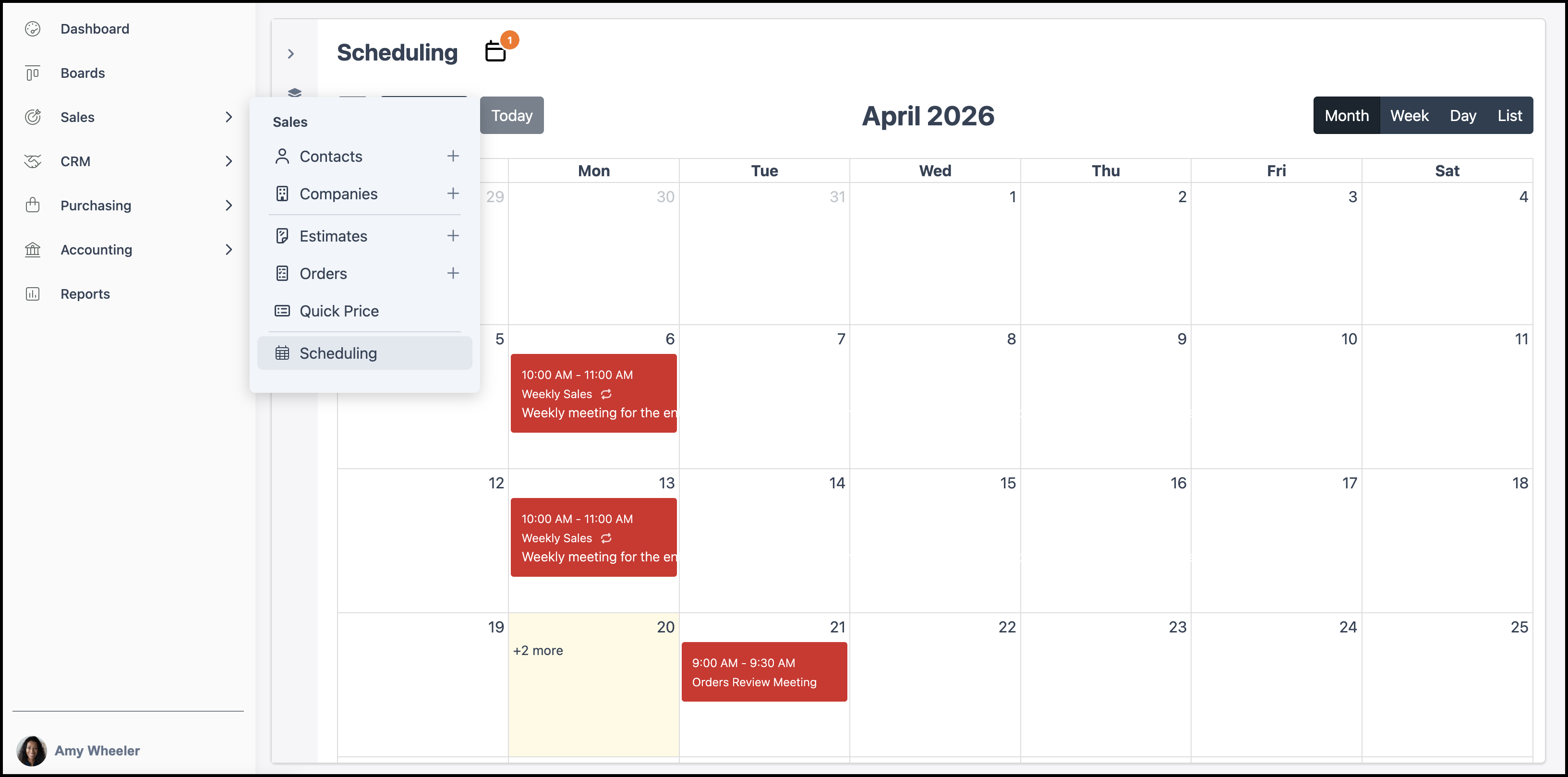
1. Click the Plus icon or open an existing event to edit it.
2. Use the Categorize dropdown to select one or more Categories.
3. Click Save.
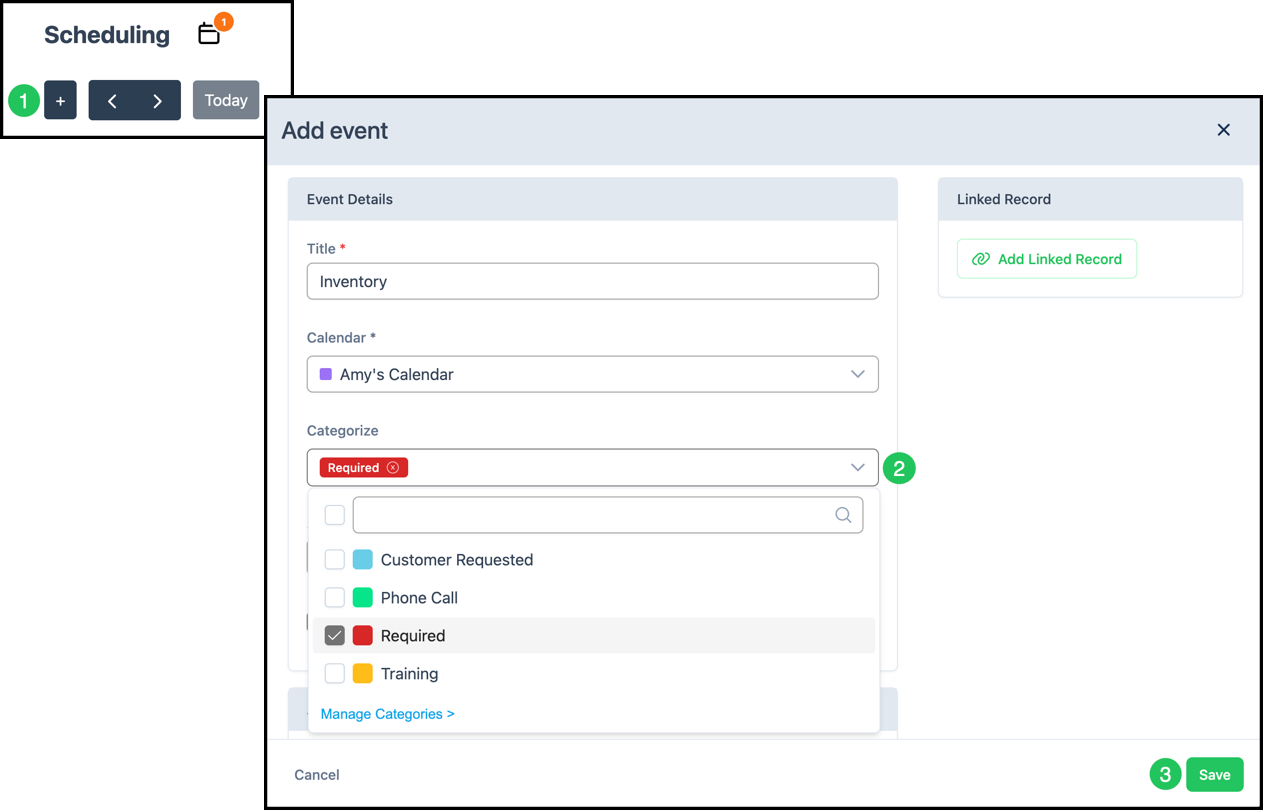
Note: The event window only lists categories that already exist. To create, rename, or recolor definitions, use Managing Calendar Categories in Settings below.
Managing Calendar Categories in Settings
Administrators maintain the master list found in Settings.
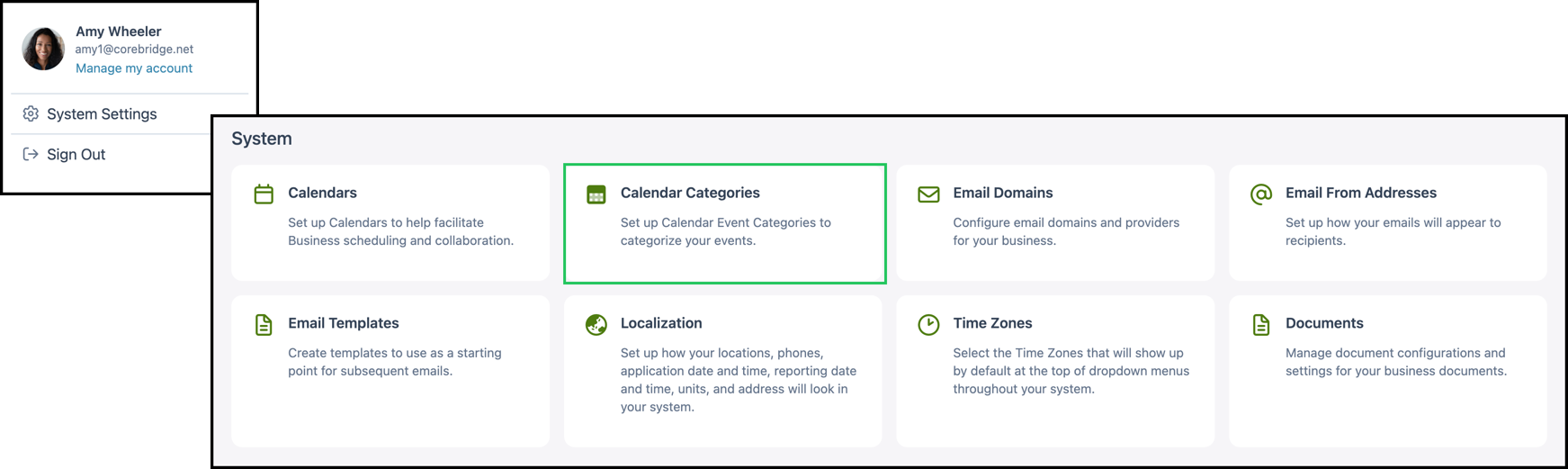
Navigate to System Settings / System / Calendar Categories.
1. Click the Add Category button on the toolbar.
2. In the Name field, enter a name for the category.
3. Click the Color swatch and select the color that will appear wherever the category is used.
4. Click Save to add the category.
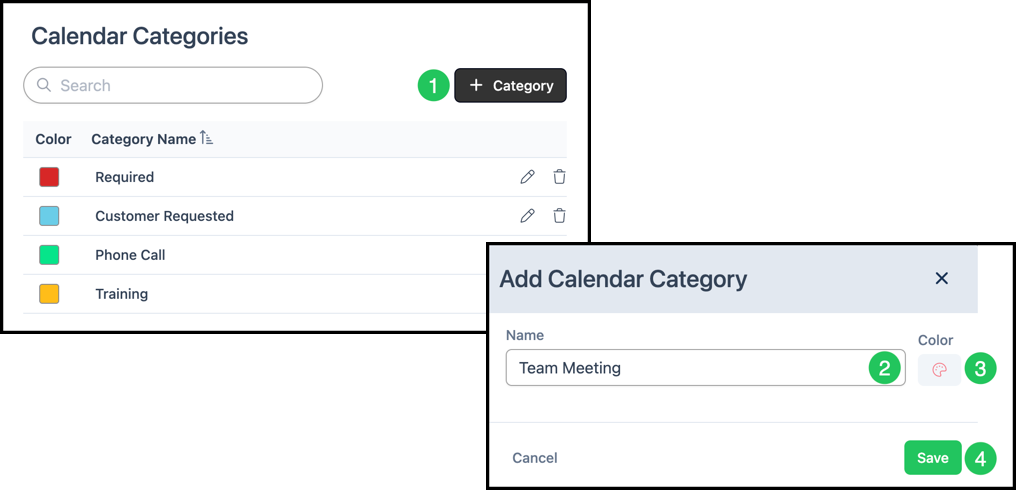
Note: To edit or delete a category, click the corresponding edit or delete icon in the Calendar Categories list.