Business Settings allow you to customize the way your system recognizes your working week, time zone, and numbering preferences. This can be especially helpful when there are multiple locations in the system.
Table of Contents
Changing Business Hours
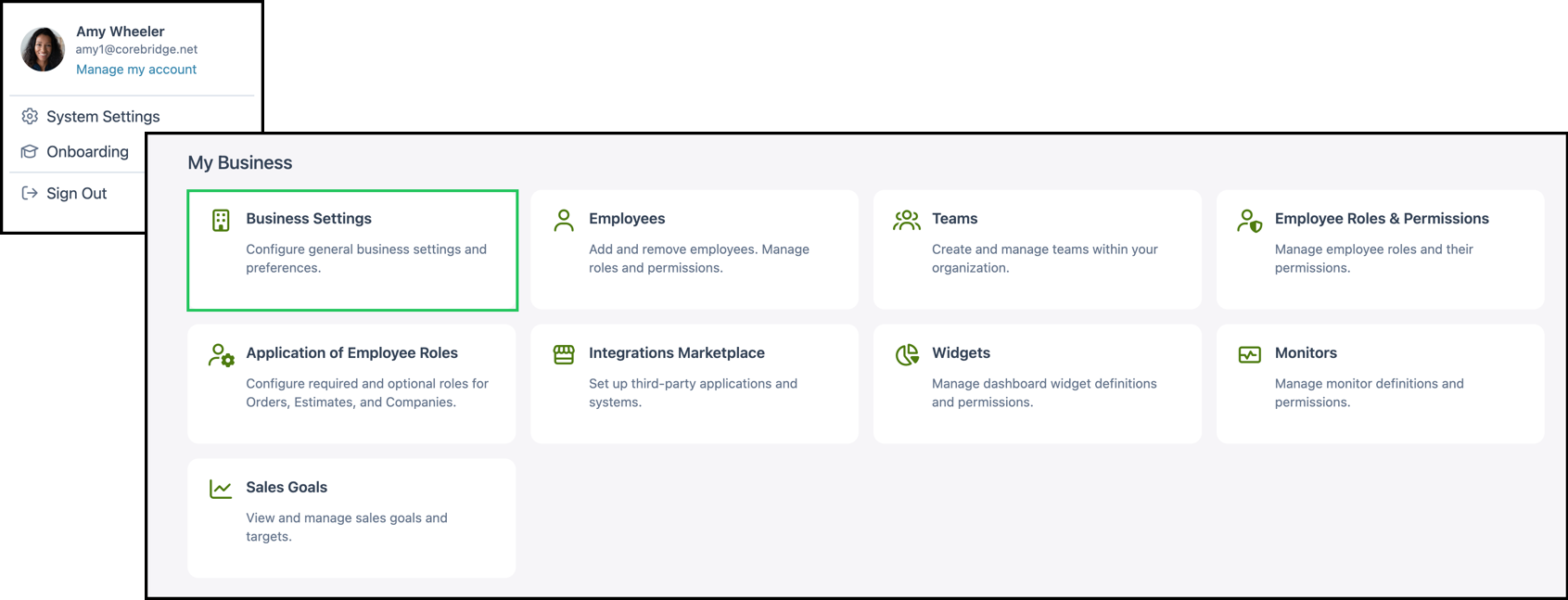
Navigate to System Settings / My Business / Business Settings.
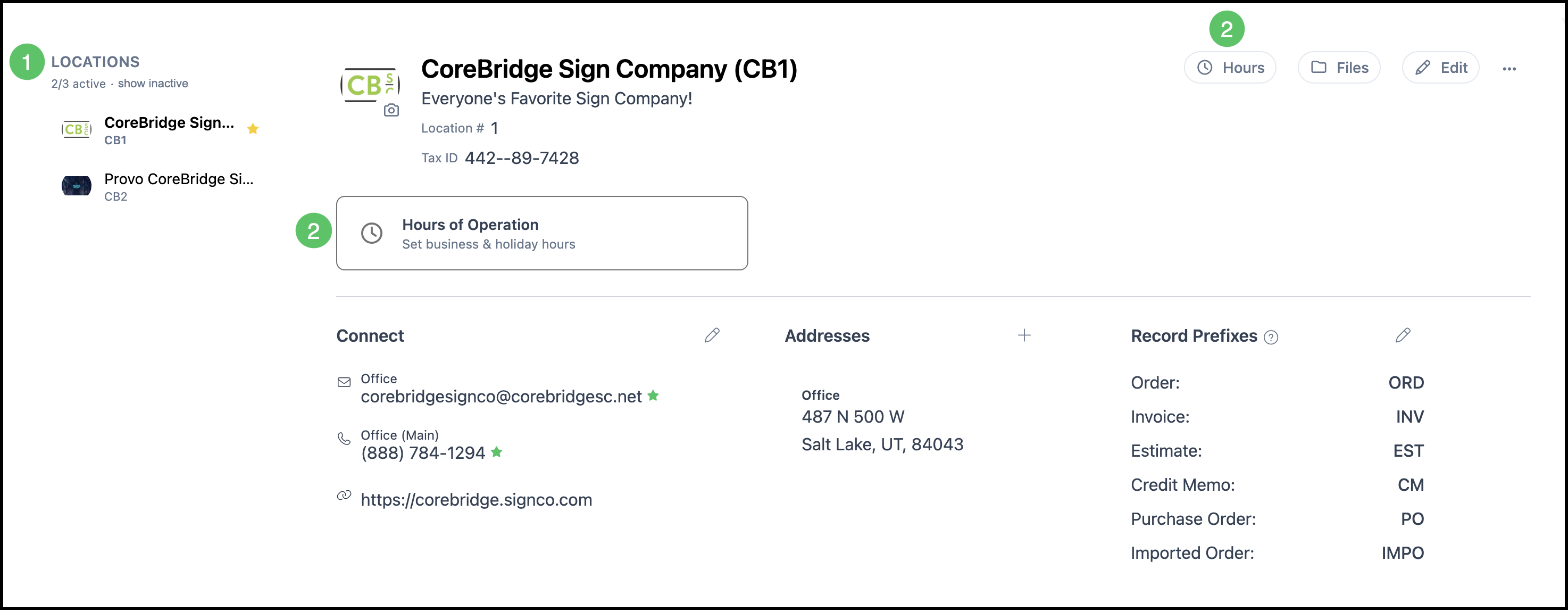
1. Select the Location, if applicable.
2. Click Hours of Operation (or Hours)
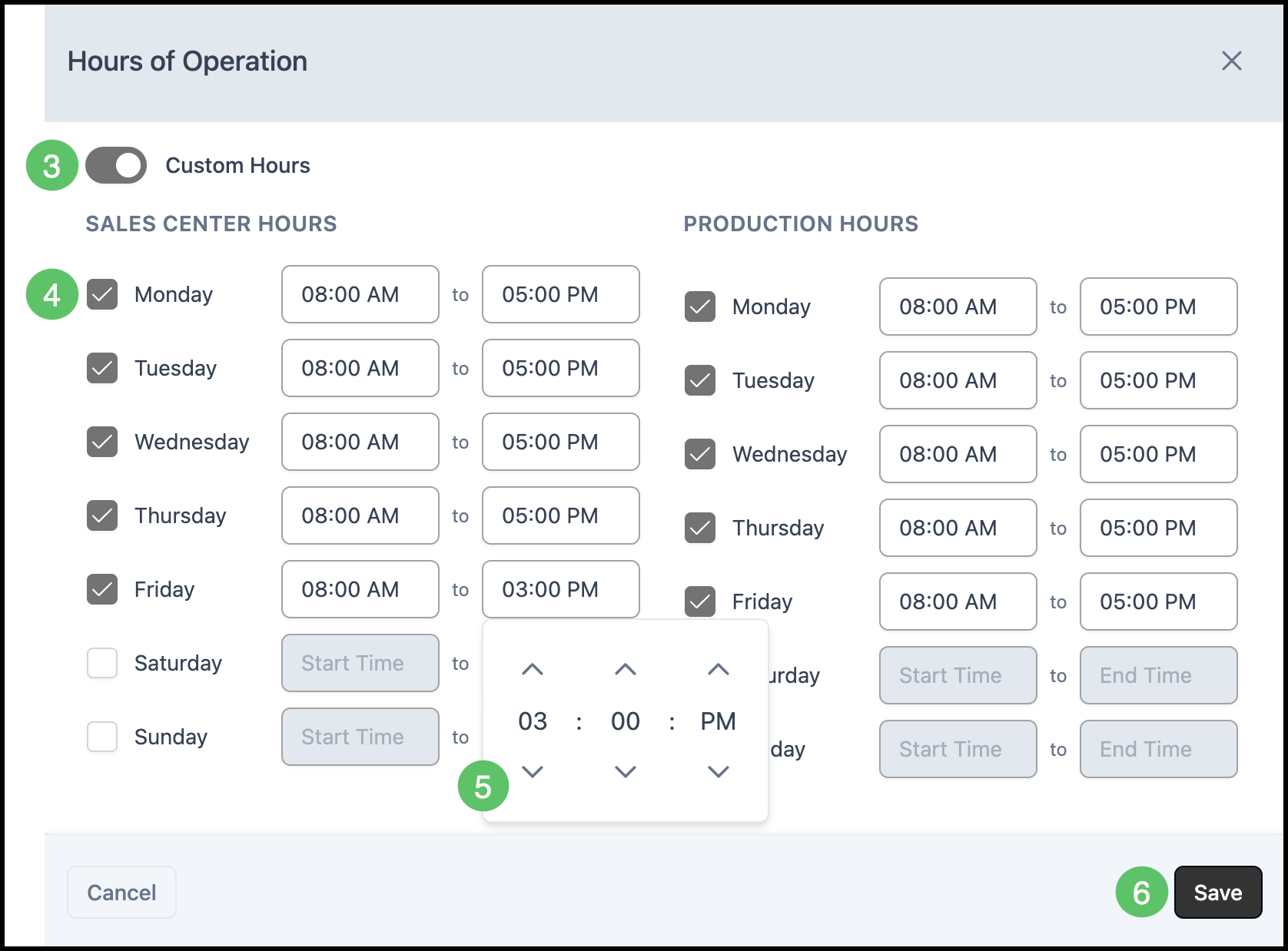
3. Use the Custom Hours switch to set your own hours. Sales Center Hours and Production Hours are both listed on this dialog.
4. Check the days that are open under Sales Center Hours and under Production Hours.
Note: Days can be checked whether Custom Hours is on or off.
5. Select a time field under Sales Center Hours or Production Hours. Increase or decrease the time with the up and down arrows, then select AM or PM.
6. Click Save.
Changing Numbering Options
- The recommended defaults typically start at 1000 and increase by 1 for new Estimates, Orders, Invoices, and Requests for Quote.
- CoreBridge can advance these numbers automatically, and you can change the next number manually when allowed.
- For separate numbering by Location, turn on Use unique numbers for each location on the Numbering Options page.
- To tell Locations apart on printed records, set different Record Prefixes on the Location. This can be managed in System Settings / My Business / Business Settings. For more information, please see Location Details.
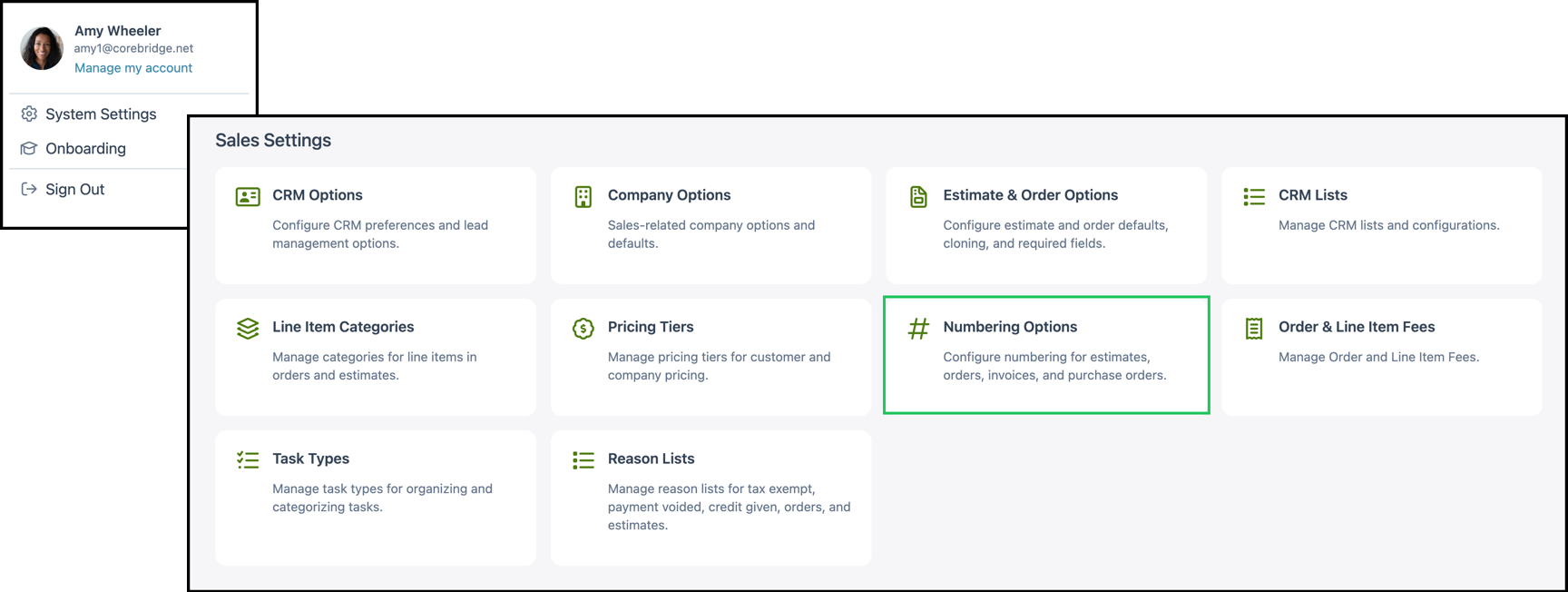
Navigate to System Settings / Sales Settings / Numbering Options.
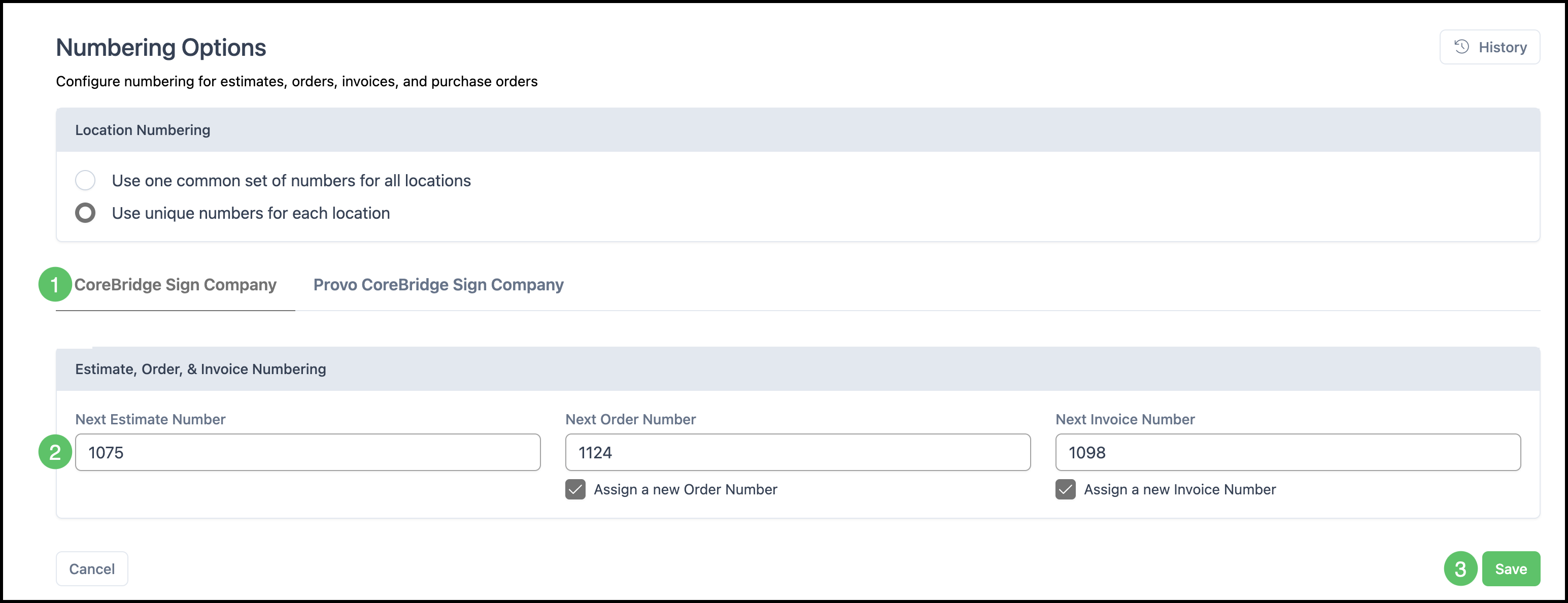
1. Select the Location to update, if applicable.
2. Enter the next number in Next Estimate Number, Next Order Number, Next Invoice Number, and Next Request for Quote Number.
Note: By default, Order and Invoice numbering follow the same sequence. To use a different number, check Assign a new Order Number or Assign a new Invoice Number.
3. Click Save.
Changing Time Zones
- The default time zone for a Location is Default Timezone. Select the Location in System Settings / My Business / Business Settings and click Edit. For more information, please see Location Details.
- To set the time zone for an Employee, go to System Settings / My Business / Employees, open the Employee, and set the time zone in their details. For more information, please see Managing Employees.
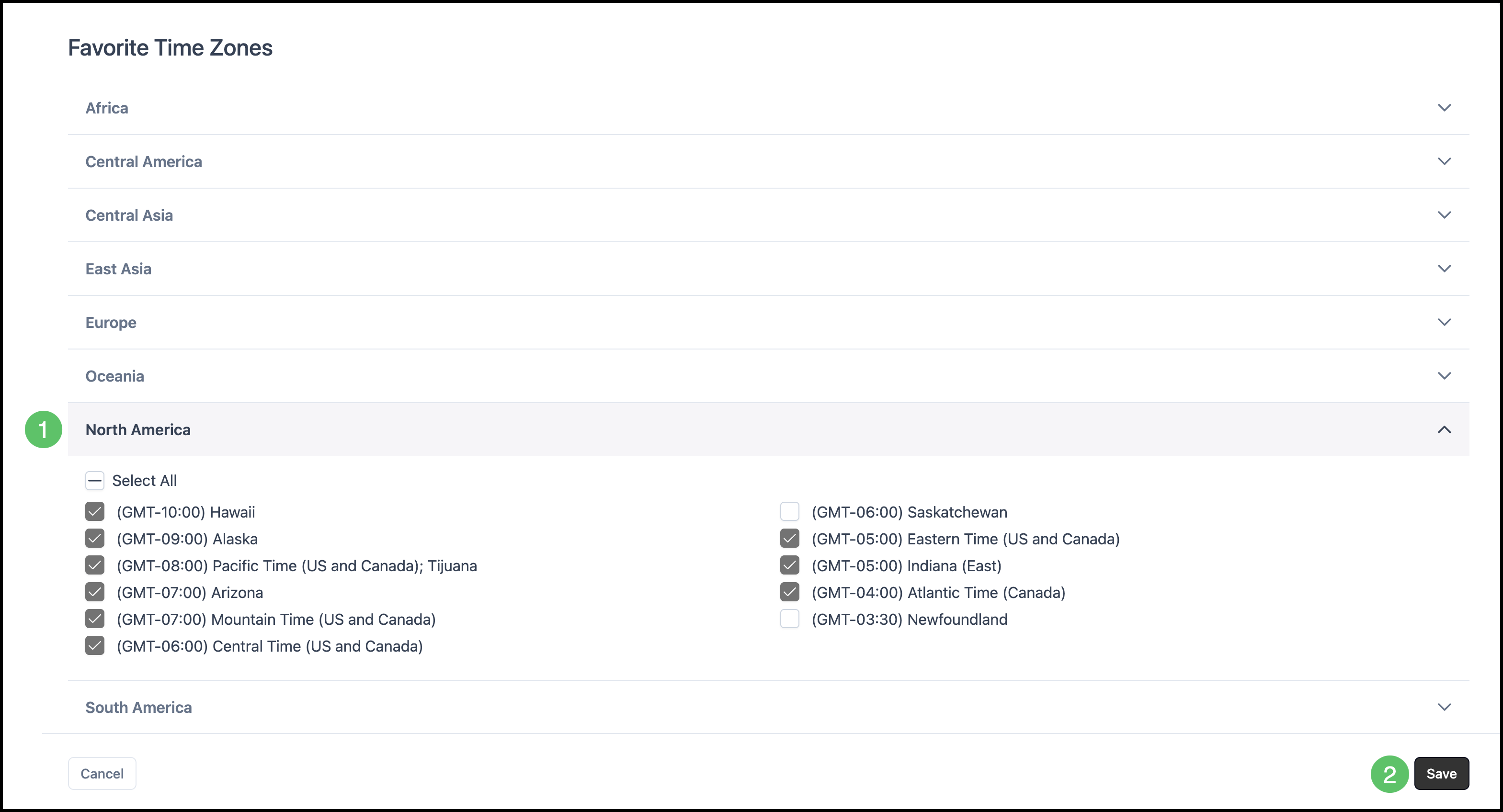
- Time Zones on the System group of All Settings only controls favorite time zones that appear at the top of time zone pick lists, not the Location or Employee default.
Navigate to System Settings / System / Time Zones.
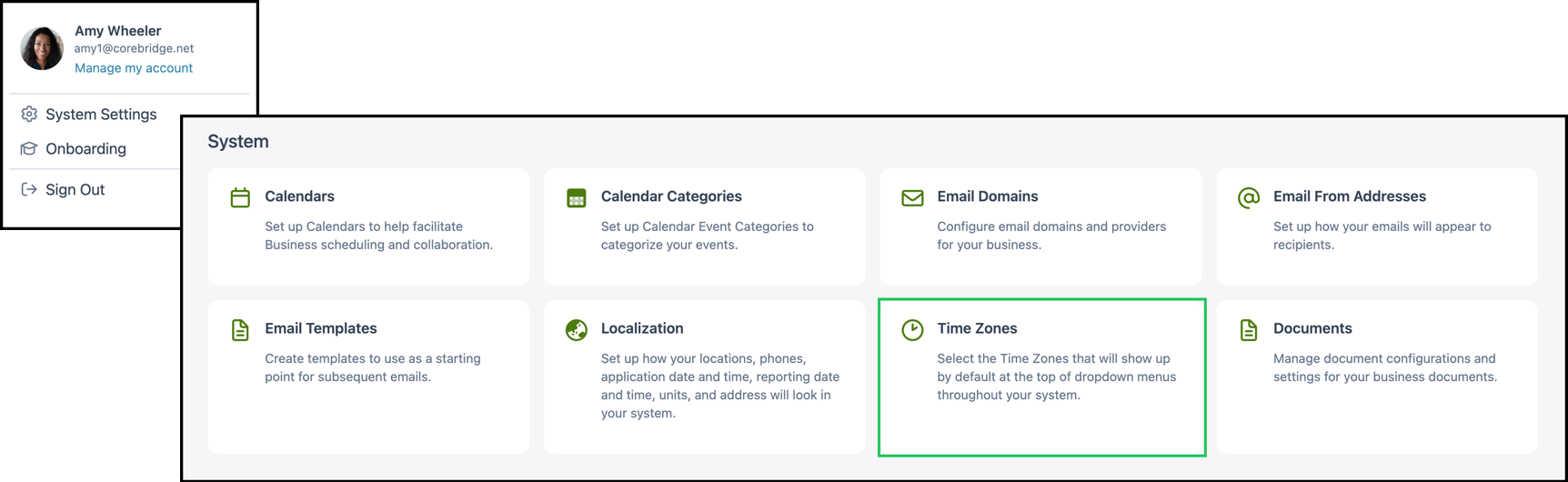
1. Select the time zones you want to show first in time zone pick lists throughout the system.
2. Click Save.