
The Balance Due date on an Order is calculated from Payment Terms. This article shows where Balance Due appears and how to update it by changing Payment Terms.
Table of Contents
- Viewing the Balance Due Date
- How to Change the Balance Due Date
- Frequently Asked Questions
- Related Articles
Viewing the Balance Due Date
Balance Due is a date. It is not the BALANCE amount on the Order. Opening Due Dates requires the Due Dates permission.
Balance Due can be blank until the Order is invoiced. The field stays disabled.
Navigate to Sales / Orders and open the Order.
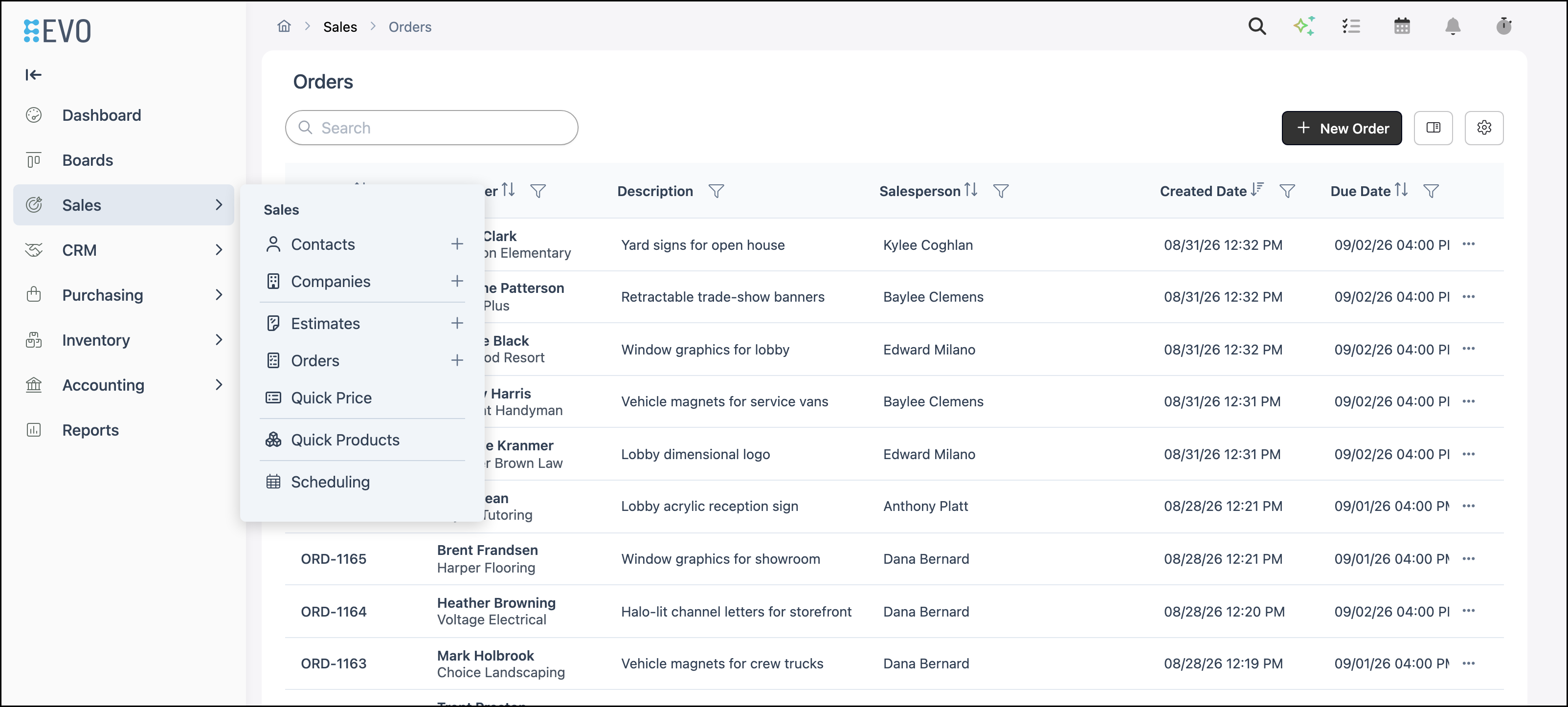
1. Click the date card in the details panel to open the Due Dates dialog.
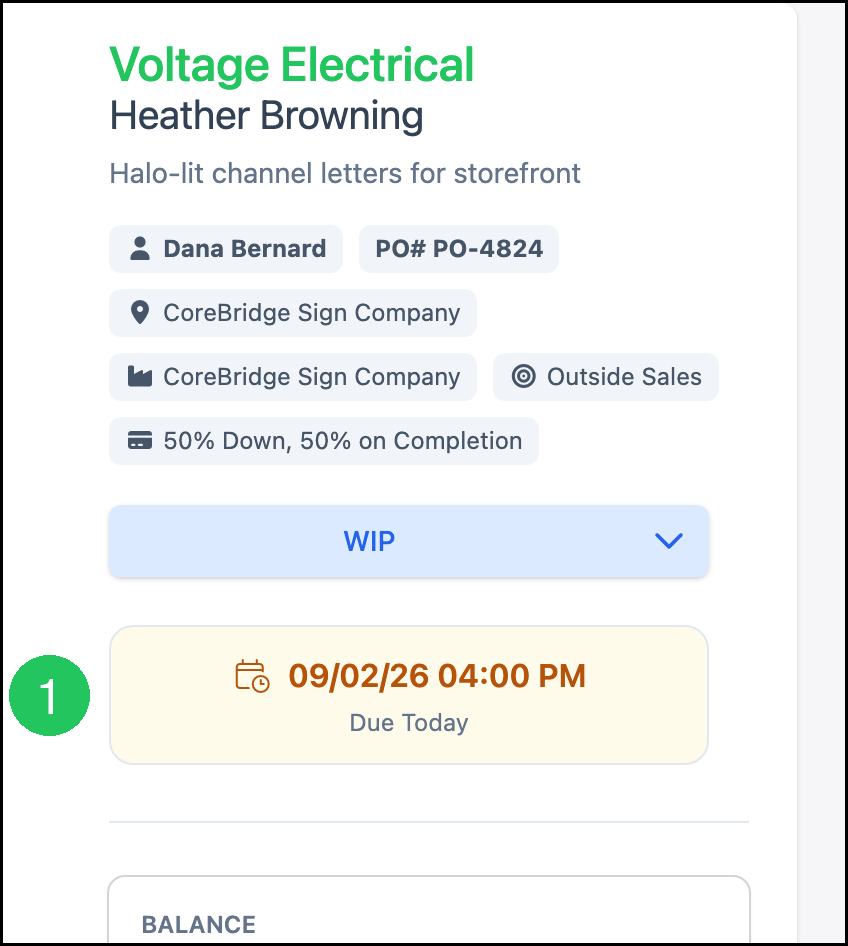
a. Order Due - The date shown on the date card.
b. Balance Due - The date payment is due. This date is calculated from Payment Terms and can be blank until the Order is invoiced.
How to Change the Balance Due Date
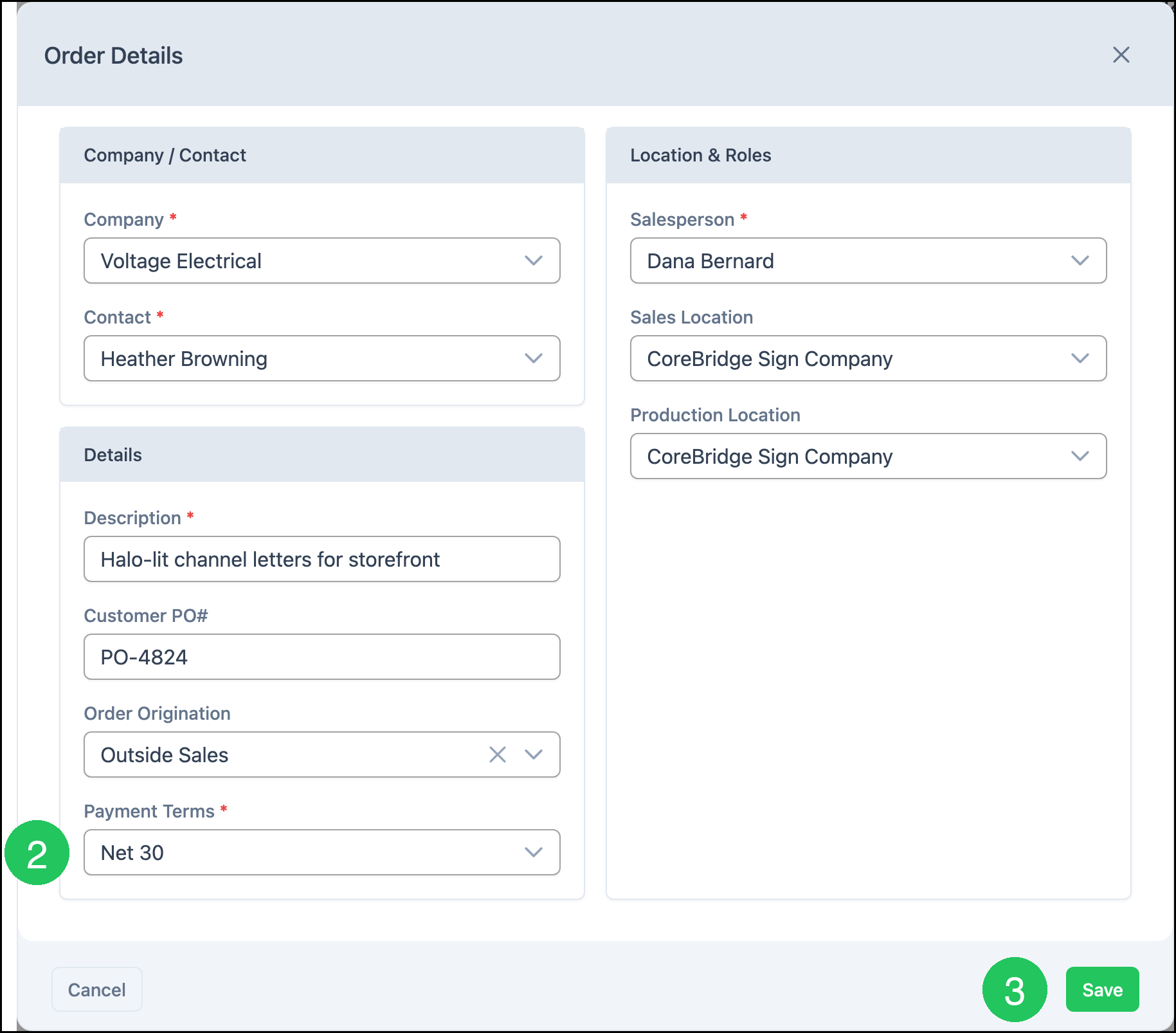
Change Payment Terms on the Order, then save. Balance Due updates from the Payment Terms you save. For more information, see Changing Payment Terms on an Estimate or Order.
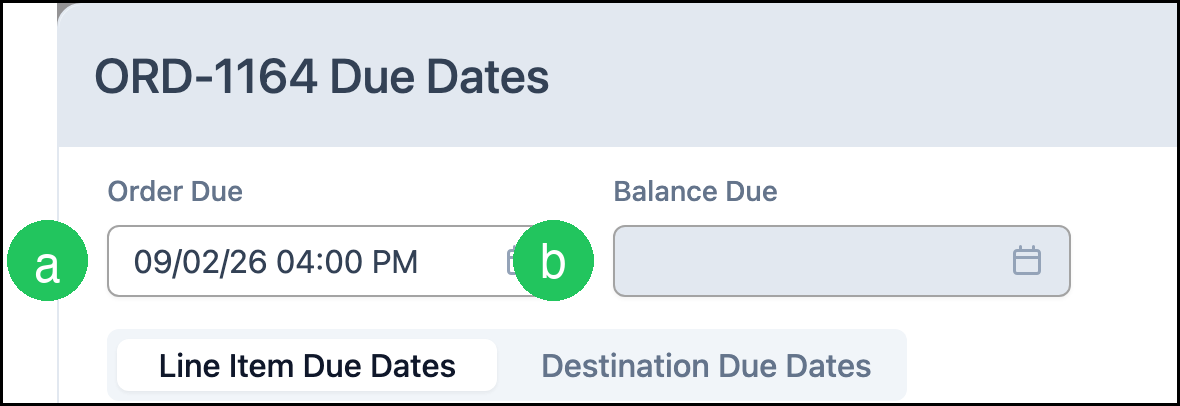
1. Click the edit (pencil) icon in the details panel to open the Order Details dialog.
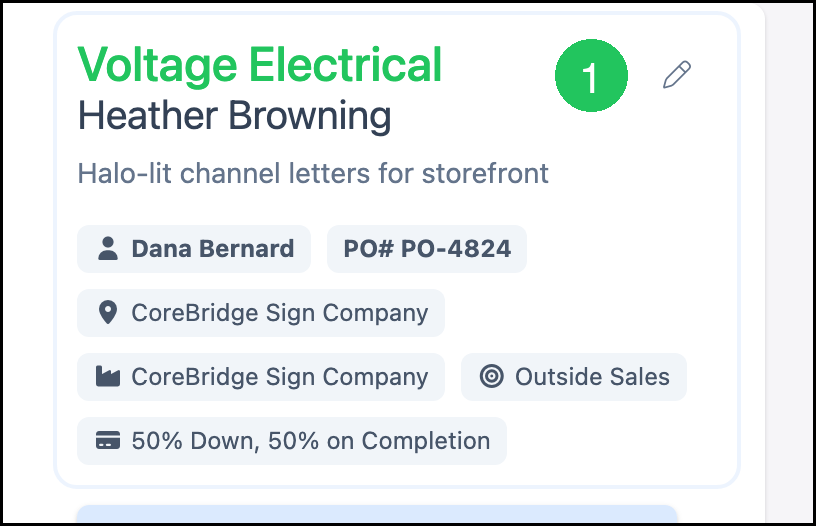
2. Select the Payment Terms you want to use.
3. Click Save.
Note: After an Order is invoiced, it is typically Locked. Change Payment Terms before the Order is invoiced.
Frequently Asked Questions
1. Why is the Balance Due date disabled?
Answer: Balance Due is calculated from Payment Terms. Change Payment Terms on the Order, then save. You cannot edit Balance Due by hand.
2. Why is Balance Due blank?
Answer: Balance Due can be blank until the Order is invoiced. The date is calculated from Payment Terms when that date applies.
3. Is Balance Due the same as BALANCE?
Answer: No. BALANCE is the amount still owed. Balance Due is the date that amount is due.
4. Does changing Payment Terms on the Order change the Company?
Answer: No. The change applies only to that Order. Payment Terms on the Company stay the same.
5. How do I change Payment Terms for future Orders?
Answer: Update Payment Terms on the Company. New Estimates and Orders copy those terms. For more information, see Creating Companies.