Employee Roles & Permissions allow the creation of designated Roles that customize access and Permissions. These Roles, and their access and Permissions, can then be assigned to Employees. Additional permissions can be added later to the Employee when necessary.
It is recommended that each Employee Role be given the minimum Permissions necessary to operate the system, as changes to Permissions for individual Employees will only allow for additional Permissions. Access and Permissions granted to an Employee based on their set Employee Role cannot be removed for individual Employees.
Table of Contents
Employee Roles & Permissions Details
- When creating an individual Employee profile, you may grant additional Permissions.
- It is recommended that each Employee Role be given the minimum Permissions necessary to operate the system, as changes to Permissions for individual Employees will only allow for additional Permissions.
- Access and Permissions granted to an Employee based on their set Employee Role cannot be removed for individual Employees.
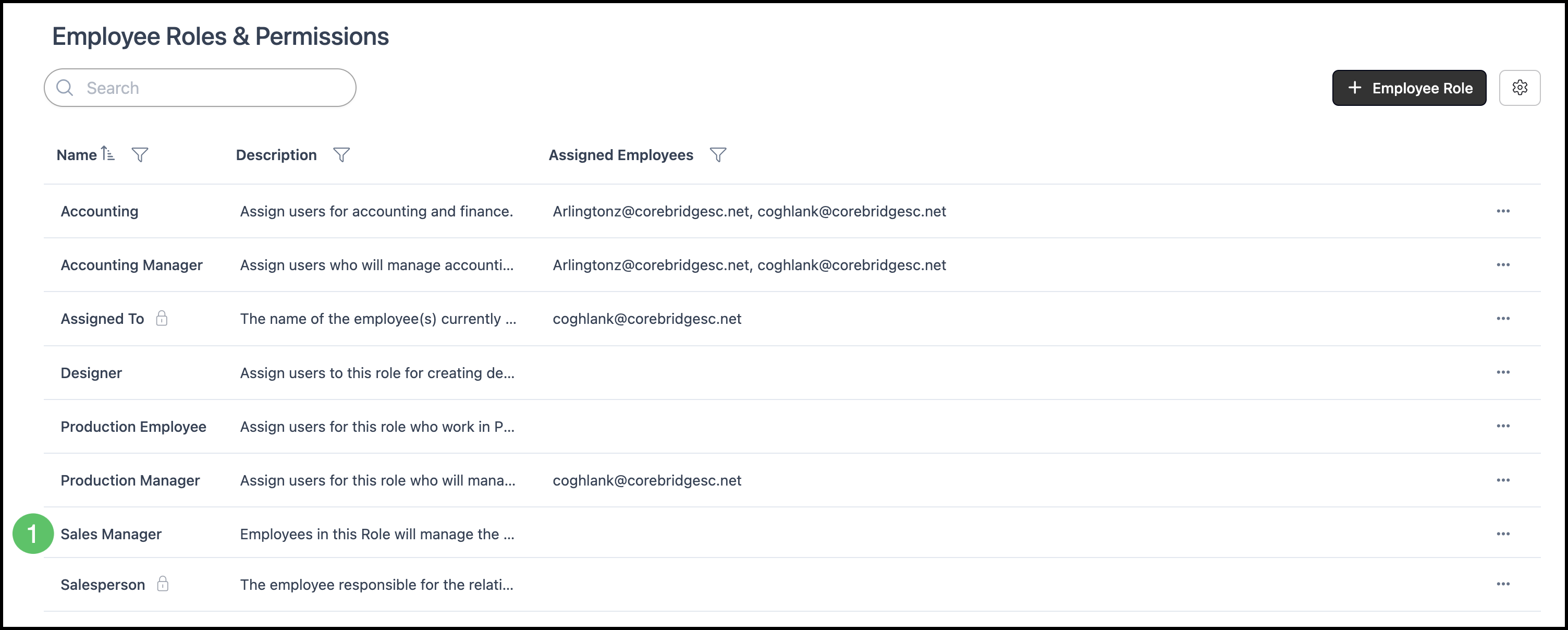
- The lock icon indicates a system Role that Role Details cannot be changed, and the Role cannot be cloned or deleted. Permissions can still be updated.
- Assigned Employees will be listed when an Employee Profile is assigned the Role.
Adding an Employee Role
Creating an Employee Role is the first step in standardizing Permissions.
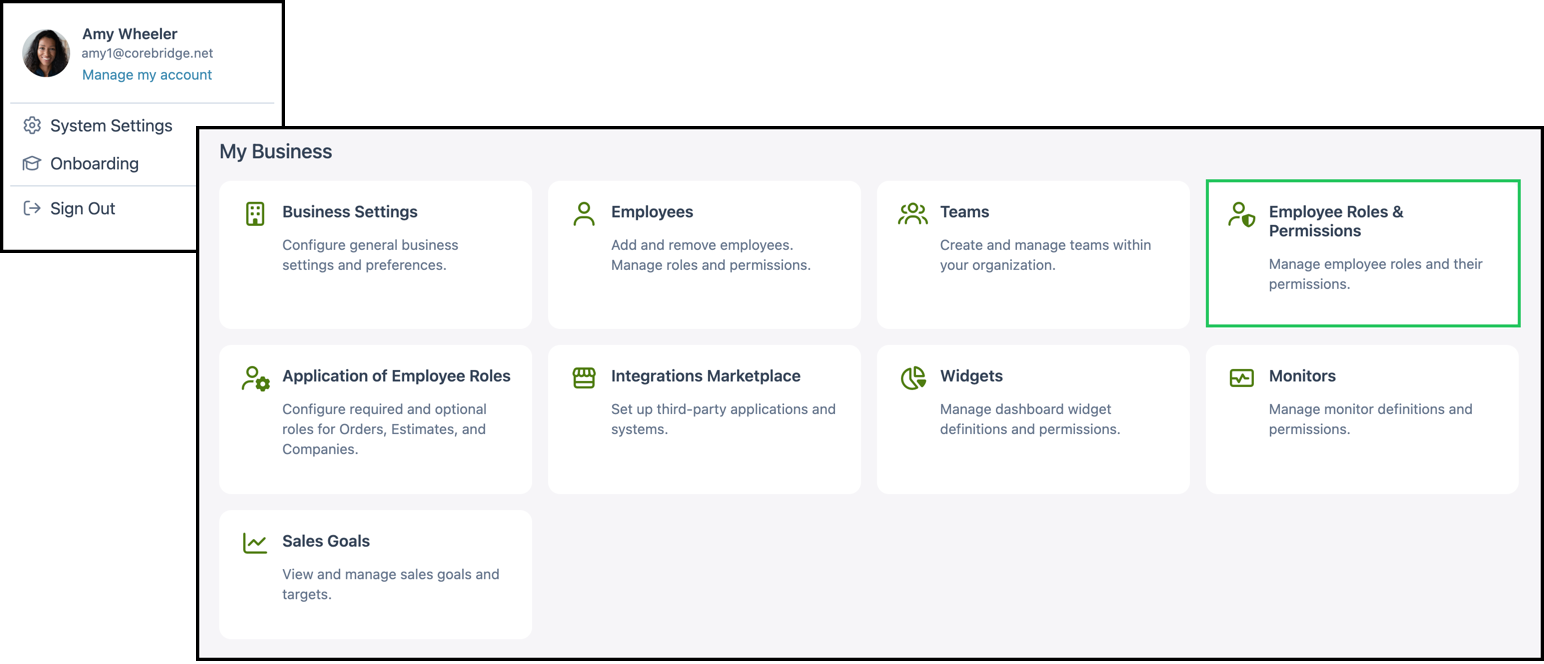
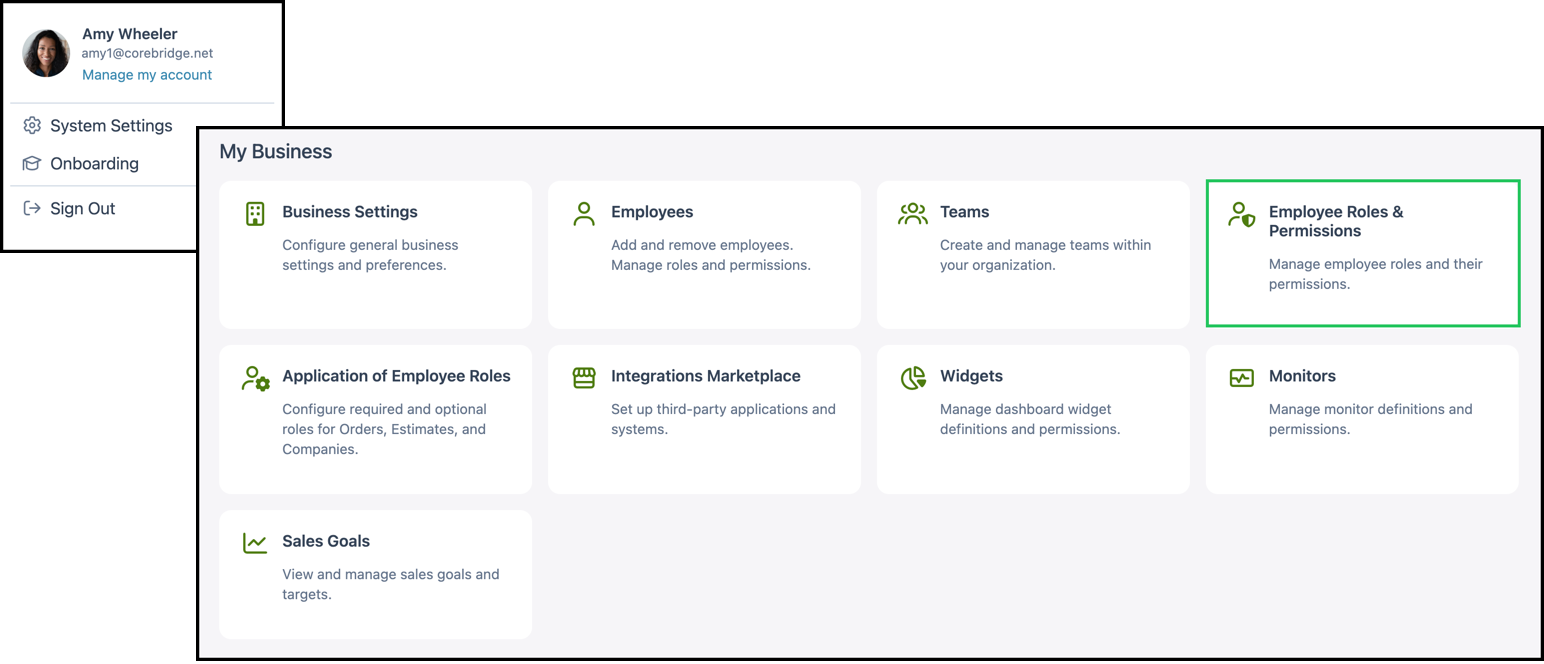
Navigate to System Settings / My Business / Employee Roles & Permissions.


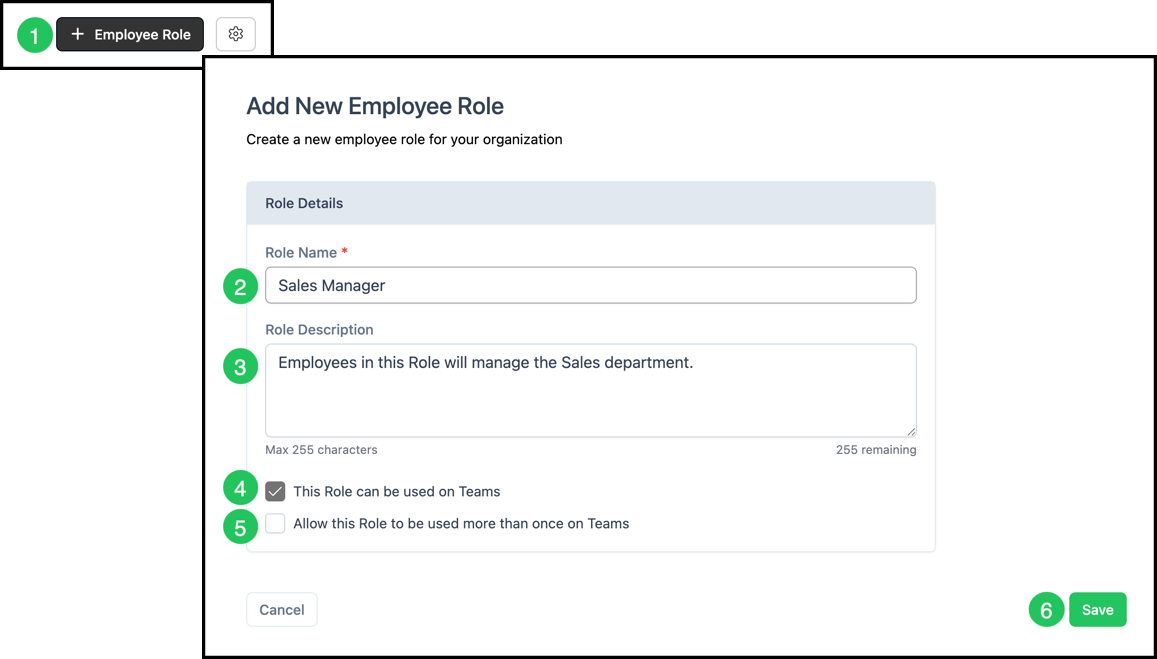
1. Click + Employee Role.
2. Enter a Role Name.
3. Enter a Role Description.
4. Select This Role can be used on Teams.
5. Select Allow this Role to be used more than once on Teams. For more information on Teams go to System Settings / My Business / Teams.
6. Click Save.
Note: The use of Employee Roles in Orders, Estimates, and Companies, and Opportunities can be set up in System Settings / My Business / Application of Employee Roles.
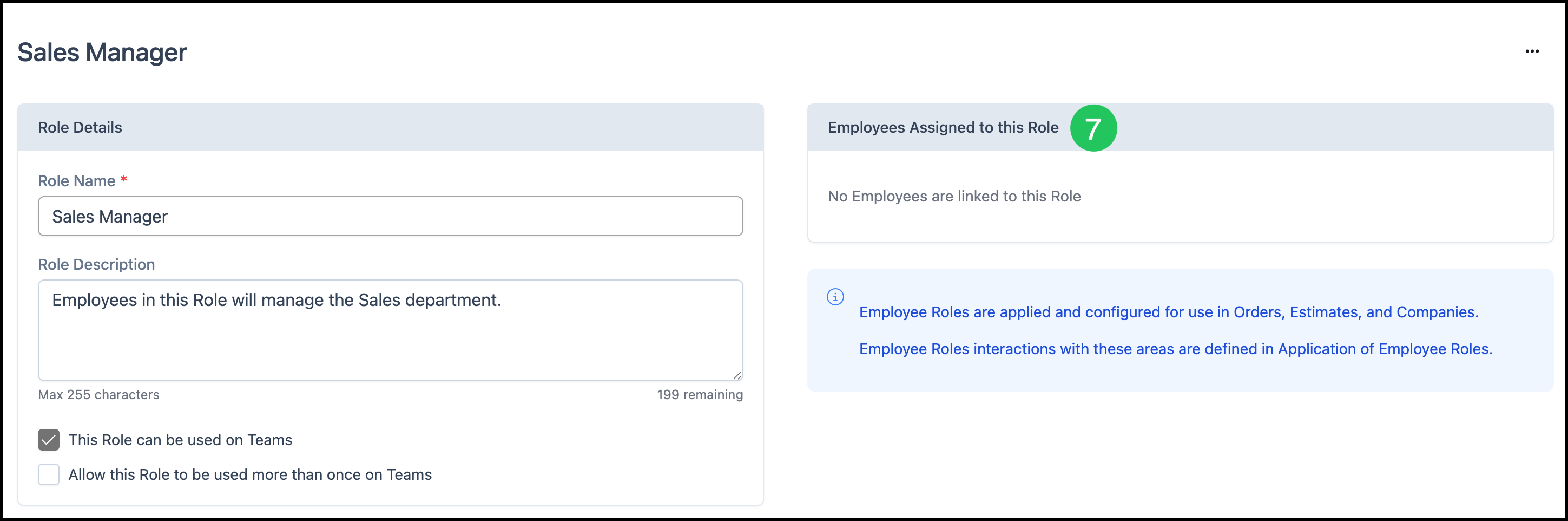
7. Once the new Role is set up you will see there are no Employees assigned to this Role.
Note: This can be managed in System Settings / My Business / Employees and select the Employee to assign to this Role. Add them to this Role using the Edit icon under Employee Roles. For more information, please see Managing Employees.
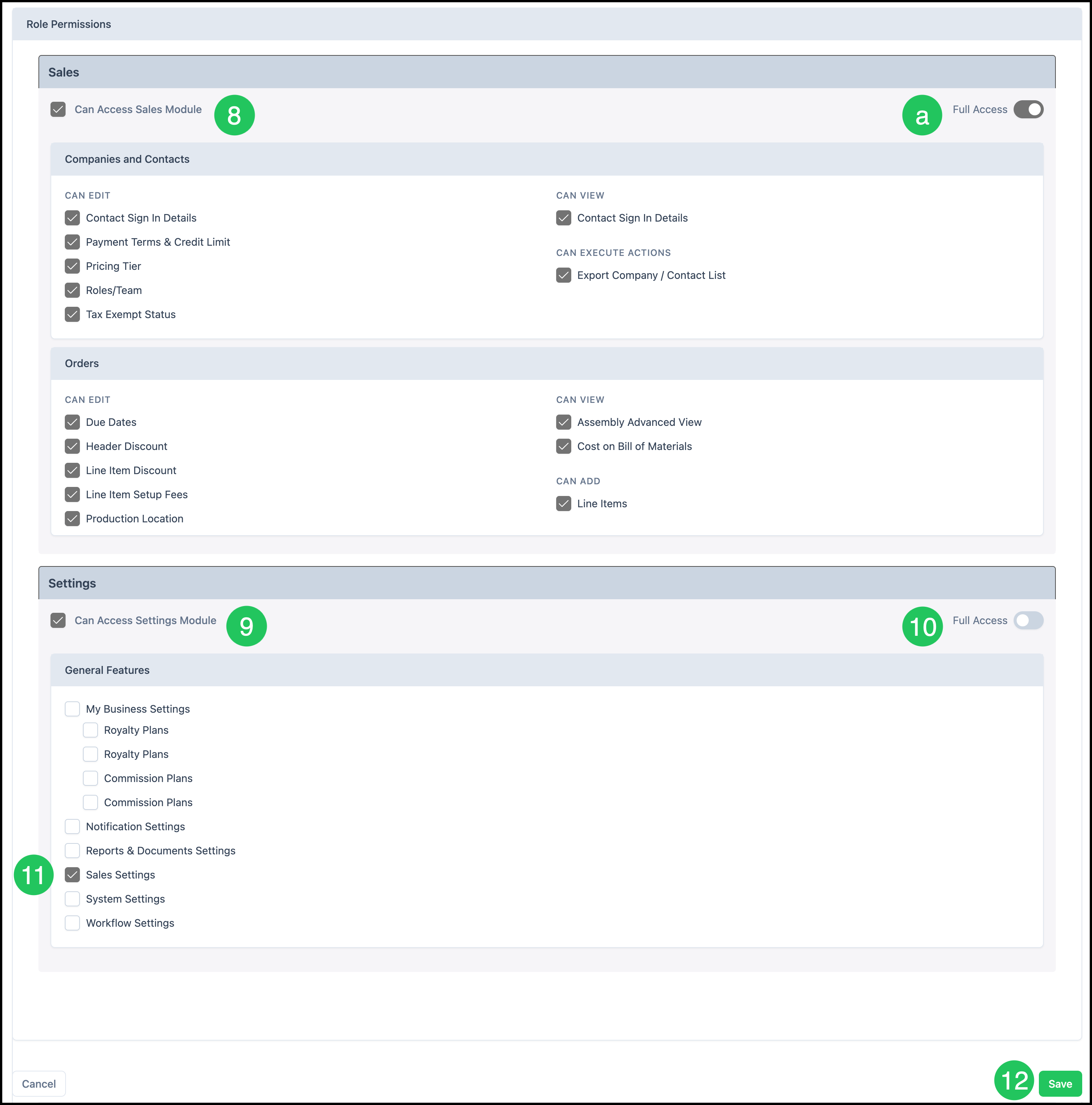
8. Scroll to review the list of modules to assign access for this role. Click on the particular Module to give permissions.
a. Full Access toggle will automatically be selected for that Module.
9. Select a Module then view to give partial access.
10. Click Full Access to unselect the Full Access toggle.
11. Check to allow individual permissions within that Module.
Note: It is better to limit access in a Role and add additional access individually to an Employee. Individual Permissions can not be revoked within a Role.
12. Click Save.
Editing Employee Roles & Permissions
Employee Roles control what areas of CoreBridge an Employee can access and what actions they can perform. Updating Role access lets you standardize Permissions across groups of Employees while keeping individual user management simple.
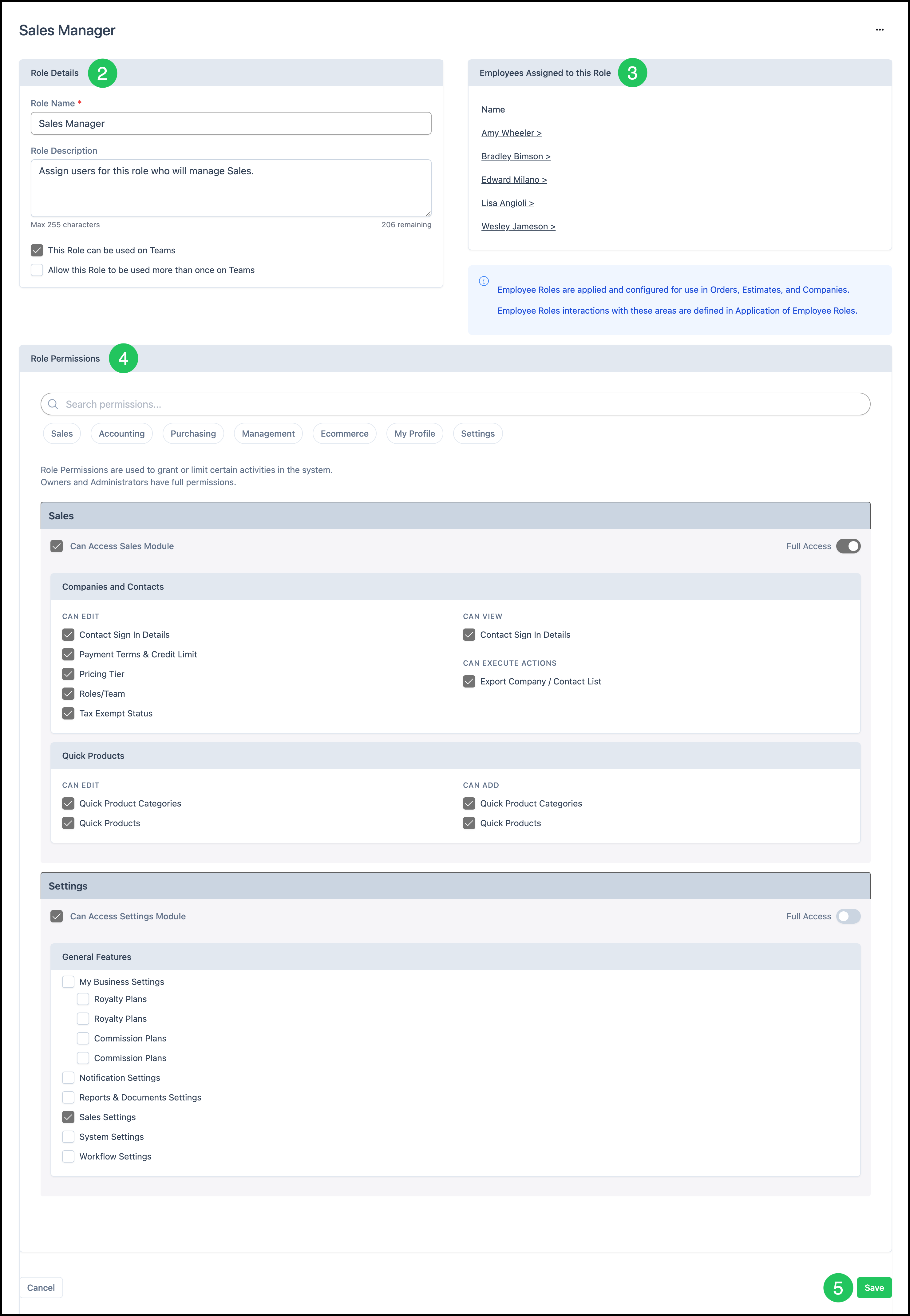
Navigate to System Settings / My Business / Employee Roles & Permissions.
1. Click on the Role you want to update.
2. Update Role Details as needed.
3. Review the Employees assigned to the Role.
Note: Clicking on the Employee name will take you to their page where you can manage their permissions.
4. Adjust Role Permissions as needed.
5. Click Save.