Order and Line Item Fees allow you to apply additional charges to an Order either at the overall Order level or to individual Line Items. These Fees can be used for costs such as rush processing, handling, setup, environmental surcharges, or other service-related charges that may not be built directly into product pricing.
The steps for creating a Fee are the same for both Order Fees and Line Item Fees. This article uses Order Fees as the example process.
Table of Contents
Creating an Order or Line Item Fee
Navigate to Settings / Sales / Order & Line Item Fees.
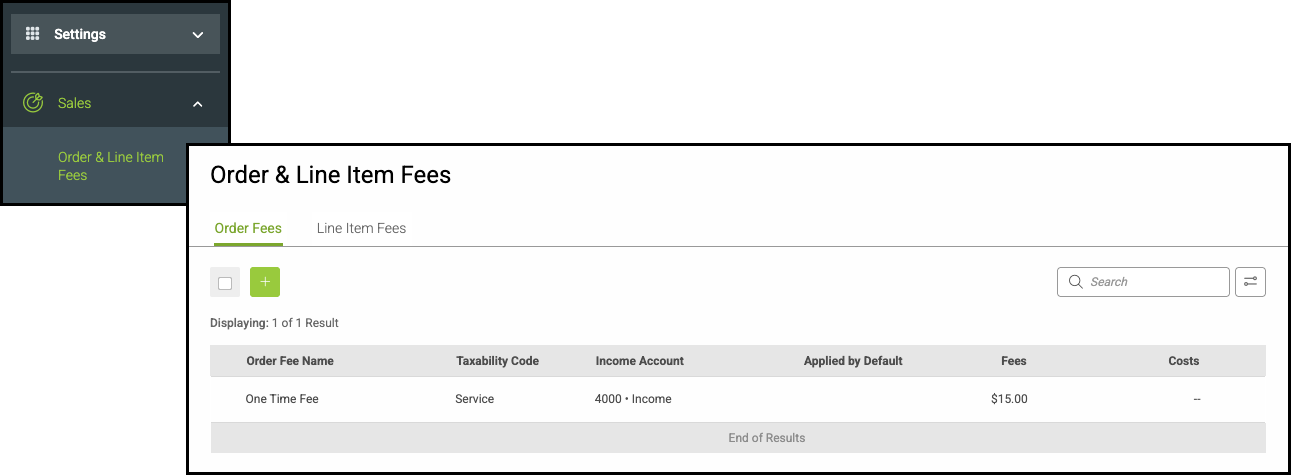
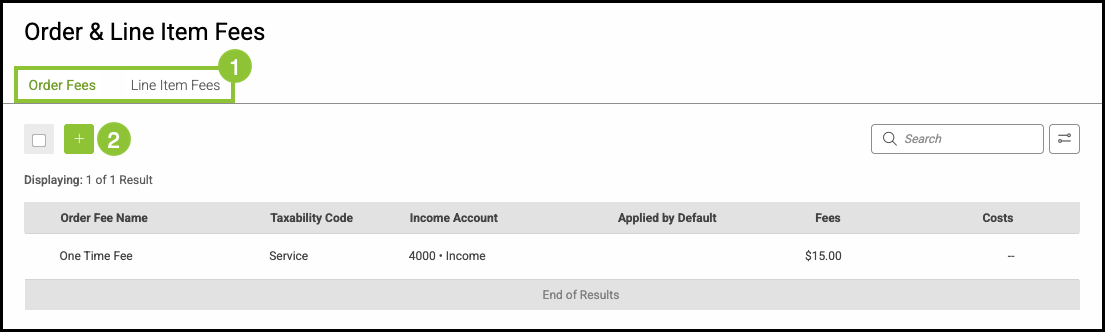
1. Select Order Fees or Line Item Fees.
Notes: An Order Fee applies to the full Order total, while a Line Item Fee is tied to a specific Line Item only.
Order Fees are applicable on Estimates as well.
2. Click the Green Plus button.
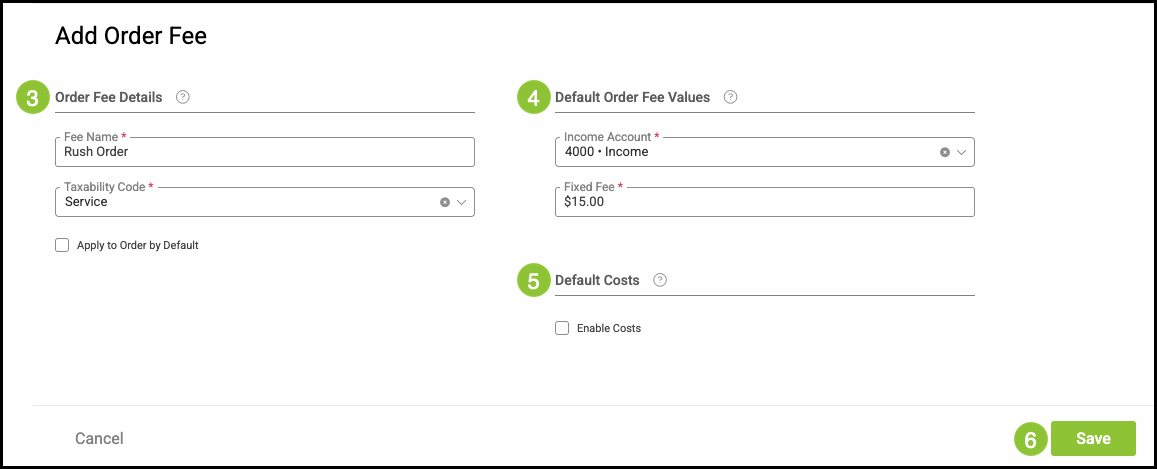
3. Fill in the Order Fee Details.
Note: The Fee Name is for internal identification and selection only. On Estimates, Orders, and other customer-facing documents, the charge will display simply as Order Fees or Line Item Fees.
4. Fill in the Default Order Fee Values.
Note: When working with Line Item Fees, an additional field labeled Per Item Fee will be available.
5. Choose if you would like to Enable Cost.
Note: When this is selected, fields will appear allowing you to choose an Expense Account and a Fixed Cost.
6. Click Save.
Applying an Order Fee
Order Fees apply to the Order as a whole and can also be added to Estimates using the same process.
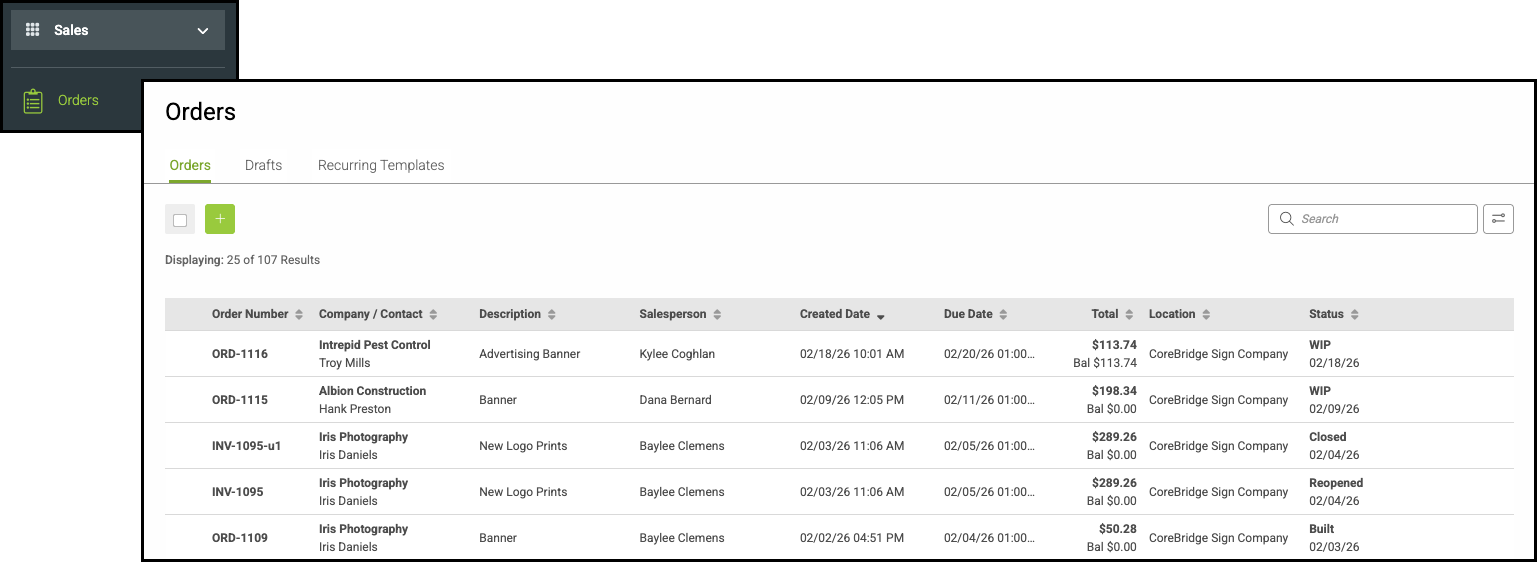
Navigate to Sales / Orders and select the appropriate Order.
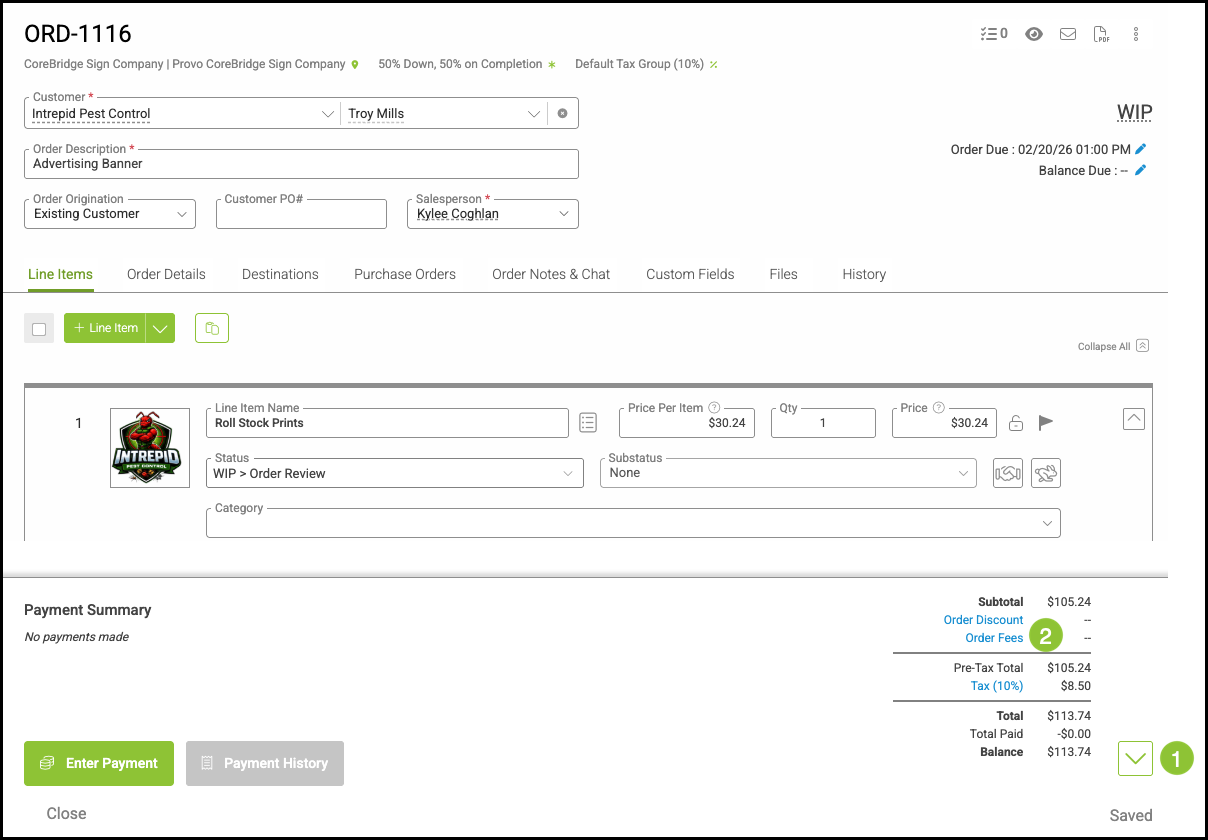
1. Open the Payment Summary section if it is not already expanded.
2. Click Order Fees.
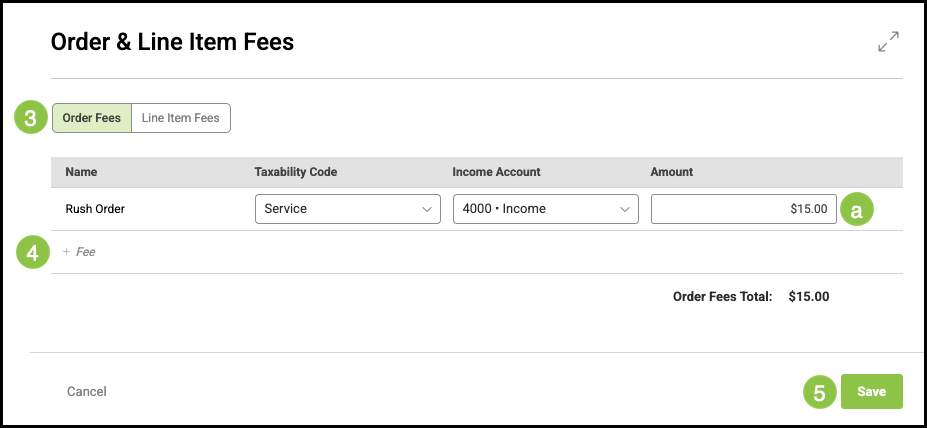
3. Select Order Fees.
4. Click on +Fee.
Note: This dropdown allows you to select from previously created Fee options. If the appropriate option is not listed, select Manage Order Fees to create or edit Fees.
a. The Fee amount will populate automatically based on the selected option, but it can be adjusted as needed.
5. Click Save.
Applying a Line Item Fee
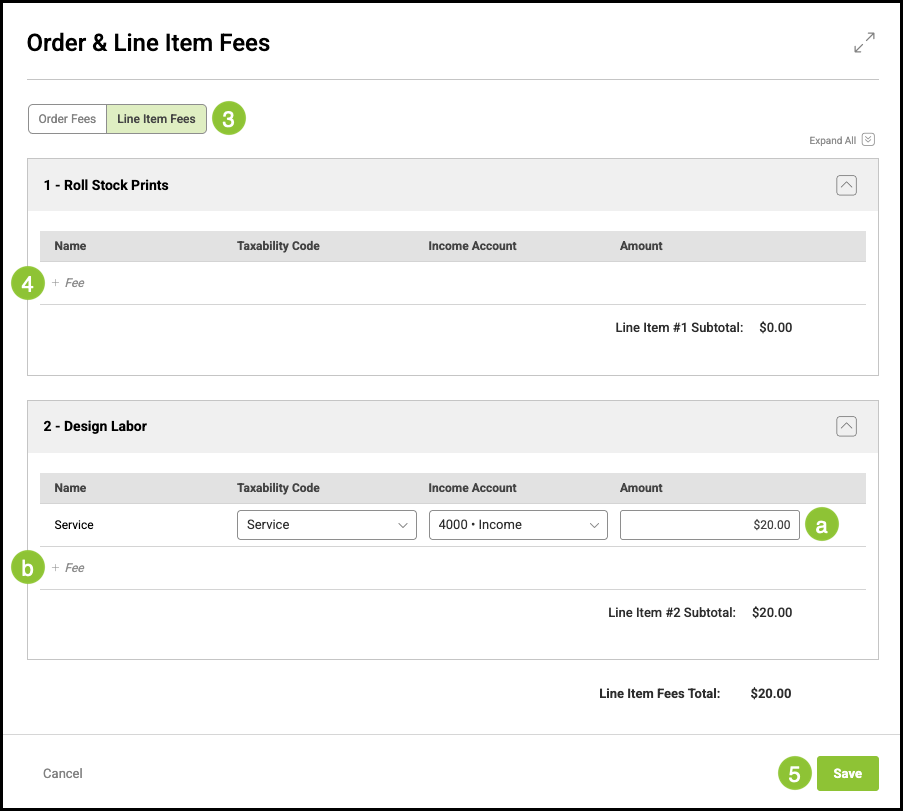
Line Item Fees may be applied directly through an individual Line Item, or from the Estimate/Order Payment Summary section.
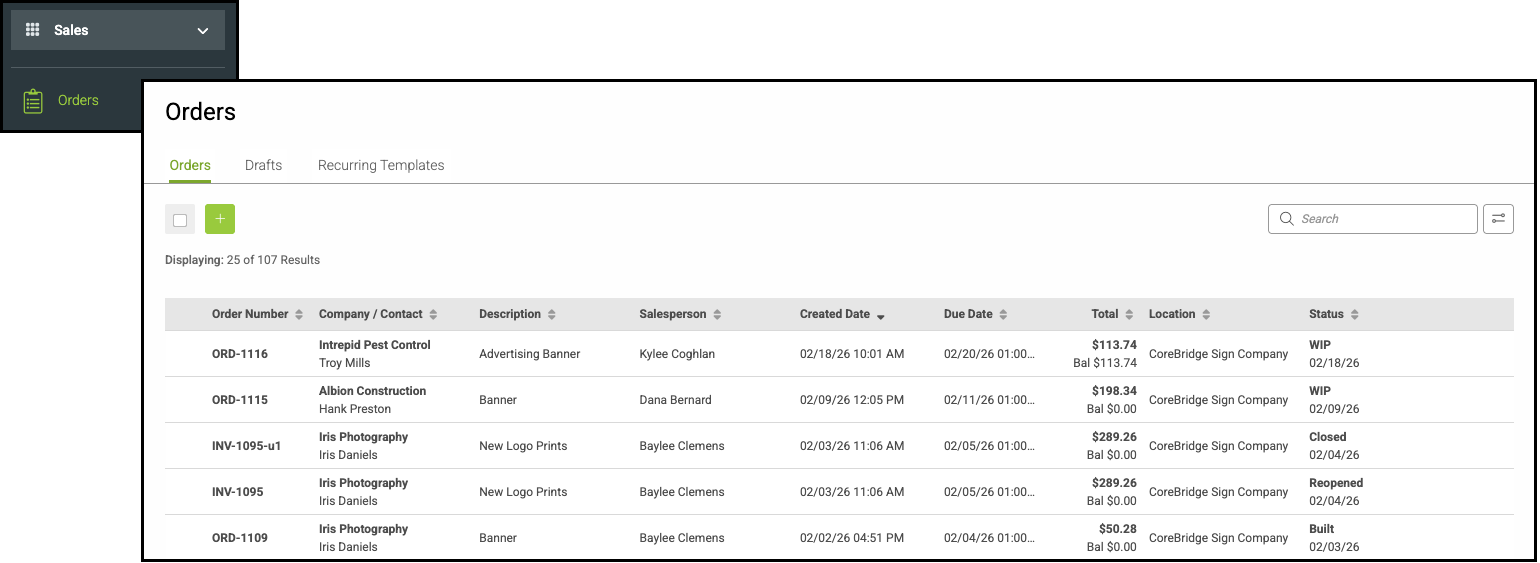
Navigate to Sales / Orders and select the appropriate Order.
1. Choose the Line Item to which you want to apply the Fee.
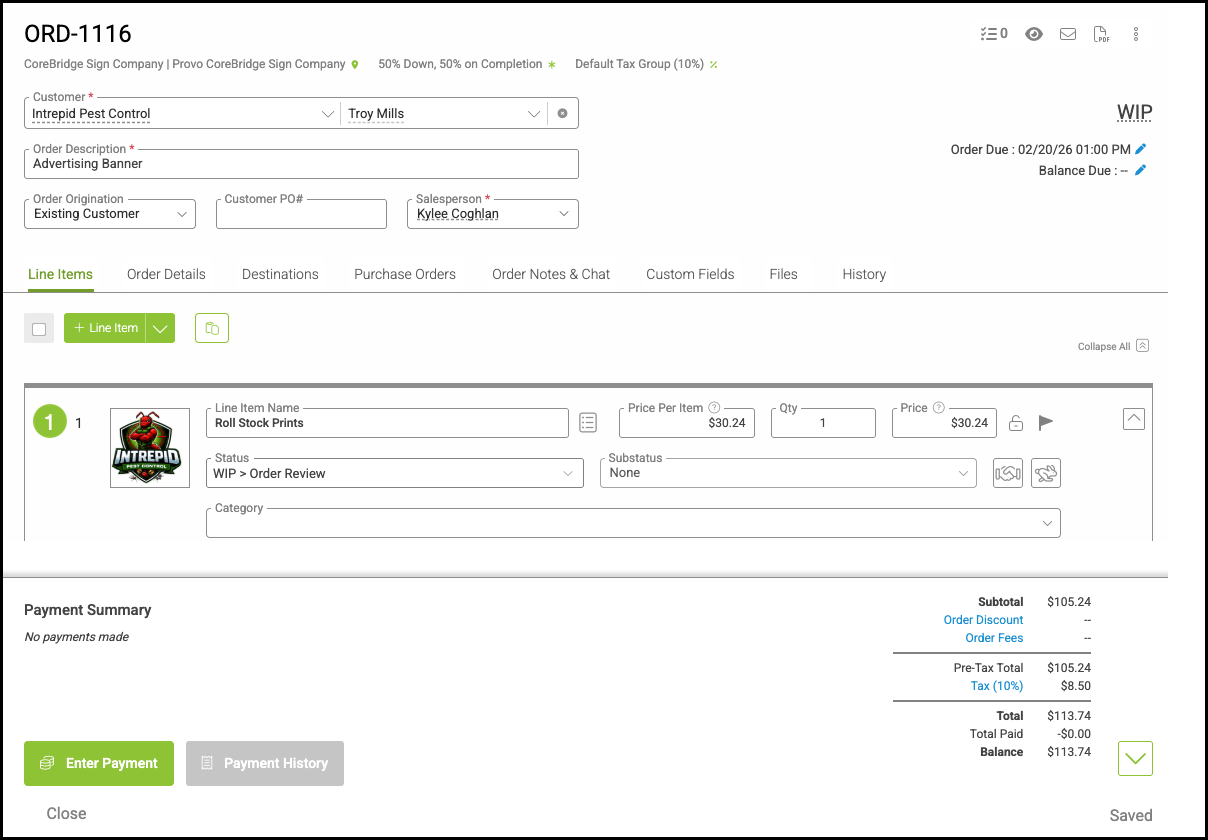
2. Click Line Item Fees.
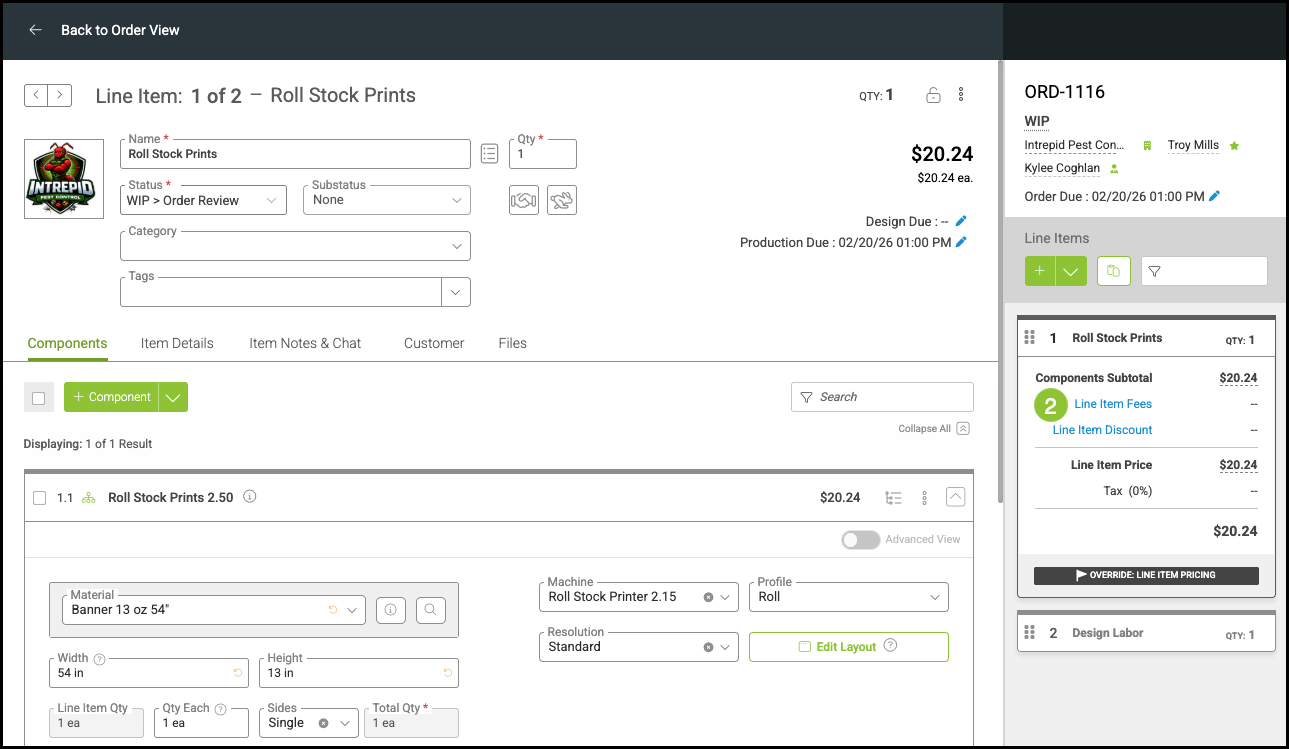
3. Select Line Item Fees.
Note: This pop-up is also accessible by clicking Order Fees in the Payment Summary as shown above.
4. Click on +Fee.
Note: This dropdown allows you to select from previously created Fee options. If the appropriate option is not listed, select Manage Order Fees to create or edit Fees.
a. The Fee amount will populate automatically based on the selected option, but it can be adjusted as needed.
b. Additional Line Items can also have Fees applied within the same pop-up window.
5. Click Save.