
CoreBridge is a powerful business management tool that allows businesses to organize and maintain large quantities of information; from pricing and workflow to employees and sales goals. Understanding CoreBridge's available features, as well as general navigation throughout the system, empowers users to get the most out of their system.
Table of Contents
Web Based System Information
CoreBridge is a web-based software, meaning the program can be functional directly through your internet browser without any needed downloads or installations. Simply open a new tab and enter your unique URL to access your system.
Example: example.app-dev.corebridge.net.
CoreBridge can be accessed at any time using your mobile device or tablet. The software is pre-configured to display correctly on smaller screens.
We recommend using the following browsers for both web and mobile access to ensure optimal performance:
- Google Chrome.
- Firefox.
- Microsoft Edge.
Note: The customer portal is accessible from any browser.
Additionally, CoreBridge can be opened across multiple tabs, on multiple devices, by multiple people at the same time.
Note: CoreBridge will never log you out of your system due to inactivity.
CoreBridge Navigation
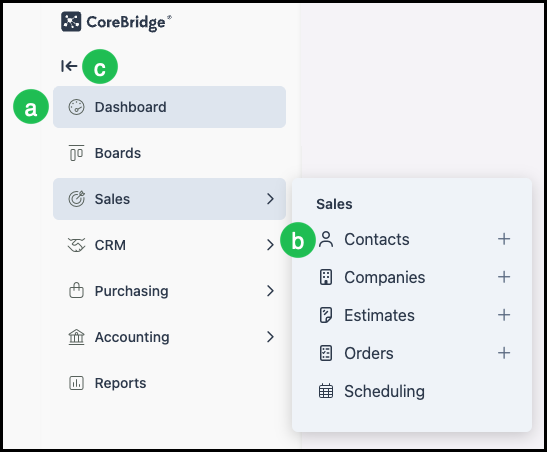
The CoreBridge EVO system contains a Navigation Menu that allows you to move between different areas of the system. The navigation structure may include a top-level menu and/or a sidebar, depending on the screen you are viewing.
a. Main modules - Areas of information grouped together by function. In EVO, these may include Dashboard, Boards, Sales, CRM, Purchasing, Accounting, and Reports.
b. Sections - Within each module, more specific areas are available. For example, within Sales, you may access companies, orders, or estimates.
c. Collapse - Menus can be collapsed and expanded using the Collapse icon when available. When collapsed, the menu can often still be accessed by hovering your mouse on the edge of the screen.
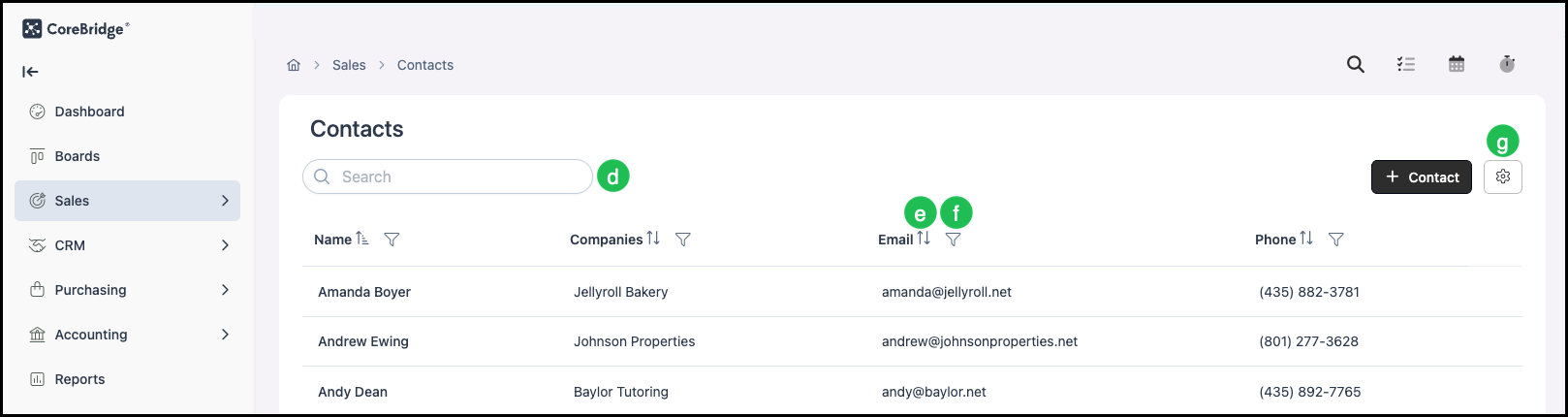
d. Search Bar - In many areas, after selecting a list or option, a Search Bar will appear to aid in finding a specific item.
e. Sort - This icon is visible on many columns or lists throughout the system. Clicking it will change the order of the display.
Note: When multiple columns are present, only one controls how items are sorted. The column currently driving the display is identified by a distinct Sort icon, which appears differently from the arrows in the other columns.
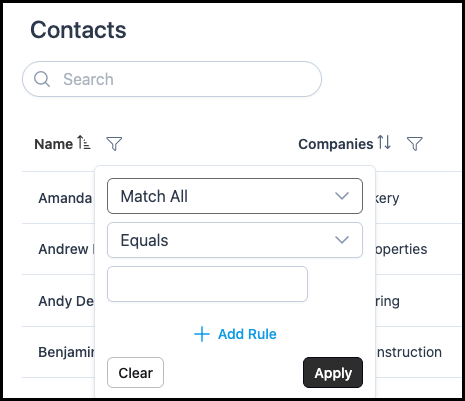
f. Column Filters - This icon is visible on many columns throughout the system. This allows you to set rules that will filter the results for this column. See Column Filters Example below.
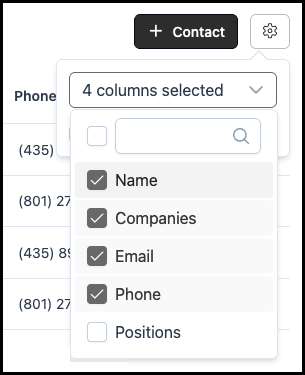
g. Search Settings - This icon is visible on many screens throughout the system. This allows you to customize the view on this screen by selecting which columns will be visible. See Search Settings Example below.
Column Filters Example:
Search Settings Example:
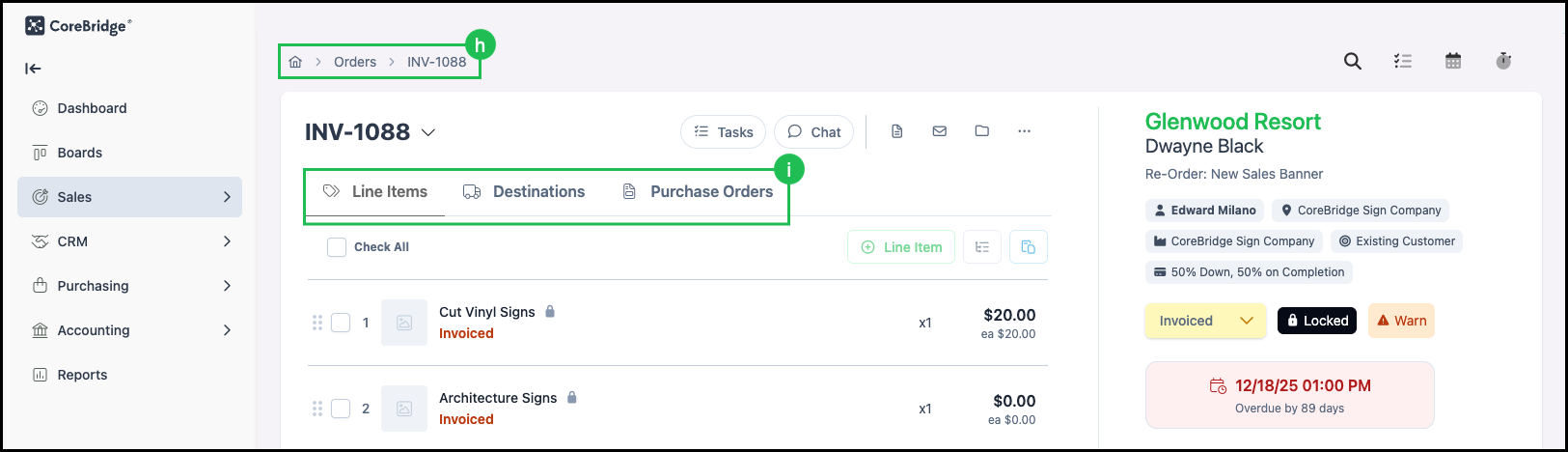
h. Navigation path - As you navigate through the system, a Navigation Path may display the path taken to reach the current screen. Clicking on elements in the path can return you to previous screens.
i. Tabs - After making selections from main screens, many areas organize information into separate Tabs. Selected tabs are shown with a line underneath.
Note: Tabs will not show or be included in the Navigation Path.
Quick Search and Quick Options
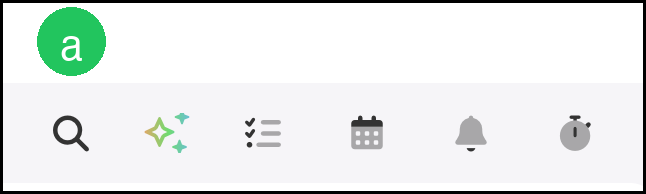
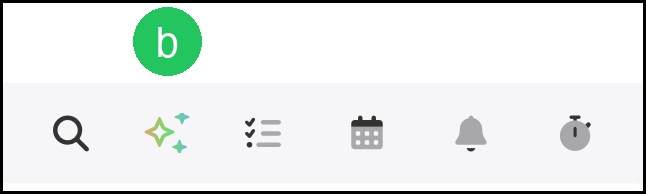
The Quick Search and Quick Options are typically located at the top of the screen throughout the system and can be viewed and utilized at any time. Click on a Quick Option to see a window with a brief overview of information, hyperlinks to more detailed screens, and the ability to add information.

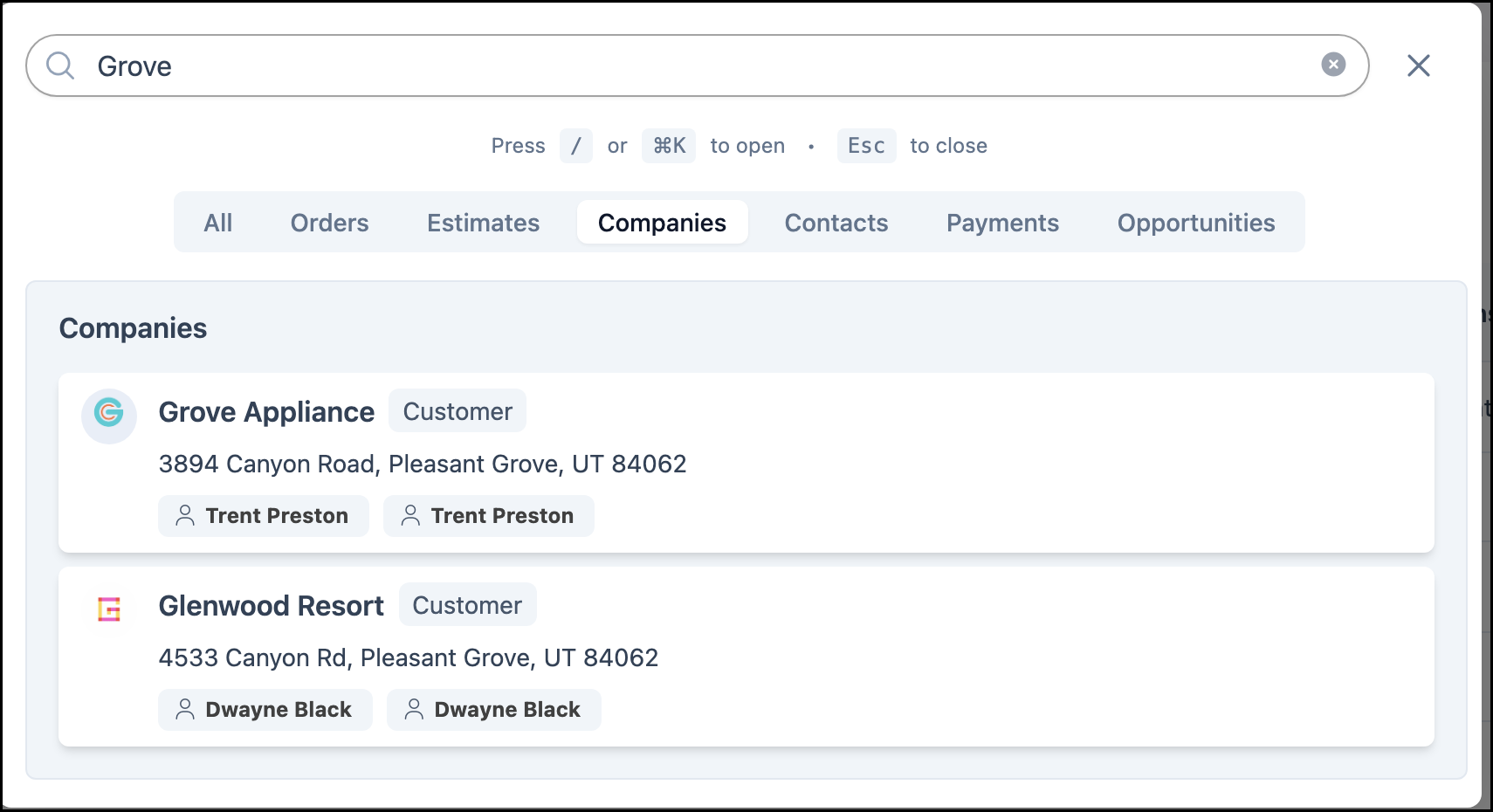
a. Quick Search - The Search Bar can be used to quickly search through Orders, Estimates, Companies, Contacts, Payments, or Opportunities. See Quick Search Example below to view the Quick Search window.
Quick Search Example:
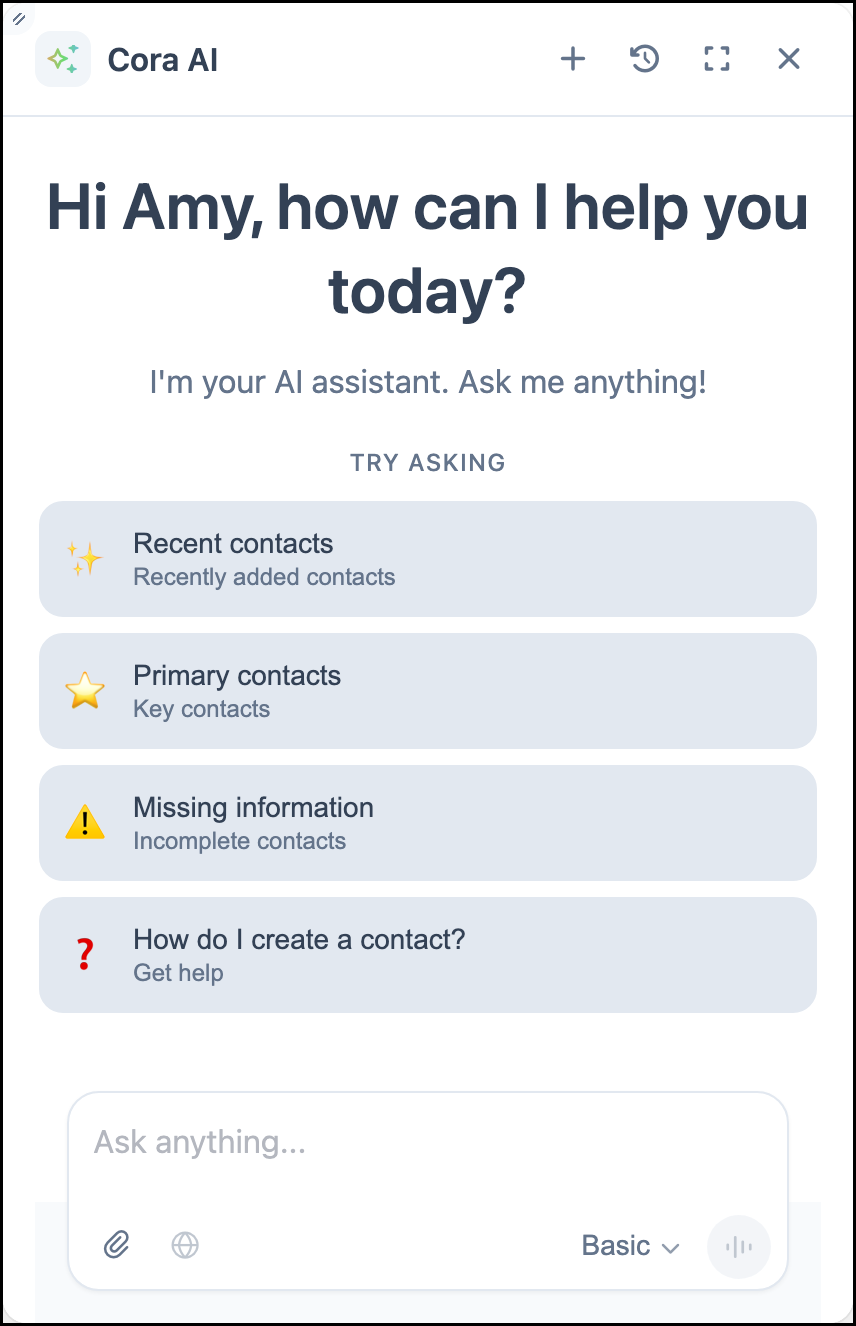
b. Cora AI - Opens the Cora AI window. Cora is the AI assistant in CoreBridge EVO. Ask questions in plain language to look up business data, get how-to answers from CoreBridge documentation, and complete supported tasks. For more information, see Introduction to Cora AI.
Cora AI Example:
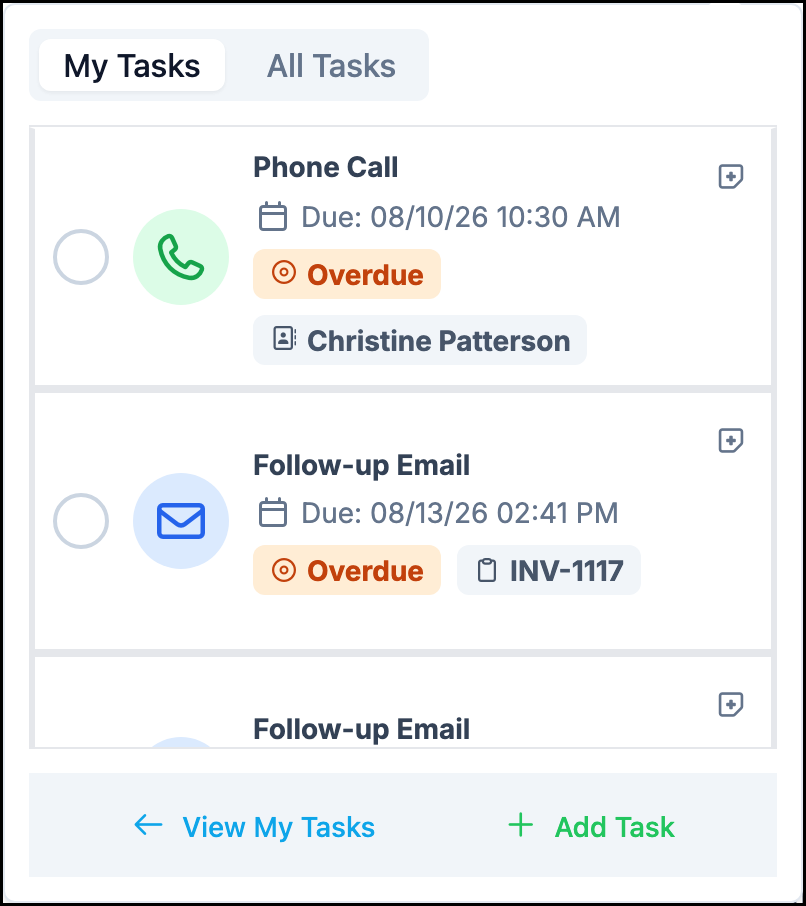
c. Tasks - A quick view of personal tasks and company-wide tasks. Tasks can be managed in the quick menu or on the My Tasks screen by clicking the View My Tasks hyperlink.
Tasks Example:
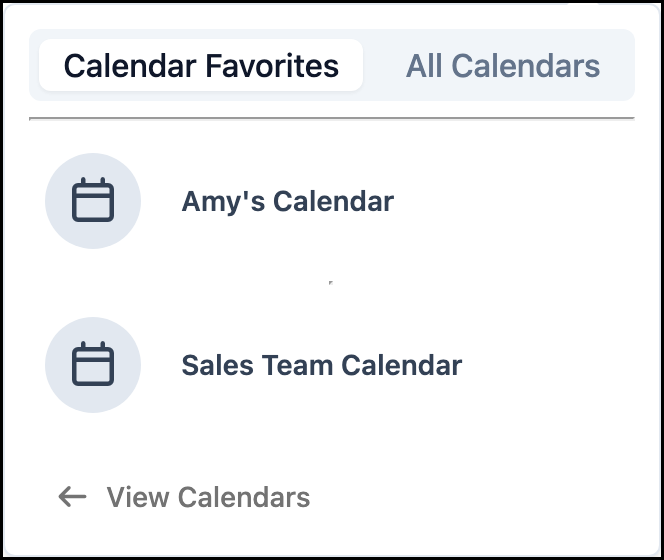
d. Calendar - The Calendar displays a list of Calendar Favorites or All Calendars, depending on which is selected. Clicking on one of the listed Calendars will open that Calendar. View Calendars is a hyperlink that will take you to Settings / System / Calendars.
Calendar Example:
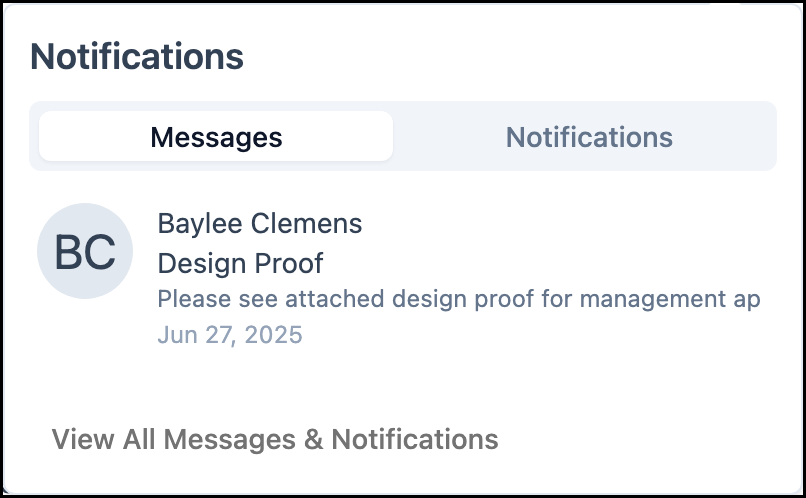
e. Notifications - A quick view of messages and notifications. Click the View All Messages & Notifications hyperlink to open the full screen. For more information, see Messages and Notifications.
Notifications Example:
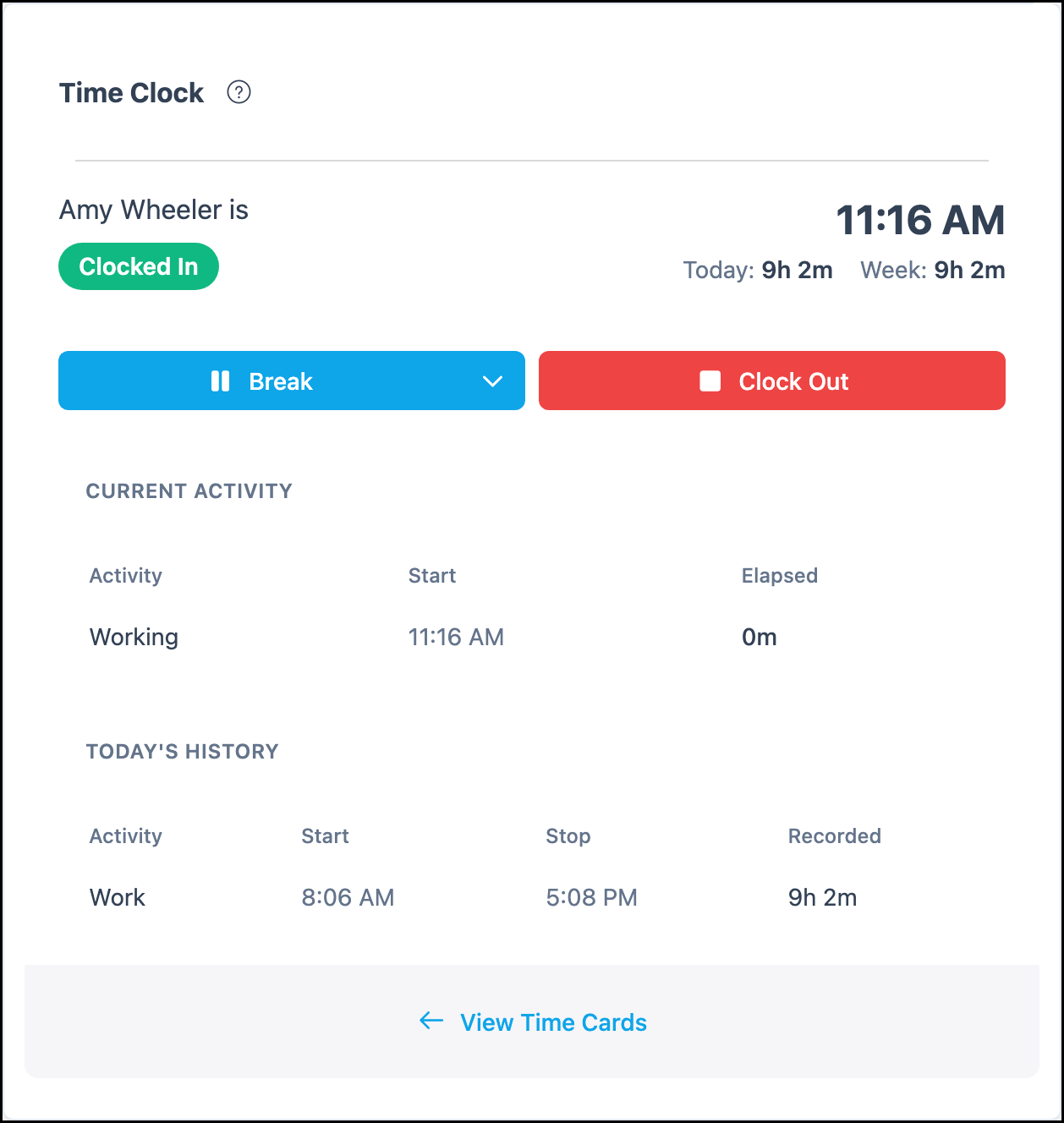
f. Time Clock - A view of the logged-in user's time clock information may be shown here, including total hours for the day and week, current activity, today's history, and the option to clock in or out of an activity. Activities for the Time Clock can be managed in Settings / Workflow / Time Clock.
Note: View Time Cards will take you to My Account / Time Cards.
Time Clock Example:
Common Features
Throughout the CoreBridge system there are features that will be repeatedly seen, all having very similar functionality.
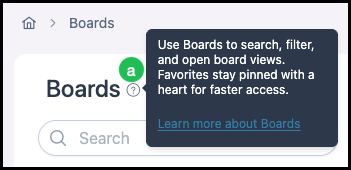
a. Help Tips - Help Tips can be found throughout the system and contain helpful information related to the feature they are found by. To view the Help Tip information, hover over the question mark icon. For further information, click the link if available.
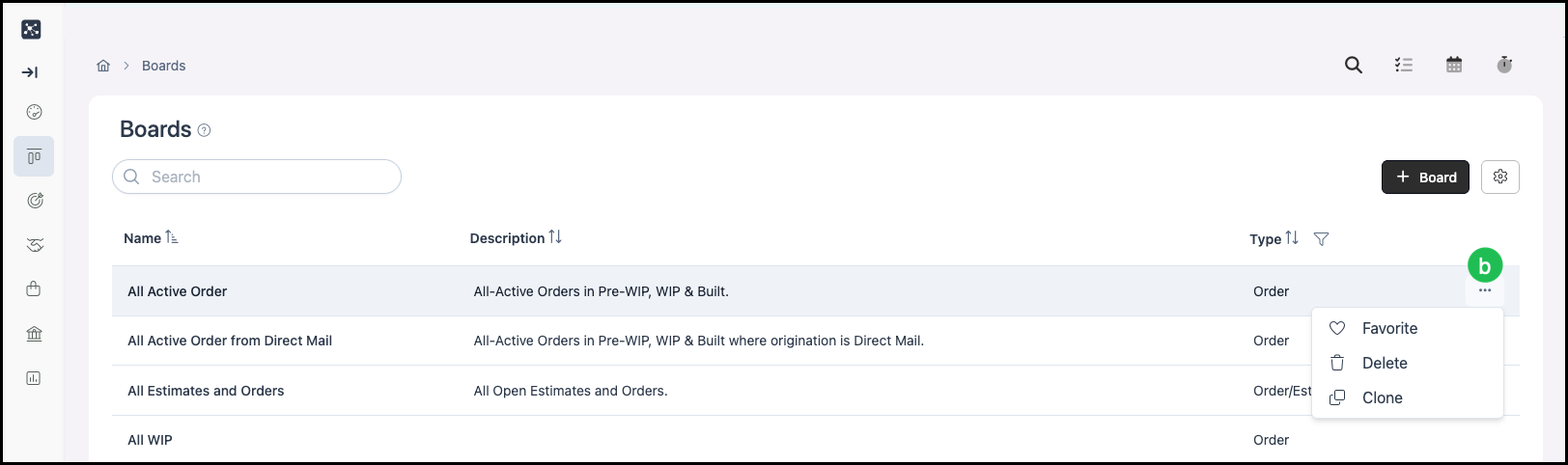
b. More Action - More Action menus are found in many places throughout the system, typically on the right hand side of a feature, screen, or field. Hovering over an option in a list will also often present a More Actions menu that can be used to perform additional actions, such as clone or delete. Click on the More Actions menu to open up the options.
Note: If you have used the More Actions to set an item to inactive, most inactive items can be viewed again by clicking on the Screen Settings and selecting Include Inactive.
For questions on features and functionality, please visit our Knowledge Base or contact supportdesk@corebridge.net.