
The Customer Portal is the website your shop shares so you can review an Estimate or Order, approve a proof or request changes, and pay. You might receive a Customer Portal Link, an invitation email, or both.
Table of Contents
- Before You Begin
- Important Information
- Opening a Shared Link
- Signing In
- Home
- Approving and Requesting Changes
- Reviewing a Proof
- Paying from an Order
- Paying after Signing In
- Frequently Asked Questions
- Related Articles
Before You Begin
You need a Customer Portal Link or an invitation from the shop. If you do not have either, contact the shop.
Important Information
There are two common ways to open the Customer Portal:
- Customer Portal Link. The shop sends a link to one Estimate or Order. You can open that document without an account. Search, Home, Orders, Estimates, and Payments fill in after you sign in.
- Invitation. The shop grants you Customer Portal access and sends an email with your username (usually your email). You set a password, then sign in to the full portal.
You can also click Sign in from a shared link if you already have an account.
Note: What you see depends on what the shop enabled. Search, history, reorder, and online payments may not appear for every shop.
Opening a Shared Link
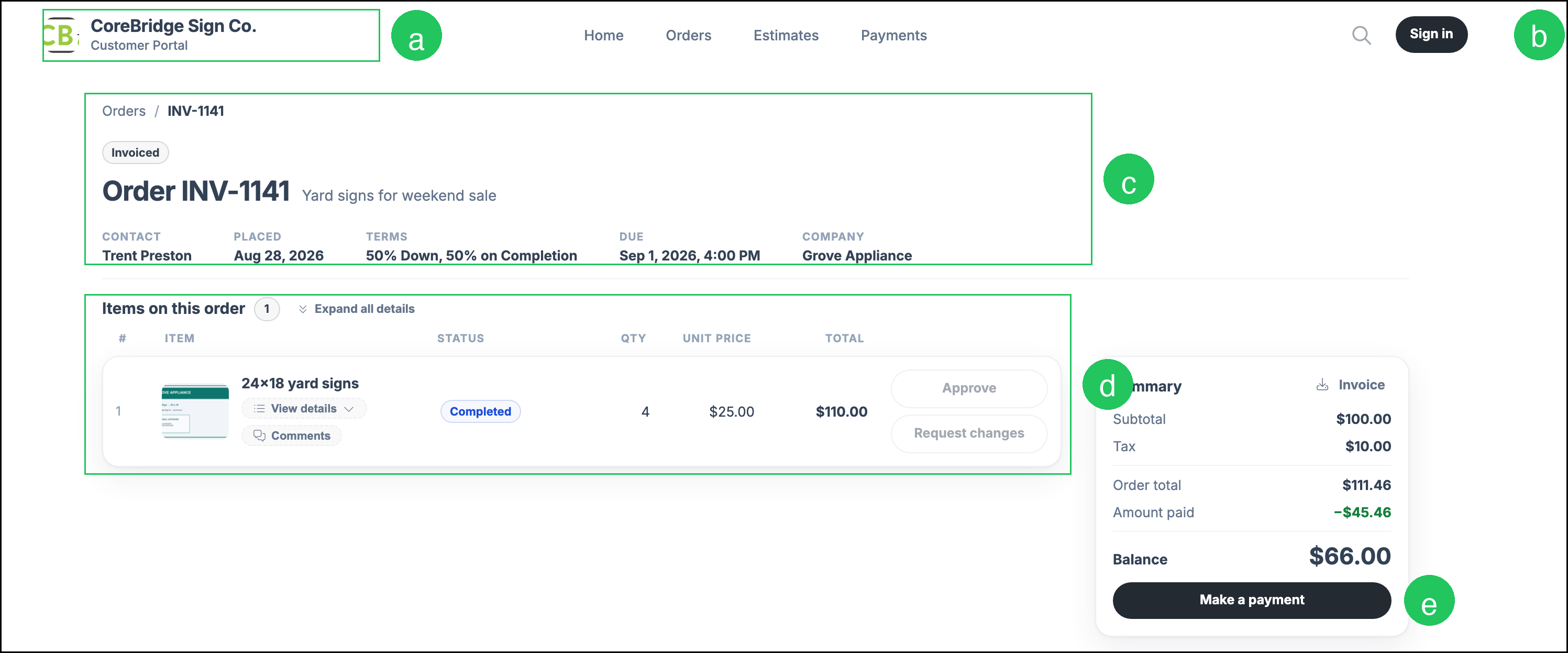
When you open the link from the shop, you see that Order or Estimate. You do not need to sign in to review it.
a. Shop name and the Customer Portal navigation: Home, Orders, Estimates, and Payments.
b. Sign in - Opens the login so you can access the full portal if the shop has granted you access.
c. Document number, status, description, and header details such as Contact, Placed, Terms, Due, and Company.
d. Items on this order (or estimate) - Line Items with quantity, price, status, a proof thumbnail when a file is attached, View details, and Comments. Approve and Request changes appear on the Line Item when that item is waiting for your approval.
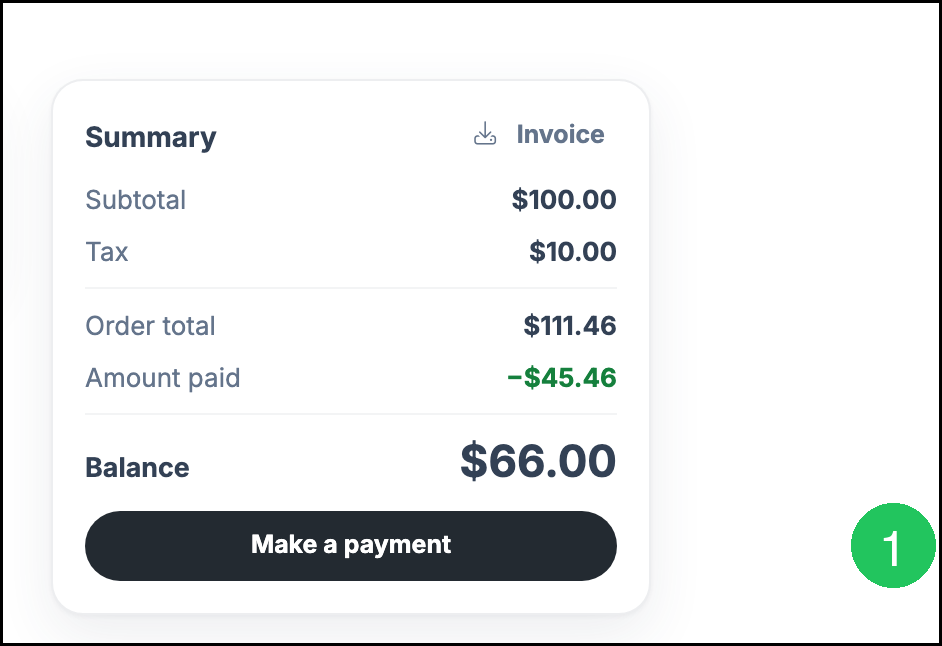
e. Summary - Totals, amount paid, balance, a download for the Invoice or Estimate, and Make a payment when there is a balance and the shop accepts online payments.
Signing In
Use Sign in from a shared link, or open the invitation from the shop and set your password first.
1. Click Sign in.
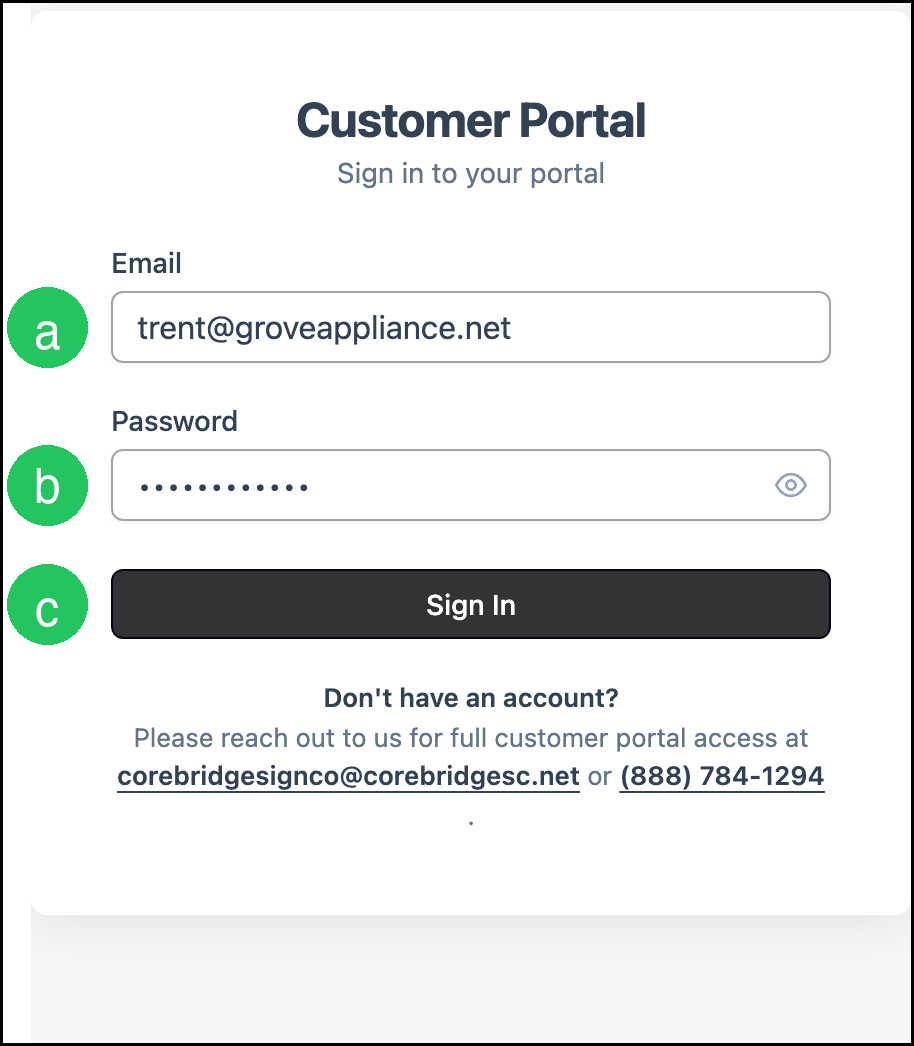
a. Email - The username from the invitation (usually your email).
b. Password.
c. Sign In - Signs you in to the full Customer Portal.
Note: If you do not have an account, the login screen tells you to contact the shop for full Customer Portal access.
Home
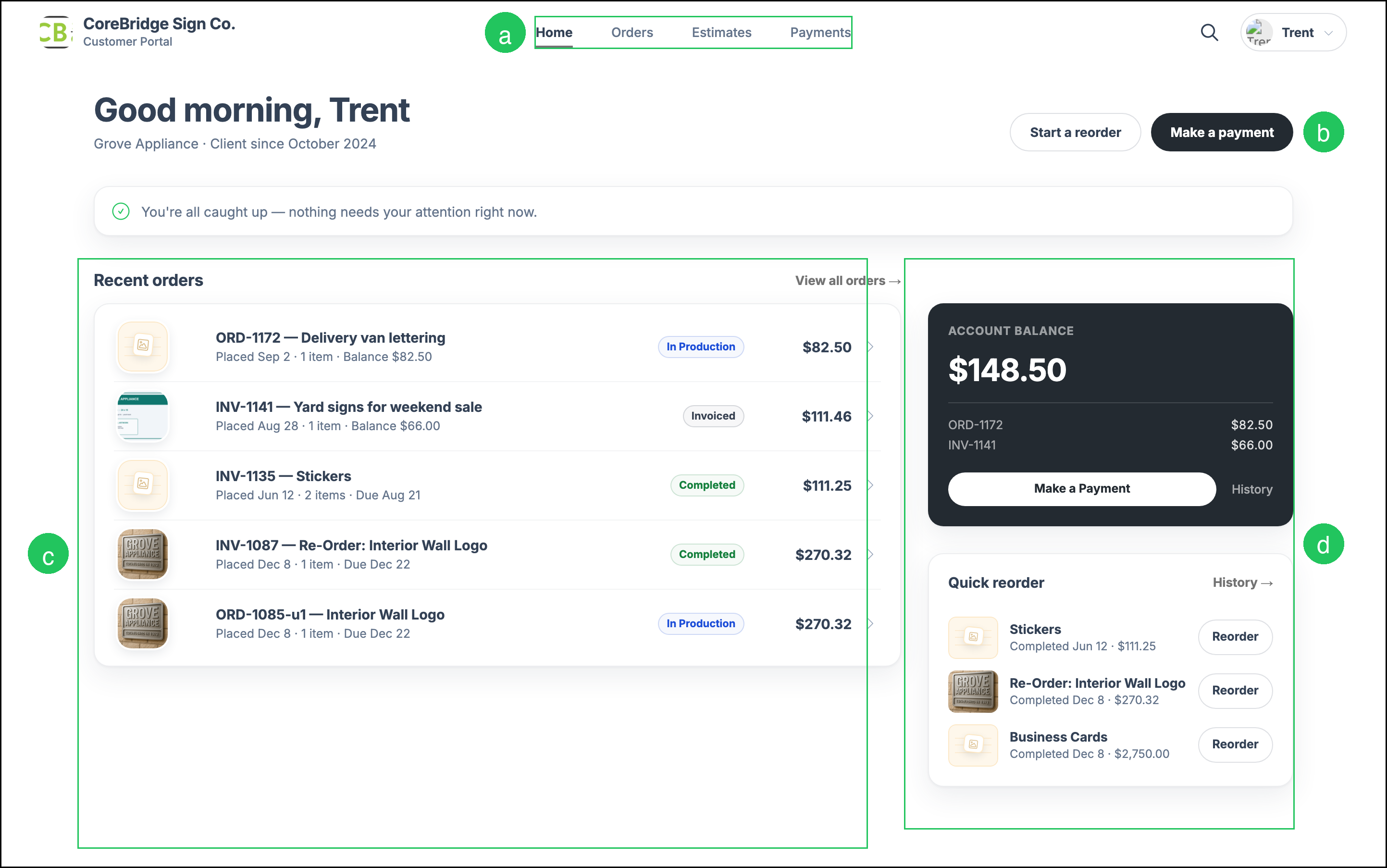
After you sign in, Home is the starting screen for your Company. Use Orders, Estimates, and Payments to find other documents and open balances.
a. Home, Orders, Estimates, and Payments.
b. Make a payment - Opens Payments when the Company has a balance. Start a reorder starts a reorder when the shop has enabled reordering.
c. Recent orders - Recent Orders for the Company. You can open an Order from this list.
d. Account Balance - Open balances for the Company, with Make a Payment and a link to payment history. Quick reorder lists recent completed products when reordering is enabled.
Note: If you are linked to more than one Company, you select the Company before these lists fill in.
Approving and Requesting Changes
When a Line Item is waiting for your approval, Approve and Request changes appear on that item. Open the proof thumbnail first if you want to review the artwork.
a. Proof thumbnail - Opens the artwork for that Line Item.
b. Approve - Approves the Line Item.
c. Request changes - Opens a dialog so you can tell the shop what to change. Type the request, then submit it. Cancel closes the dialog without sending a request.

Reviewing a Proof
The proof opens in a viewer. Close it when you are finished reviewing, then approve the item or request changes.
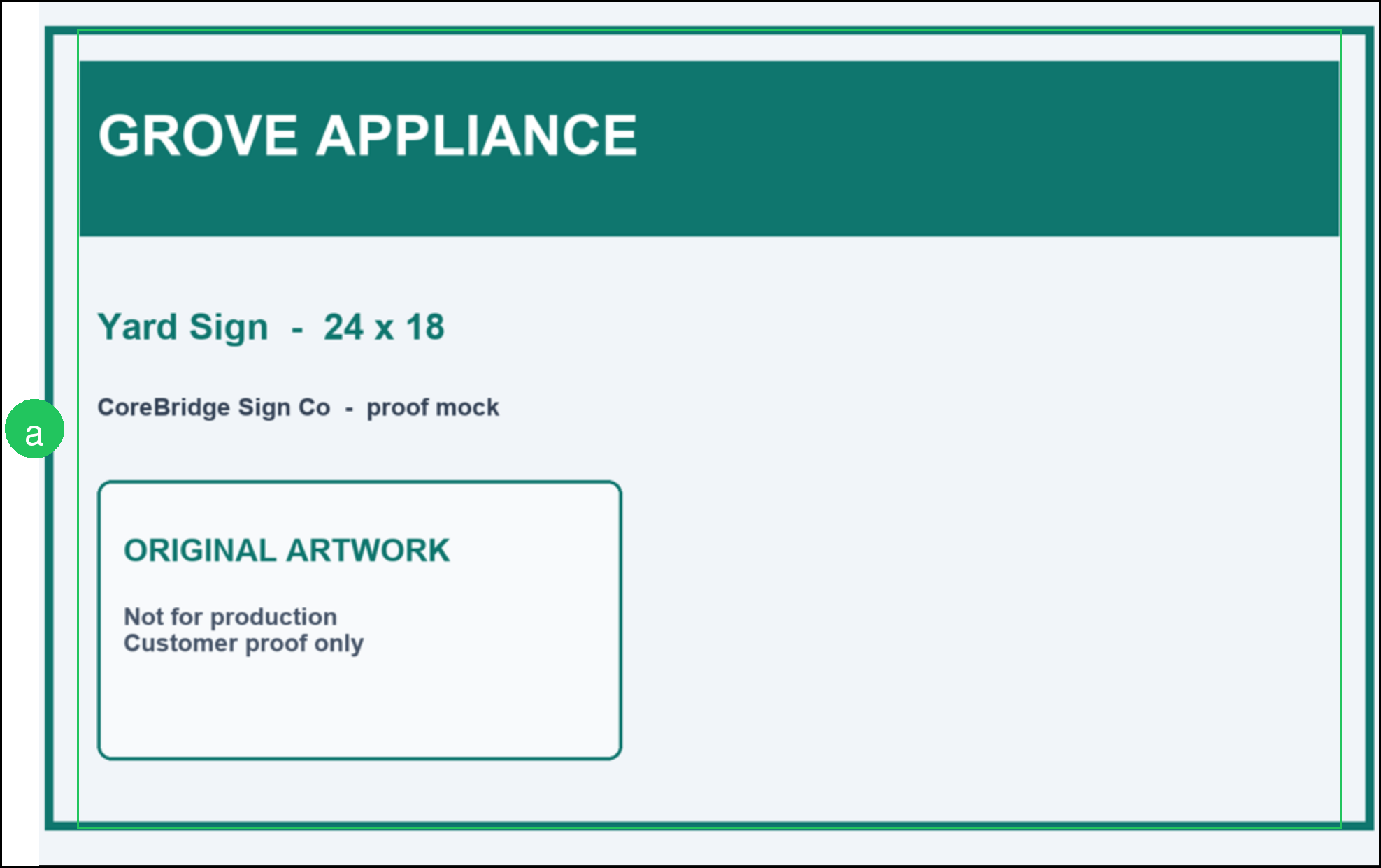
a. Proof - The artwork for that Line Item.
Paying from an Order
When an Order has a balance and the shop accepts online payments, you can pay from the shared link. The same Make a payment button appears when you open that Order after signing in.
1. Click Make a payment.
Note: The Apply Payment dialog opens. Choose a payment method, confirm the amount, then click Submit Payment. Click Cancel if you are not ready to pay.
Paying after Signing In
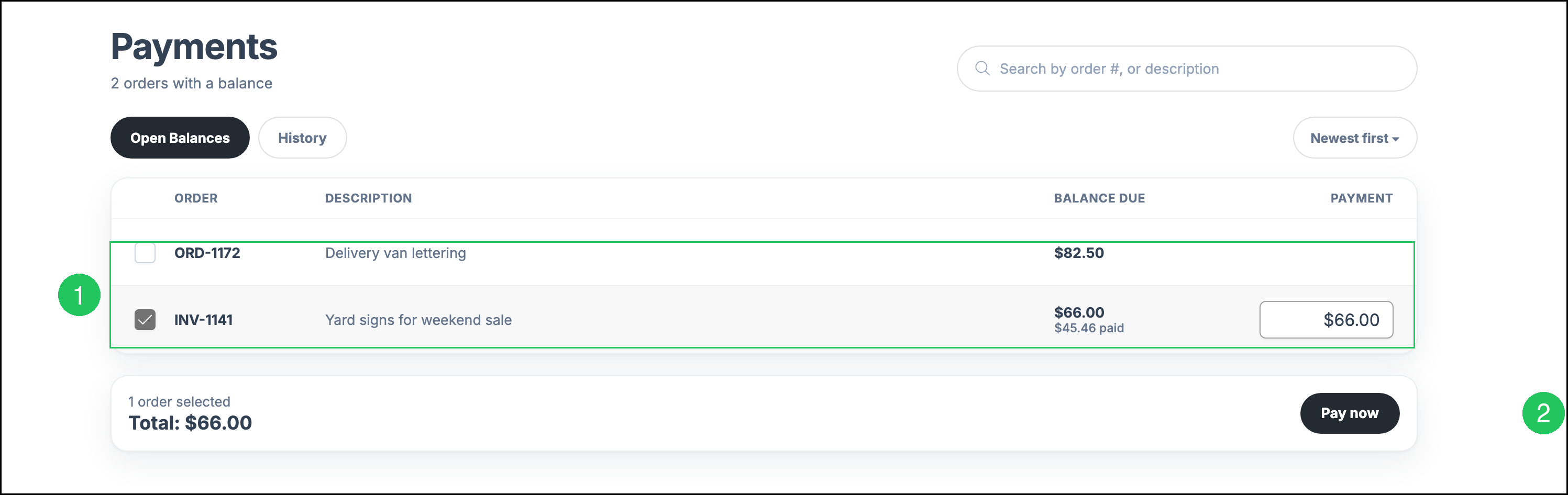
After you sign in, you can also pay from Payments. Select one or more open balances.
1. Select the Order or Invoice to pay. The payment amount fills with the balance due.
2. Click Pay now.
Note: The same Apply Payment dialog opens.
Frequently Asked Questions
1. Do I need an account to open a Customer Portal Link?
Answer: No. A Customer Portal Link opens that Estimate or Order without an account. Sign in if the shop invited you to the full portal.
2. How do I get Home, Orders, Estimates, and Payments?
Answer: The shop grants Customer Portal access and sends an invitation. You set a password, then sign in. You can also click Sign in from a shared link after you have an account.
3. Why are Approve and Request changes unavailable?
Answer: Those actions are available when the Line Item is waiting for your approval. If they are unavailable, the shop has not sent that item for approval, or it was already approved.
4. Why can I not pay from the portal?
Answer: Make a payment and Pay now appear when there is a balance and the shop accepts online payments. If you do not see them, contact the shop.
5. Why is Search unavailable on a shared link?
Answer: Search is available after you sign in. On a shared link, you are viewing one document.