
Messages and Notifications let you stay on top of employee-to-employee Messages and system Notifications without leaving CoreBridge EVO. You can review recent items from the header, open the full Messages & Notifications screen, reply to Messages, and manage items in bulk.
Table of Contents
- Important Information
- Accessing Messages and Notifications
- Messages and Notifications Screen
- Viewing a Message or Notification
- Composing a New Message
- Managing Messages and Notifications
- Frequently Asked Questions
- Related Articles
Important Information
Messages and Notifications are related but serve different purposes:
- Messages - Employee-to-employee conversations you compose and send in CoreBridge EVO.
- Notifications - Alerts generated by the system, such as Automation results. These are not the same as composing a Message.
Note: Automations can create Notifications for employees. For more information, see Automations Overview.
Accessing Messages and Notifications
Click the Notifications button in the header to open the Notifications window.
a. The Notifications button opens the window. An unread count badge appears when you have unread items.
b. The Messages and Notifications tabs filter the list by channel.
c. Recent items appear in the list with the sender or alert details, subject, preview, and date.
d. View All Messages & Notifications opens the full Messages & Notifications screen.
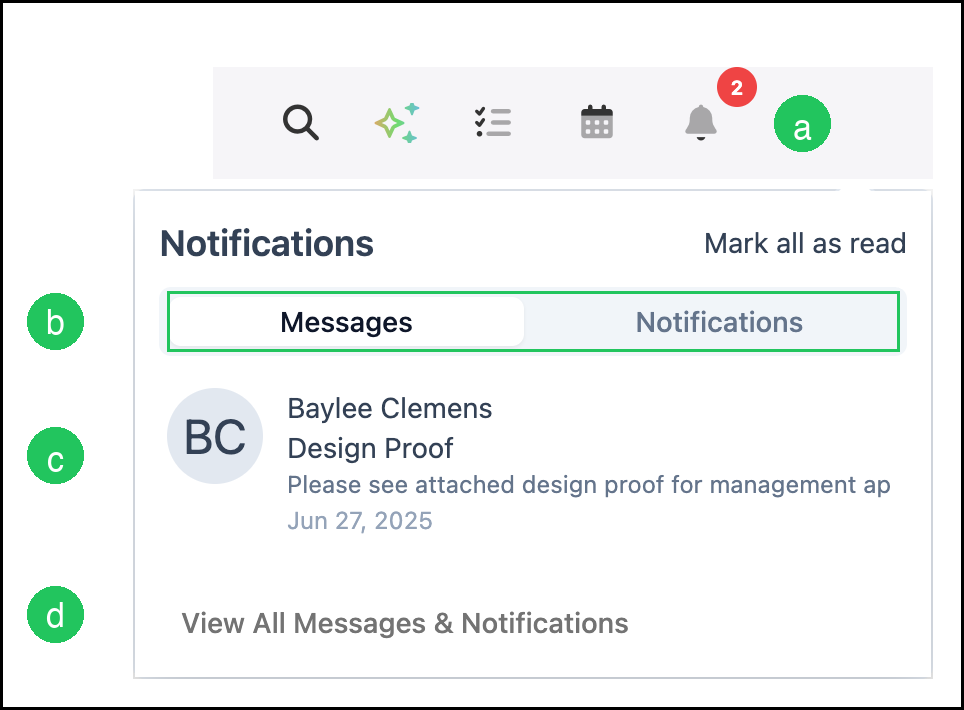
You can also click Mark all as read in the window to clear unread status for the items currently listed.
Messages and Notifications Screen
Navigate to Messages & Notifications from the header by clicking Notifications, then View All Messages & Notifications.
The Messages & Notifications screen includes:
a. New Message - Opens the New Message dialog to compose an employee Message.
b. Search - Filters the list by keywords.
c. Folders - Switch between Inbox, Sent, and Deleted.
d. Channels - Filter by All, Messages, or Notifications.
e. The message list shows items for the selected folder and channel, grouped by date.
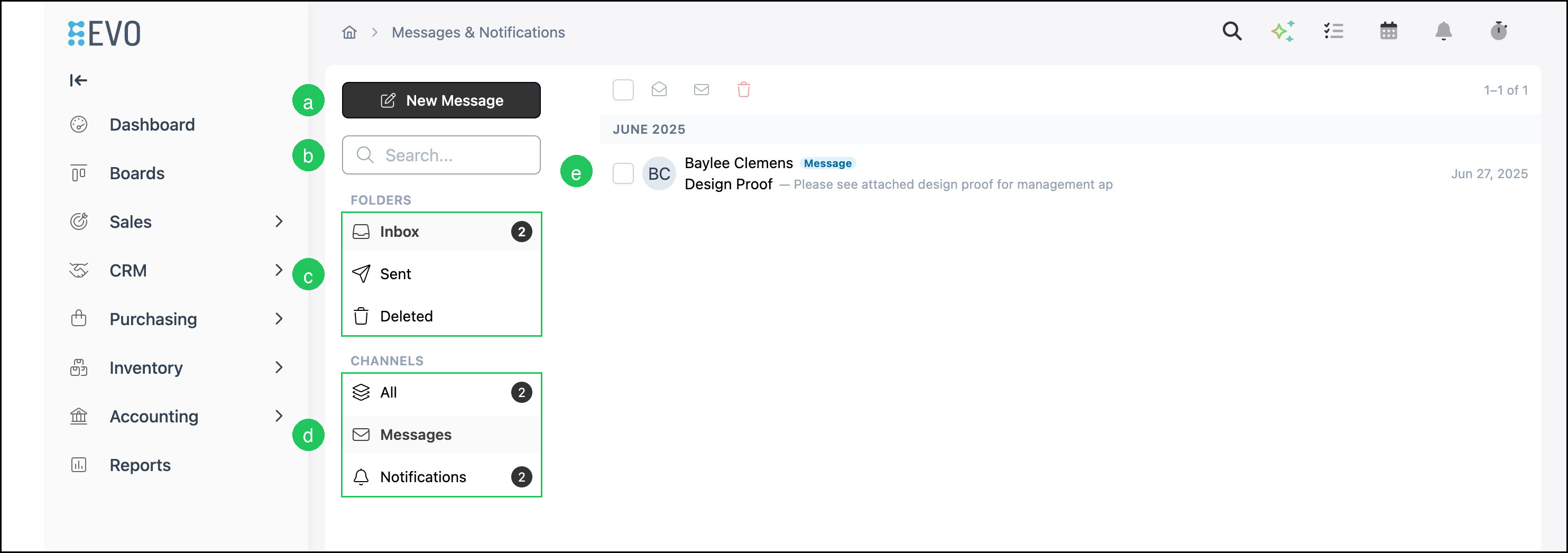
Note: Use the Messages channel when you want to focus on employee Messages, and the Notifications channel when you want to review system alerts.
Viewing a Message or Notification
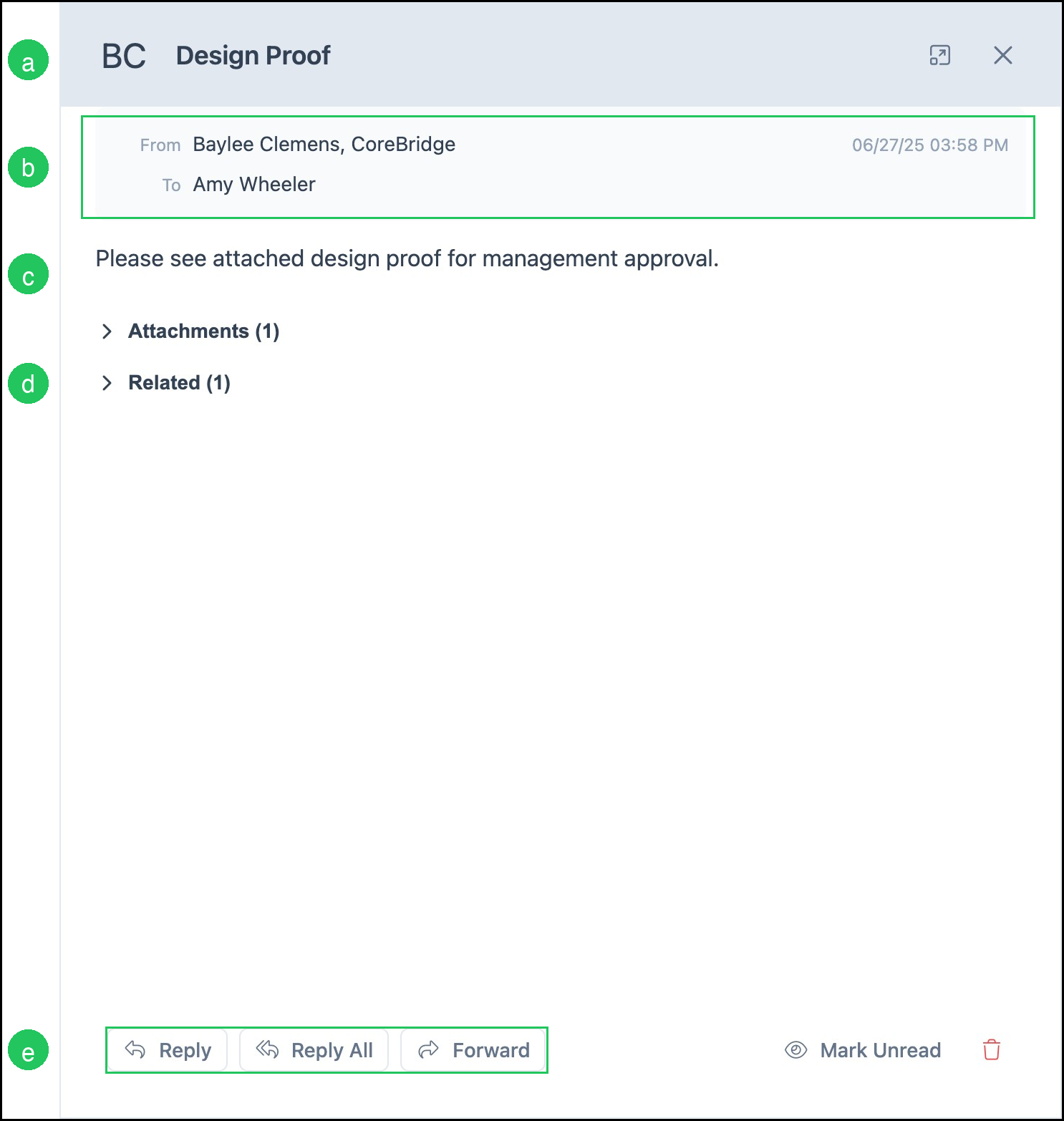
Click a Message or Notification in the list to open it in the side panel.
a. The header shows the avatar and subject.
b. From, To, and the date and time identify who sent the Message and when.
c. The body displays the Message or Notification content.
d. Related expands to show related records when available. Attachments expands when files are included.
e. Reply, Reply All, and Forward are available for Messages. You can also Mark Unread or delete the item.
Composing a New Message
Click New Message to open the New Message dialog.
1. Select one or more recipients in the To field. Optionally open CC/BCC.
2. Enter a Subject.
3. Optionally add files with Attach.
4. Enter the Message body. Use the formatting toolbar as needed.
5. Click Send.
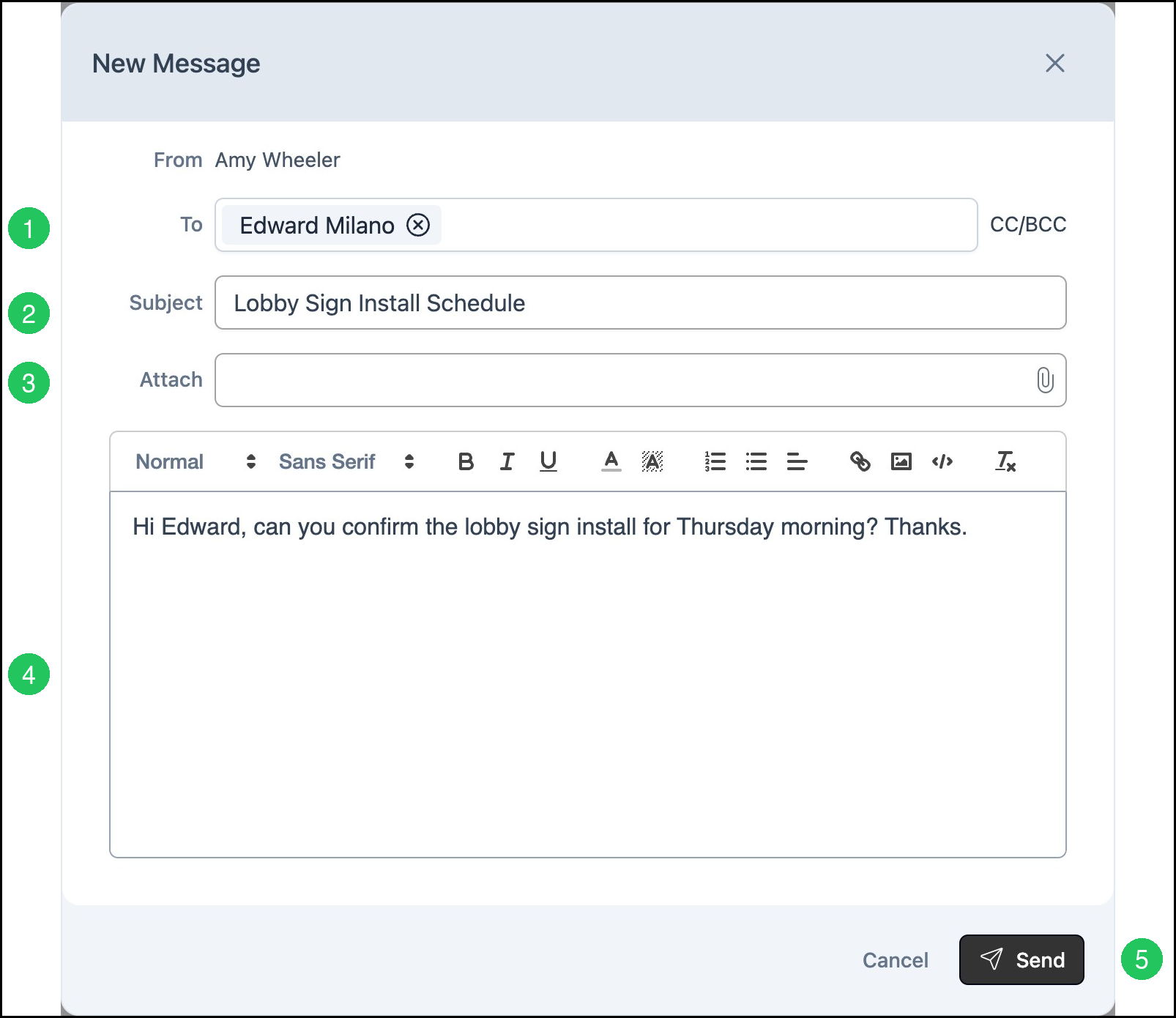
Note: The From field shows the employee sending the Message. Click Cancel to close without sending.
Managing Messages and Notifications
You can update read status or delete one or more items from the list.
a. Select one or more row checkboxes (or use the select-all checkbox in the toolbar).
b. Use the bulk toolbar to mark items as read or unread, or to delete them.

You can also mark an individual item as read or unread, or delete it, from the actions on that row.
Frequently Asked Questions
1. What is the difference between a Message and a Notification?
Answer: A Message is sent between employees in CoreBridge EVO. A Notification is created by the system (for example, from an Automation) to alert you about an event.
2. Where do sent Messages appear?
Answer: Open the Sent folder on the Messages & Notifications screen to review Messages you have sent.
3. Can I recover a deleted item?
Answer: Deleted items appear in the Deleted folder, where you can review them.