
Use this article to sign in to CoreBridge EVO administration, reset your password, and sign out. This Sign in page is for employees and administrators. It is not the Customer Portal.
Table of Contents
- Recommended Browsers
- Important Information
- Signing Into CoreBridge
- Resetting Your Password
- Signing Out
- Frequently Asked Questions
- Related Articles
Recommended Browsers
We recommend using the following browsers for both web and mobile access to ensure optimal performance:
- Google Chrome.
- Firefox.
- Microsoft Edge.
Important Information
- Bookmark your CoreBridge EVO Sign in page so you can return to it quickly. CoreBridge EVO is cloud-based; you sign in through your browser without installing software.
- This article covers administration sign-in for employees and administrators. Customer Portal sign-in is separate.
- First-time users must accept an invitation before they can sign in. An administrator clicks Enable Online Access on the employee profile, then the employee uses the email they receive to complete activation. For more information, see Managing Employees.
- CoreBridge will never log you out of your system due to inactivity. For more information, see System Navigation Overview.
Signing Into CoreBridge
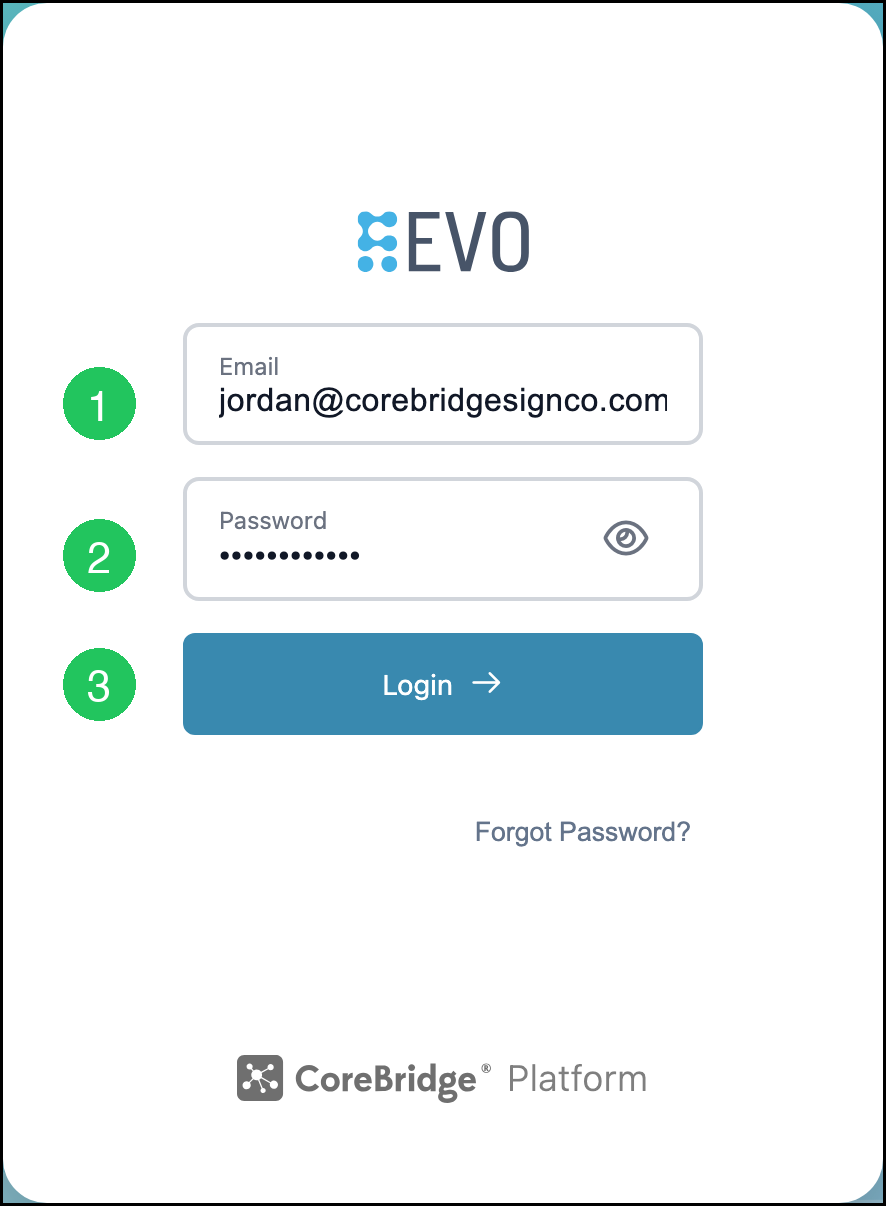
Open your CoreBridge EVO Sign in page.
1. Enter your Email.
2. Enter your Password.
3. Click Login.
Note: Use the eye icon in the Password field to show or hide the password as you type.
Resetting Your Password
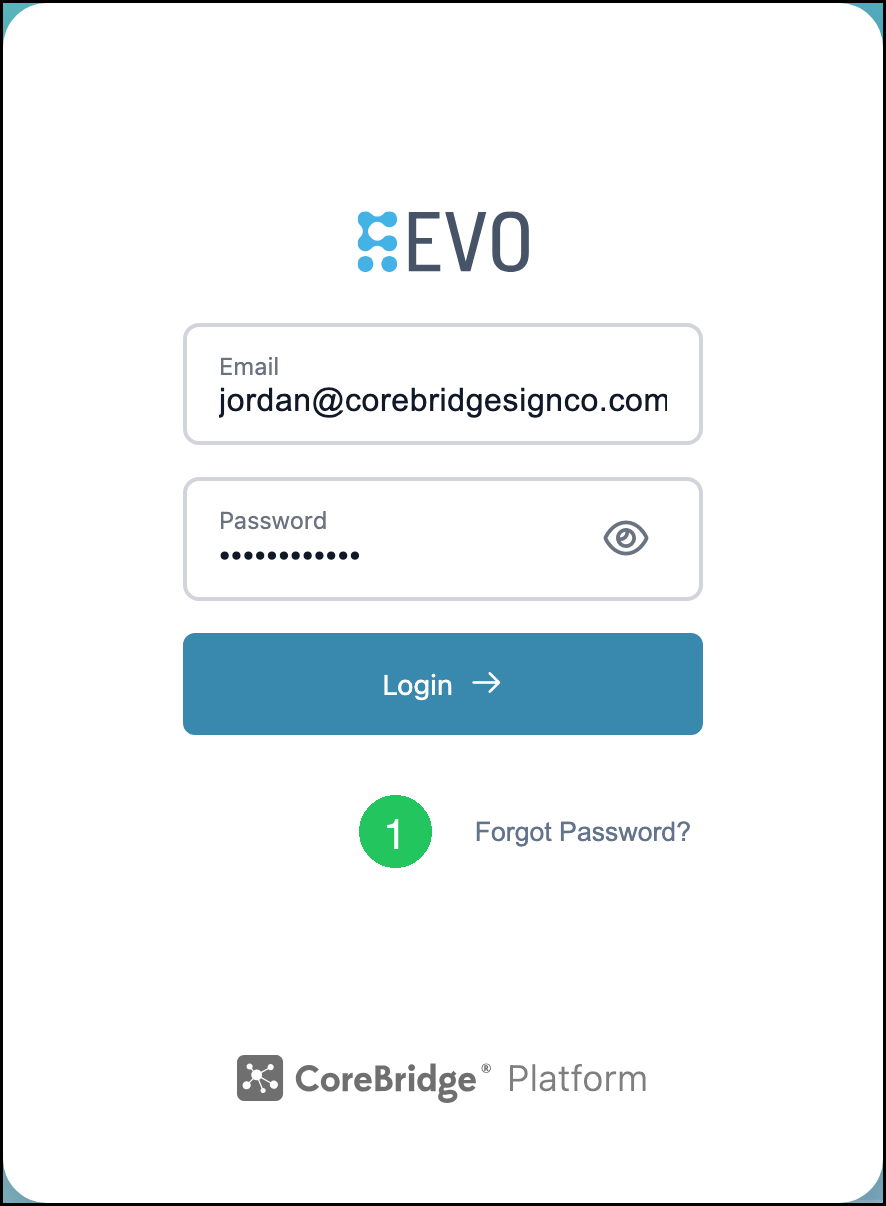
If you cannot sign in, use Forgot Password? on the Sign in page to send a reset link to the email address associated with your account.
1. Click Forgot Password?
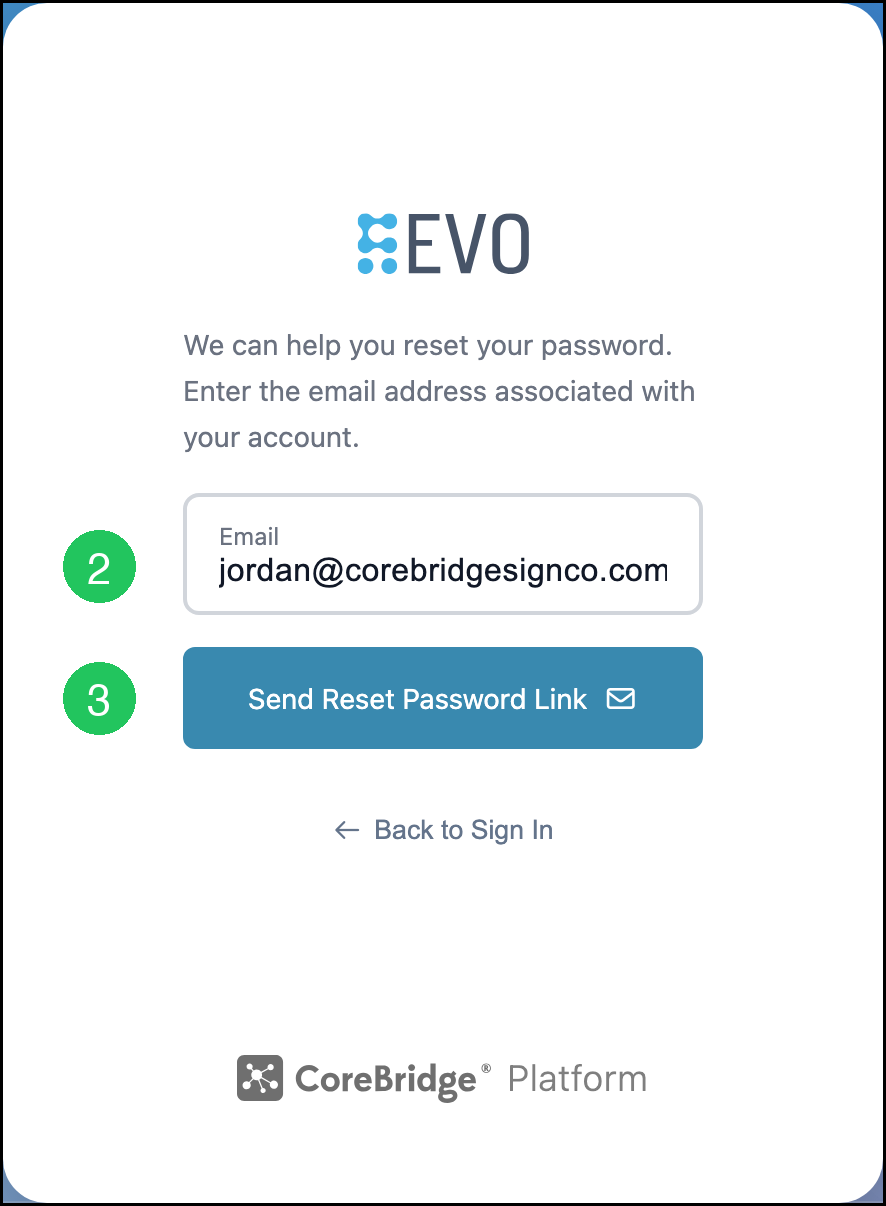
2. Enter your Email.
3. Click Send Reset Password Link.
Note: Click Back to Sign In if you do not need to send a reset link.
Signing Out
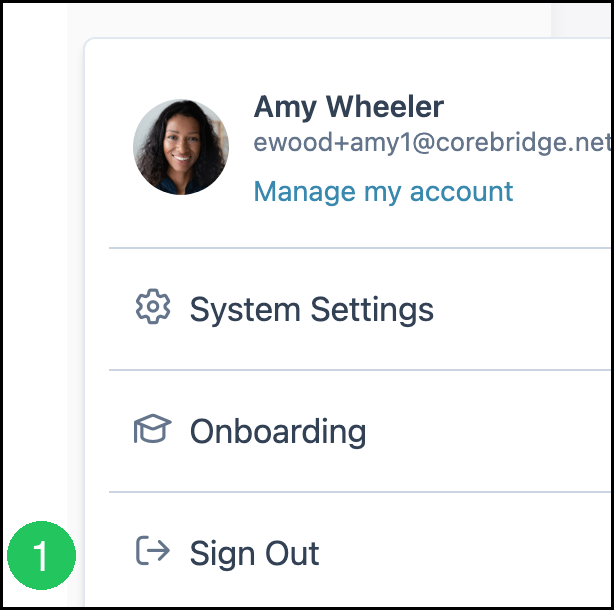
Open the Account menu in the lower-left corner of CoreBridge EVO.
1. Click Sign Out.
Frequently Asked Questions
1. This is my first time signing in. What do I do?
Answer: An administrator must click Enable Online Access on your employee profile first. You will receive an email at the address entered as your username. Click the link in that email and complete activation, then sign in with your email and password. For more information, see Managing Employees.
2. I forgot my password. How do I reset it?
Answer: On the Sign in page, click Forgot Password?, enter the email address associated with your account, and click Send Reset Password Link. An administrator can also send a reset from the employee profile. For more information, see Managing Employees.
3. I have access to more than one franchise system. How do I know which system I am in after I sign in?
Answer: CoreBridge EVO uses a shared domain for all franchise systems. After you sign in, a banner at the top of the page shows the active system name. For more information, see Identifying and Switching Between Multiple Franchise Systems.
4. Is this the same as Customer Portal sign-in?
Answer: No. The Sign in page in this article is for CoreBridge EVO administration. Customers use the Customer Portal with a separate sign-in.
5. Will CoreBridge sign me out if I am idle?
Answer: No. CoreBridge will never log you out of your system due to inactivity. Sign out from the Account menu when you are finished. For more information, see System Navigation Overview.
Related Articles
Creating Employees
Help and Learning Resources
Identifying and Switching Between Multiple Franchise Systems
Managing Employees
Onboarding
System Navigation Overview