
Pricing Tiers let you manage named price levels for your customers. After you create Pricing Tiers, you assign a Pricing Tier to each Company and include those tiers in product pricing tables so the correct pricing is used when you sell.
Note: Custom Pricing Tiers must be enabled for your system. If you do not see options to add or edit Pricing Tiers, contact CoreBridge Support to enable Custom Pricing Tiers at supportdesk@corebridge.net.
Table of Contents
- Important Information
- Adding a Pricing Tier
- Managing Pricing Tiers
- Assigning Pricing Tiers to Companies
- Using Pricing Tiers on Products
- Frequently Asked Questions
- Related Articles
Important Information
Every system includes a Default Pricing Tier. The Default tier is required and cannot be deleted.
To use custom Pricing Tiers effectively:
- Create the Pricing Tiers you need in Settings.
- Assign a Pricing Tier to each Company.
- Include those Pricing Tiers in the pricing tables on your Products.
Adding a Pricing Tier
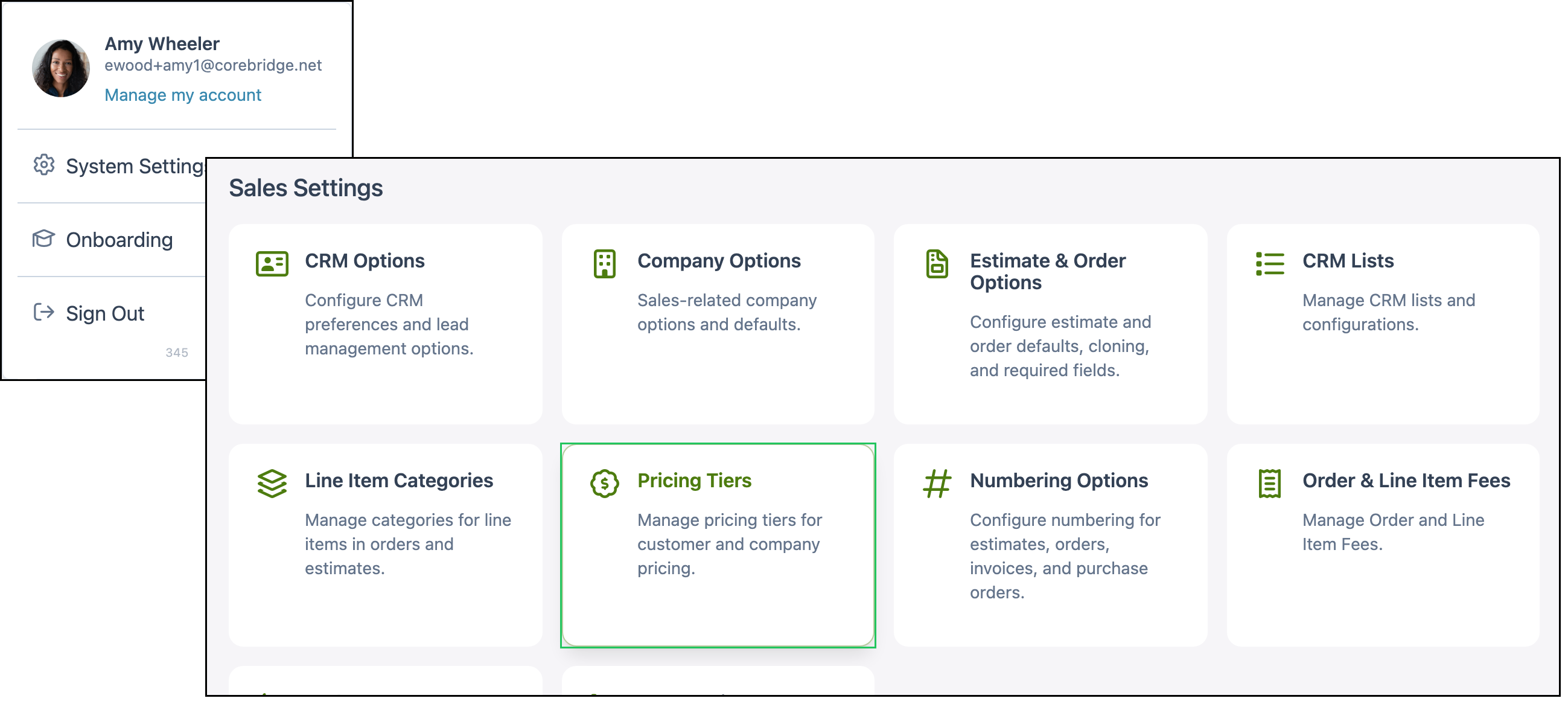
Navigate to System Settings / Sales Settings / Pricing Tiers.
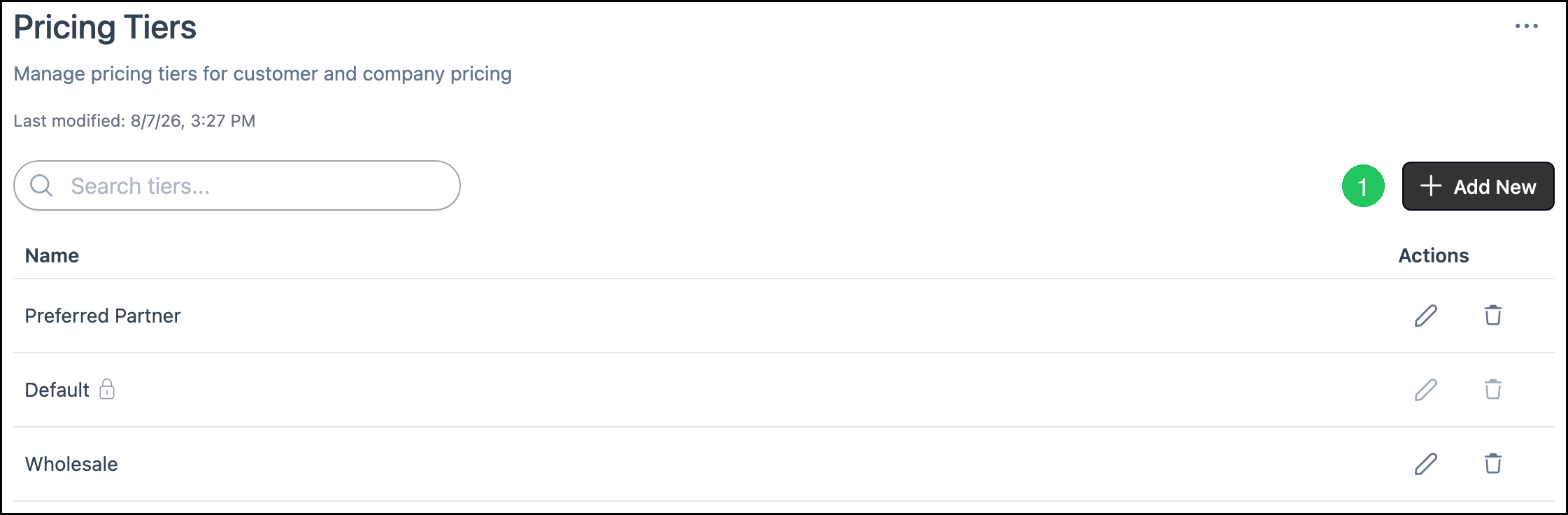
1. Click Add New.
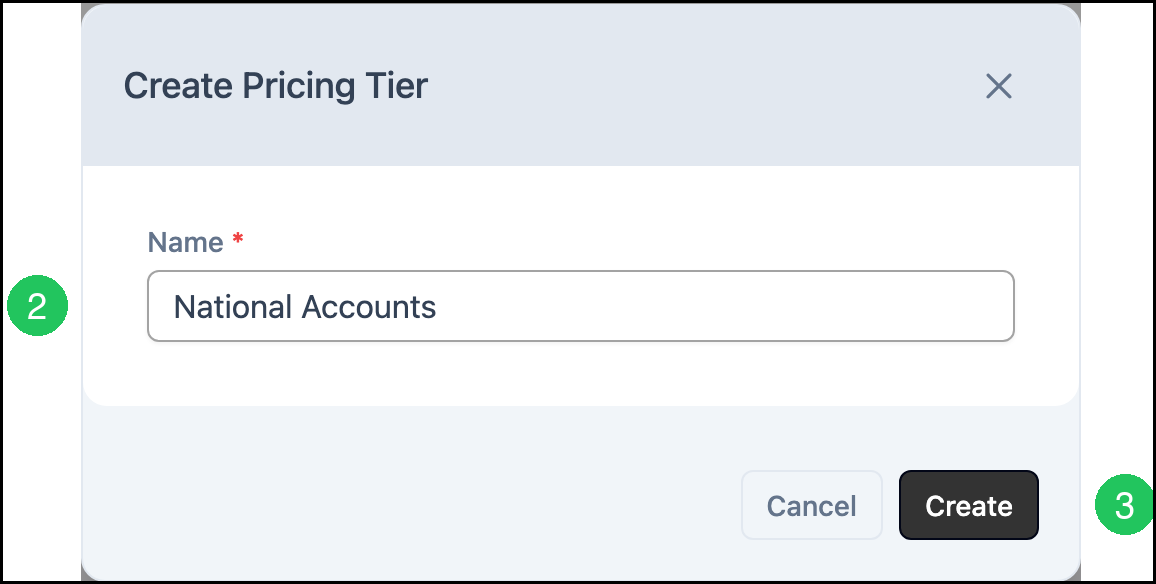
2. Enter the Name for the Pricing Tier. This field is required.
3. Click Create.
Managing Pricing Tiers
Navigate to System Settings / Sales Settings / Pricing Tiers.
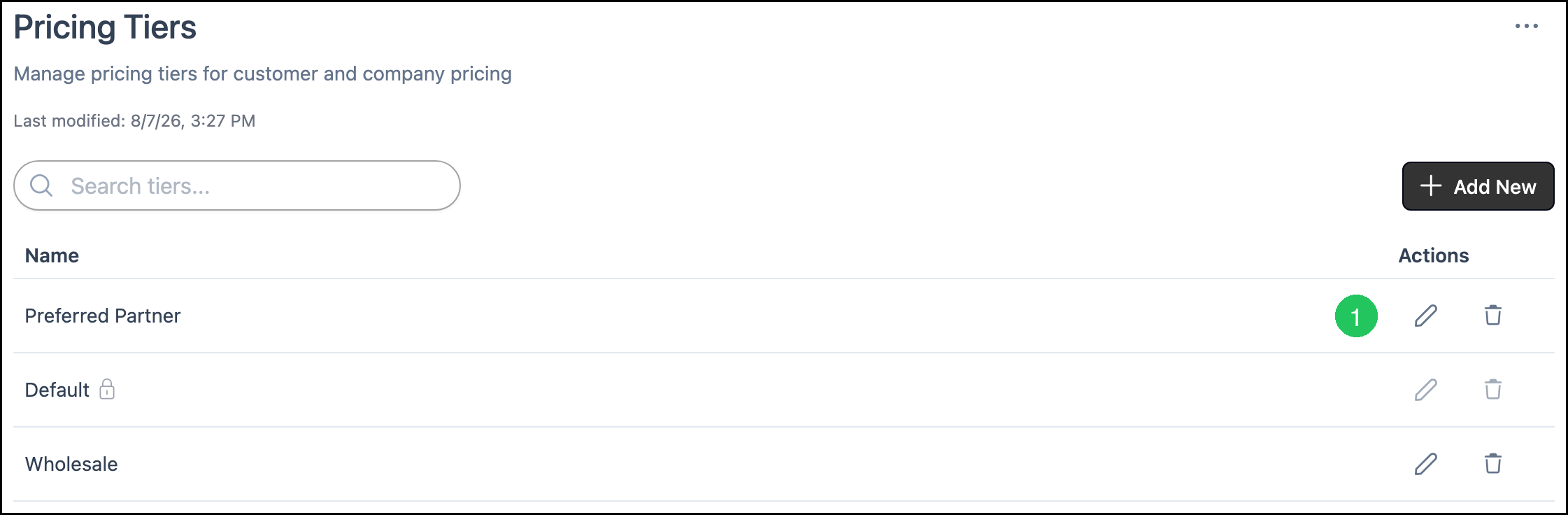
The Pricing Tiers list includes:
a. Search - Search for a Pricing Tier by name.
b. Add New - Opens the dialog to create a Pricing Tier.
c. Pricing Tier names - The list of Pricing Tiers available in your system.
d. Actions - Options to edit or delete a custom Pricing Tier.
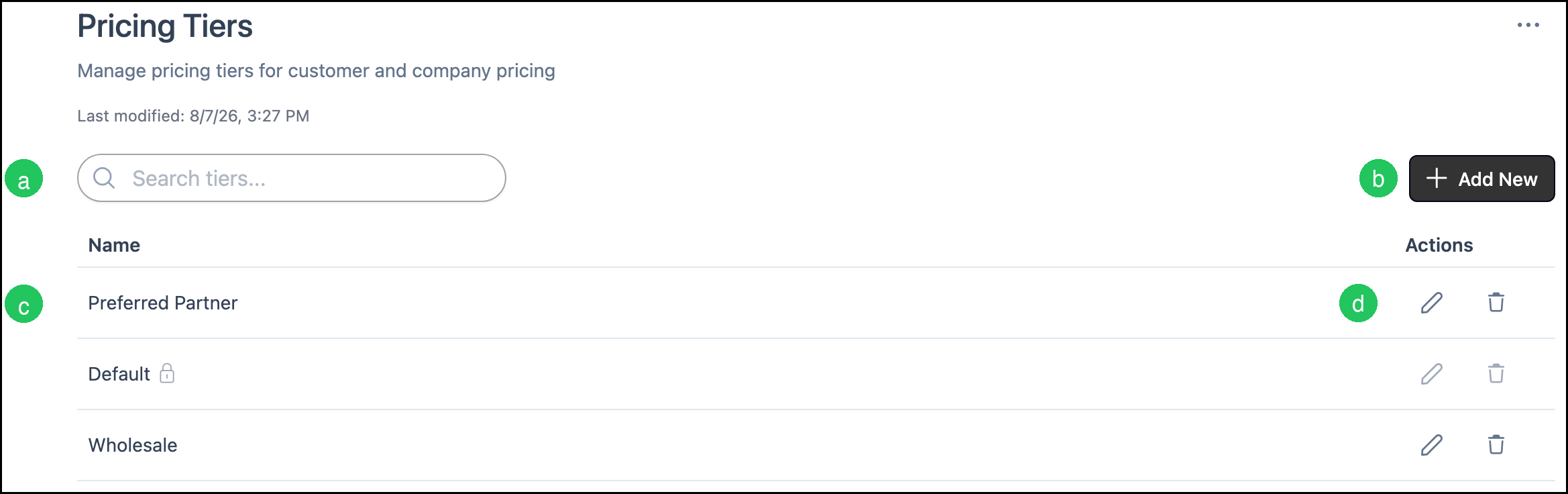
Note: The system Default Pricing Tier cannot be edited or deleted.
Note: The More Actions menu on a Pricing Tier includes History, which shows changes made to that tier.
To edit a custom Pricing Tier:
1. Click the edit icon for the Pricing Tier.
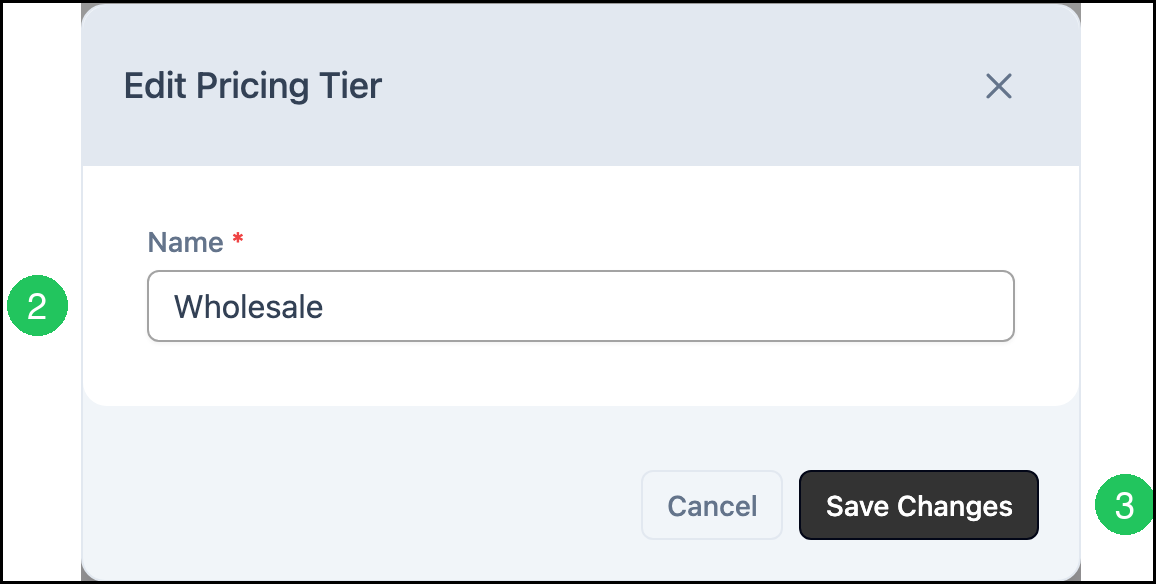
2. Update the Name as needed.
3. Click Save Changes.
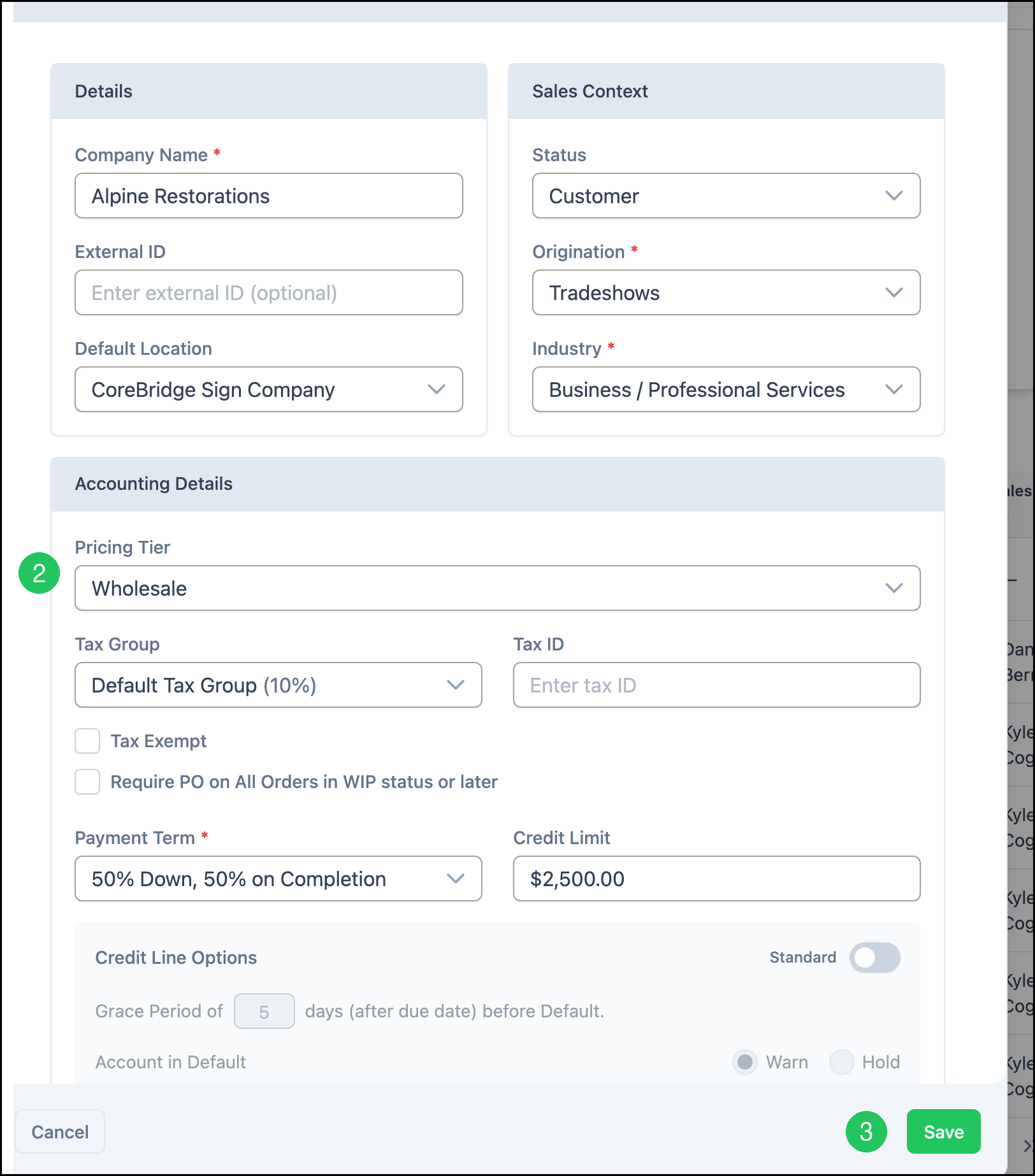
Assigning Pricing Tiers to Companies
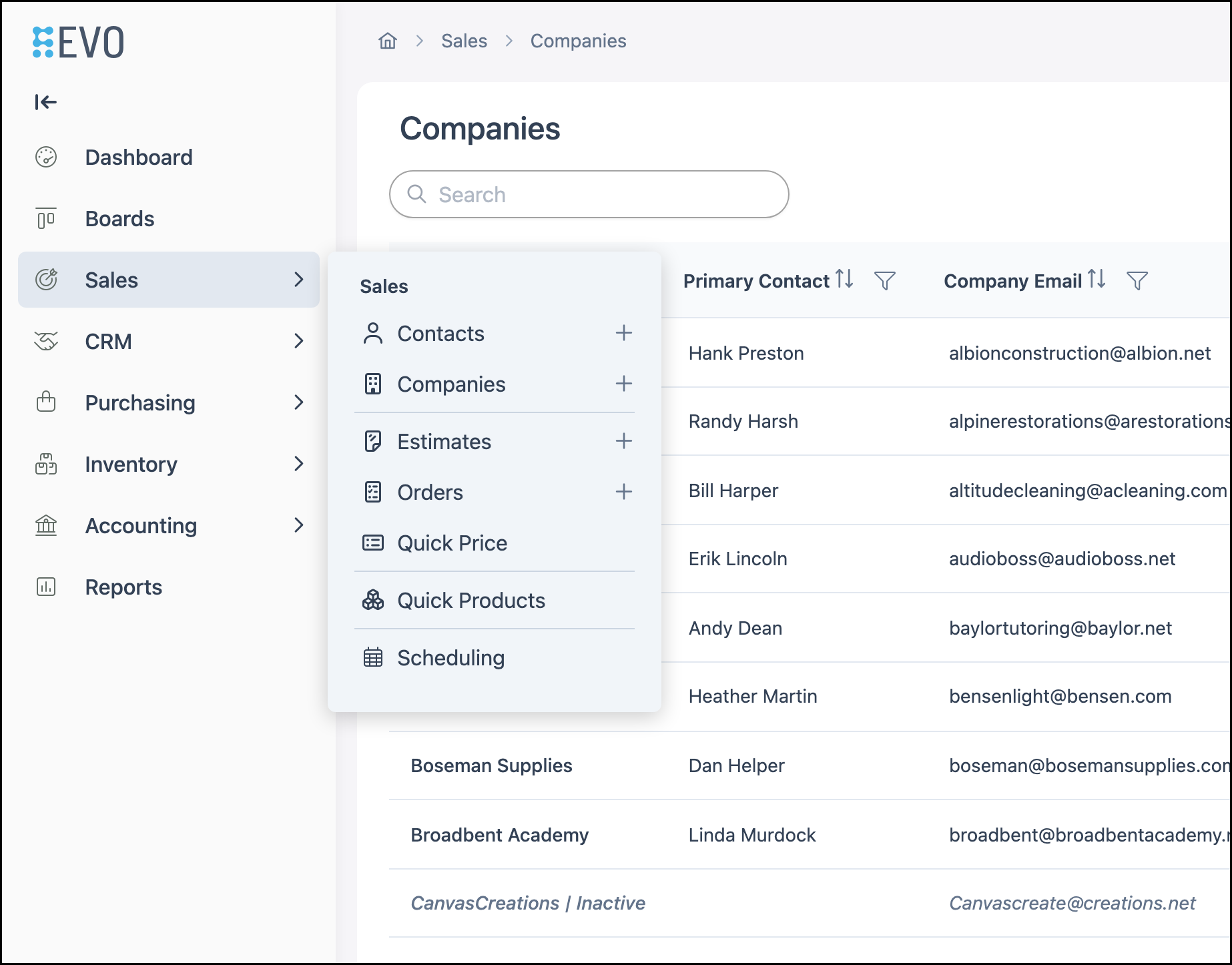
Navigate to Sales / Companies and open the appropriate Company.
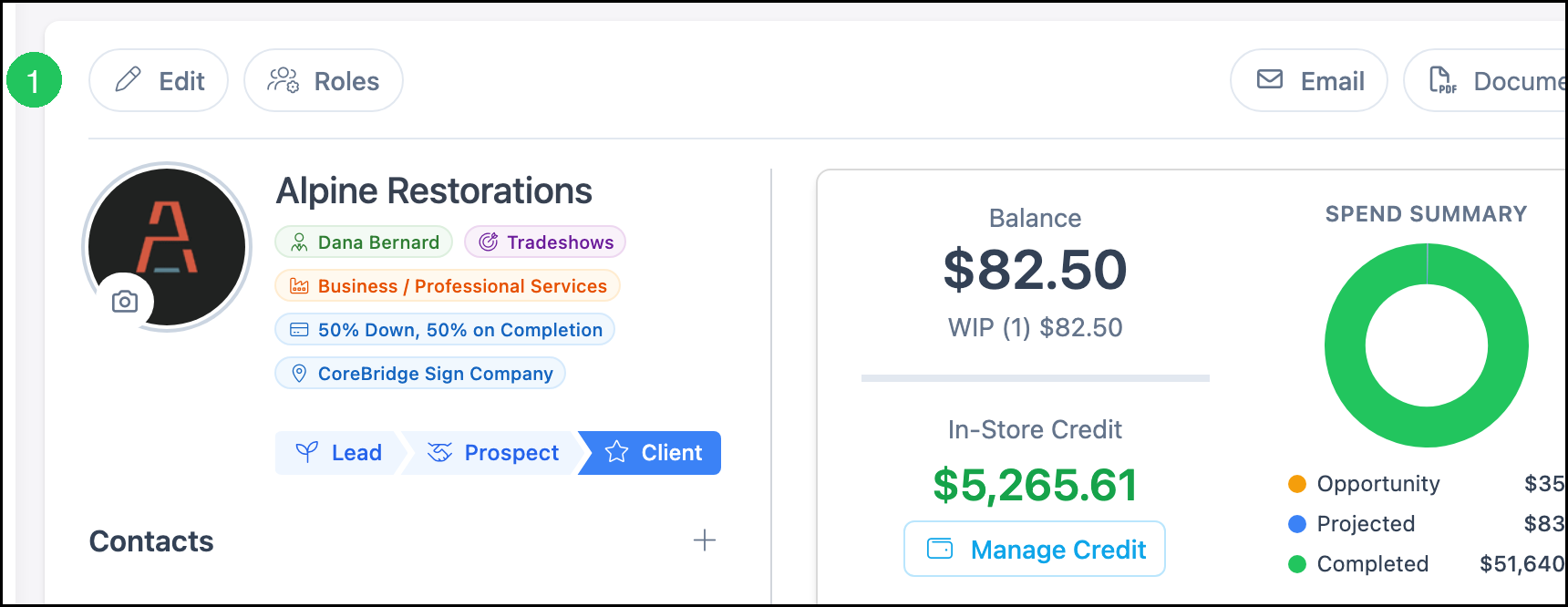
1. Click Edit.
2. In Accounting Details, select the Pricing Tier.
3. Click Save.
Using Pricing Tiers on Products
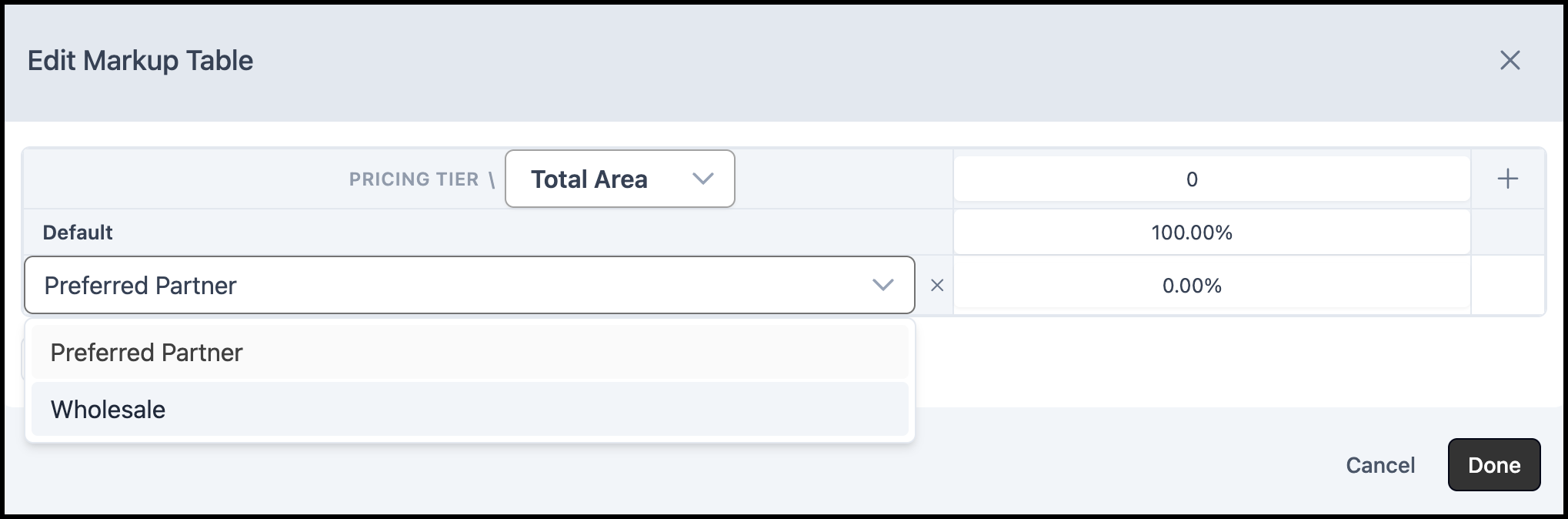
Pricing Tiers appear as rows in product pricing tables. See the example below.
Note: You manage the list of Pricing Tiers in Settings; you do not create new Pricing Tiers from the Product page.
For details on building pricing tables that use Pricing Tiers, see Markup and Margin Pricing Tables.
Example:
Frequently Asked Questions
1. Why can I not add or edit Pricing Tiers?
Answer: Custom Pricing Tiers may not be enabled for your system. Contact CoreBridge Support to enable Custom Pricing Tiers at supportdesk.corebridge.net.
2. Can I delete the Default Pricing Tier?
Answer: No. The Default Pricing Tier is required by the system and cannot be deleted.
3. I created Pricing Tiers. Why is pricing still the same for every Company?
Answer: Assign a Pricing Tier to each Company, and make sure your product pricing tables include those Pricing Tiers with the correct prices or markups.