
This article explains how to request a custom Product or request changes to an existing Product. A clear and complete request helps ensure the Product is built accurately, priced correctly, and delivered as efficiently as possible.
Table of Contents
- When to Request a Custom Product
- Information to Include in Your Request
- Production and Design Information
- Pricing Information
- Submitting the Request
- Turnaround Time
- Review and Follow-Up
- Delivery and Notification
- Pricing for Custom Products
When to Request a Custom Product
A custom Product may be requested when an existing Product does not fully meet your production, pricing, or documentation needs. This can include creating a brand-new Product or modifying a Product that is already close to what you need.
Information to Include in Your Request
A complete request includes two main parts: production information and pricing information. Providing both upfront helps reduce back-and-forth and speeds up turnaround time.
The recommended approach is to start with an existing Product that is similar to what you need.
- Take a screenshot of the Product.
- Mark up the screenshot to show which fields should be added, removed, or changed.
- Clearly label new fields or options so the intent is easy to understand.
Note: Marked-up screenshots can be created digitally or by printing, marking by hand, and re-scanning. The goal is clarity, not the method used.
Navigate to Sales / Quick Price.
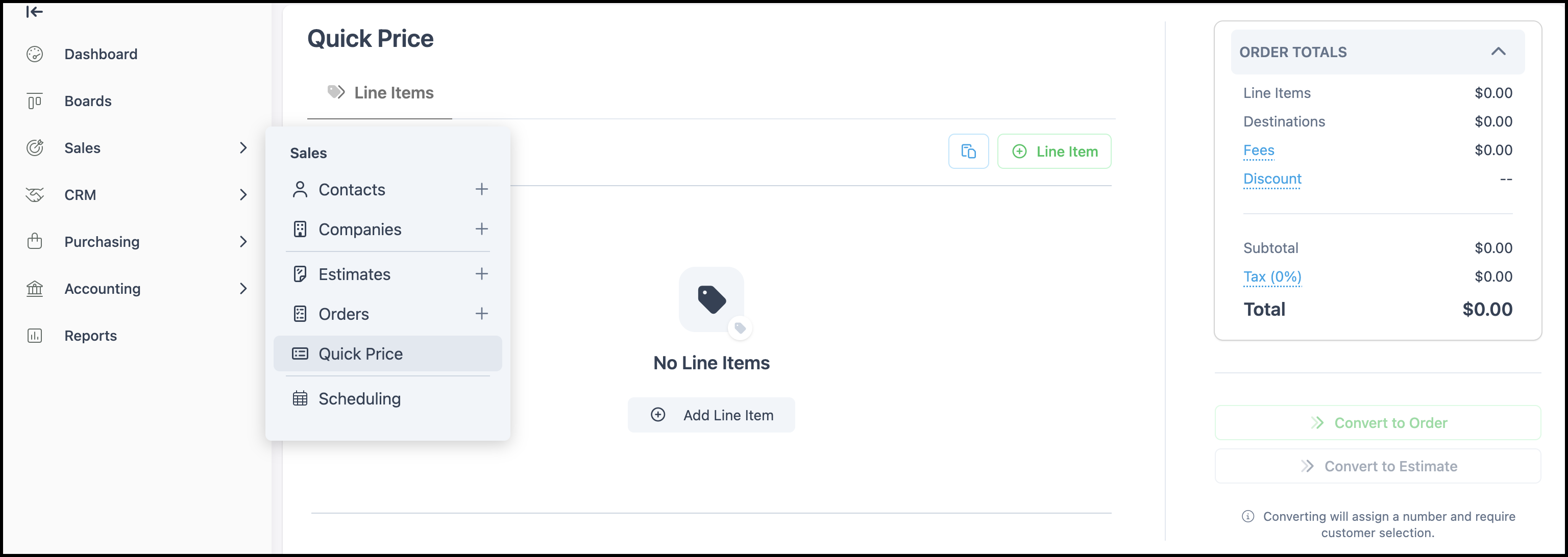
1. Click Line Item.
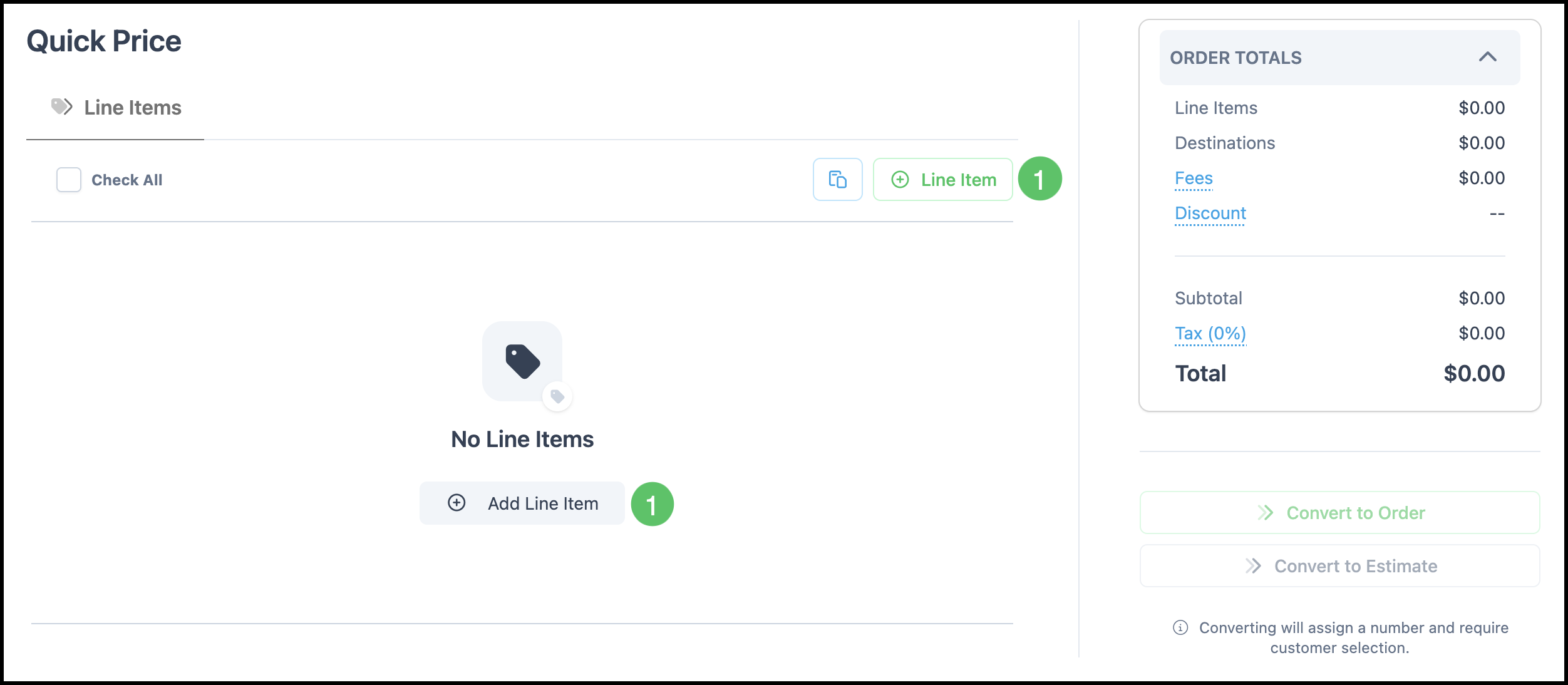
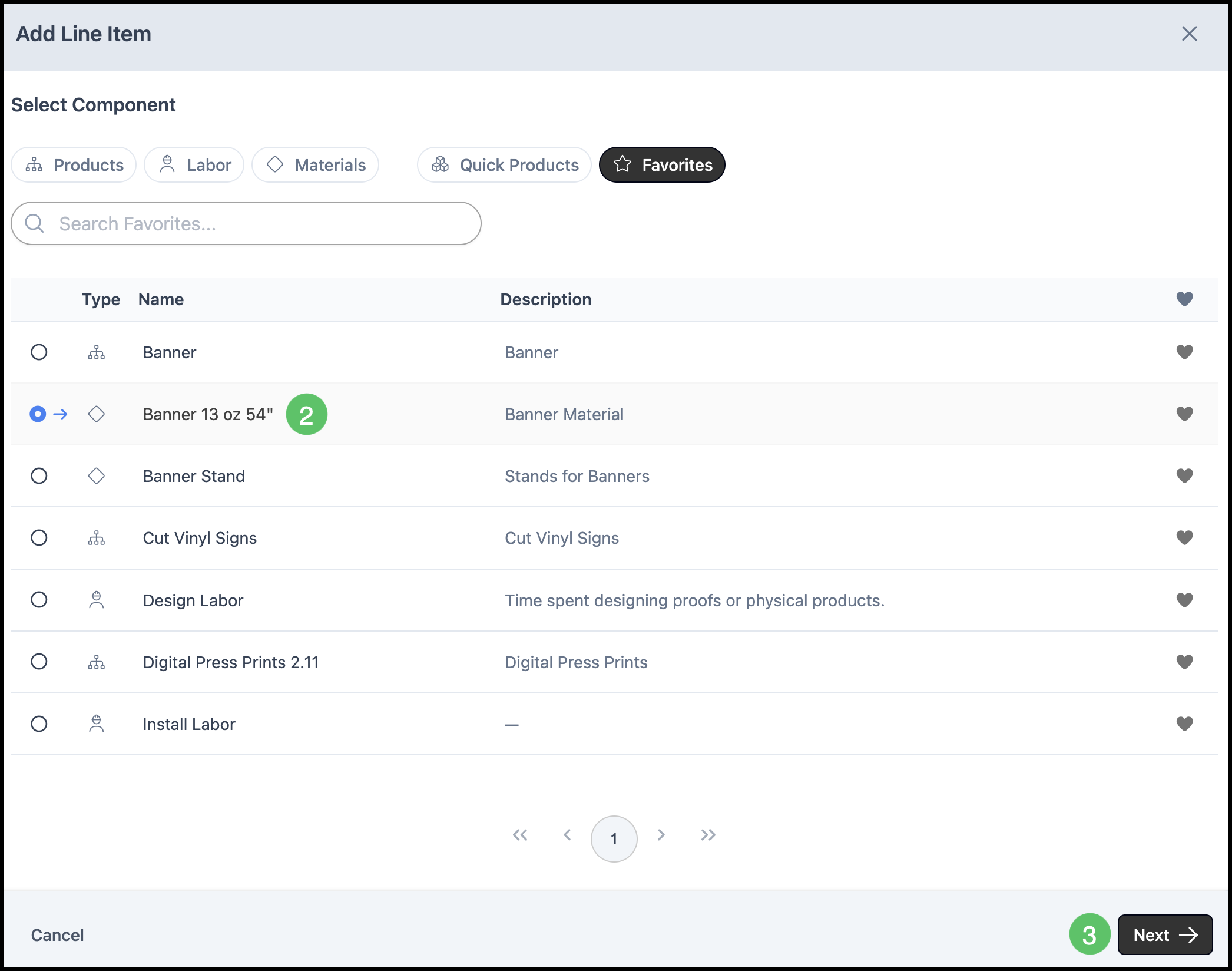
2. Select the Product closest to what you need.
3. Click Next.
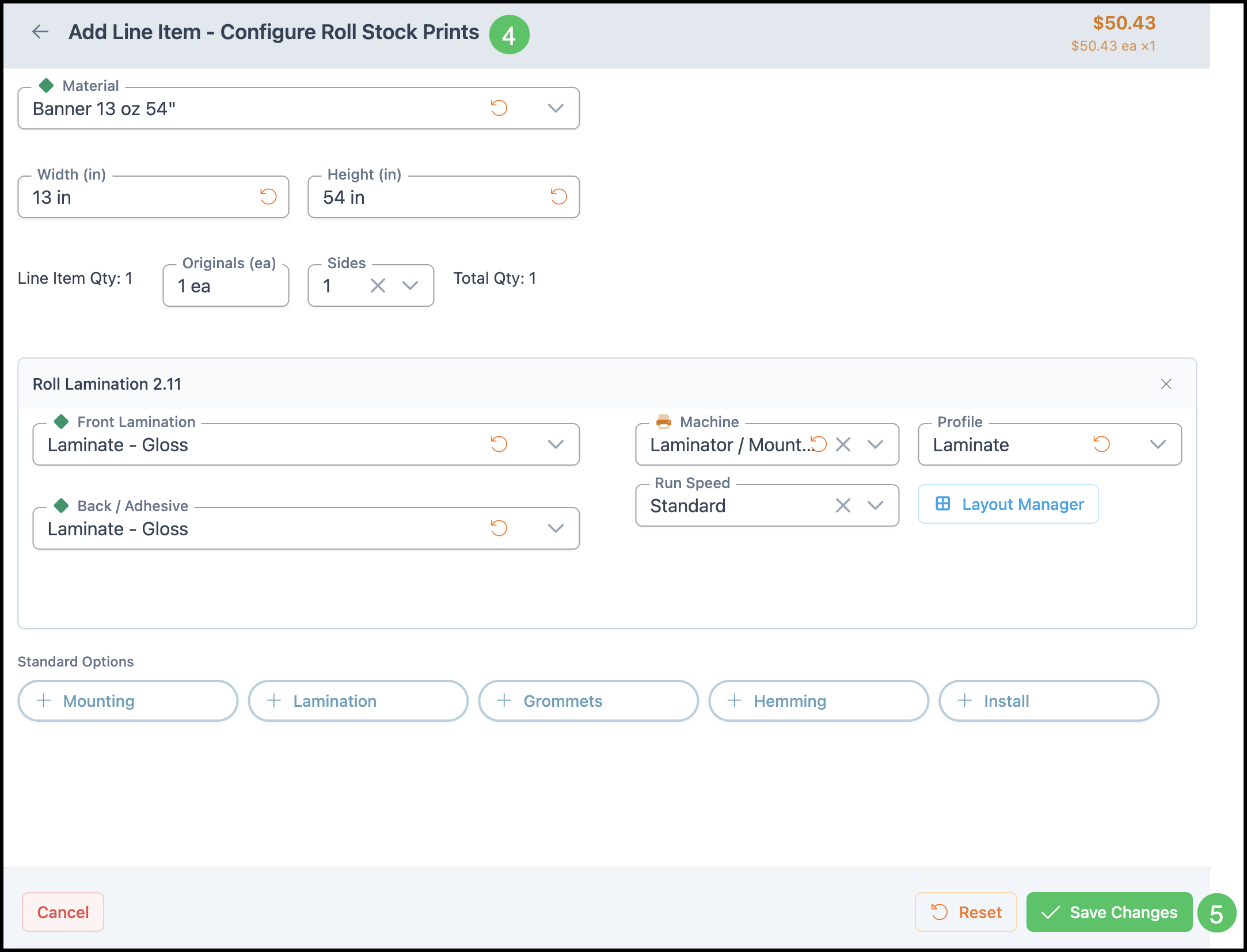
4. Complete the configuration fields on the following screen so the Line Item reflects how you will use the Product.
Note: The fields available on this screen are variable and will depend on the Product selected.
5. Click Save Changes.
Production and Design Information
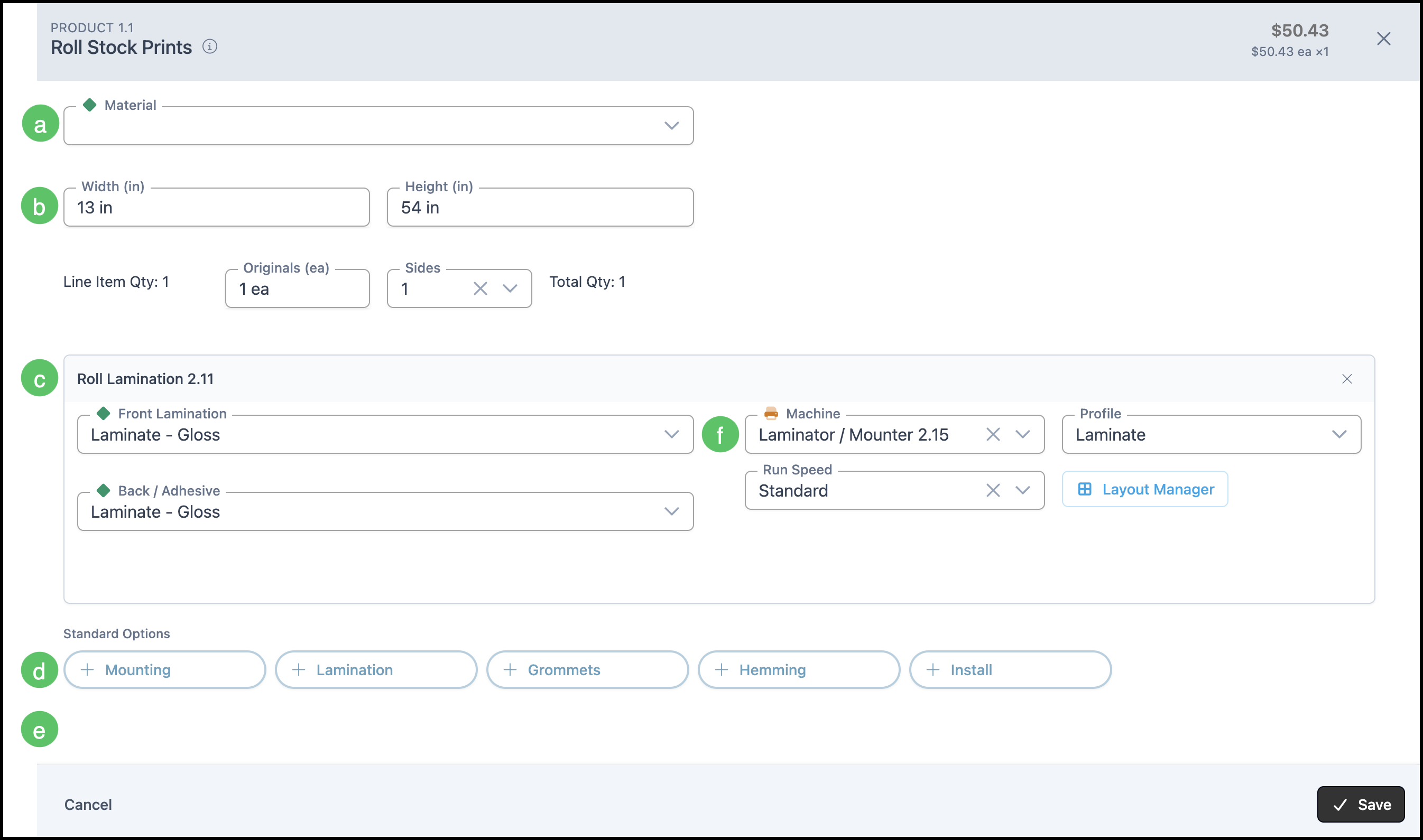
Take a screenshot of the Line Item for the Product you selected. Include the following details in your markup:
a. Materials used in the product.
b. Measurements or sizing requirements, if applicable.
c. Additional production steps such as hemming, laminating, finishing, or similar processes.
Note: Up to three production steps may be listed here.
d. Any Modifiers that should be linked to the Product.
e.The additional fields or input boxes that should appear on the Product form.
f. Machine information for this Product.
Note: In your email, include any information that you would like to appear on customer-facing documents such as Invoices.
Pricing Information
Start by identifying the pricing method:
- Cost-based pricing
- Market-based pricing
If the Product uses cost-based pricing, include details in your screenshot that indicate:
- Which Materials add cost.
- Labor time or processes that affect cost.
- Any additional elements that increase production cost.
If the Product uses market-based pricing, include details in your screenshot that indicate:
- Which Materials add price.
- Labor time or processes that affect price.
- Any additional elements that increase production price.
Note: The structure is similar for both methods; the difference is whether values affect cost or price.
Submitting the Request
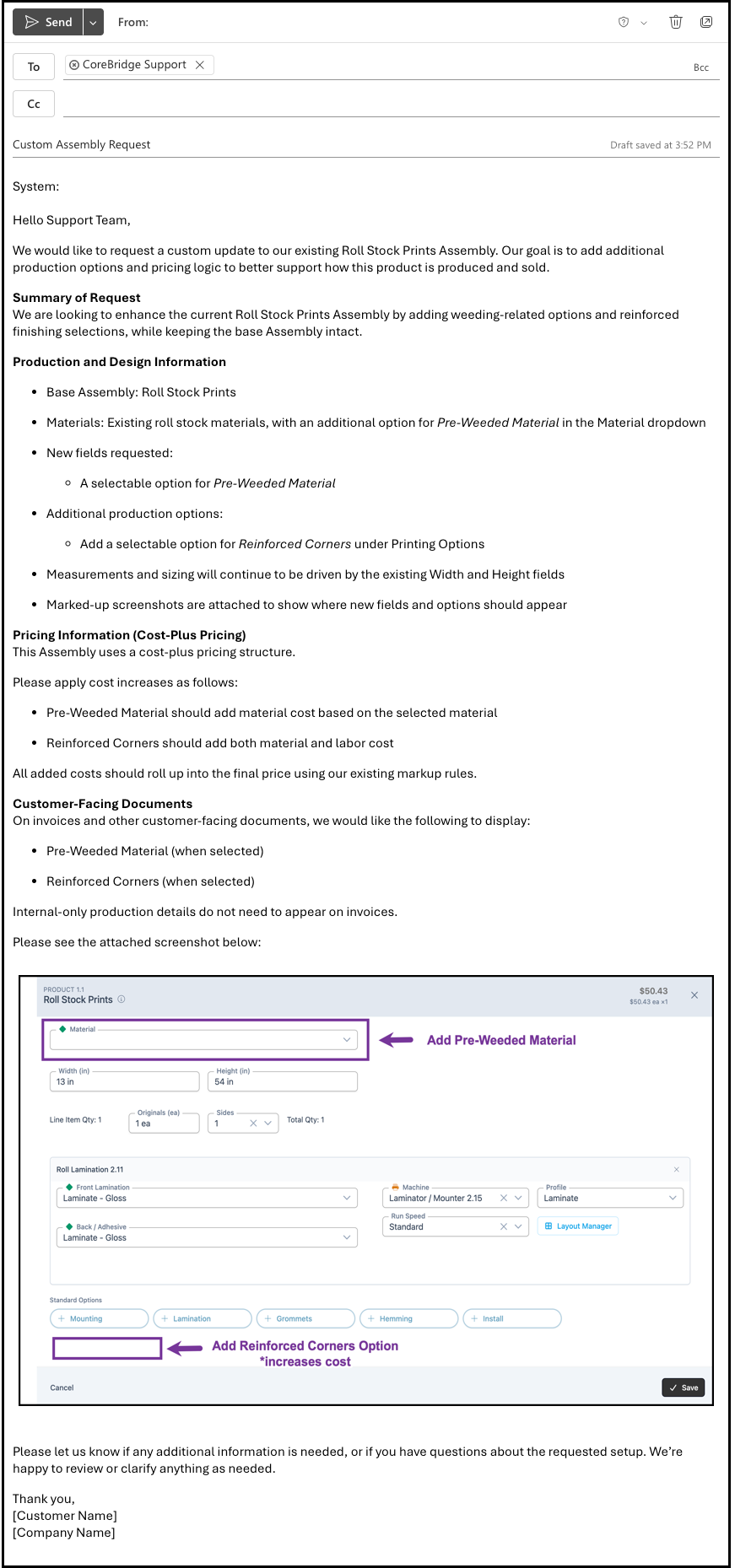
Once all information is gathered, email your request to the Support team at supportdesk@corebridge.net. Support will review the details and route the request to a specialist for Product creation or updates.
Your email should include:
- System this Product is for.
- A clear description of the goal of the Product.
- Name of the customer-facing product this Product will be used for.
Note: If it is not for a specific product, include what Materials and Machines will be used.
- Detailed production and pricing information.
- Marked-up screenshots or supporting documentation.
- Notes on what information should appear on customer-facing documents.
Note: Support will prioritize and schedule the request based on scope and availability.
Turnaround Time
Typical turnaround time for a custom Product request is approximately one week. Larger or more complex requests may take longer depending on scope.
Review and Follow-Up
During the build process, the team may have follow-up questions or suggest adjustments if something cannot be implemented as requested or if a more effective approach is identified. In these cases, Support will reach out by email or schedule a call to confirm details or ask any clarifying questions before proceeding.
Delivery and Notification
Once the Product is completed:
1. The Product will be added directly to your system.
2. You will be notified by email using the same email thread used to submit the request.
3. A direct link to the Product may be provided.
Note: No additional steps are required unless further revisions are requested.
Pricing for Custom Products
Custom Product pricing depends on your onboarding status.
- During the onboarding period, custom Product work is included at no additional cost.
- After onboarding, custom Product work is billed per hour. Pricing details are subject to change and should be confirmed at the time of request.
Note: If you are unsure how much onboarding time remains, contact your CSM or reach out to Support at supportdesk@corebridge.net.