Company Notes let your team share internal information about a Company, such as background details, internal reminders, or updates on next steps. Notes are visible only to your team and never appear to the Customer.
Table of Contents
Accessing Notes
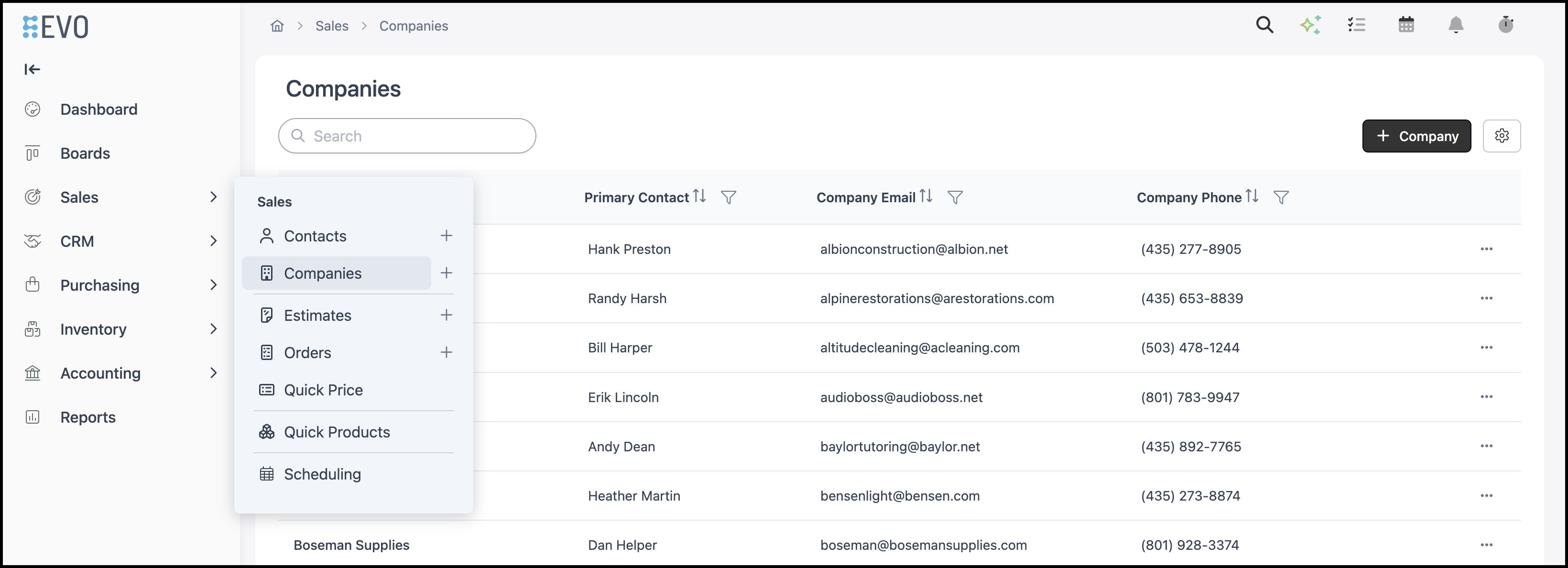
Navigate to Sales / Companies and select the desired Company.
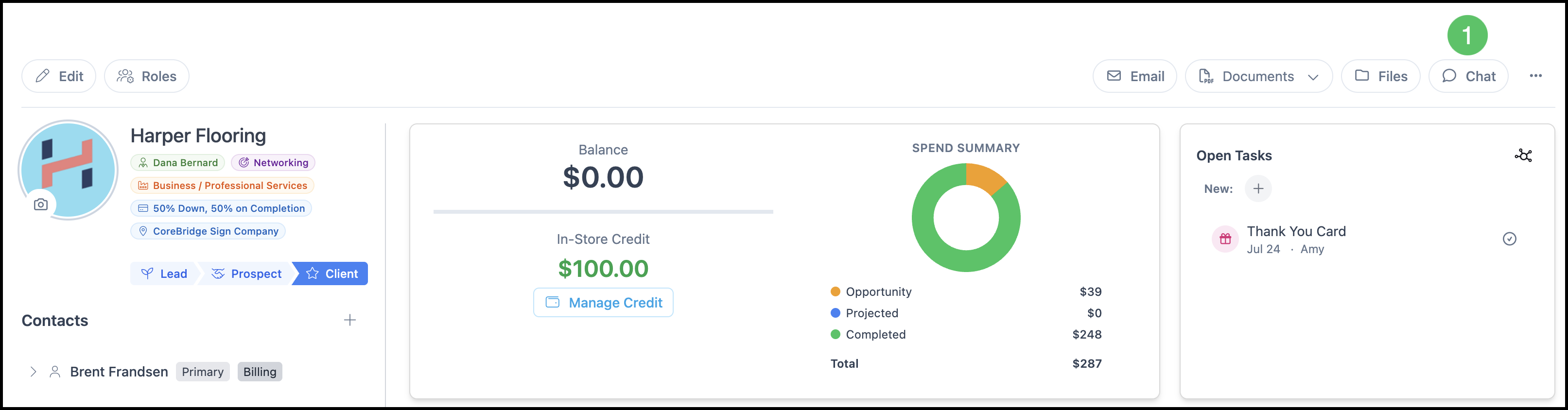
1. On the Company record, select Chat. The Company Chat panel opens on the right side of the screen.
Adding a New Note
1. Enter the note in the message field at the bottom of the panel.
a. Edit icon - Opens the full editor to format the note with bold, italic, underline, a list, a link, or a table.
2. Click Send, or Post if using the expanded editor, to save the note.

Marking a Note as Important
Marking a note as important helps your team quickly identify high-priority information about a Company.
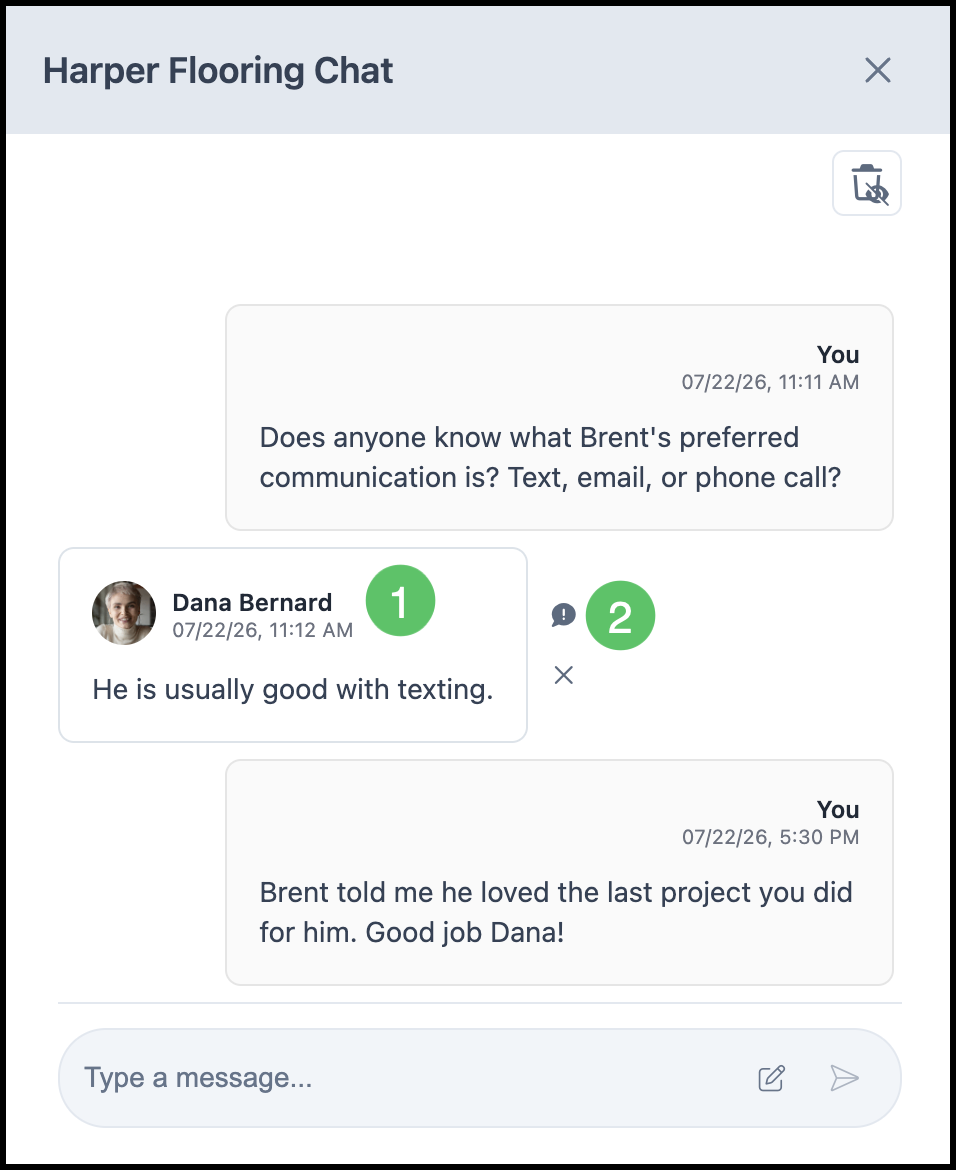
1. Hover over the note you want to mark.
2. Select the Important icon to mark the note. Select the icon again to remove the important marking.
Deleting a Company Note
Hide a note when the information is no longer needed.
1. Hover over the note you want to remove.
2. Select the X icon. The note is removed immediately.
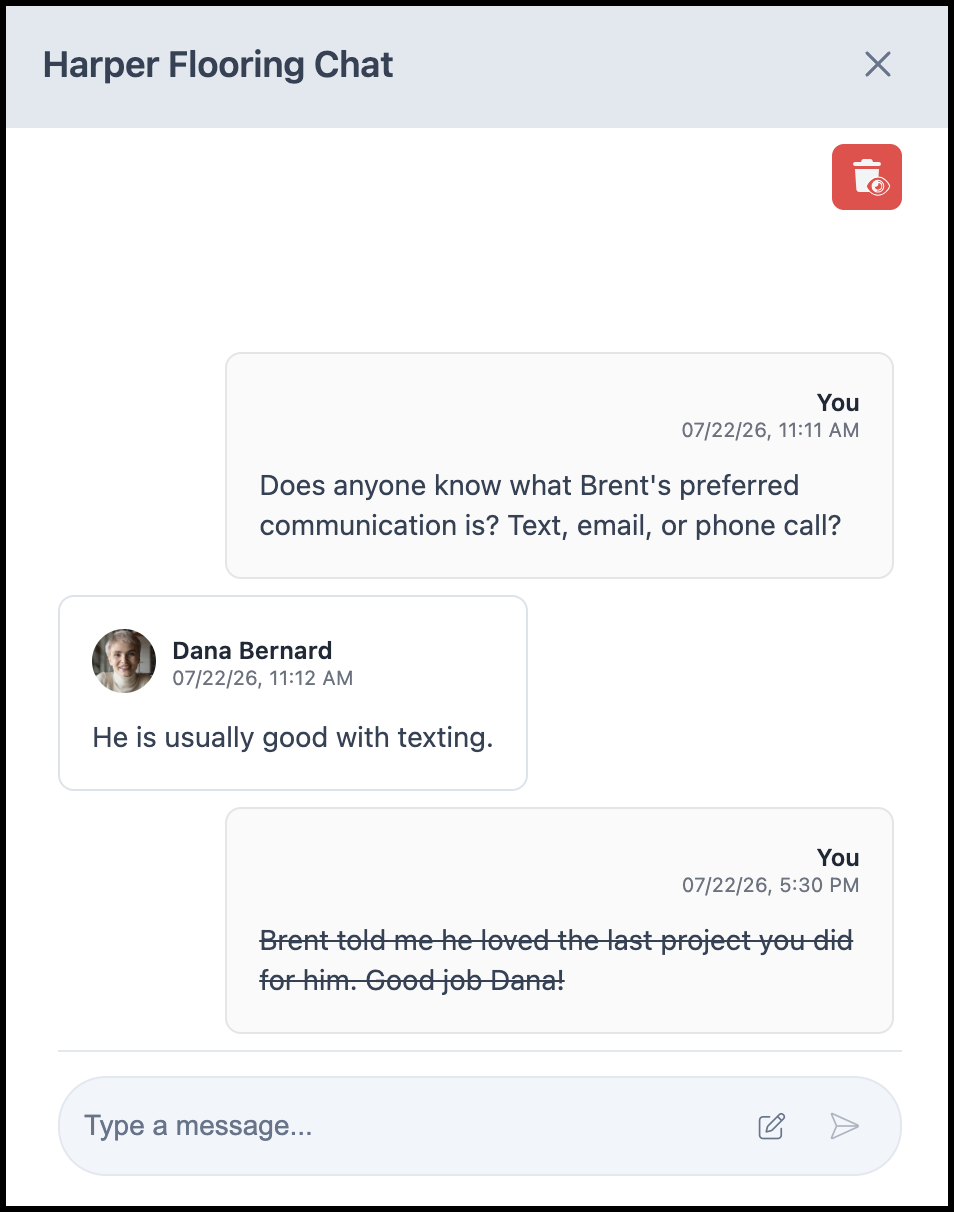
a. Show Deleted - Displays previously deleted notes in the list for reference. See the example below.
Note: Deleting a note is permanent. To use it again, you will need to re-enter it manually.
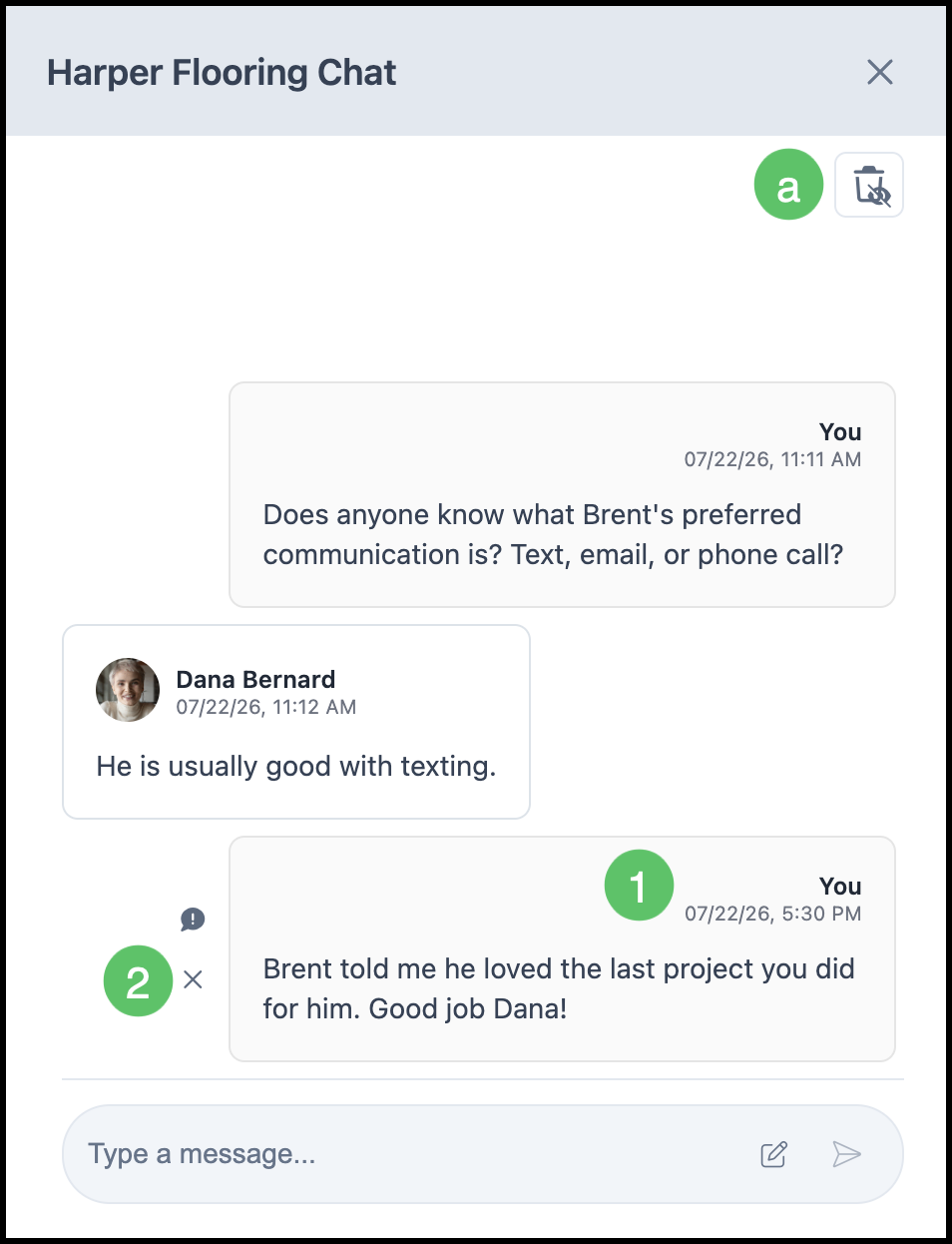
Example: