
A Pipeline provides a shared view of CRM Opportunities organized by Stage. Employees with CRM access can view Pipelines from CRM / Pipelines, while CRM permissions and Opportunity assignments determine which Opportunities each employee can see. Owners and Administrators have full access.
Table of Contents
- CRM Pipeline Overview
- Opportunity Access and Visibility
- How to Open a Pipeline
- Dashboard Widgets and Opportunity Counts
- Frequently Asked Questions
- Related Articles
CRM Pipeline Overview
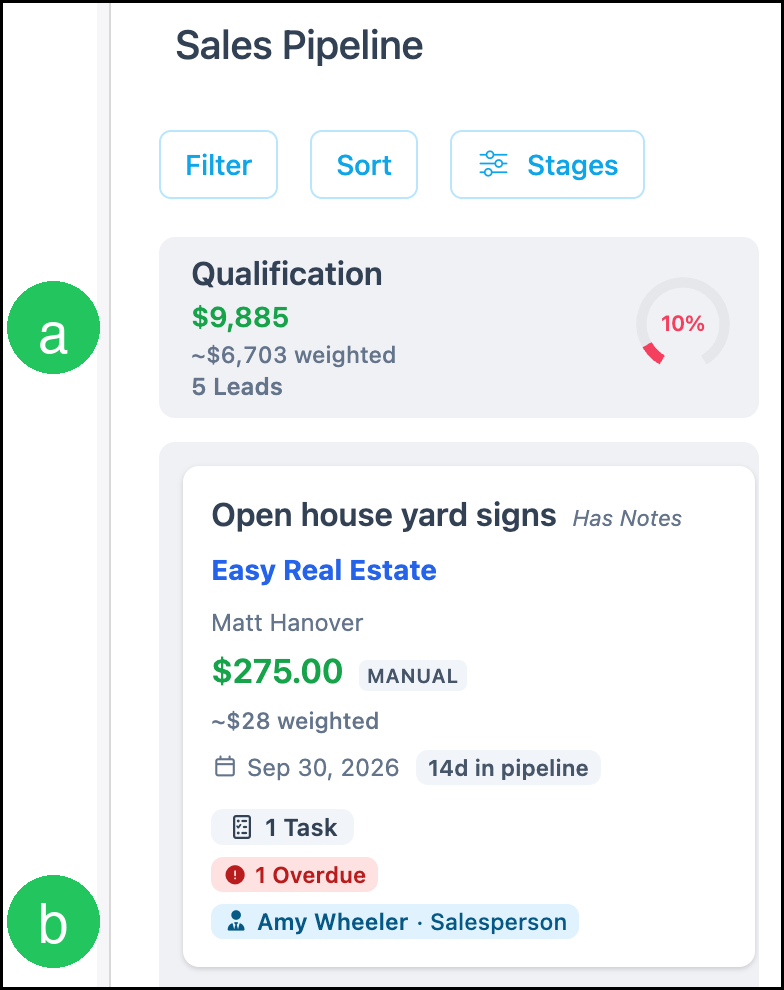
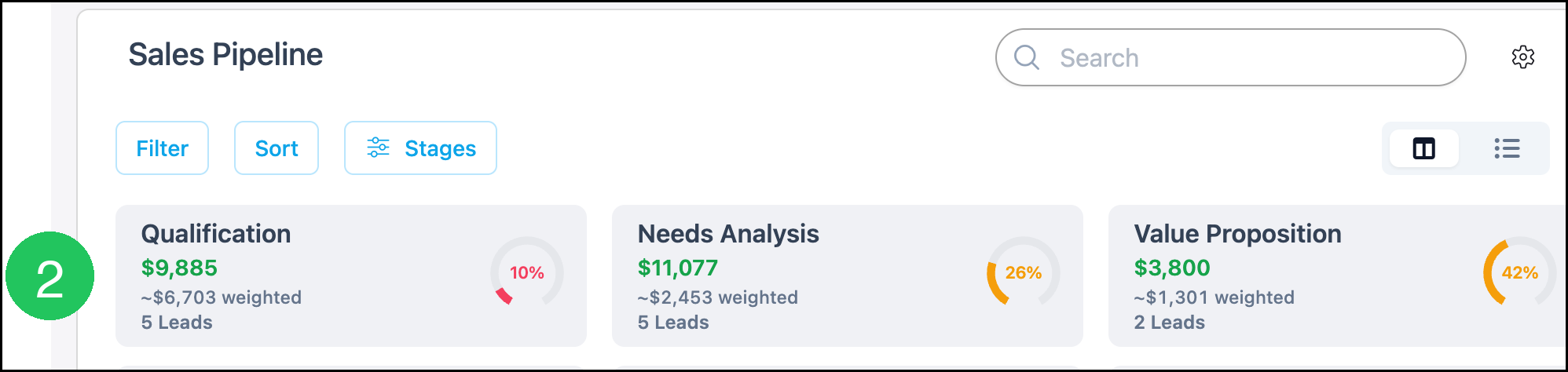
A Pipeline lists Opportunities in columns by Stage. It is a shared board, not a board for one employee.
a. Each column is a Stage.
b. Each Opportunity shows the assigned employee and role, such as Salesperson.
Employee roles used on Opportunities are configured in Application of Employee Roles.
Opportunity Access and Visibility
Owners and Administrators have full permissions, so they see every Opportunity on a Pipeline.
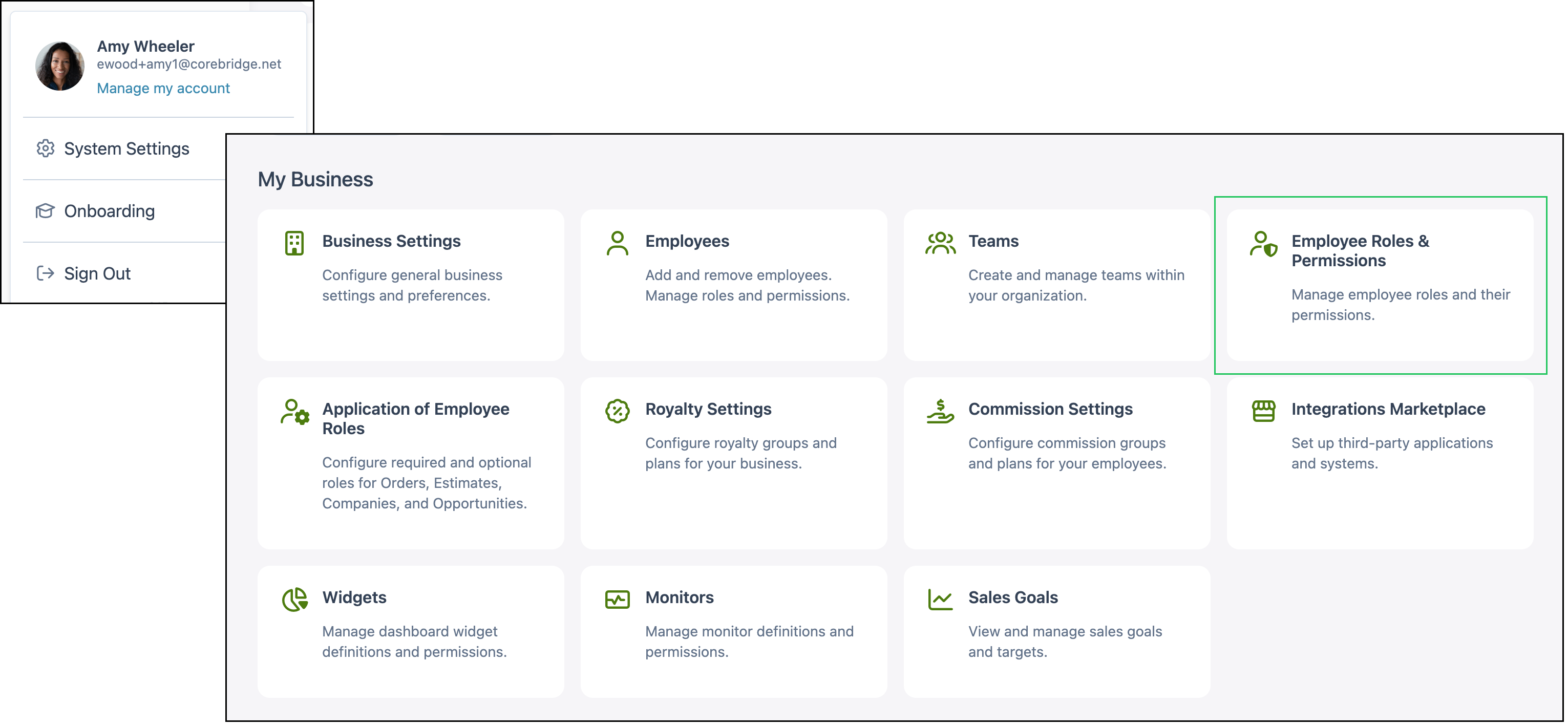
Navigate to System Settings / My Business / Employee Roles & Permissions.
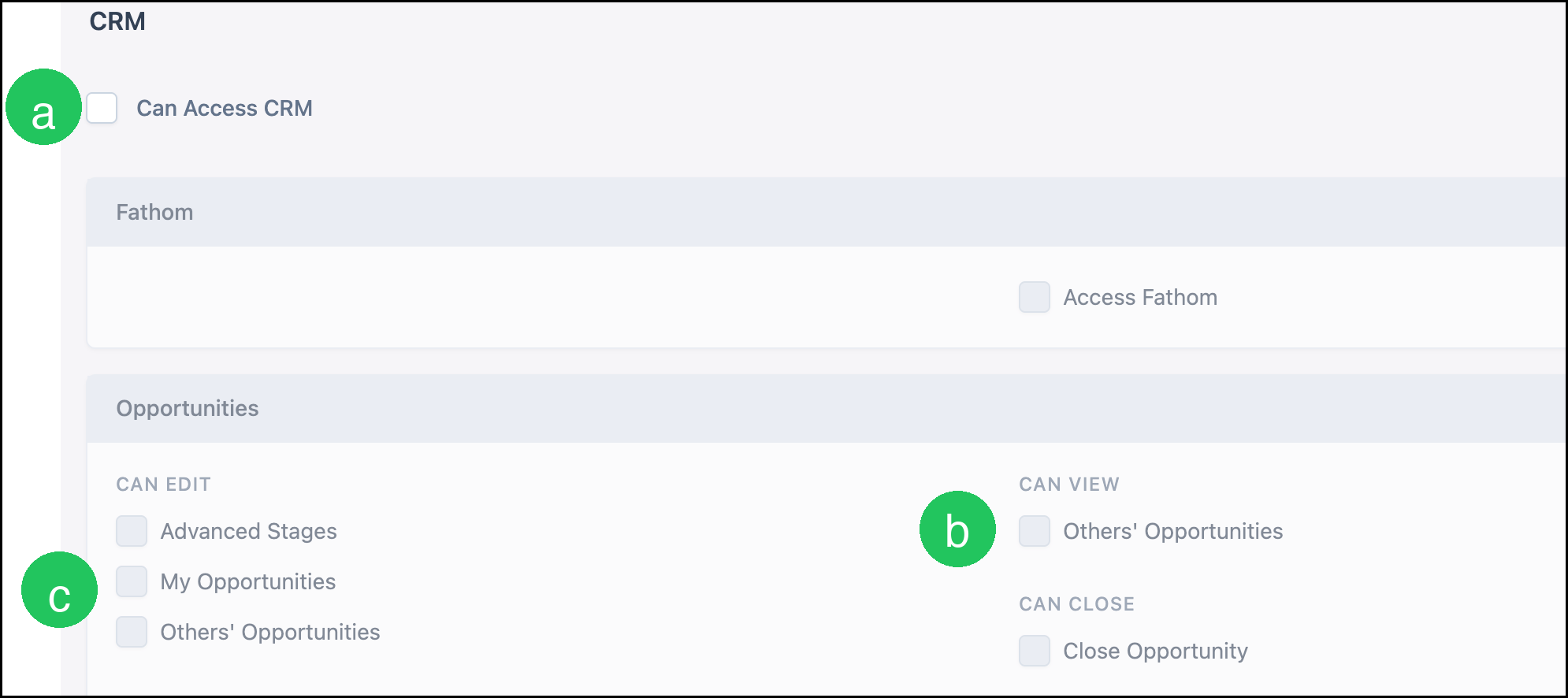
a. Can Access CRM must be selected before the other CRM permissions apply.
b. CAN VIEW: Others' Opportunities shows Opportunities assigned to other people. Without that permission, the employee sees Opportunities where they are assigned.
c. CAN EDIT: My Opportunities and CAN EDIT: Others' Opportunities control editing. They are separate from who can see an Opportunity.
Note: On an open Pipeline, More Actions includes Edit Pipeline, Manage Access, Favorite, and Clone.
For the steps to edit a role, see Employee Roles and Permissions in Settings.
How to Open a Pipeline
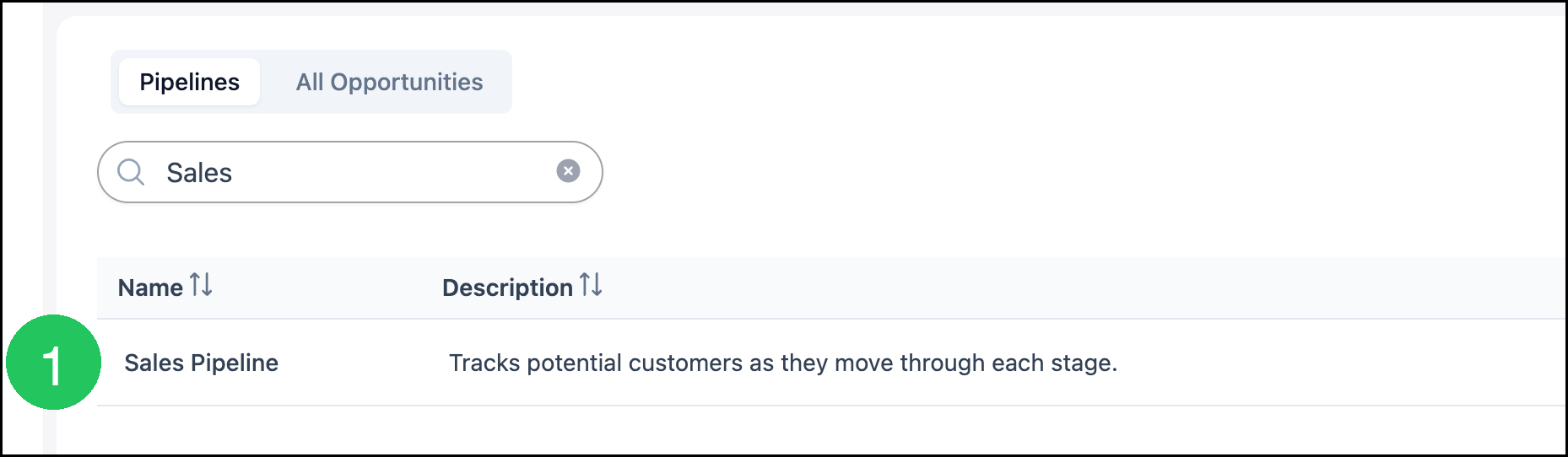
Navigate to CRM / Pipelines.
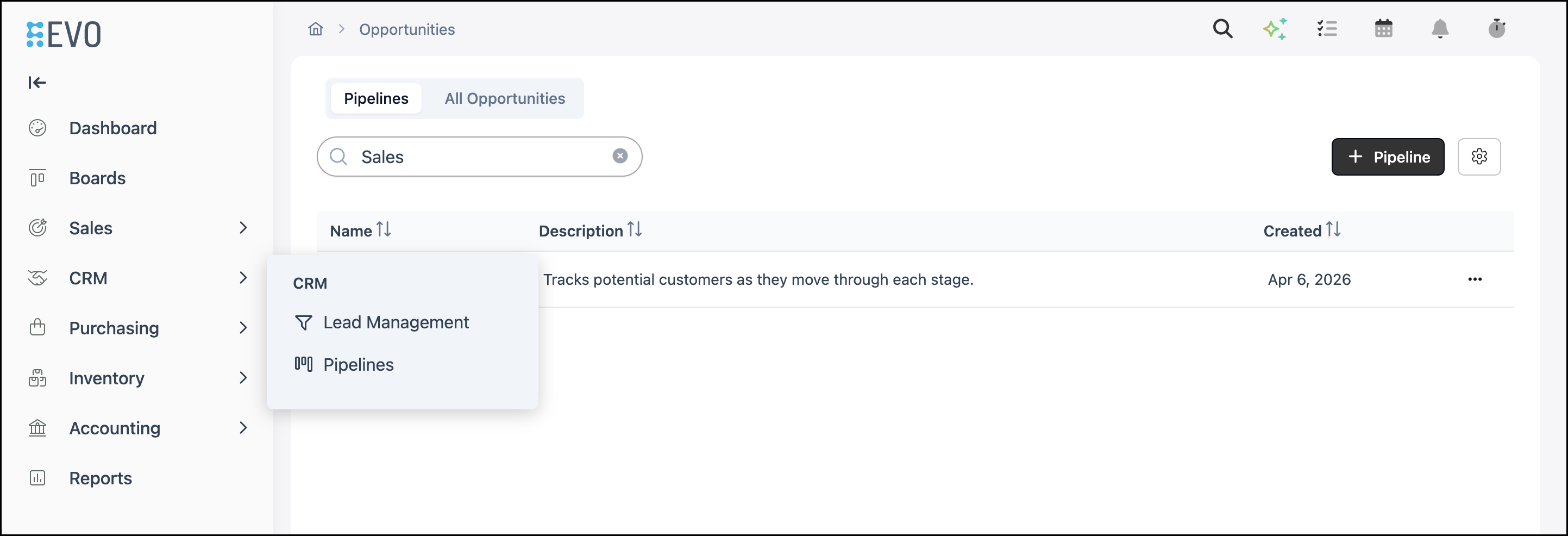
1. Open the Pipeline you want to review from the list.
2. Review Opportunities by Stage on the board. Use Search, Filter, and Sort on the board as needed.
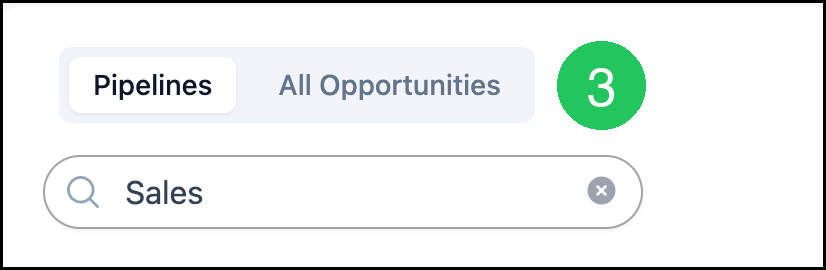
3. Select All Opportunities on the Pipelines page when you need a list instead of a Pipeline board.
Dashboard Widgets and Opportunity Counts
Stage counts and Pipeline totals are reviewed on the Pipeline board under CRM / Pipelines. Dashboard widgets cover sales, estimates, orders, and companies.

For adding, moving, and configuring widgets, see How to Set Up Dashboards and Widgets.
Frequently Asked Questions
1. Where are View my opportunities and View others' opportunities?
Answer: Those labels are not on the employee role. Use CAN VIEW: Others' Opportunities to control seeing Opportunities assigned to other people. CAN EDIT: My Opportunities is an edit permission for Opportunities assigned to that employee.
2. Why is an Opportunity missing from a Pipeline for an employee?
Answer: Confirm Can Access CRM is selected on the employee role, that the employee is assigned on the Opportunity, or that CAN VIEW: Others' Opportunities is selected. Owners and Administrators have full permissions.
3. Do Owners and Administrators see every Opportunity?
Answer: Yes. The Employee Roles screen states that Owners and Administrators have full permissions.