
Surcharge and Rounding lets you configure additional fees or price adjustments for individual payment methods. Settings are applied per payment type, so you can charge a percentage or flat fee for credit cards, round cash payments to the nearest nickel, or combine both on the same payment method.
Before You Begin
- Before configuring surcharges or rounding, confirm the feature is enabled for your business. If you don't see Surcharge or Rounding sections on a payment method, ask an administrator to turn this on in business settings.
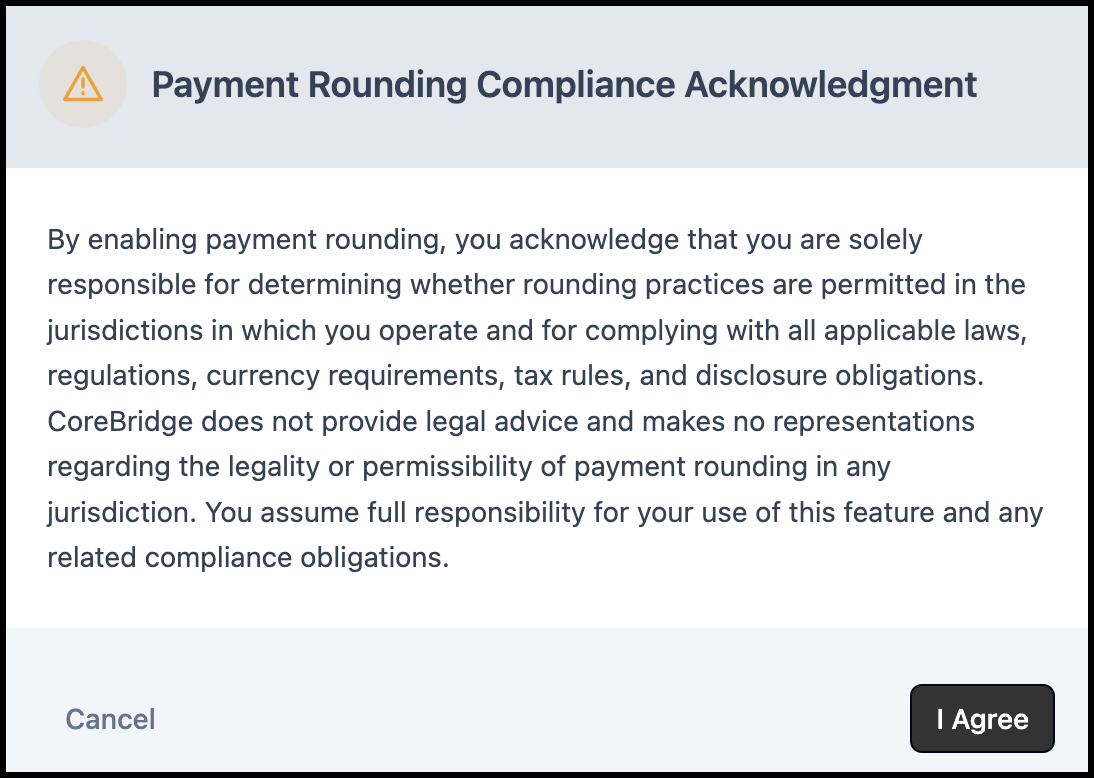
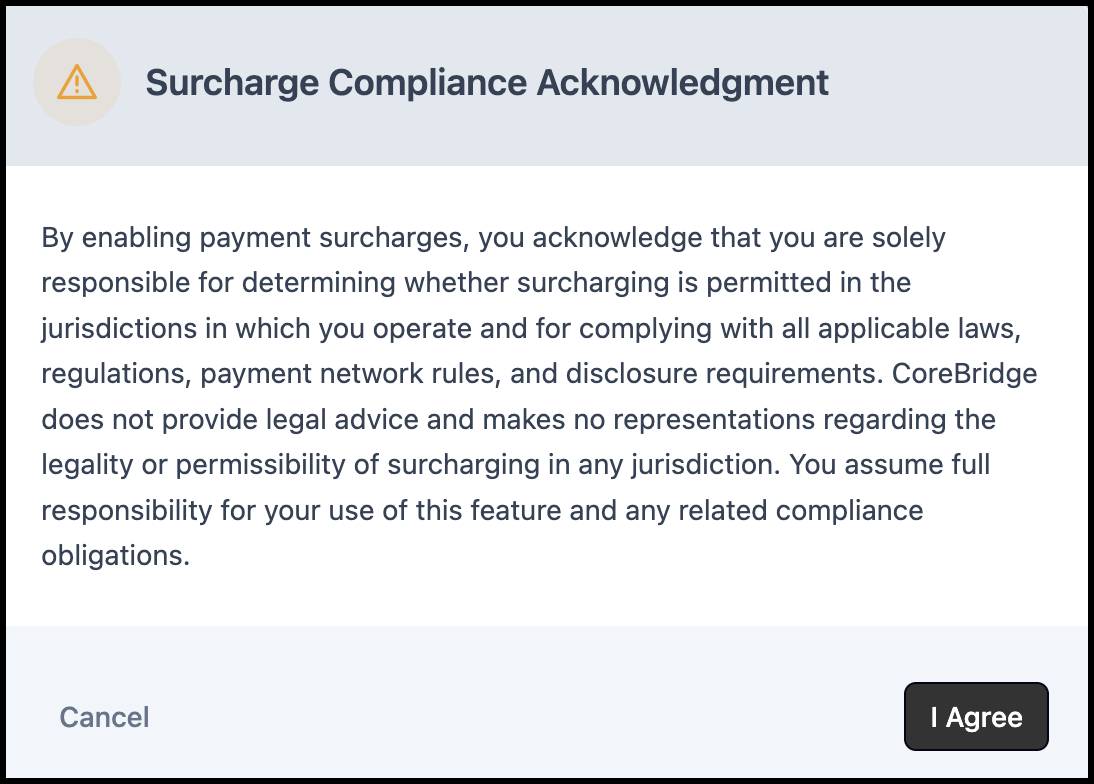
- Both surcharges and rounding require a compliance acknowledgment before the settings can be saved. Review the laws and regulations around surcharges and rounding in your area before enabling either feature, as requirements vary by state.
Important Information
- If a single payment is applied across multiple Orders, a percentage surcharge is split proportionally based on each Order's share of the payment. A flat fee or rounding amount is split evenly across the Orders.
- Disclaimer text entered during setup appears in the payment modal when a customer or staff member processes a payment using that payment method.
- If a customer pays only part of the balance, the surcharge is calculated on the amount being paid, not the full Order balance.
- Surcharge and rounding amounts are only applied once a payment is successfully processed. If a payment is declined, no surcharge or rounding is recorded.
- A single payment method can have both a surcharge and rounding applied at the same time. Configure each setting separately within the same payment method record.
- When both are applied to the same payment, the surcharge is calculated first, and rounding is then applied to that total - so the rounded amount is what's actually charged.
Setting Up Rounding
Rounding settings are configured per payment method. To set up rounding for a payment type, navigate to the payment method settings and complete the following steps.
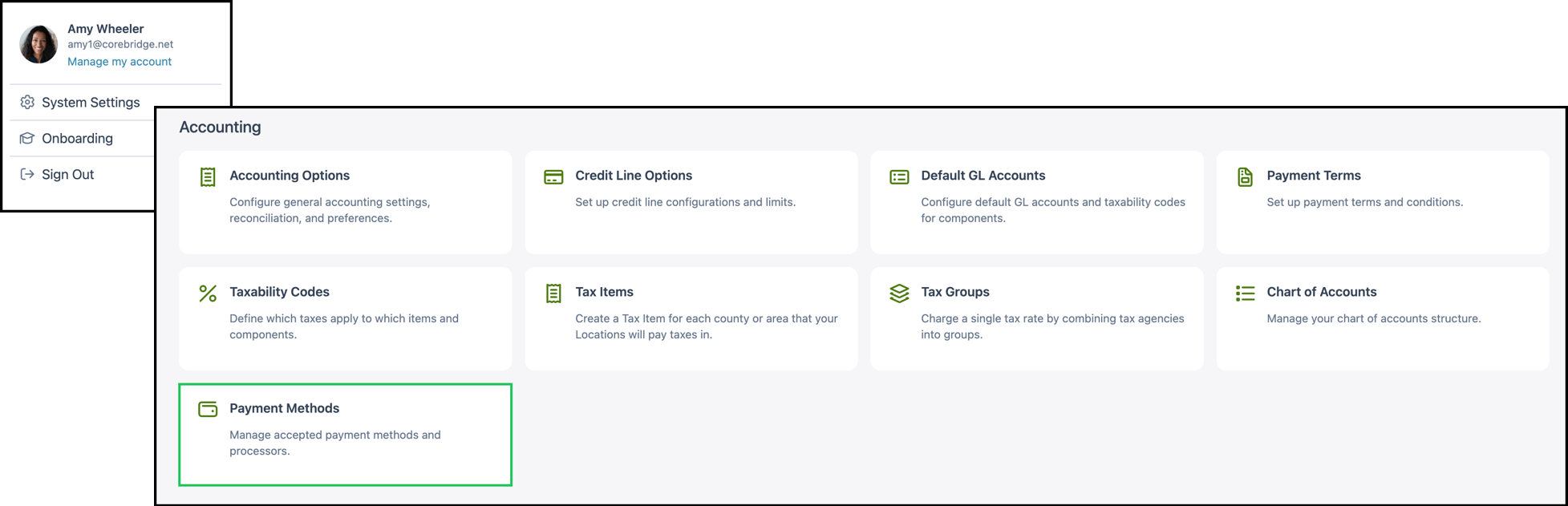
Navigate to System Settings / Accounting / Payment Methods.
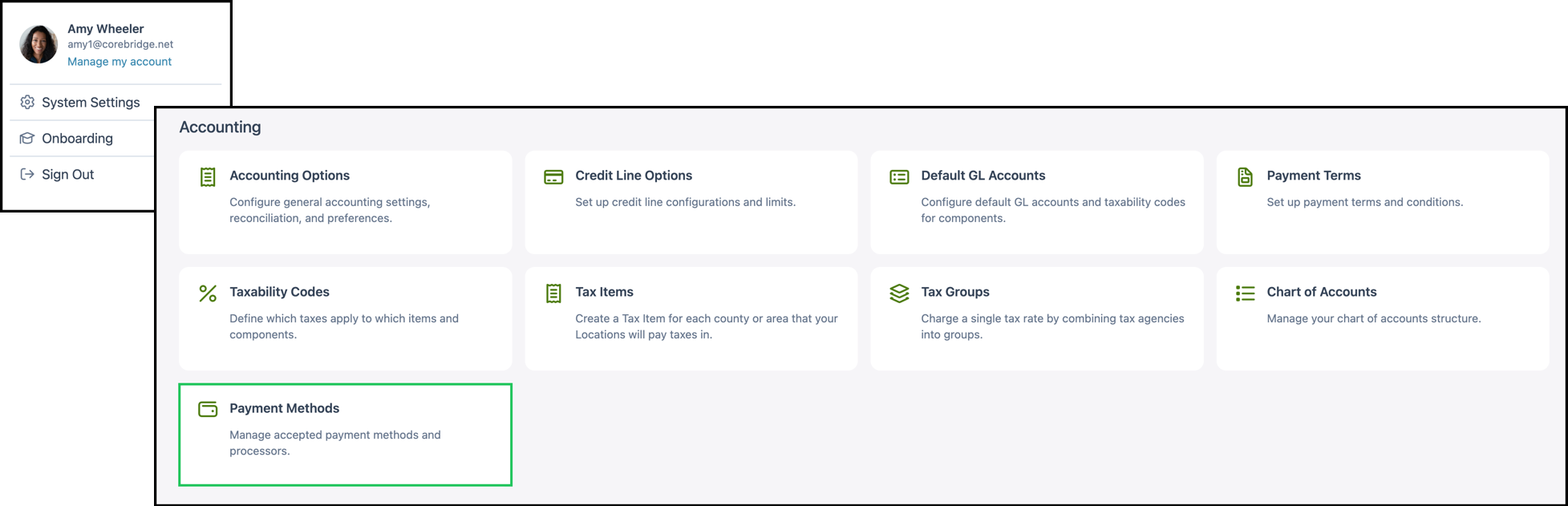
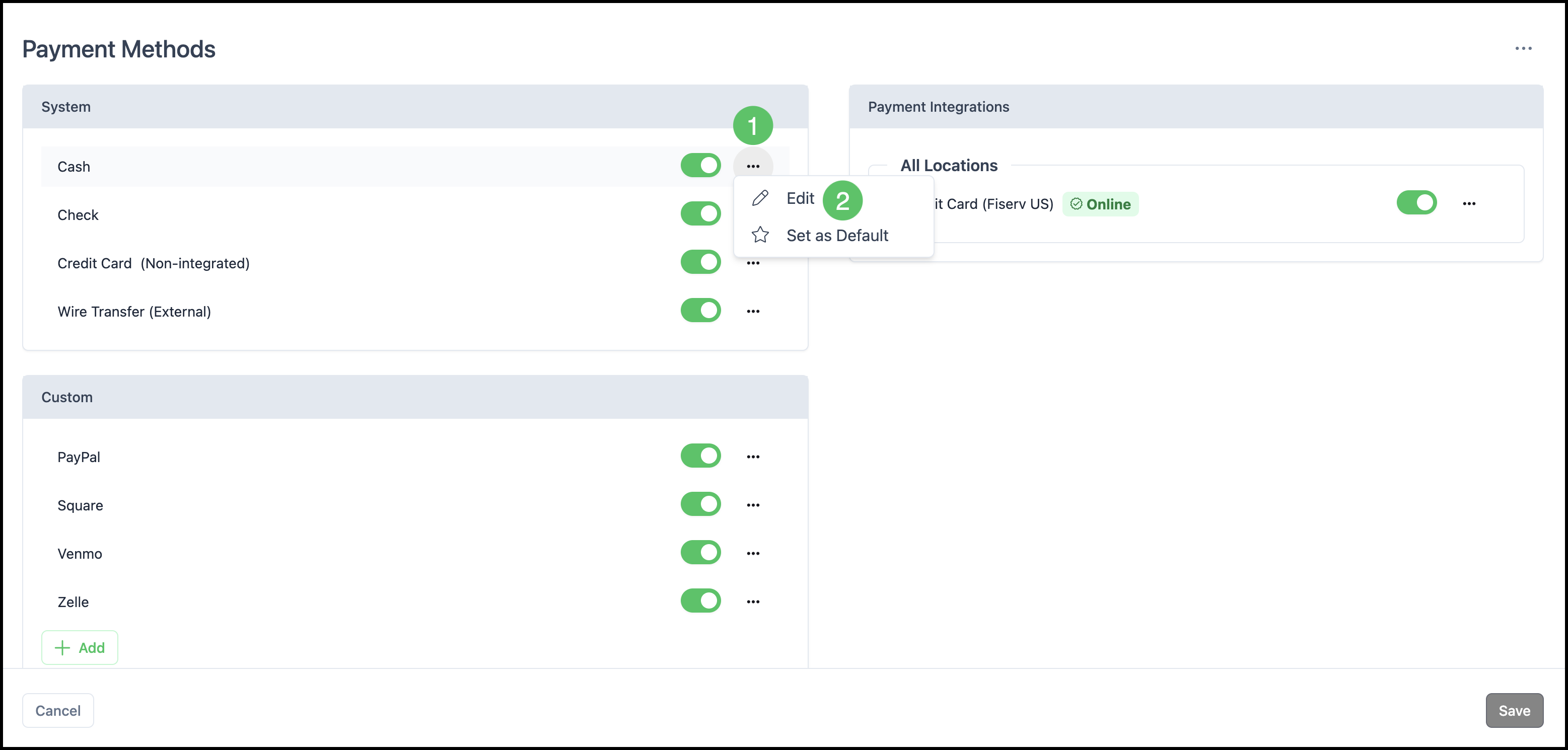
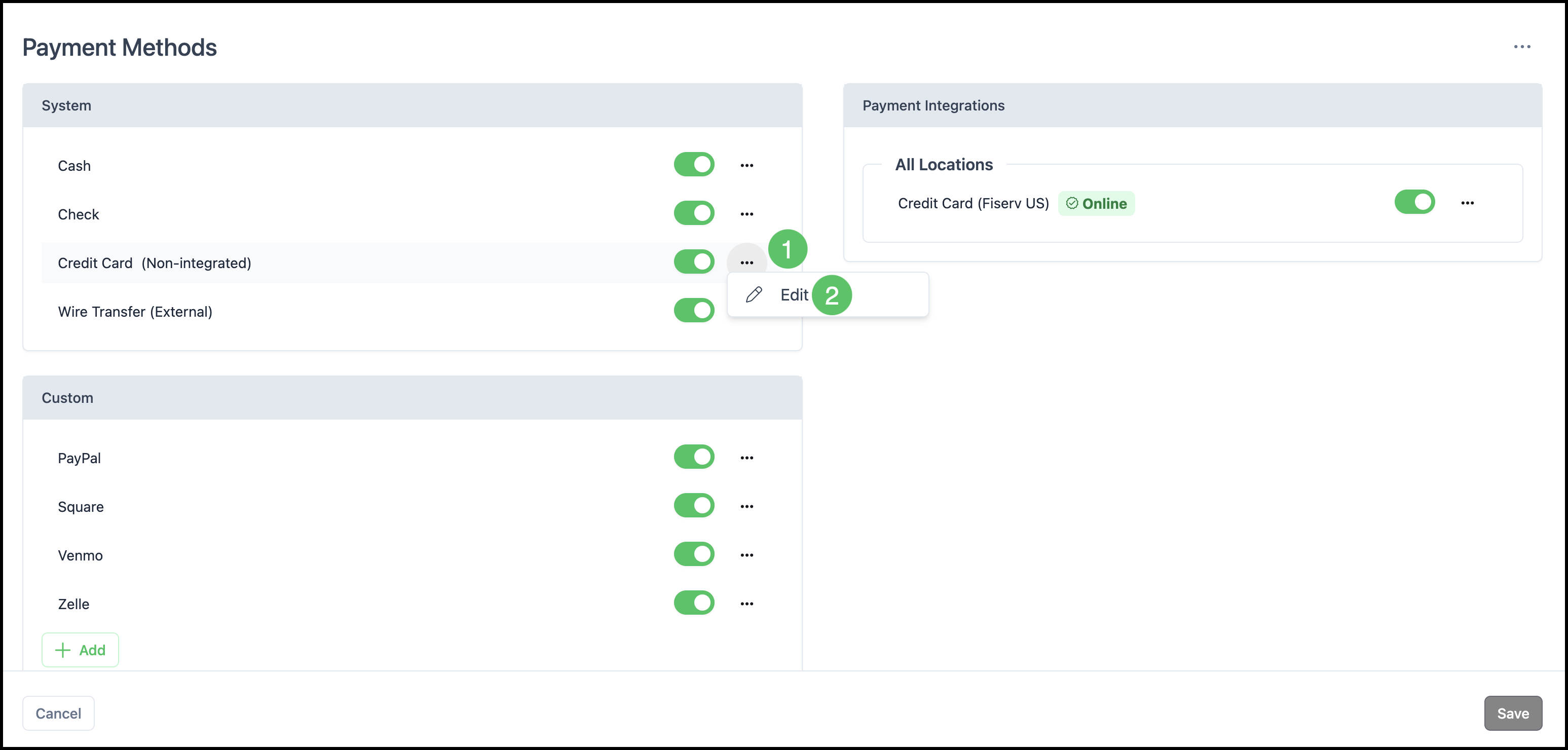
1. Select More Actions at the end of the appropriate row.
2. Select Edit.
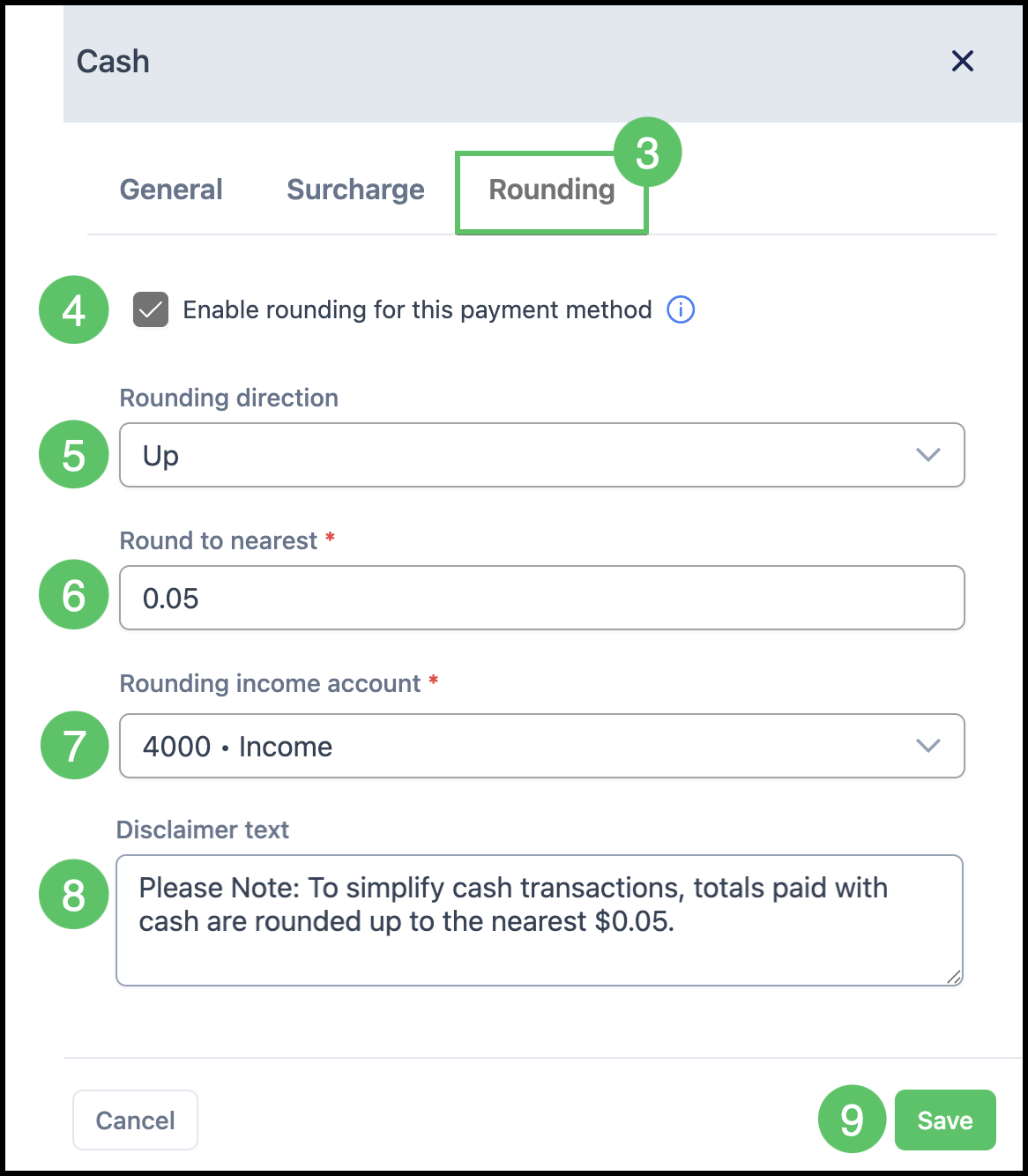
3. Select the Rounding tab.
4. Select the box to Enable rounding for this payment method.
Note: After selecting this checkbox, a disclaimer will appear. Review the disclaimer, then click I Agree to continue. See the example below.
5. Select a Rounding direction:
- Always round up
- Always round down
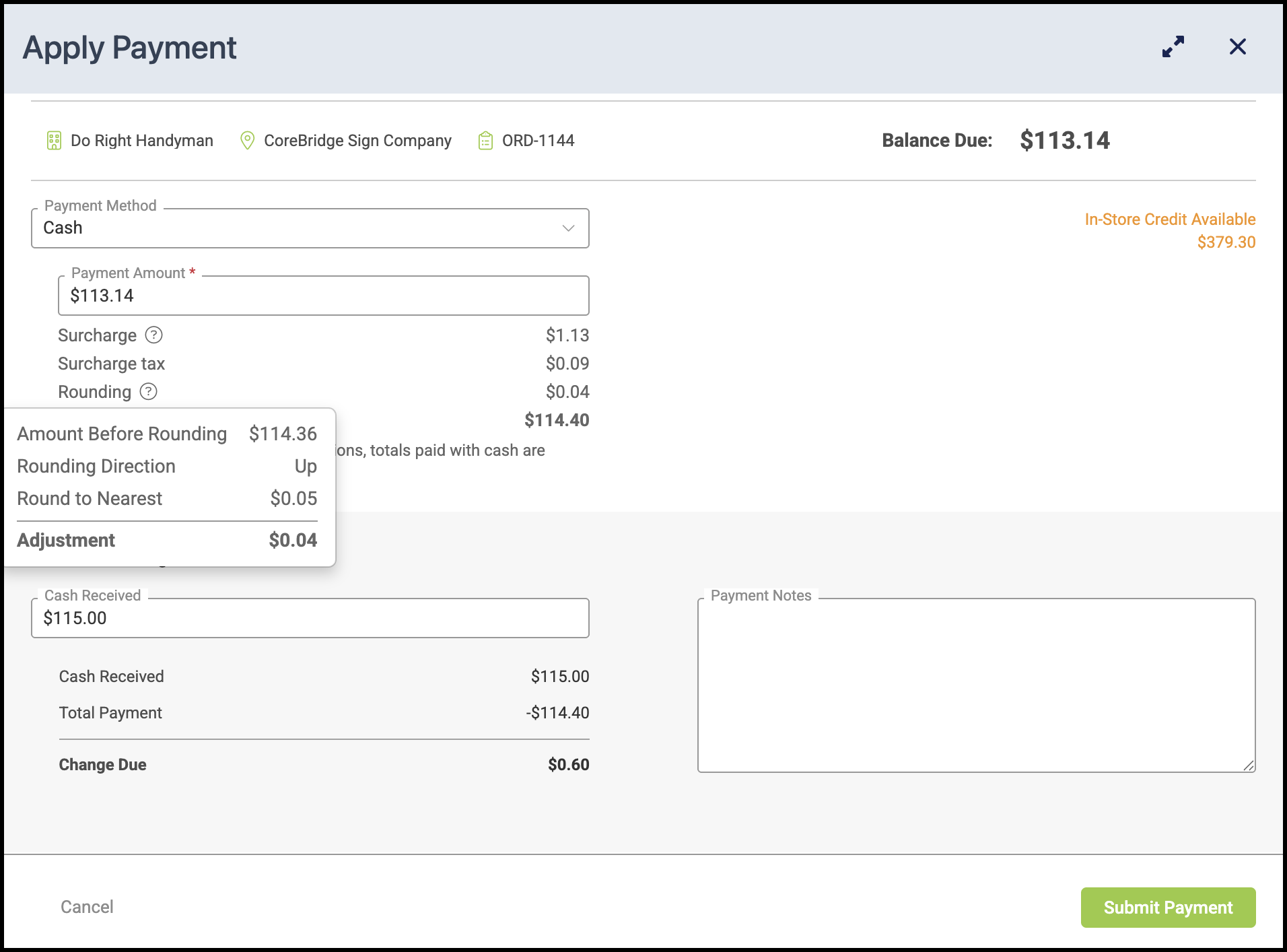
- Normal rounding (rounds up if the amount is $0.50 or more, down if less)
6. Enter the Round to nearest increment (for example, 0.05 to round to the nearest nickel).
7. Select a Rounding income account to record the rounding difference.
8. Add optional Disclaimer text. This text appears in payment modals throughout the system.
9. Click Save.
Example:
Setting Up a Surcharge
Surcharges are configured per payment method. To set up a surcharge for a payment type, navigate to the payment method settings and complete the following steps.
Note: If you want the same surcharge rate across all payment methods, you must set it individually for each payment type.
Navigate to System Settings / Accounting / Payment Methods.
1. Select More Actions at the end of the appropriate row.
2. Select Edit.
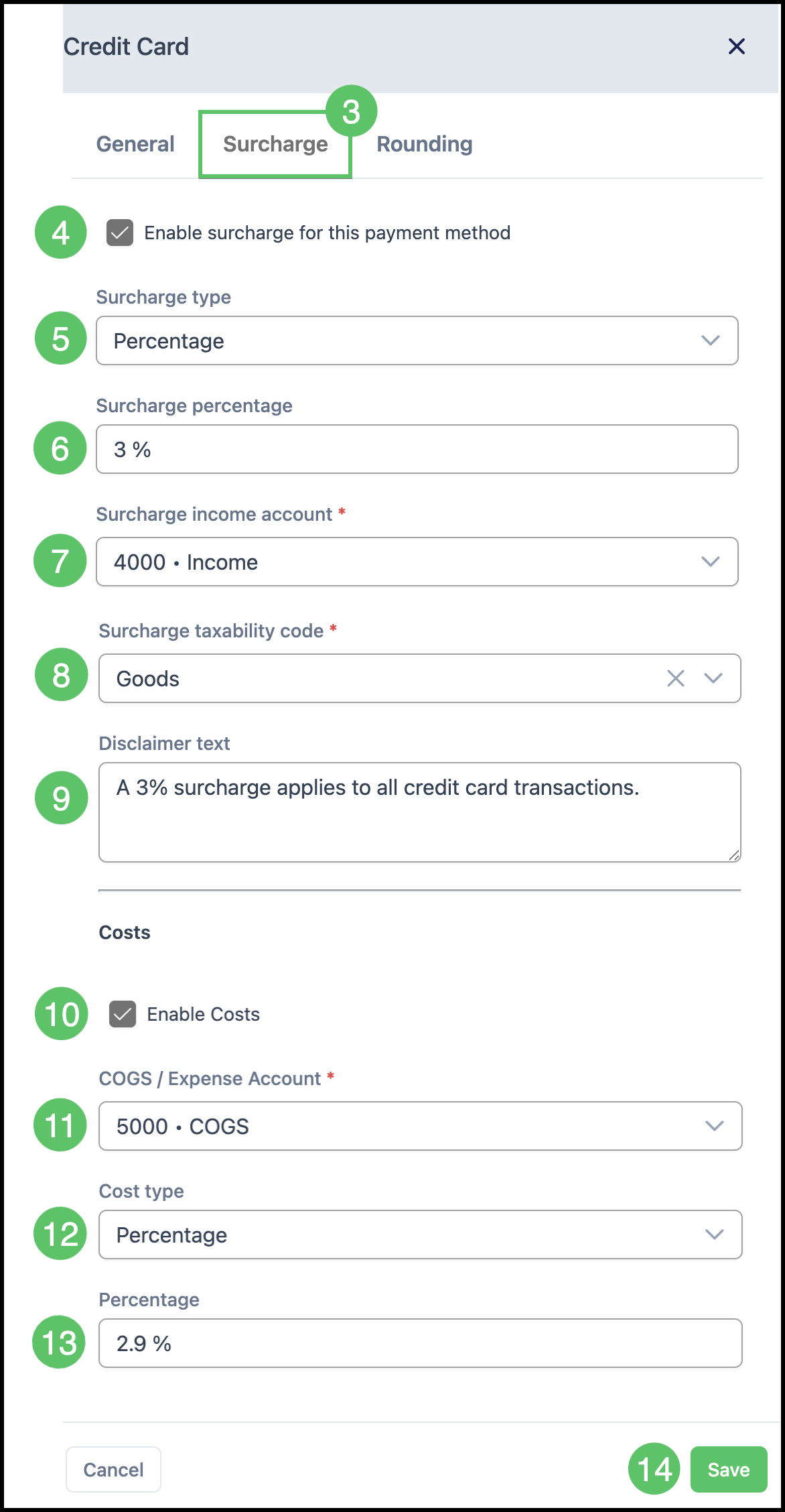
3. Select the Surcharge tab.
4. Select the box to Enable surcharge for this payment method.
Note: After selecting this checkbox, a disclaimer will appear. Review the disclaimer, then click I Agree to continue. See the example below.
5. Select a Surcharge type:
- Percentage (for example, 3%)
- Flat fee
6. Enter a Surcharge amount.
7. Select a Surcharge income account to record the surcharge revenue.
8. Select a Surcharge taxability code.
Note: In most states, surcharges are subject to tax.
9. Add optional Disclaimer text. This text appears in payment modals throughout the system as well as the Customer Portal.
10. Optionally, enable your own processing cost to track the difference between what you charge and what your payment processor charges you.
Note: If you enable this option, continue to the next steps. Otherwise skip to Save.
11. Enter an Expense Account or Cost of Goods Sold account.
12. Select a Cost type:
- Percentage
- Flat fee
13. Enter the Cost amount.
14. Click Save.
Example:
How Surcharges and Rounding Display
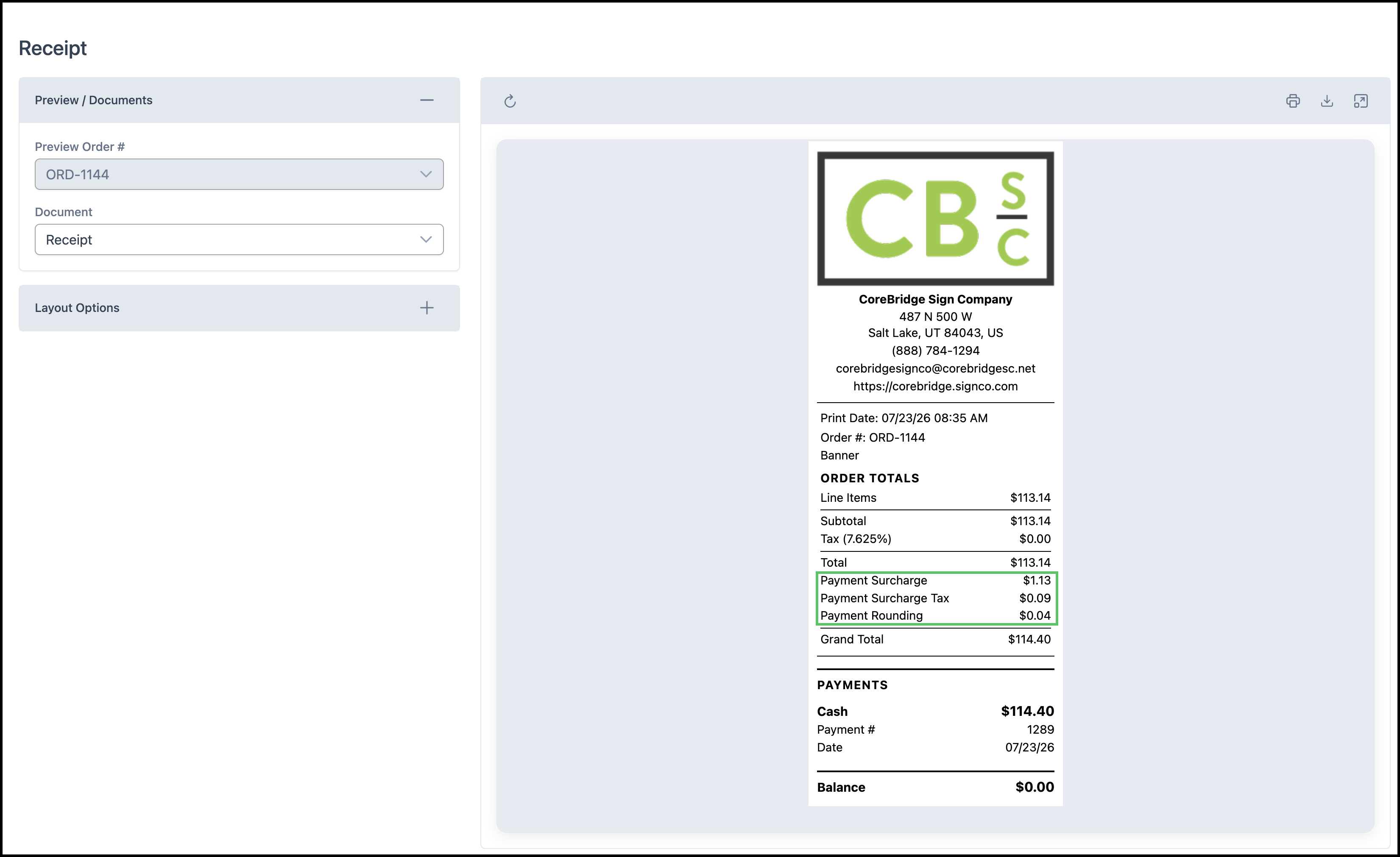
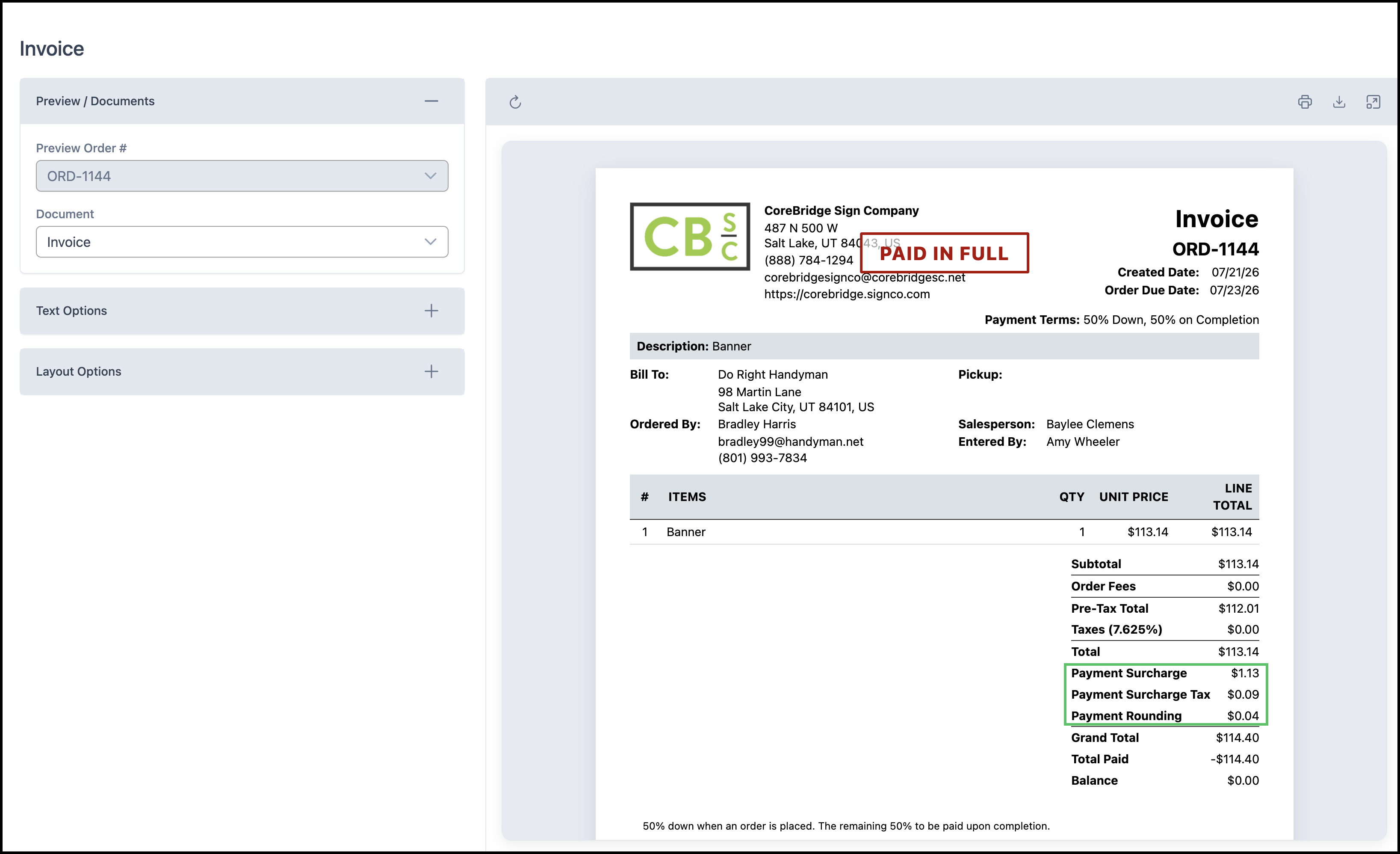
- Payment Surcharge, Payment Surcharge Tax, and Payment Rounding appear as their own lines on the Order total — separate from Order Fees — and are included only in the Order Total, not in Pre-Tax or Tax subtotals. Lines with no value are hidden automatically.
- Because surcharges are retroactive, they do not appear on documents before payment is recorded. If you want customers to know about potential surcharges in advance, add language to your document templates (for example: "A 3% surcharge applies to credit card payments.").
You will see the surcharge and rounding fees in the Payment window:
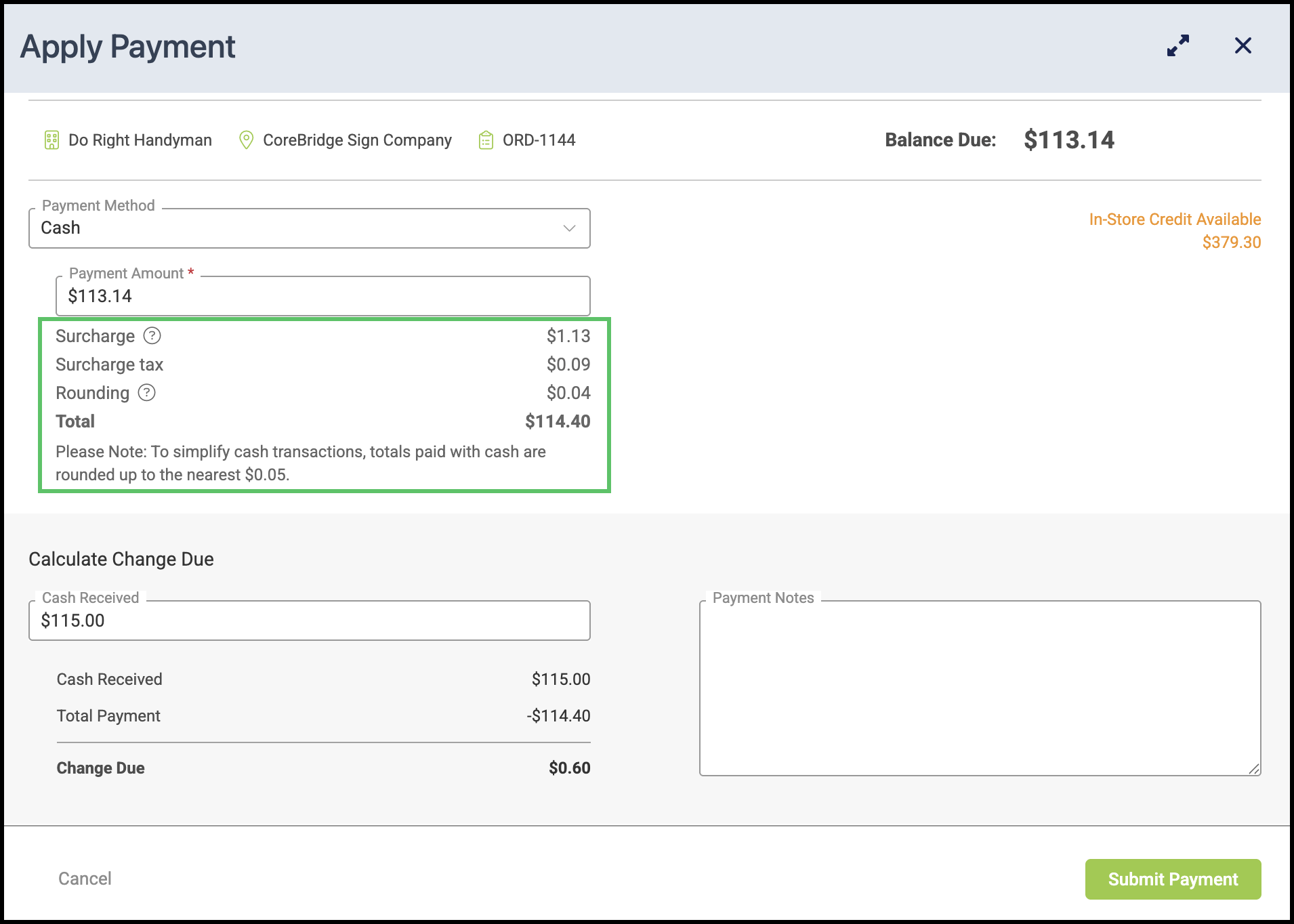
Note: Hovering over the help tip icon will display more data.
Customers will see surcharges and rounding on their receipt:
Customers will see surcharges and rounding on their Invoice:
Related Articles