Products represent the items and services you offer to customers. Each Product combines Materials, Machines, Labor, and Modifiers, along with pricing, accounting details, and settings that determine how it is calculated and used on Estimates and Orders.
Products & Modifiers List
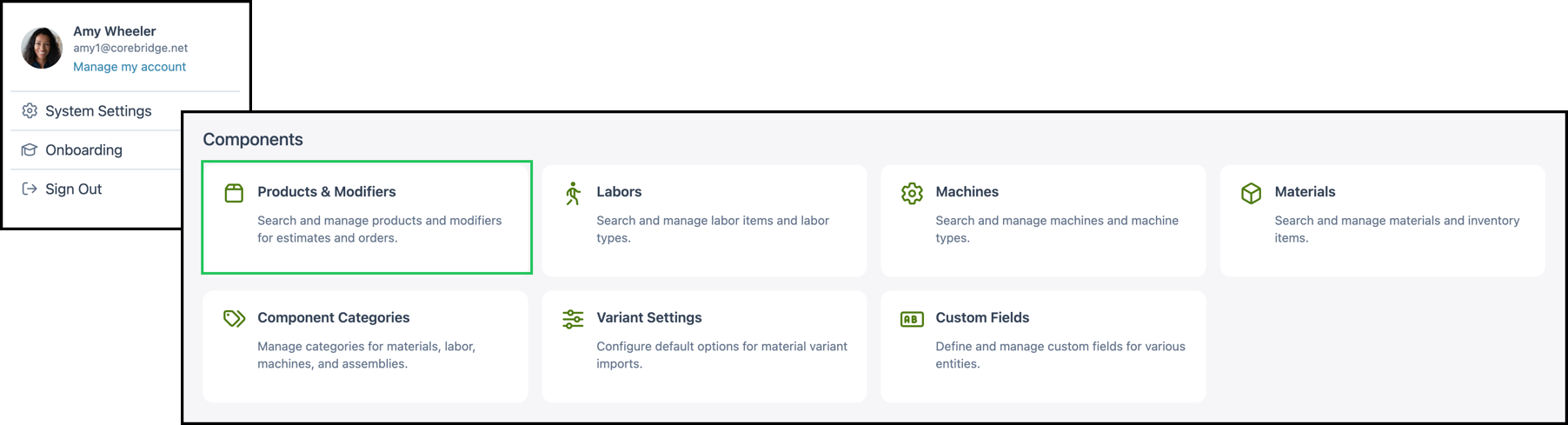
To access all Products and Modifiers, navigate to System Settings / Components / Products & Modifiers.
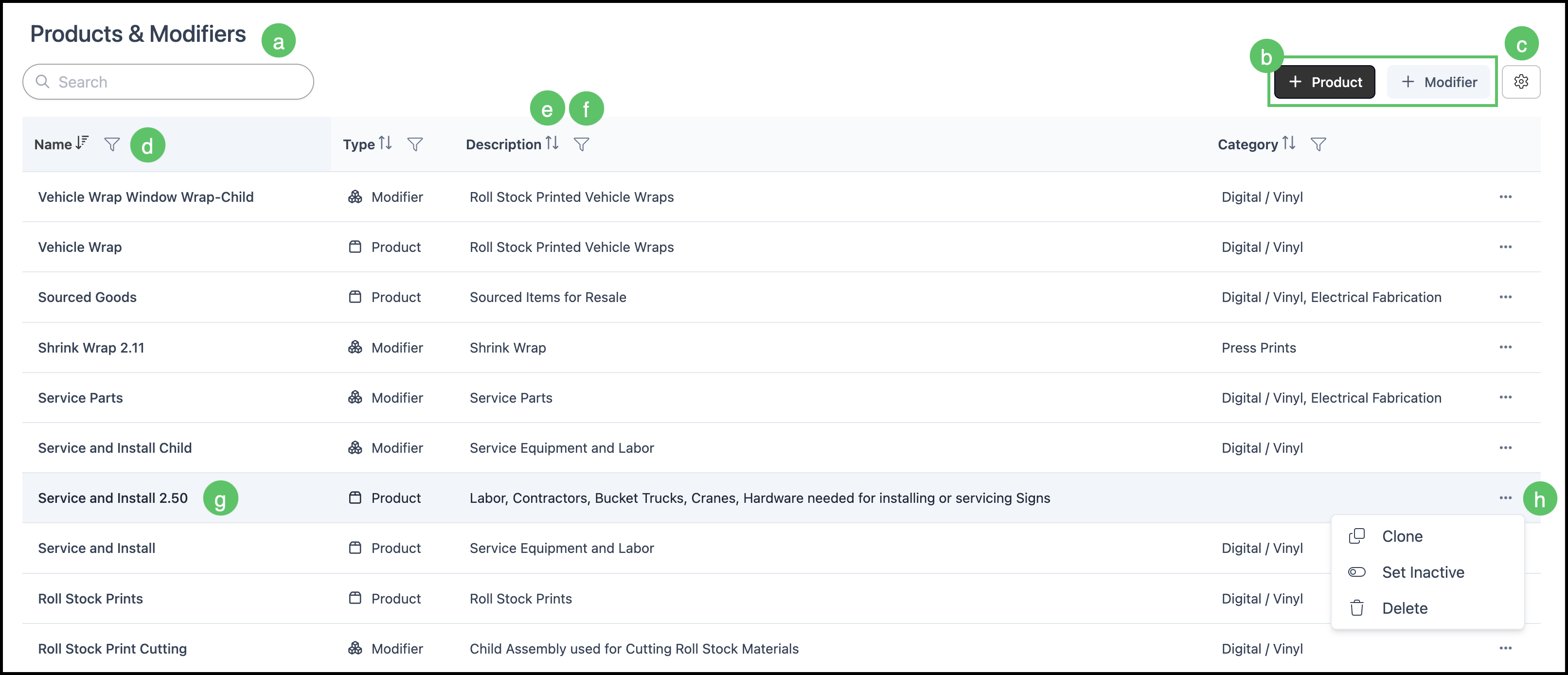
a. The Search box allows you to find a specific Machine.
b. The Add Product and Add Modifier buttons allow you to add a new Products and Modifiers.
Note: Your CoreBridge system comes example Products and Modifiers. The recommended best practice is to clone an existing Product or Modifier that is similar to the one you are adding, then updating necessary details.
c. The Search Settings icon allows you to choose which columns are displayed and whether inactive records are included in the display.
Note: We recommend including the Description column in the view to quickly distinguish between Products and Modifiers.
d. Columns can be reordered and resized as needed.
e. Each column header has an Order icon that allows you to sort ascending or descending.
f. Each column header has a Filter icon allowing you to customize the display by setting rules. See example below.
g. Clicking a row opens the Details page allowing you to view and edit the Product or Modifier.
h. Each row includes an ellipsis that opens a menu with Clone, Set Inactive and Delete options.
Note: The Delete option is unavailable for Products and Modifiers that are currently in use.
Product Screen Overview
The Product page contains key information and settings for a selected Product.
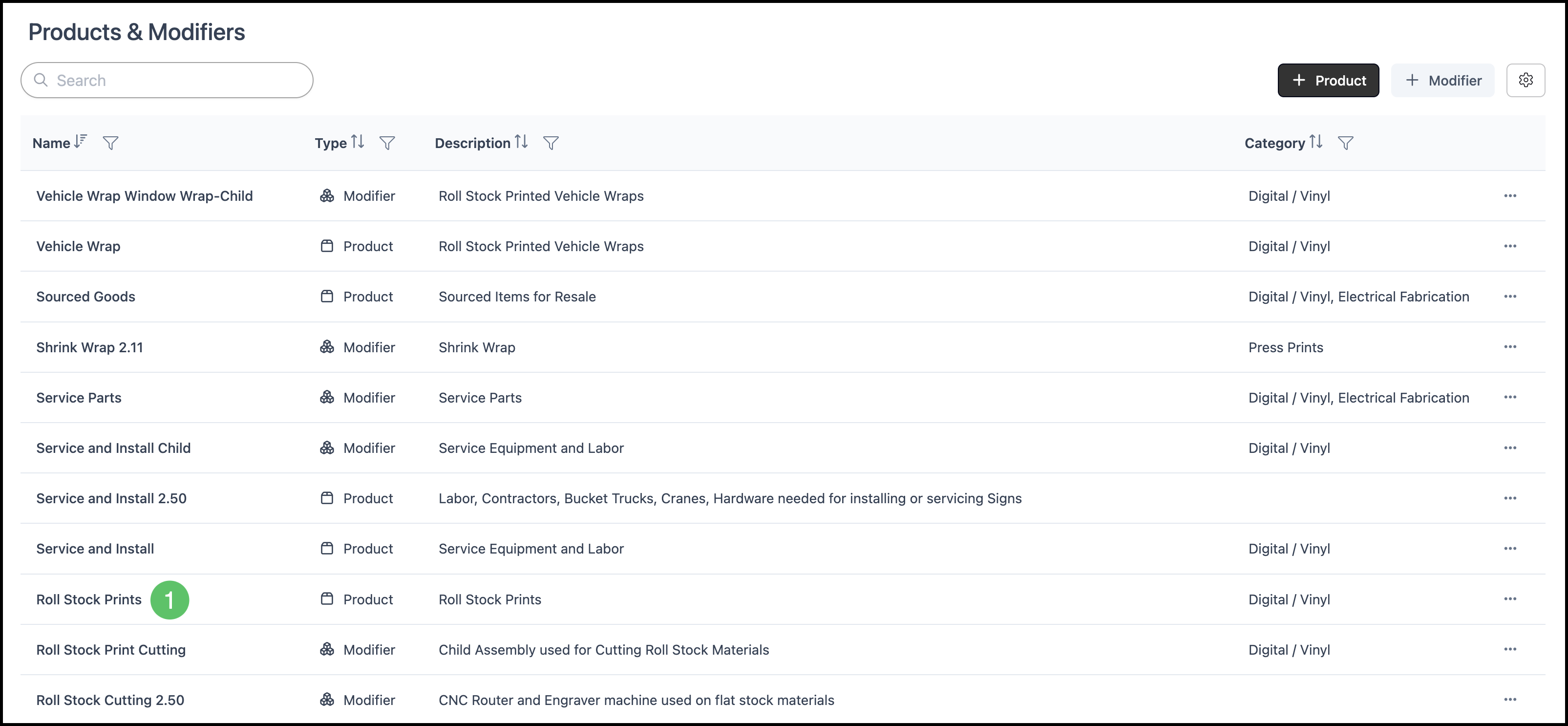
1. Select a Product to open up the Product Screen.
a. The product image appears at the top left. Click it to upload or change the image.
b. The product name appears at the top of the page. Click the name to edit it.
c. The name as it appears on Invoices, Work Orders, and Customer documents. Click the name to edit it.
d. Internal notes visible to your team can be added here.
e. Category tags appear next to the product name. Click + to add a category or x to remove one.
f. Click Custom Fields to view or edit any Custom Fields associated with this Product.
g. Click Save to save any changes made on the Product page.
h. Click More Actions for additional options: Variables & Formulas, Export, History, Switch to Modifier, Set Inactive, Clone, and Delete.

Pricing
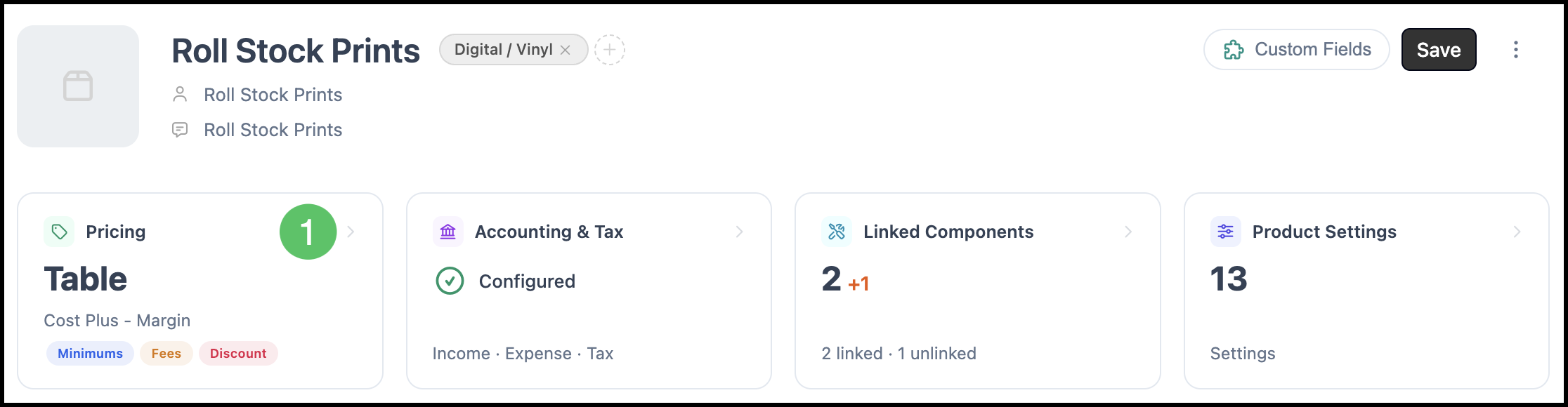
The Pricing card displays the current pricing method for this Product.
1. Click the Pricing card.
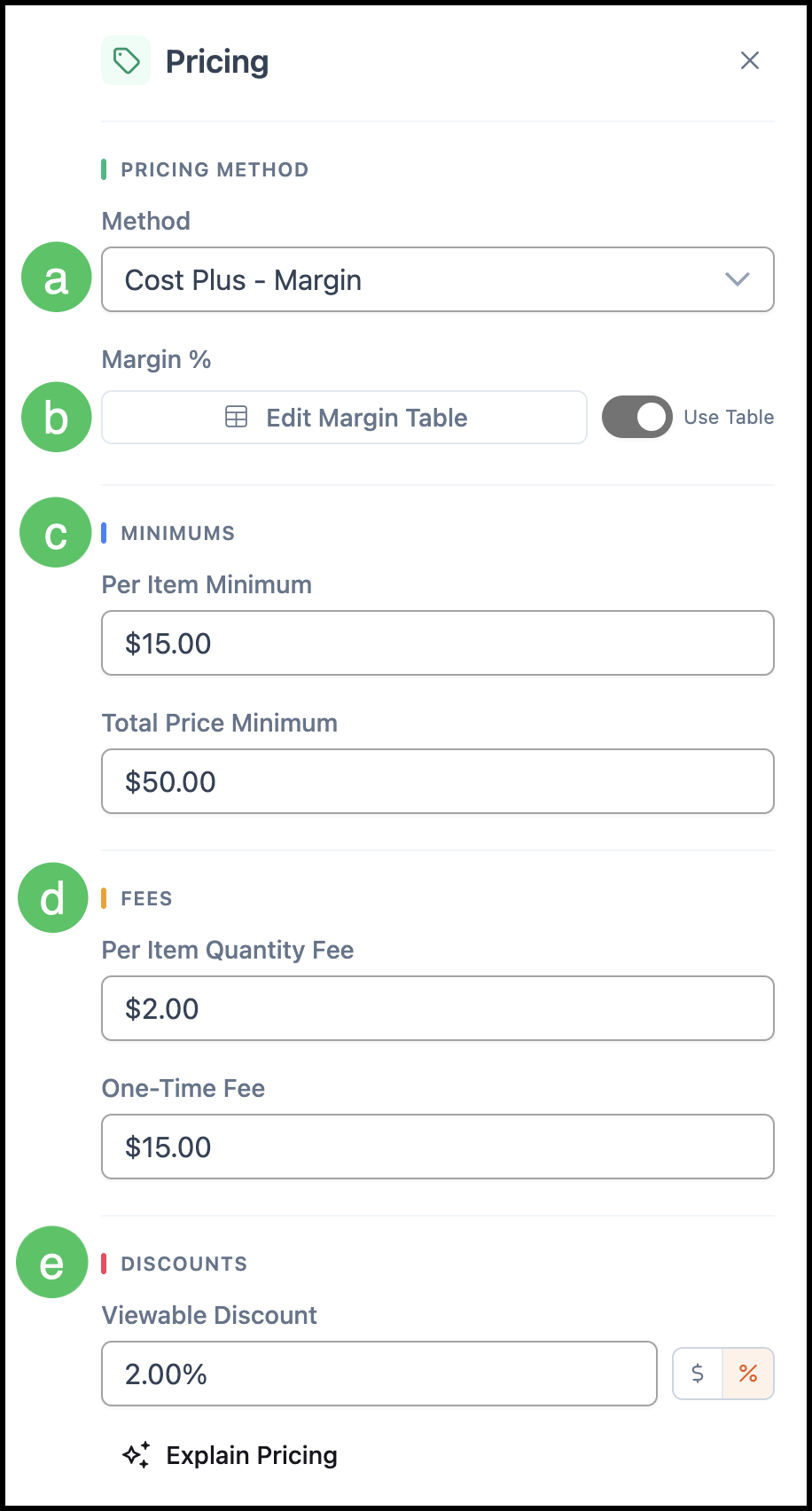
a. Method dropdown allows you to select a Pricing Method. Available options include Cost Plus - Markup, Cost Plus - Margin, Market - Assembly Pricing, Market - Component Pricing, and Custom Formula.
Note: The industry standard and recommended pricing method is Cost Plus - Markup or Cost Plus - Margin. For more information, see Understanding Cost-Plus vs. Market Based Pricing.
b. If Use Table is selected, click Edit to customize the Table.
c. Under Minimums, set a Per Item Minimum and a Total Price Minimum to establish pricing floors for this Product.
d. Under Fees, set a Per Item Quantity Fee and a One-Time Fee to include additional charges.
e. Under Discounts, use the Viewable Discount field to apply a discount as either a percentage or a flat amount.
Accounting & Tax
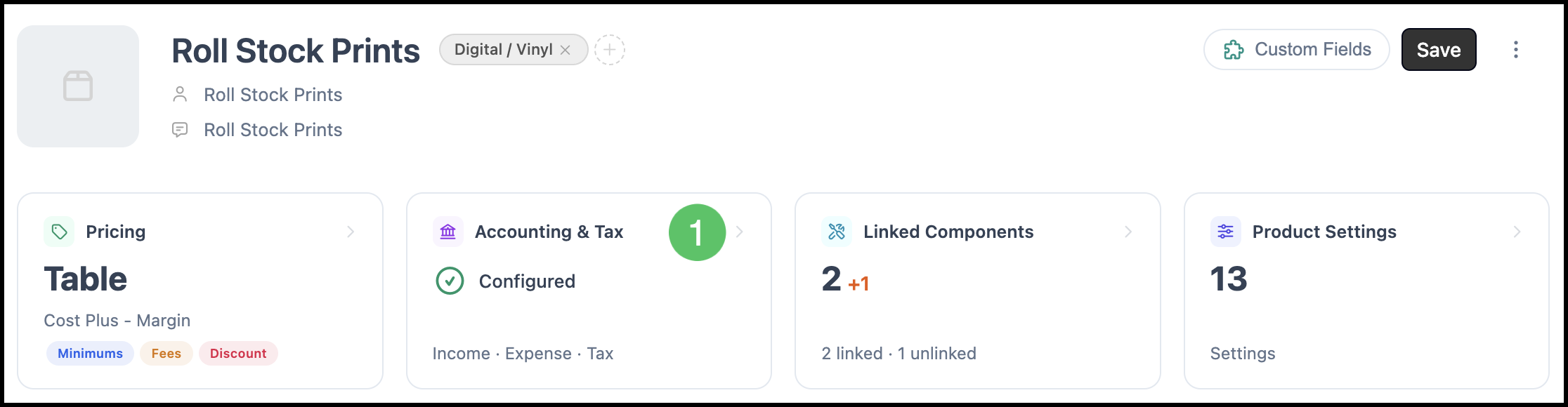
The Accounting & Tax card shows whether income, expense, and tax accounts have been configured.
1. Click the Accounting & Tax card.
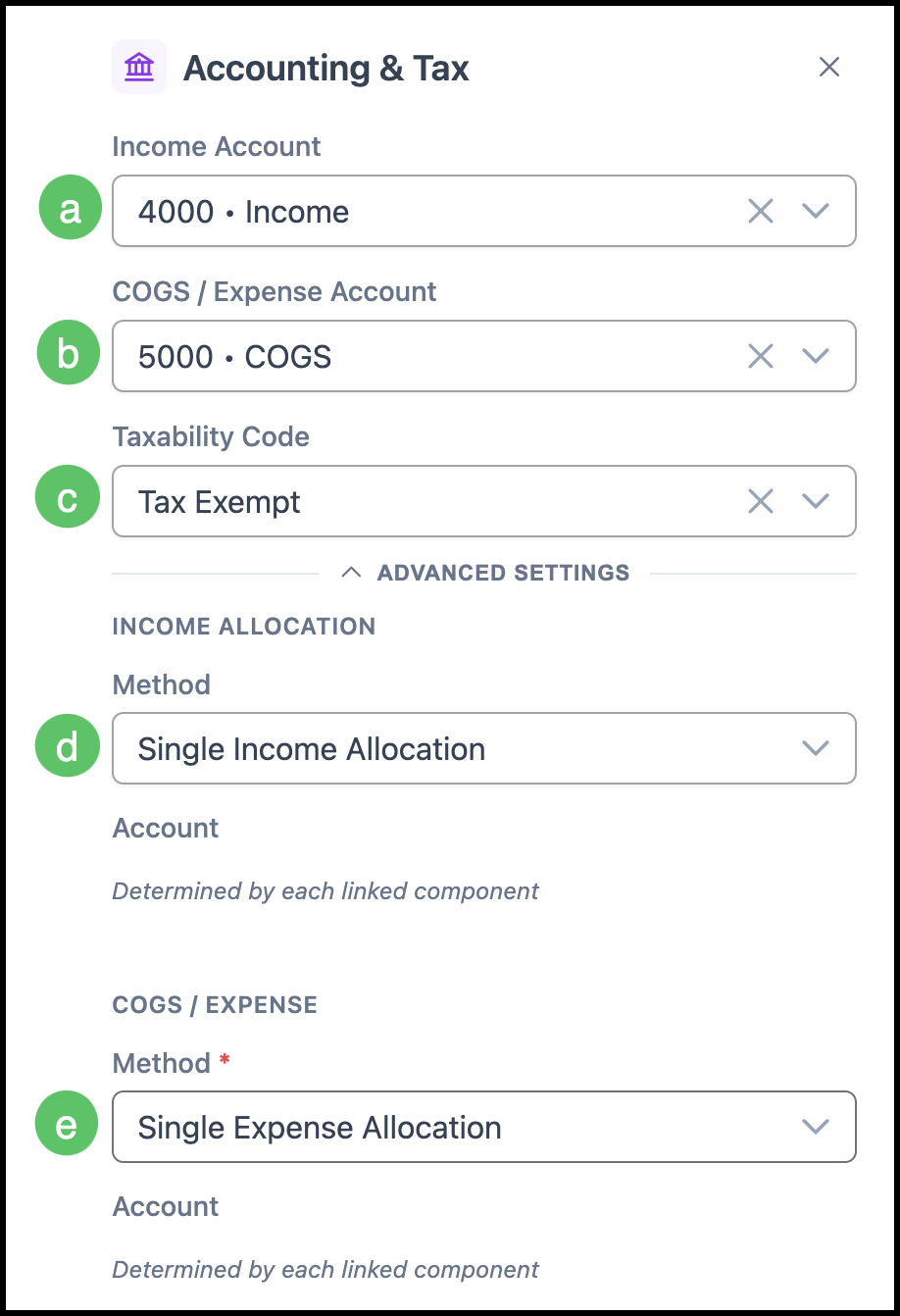
a. Income Account dropdown allows you to select the account that income from this Product will be directed to.
b. COGS / Expense Account dropdown allows you to select the account for costs associated with this Product.
c. Taxability Code dropdown allows you to specify how this Product should be taxed.
Note: Taxability Codes can be managed by navigating to Settings / Accounting / Taxability Codes.
d. Income Allocation Method allows you to select between Single Income Allocation, or Material, Machine, or Modifier Income Account.
e. COGS/Expense Account Method allows you to select between Single Expense Allocation, or Material, Machine, or Modifier Expense Account.
Note: The Advanced Settings can be expanded or collapsed using the arrow.
Linked Components
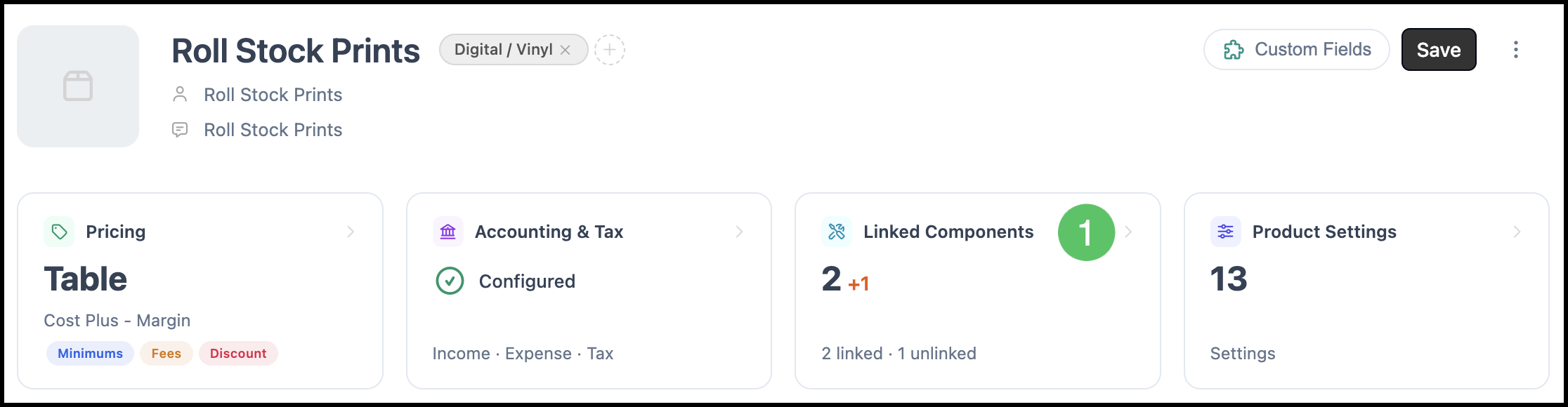
The Linked Components card shows the number of Components currently linked to this Product and their status.
1. Click the Linked Components card.
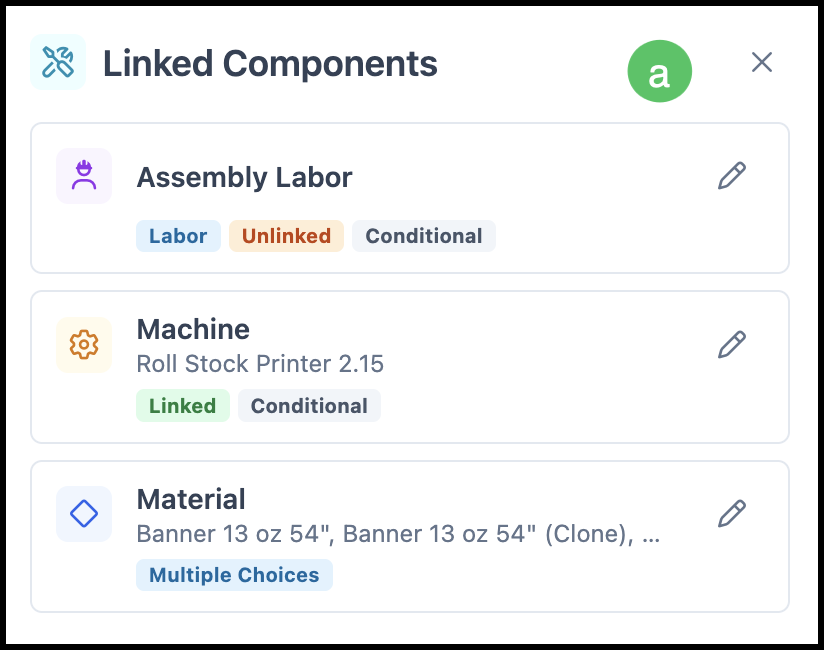
a. All Linked Components are listed in the side panel. The edit button opens a dialog allowing you to make any necessary edits.
Product Settings
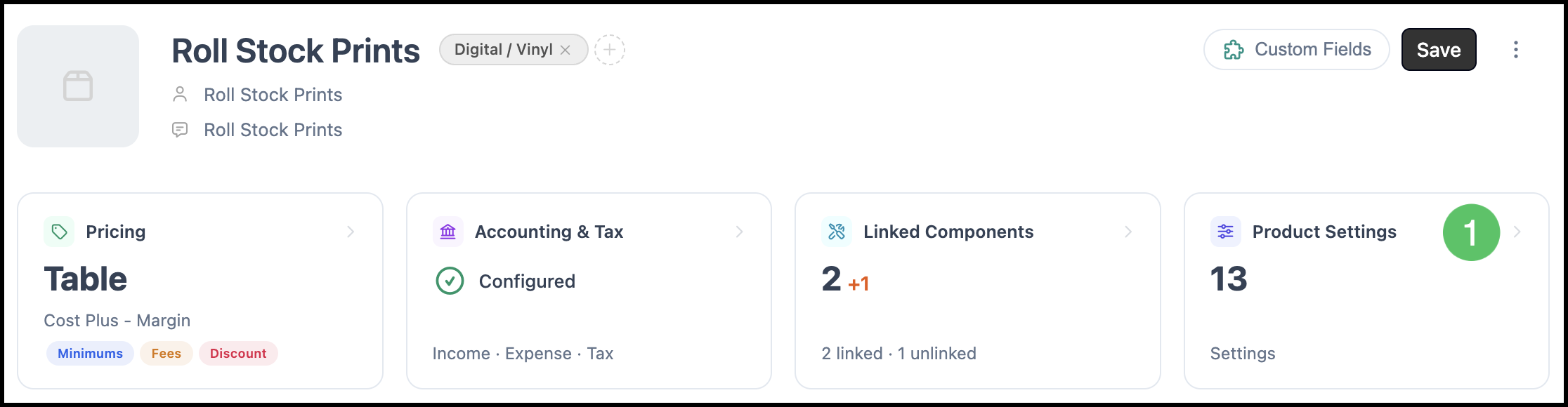
The Product Settings card displays the total number of settings configured for this Product.
1. Click the Product Settings card.
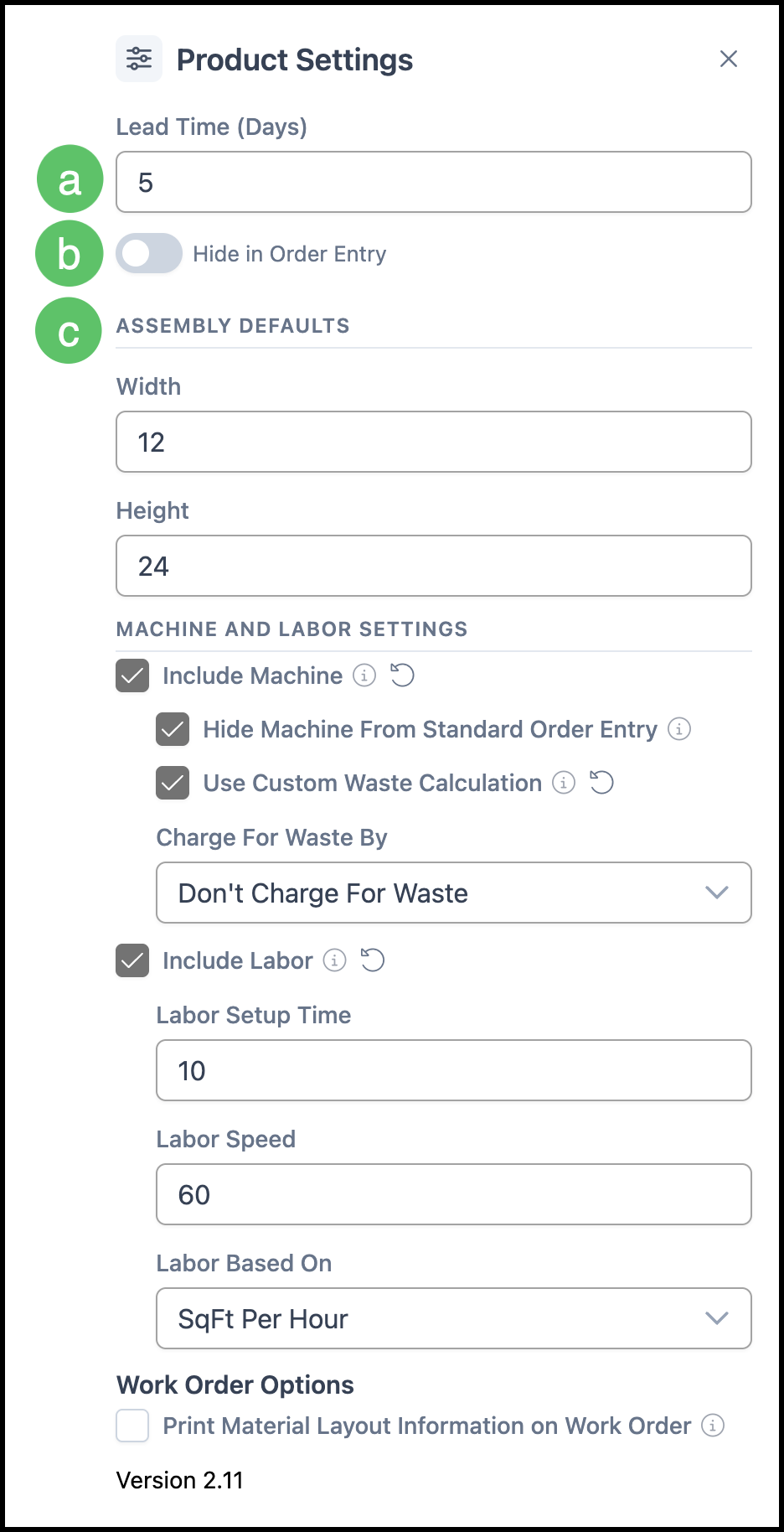
a. Lead Time (Days) sets the number of days needed to produce this Product. This value is used to calculate production due dates on Orders.
b. Hide in Order Entry toggle prevents this Product from appearing as a selectable option during the Order entry process.
c. Assembly Defaults allow you to set default Size Details values - such as Location, Width, and Height - that will automatically populate when this Product is added to an Estimate or Order.
Sales Form
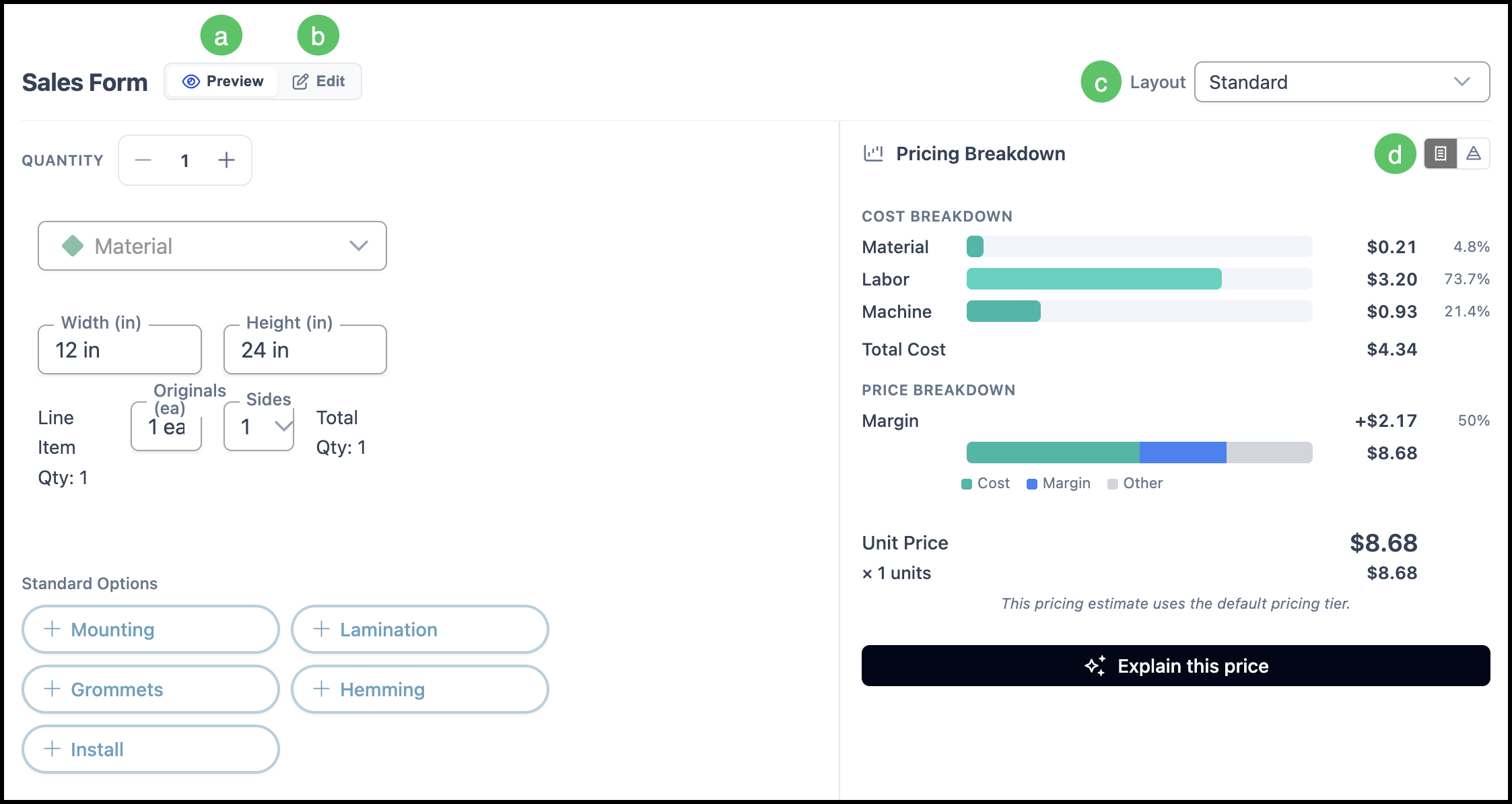
The Sales Form shows how this Product appears when it is added to an Estimate or Order.
a. Preview allows you to view the form as it appears to users during Order or Estimate entry.
b. Edit allows you to open the form editor, where you can add, remove, or rearrange elements and Components.
c. Layout dropdown allows you to switch between available form layouts for this Product. Options include Standard, Advanced, Invoice, and Work Order.
Note: For more information on Invoices and Work Orders, please see Work Order and Invoice Details.
d. Pricing Breakdown can be toggled between a receipt view and a stacked view.