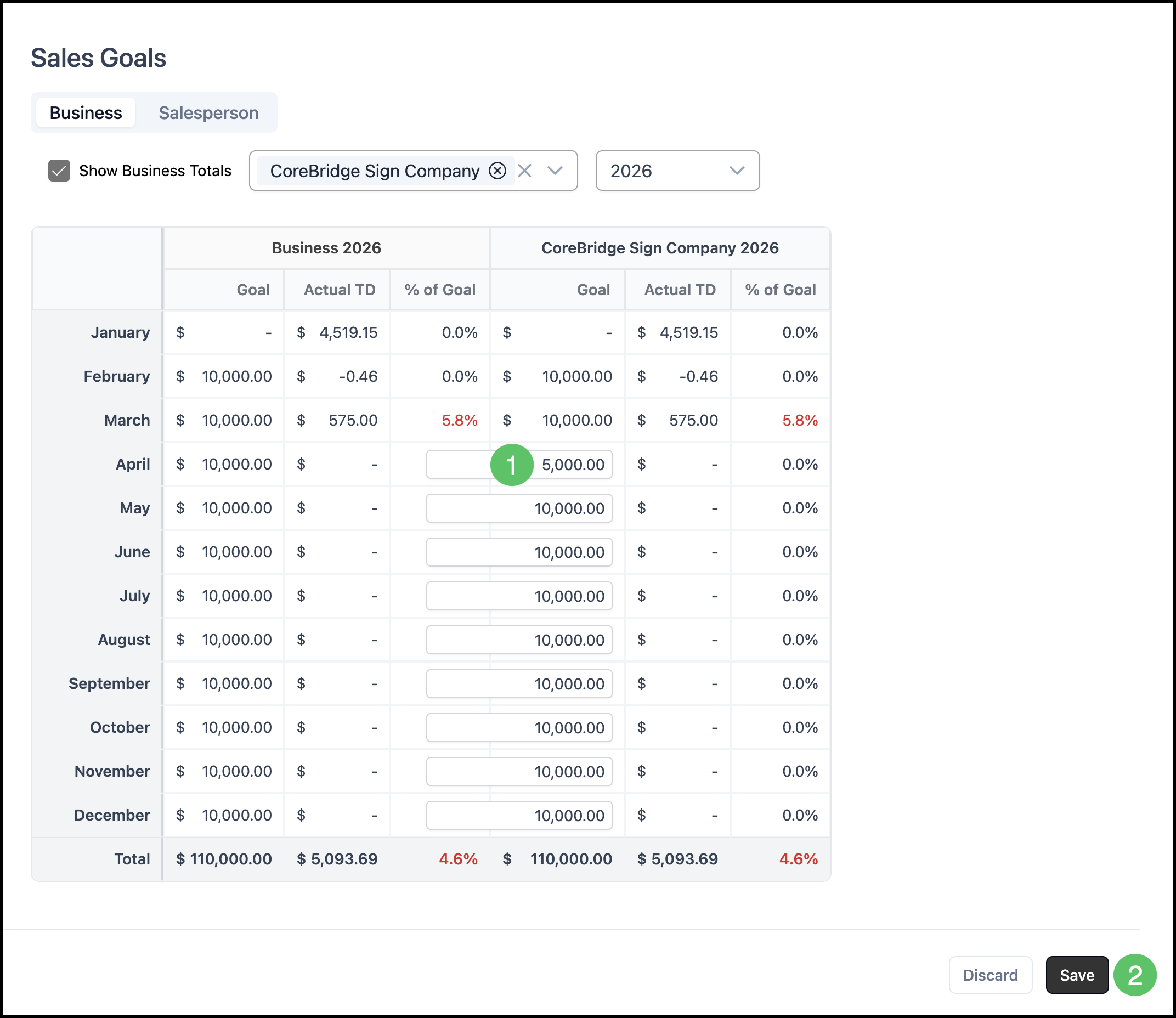
Sales Goals are projections or goals your company would like to meet. These can be broken down month by month by business location or individual salesperson, and filtered by fiscal year.
Table of Contents
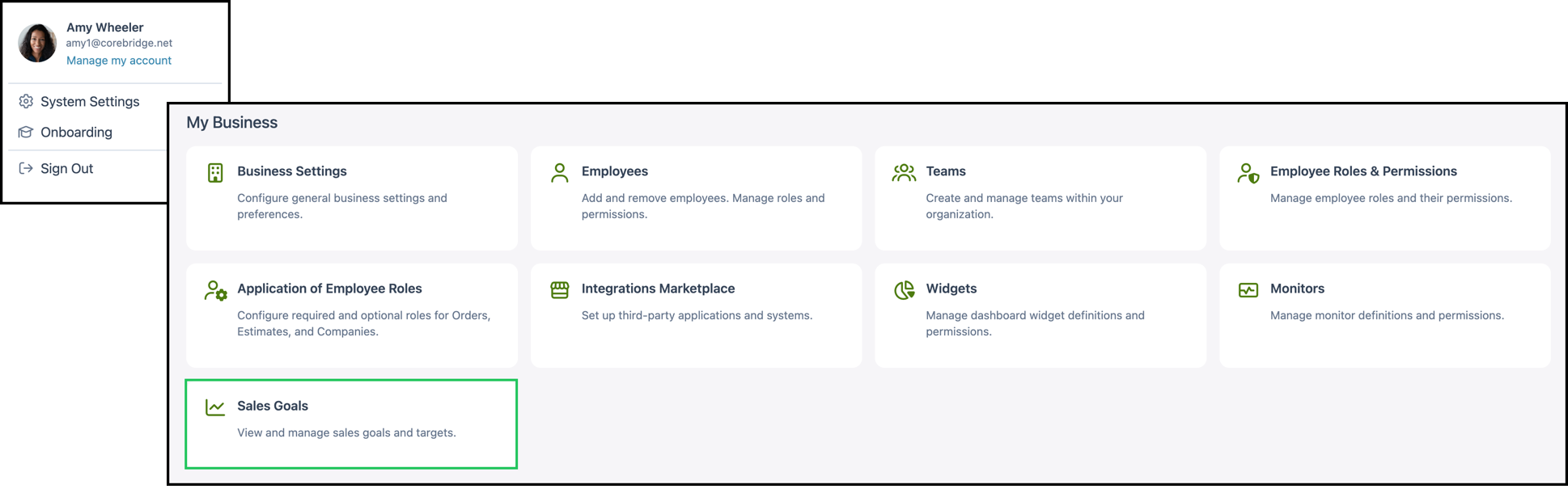
Navigate to System Settings / My Business / Sales Goals.
Understanding Sales Goals
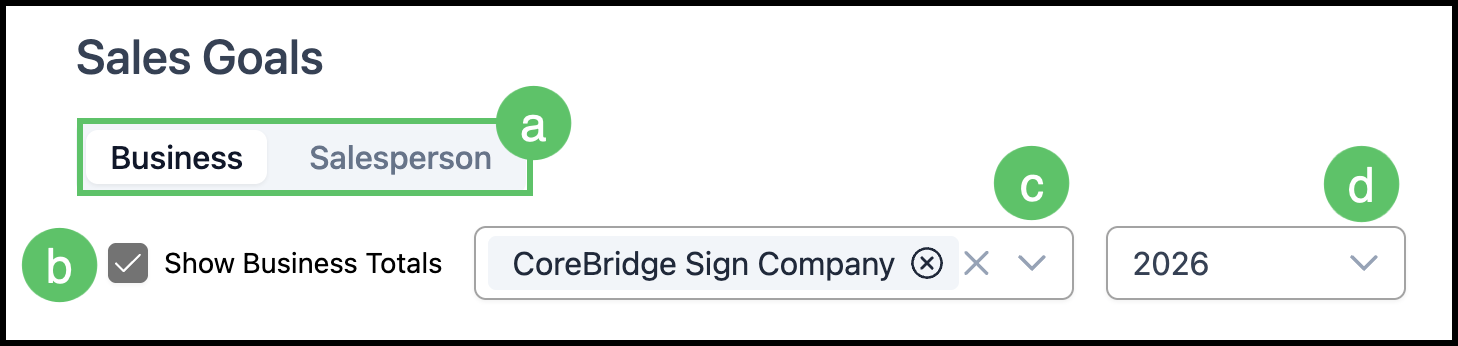
a. Business and Salesperson Tabs - Each tab on the Sales Goals screen allows you to view, add, and filter goals.
b. Show Business Totals - If your system has multiple Locations, you will see this checkbox as an option. When enabled, displays columns that includes sales totals for your entire business.
Note: Show Business Totals is limited by user access permissions.
c. Limit to Locations - A dropdown used to filter the view to one or more Locations.
Note: This is visible for systems with multiple Locations.
d. Fiscal Year Ending - Filters goals by fiscal year.
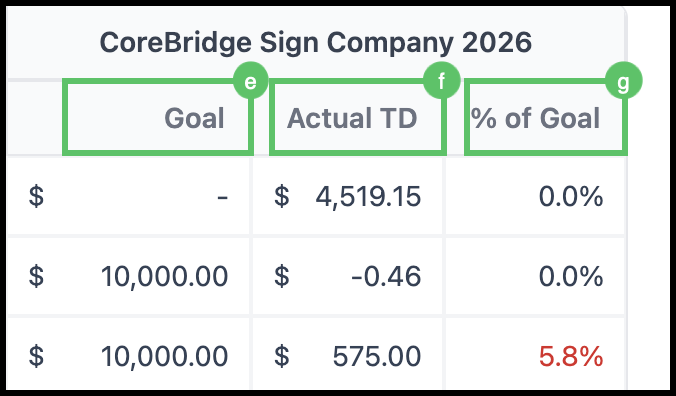
Sales Goals are displayed in a chart broken down by month, with three columns:
e. Goal - The sales projection or target amount you set for each month.
f. Actual To Date - The total sales recorded for that period to date.
Note: This value is updated automatically as Orders are paid and moved to Invoiced Status.
g. % of Goal - Calculated automatically based on the Goal and Actual to date values.
Inputting Sales Goals
You can enter or edit sales goals for the current month or for future months. The process is the same for both the Business and Salesperson tabs.
1. Select the Goal field for the month you want to update and enter a dollar amount.
Note: Past months can not be edited.
2. Click Save.
Note: After saving, any total or summary field at the bottom of the chart will update to reflect the new goal. The Actual To Date and % of Goal columns are updated automatically as Orders are Invoiced; you do not need to enter those values manually.