
The Opportunities List View displays Pipeline Opportunities in a table, including details such as Company, Contact, Stage, Amount, Salesperson, and important dates. Use Search, Filter, and Sort to find and organize the same Opportunities displayed on the Pipeline board.
Table of Contents
- Important Information
- Opening the List View
- List View
- Open an Opportunity
- Frequently Asked Questions
- Related Articles
Important Information
- List view shows the Opportunities on one Pipeline in a table. Card view shows those same Opportunities as cards.
- Use List view when you want Name, Company, Contact, Stage, Amount, Weighted, Salesperson, Expected Date, and Created in one place.
- List view is the Pipeline you have open. All Opportunities lists Opportunities from every Pipeline.
- Weighted is the Amount multiplied by the Stage confidence.
Opening the List View
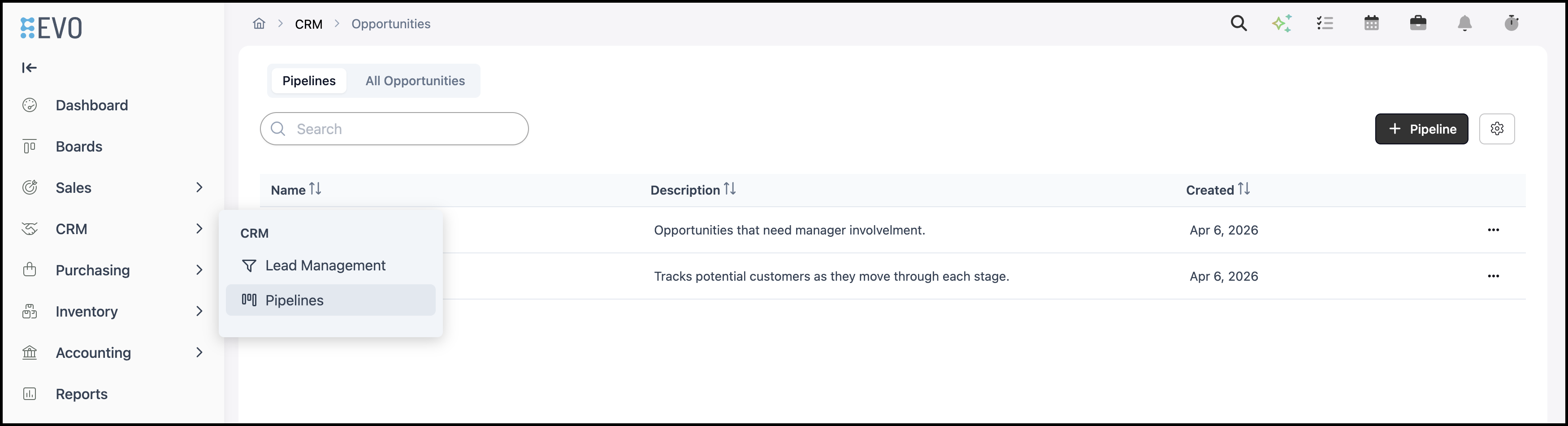
Navigate to CRM / Pipelines.
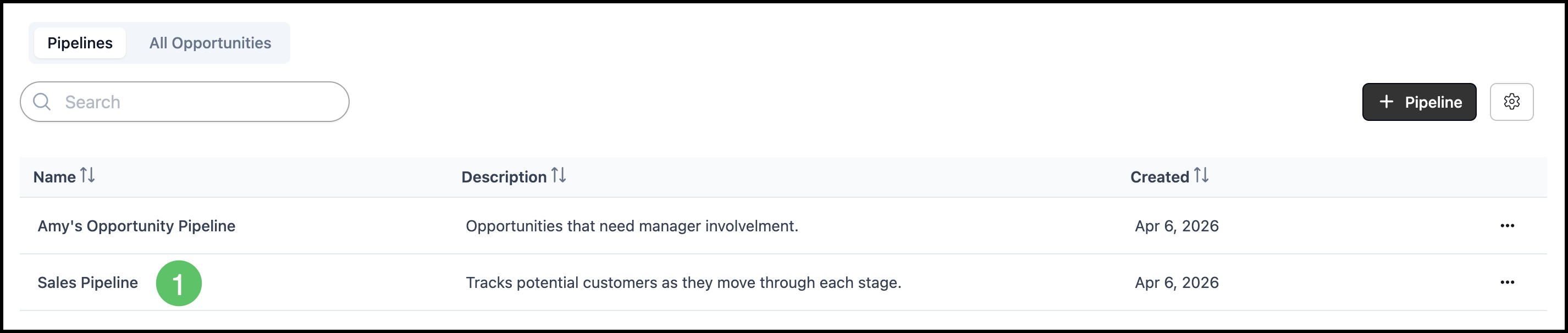
1. Select a Pipeline.
2. Click List view.

List View
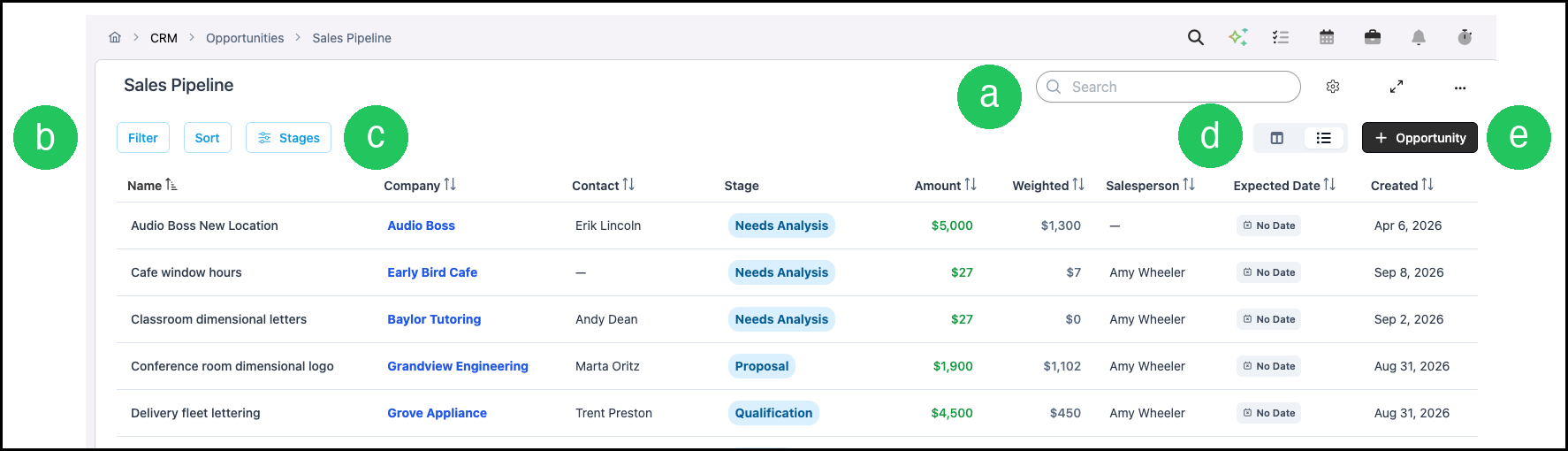
The table columns are Name, Company, Contact, Stage, Amount, Weighted, Salesperson, Expected Date, and Created. Weighted is the Amount multiplied by the Stage confidence. Below the rows, the footer shows the lead count, the Weighted total, and the Total.
a. Search finds an Opportunity on this Pipeline.
b. Filter opens Filters and controls which Opportunities appear. The fields are Stage, Company, Contact, Salesperson, Amount, Expected Close Date, Created Date, and Has Notes. Sort, beside Filter, sets the order. Sort can use Name, Company, Contact, Amount, Salesperson, Expected Close Date, or Created Date.
c. Stages opens Configure Pipeline, where Stages are added, edited, reordered, or deleted. For those steps, see Opportunities Pipeline.
d. Card view and List view switch the Pipeline between cards and this table.
e. Opportunity opens the dialog to add an Opportunity. For the fields in that dialog, see Opportunities Pipeline.
Note: Board settings includes Show archived records. More Actions includes Edit Pipeline, Manage Access, Favorite, and Clone.
Open an Opportunity
1. Click the Opportunity Name.
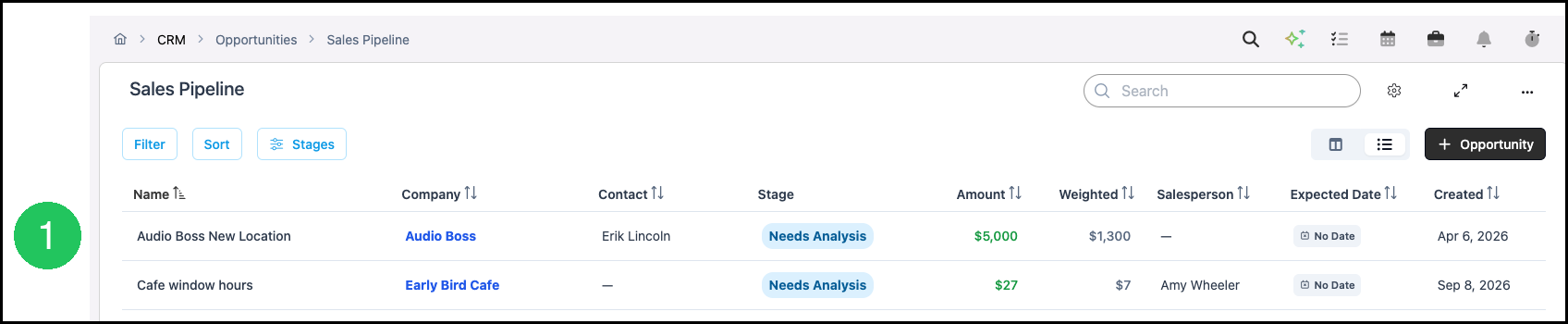
The Name opens Opportunity Details. For Stages, Deal Health, Chat, and linked Estimates and Orders, see Opportunities Pipeline.
Frequently Asked Questions
1. What is the difference between List view and All Opportunities?
Answer: List view is the table for the Pipeline you have open. All Opportunities is the tab on the Pipelines page that lists Opportunities from every Pipeline.
2. How is Weighted calculated?
Answer: Weighted is the Amount multiplied by the Stage confidence.