Document templates control the layout and information included on printed and emailed documents such as Estimates, Work Orders, Invoices, and Purchase Orders. This article explains how to create and manage document templates in Settings, then shows how to generate, preview, and send documents from an Estimate or Order. An Order is used as the example, but the process is similar throughout the system.
Table of Contents
- Documents Templates in Settings
- Editing a Document
- Open Documents From an Estimate or Order
- Document View
Documents Templates in Settings
Document templates are managed from the Documents list in Settings. Add and configure templates here to make them available for use on Estimates, Orders, Invoices, and other records throughout the system.
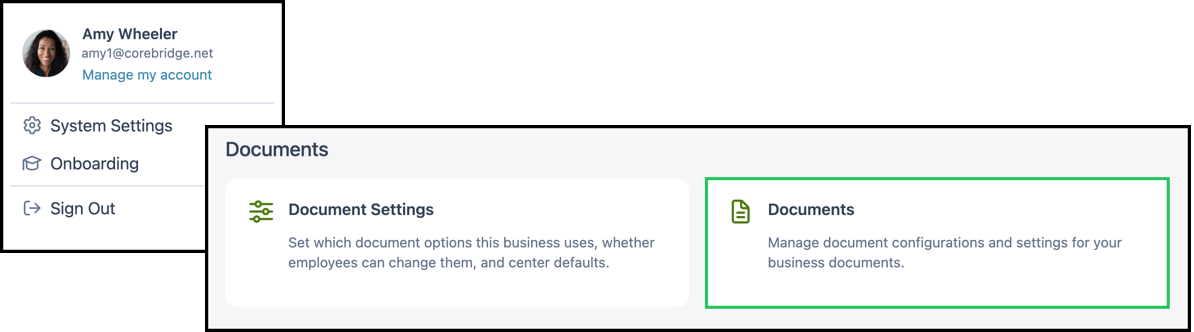
Navigate to System Settings / Documents.
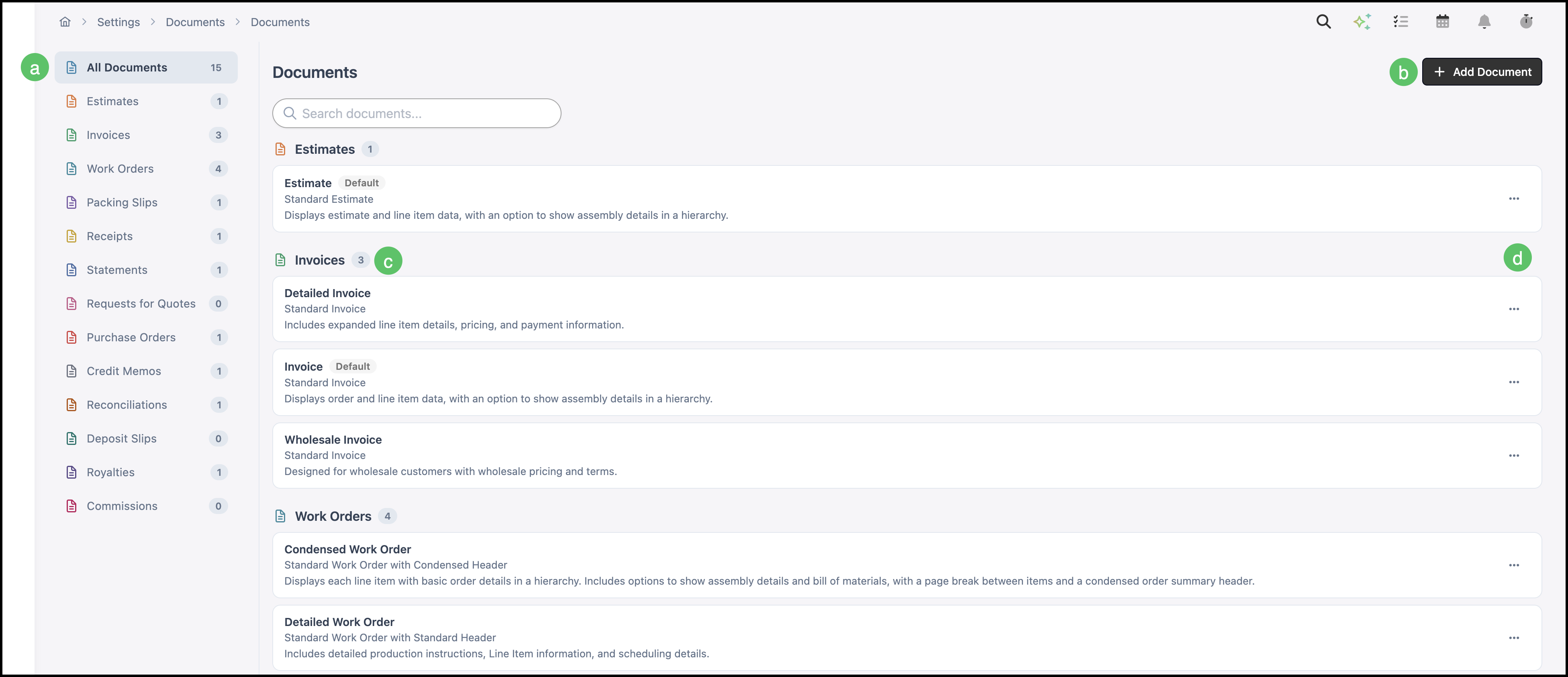
a. Document Type Tabs - Tabs organize document templates by record type, including Estimates, Work Orders, Invoices, Purchase Orders, Credit Memos, and more.
b. Add Document - Opens the document creation dialog, where new document templates can be created for the selected document type.
c. Each tab displays the templates available for that document type.
d. More Actions - This menu offers the options to Clone, Delete, or Set as Default where available.
Note: Each template can be customized by clicking the row.
Adding a Document
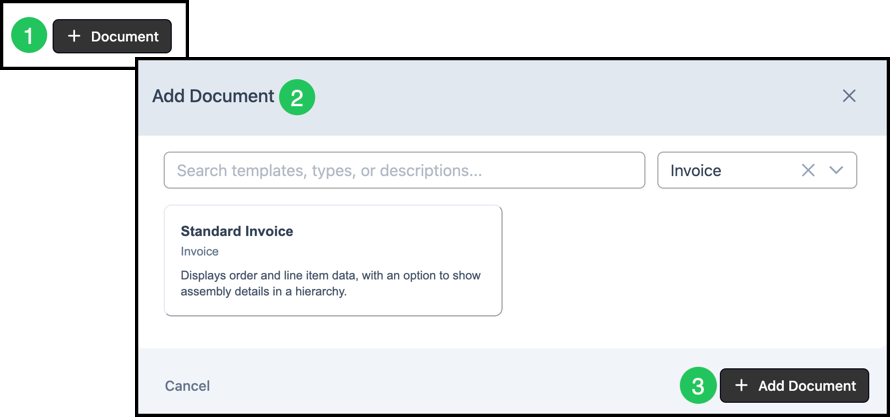
1. Click Add Document.
2. Select the document you would like to add by using the search bar, dropdown, or selecting a listed option.
3. Click Add Document.
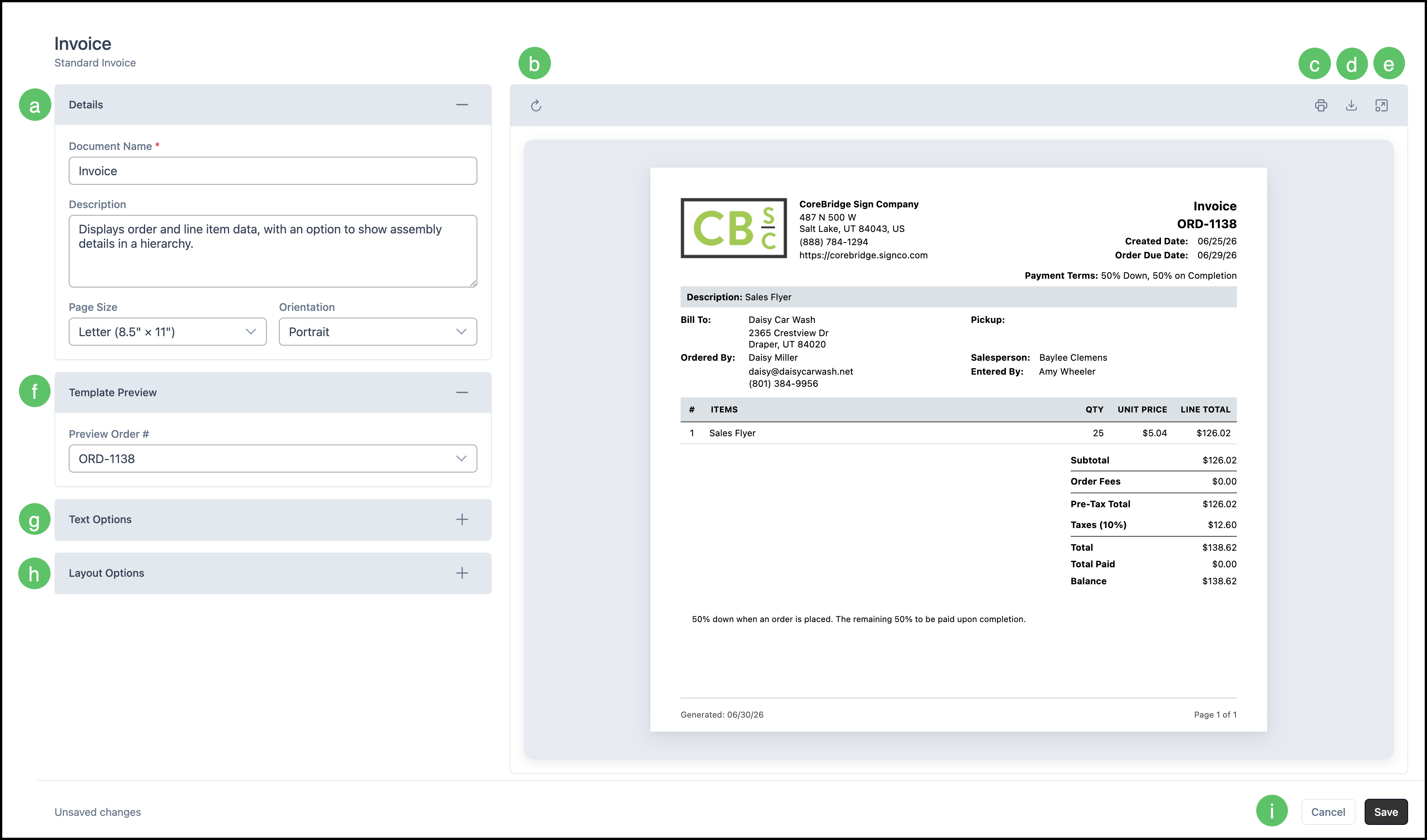
a. Document Details - The Details section contains the basic information and page settings for the document template.
b. Refresh - This reloads the preview.
c. Print - Click the print icon to print the document.
d. Download - Click the download icon to download the document.
e. Expand - Expands or hides the Options bar on the left.
f. Template Preview – Selects the sample document displayed in the preview pane, allowing you to preview the template with different document data.
g. Text Options - Custom Text fields that display additional details on the document preview. See below for more details.
h. Layout Options - Enabling these options will provide more details on your document. These will display on the preview. See below for more details.
i. Restore to Default - Reverts the document information back to the Default.
j. Discard or Save - Use Save to apply your changes or Discard to revert them. Changes are not saved automatically.
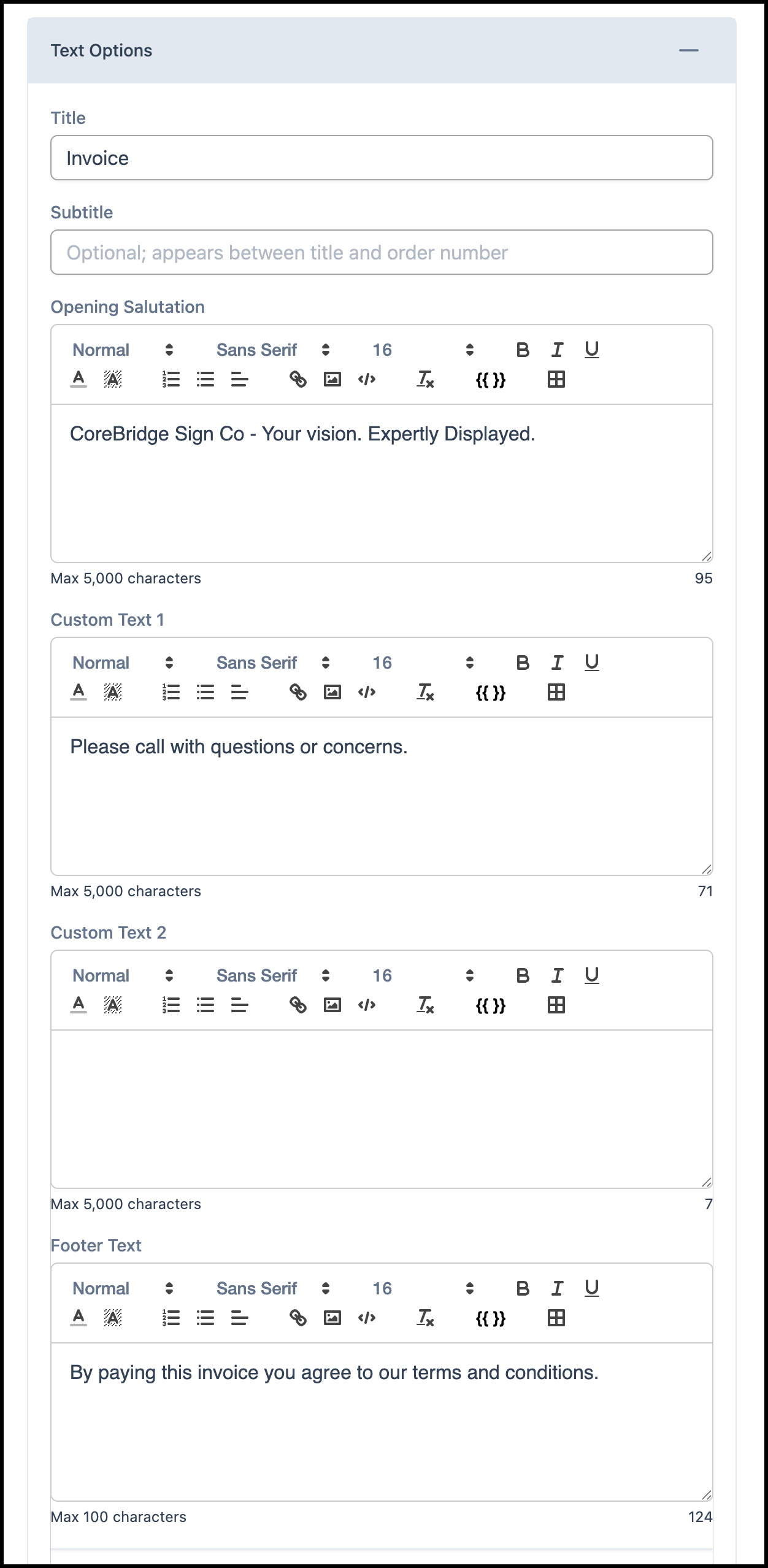
Text Options
Text Options allow you to add and format custom content on your document template. Each text area supports rich text formatting, including fonts, font sizes, tables, hyperlinks, images, and merge fields. As changes are made, the document preview updates to reflect the current layout.
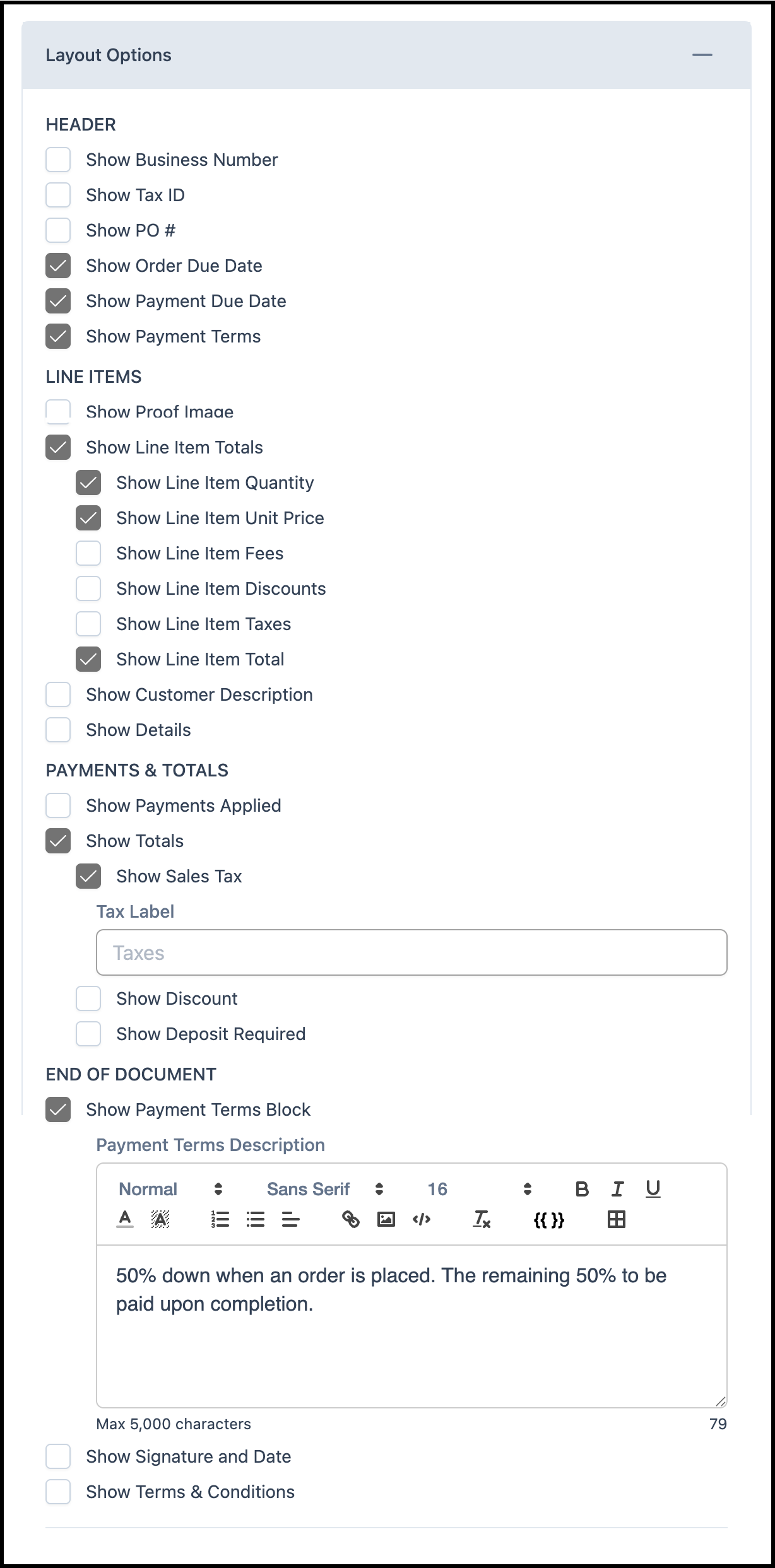
Layout Options
Layout Options control which information is included in each section of the document template. Configure the content displayed in the Header, Line Items, Payments & Totals, and End of Document. As changes are made, the document preview updates to reflect the current layout.
Editing a Document
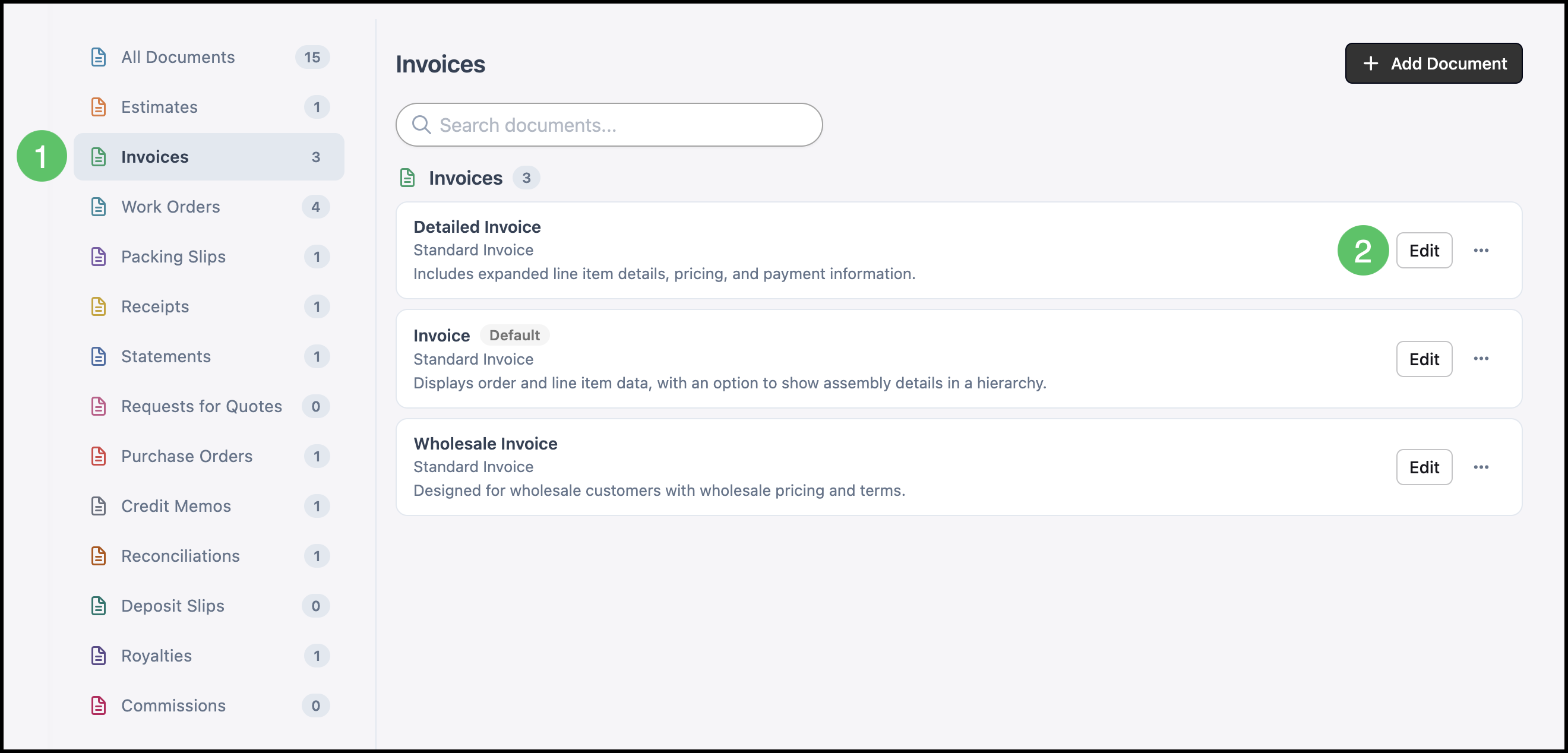
Navigate to System Settings / Documents.
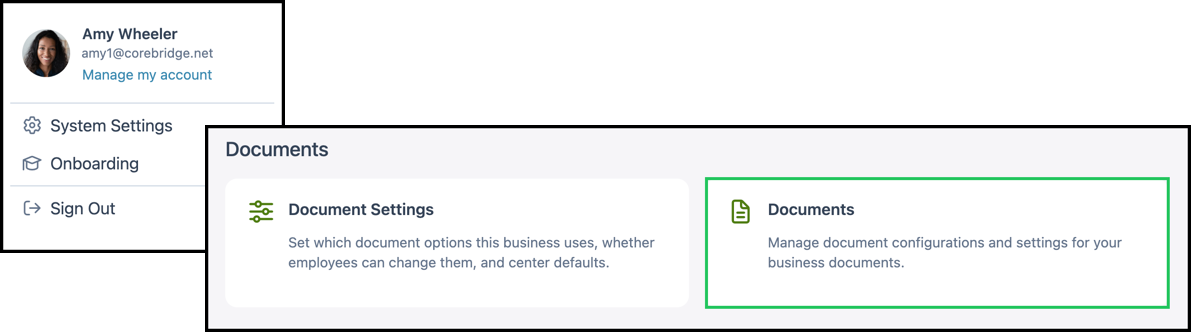
1. Select the appropriate Document Type Tab.
2. Click Edit on the row of the document you would like to edit.
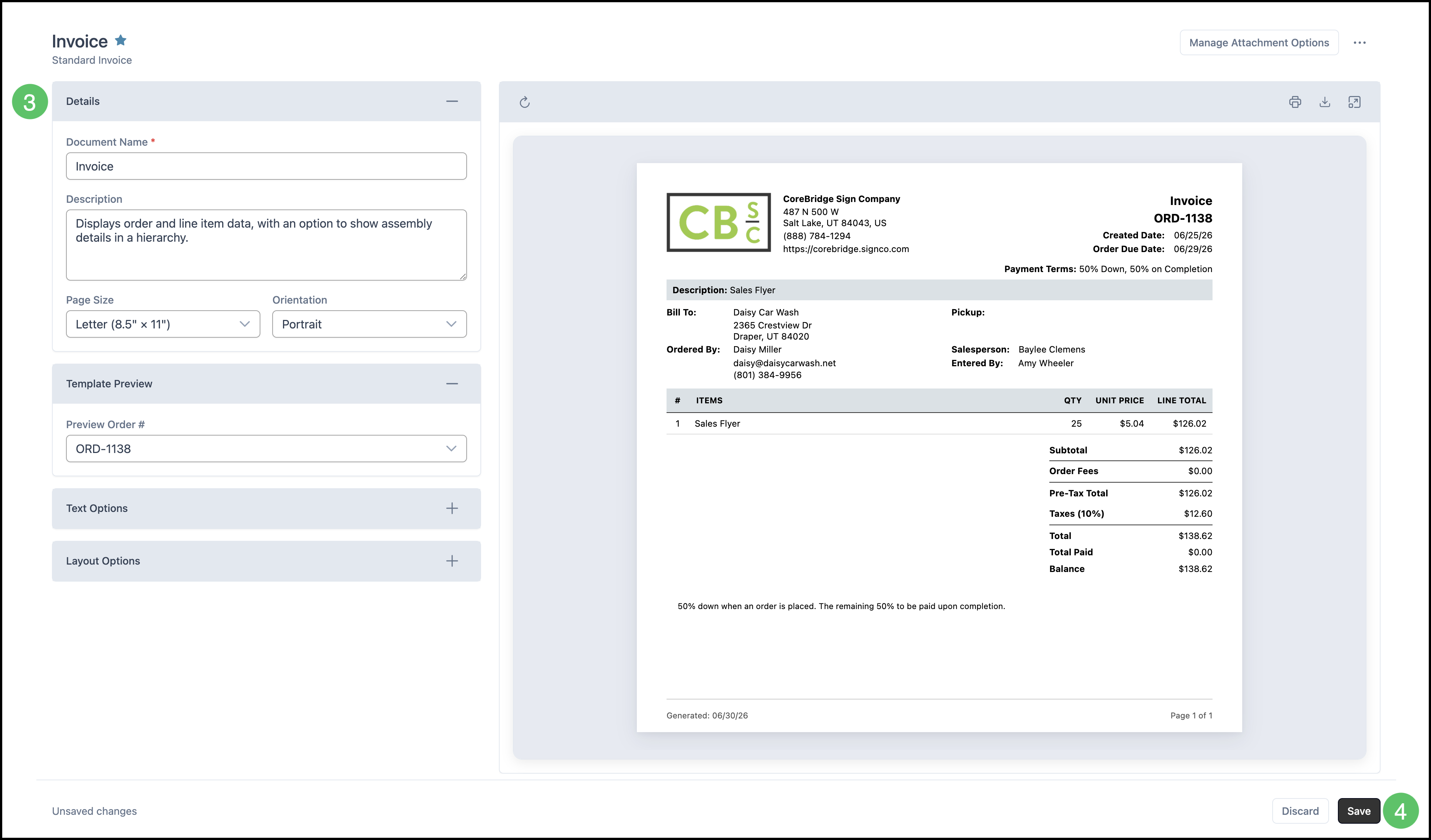
3. Make the necessary changes.
4. Click Save.
Open Documents From an Estimate or Order
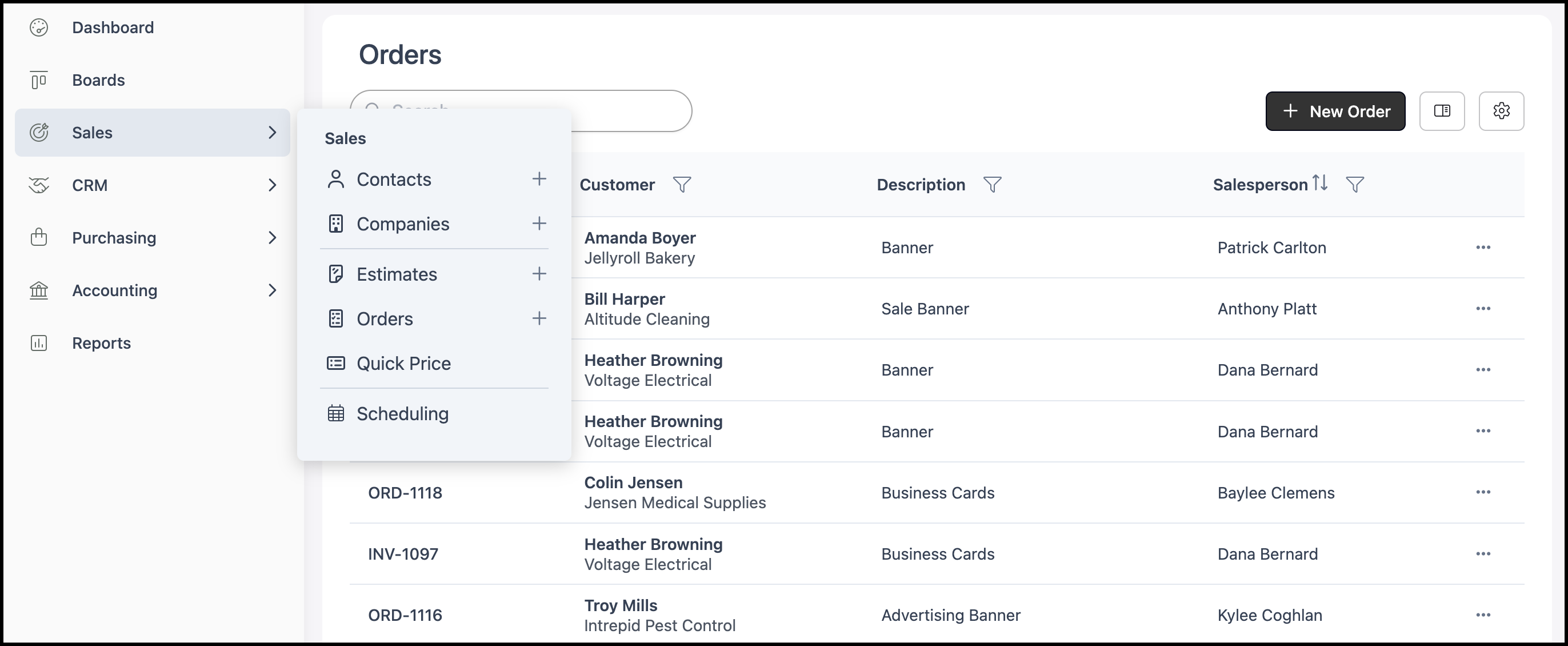
Navigate to Sales / Estimates or Sales / Orders.
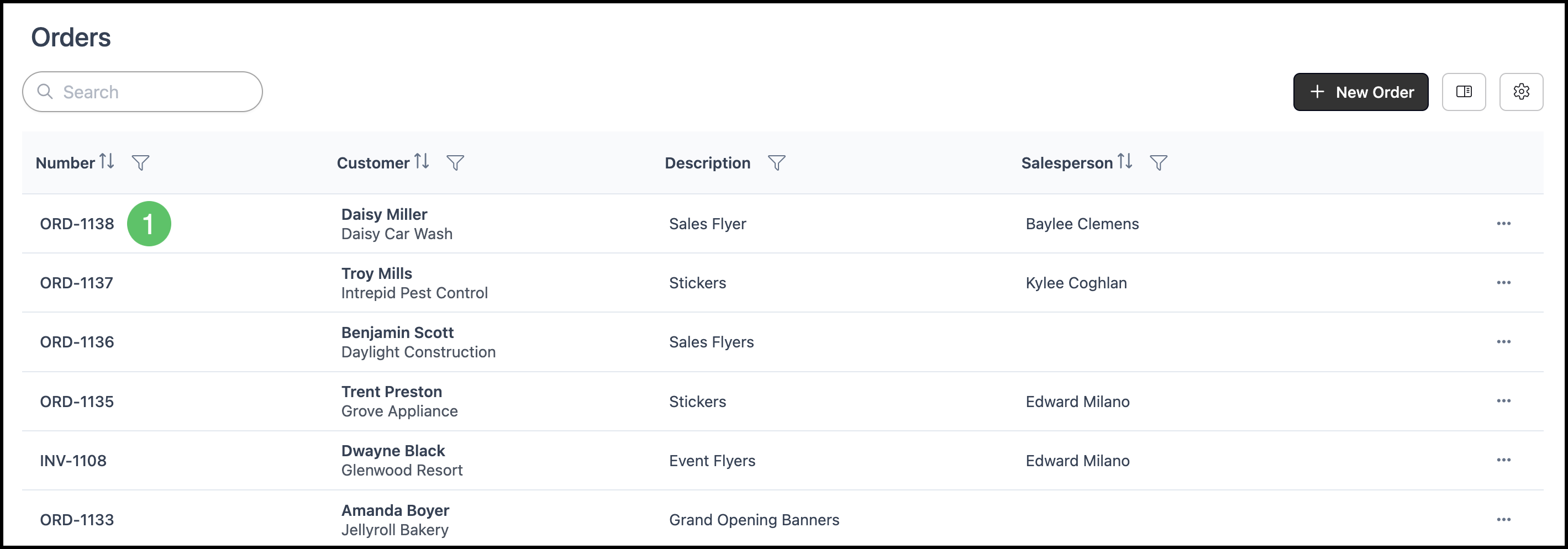
1. Open the Estimate or Order you want to work with.
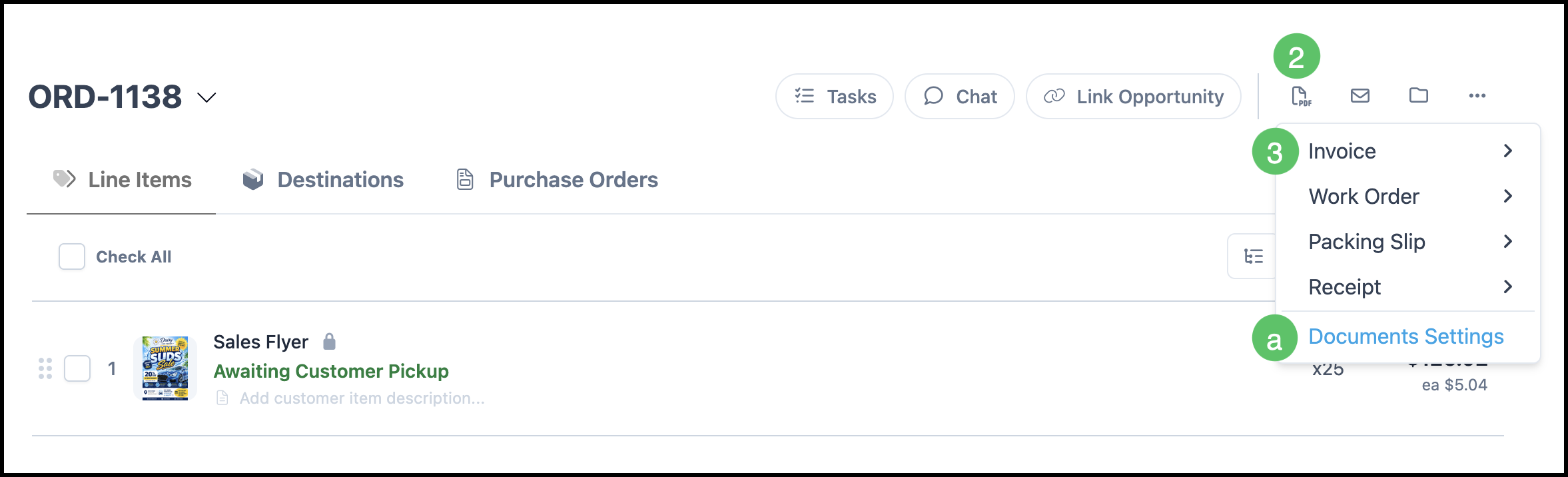
2. On the record header toolbar, click the Documents icon. This opens a menu of available documents for that record.
3. Click the document you want to open (for example, Invoice or Work Order).
Note: The document opens in a new browser tab so you can keep the Estimate or Order open in the original tab.
a. If you do not see the document you need in the short list, click Document Settings to view additional document types.
Note: If a document type is still missing, an administrator may need to add it to the default list in System Settings / System / Documents.
Document View
The document viewer shows a preview of the selected document, along with settings that allow you to change the information displayed.
Note: Changes made here apply only to this document for the current record. The default document template in System Settings / System / Documents is not affected.
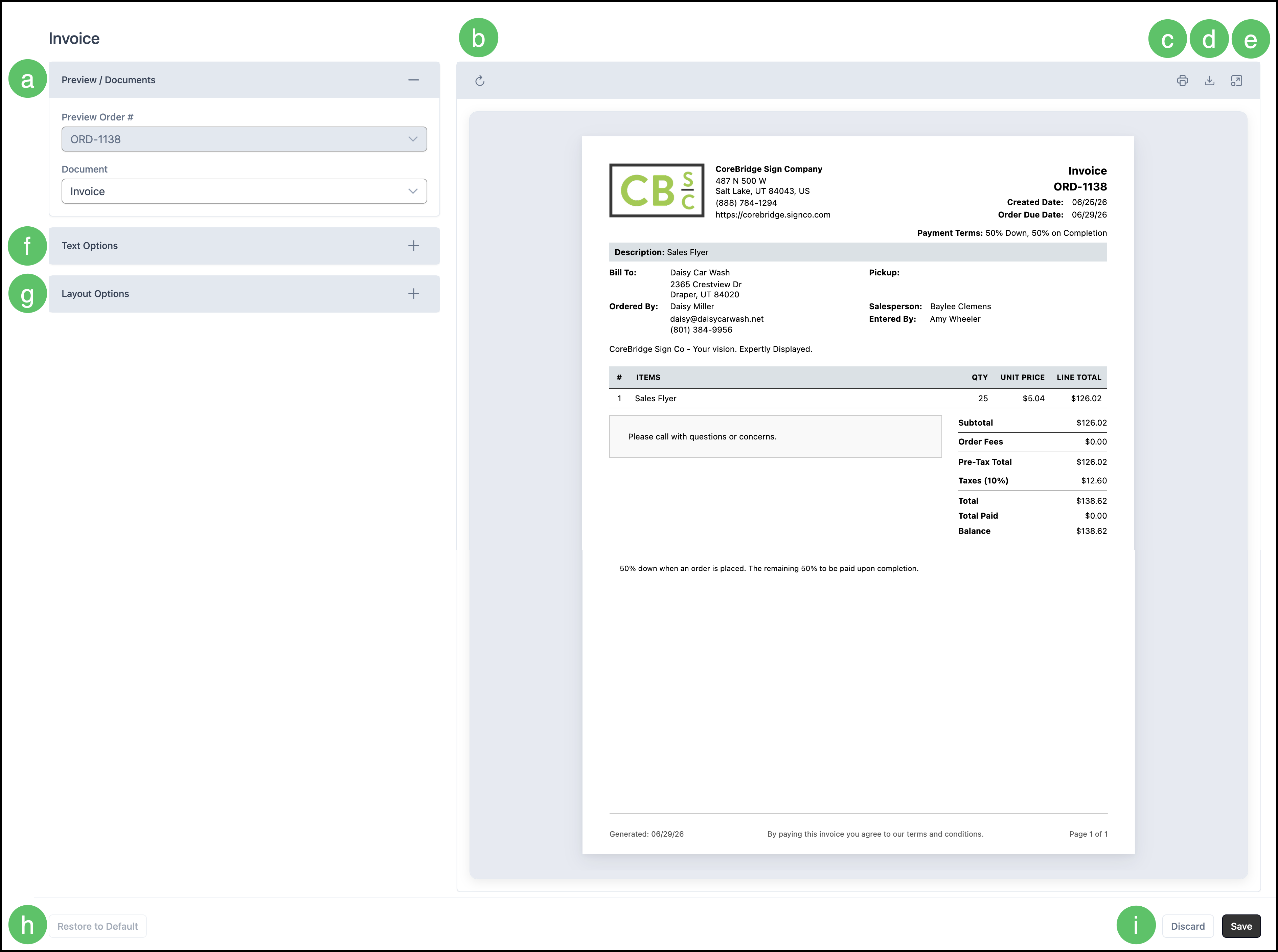
a. Document Details - Shows which Order or Estimate this document is based on, and the document type.
b. Refresh - This reloads the preview.
c. Print - Click the print icon to print the document.
d. Download - Click the download icon to download the document.
e. Expand - Expands or hides the Options bar on the left.
f. Text Options - Custom Text fields that display additional details on the document preview. See Text Options above for more details.
g. Layout Options - Enabling these options will provide more details on your document. These will display on the preview. See Layout Options above for more details.
h. Restore to Default - Reverts the document information back to the Default.
i. Discard or Save - Use Save to apply your changes or Discard to revert them. Changes are not saved automatically.