
CoreBridge has a variety of Payment Methods to choose from to take and record payments. Understanding what options are available and how to use them is key to making the Payment process as smooth as possible.
All Payment Methods can be managed in System Settings / Accounting / Payment Methods.
Table of Contents
- Taking a Payment
- Cash
- Check
- Wire Transfer (External)
- Credit Card (Integrated)
- Credit Card (Non-Integrated)
- Custom Payment Method
- eCheck (Integrated)
- In-Store Credit
- Saved Payment Methods
- Frequently Asked Questions
- Related Articles
Taking a Payment
You can take a payment from an Order or from Accounting / Make Payments. This article uses the Apply Payment dialog on an Order. For more information, see Taking Payments.
1. Open an Order that has a balance due above zero.
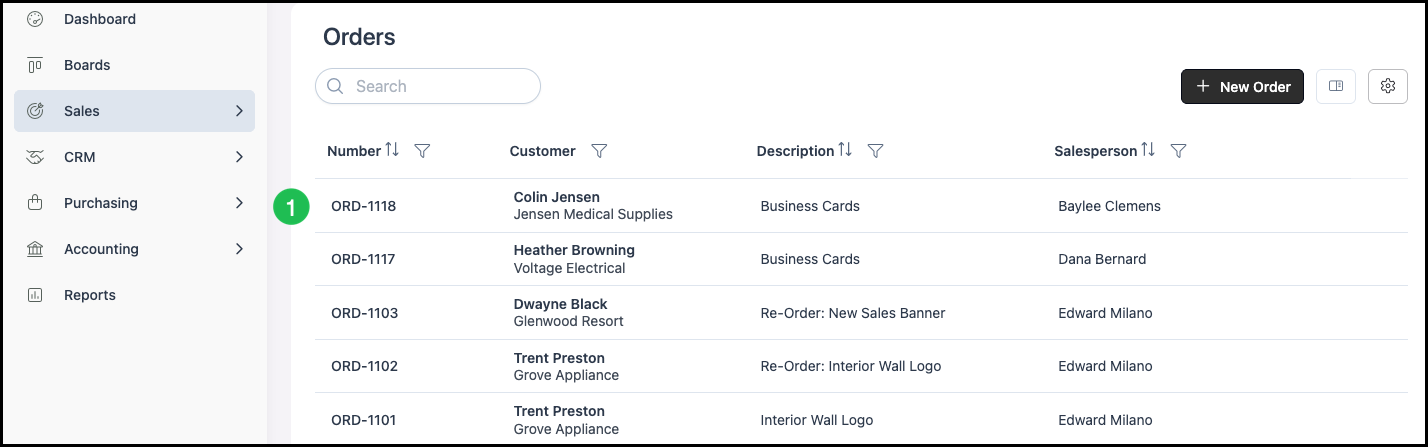
2. Click the Pay button. The Apply Payment dialog opens.
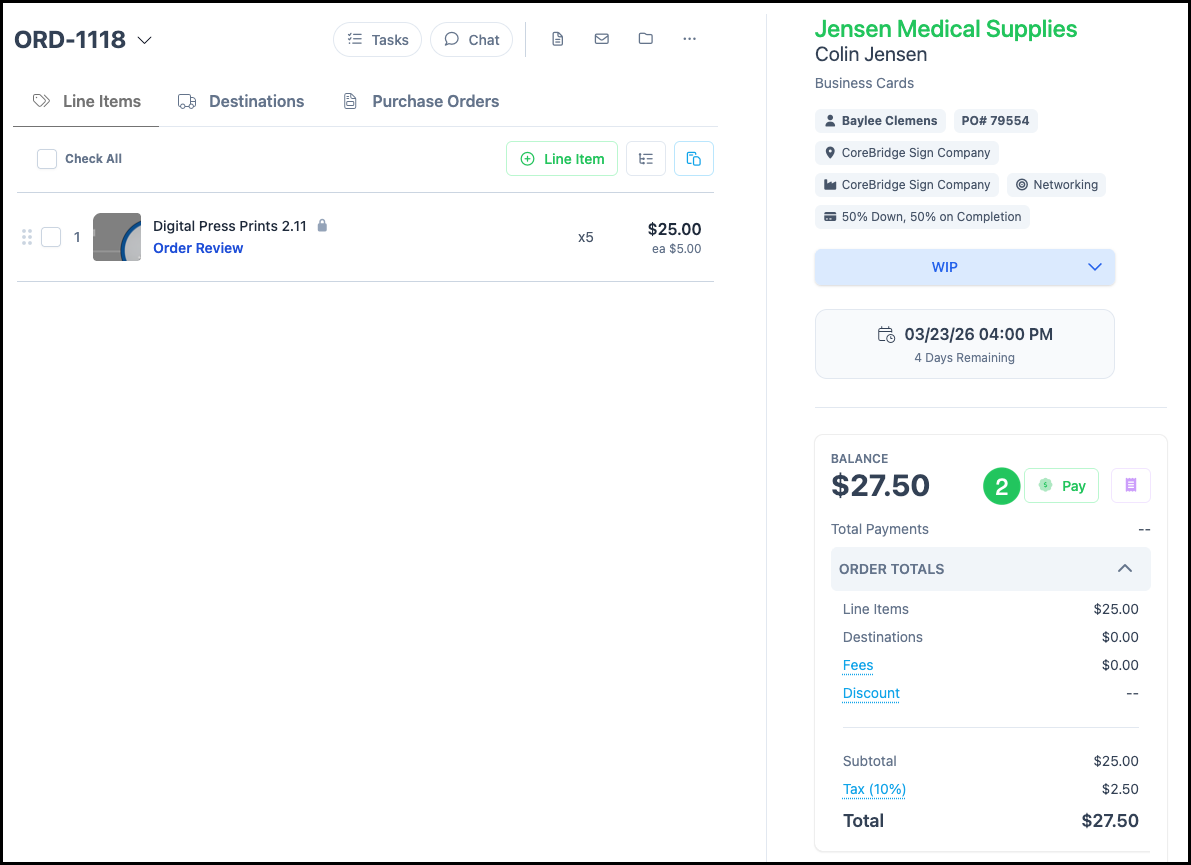
3. Select the Payment Method from the dropdown.
a. The Payment Amount automatically populates with the Balance Due, but can be adjusted.
4. Enter any method-specific details.
5. Enter Payment Notes, if appropriate.
6. Click Submit Payment.
Cash
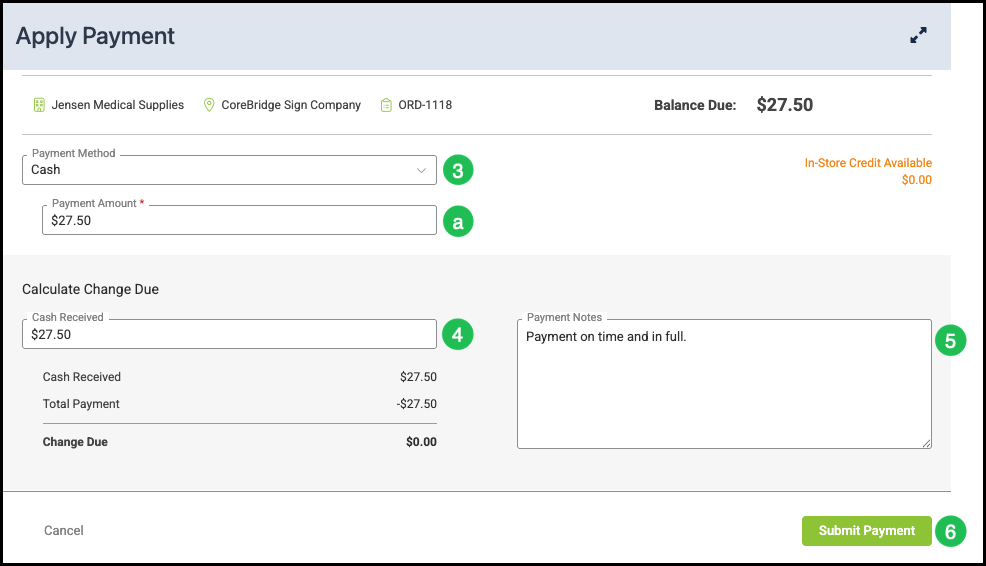
1. Select Cash from the Payment Method dropdown.
a. Payment Amount - The total amount the Customer will be paying.
Note: This automatically populates with the Balance Due, but can be adjusted.
b. Cash Received - The amount of cash received from the Customer. The system can calculate change based on the difference between cash received and the payment amount.
c. Payment Notes - Optional notes for the transaction.
2. Click Submit Payment.
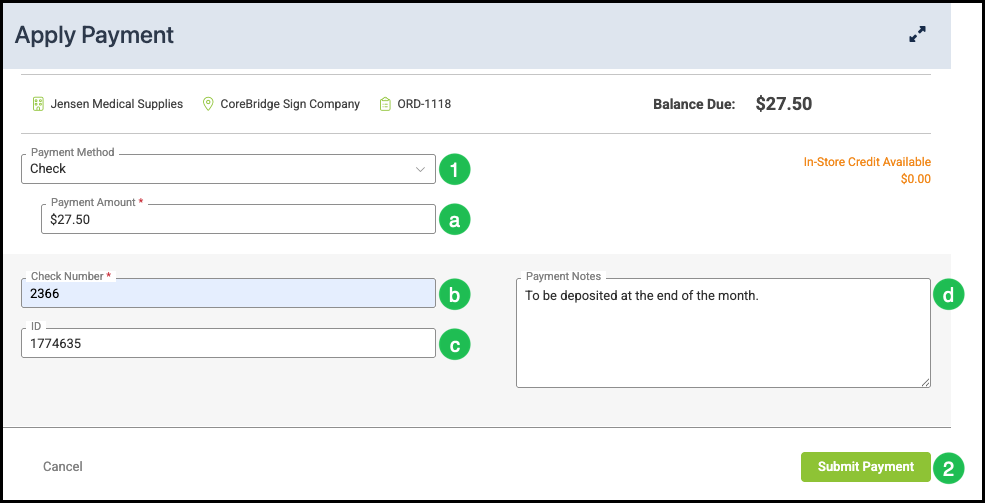
Check
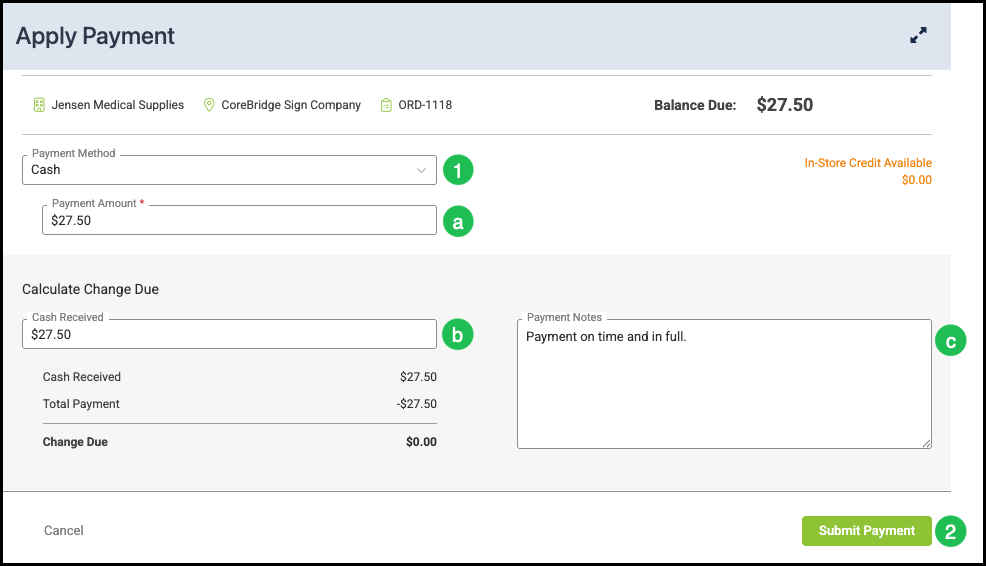
1. Select Check from the Payment Method dropdown.
a. Payment Amount - The total amount the Customer will be paying.
Note: This automatically populates with the Balance Due, but can be adjusted.
b. Check Number - The check number from the check.
c. ID - An optional identifier for the check.
d. Payment Notes - Optional notes for the transaction.
2. Click Submit Payment.
Wire Transfer (External)
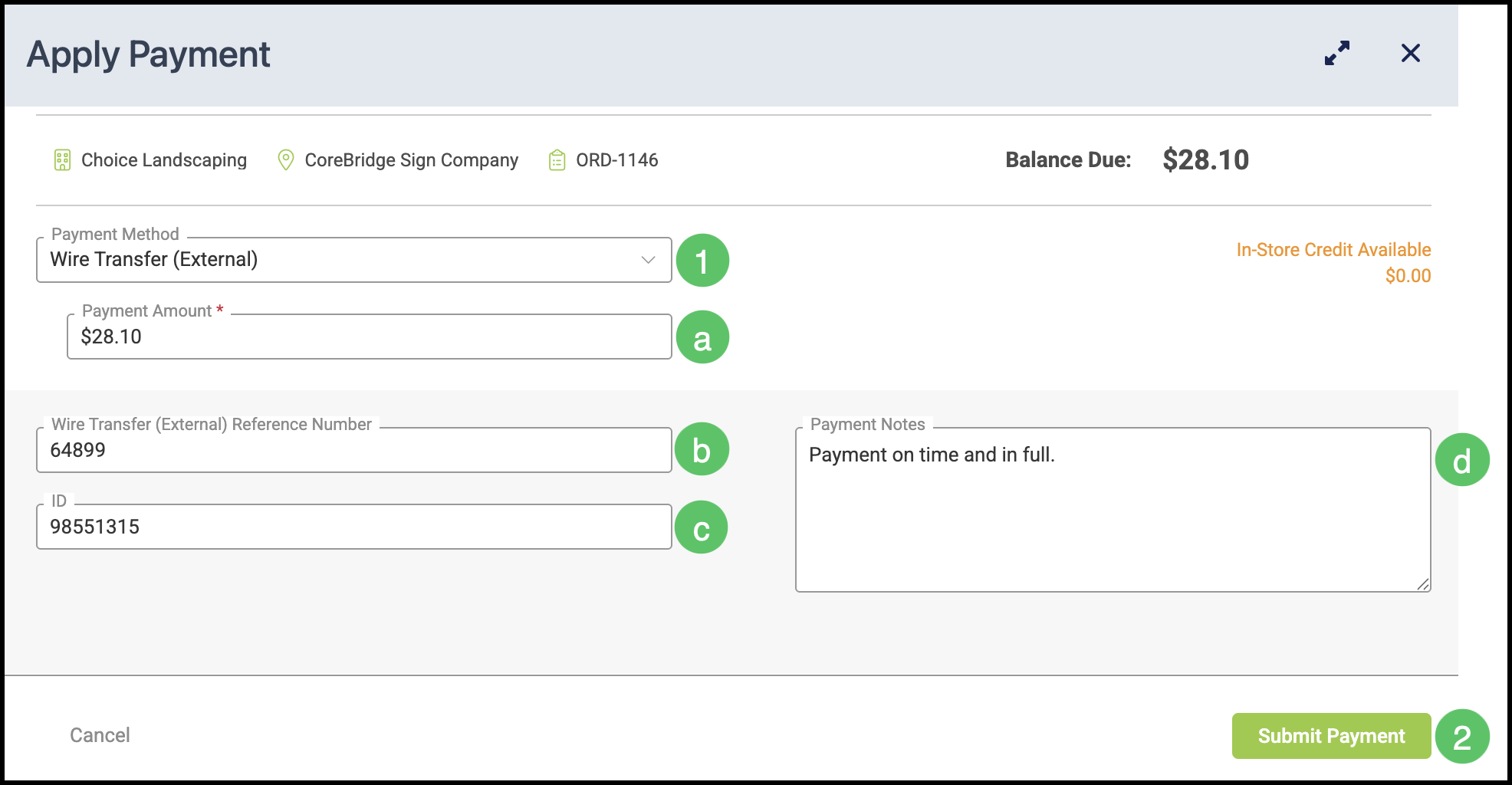
Wire Transfer (External) records a wire that was processed outside of CoreBridge. Enable it under System Settings / Accounting / Payment Methods in the System section.
1. Select Wire Transfer (External) from the Payment Method dropdown, then complete the fields for that method:
a. Payment Amount - The total amount the Customer will be paying.
Note: This automatically populates with the Balance Due, but can be adjusted.
b. Wire Transfer (External) Reference Number - The reference number for the wire.
c. ID - An optional identifier for the transfer.
d. Payment Notes - Optional notes for the transaction.
2. Click Submit Payment.
Credit Card (Integrated)
Credit Card (Integrated) allows you to process credit card payments directly through CoreBridge using a supported payment integration. The Payment Method list shows the processor name, for example Credit Card (Fiserv US). Integrated methods are configured under System Settings / Accounting / Payment Methods in the Payment Integrations section.
1. Select the integrated credit card method from the Payment Method dropdown.
a. Payment Amount - The total amount the Customer will be paying.
Note: This automatically populates with the Balance Due, but can be adjusted.
b. Credit Card Information - Enter the card number, expiration date, CVV, cardholder name, and any required address or email fields. Fields marked with a red asterisk are required.
2. Click Submit Payment.
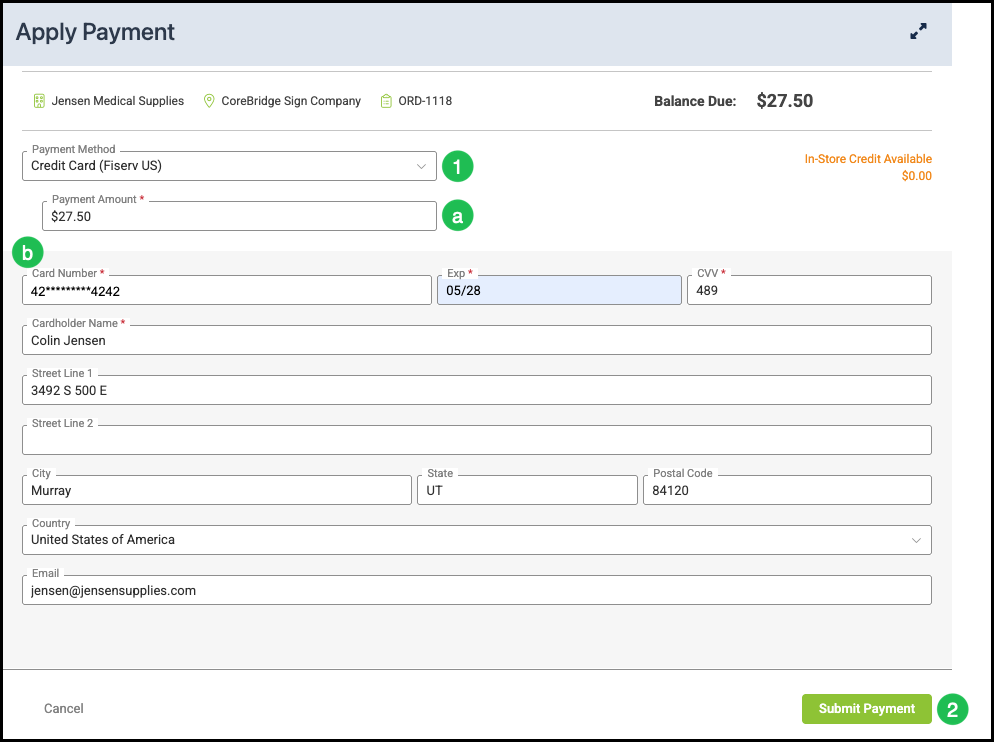
Note: Completing an integrated card payment stores the card for the Contact who paid, so you can charge it again later from Saved Payment Methods.
Credit Card (Non-Integrated)
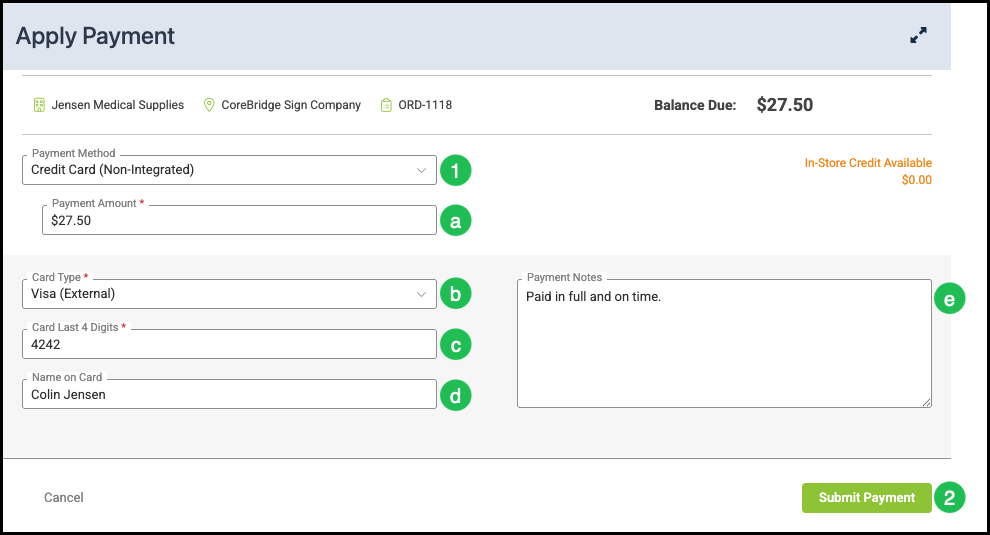
Use Credit Card (Non-Integrated) when the card is processed outside of CoreBridge (for example, through a separate terminal or processor). You record the payment in CoreBridge for your records. This method records the card type and last four digits. It does not store a reusable card.
1. Select Credit Card (Non-Integrated) from the Payment Method dropdown.
a. Payment Amount - The total amount the Customer will be paying.
Note: This automatically populates with the Balance Due, but can be adjusted.
b. Card Type - Select the card type (e.g. Visa, Mastercard) from the dropdown.
c. Card Last 4 Digits - The last four digits of the credit card number.
d. Name on Card - The name of the cardholder.
e. Payment Notes - Optional notes for the transaction.
2. Click Submit Payment.
Custom Payment Method
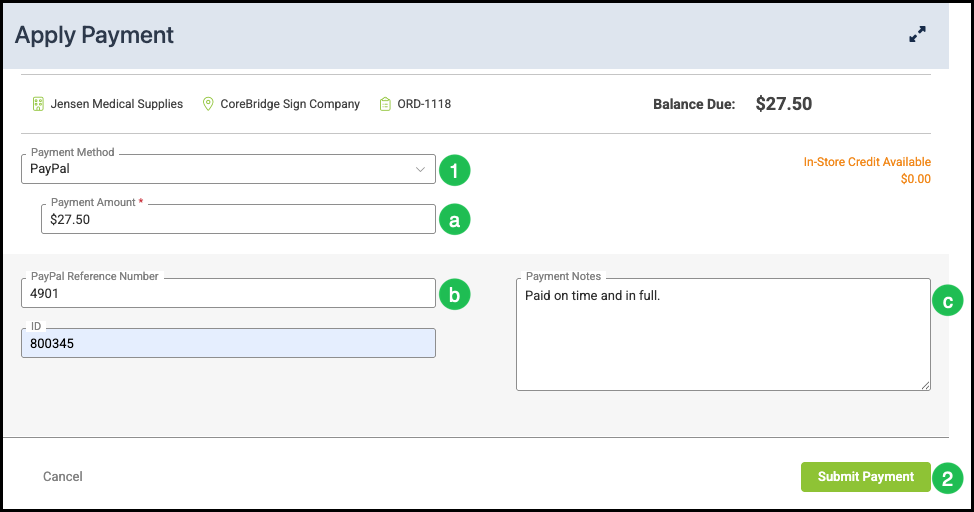
Custom Payment Methods are created in System Settings / Accounting / Payment Methods under the Custom section. They are used to record payments made outside of the standard methods and can include methods such as PayPal or Venmo.
1. Select your Custom Payment Method from the Payment Method dropdown.
Note: It appears with the name you gave it in System Settings.
a. Payment Amount - The total amount the Customer will be paying.
Note: This automatically populates with the Balance Due, but can be adjusted.
b. Reference Number - A reference number for the custom method, when that field appears. An ID field can also appear.
c. Payment Notes - Optional notes for the transaction.
2. Click Submit Payment.
eCheck (Integrated)
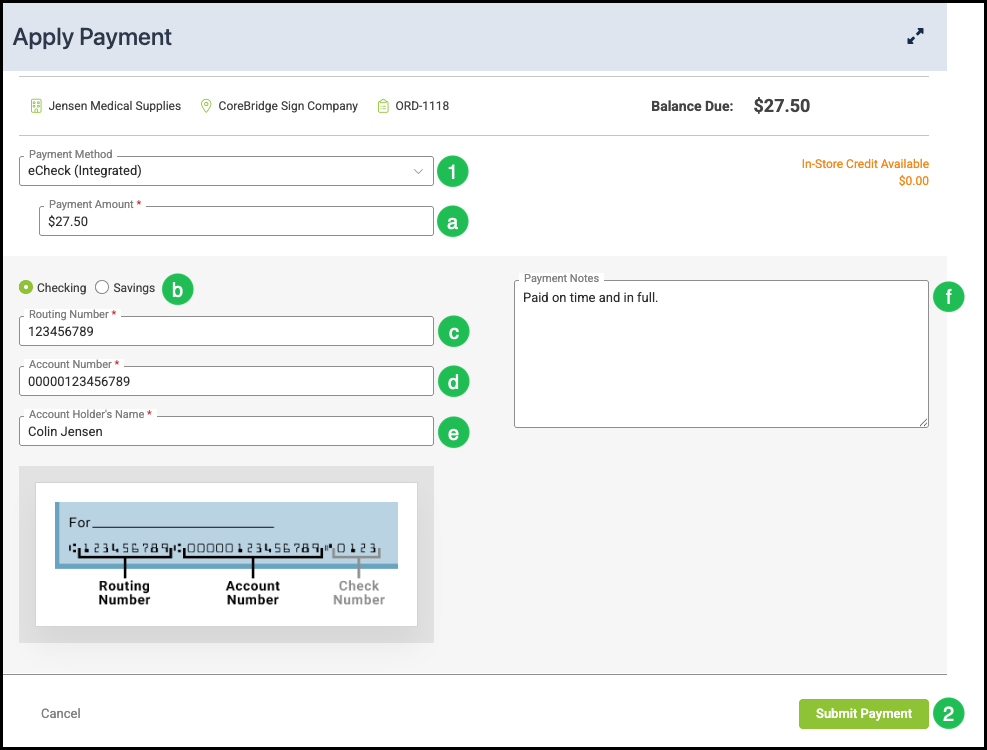
eCheck (Integrated) is available when you have a supported integration enabled for eCheck. The Payment Method list shows the processor name, for example eCheck (Fiserv US). Configure and enable it under System Settings / Accounting / Payment Methods in the Payment Integrations section.
1. Select the integrated eCheck method from the Payment Method dropdown.
a. Payment Amount - The total amount the Customer will be paying.
Note: This automatically populates with the Balance Due, but can be adjusted.
b. Checking / Savings - Select whether the payment is from a checking or savings account.
c. Routing Number - The 9-digit routing number for the financial institution.
d. Account Number - The bank account number.
e. Account Holder's Name - The name on the account.
f. Payment Notes - Optional notes for the transaction.
2. Click Submit Payment.
In-Store Credit
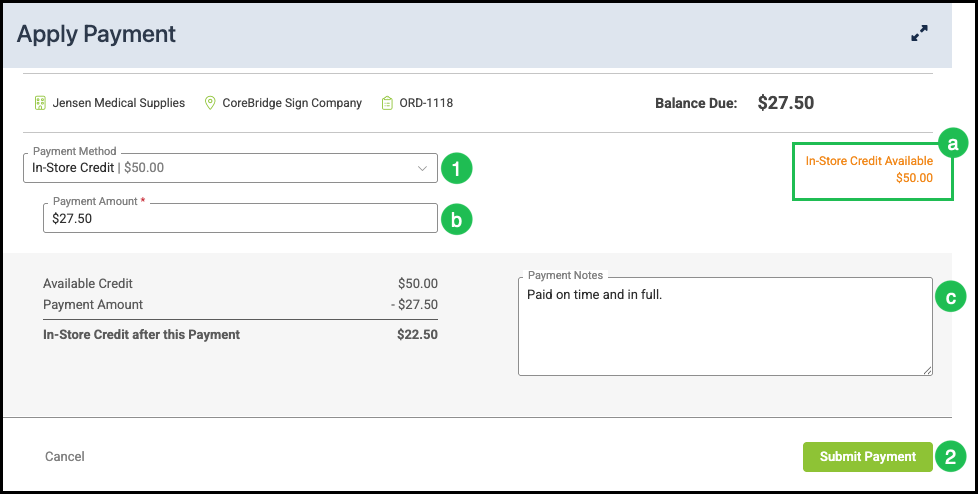
1. Select In-Store Credit from the Payment Method dropdown.
a. In-Store Credit Available - If the Customer has In-Store Credit, the available amount is shown here.
b. Payment Amount - The amount to apply. The system reduces the Customer's In-Store Credit balance by this amount.
Note: This automatically populates with the Balance Due, but can be adjusted.
c. Payment Notes - Optional notes for the transaction.
2. Click Submit Payment.
Saved Payment Methods
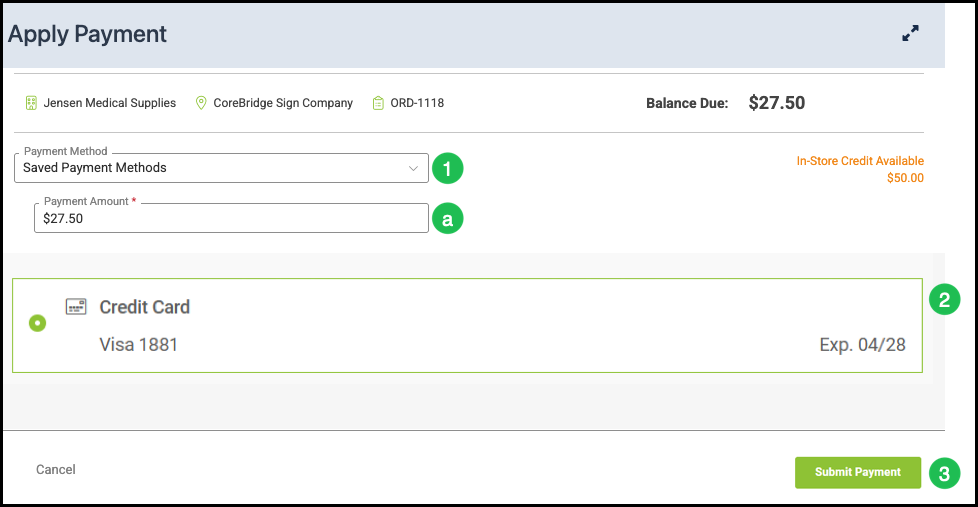
You can store an integrated credit card when you take a payment, then charge it again later from Apply Payment. Saved Payment Methods appears in the Payment Method list on Pay and on Accounting / Make Payments. When the Contact already has a stored card, Saved Payment Methods can be selected for you.
A successful integrated card payment stores the card for the Contact who paid. On the next payment for that same Contact, select Saved Payment Methods, choose the card, and click Submit Payment.
Note: Saved cards are available for integrated processors that store cards on file, such as Fiserv US and Stripe. Reuse them from Apply Payment for the Contact who originally paid.
1. Select Saved Payment Methods from the Payment Method dropdown.
a. Payment Amount - The total amount the Customer will be paying.
Note: This automatically populates with the Balance Due, but can be adjusted.
2. Select which saved Payment Method to use.
3. Click Submit Payment.
Frequently Asked Questions
1. Can I save a card and charge it again later?
Answer: Yes. Complete an integrated card payment to store the card, then select Saved Payment Methods on Apply Payment for that same Contact.
2. Who does a saved card belong to?
Answer: The Contact who paid. Use that same Contact when you apply the next payment. A stored card is not shared with every Contact on the Company.
3. Can I add or manage saved cards on the Company record?
Answer: Saved cards are created when you complete an integrated payment. Reuse them from the Payment Method dropdown on Apply Payment.
4. Does Credit Card (Non-Integrated) save the card for later use?
Answer: No. Credit Card (Non-Integrated) records the card type, last four digits, and name on the card for your records. It does not store a reusable card.
Related Articles
Fiserv US - A CoreBridge Integrated Merchant Services Provider
Integrated vs. Non-Integrated Credit Card Transactions
Payment Settings
Taking Payments
Using In-Store Credit