
Once your Calendars are set up, they become a central tool for managing schedules and coordinating work across your team. From daily planning to tracking production milestones, Calendars support visibility and accountability throughout your workflow.
This article explains how to locate and navigate your Calendars, create and manage Events, review open Tasks from the calendar, and connect Estimates, Orders, or Opportunities to scheduled activities.
For information on adding calendar integrations, please see Google Calendar or Microsoft Calendar.
Table of Contents
- Locating Calendars
- Calendar Overview
- My Tasks
- Adding an Event
- Linking Estimates, Orders, or Opportunities
- Frequently Asked Questions
- Related Articles
Locating Calendars
1. Click the Calendar icon.
Note: This can be found at the top right of each screen within CoreBridge.
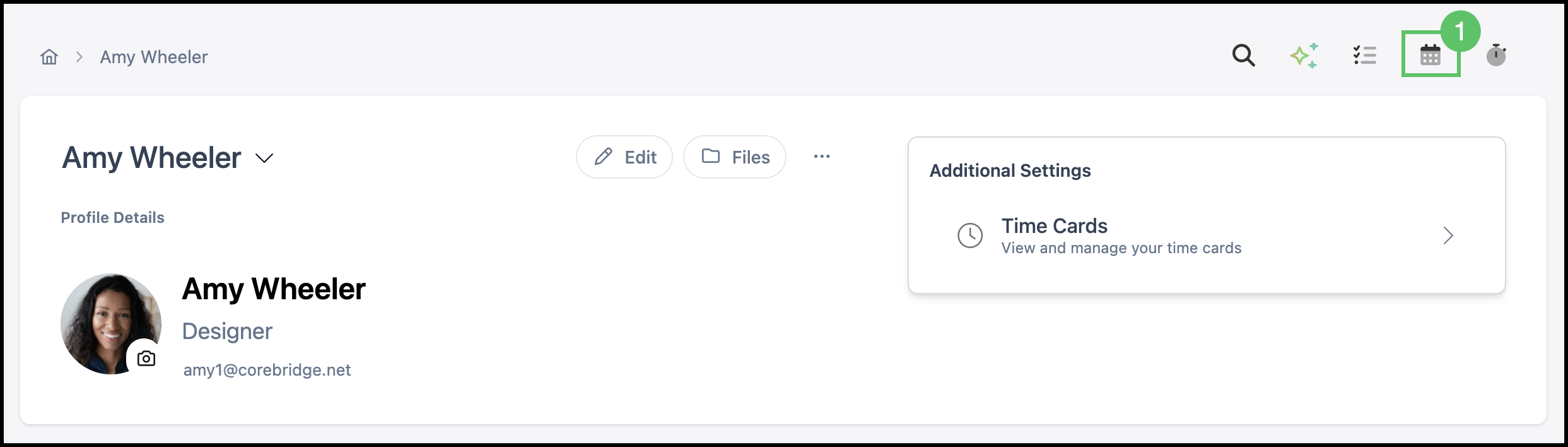
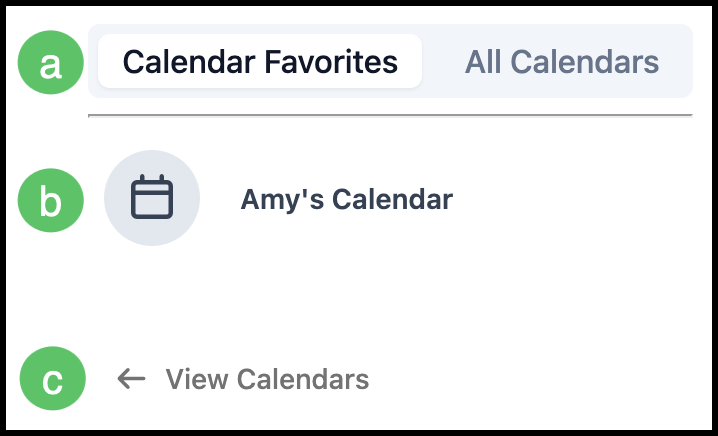
a. These tabs switch the view between previously selected favorites or all calendars.
b. Clicking a calendar name opens that calendar.
c. View Calendars takes you to the calendars screen.
Note: Clicking into a calendar from the quick menu or the calendar screen opens the same calendar. The difference is that when you open a calendar from the screen, a dropdown lets you quickly navigate between calendars.
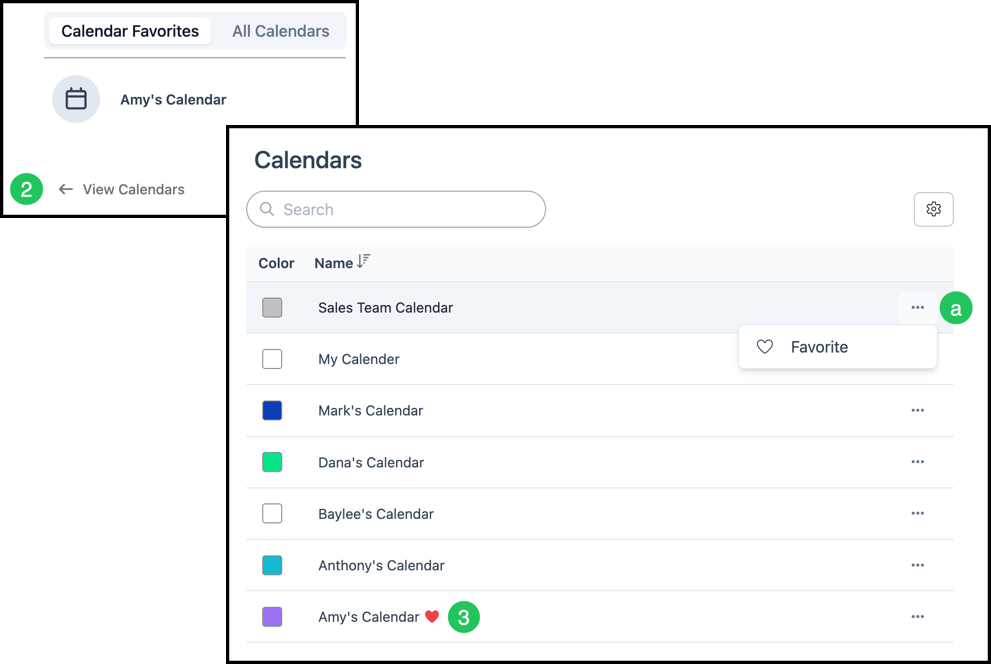
2. Click View Calendars.
3. Select a Calendar to open it.
a. More Actions lets you mark one or more calendars as favorites.
Note: Calendars can be managed in System Settings / System / Calendars.
Calendar Overview
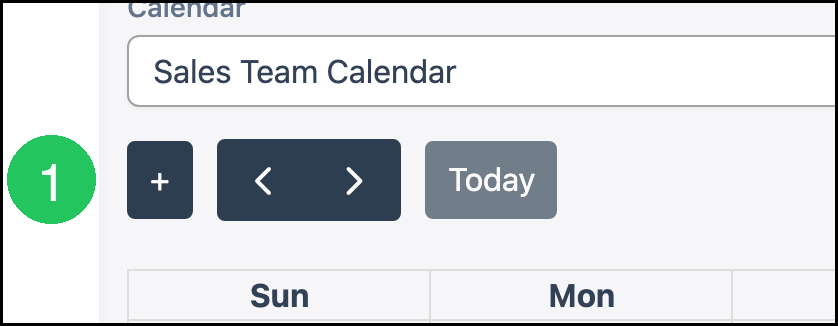
a. The dropdown lets you switch which calendar you are viewing.
b. Add Event opens the New Event dialog so you can add an event to the calendar.
c. The arrows move the schedule backward or forward. The amount of time the view shifts depends on the option you selected on the right (Month, Week, Day, or List).
d. Today resets the view to the current day.
e. Select how the calendar is displayed: Month, Week, Day, or List.

My Tasks
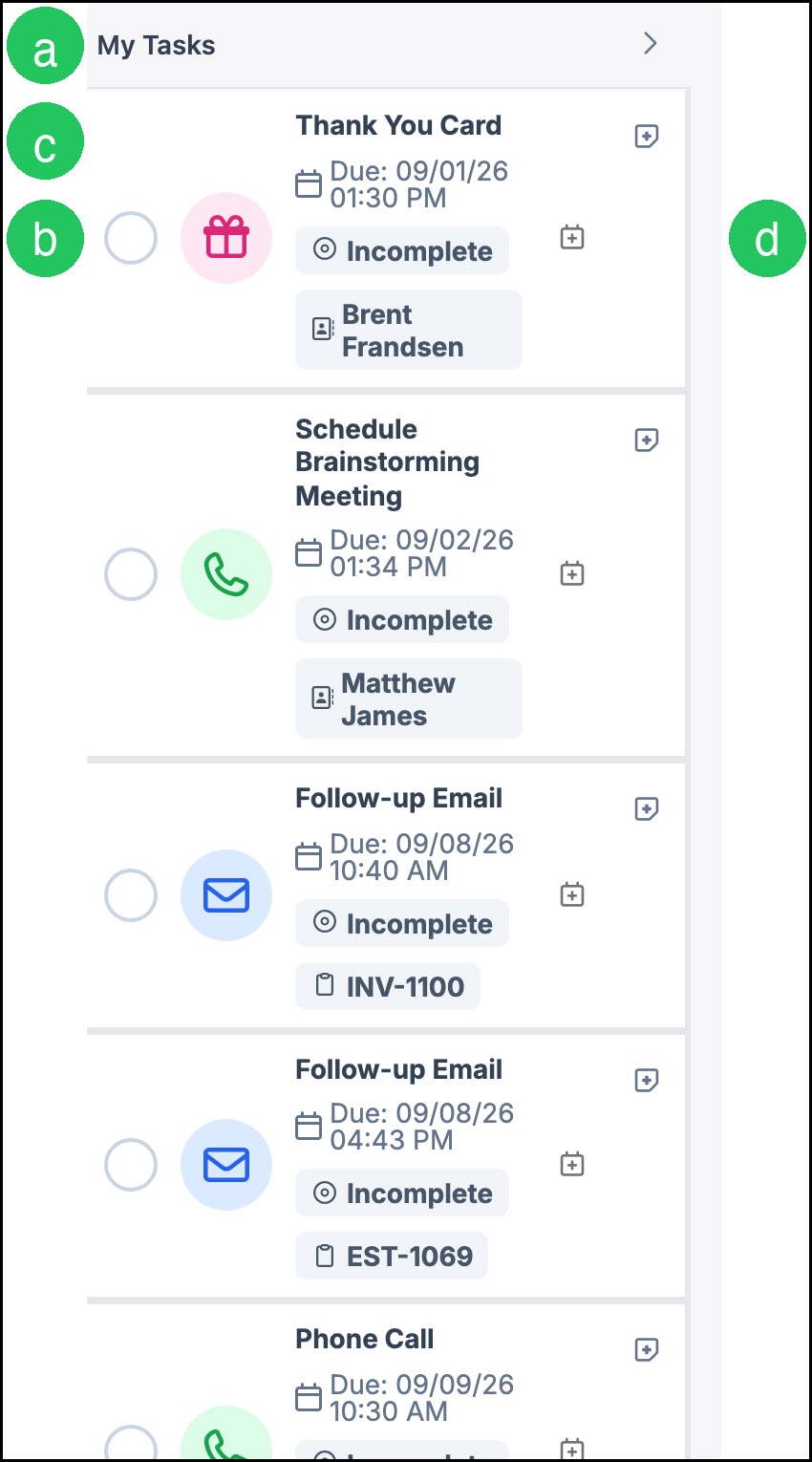
When you open a calendar, the My Tasks panel lists open Tasks assigned to you. Overdue Tasks stay at the top. Tasks do not appear as events on the calendar grid.
a. The My Tasks heading. Use the chevron to collapse or expand the panel.
b. The complete circle marks that Task complete.
c. The Task name, due date, and linked record. Click the Task to open it.
d. Create calendar event opens the New Event dialog with details from that Task.
Note: At the bottom of the panel, View My Tasks opens the Tasks screen and Add Task creates a new Task. For more information, see Tasks.
Adding an Event
Add events from the calendar workspace, or from Sales / Scheduling. For more information, see Scheduling Overview.
1. Open the calendar as shown above, then click Add Event.
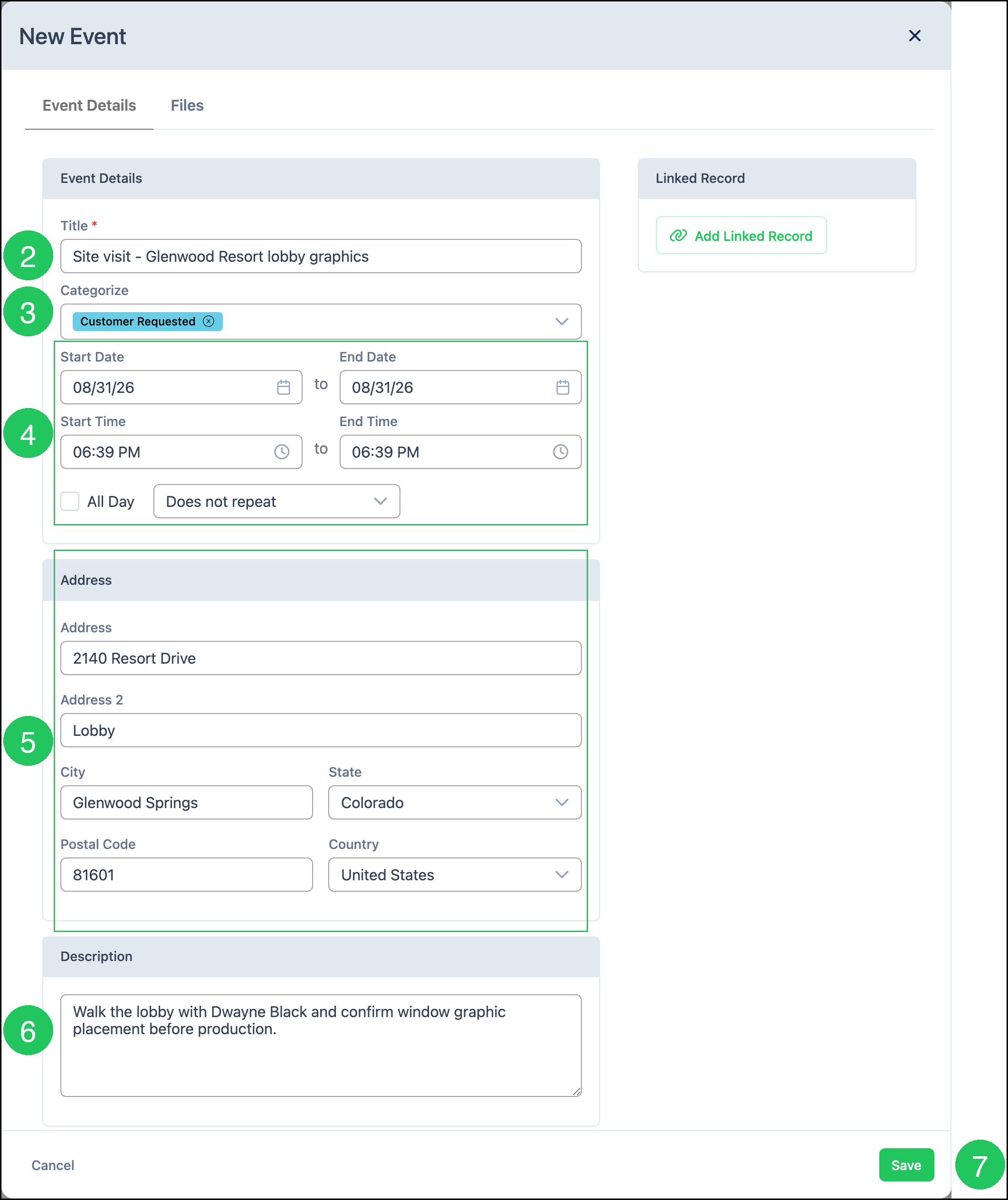
2. Enter a short, recognizable Title.
3. Use Categorize to select a category, if desired.
Note: Categories can be managed in System Settings / System / Calendar Categories. For more information, see Calendar Categories.
4. Set the Start Date, End Date, and times. Use All Day when the event does not need specific times, and choose whether the event repeats.
5. Provide an Address, if applicable.
6. Provide a short Description, if desired.
7. Click Save.
Note: Use the Files tab to attach files to the event. To connect an Estimate, Order, or Opportunity, see Linking Estimates, Orders, or Opportunities below.
Linking Estimates, Orders, or Opportunities
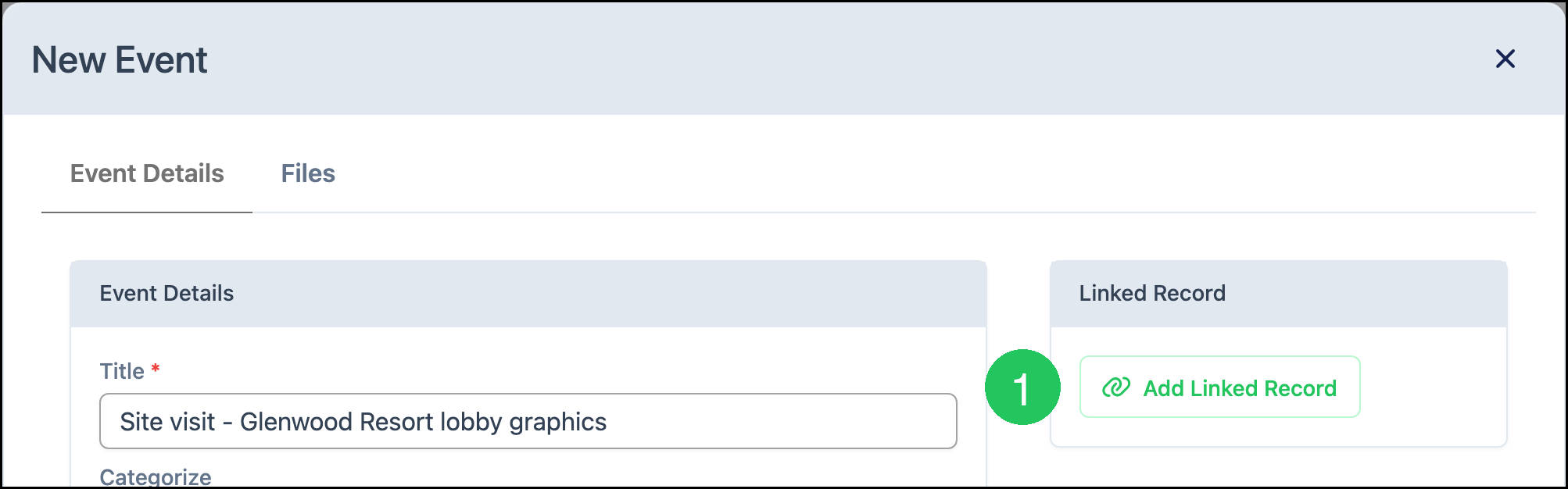
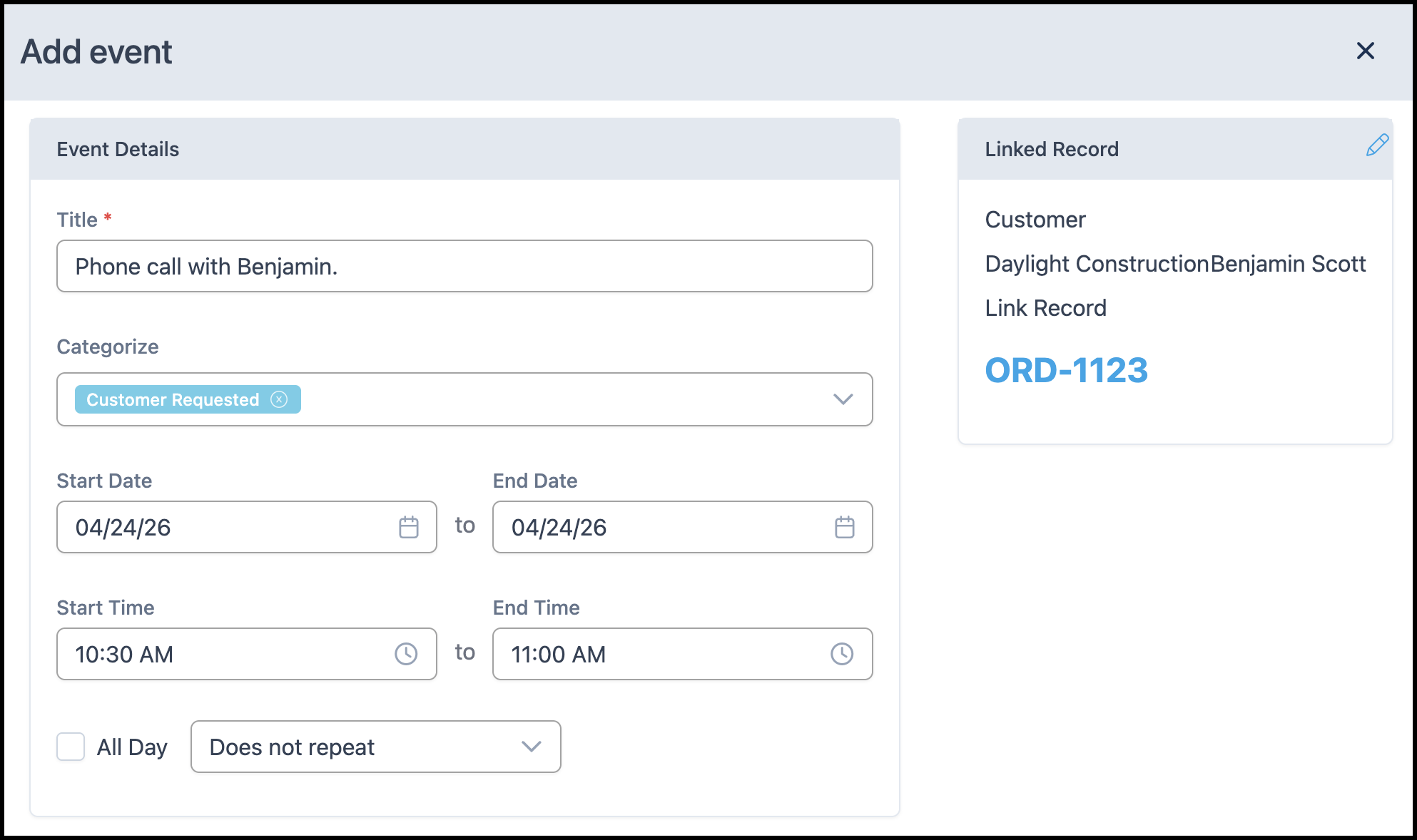
In the New Event dialog, use Add Linked Record to attach an Estimate, Order, or Opportunity. Once linked, the record displays as a clickable link on the event.
1. In the event dialog, click Add Linked Record.
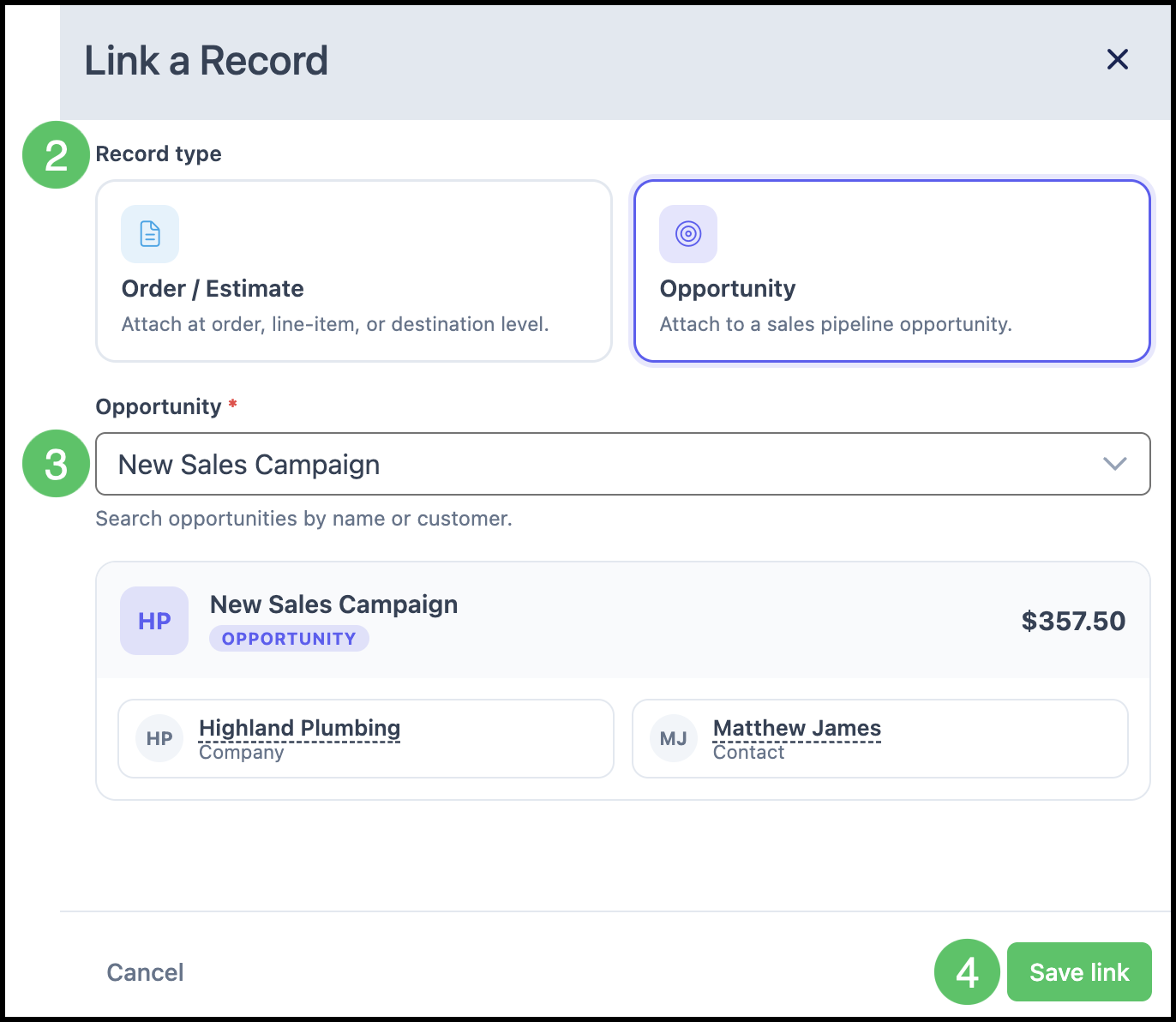
2. Select the record type: Order / Estimate or Opportunity.
3. Search for and select the record.
4. Click Save link.
Note: For Order / Estimate, you can attach at the order, line-item, or destination level.
Note: You can also schedule an event from an Opportunity. For more information, see Opportunities Pipeline.
Example:
Frequently Asked Questions
1. Can I link an Opportunity to a calendar Event?
Answer: Yes. In the New Event dialog, click Add Linked Record, select Opportunity, search for the Opportunity, then click Save link.
2. Why do Tasks not appear on the calendar grid?
Answer: Tasks stay in the My Tasks panel. They are not shown as calendar events. Use Create calendar event on a Task when you want a scheduled Event on the calendar.
3. What is the difference between a Task and a calendar Event?
Answer: A Task is a to-do you complete from My Tasks or the Tasks screen. A calendar Event is a scheduled item on a Calendar, with dates, times, and optional linked records.
4. Can I schedule an Event from an Opportunity?
Answer: Yes. Open the Opportunity and use Schedule an event. You can also link an Opportunity from a New Event on the calendar. For more information, see Opportunities Pipeline.
Related Articles
Adding Calendars
Calendar Categories
Microsoft Calendar
Opportunities Pipeline
Scheduling Overview
Tasks