Understanding the costs associated with your Labors is essential for achieving accurate pricing and job costing in CoreBridge. To help with this, your system includes a Labor Cost Worksheet, which assists in calculating labor-related expenses and automatically applies the results to the Hourly Cost field. This article will guide you through the process of filling out the worksheet.
Note: The Labor Cost Worksheet is a helpful tool, but CoreBridge is not responsible for your financial and accounting decisions. If you have questions about labor cost calculations, tax implications, or finances, we recommend consulting a qualified accounting or financial professional.
Table of Contents
- Accessing the Labor Cost Worksheet
- Filling Out the Labor Cost Worksheet
- Choosing Individual Detailed Expenses
- Choosing Single Total Value of All Expenses
Accessing the Labor Cost Worksheet
The Labor Cost Worksheet is accessed from the Labor record and is used to help you determine an accurate hourly cost for that Labor.
Navigate to System Settings / Components / Labors.
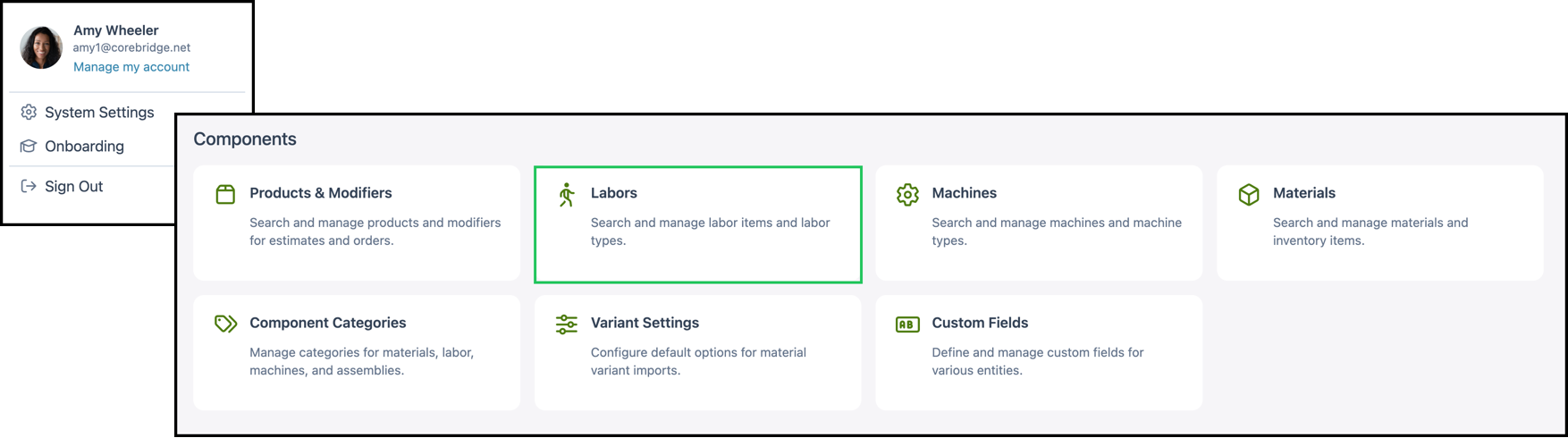
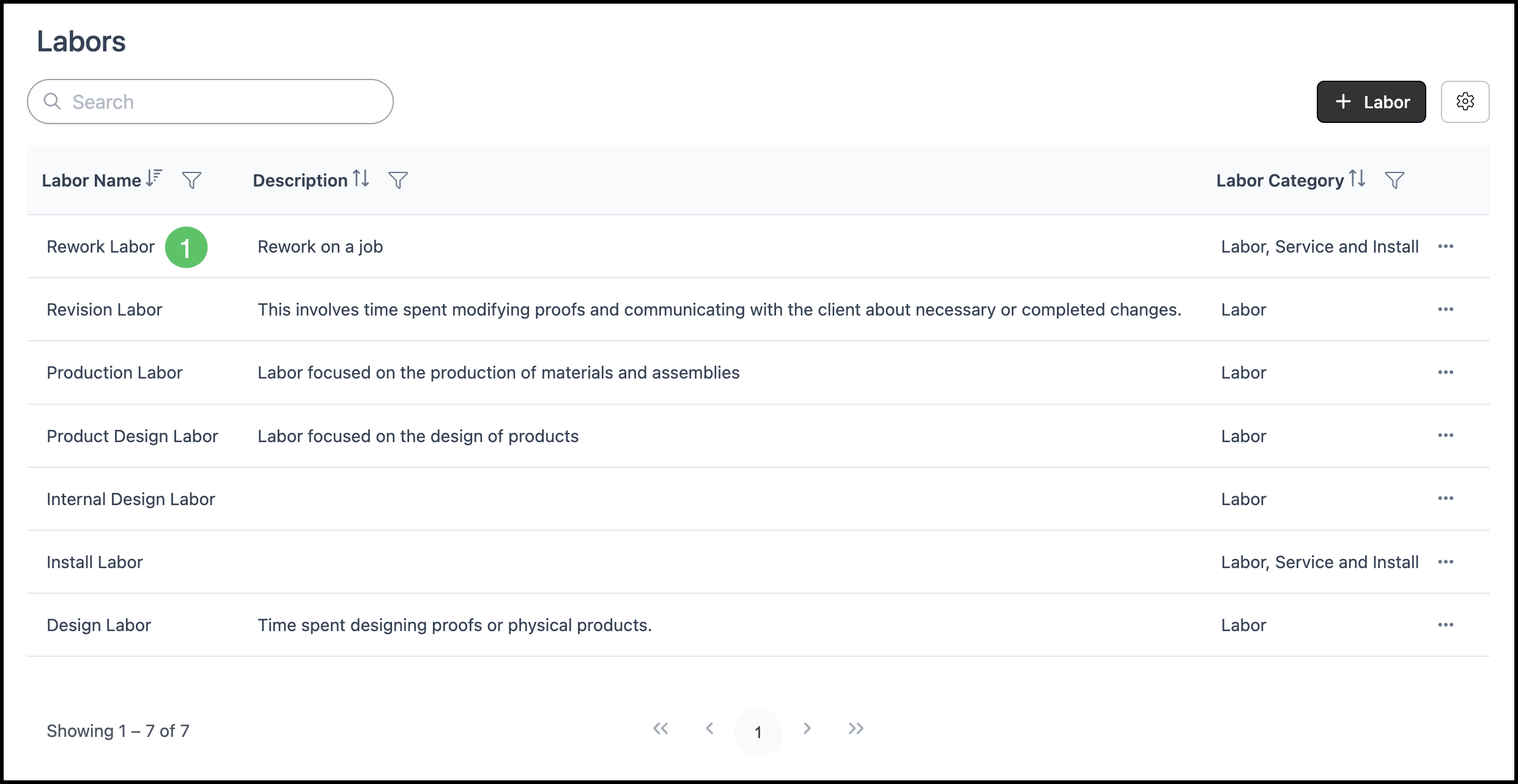
1. Click on the Labor you want to update.
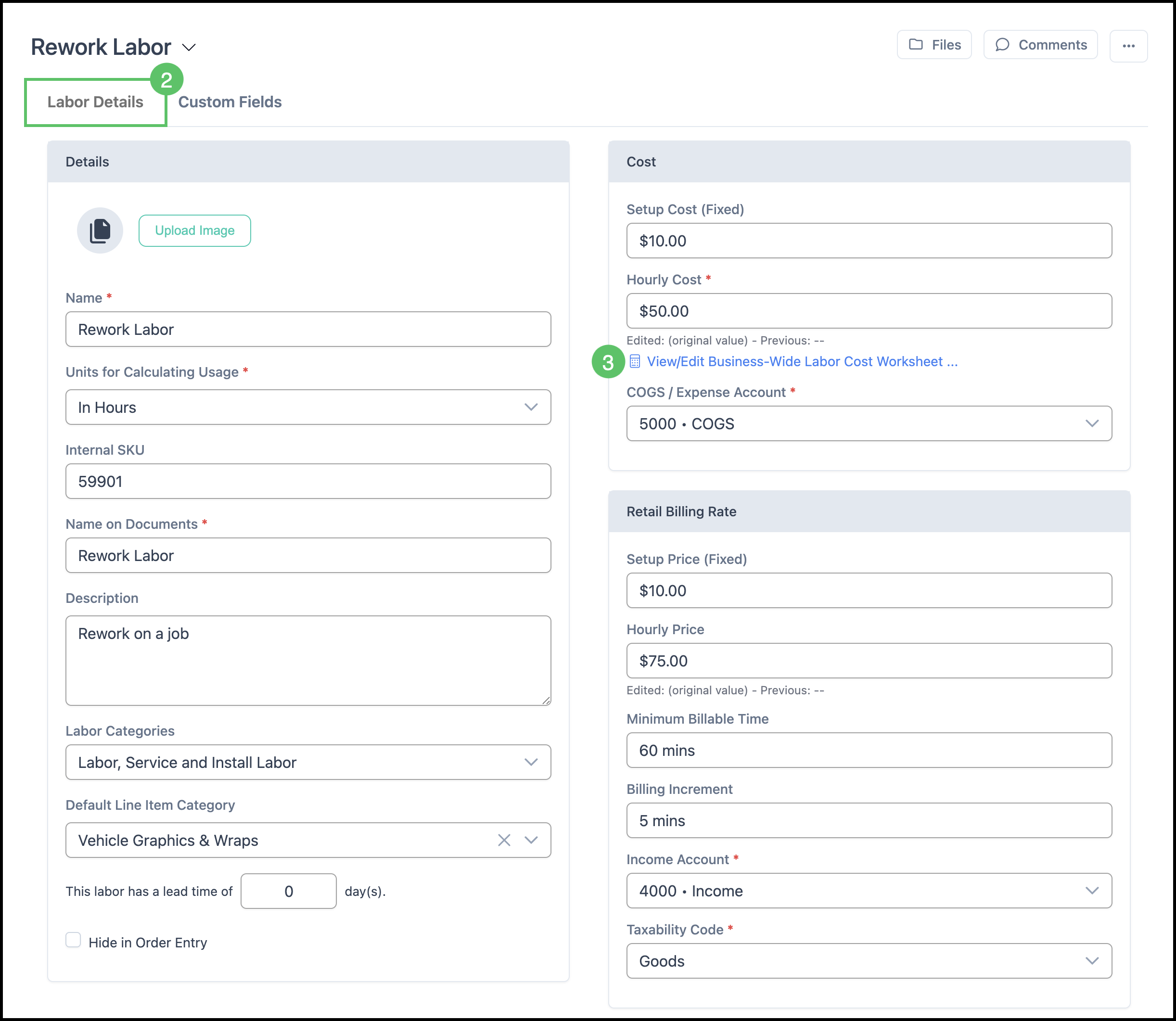
2. Select the Labor Details tab.
3. Click the View/Edit Business-Wide Labor Cost Worksheet link to open the Labor Cost Worksheet.
Filling Out the Labor Cost Worksheet
The Labor Cost Worksheet is a business-wide tool used to calculate the average hourly cost of Labor across your Company. It is not tied to a specific Labor type, but provides a general rate that applies system-wide. This section is intended to help you understand how to complete the worksheet accurately.
Note: If you have specific financial concerns or questions, please consult a qualified accounting or financial professional. The guidance provided here is for instructional purposes only.
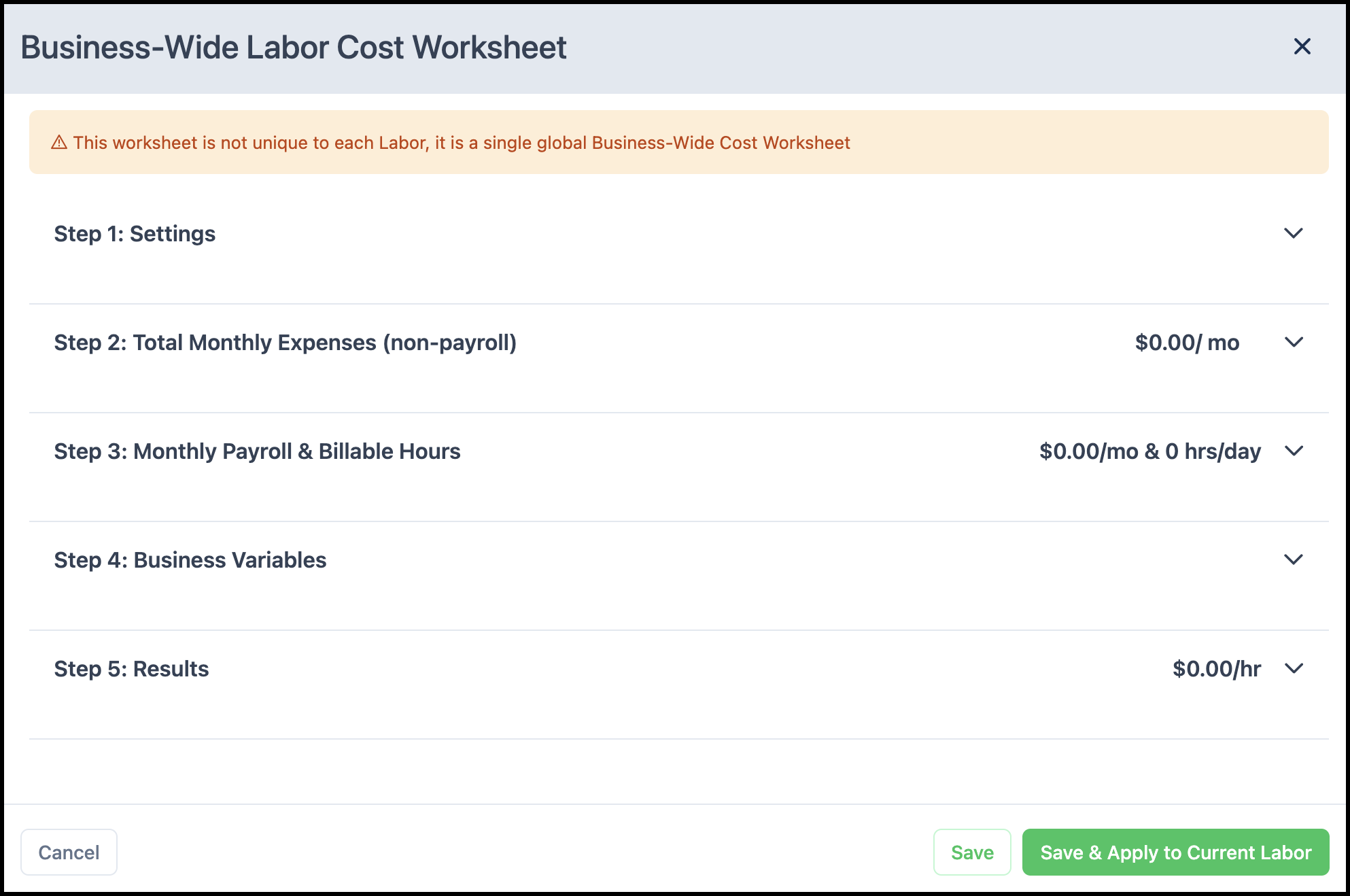
There are two main methods for entering information into the worksheet. You can either enter detailed individual expenses for each category, or enter a single total amount that represents all your expenses combined. This article will walk you through both options, step by step.
Choosing Individual Detailed Expenses
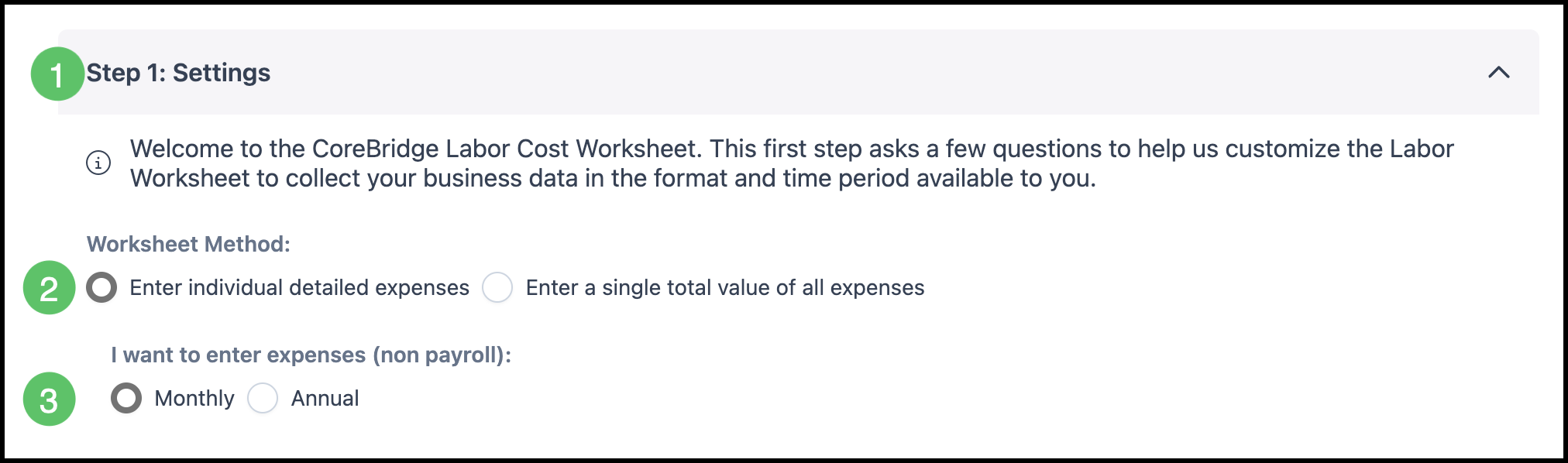
1. Open Settings by clicking the bar to expand.
2. Choose Enter individual detailed expenses.
3. Select if you would like to enter in expenses Monthly or Annually.
Note: The option to enter expenses Monthly or Annually is only available if you have selected to enter individual detailed expenses above.
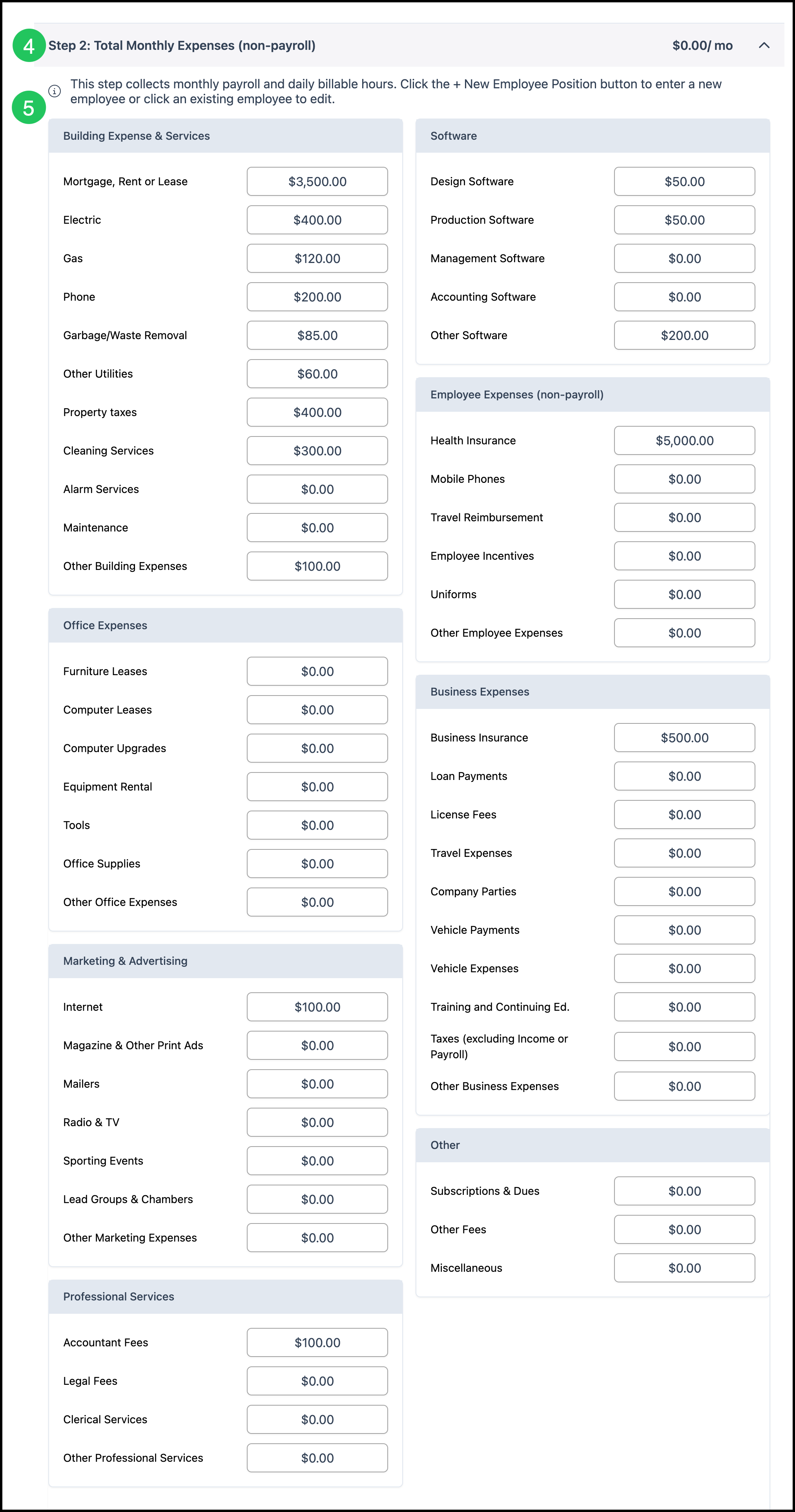
Note: These expenses are not including payroll.
4. Open Monthly Expenses by clicking the bar to expand.
5. Complete as many fields as possible to ensure an accurate picture of your actual monthly expenses, not including payroll.
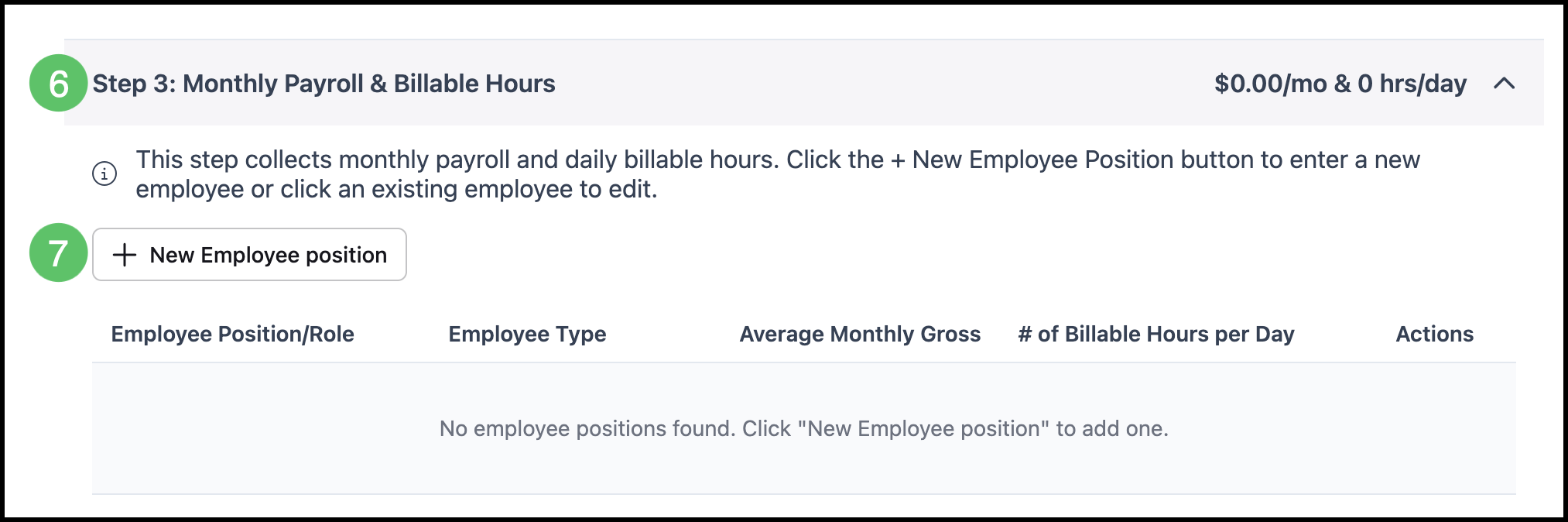
6. Open Monthly Payroll & Billable Hours by clicking the bar to expand.
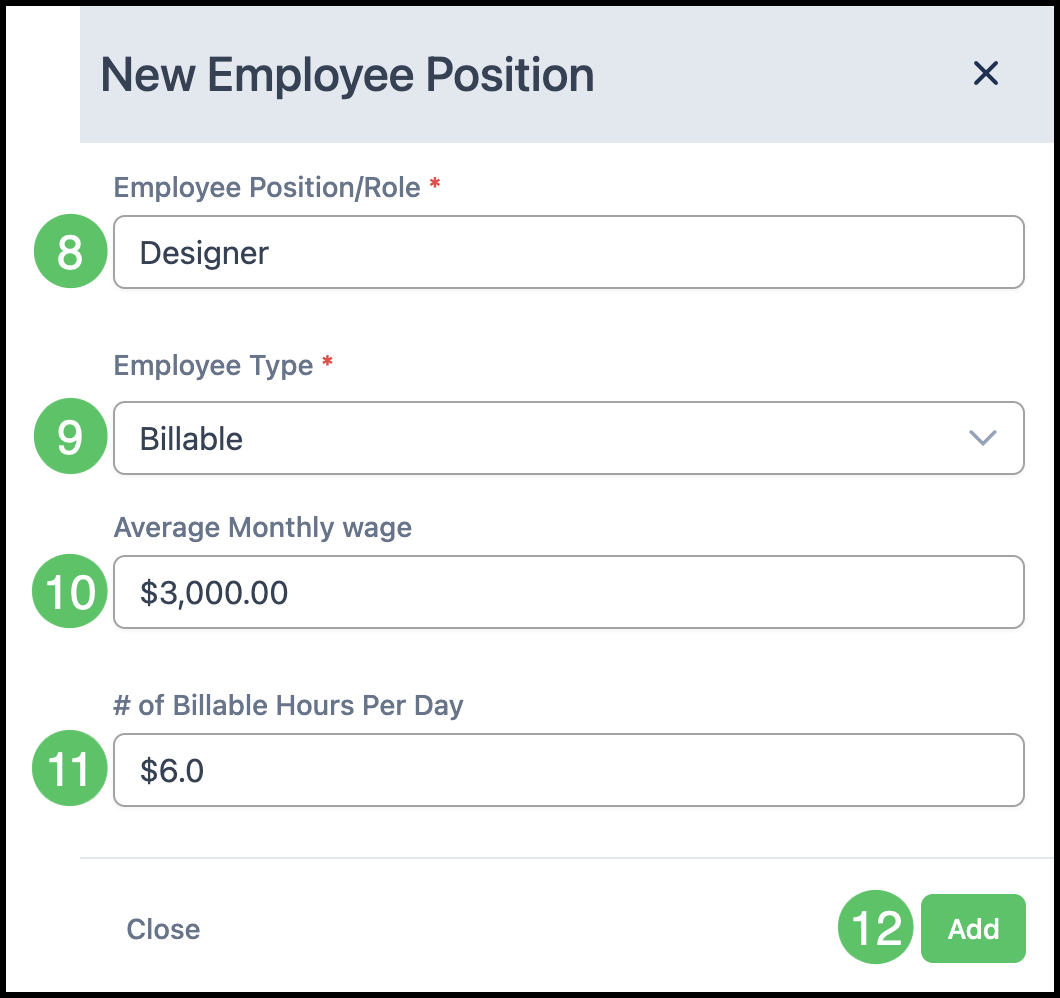
7. Click the Add New Employee Position button.
Note: This will open a dialog box with more information fields.
8. Fill in the name of the Employee Position or Role.
9. Use the dropdown to select the Employee Type.
Note: This can be Billed, Non-Billable, or Mixed depending on whether that Employee's duties involve tasks that can be billed to the Customer directly.
10. Enter the amount of the Average Monthly Wage for this position.
11. Enter the number of billable hours that would be worked per day in this position.
Note: The actual work time is usually less than time the Employee spends clocked in.
12. Click Add.
Note: Steps 7-12 can be repeated as many times as is necessary to enter in all needed Employee Positions.
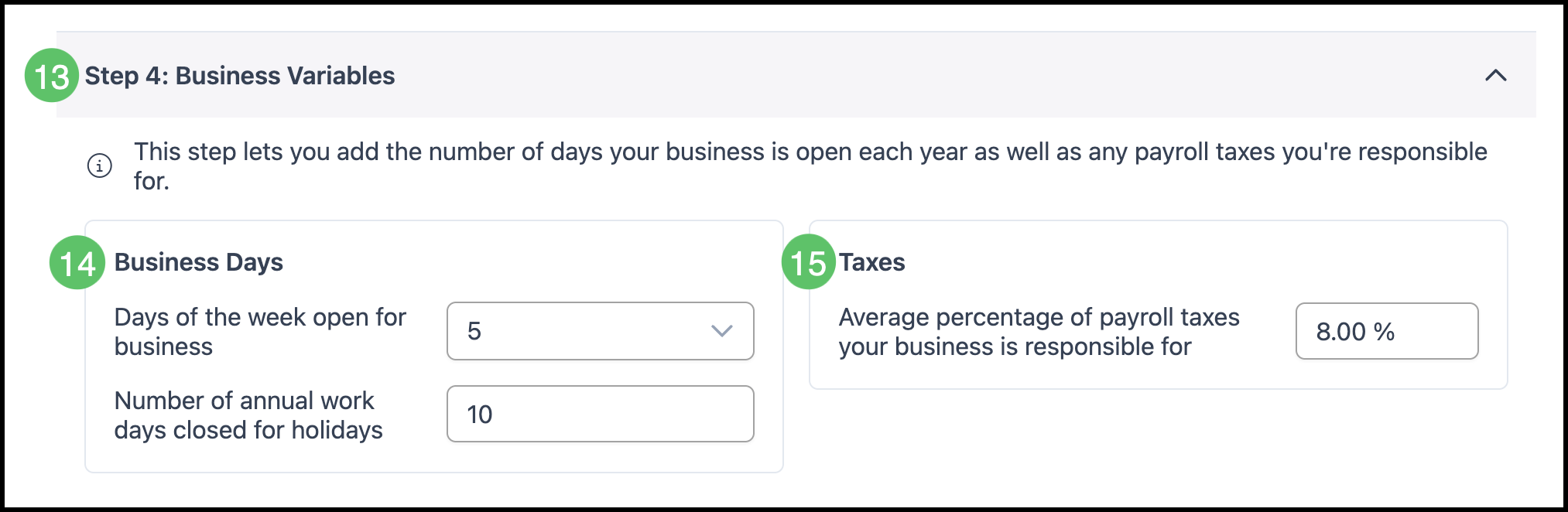
13. Open Business Variables by clicking the bar to expand.
14. Enter in the number of days each week that you are open for business and the number of work days that you are closed for holidays each year.
15. Enter the percentage amount of payroll taxes you are responsible for each year.
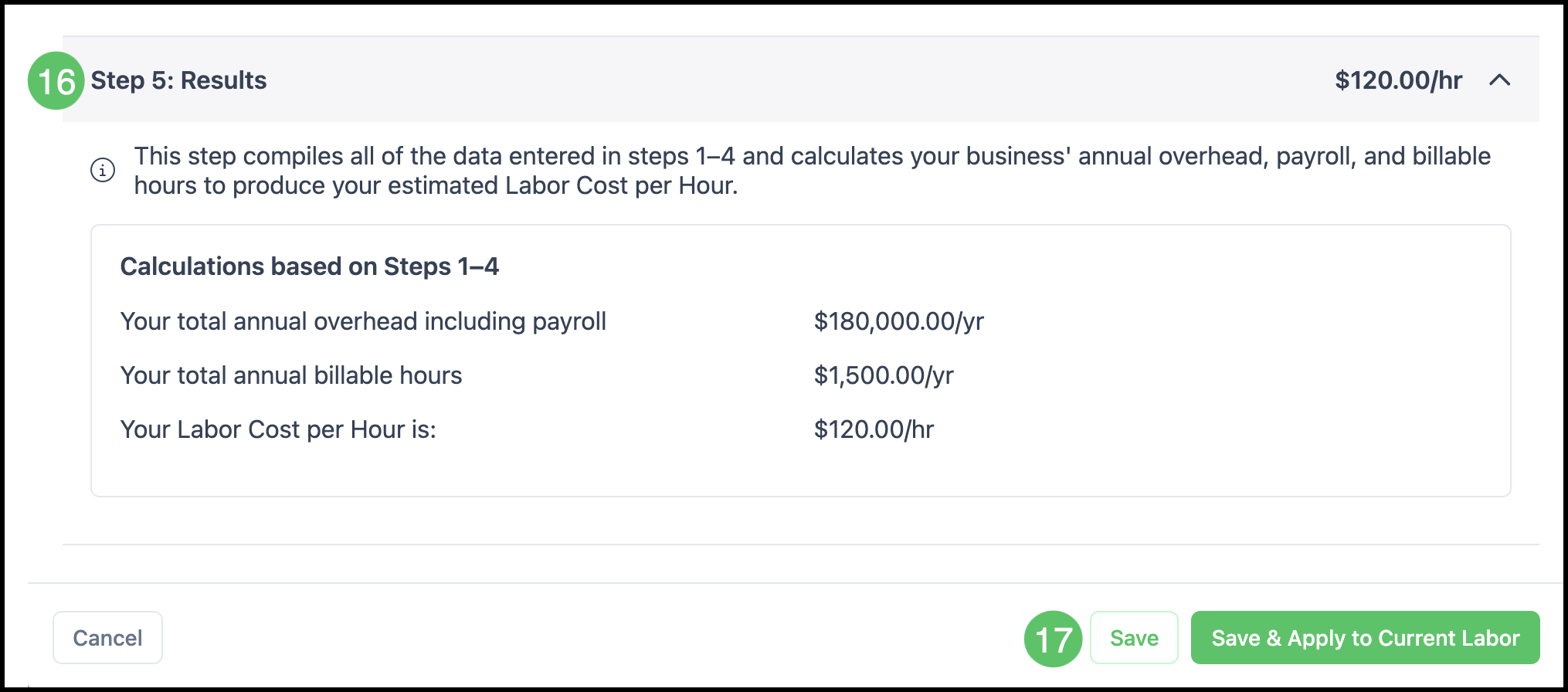
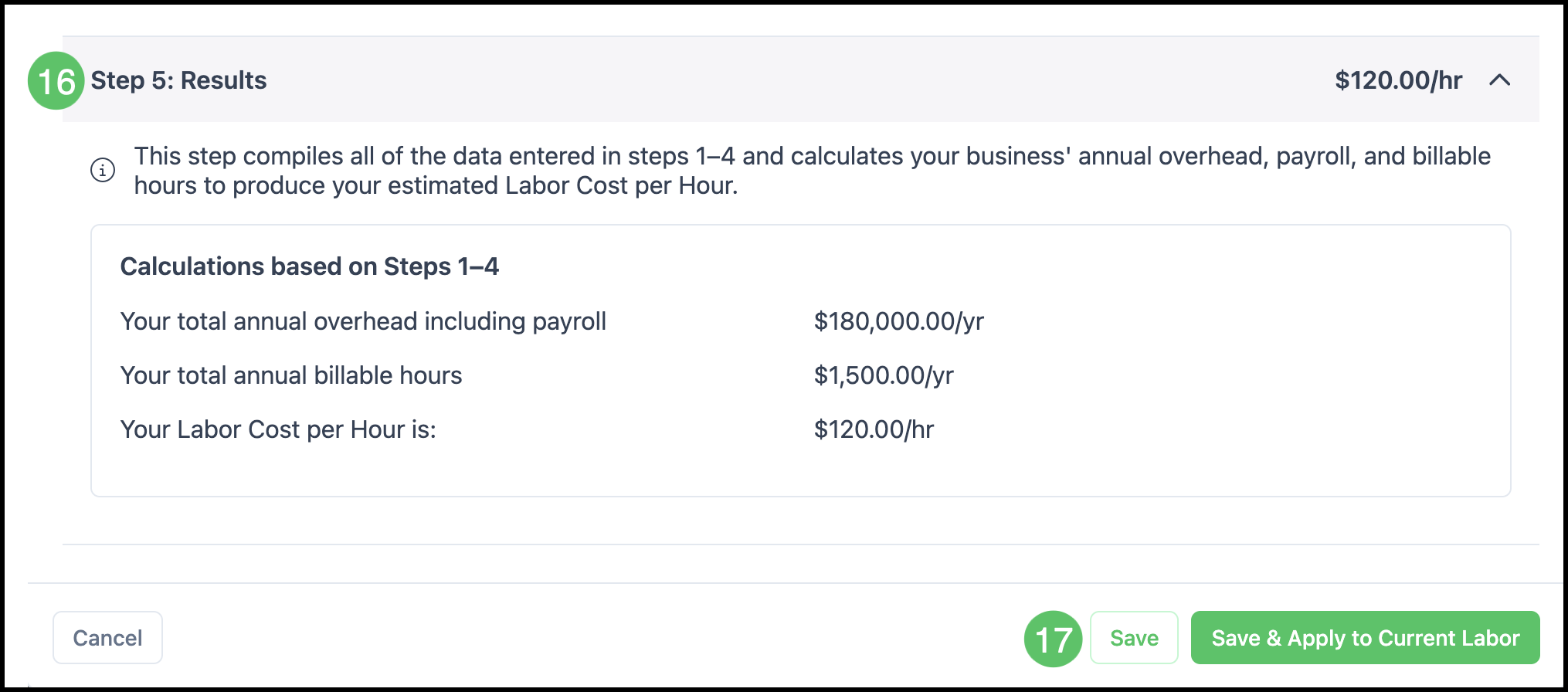
16. Open Results by clicking the bar to expand. This is the Labor Cost per hour based on the information entered in the previous steps.
17. Select between Save, if you are not ready to calculate your cost, or Save & Apply to Current Labor if you are ready to have your calculated Labor Cost per hour added to the Hourly Cost field in the Labor Details page.
Choosing Single Total Value of All Expenses
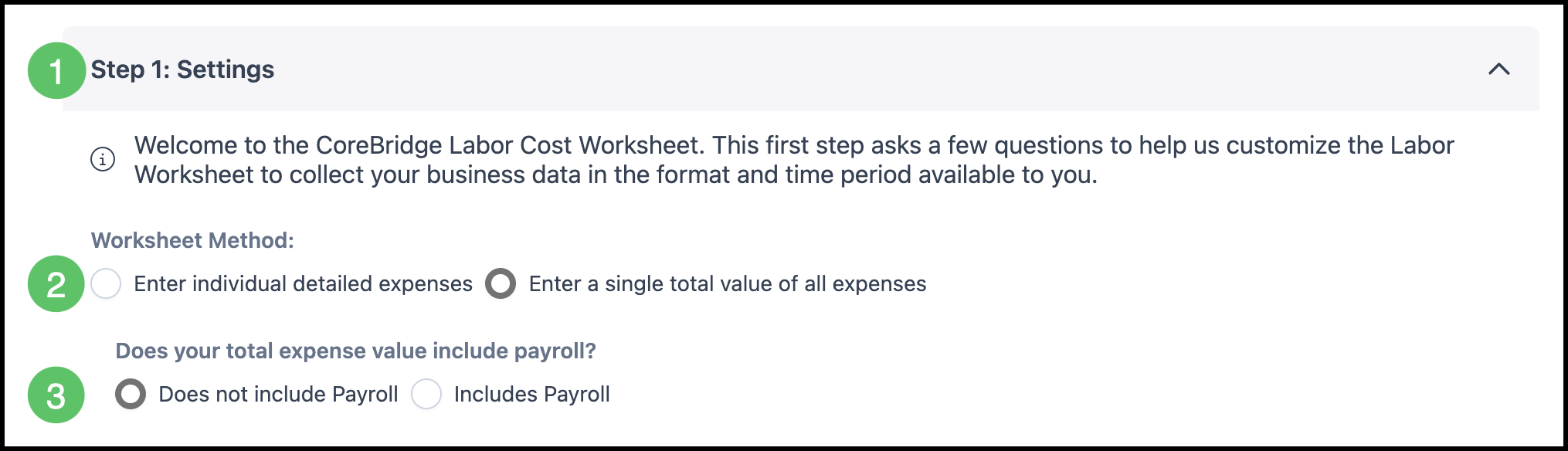
1. Open Settings by clicking the bar to expand.
2. Choose Enter a single total value of all expenses.
3. Select whether these expenses will include payroll.
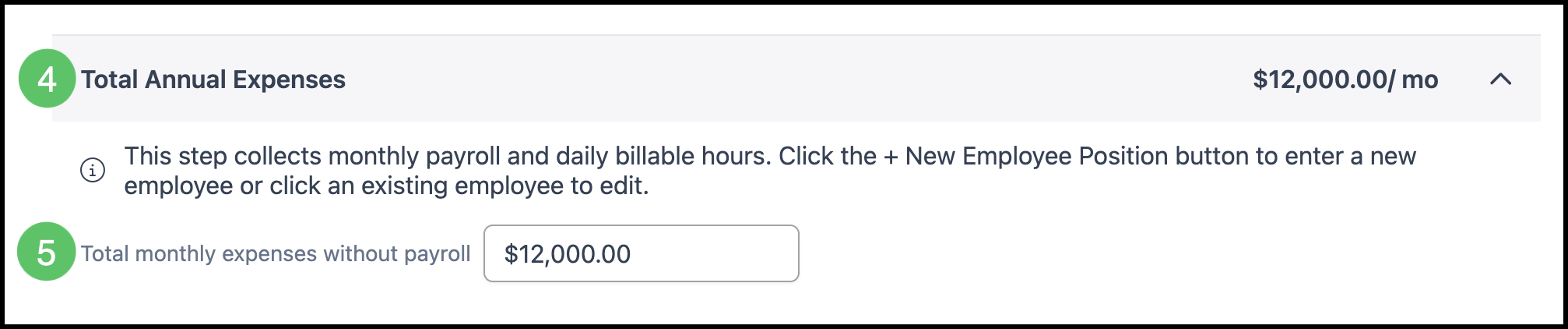
4. Open the Total Annual Expenses bar by clicking to expand.
5. Enter your total monthly expenses.
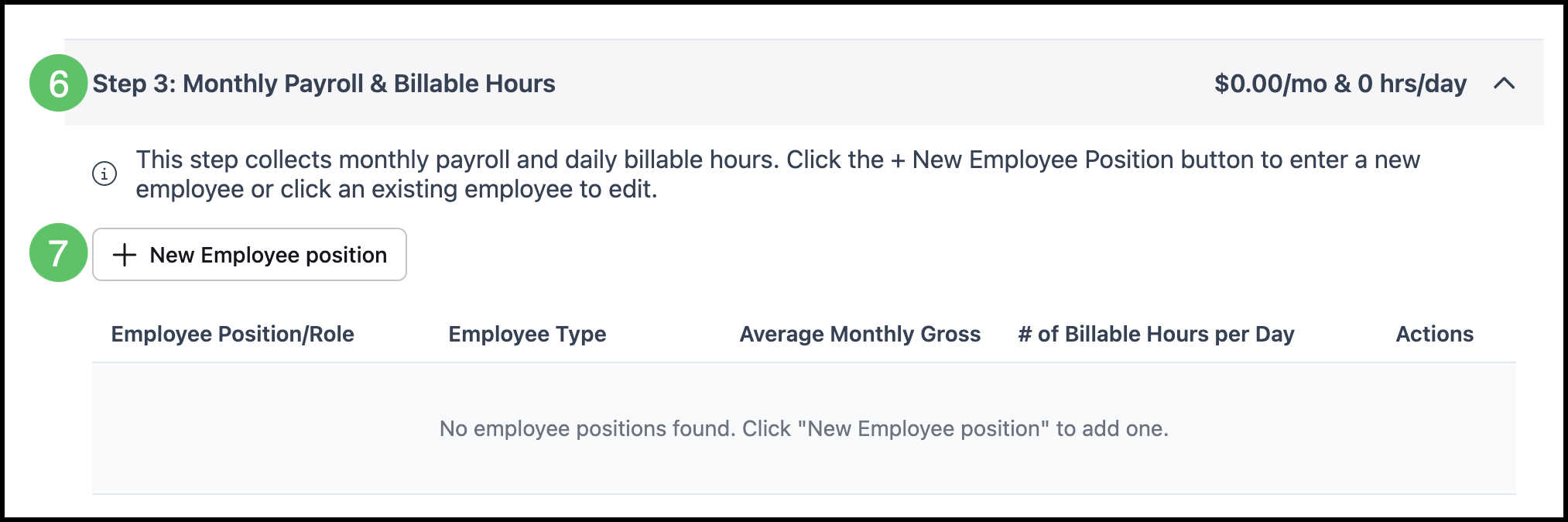
6. Open the Monthly Payroll & Billable Hours bar by clicking to expand.
7. Click the Add New Employee position button.
Note: This will open a dialog box with more information fields.
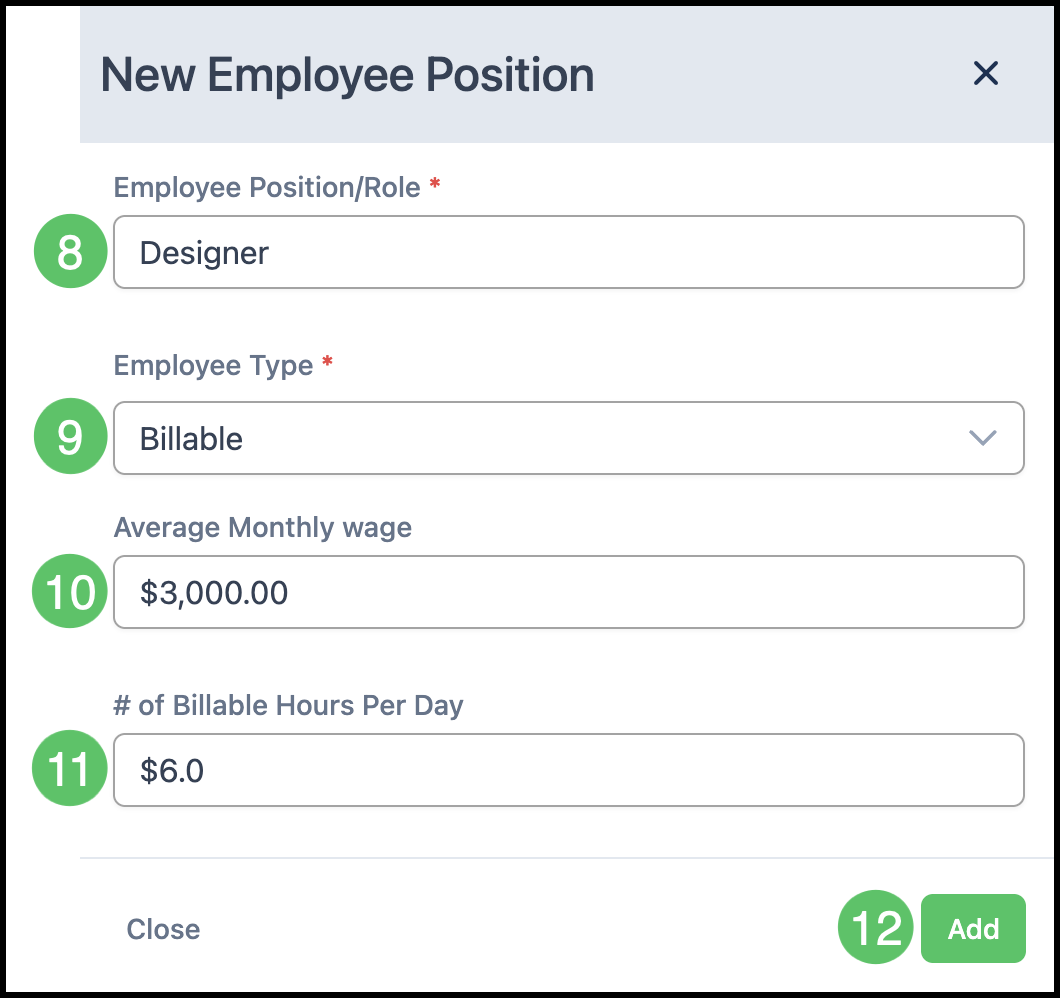
8. Fill in the name of the Employee Position or Role.
9. Use the dropdown to select the Employee Type.
Note: This can be Billed, Non-Billable, or Mixed depending on whether that Employee's duties involve tasks that can be billed to the Customer directly.
10. Enter the amount of the Average Monthly Wage for this position.
11. Enter the number of billable hours that would be worked per day in this position.
Note: The actual work time is usually less than time the Employee spends clocked in.
12. Click Add.
Note: Steps 7-12 can be repeated as many times as is necessary to enter in all needed Employee Positions.
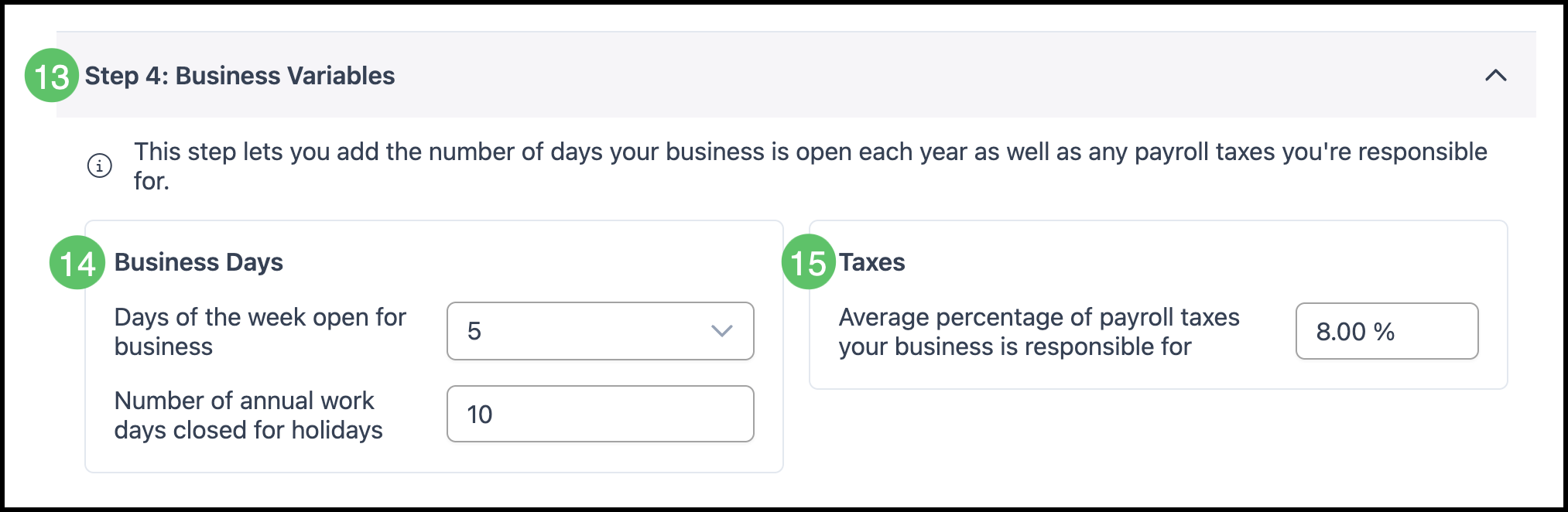
13. Open Business Variables by clicking the bar to expand.
14. Enter in the number of days each week that you are open for business and the number of work days that you are closed for holidays each year.
15. Enter the percentage amount of payroll taxes you are responsible for each year.
16. Open Results by clicking the bar to expand. This is the Labor Cost per hour based on the information entered in the previous steps.
17. Select between Save, if you are not ready to calculate your cost, or Save & Apply to Current Labor if you are ready to have your calculated Labor Cost per hour added to the Hourly Cost field in the Labor Details page.