The Time Tracking feature in CoreBridge allows for recording paid and unpaid time. This feature gives employees the ability to clock in and out anywhere throughout the system by going to the stopwatch icon in the upper corner of the system. Paid and Unpaid activities are setup and customized by management.
For more information on configuring the Time Clock, please see Time Tracking for Managers.
Table of Contents
Record Your Time
- The stopwatch icon is where you clock in and out throughout the day.
- You can clock in from any screen while you are signed in.
- You must be signed in to CoreBridge to use this feature.
Clock In - Paid Time
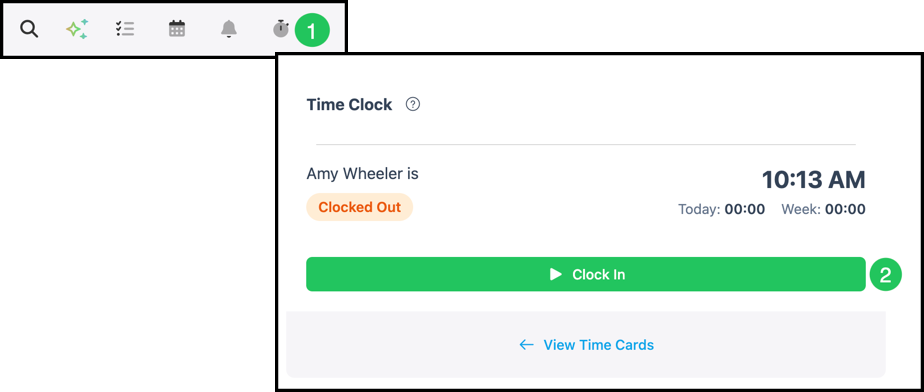
1. Click the stopwatch in the header.
2. Click Clock In.
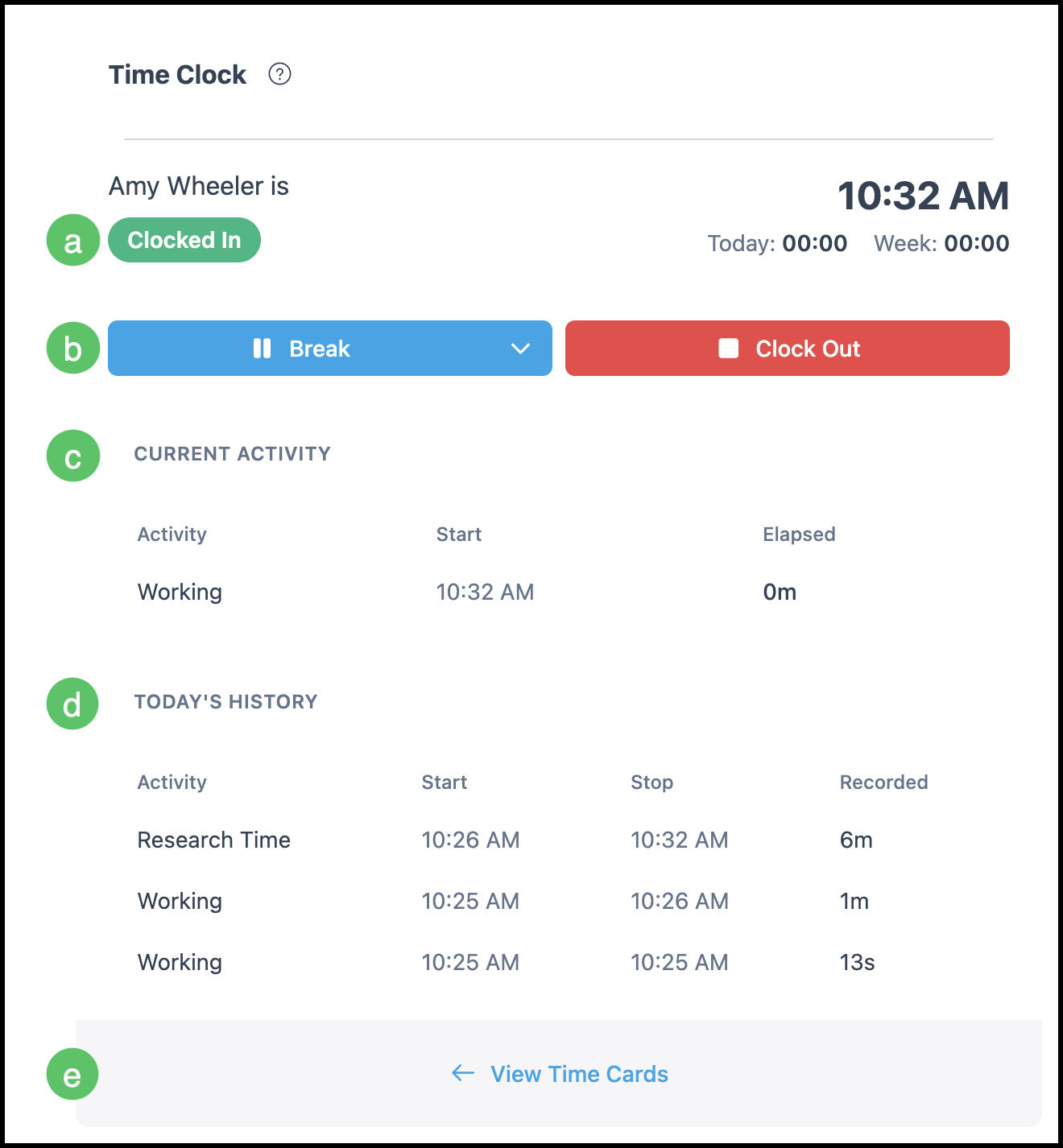
a. This badge updates to reflect the current Time Clock status.
b. Available Activities for the work being started are accessible from the dropdown. The Time Clock can also be paused here for breaks.
Note: Activities are created and managed by administrators to help allocate tracked time.
c. The currently selected Time Clock Activity displays here.
d. The day’s Time Clock history is displayed here.
e. View Time Cards opens My Profile / Time Cards.
Breaks and Lunch - Unpaid Time
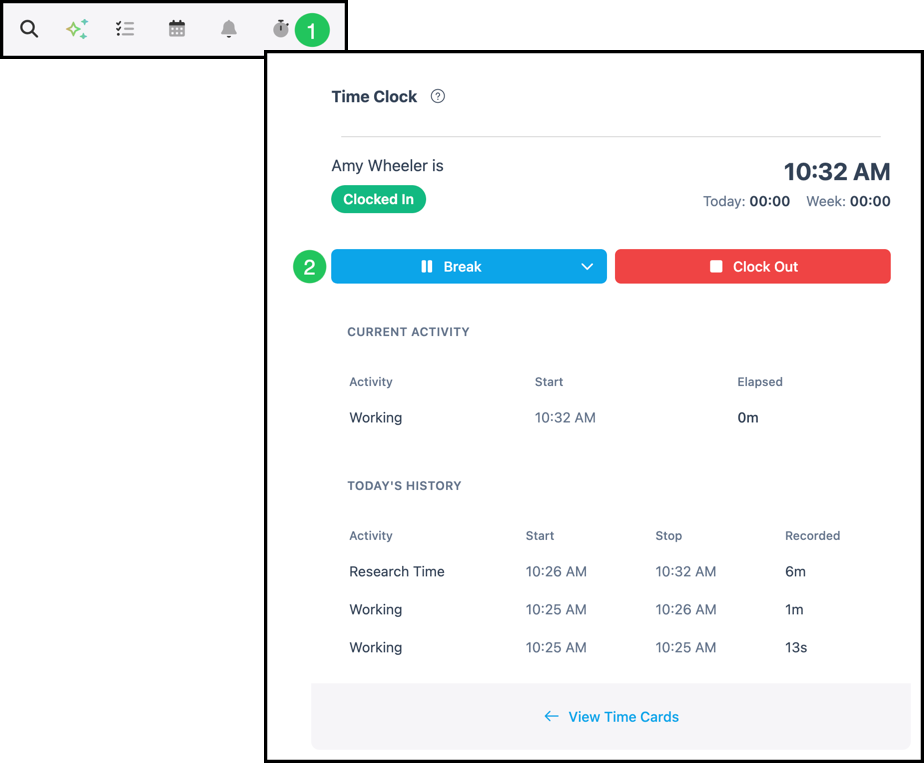
1. Click the stopwatch in the header.
2. Click Break.
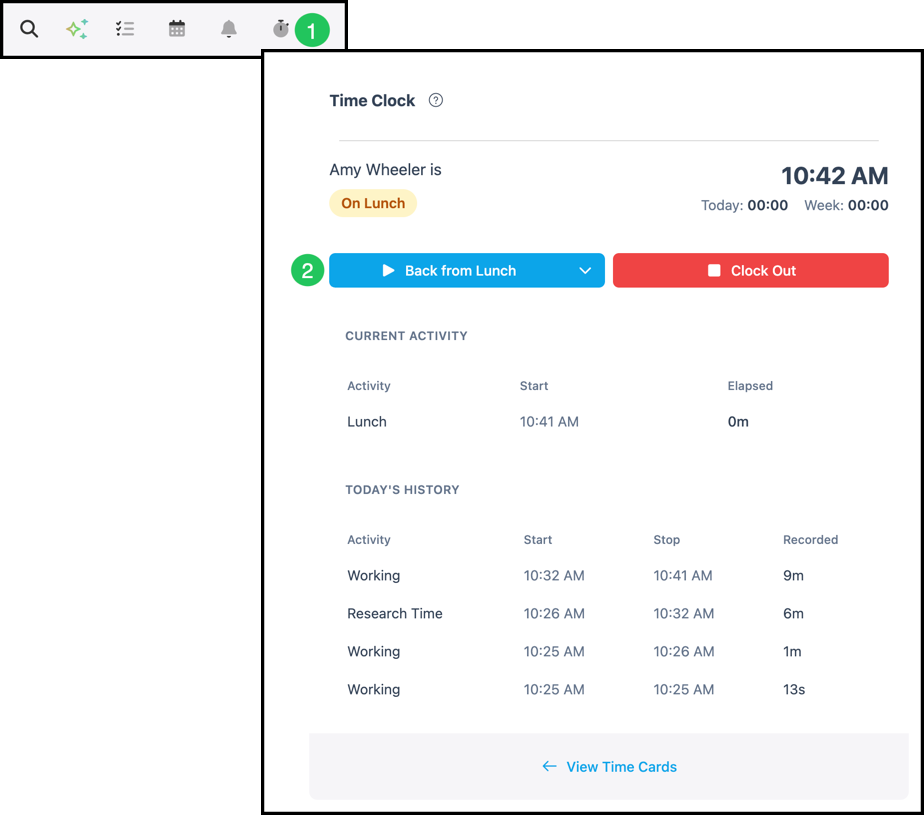
Return From Breaks and/or Lunch - Paid Time
1. Click the stopwatch in the header.
2. Click Back from Lunch.
Note: Depending on how lunch or breaks are configured in the system, the back button may appear differently in your system.
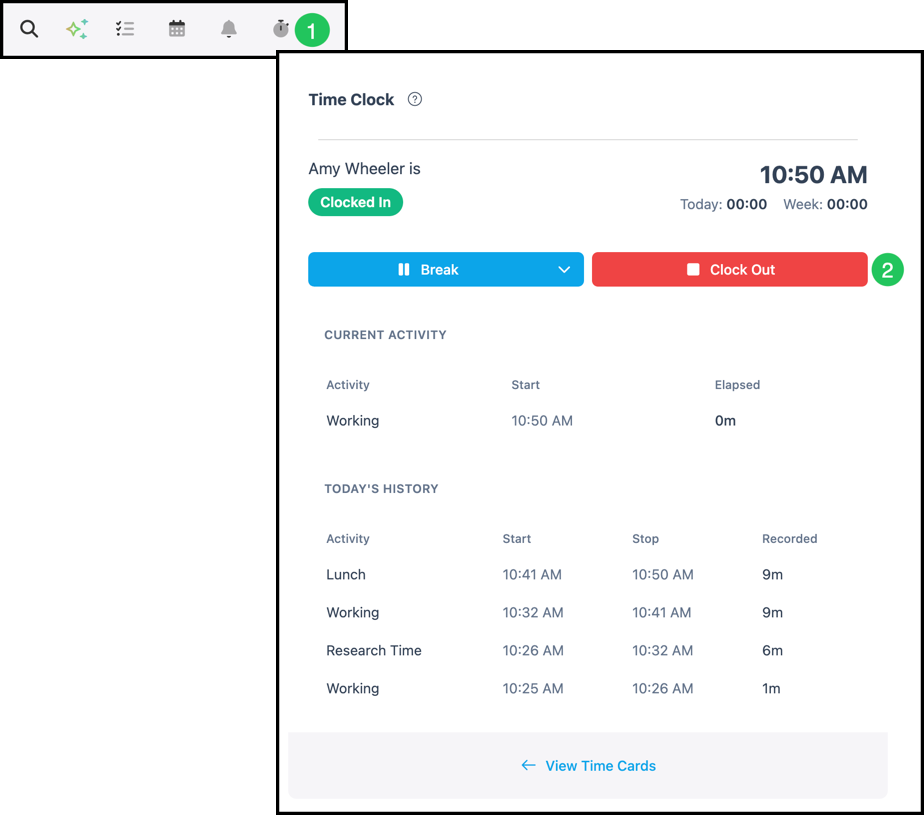
Clock Out - End of Shift
1. Click the stopwatch in the header.
2. Click Clock Out.
Time Cards
Navigate to My Profile.
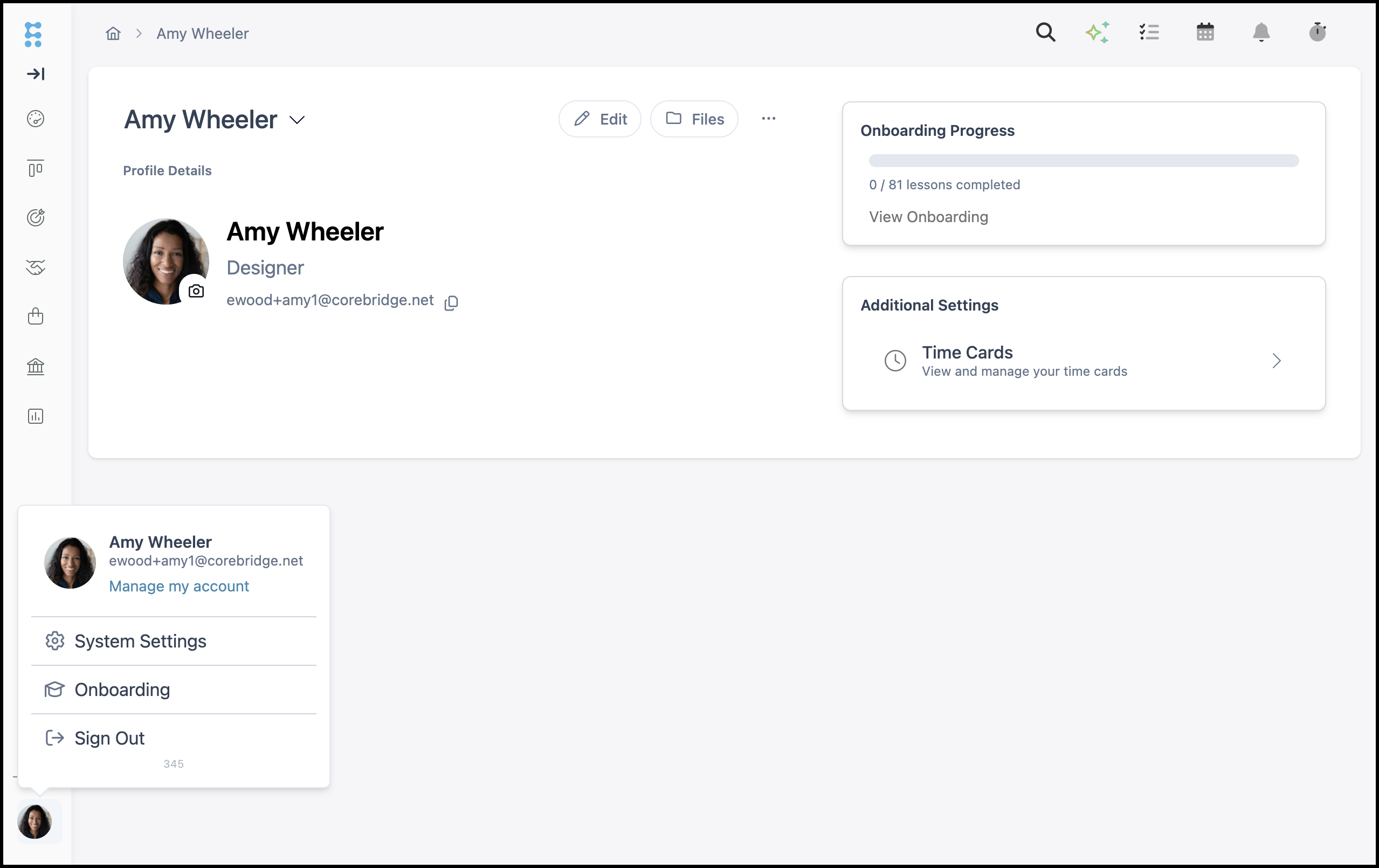
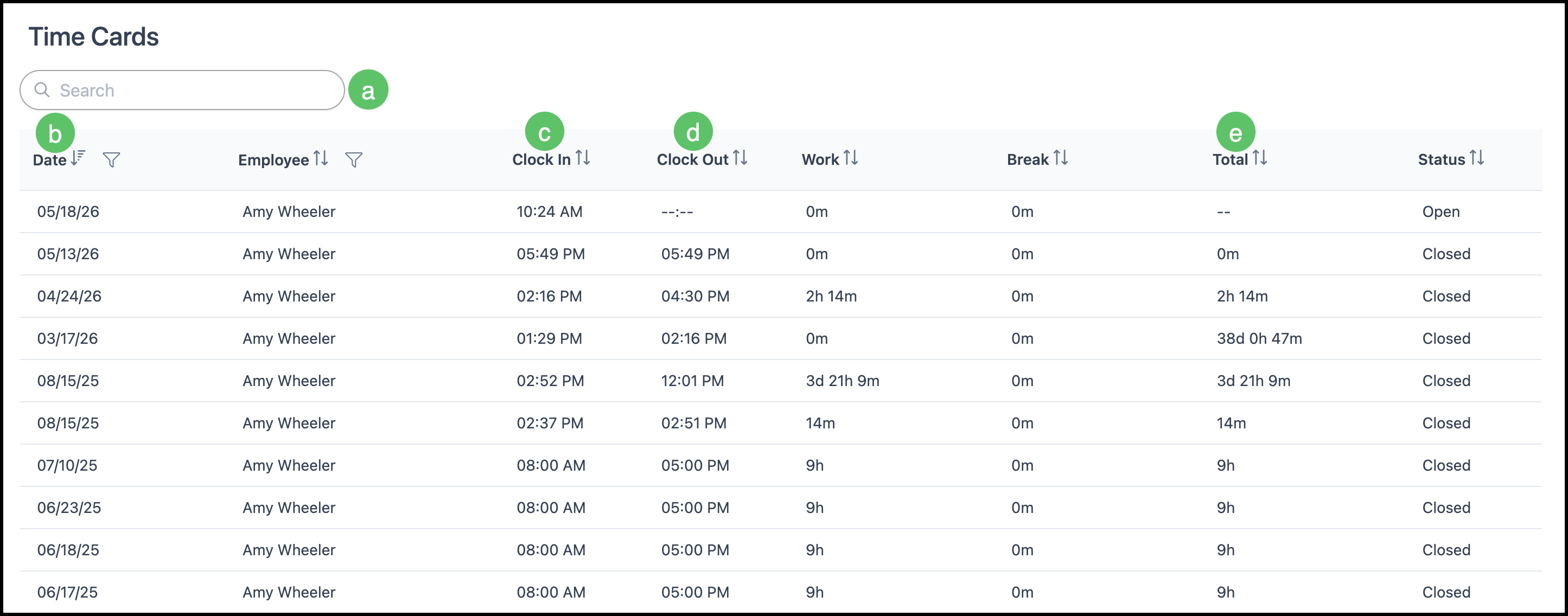
1. Click on Time Cards.
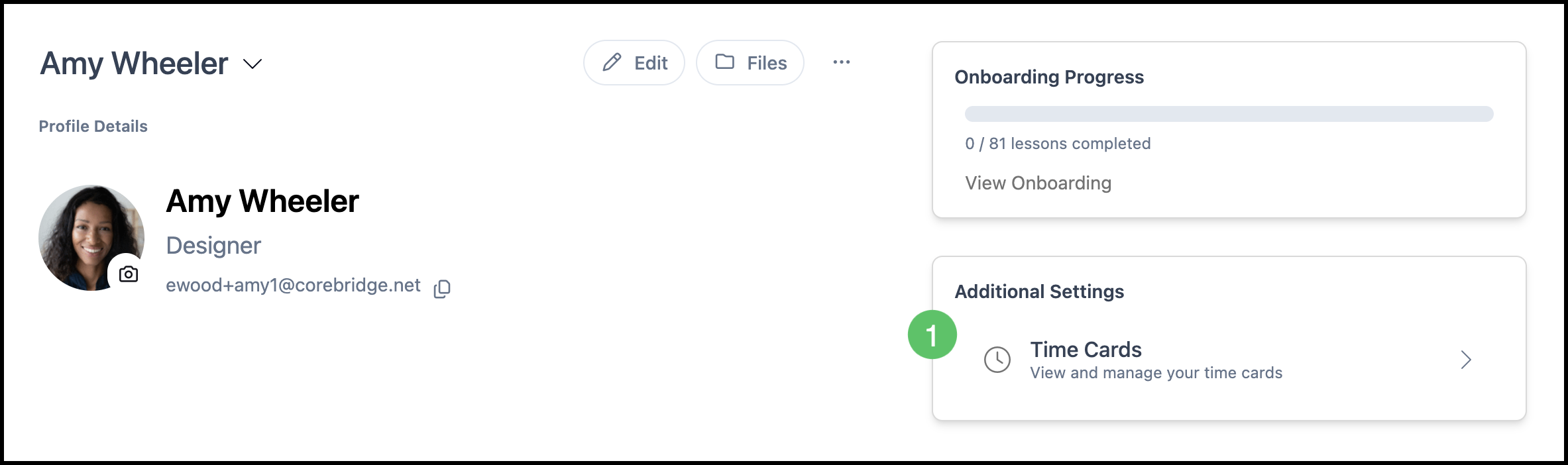
a. Search for Time Cards by a specific date.
b. Dates can be sorted in ascending or descending order.
c. The clock in time is displayed here for reference.
d. The clock out time is displayed here for reference.
e. The total hours worked for the entry are displayed here for reference.
Note: You can also choose View Time Cards from the Time Clock panel for a shortcut into this area.