
Quick Search finds an Order, Estimate, Company, Contact, Payment, or Opportunity from any screen. The Quick Search window shows the hot keys that open and close it.
Table of Contents
- Important Information
- Opening Quick Search
- Searching
- Showing One Type
- Recent Searches and Recently Viewed
- Hot Keys
- Frequently Asked Questions
- Related Articles
Important Information
- Quick Search is the magnifying glass in the header. It is separate from Search on a list, such as Orders.
- Open Quick Search with the Quick Search button, the / key, or ⌘K. Ctrl+K opens Quick Search the same way. Close it with Esc or Close search.
- Those hot keys stay quiet while you are typing in a text field, or while another dialog is open.
- Type at least two characters. Quick Search shows No results found when nothing matches.
- All shows every type together. Orders, Estimates, Companies, Contacts, Payments, and Opportunities each limit the list to that type.
- When Search is empty, Quick Search shows Recent Searches and Recently Viewed after you have searched or opened a record. The first time, before any history, the window says Start searching.
- Rest the pointer on an Order result to see Total Price, Balance Due, and Order Due Date.
- Search results include links that allow you to open related records directly from the results.
Opening Quick Search
1. Click Quick Search. The Quick Search window opens.

a. Search is where you type. The field shows Search... until you type.
b. Close search closes the window. Esc does the same.
c. All, Orders, Estimates, Companies, Contacts, Payments, and Opportunities choose which type of record is listed.

Searching
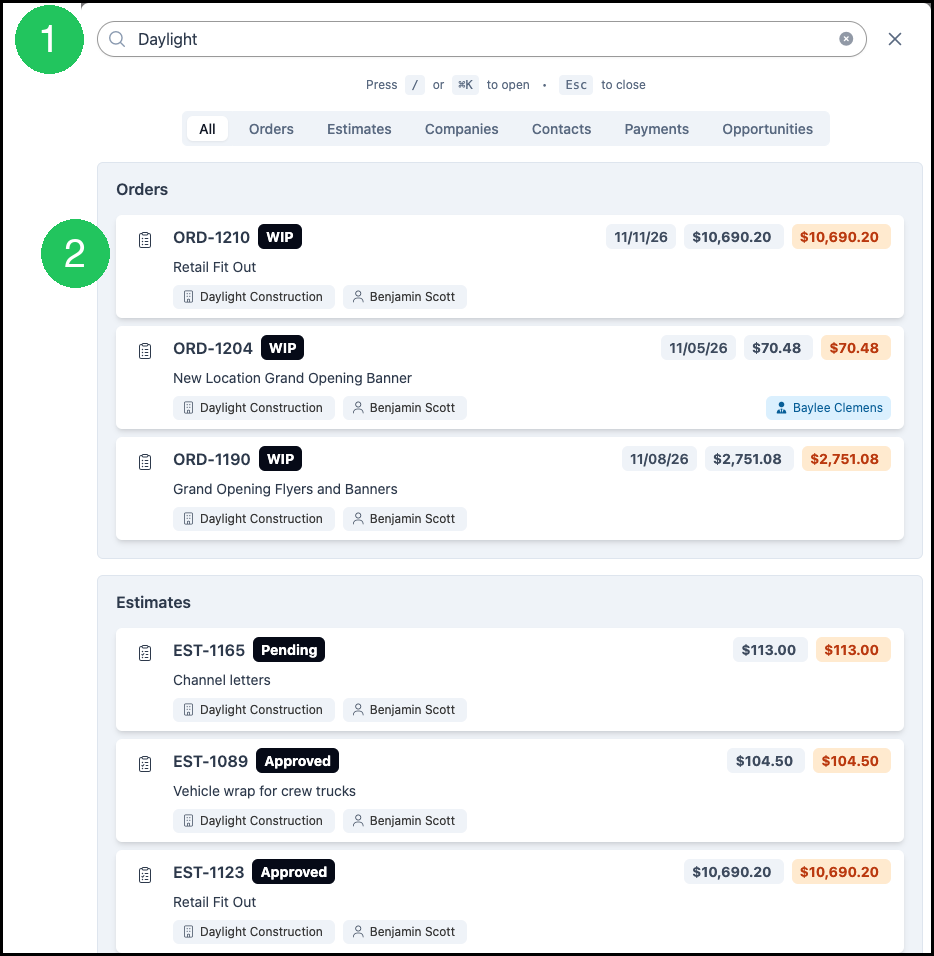
1. Type at least two characters in Search. Matching records appear after a short pause.
2. Click the Order in the list. The Order opens.
a. An Order result shows the Order number, the Status, the due date, two amounts, the description, the Company, and the Contact. Rest the pointer on the Order to see Total Price, Balance Due, and Order Due Date.
b. An Estimate result shows the Estimate number, the Status, the amounts, the description, the Company, and the Contact.
Showing One Type
1. Click Orders. The list shows only Orders.
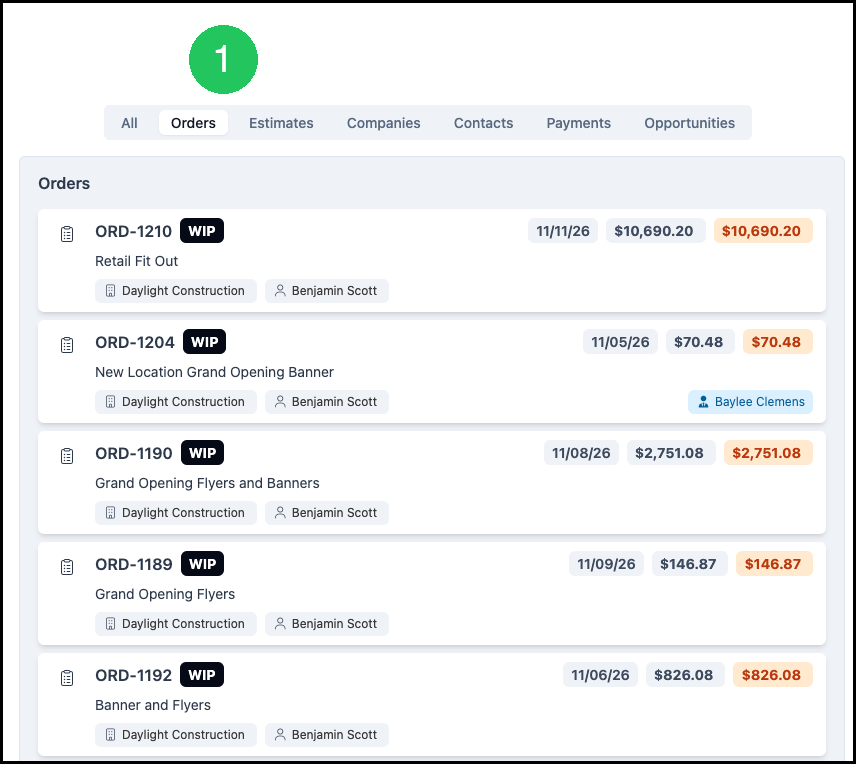
Estimates, Companies, Contacts, Payments, and Opportunities work the same way. Each one limits the list to that type. Click All to show every type together again.
Recent Searches and Recently Viewed
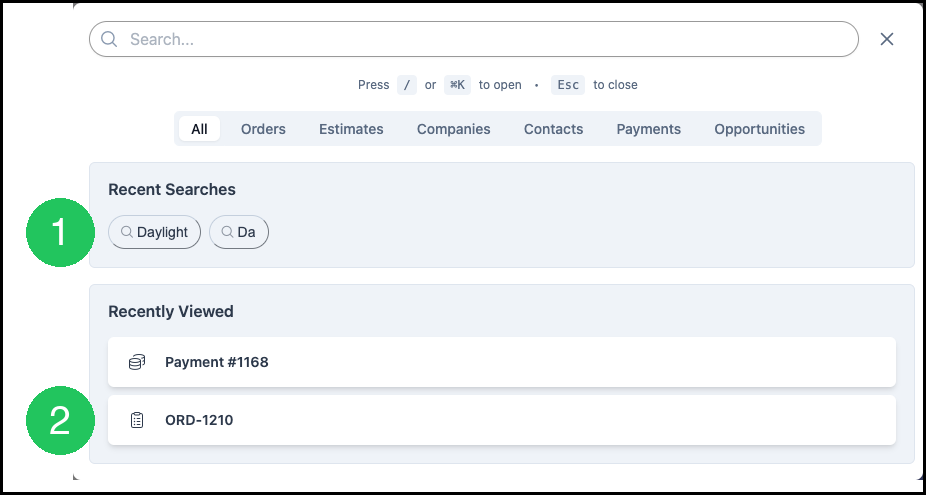
Open Quick Search and leave Search empty. After you have searched or opened a record, the window shows Recent Searches and Recently Viewed.
1. Click a Recent Search to run that search again. You stay in Quick Search.
2. Click an Order under Recently Viewed to open that Order.
a. A Payment under Recently Viewed returns you to the Dashboard. Open the Order from a Payment result by clicking the Order number.
Opening Links
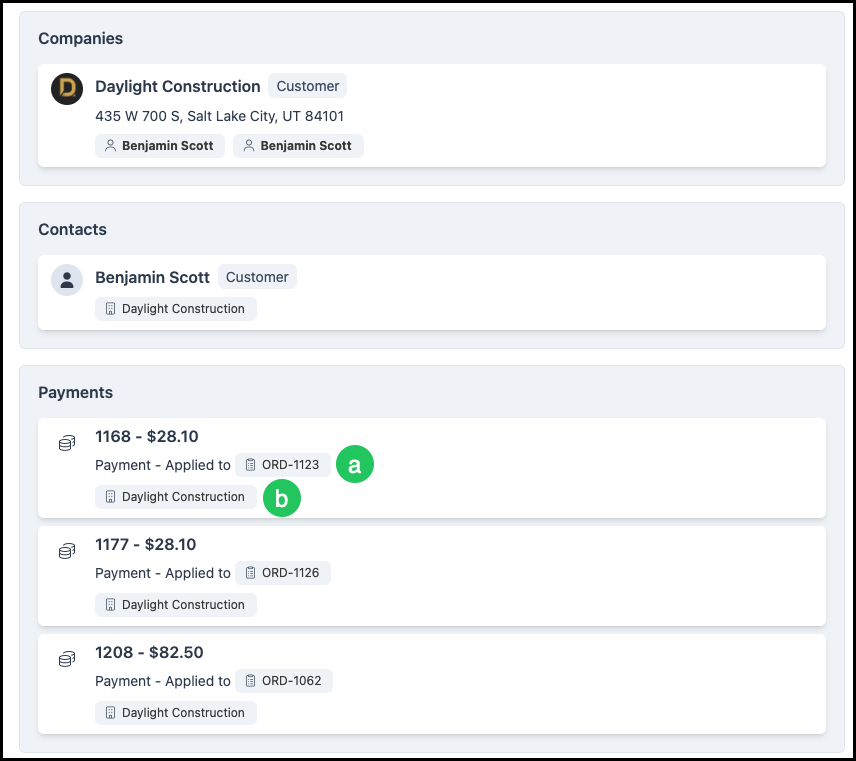
Search results include clickable links that allow you to open related records directly from the results. For example, a Payment result displays the payment amount, associated Order, and Company, with links to access each record.
a. The Order number on the Payment result opens the Order.
b. The Company name on that Payment result opens the Company.
Hot Keys
The Quick Search window shows the same keys: press / or ⌘K to open, and Esc to close.
1. Press / or ⌘K. Quick Search opens. Ctrl+K opens Quick Search the same way.
2. Press Esc. Quick Search closes.
a. These keys stay quiet while the cursor is in a text field, or while another dialog is open. Click outside the field, or close the other dialog, and press the key again.

Frequently Asked Questions
1. What is the difference between Quick Search and Search on a list?
Answer: Quick Search is in the header and searches Orders, Estimates, Companies, Contacts, Payments, and Opportunities from any screen. Search on a list, such as Orders, searches that list only. See Using Search and Filters and System Navigation Overview.
2. Why did / not open Quick Search?
Answer: / and ⌘K stay quiet while you are typing in a text field, or while another dialog is open. Click outside the field, or close the other dialog, and press the key again.
3. Why does Quick Search say No results found?
Answer: Quick Search needs at least two characters. One character shows No results found. When two or more characters do not match a record, Quick Search also shows No results found.
4. What are the two amounts on an Order result?
Answer: Rest the pointer on the Order. Quick Search shows Total Price, Balance Due, and Order Due Date.
5. How do I open the Order from a Payment result?
Answer: Click the Order number on the Payment result. The Company name on that result opens the Company. Clicking the Payment row itself returns you to the Dashboard.