
Estimate document defaults are the starting Page, Language, Layout, and Content values for every Estimate. They are set on Estimate Settings. Include controls which options appear when an Estimate is prepared for email, the online portal, or print / download. Editable on Document controls whether people can change a value while preparing the Estimate. Default is the starting value on the Estimate.
Table of Contents
- Important Information
- Opening Estimate Settings
- Page
- Text Size
- Language
- Layout
- Header
- Line Items
- Payments and Totals
- End of Document
- Content
- Custom Text and Footer
- Frequently Asked Questions
- Related Articles
Important Information
- Check Include to turn an option on for Estimates. Unchecking Include hides that option everywhere and turns Editable on Document off.
- When Editable on Document is on, people can change that setting while preparing the Estimate. When it is off, the value set here is always used.
- Default is the value set here, used as the starting value on the Estimate.
- These settings apply to every Estimate. To create or edit one template, use Documents. For more information, see Document Options.
Opening Estimate Settings
Navigate to System Settings / Documents / Document Settings.
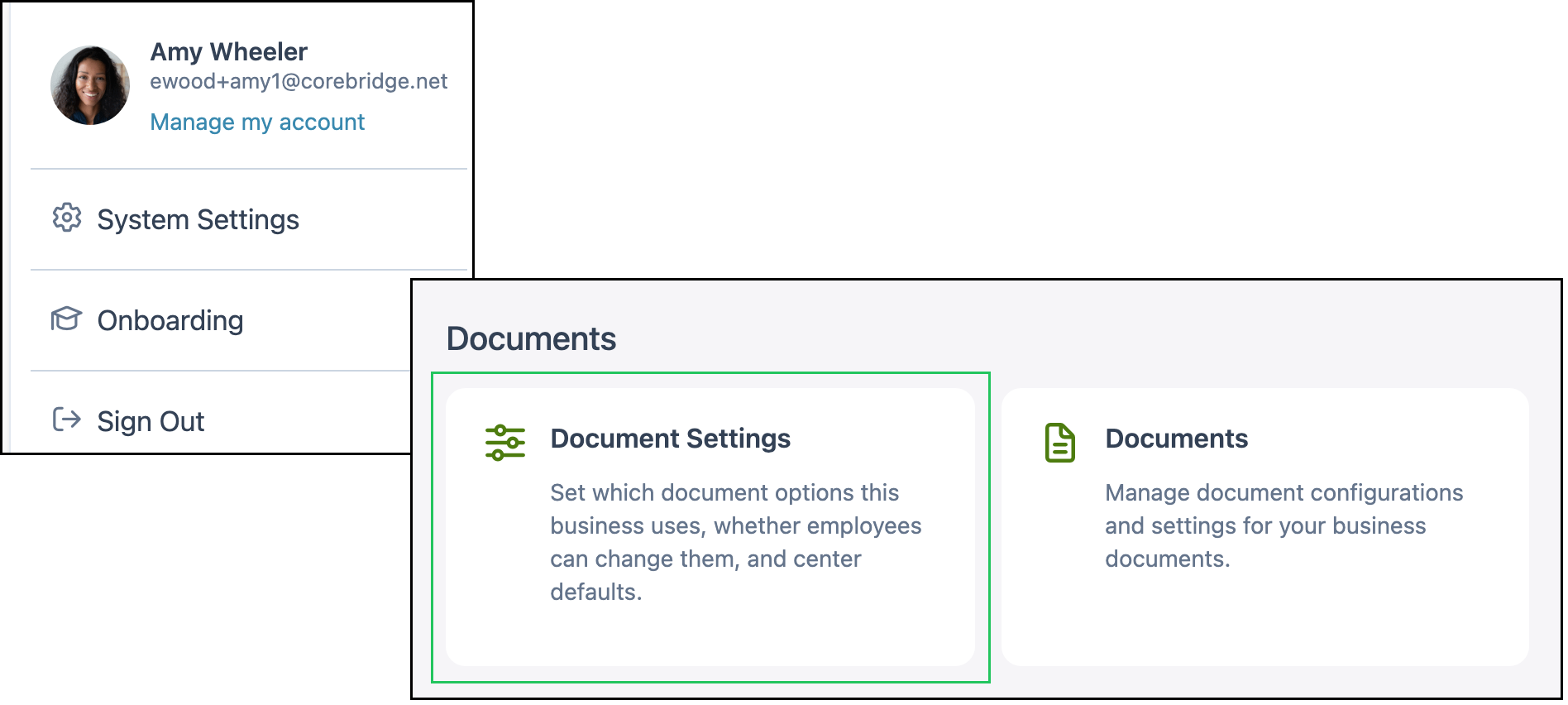
1. Click Estimate.

Note: Click Save to keep changes. Click Discard to drop unsaved changes.
Page
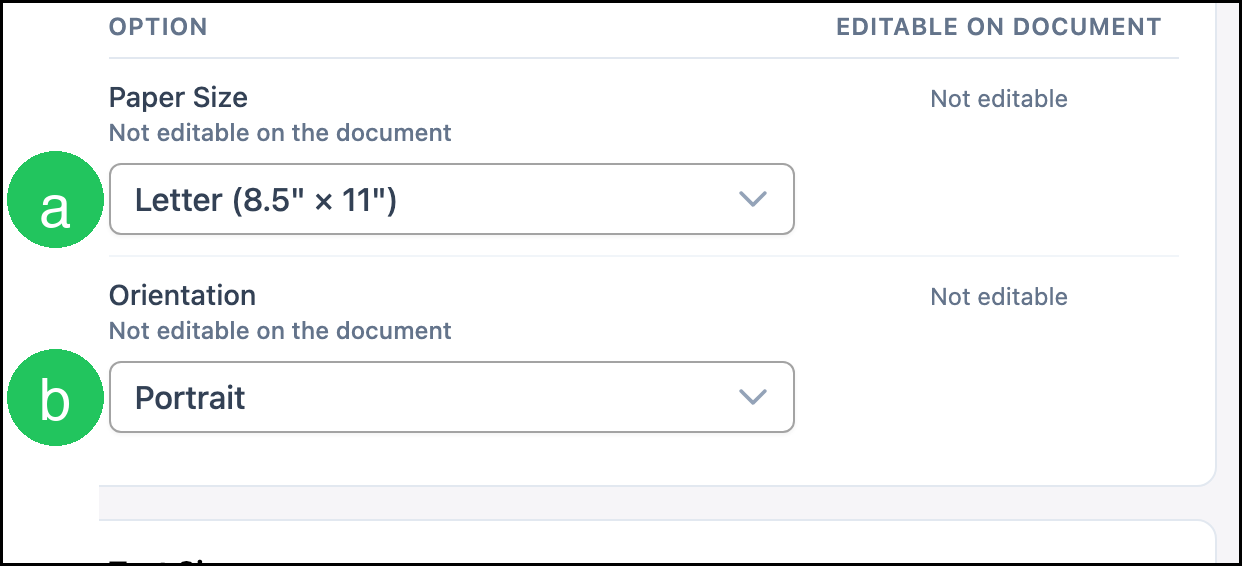
The Page tab is open when Estimate Settings opens. Paper size and orientation are not editable on the Estimate.
a. Paper Size is Letter (8.5" × 11").
b. Orientation is Portrait.
Text Size
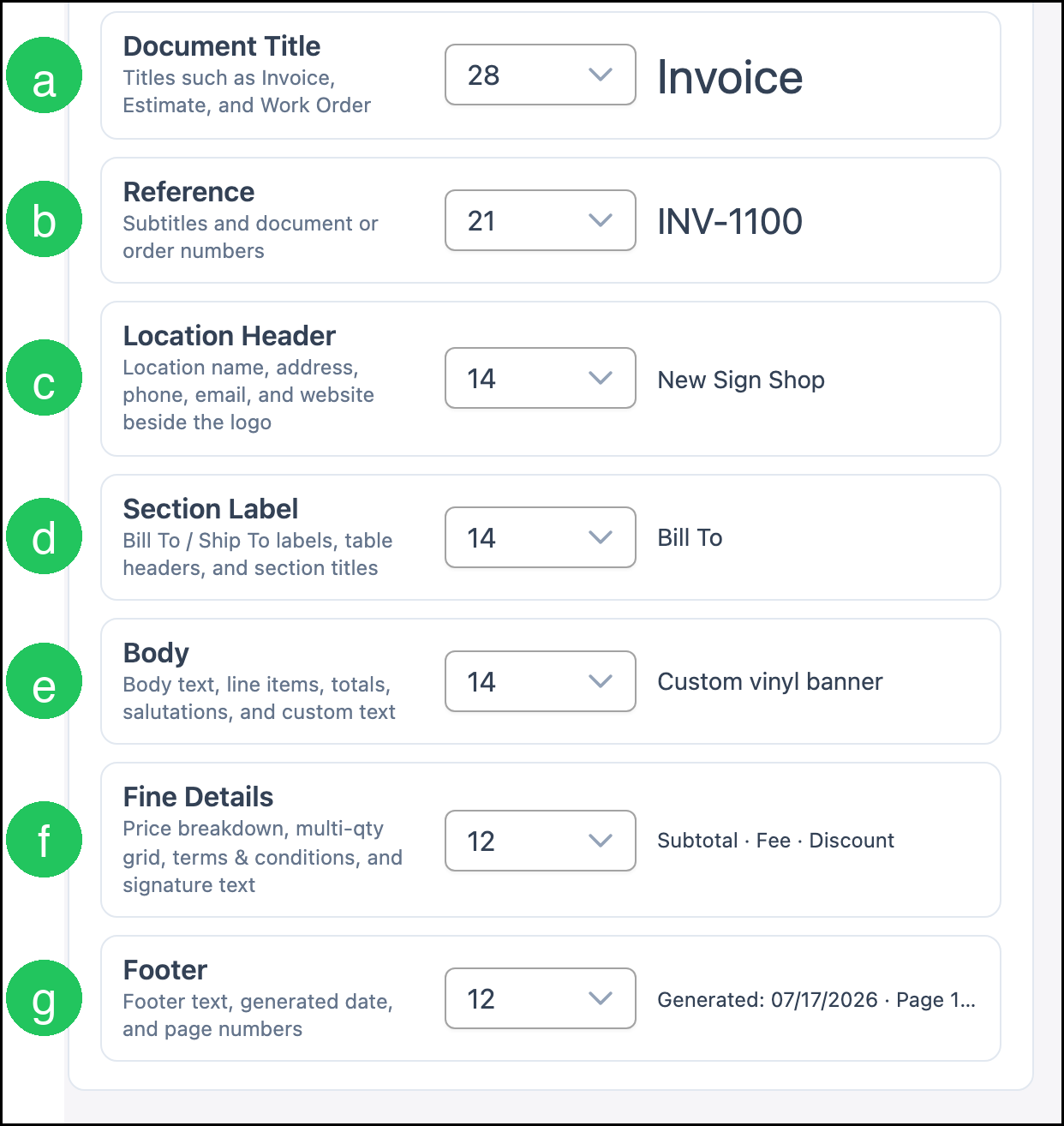
Text Size is in pixels and applies to every Estimate this business prints. The defaults match the current printed output and are not maximums. Rich-text fields that set their own size keep it.
a. Document Title is 28. Titles such as Estimate use this size.
b. Reference is 21. Subtitles and document numbers use this size.
c. Location Header is 14. The location name, address, phone, email, and website beside the logo use this size.
d. Section Label is 14. Bill To and Ship To labels, table headers, and section titles use this size.
e. Body is 14. Body text, line items, totals, salutations, and custom text use this size.
f. Fine Details is 12. Price breakdowns, the multi-quantity grid, terms and conditions, and signature text use this size.
g. Footer is 12. Footer text, the generated date, and page numbers use this size.
Language
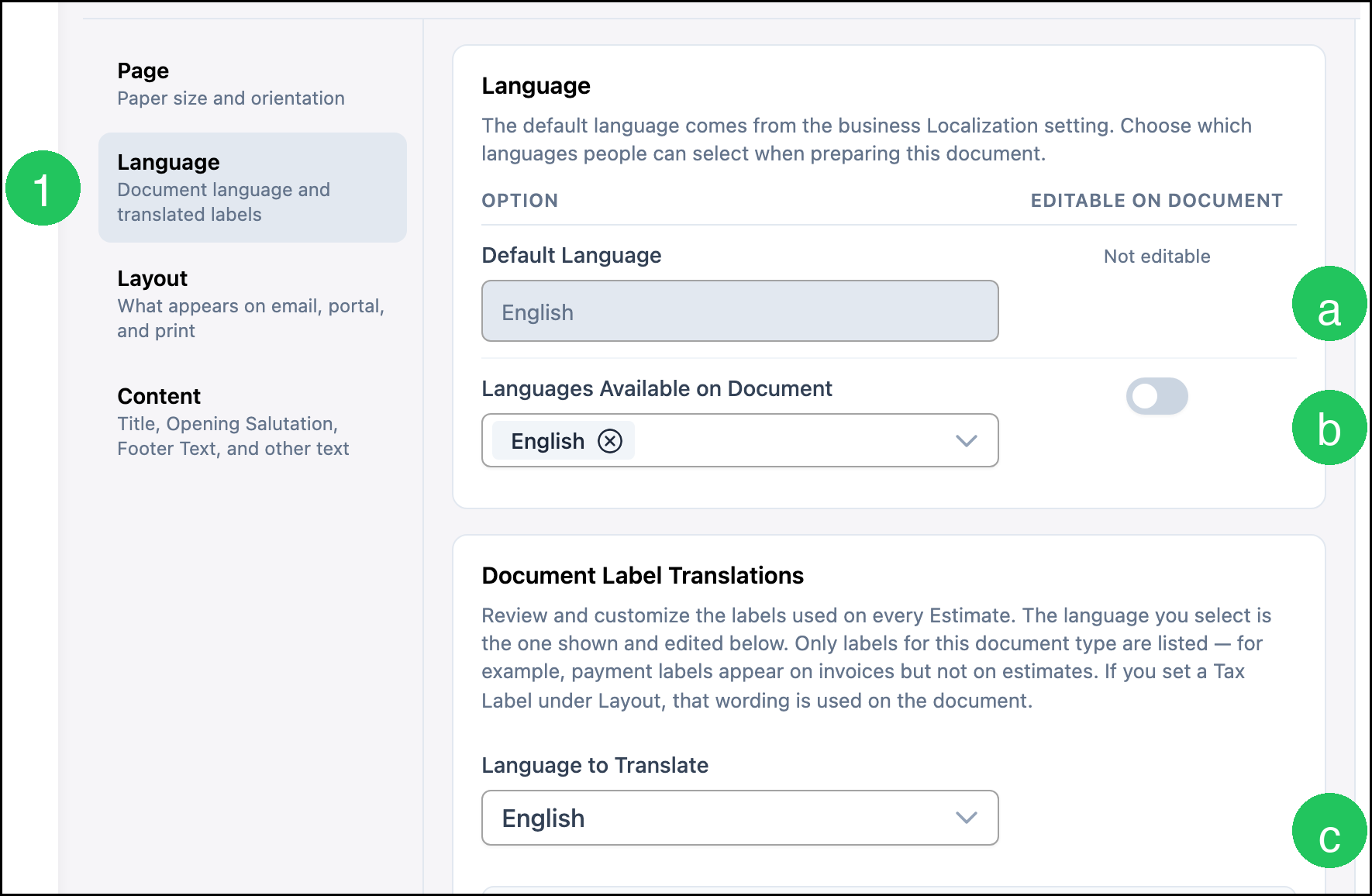
1. Click Language.
a. Default Language comes from the business Localization setting. It is not editable on the Estimate. When Localization is English, this shows English.
b. Languages Available on Document starts with that same language. Editable on Document starts off.
c. Language to Translate starts as that same language. Custom Text for each label starts blank, so the Estimate uses the wording in the Default column.
Layout
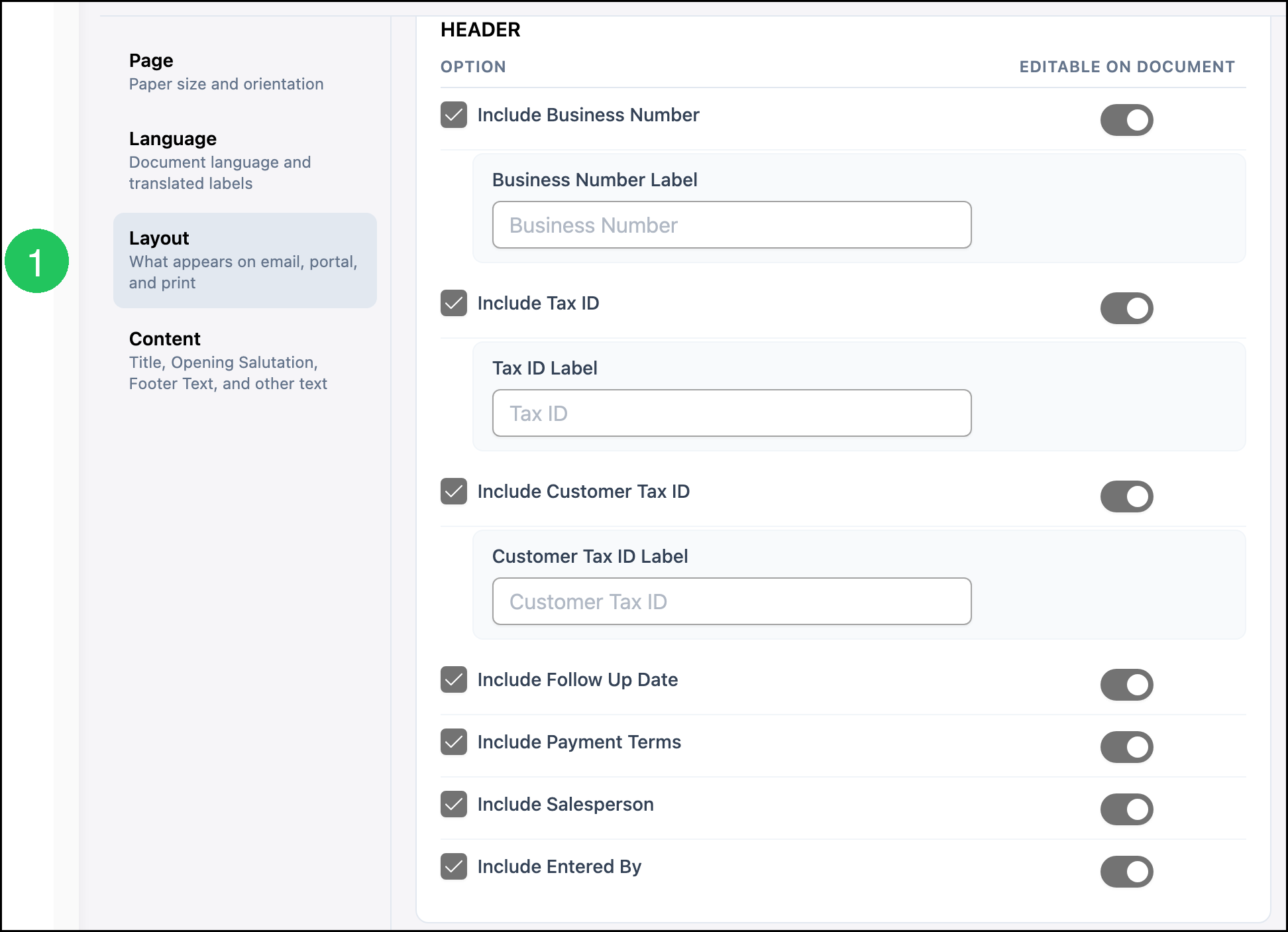
The Layout tab controls what appears on email, the online portal, and print. Every Include checkbox starts selected, and every Editable on Document switch starts on.
1. Click Layout.
Header
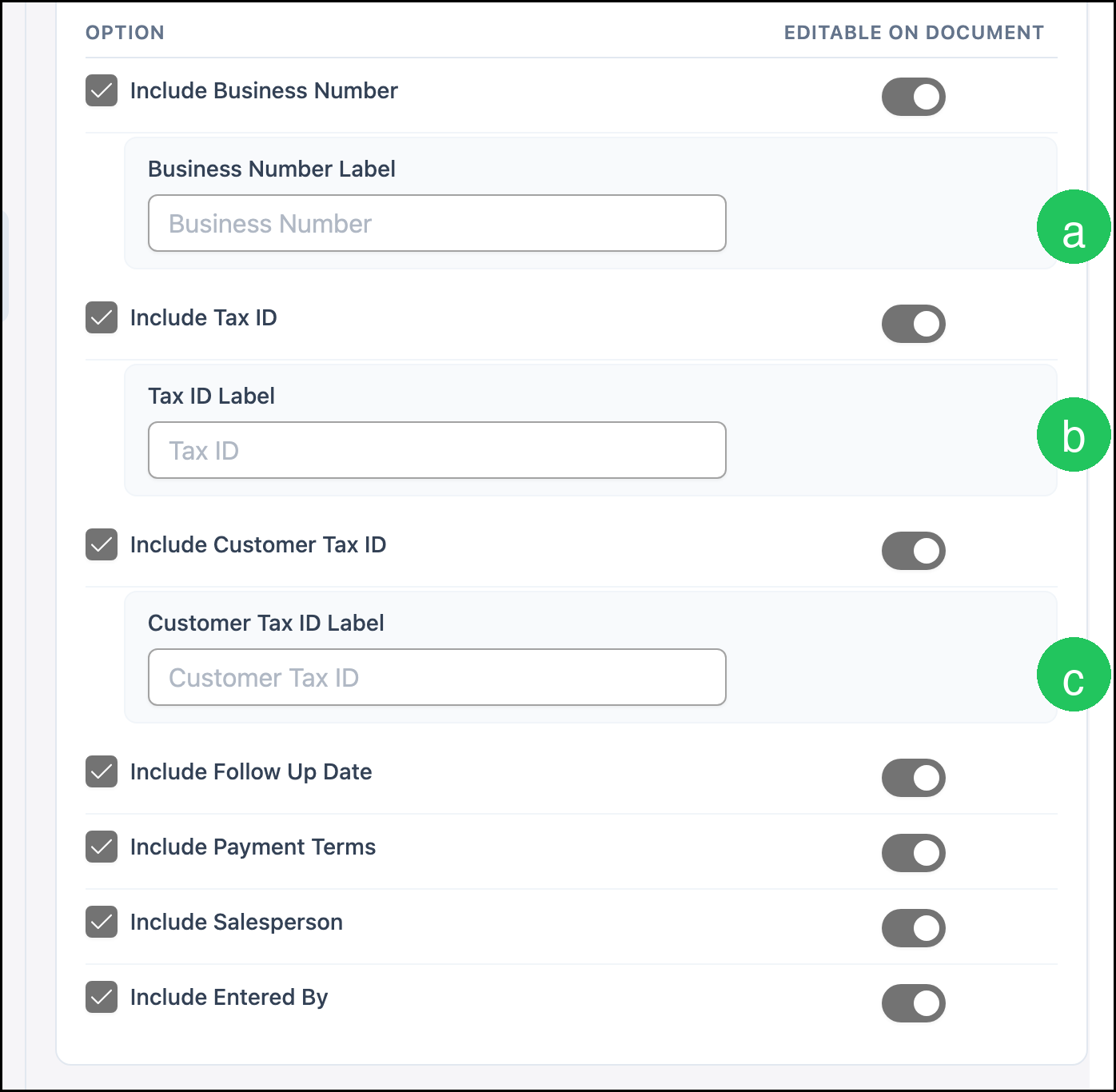
Header starts with Include selected and Editable on Document on for Include Business Number, Include Tax ID, Include Customer Tax ID, Include Follow Up Date, Include Payment Terms, Include Salesperson, and Include Entered By.
a. Business Number Label is blank. The Estimate prints Business Number until you enter a label.
b. Tax ID Label is blank. The Estimate prints Tax ID until you enter a label.
c. Customer Tax ID Label is blank. The Estimate prints Customer Tax ID until you enter a label.
Line Items
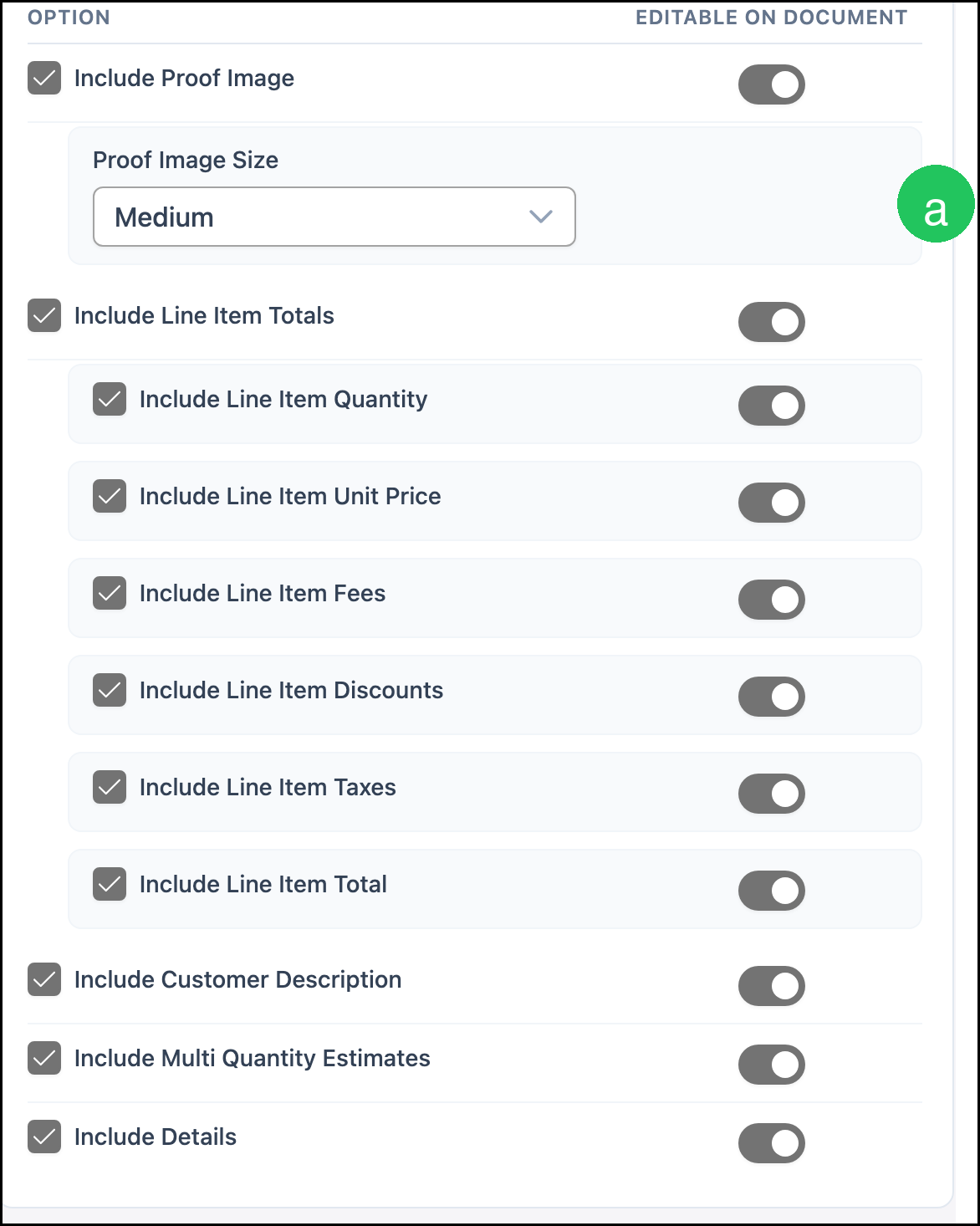
Line Items starts with Include selected and Editable on Document on for Include Proof Image, Include Line Item Totals, Include Line Item Quantity, Include Line Item Unit Price, Include Line Item Fees, Include Line Item Discounts, Include Line Item Taxes, Include Line Item Total, Include Customer Description, Include Multi Quantity Estimates, and Include Details.
a. Proof Image Size is Medium.
Payments and Totals
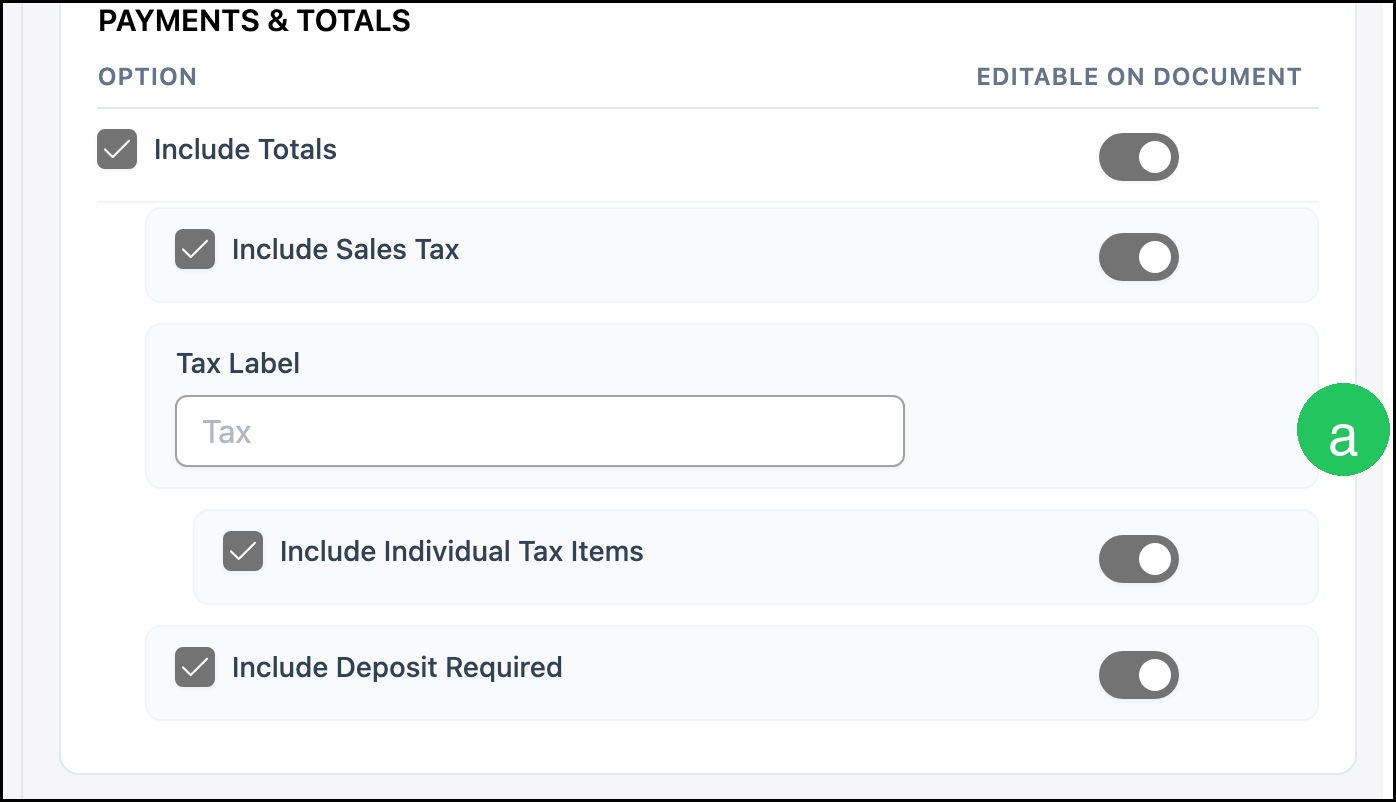
Payments & Totals starts with Include selected and Editable on Document on for Include Totals, Include Sales Tax, Include Individual Tax Items, and Include Deposit Required.
a. Tax Label is blank. The Estimate prints Tax until you enter a label.
End of Document
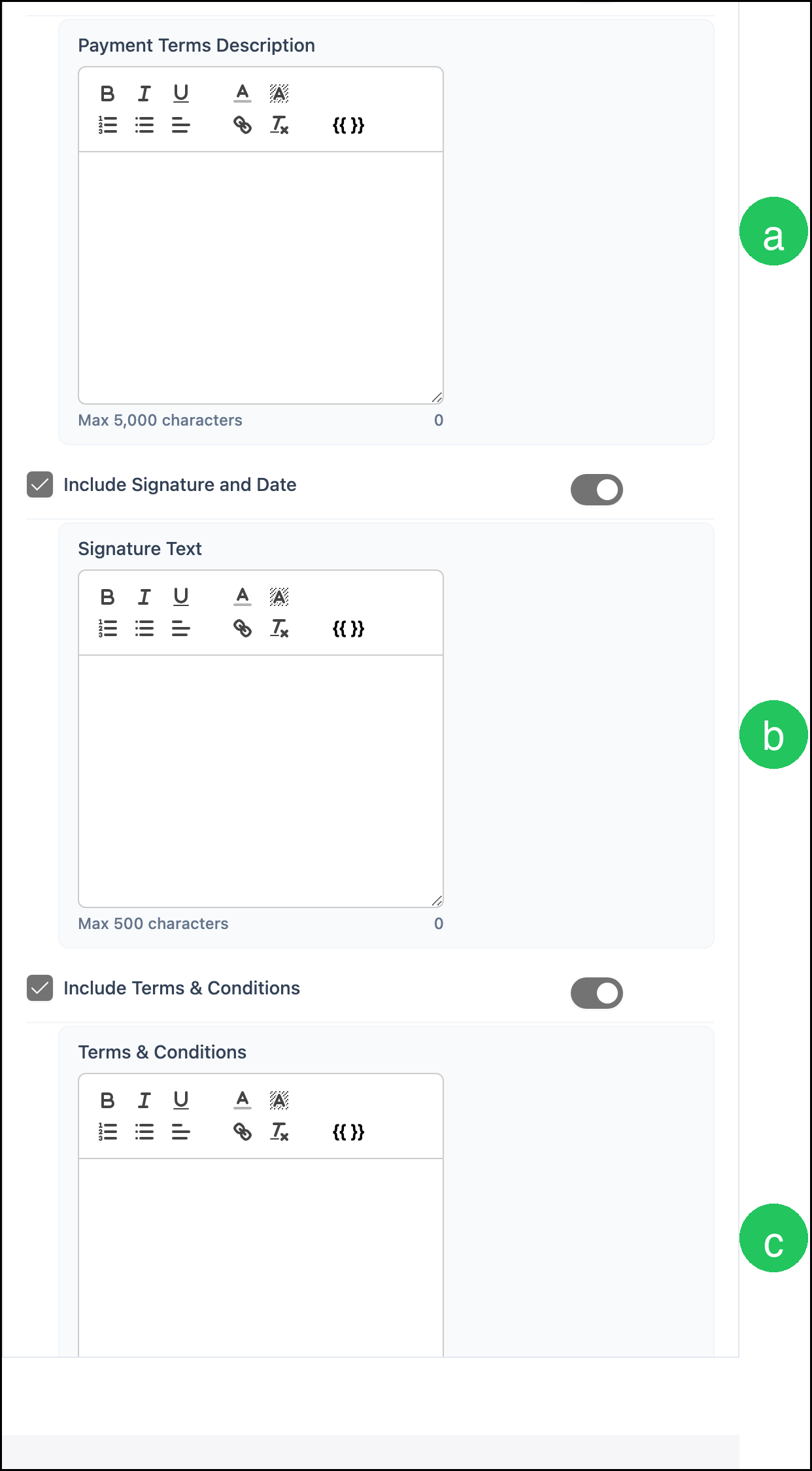
End of Document starts with Include selected and Editable on Document on for Include Payment Terms Block, Include Signature and Date, and Include Terms & Conditions.
a. Payment Terms Description is blank. It allows up to 5,000 characters.
b. Signature Text is blank. It allows up to 500 characters.
c. Terms & Conditions is blank. It allows up to 20,000 characters.
Content
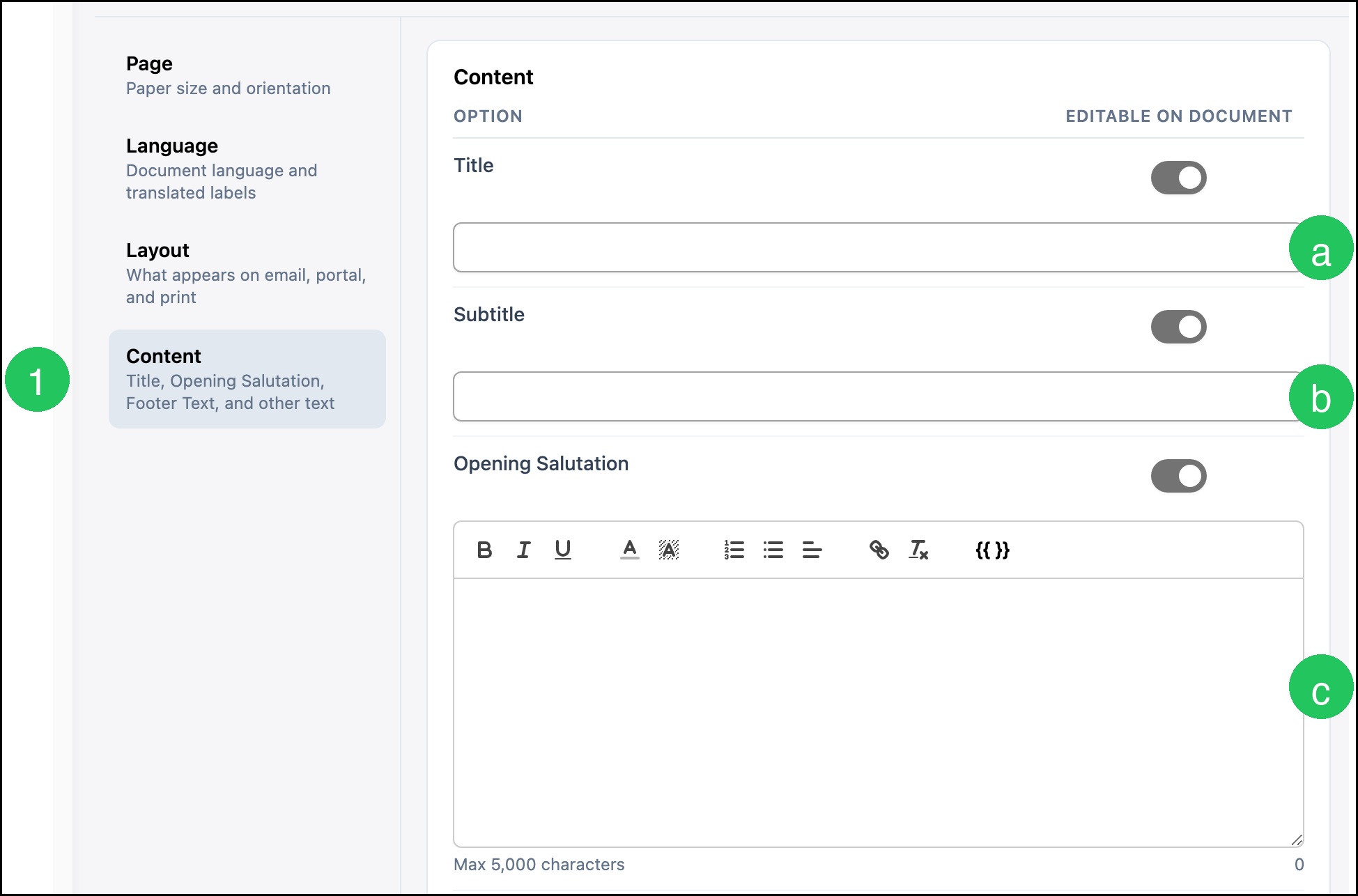
Each Content field starts blank, and Editable on Document starts on.
1. Click Content.
a. Title is blank.
b. Subtitle is blank.
c. Opening Salutation is blank. It allows up to 5,000 characters.
Custom Text and Footer
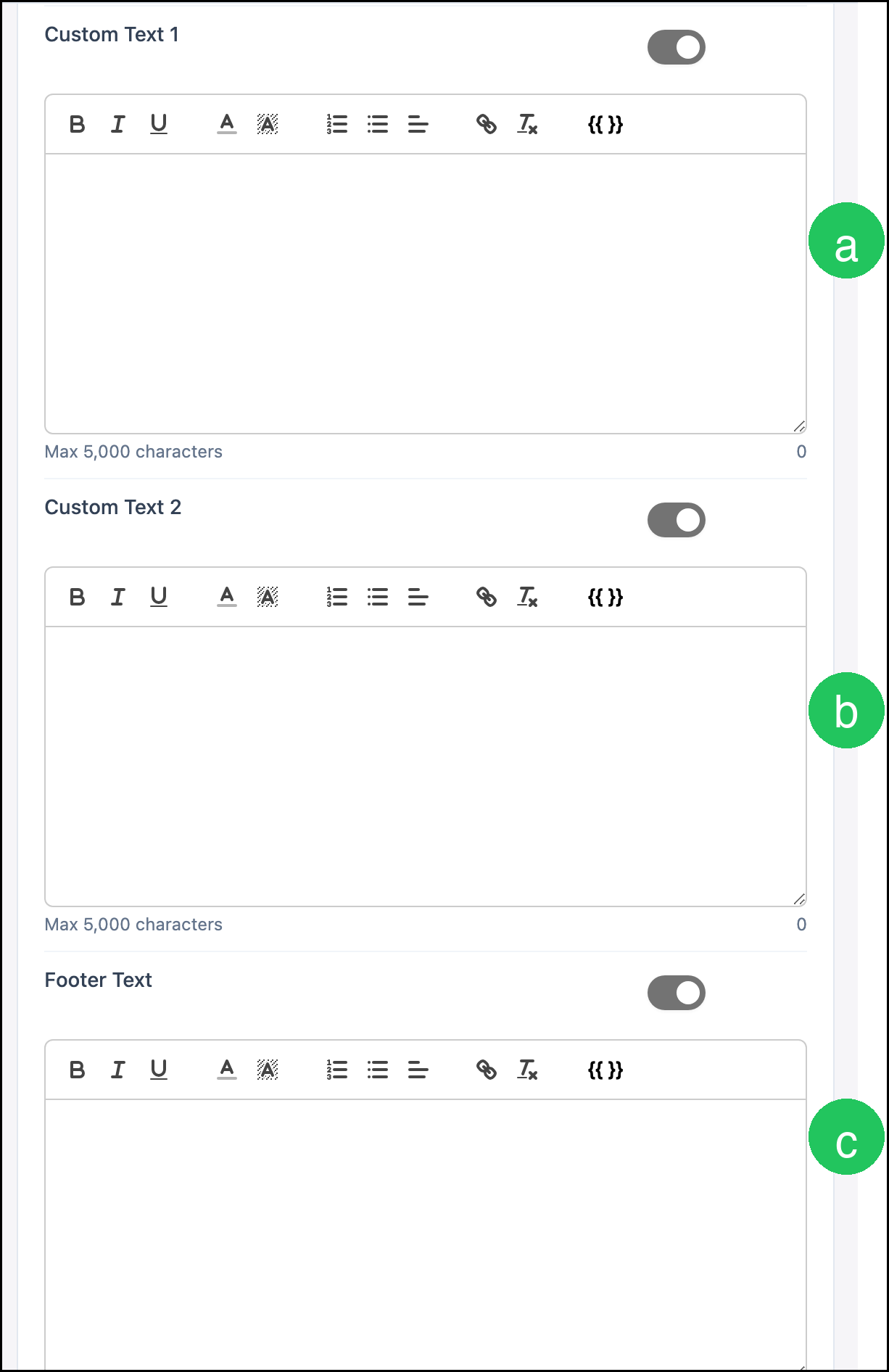
a. Custom Text 1 is blank. It allows up to 5,000 characters. Editable on Document starts on.
b. Custom Text 2 is blank. It allows up to 5,000 characters. Editable on Document starts on.
c. Footer Text is blank. It allows up to 100 characters. Editable on Document starts on.
Frequently Asked Questions
1. Do these defaults apply to one Estimate or every Estimate?
Answer: They are the starting values for every Estimate, until someone changes Estimate Settings and clicks Save.
2. What happens if Include is unchecked?
Answer: The option is hidden everywhere, and Editable on Document turns off.
3. Where do I change one Estimate template?
Answer: Open the template from Documents. For more information, see Document Options.
4. Why does Default Language show English?
Answer: Default Language comes from the business Localization setting. It shows English when that setting is English.