After a customer has in-store credit on their company record, you can refund payments to increase refundable credit, apply credit to open orders or invoices, and use credit as a payment method when collecting a balance.
Table of Contents
- Before You Begin
- Refund a Payment to In-Store Credit
- Apply In-Store Credit on an Open Order
- Apply In-Store Credit from Make Payments
- Related Articles
Before You Begin
The company must have an in-store credit balance before you can apply credit as payment. Refunding a payment to In-Store Credit creates or increases Refundable credit on the company record. For more information, please see Company In-Store Credit.
Refund a Payment to In-Store Credit
Navigate to Accounting / Search Payments.
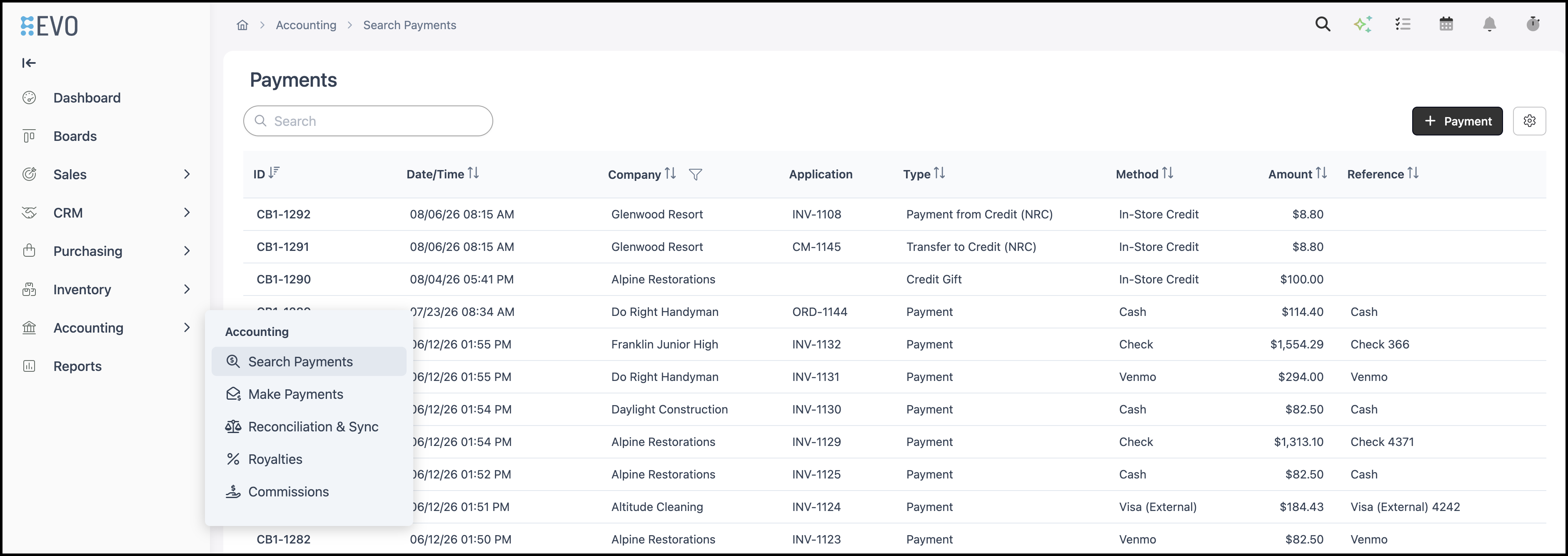
1. Open the Payment
Note: You can also access this from View All Payments on an Order.
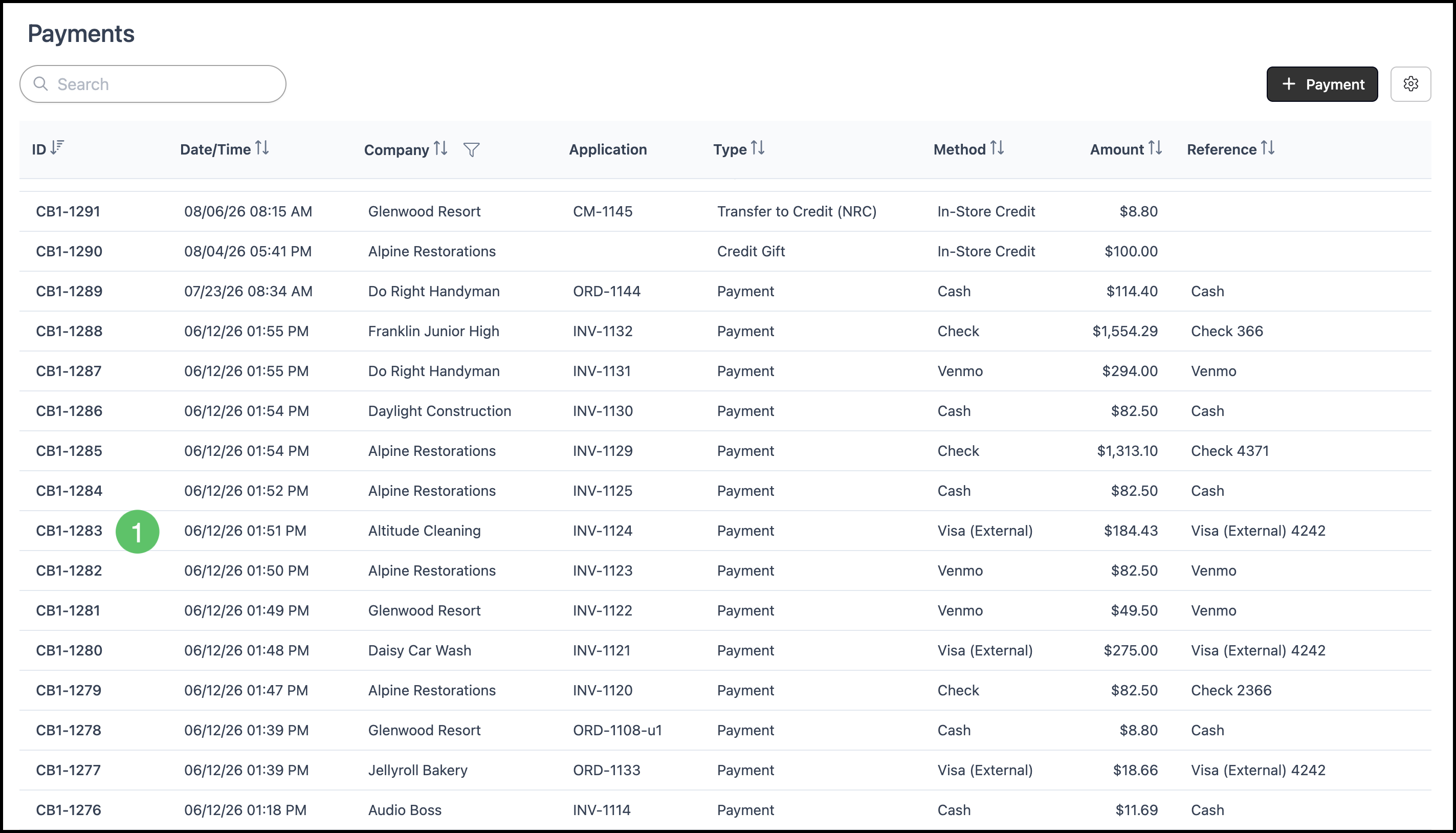
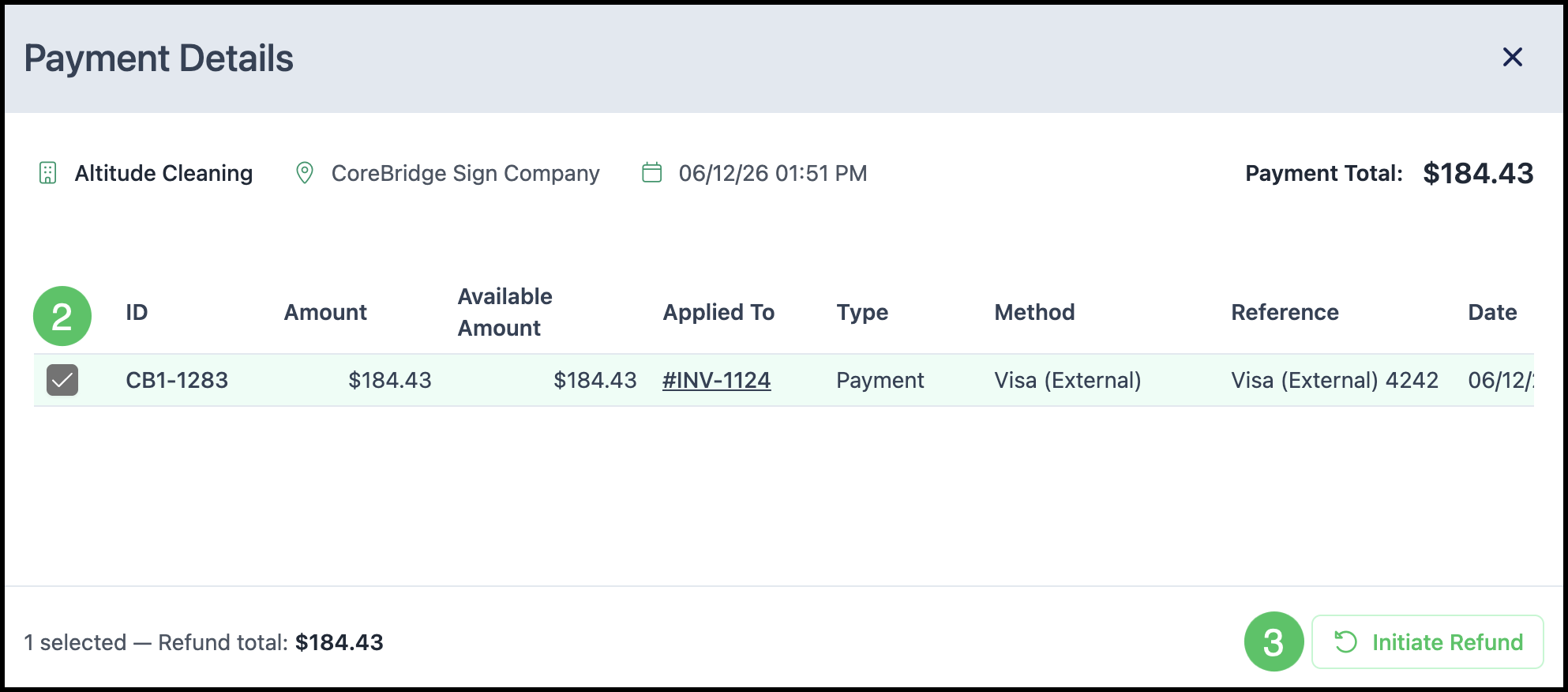
2. Select the payment row.
3. Click Initiate Refund.
4. In the Refund dialog, select In-Store Credit as the Refund Method.
5. Choose Refund all Available Funds or Partial Refund.
6. Enter a Reason for Refund, if needed.
7. Click Process Refund.
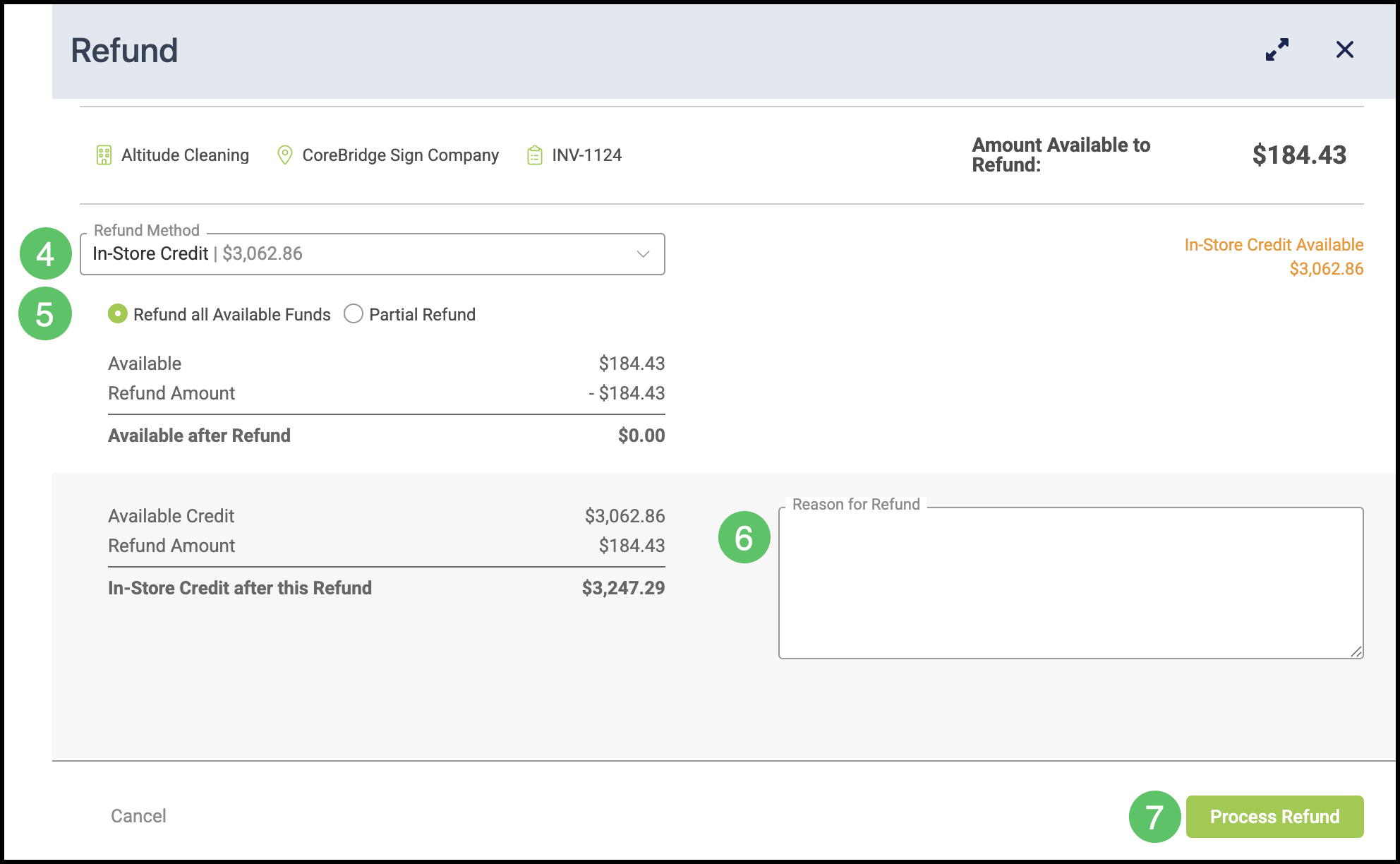
Note: The credit appears on the company record as Transfer to Credit (RC) in Transaction History.
Apply In-Store Credit on an Open Order
Navigate to Sales / Orders and select the appropriate Order.
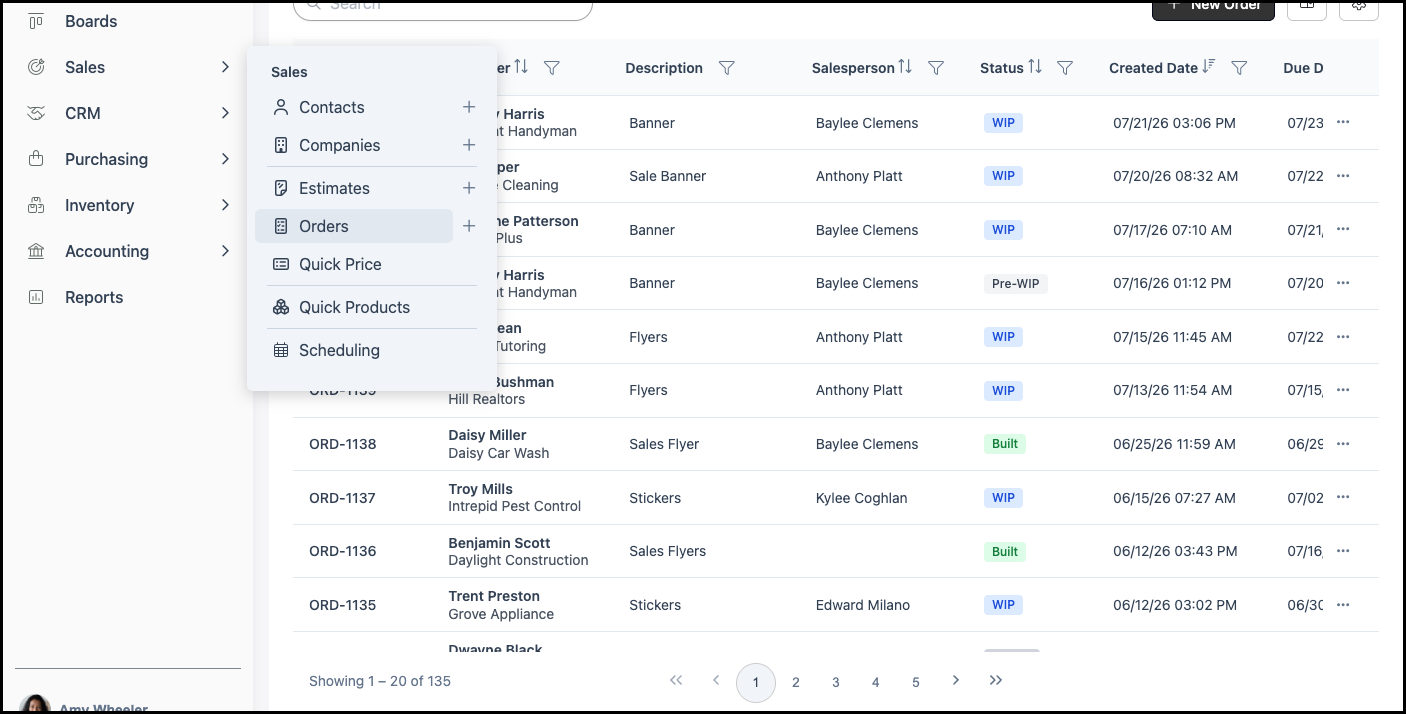
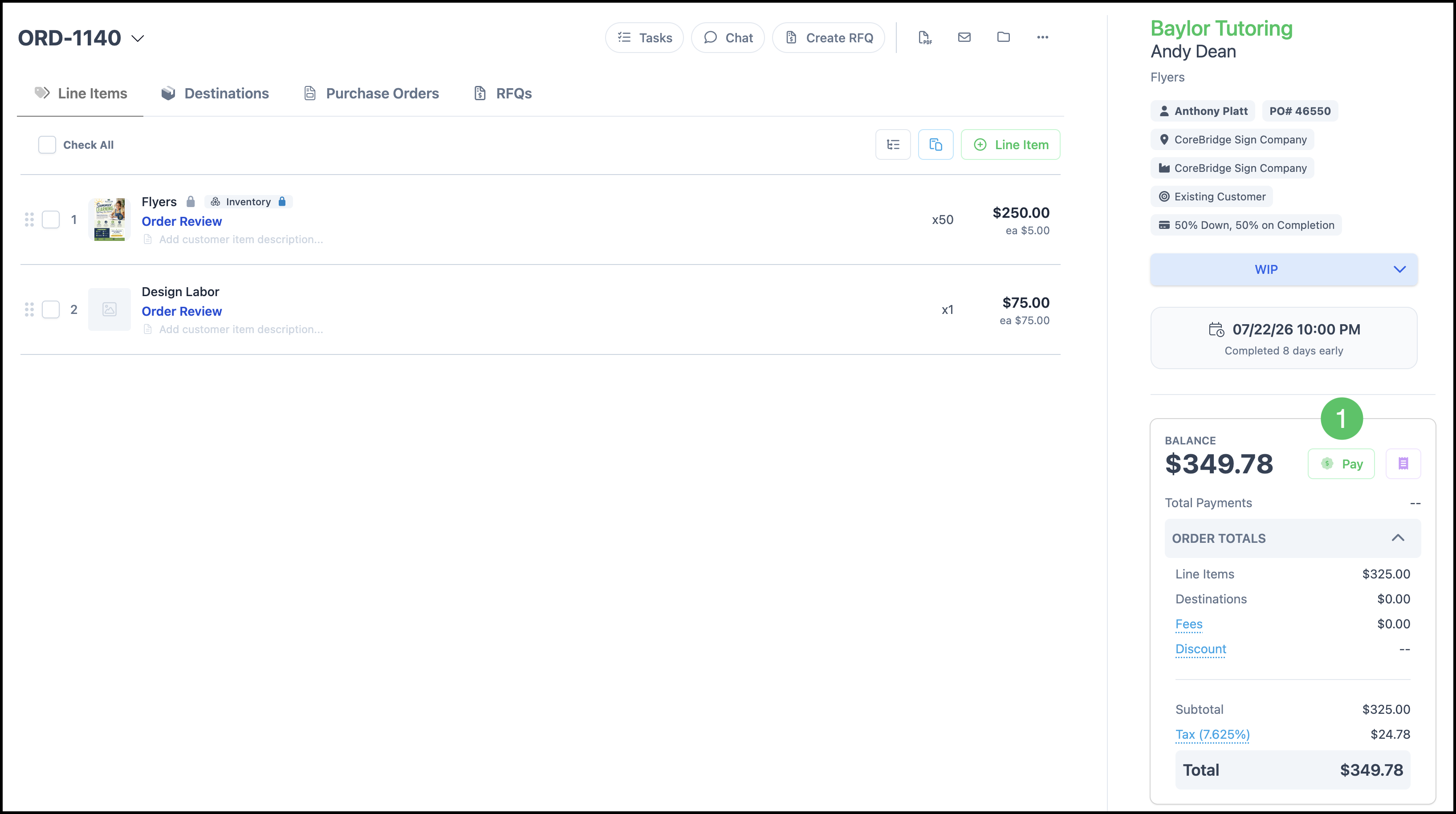
1. Click Pay.
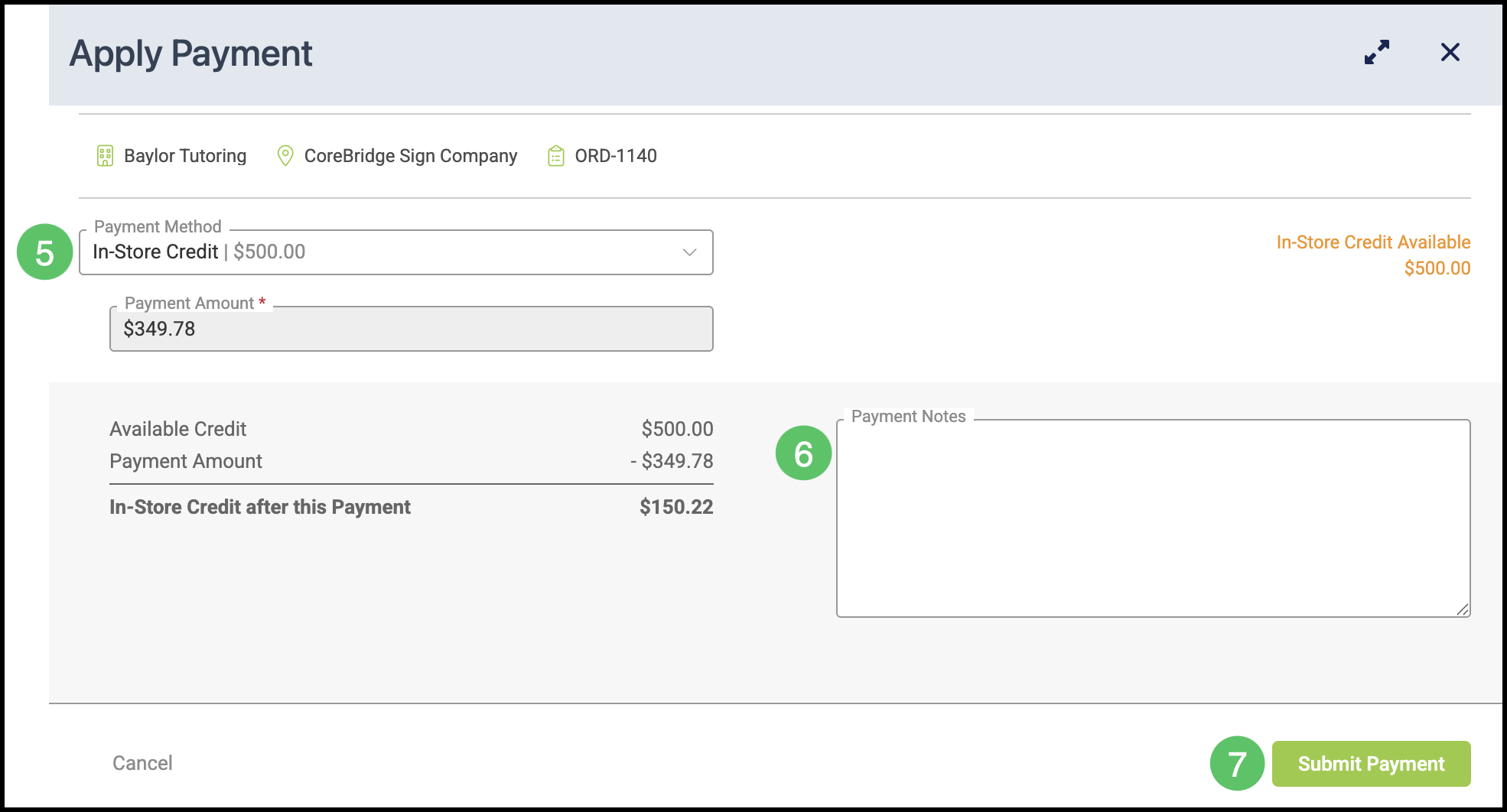
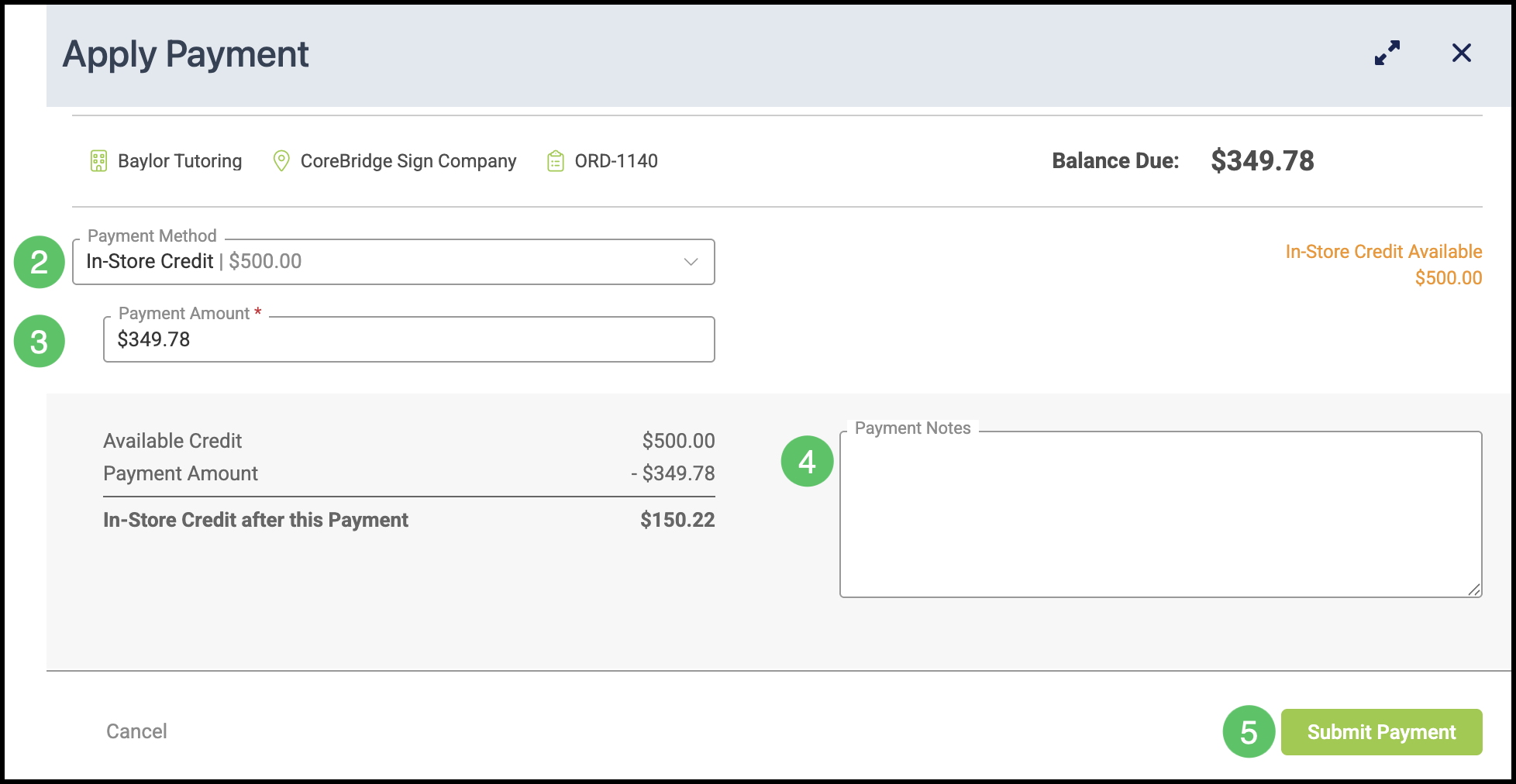
2. Select In-Store Credit from the Payment Method dropdown.
3. Confirm the Payment Amount and review In-Store Credit Available.
4. Enter Payment Notes, if needed.
5. Click Submit Payment.
Apply In-Store Credit from Make Payments
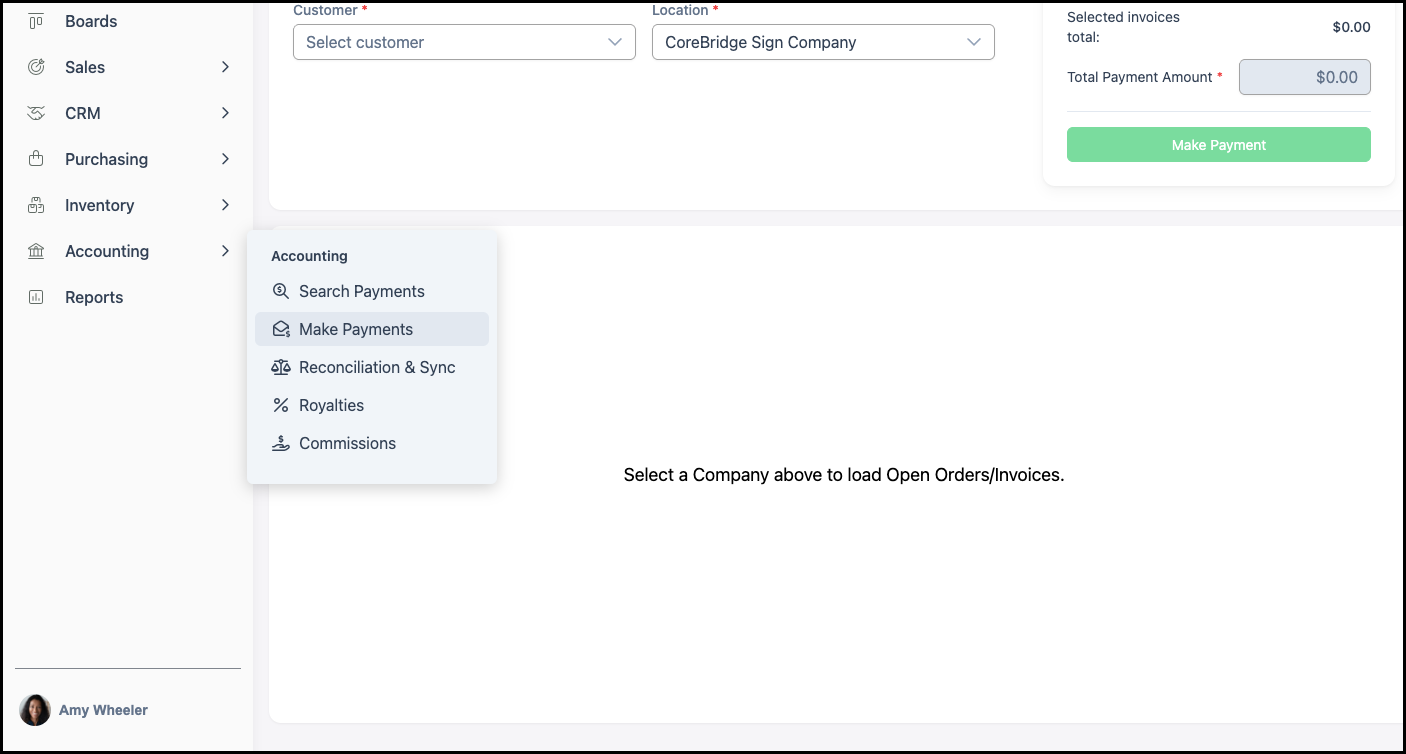
Navigate to Accounting / Make Payments.
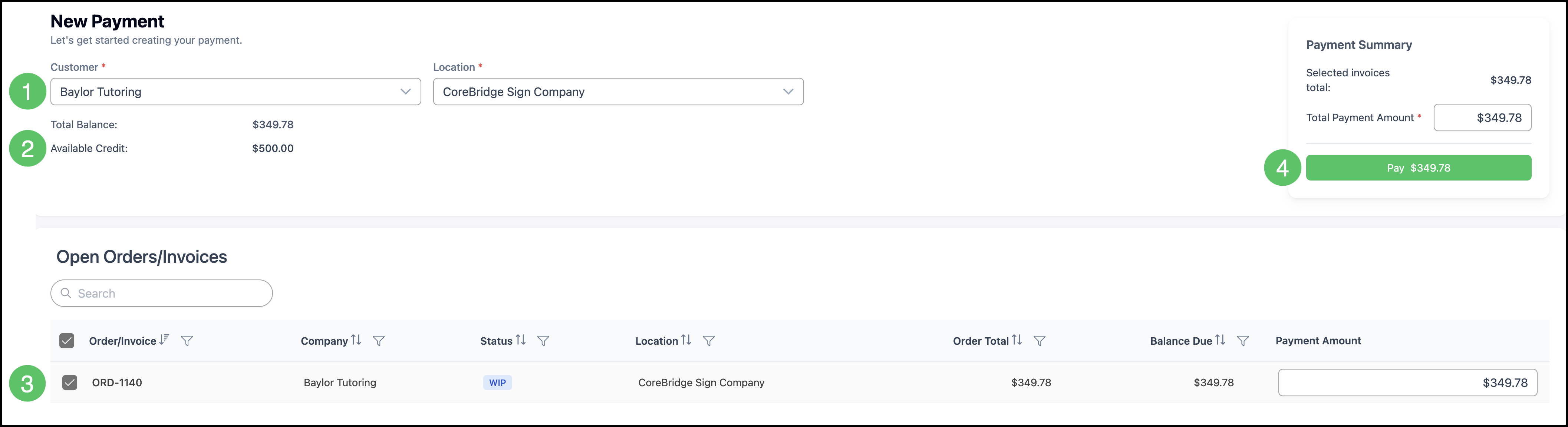
1. Select the Customer and Location, if applicable.
2. Review Available Credit.
3. Select open orders or invoices and enter payment amounts.
4. Click Pay.
5. Select In-Store Credit as the payment method.
6. Enter Payment Notes, if needed.
7. Click Submit Payment.