
The Approval Process settings control how Line Items on Estimates and Orders move through customer approval in the Customer Portal. You map the Statuses that prompt a Customer to approve work, the Statuses applied after they approve or submit a Change Request, and the terms they acknowledge. Configure Estimates and Orders separately so each document type follows your shop's workflow.
Table of Contents
- Important Information
- Estimate Item Approval Status
- Order Item Approval Status
- Approval Terms
- Frequently Asked Questions
- Related Articles
Important Information
- Customers approve work one Line Item at a time. Mapping a Status here does not approve or reject an entire Estimate or Order.
- Workflow Statuses must exist before you can assign them on this page. Manage them in System Settings / Workflow / Workflow Statuses. For more information, see Line Item Statuses.
- Estimate Item Approval Status and Order Item Approval Status are separate. Changing one panel does not update the other.
- Avoid using the same Status in Prompt customer for Approval using this Status. and in the Status fields that apply after a Customer approves or submits a Change Request.
- If you do not see Approval Process under Customer Portal, contact CoreBridge Support.
- Click Save after you change a mapping or terms. Save stays unavailable until something on the page changes. Changes apply the next time a Customer reaches the approval prompt.
- Use History to review previous changes to these settings.
Estimate Item Approval Status
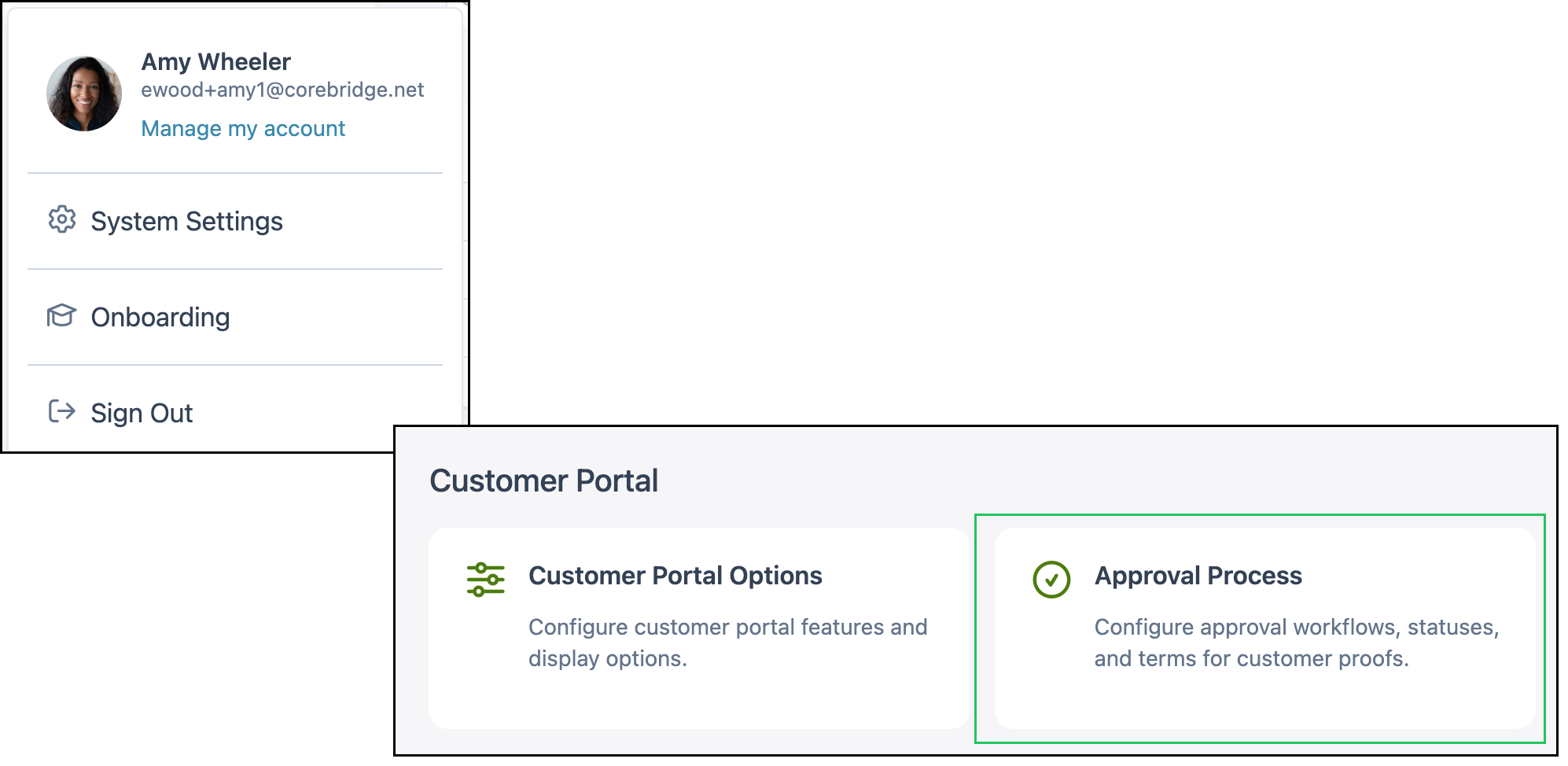
Navigate to System Settings / Customer Portal / Approval Process.
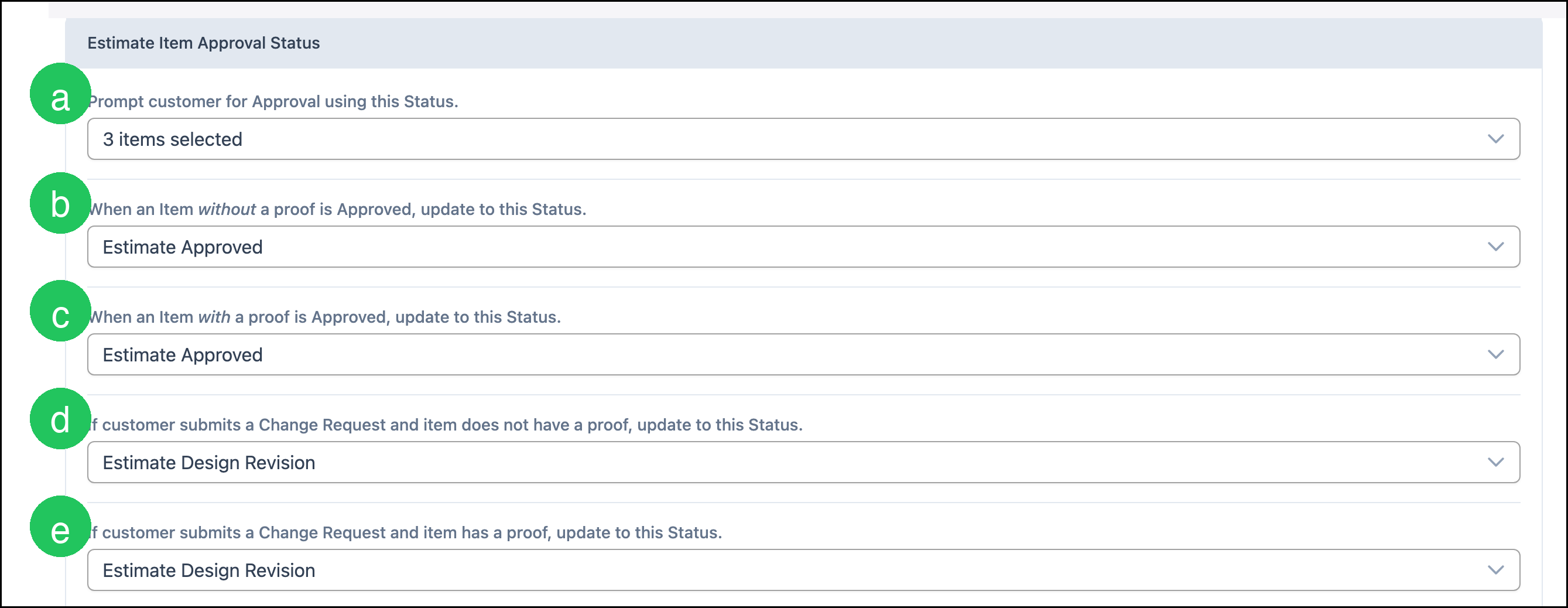
Use this panel to map Estimate Line Item Statuses for customer approval.
a. Prompt customer for Approval using this Status. - Statuses that send an Estimate Line Item to the Customer for approval in the Customer Portal. You can select more than one Status.
b. When an Item without a proof is Approved, update to this Status. - Status applied when the Customer approves an Estimate Line Item that does not have a proof.
c. When an Item with a proof is Approved, update to this Status. - Status applied when the Customer approves an Estimate Line Item that has a proof.
d. If customer submits a Change Request and item does not have a proof, update to this Status. - Status applied when the Customer requests a change on an Estimate Line Item that does not have a proof.
e. If customer submits a Change Request and item has a proof, update to this Status. - Status applied when the Customer requests a change on an Estimate Line Item that has a proof.
Note: A Status can show a different name in the Customer Portal than it does internally. Set the Customer Portal Name when you create or edit the Status. For more information, see Line Item Statuses.
Order Item Approval Status
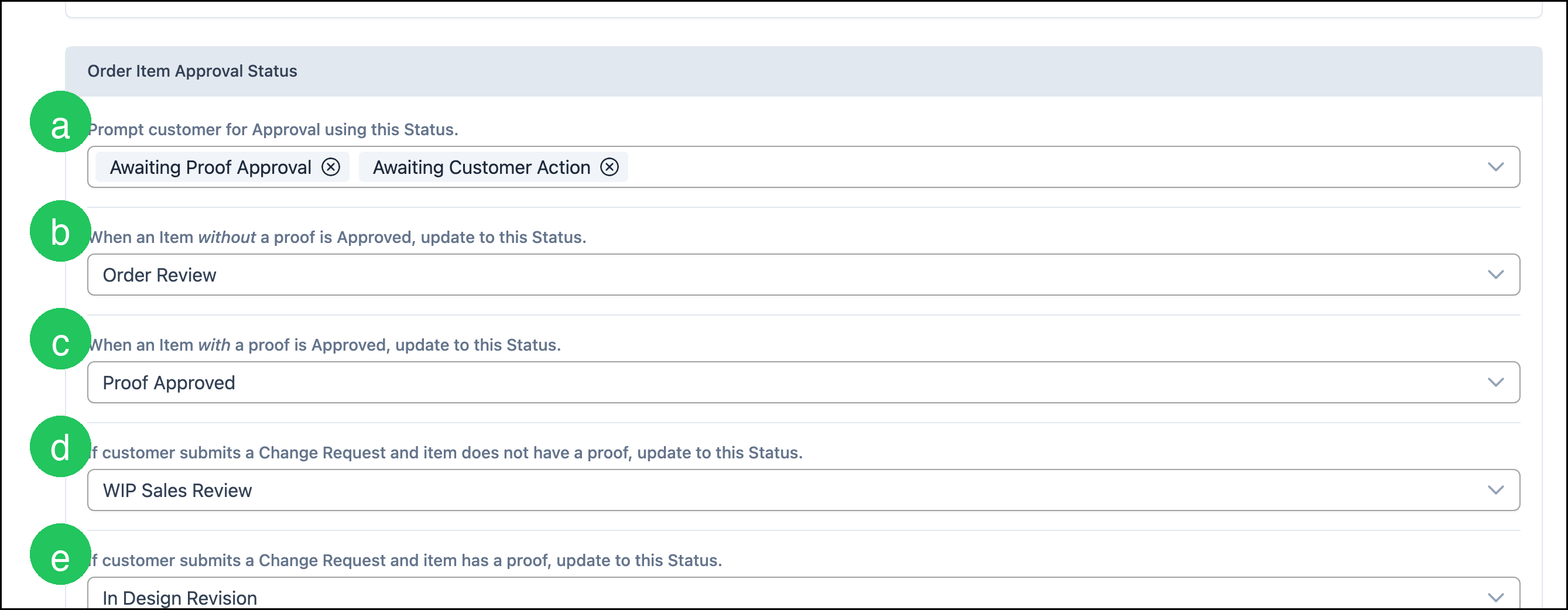
Use this panel to map Order Line Item Statuses for customer approval. The fields match the Estimate panel, but the Statuses you select apply only to Orders.
a. Prompt customer for Approval using this Status. - Statuses that send an Order Line Item to the Customer for approval in the Customer Portal. You can select more than one Status.
b. When an Item without a proof is Approved, update to this Status. - Status applied when the Customer approves an Order Line Item that does not have a proof.
c. When an Item with a proof is Approved, update to this Status. - Status applied when the Customer approves an Order Line Item that has a proof.
d. If customer submits a Change Request and item does not have a proof, update to this Status. - Status applied when the Customer requests a change on an Order Line Item that does not have a proof.
e. If customer submits a Change Request and item has a proof, update to this Status. - Status applied when the Customer requests a change on an Order Line Item that has a proof.
Approval Terms
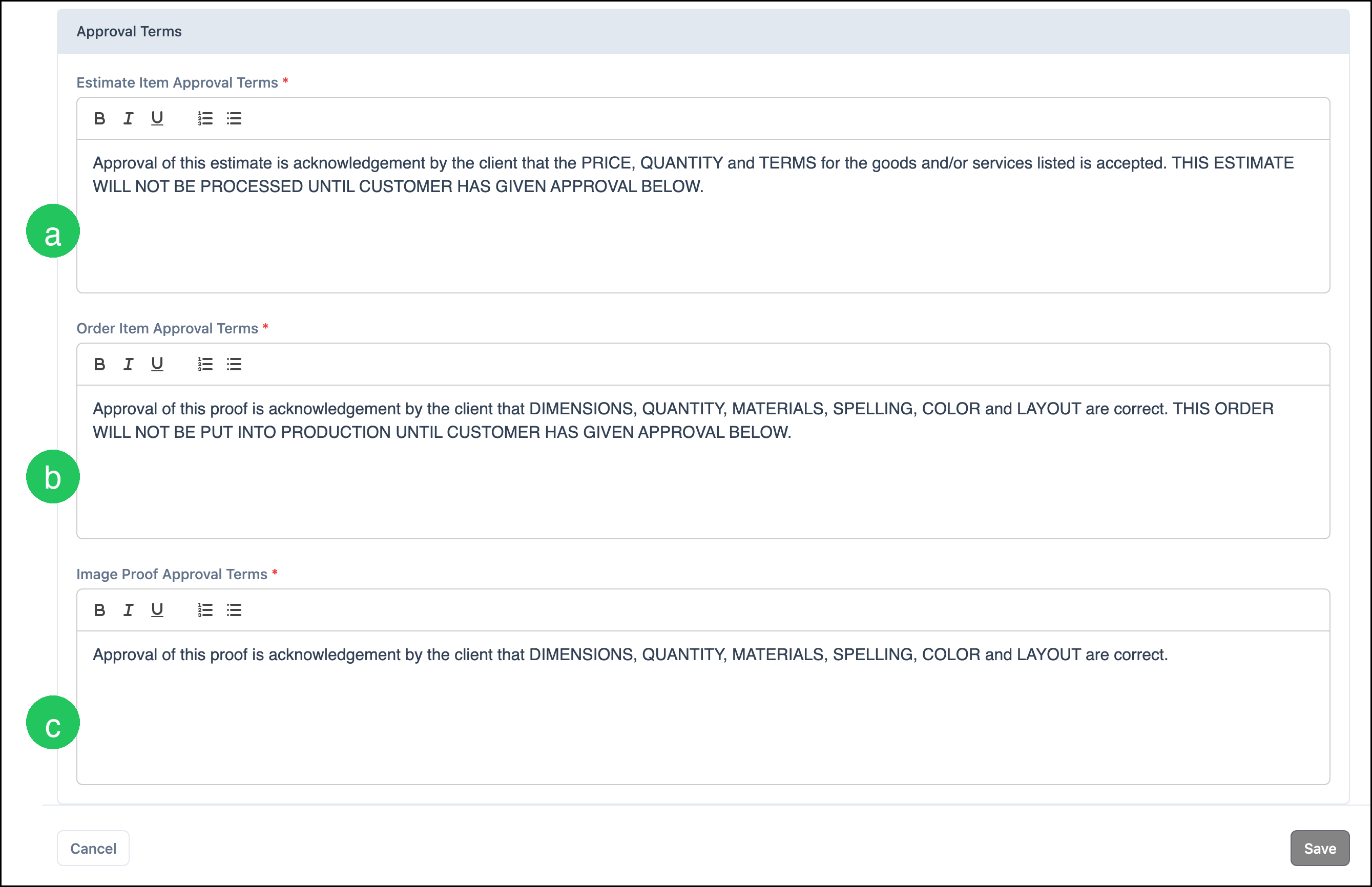
Edit the wording Customers must acknowledge before they approve Estimate Items, Order Items, or Image Proofs. Each field is required. You can format the text with bold, italic, underline, and lists.
a. Estimate Item Approval Terms - Terms the Customer acknowledges when approving an Estimate Line Item.
b. Order Item Approval Terms - Terms the Customer acknowledges when approving an Order Line Item.
c. Image Proof Approval Terms - Terms the Customer acknowledges when the proof includes images. These terms are shared for Estimate and Order proofs that have images.
Note: Customers see these terms in a dialog and must acknowledge them before they can approve the Line Item or proof.
Note: Click Save after you edit terms. Save stays unavailable until something on the page changes.
Frequently Asked Questions
1. What is the difference between the prompt Status and the other Status fields?
Answer: Prompt customer for Approval using this Status. is the Status (or Statuses) that send a Line Item to the Customer for approval. The other fields are the Statuses CoreBridge applies after the Customer approves the Line Item or submits a Change Request, with or without a proof.
2. Why are Estimate and Order mappings on separate panels?
Answer: Estimates and Orders can use different Statuses. Set each panel on its own so an Estimate approval does not apply Order Statuses, and an Order approval does not apply Estimate Statuses.
3. When do Customers see Image Proof Approval Terms?
Answer: Customers see Image Proof Approval Terms when the proof includes images. They still see Estimate or Order item terms as well, depending on the document type.
4. Where do Customers see approval terms?
Answer: Customers see the terms in a dialog and must acknowledge them before they can approve a Line Item or proof.
5. Can I select more than one prompt Status?
Answer: Yes. Prompt customer for Approval using this Status. is a multi-select field. Selected Statuses appear as chips. When several Statuses are selected, the field can show a count instead of every chip.
Related Articles
How to Invite Customers to the Customer Portal
Line Item Statuses
Notifying Employees When a Customer Approves a Line Item