
When an Estimate is marked Lost, it stays on the Estimates list. You can still open it to review Line Items, Balance, and Estimate Milestones. Line Item prices, Balance, Order Totals, and the list Total display $0.00. The Estimate is Locked, so use Clone if you need to work the opportunity again. Win/Loss reports in the Reports module still show the Lost Estimate amounts.
Table of Contents
- Important Information
- How to Mark an Estimate as Lost
- Finding Lost Estimates
- Reviewing a Lost Estimate
- Cloning a Lost Estimate
- Viewing Estimate Milestones
- Reviewing Win/Loss Reports
- Frequently Asked Questions
- Related Articles
Important Information
After an Estimate is marked Lost:
- The Estimate remains in the system and stays searchable from Sales / Estimates.
- Status shows as LOST, and the estimate is Locked. It cannot be edited or returned to an open Status.
- Customer, description, Line Item names, and quantities remain on the record for review.
- Line Item prices, Balance, Order Totals, and the Estimates list Total display $0.00.
- Win/Loss reports still show the amounts for Lost estimates.
Note: Because the estimate is Locked, Line Items and pricing cannot be edited on that record. Use More Actions to Clone the estimate if you need a new, editable copy. For more information, see Estimate and Order Tools Menu.
How to Mark an Estimate as Lost
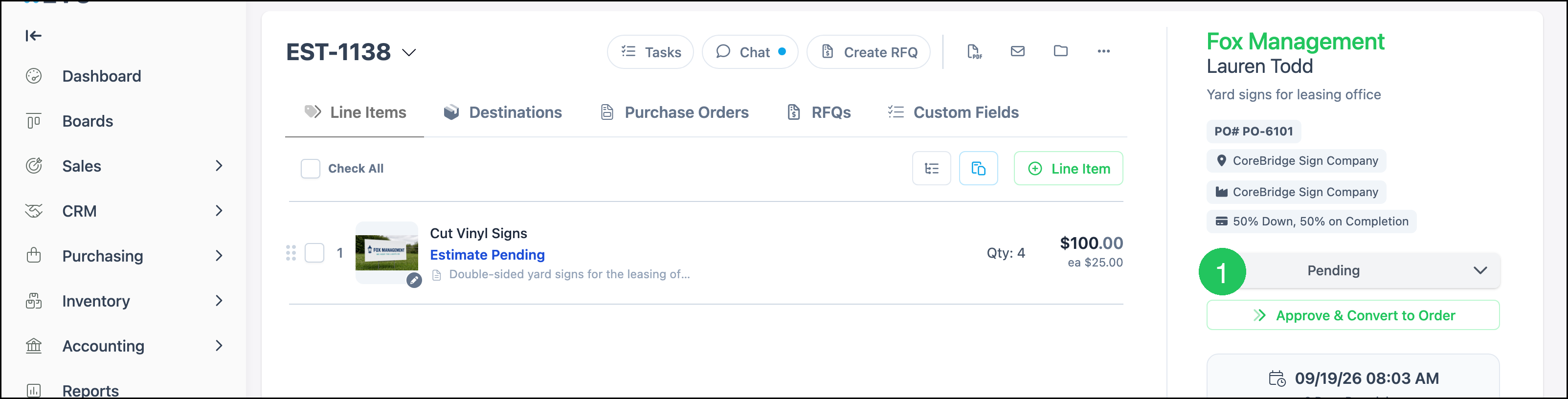
Navigate to Sales / Estimates and open the Estimate.
1. Click the Status dropdown.
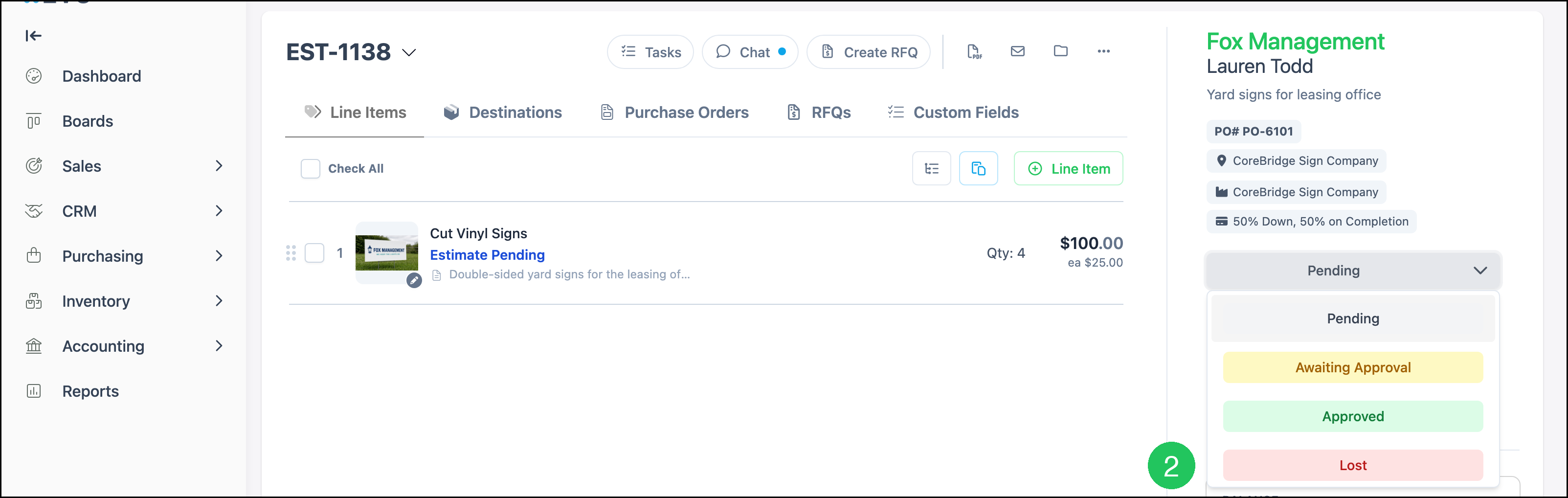
2. Select Lost.
Finding Lost Estimates
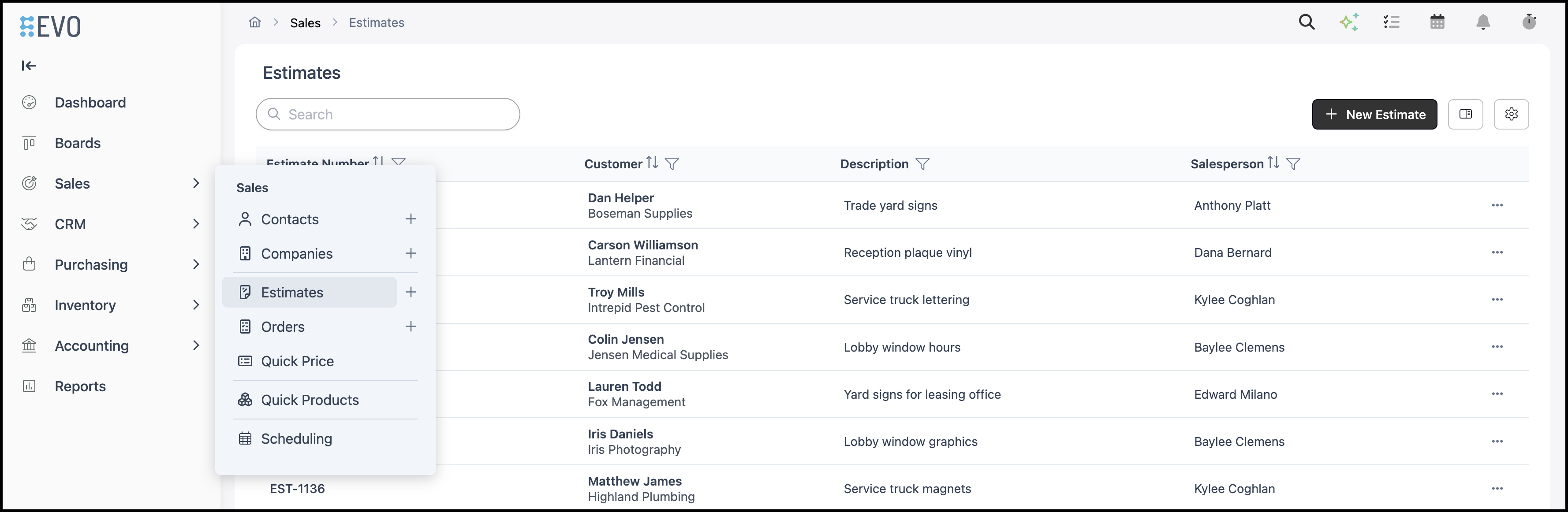
Navigate to Sales / Estimates.
On the Estimates list, locate the Lost Estimate. You can Search by Estimate Number, Customer, or Description. You can also use the Status column filter to show Lost Estimates.
1. Click the Estimate Number to open the Estimate.

Reviewing a Lost Estimate
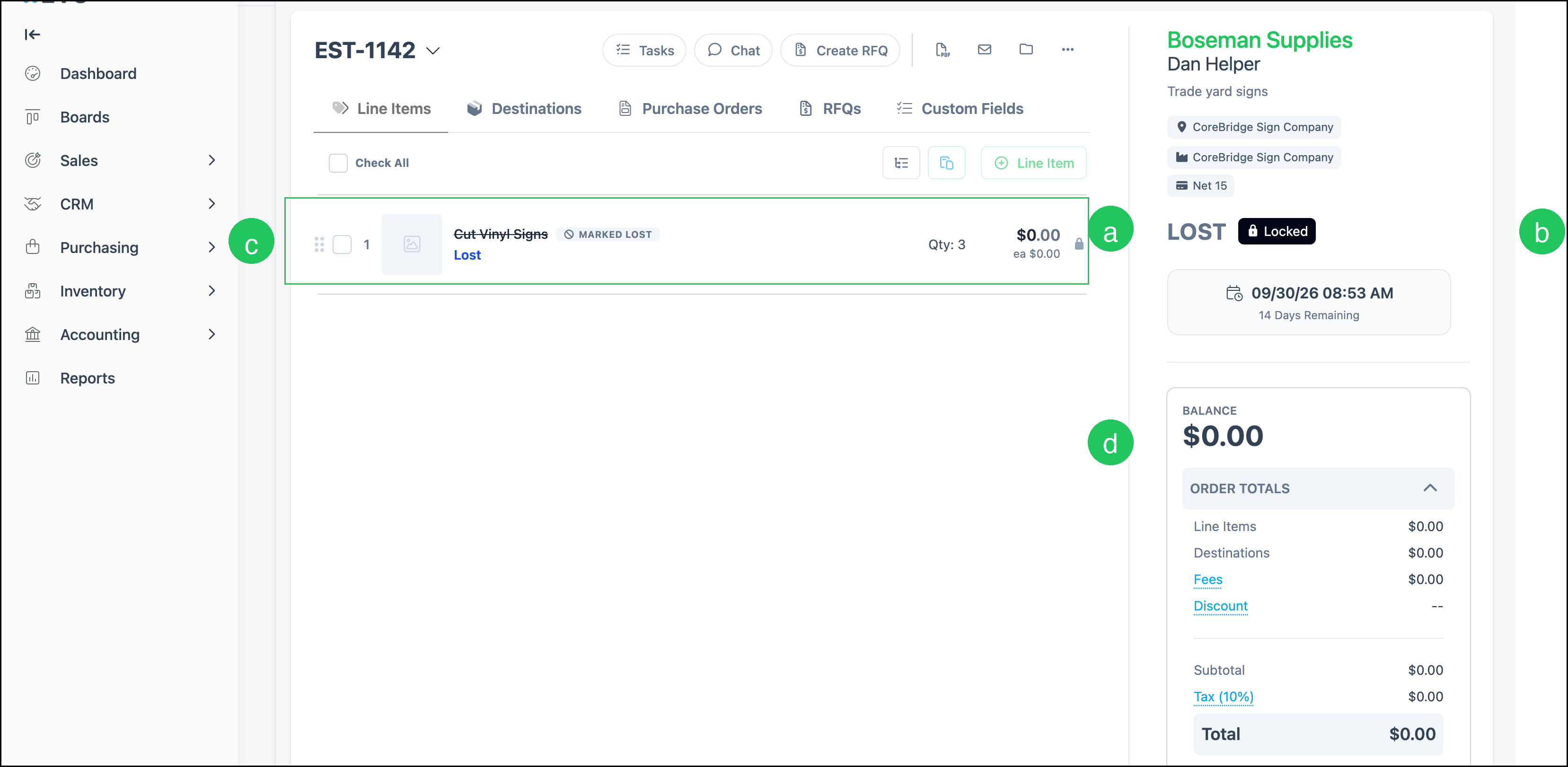
The opened Lost Estimate still shows the original Line Items for review. Prices, Balance, and Order Totals display $0.00.
a. LOST is the Status of the Estimate.
b. Locked indicates the Estimate cannot be edited.
c. Line Items display MARKED LOST and keep their quantities. Prices display $0.00.
d. Balance and Order Totals display $0.00.
Cloning a Lost Estimate
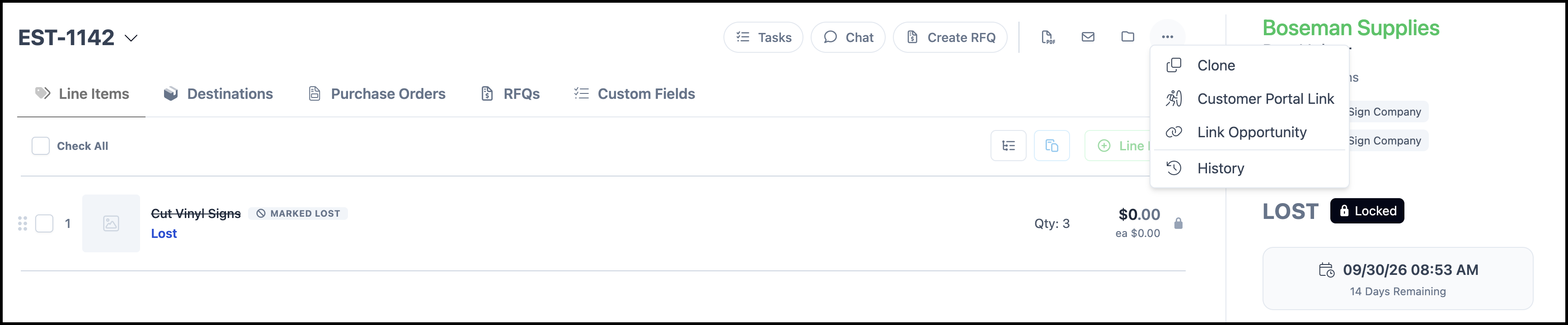
A Lost Estimate is Locked and cannot be edited or returned to an open Status. If the opportunity becomes active again, clone the Lost Estimate to create a new Estimate. The original remains available for reference.
Note: Clone is available in More Actions. When cloning, Update Pricing applies current pricing rather than retaining the original quoted amounts. For more information, see Estimate and Order Tools Menu.
Viewing Estimate Milestones
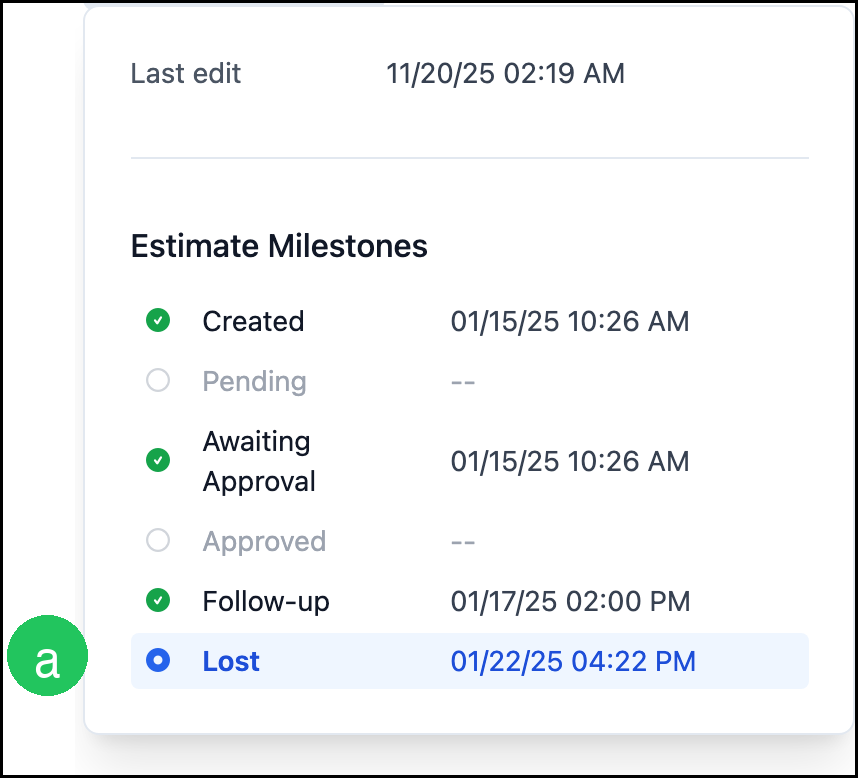
1. Click the Estimate Number in the header to open Estimate Milestones.

The Estimate Milestones dialog lists each milestone for the Estimate.
a. Lost shows the date and time the Estimate was marked Lost.
Reviewing Win/Loss Reports
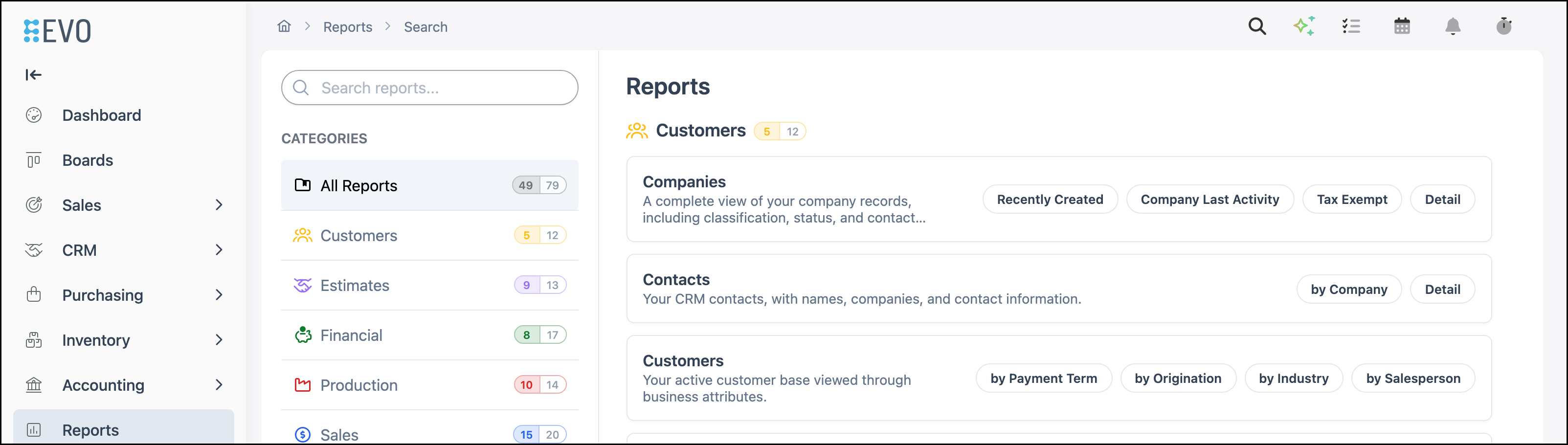
Navigate to Reports.
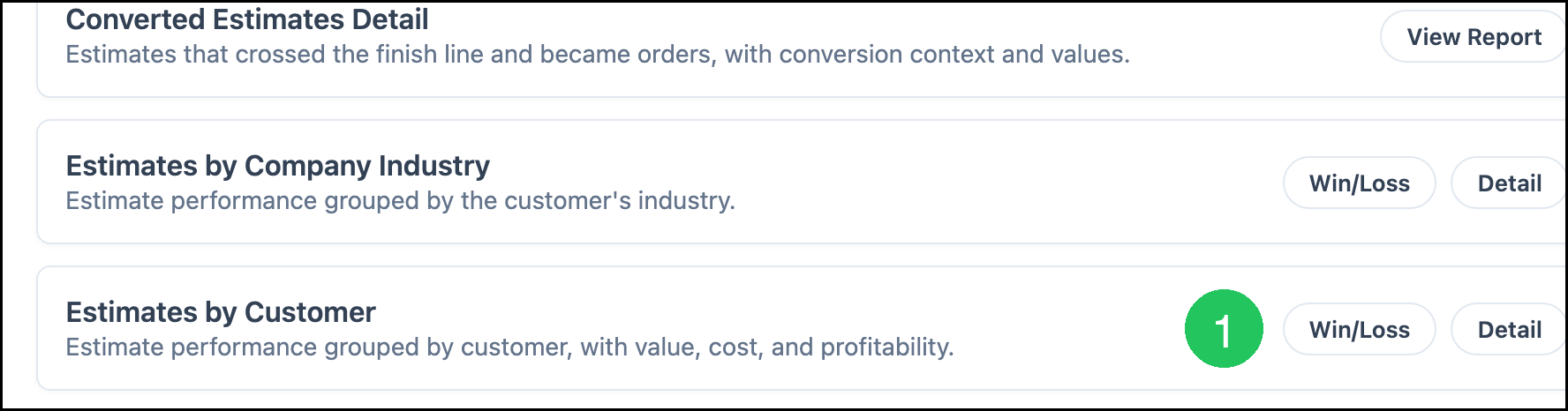
Estimates reports include Win/Loss variants, such as Estimates by Customer and Estimates by Company Industry.
1. Click Win/Loss on Estimates by Customer.
The Estimates by Customer Win/Loss report opens. Use the date control (for example Win/Loss Last Month) to set the range you want to review. This report shows the amounts that display as $0.00 on the Lost Estimate itself.
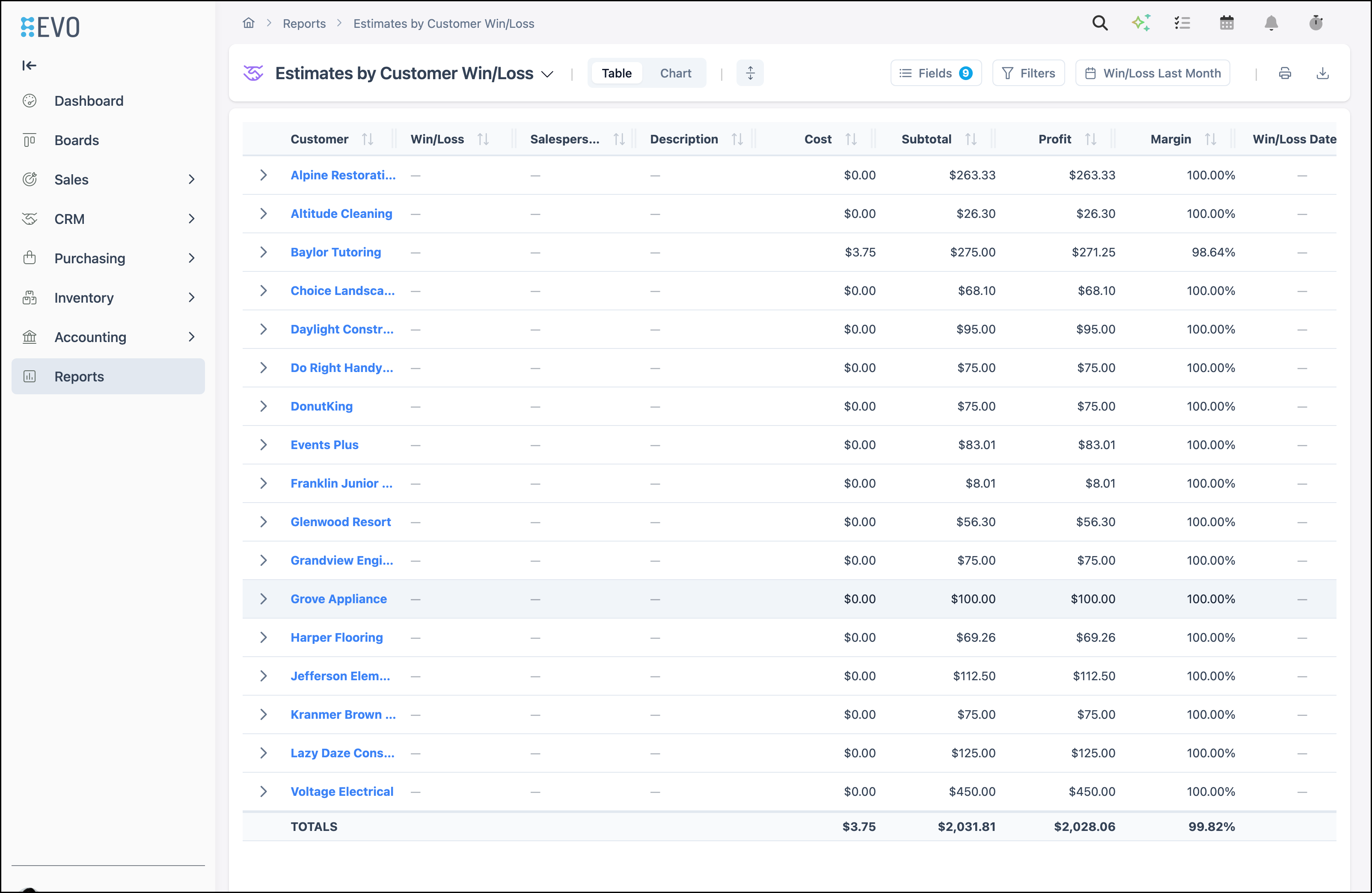
Note: Other Estimates Win/Loss reports work the same way. For more information on running reports, see Reporting Overview.
Frequently Asked Questions
1. Why is a Lost estimate Locked?
Answer: Marking an Estimate Lost locks it so the original Line Items stay available for review. Clone the Estimate if you need an editable copy.
2. Can I change a Lost estimate back to Pending or Approved?
Answer: No. A Lost Estimate cannot be returned to an open Status. Clone the Estimate to create a new, editable copy.
3. How do I see when an estimate was marked Lost?
Answer: Open the Estimate and click the Estimate Number in the header. The Lost row in Estimate Milestones shows the date and time.
4. Why do Lost estimates display $0.00 for prices and totals?
Answer: After an Estimate is marked Lost, Line Item prices, Balance, Order Totals, and the list Total display $0.00. Use Win/Loss reports to review the amounts.
5. Can I still use tools such as Notes or Email on a Lost estimate?
Answer: Yes. Header tools remain available. Use More Actions for Clone, Customer Portal Link, Link Opportunity, and History. For more information, see Estimate and Order Tools Menu.
Related Articles
Available Reports
Estimate and Order Tools Menu
Estimates Overview
Order and Estimate Change History
Reporting Overview