
Within an Estimate or Order, the tools menu gives you quick access to Tasks, Notes, documents, email, files, and additional actions for that record.
Table of Contents
Accessing the Tools Menu
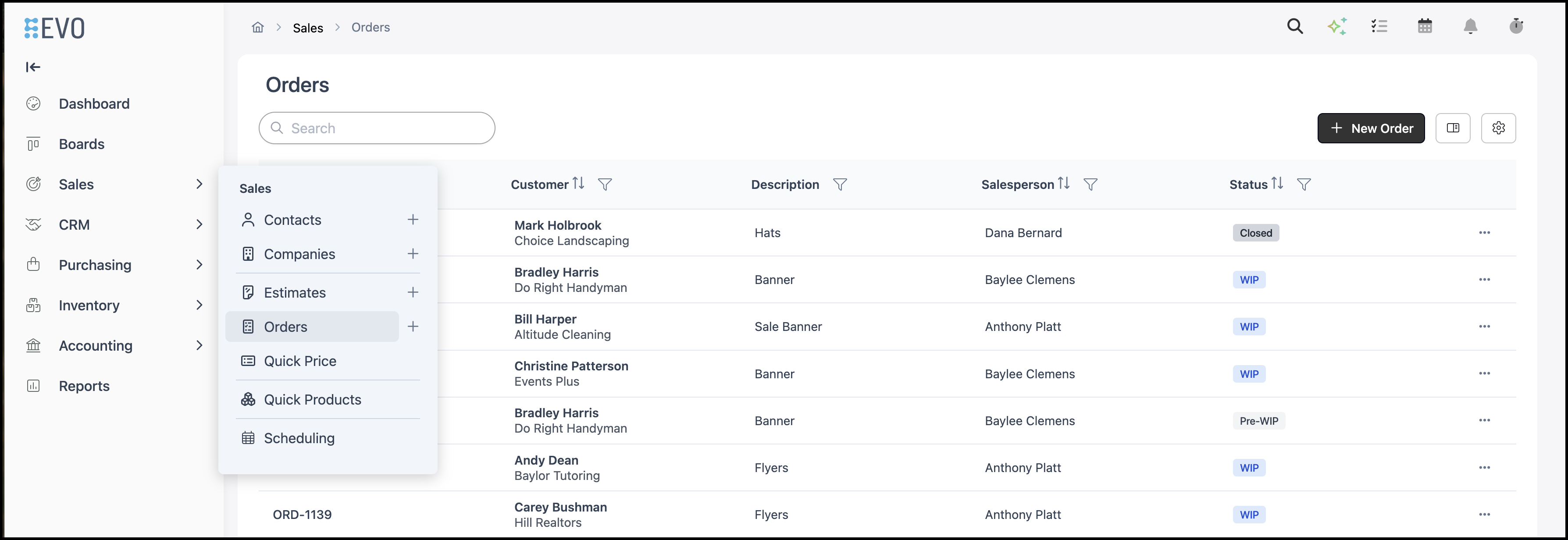
Navigate to Sales / Orders or Sales / Estimates, then open the Estimate or Order.
The tools appear in the header of the Estimate or Order screen.
a. Tasks - Opens Tasks related to the Estimate or Order so you can create and manage follow-ups and other work items.
b. Notes - Opens Notes for internal comments about the Estimate or Order.
c. Create RFQ - Starts a Request for Quote from the Line Items on this Estimate or Order when the RFQ feature is available.
Note: This is an optional feature. If you do not see it in your system and would like to discuss package options, please contact support at supportdesk.corebridge.net.
d. Documents - Opens a menu of printable documents for the Estimate or Order.
e. Email - Opens the email composer so you can send an email using an Email Template.
f. Files - Opens the Files panel to upload and manage files for the Estimate or Order.
g. More Actions - Opens additional options such as Clone, Customer Portal Link, Link Opportunity, and History. On Orders, Create Credit Memo is also available.
Note: Available tools and menu options can vary based on the record type, Status, and licensed features.

Tasks
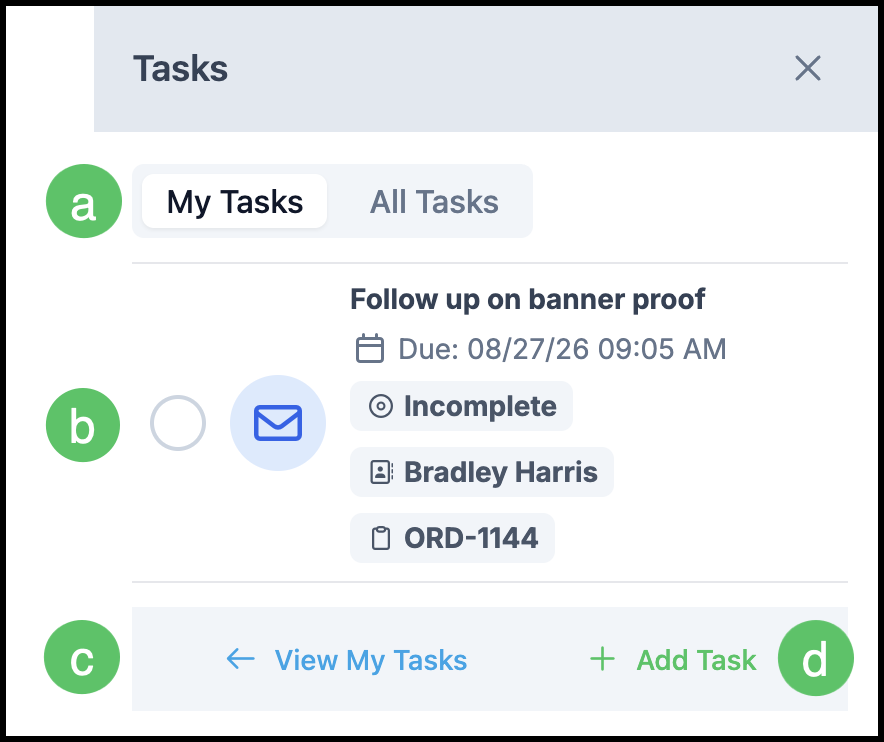
Click Tasks to open the Tasks panel for the Estimate or Order.
a. My Tasks and All Tasks - Switch between Tasks assigned to you and a broader Tasks list.
b. Tasks related to the Estimate or Order appear in the list. If none exist yet, the panel shows that no Tasks are available.
Note: Selecting the Task will mark it as Complete.
c. View My Tasks - This takes you to the Tasks screen.
d. Add Task - Opens a dialog to create a new Task associated with this Estimate or Order.
Note: Clicking anywhere on the Task information will open the Task dialog, allowing you to make edits.
Notes
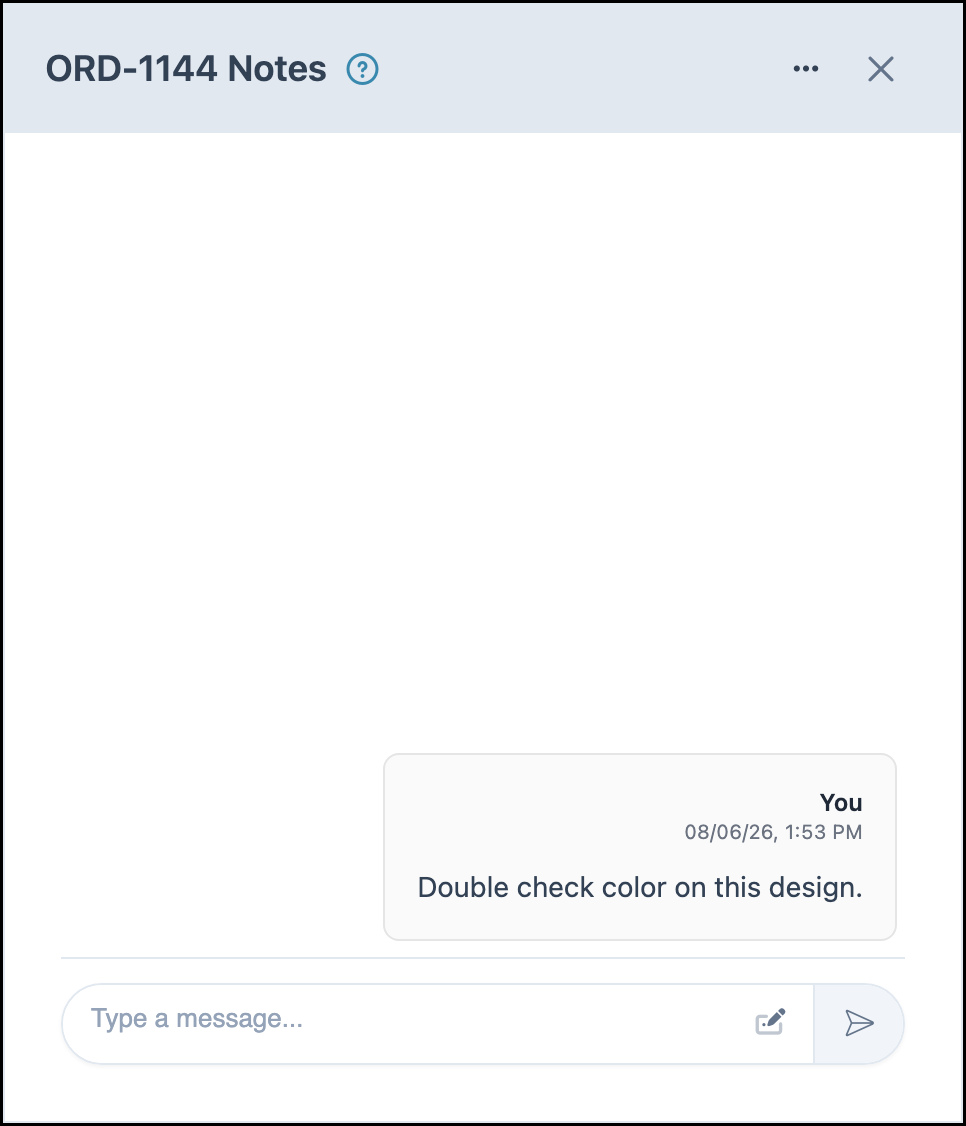
Click Notes to open internal comments for the Estimate or Order. Use Notes to leave comments for your team. You can tag employees with @ Mentions. For more information, see Using @ Mentions.
Note: Use Notes actions to Show Hidden comments.
Create RFQ
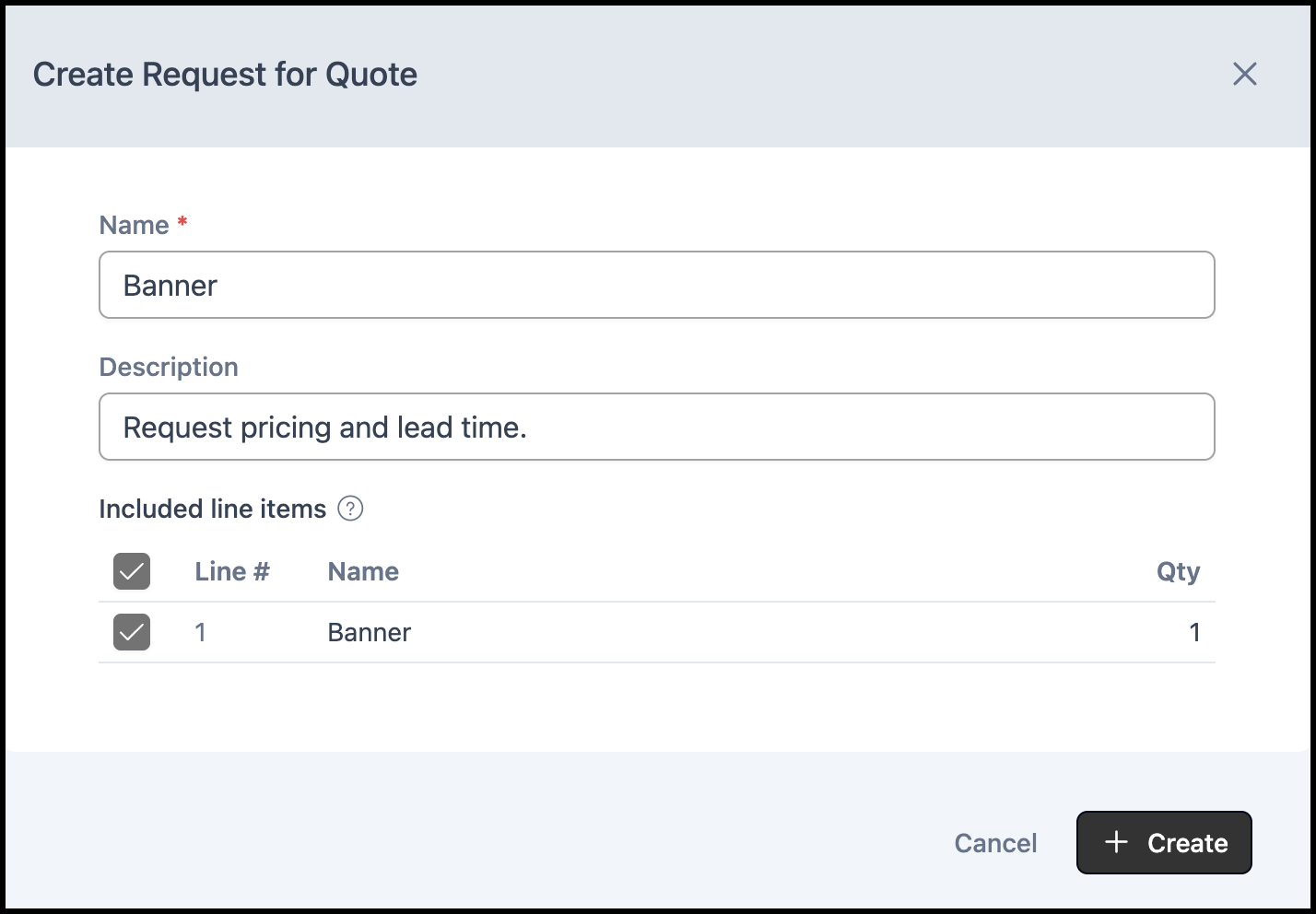
Click Create RFQ to open the Create Request for Quote dialog. Enter a Name, optionally add a Description, select the Line Items to include, then click + Create.
Note: Create RFQ is an optional feature and appears when the Request for Quote feature is available for your system. For more information, see Request for Quote Overview.
Documents
Click Documents to open the documents menu for the current Estimate or Order. For more information on documents, please see Document Options.
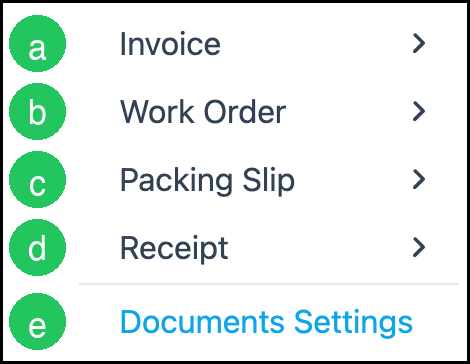
On an Order, the menu includes options such as:
a. Invoice
b. Work Order
c. Packing Slip
d. Receipt
e. Documents Settings - Opens document settings so you can manage which documents appear in the list.
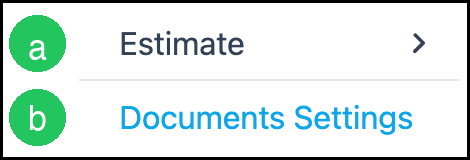
On an Estimate, the menu includes:
a. Estimate - Opens the Estimate document.
b. Documents Settings - Opens document settings so you can manage which documents appear in the list.
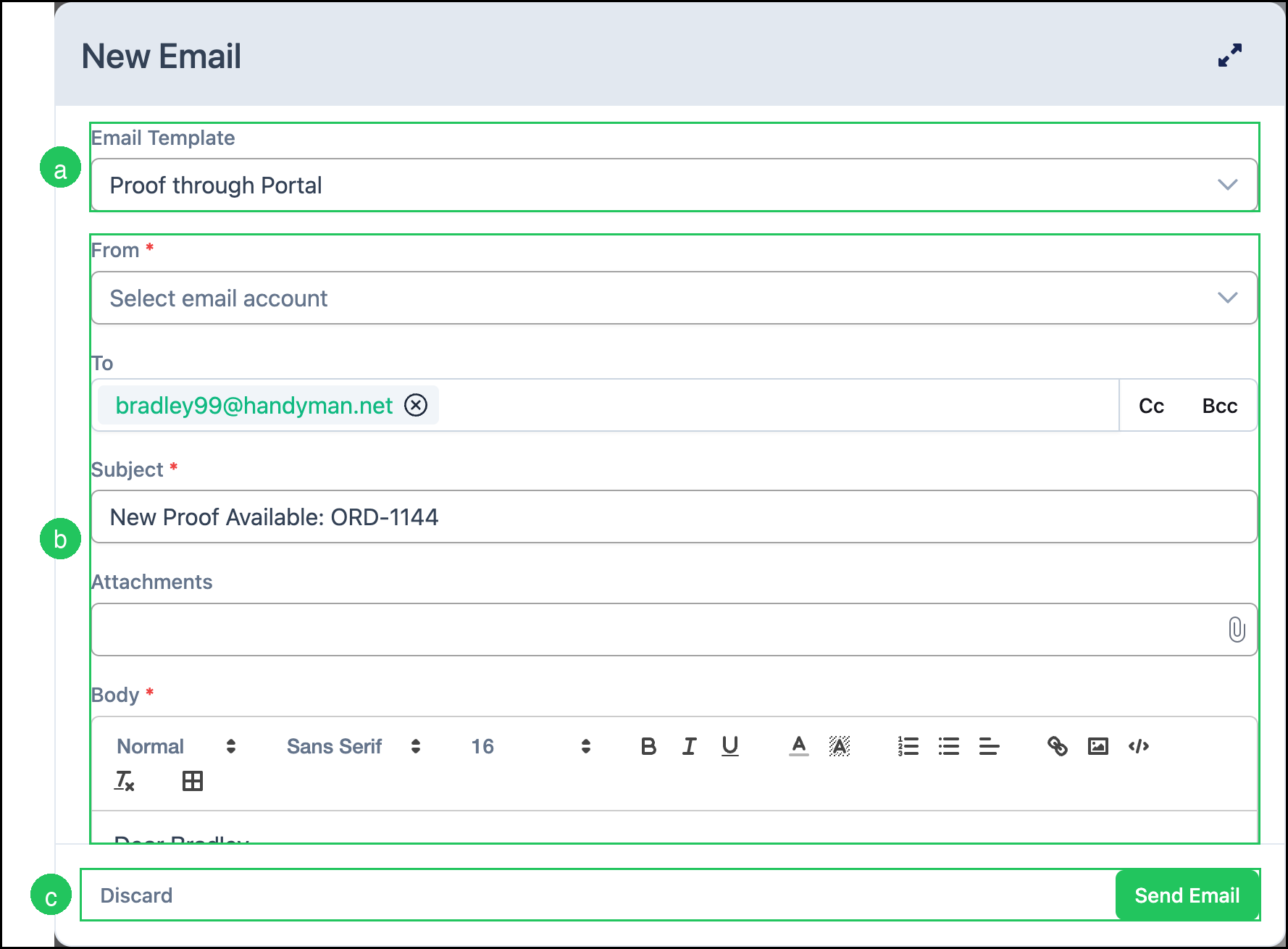
Click Email to open the New Email dialog. For more information on templates, see Using Email Templates.
a. Email Template - Select a template to fill the email fields.
b. From, To, Cc, Bcc, Subject, Attachments, and Body - Complete or adjust the email details as needed.
Note: Click an attached Estimate or Invoice document in Attachments to preview it in a dialog. The attached PDF is generated when the email is sent and reflects the record at that time.
c. Click Send Email to send the message, or Discard to close without sending.
Files
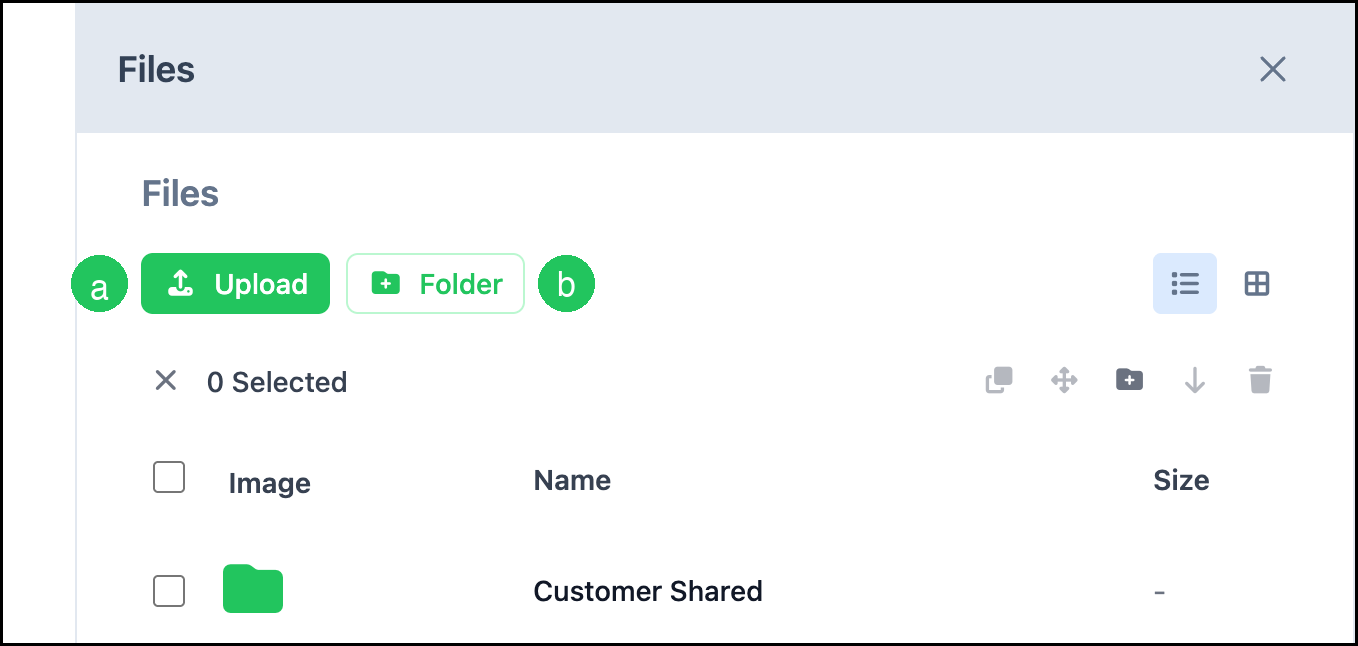
Click Files to open the Files panel for the Estimate or Order.
a. Upload - Adds files to the Estimate or Order.
b. + Folder - Creates a folder to organize files within the Files panel.
More Actions
Click More Actions to open additional options for the Estimate or Order.
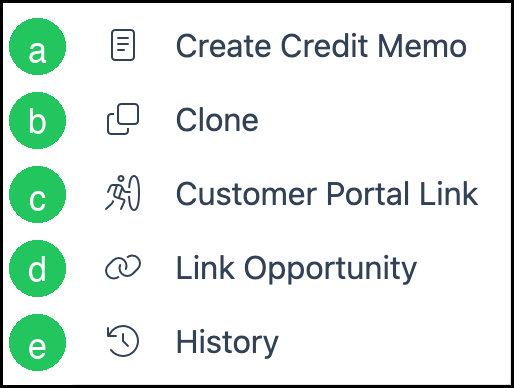
On an Order, options include:
a. Create Credit Memo - Creates a Credit Memo related to the Order when Credit Memos are enabled.
b. Clone - Creates a copy of the Order.
c. Customer Portal Link - Provides a Customer Portal link for the Order.
d. Link Opportunity - Links the Order to a CRM Opportunity.
e. History - Opens Change History for the Order.
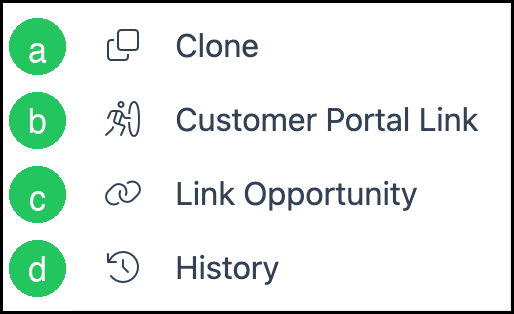
On an Estimate, options include:
a. Clone - Creates a copy of the Estimate.
b. Customer Portal Link - Provides a Customer Portal link for the Estimate.
c. Link Opportunity - Links the Estimate to a CRM Opportunity.
d. History - Opens Change History for the Estimate.
Note: For more information on Change History, see Order and Estimate Change History.
Related Articles
Company Notes in Chat
Customer Portal Options
Document Options
Estimates Overview
Order and Estimate Change History
Orders Overview
Request for Quote Overview
Using @ Mentions
Using Email Templates