
Creating and Updating Records with Cora AI lets you add a new record or change an existing one in plain language, including a Company, an Order, or a task.
You do this from Ask Cora AI in the header.
Cora saves the record when the request includes the details your business requires, and Cora asks you to choose when more than one record matches the name.
Table of Contents
- Important Information
- Creating a Record with Cora AI
- Updating a Record with Cora AI
- Records Cora Can Create or Update
- Frequently Asked Questions
- Related Articles
Important Information
- Creating and Updating Records with Cora AI is how you ask Cora to add a record or change one that already exists. Use it when you would rather describe the record than fill in the screen.
- Include the kind of record, its name, and the details your business requires. Cora lists anything still missing and does not save the record until you supply those details.
- When more than one record uses the same name, Cora lists the matches and waits. Reply with the record you want, then click Send message again.
- Cora follows the permissions you already have. A request you could not complete on the screen is not saved from the chat. For more information, please see Introduction to Cora AI.
- Before Cora records a payment, it reads the payment back and waits for you to confirm. Card and ACH payments stay on Make Payments.
- To remove a record, open that record in CoreBridge and delete it there.
Creating a Record with Cora AI
1. Click Ask Cora AI in the header. The Cora AI window opens.

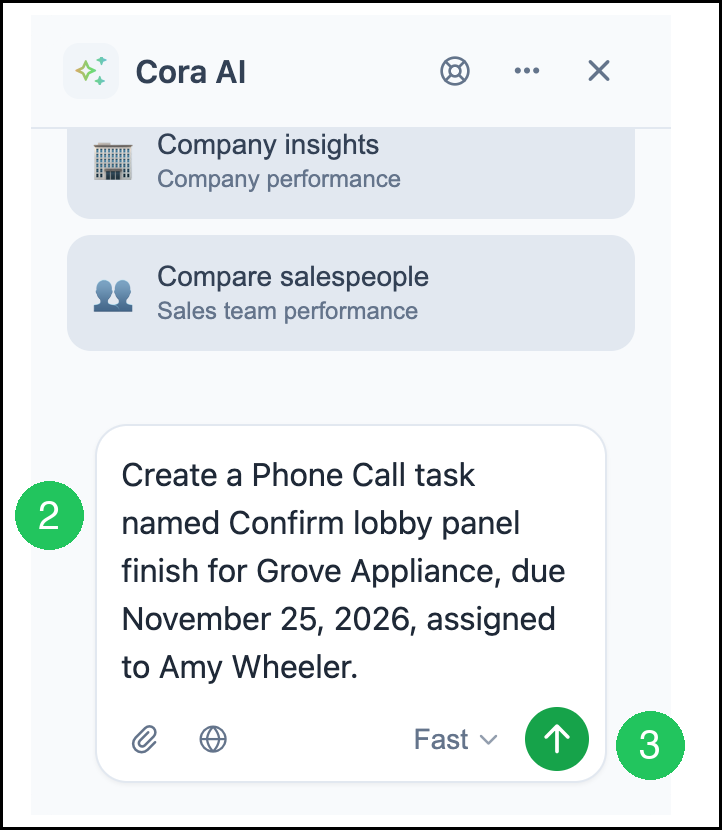
2. Type the request in Ask Cora anything, or type / to use a skill. Name the kind of record, give it a name, and include the details your business requires, such as a due date and who it is assigned to.
3. Click Send message. Cora saves the record when the request is complete, and the reply names the record that was saved.
Note: TRY ASKING shows suggested questions for the screen you are on. You can click a suggestion instead of typing. Model shows Fast or Pro. Leave Fast selected for a routine create or update.
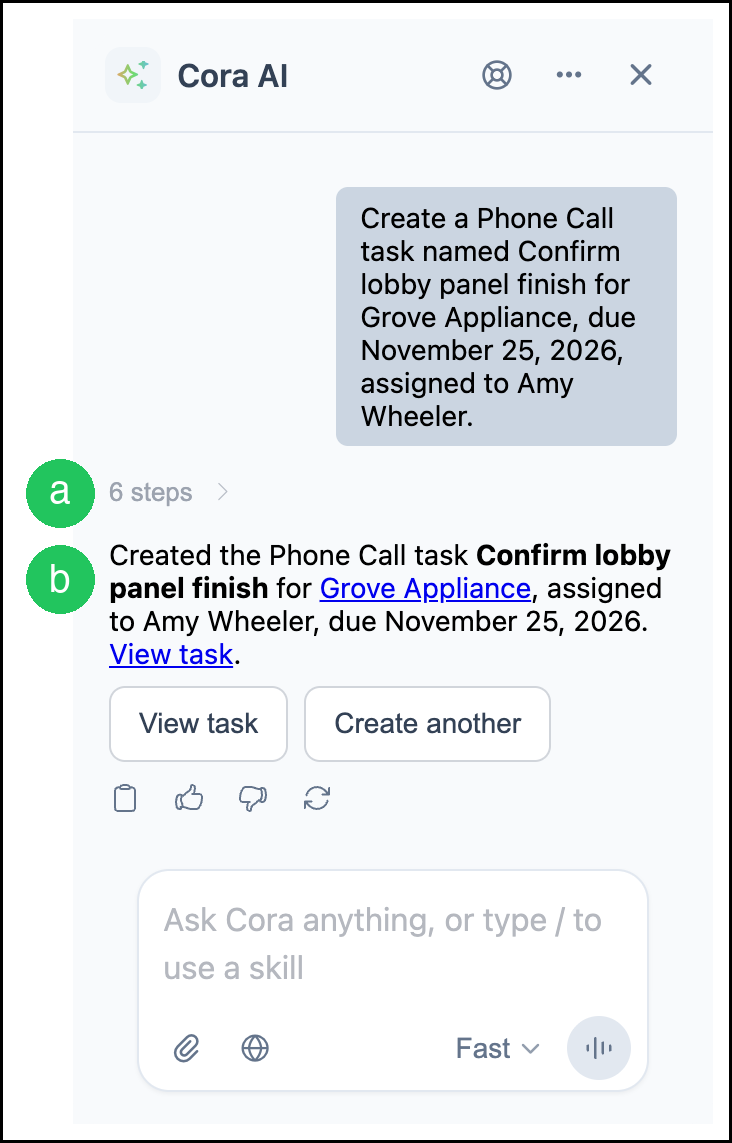
a. Step count - The reply shows how many steps Cora took, such as 6 steps. Click the step count to see what Cora did.
b. Record link - The reply includes the record name as a link. Click the link to open the saved record. View task opens the same record when the new record is a task.
c. Create another - Starts another record of the same kind.
d. Copy message, Good response, Bad response, and Regenerate response - These sit under the reply. Copy message copies the reply. Good response and Bad response send feedback. Regenerate response asks Cora to answer again.
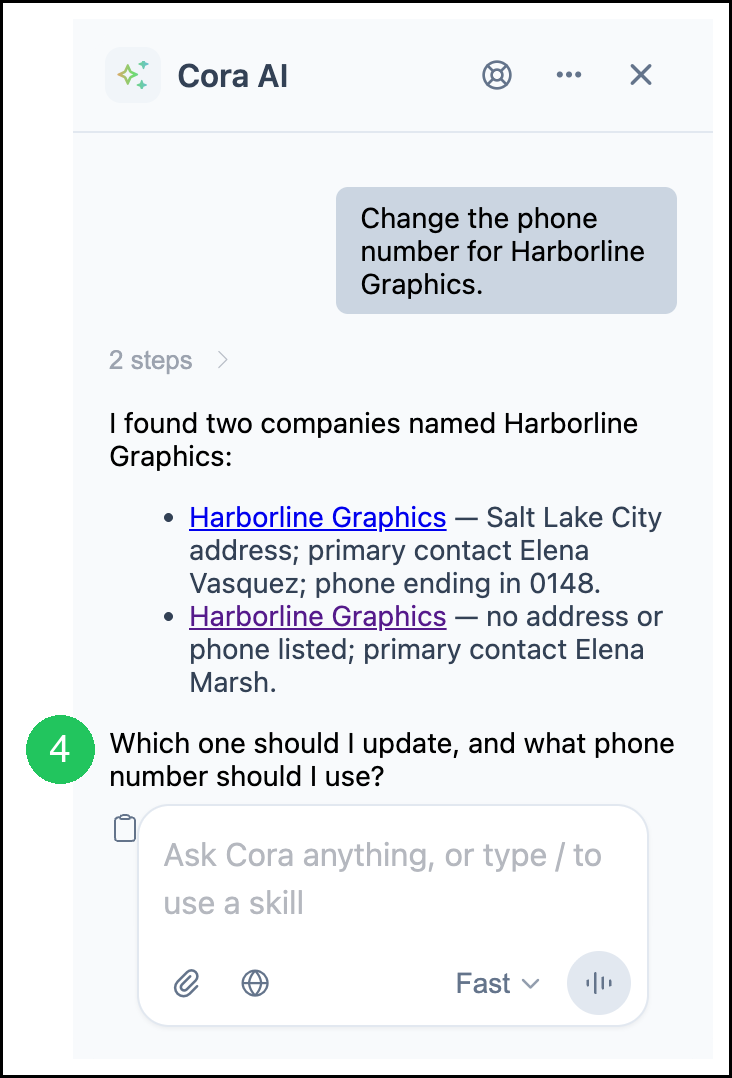
4. When Cora lists more than one record with that name, type which record you want, include any detail Cora still needs, and click Send message again. Cora waits, and the record is not changed until you choose.
Updating a Record with Cora AI
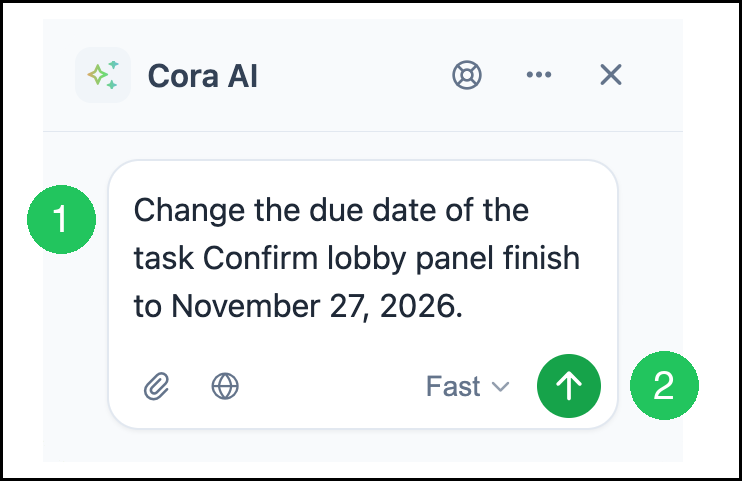
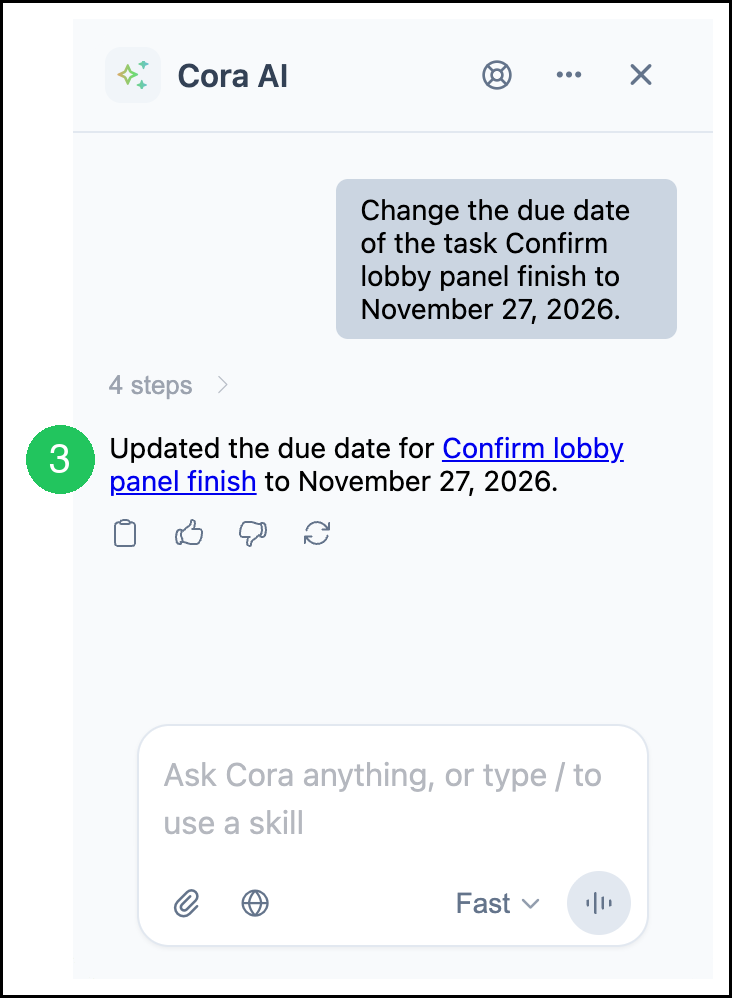
1. Type the change in Ask Cora anything, or type / to use a skill. Include the record name and the new detail, such as a new due date.
2. Click Send message. Cora updates the record, and the reply states the change.
3. Click the record name in the reply. The record opens with the change saved.
a. The step count and the reply tools match the ones in Creating a Record with Cora AI.
Records Cora Can Create or Update
Use the same steps for the records below. For more information, please see Introduction to Cora AI.
- Companies and contacts.
- Orders, Estimates, and their line items.
- A fee on an Order or on a line item.
- A payment, after Cora reads the payment back and you confirm. Card and ACH payments stay on Make Payments.
- Purchase Orders.
- Email Templates.
- Automations.
- Pricing Tiers. The Default Tier cannot be renamed or set inactive.
- Requests for Quote.
- Payment Terms.
- Payment Methods. The name cannot be changed after the method is saved.
- Industries.
- Calendar events on an existing Calendar.
- CRM tasks, such as a follow-up call or meeting, and CRM activities such as a call, email, or meeting. For more information, please see Tasks.
- Opportunities, employees, vendors, locations, materials, and labor.
- An account on the Chart of Accounts, a Tax Item, a Tax Group, a Taxability Code, or an Origination.
Frequently Asked Questions
1. Why does Cora ask me to choose between records?
Answer: More than one record uses that name. Cora lists the matches and a detail that sets them apart, such as the primary contact. Reply with the record you want. Nothing is saved until you choose.
2. Why did Cora not save my record?
Answer: A required detail is still missing, or more than one record matches the name. Cora lists what it needs. Supply the detail or choose the record, then click Send message again.
3. Can Cora delete a record?
Answer: No. Open the record in CoreBridge and remove it there. If you ask Cora to delete a record, Cora tells you to remove it in CoreBridge.
4. Does Cora save a payment as soon as I ask?
Answer: No. Cora reads the payment back and waits for you to confirm. Card and ACH payments stay on Make Payments.