
CoreBridge offers API access through select packages, giving you the ability to connect external applications and send or receive information as part of your workflows. The API is designed for experienced developers who are familiar with concepts such as endpoints, authentication, and Token management, and provides a structured, well-documented set of tools for building powerful integrations. This article outlines how to enable API access, locate available endpoints, and generate the authentication Tokens needed to begin connecting your systems.
Note: If API features are not visible in your account and your package includes API access, reach out to Support for assistance at support.corebridge.net.
Table of Contents
Access Requirements
API access often does not come enabled by default in new systems and is package specific. If you would like to see this feature, contact Support for assistance at support.corebridge.net.
Note: Only Users with the correct permissions will be able to create API users and Tokens.
Creating an API User
Developers will need a dedicated User profile to access the API Portal. This User account is used to authenticate API calls and manage access to endpoints. Once the account exists, the developer will be able to sign in to the API Portal and view all available endpoints.
Note: API Users function as external access points that allow approved partners or applications outside of CoreBridge to retrieve or share specific data through the login you provide. Because these accounts are not standard Users and have direct access to portions of your data, we recommend managing them carefully and removing API access anytime an individual leaves your organization or no longer requires trusted access.
Navigate to Settings / API / API Users.
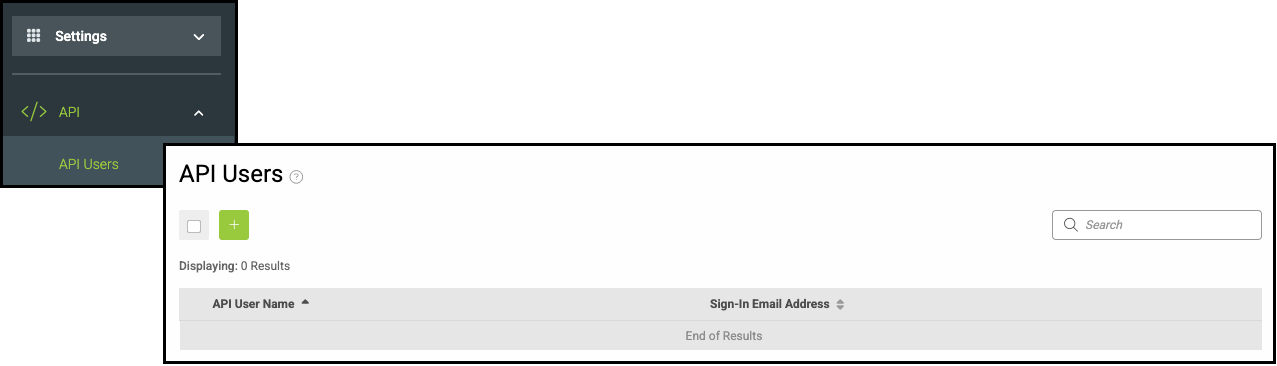
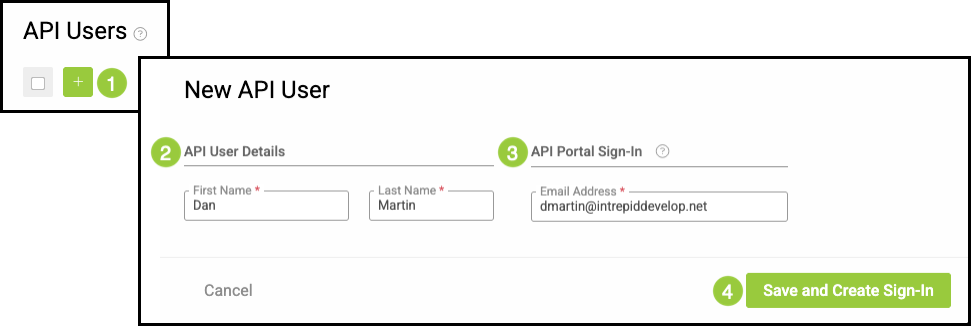
1. Click the Green Plus button.
2. Fill in the API User Details.
3. Fill in the Email Address.
4. Click Save and Create Sign-In.
Note: Login instructions will be sent to the email above.
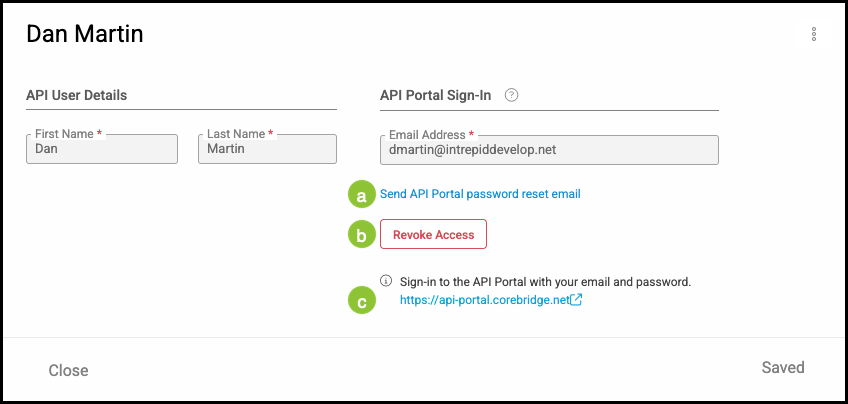
Note: This User account is used only for API authentication. After creation, the developer can log in to the API Portal to view endpoints and documentation using these Sign-In details.
a. This link will send an email to the above address if the password is forgotten or needs to be reset.
b. Access can be revoked here at any time.
c. This link will take you directly to the API Portal.
Note: You can access the Portal here as well https://api-portal.corebridge.net/.
Accessing the API Portal
After signing in with the API User account, developers can access the API Portal, which contains all available endpoint categories. Each endpoint includes:
- The endpoint path
- A description of what it does
- Any required or optional parameters
- Additional behavior details
- The applicable API version
Example: ?apiversion=v3.0
Common API Calls
- GET: Retrieve data record.
- POST: Carry out actions for a specified data record.
- PUT: Renames, moves, or replaces data records.
- DELETE: Remove data records.
Note: Use the DELETE call with extreme caution. This will delete information from all CoreBridge databases and is unrecoverable.
Creating Tokens
Tokens must be created before any API calls can be made. After the API User is set up, developers can generate Tokens within the API Portal. These Tokens authenticate requests and allow external systems to connect securely.
Once Tokens have been created, developers will have the full set of components needed to build integrations, or use external tools like Postman to make API endpoint calls.
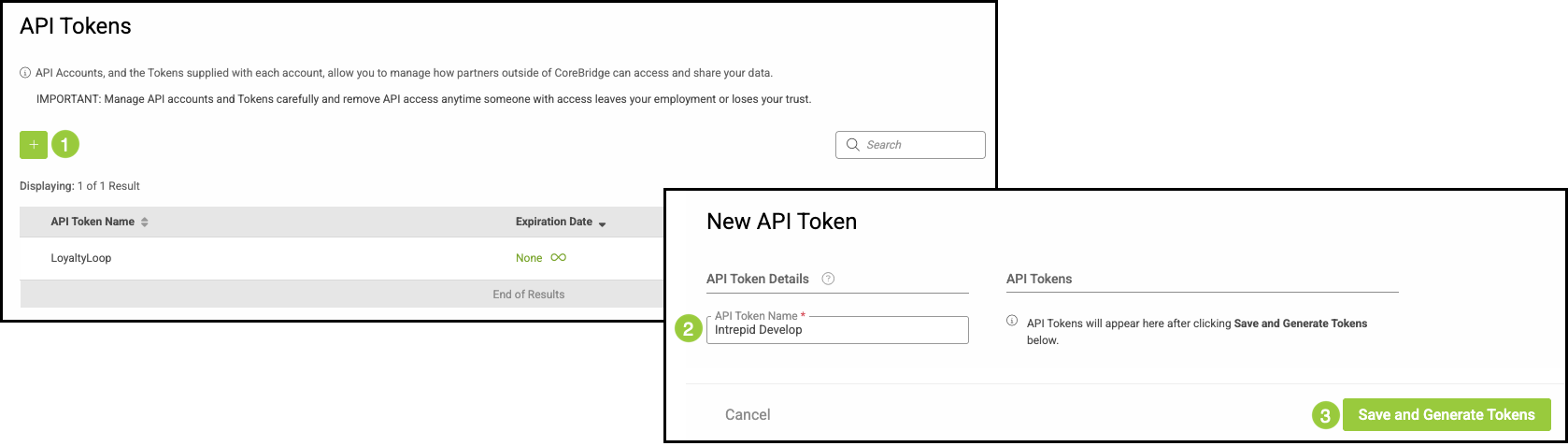
To use endpoints, you must generate authentication Tokens by navigating to Settings / API / API Tokens.
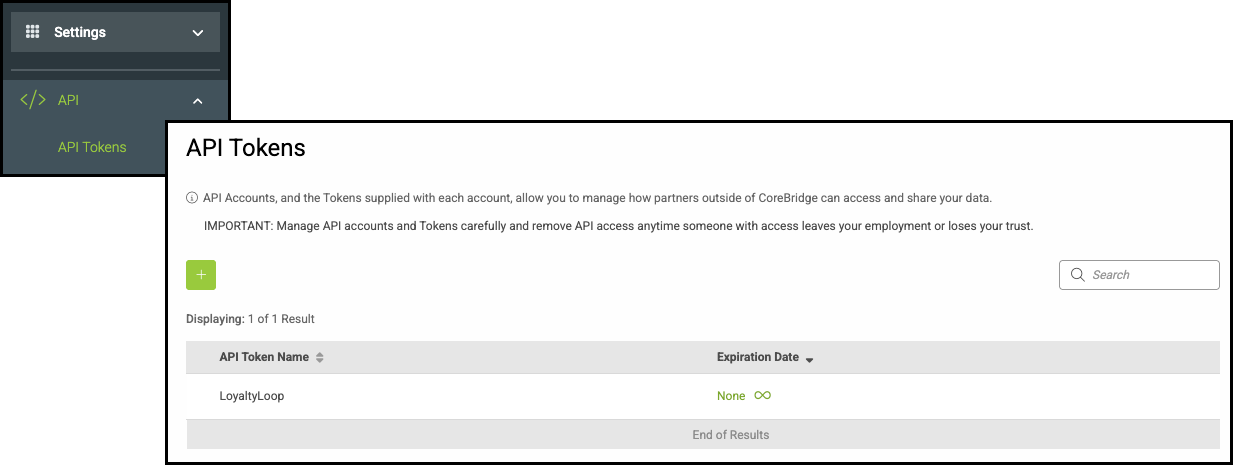
1. Click the Green Plus button.
2. Enter the API Token Name.
3. Click Save and Generate Tokens.
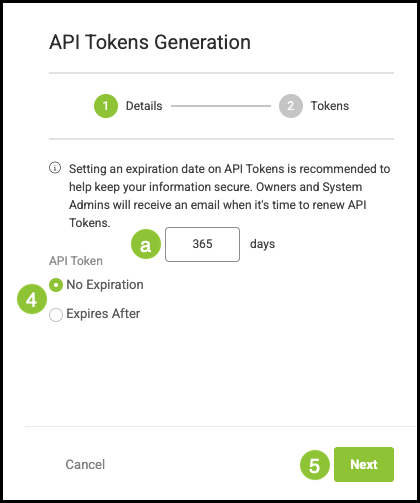
4. Select the Expiration option in the pop-up.
a. If you select Expires After, you can specify the number of days before the Token automatically expires.
Note: If you plan to use API on an ongoing basis, selecting No Expiration is recommended to avoid disruptions.
5. Click Next.
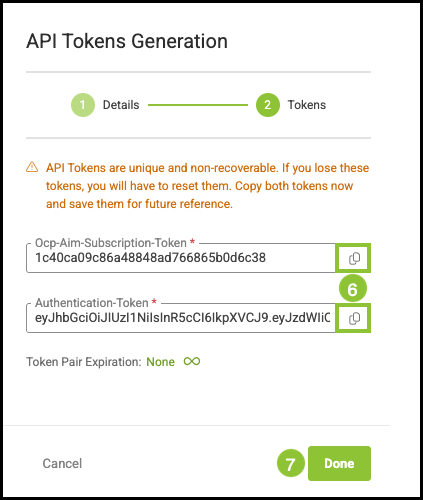
6. Use the Copy icons to copy each Token and save it in a secure location before moving to the next step.
Notes:
- Tokens are shown only once during creation and cannot be viewed again after you select Done. Be sure to copy and save them immediately. If a Token is misplaced or not recorded, new ones will need to be generated.
- Both Tokens are required to use the external API Portal.
- Tokens are identifying passwords to your system. Keep them secure and only share them with trusted individuals.
7. Click Done.
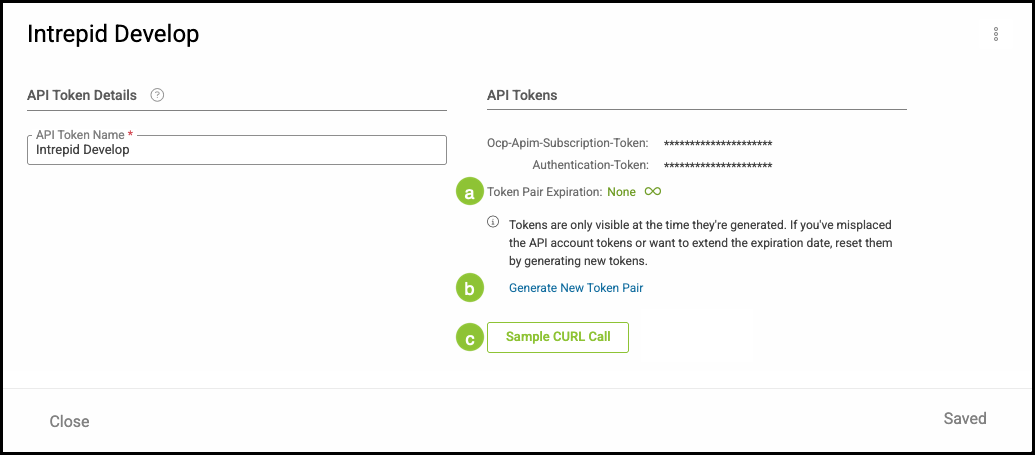
a. The Token expiration date is displayed here.
b. If a Token is forgotten, a new pair will need to be generated by clicking here.
Note: This will invalidate the previous Tokens.
c. Sample CURL Call - This is an example CURL call developers can reference, if needed.
Using API Tokens
When sending API requests:
- Prefix the authentication value with Bearer.
Example: Authentication-Token: Bearer {token}
- Append the API version to each endpoint: (?apiversion=v3.0).
Example:

Note: The required suffix (?apiversion=v3.0) must be included on every endpoint. If it is missing or entered incorrectly, the call will fail and the endpoint will return an error.
Complete Process Overview
Developers must complete the following steps:
1. Create an API user to access the API Portal.
2. Access API Portal to review endpoint details.
3. Generate tokens to authenticate API requests.
With these components in place, developers can begin building integrations using any of the available endpoint types.