
Machines represent the equipment used to produce Products and, along with Materials and Labor, help determine how production is estimated, scheduled, and tracked. CoreBridge includes a basic set of Machines that can be customized for your production environment. Machines your shop does not use can be set to inactive.
Table of Contents
Inactivate Unused Machines
CoreBridge includes an example Machine for many Machine Types. Inactivate Machines the shop does not use before cloning or adding the Machines that are used. An inactive Machine is removed from the active list.
Navigate to System Settings / Components / Machines.
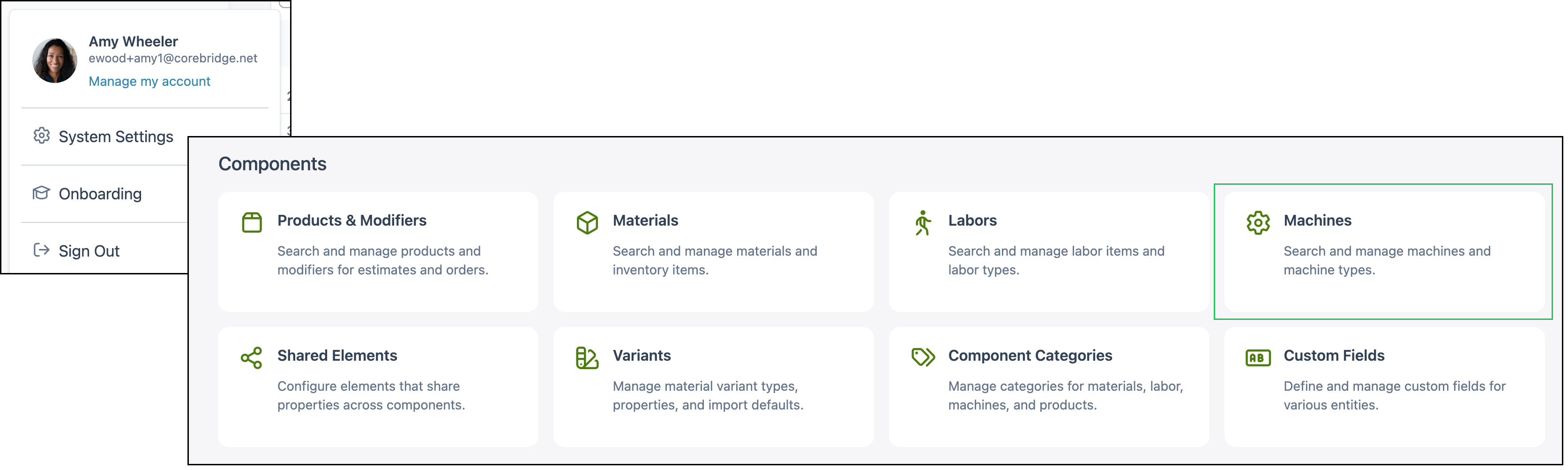
1. Open the More Actions menu for a Machine the shop does not use.

2. Select Set Inactive.
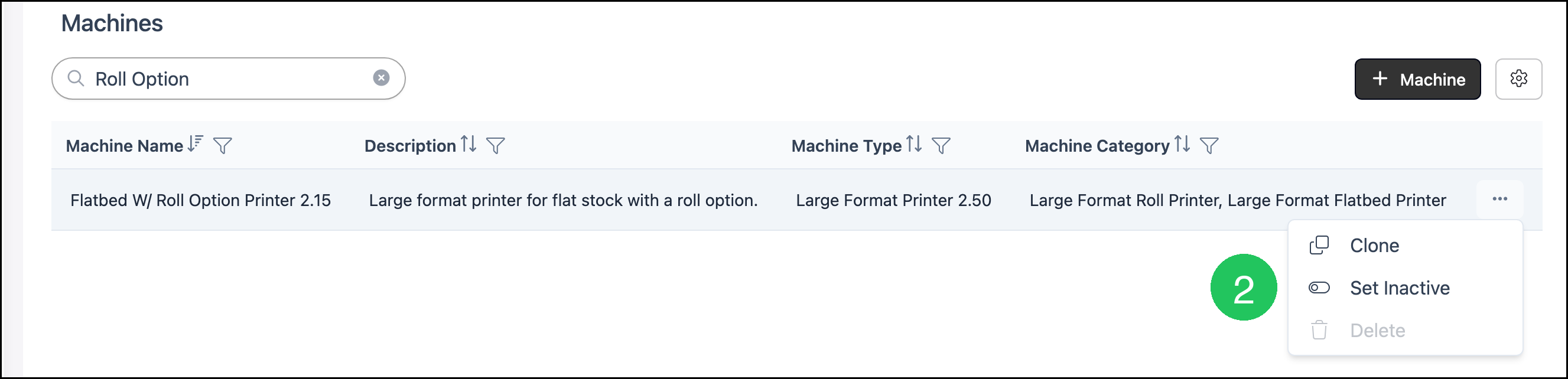
Note: Repeat these steps for each Machine the shop does not use.
Note: Inactive Machines remain in the system. Search Settings includes Show Inactive Records. When that option is selected, More Actions includes Set Active.
Adding Machines
CoreBridge includes an example Machine for each Machine Type. Clone a Machine that is similar to the one being added, then update the details that differ.
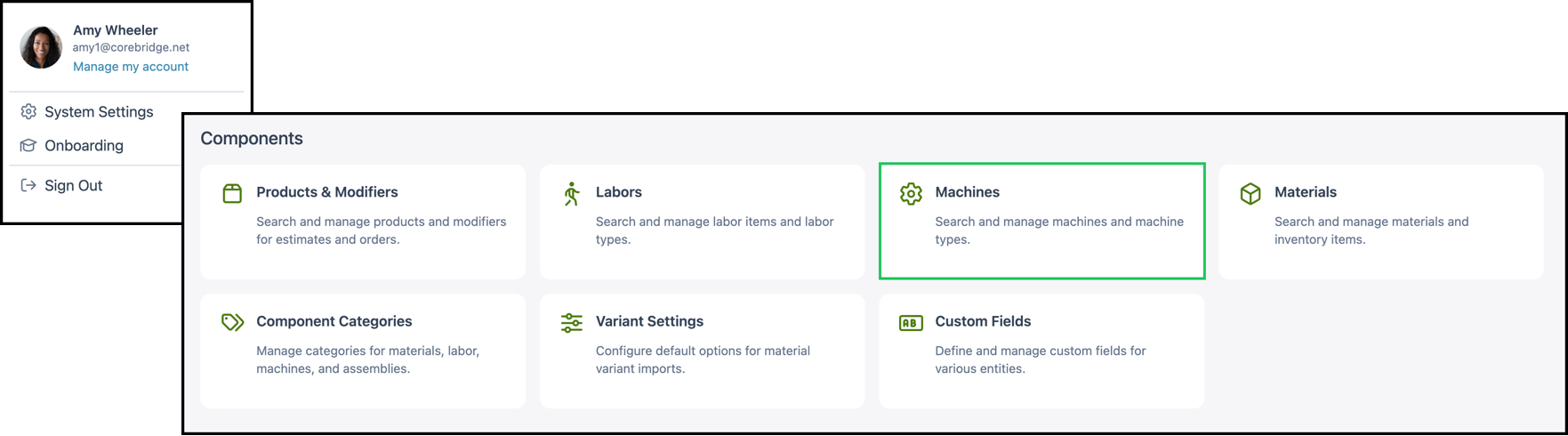
Navigate to System Settings / Components / Machines.
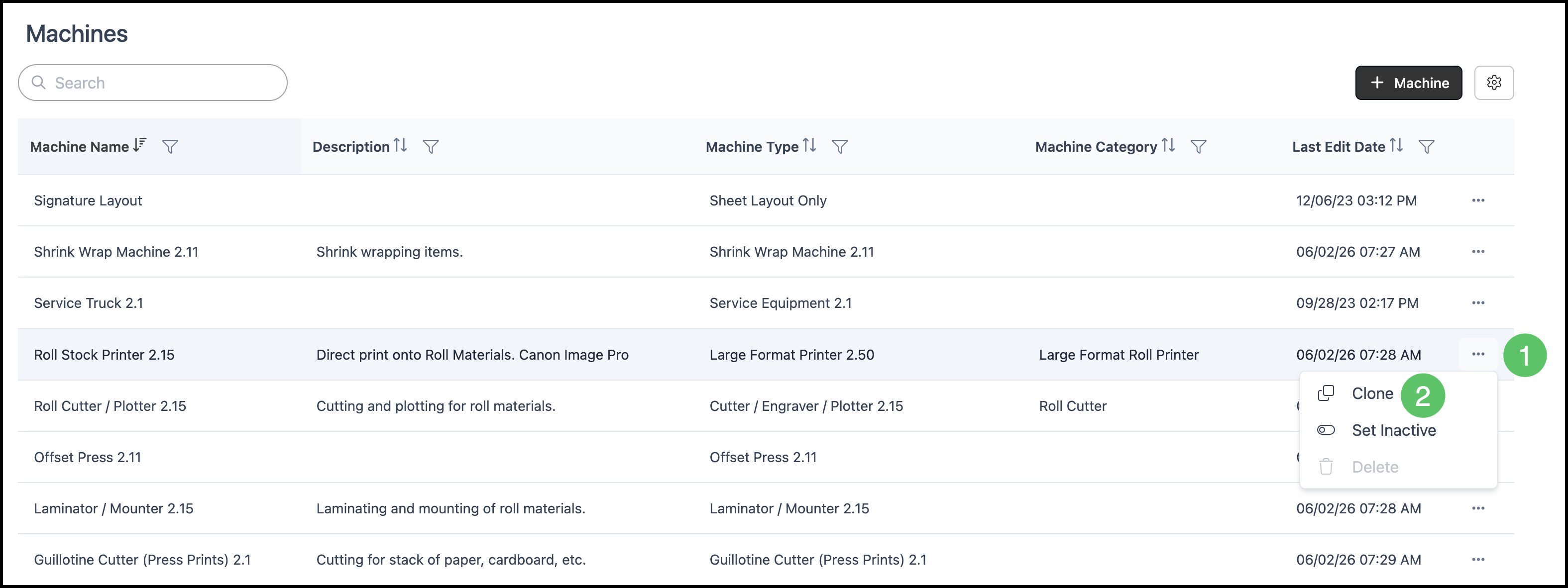
1. Open the More Actions menu for the Machine that best matches the one to create.
2. Select Clone.
Note: To create a Machine from scratch, click + Machine.
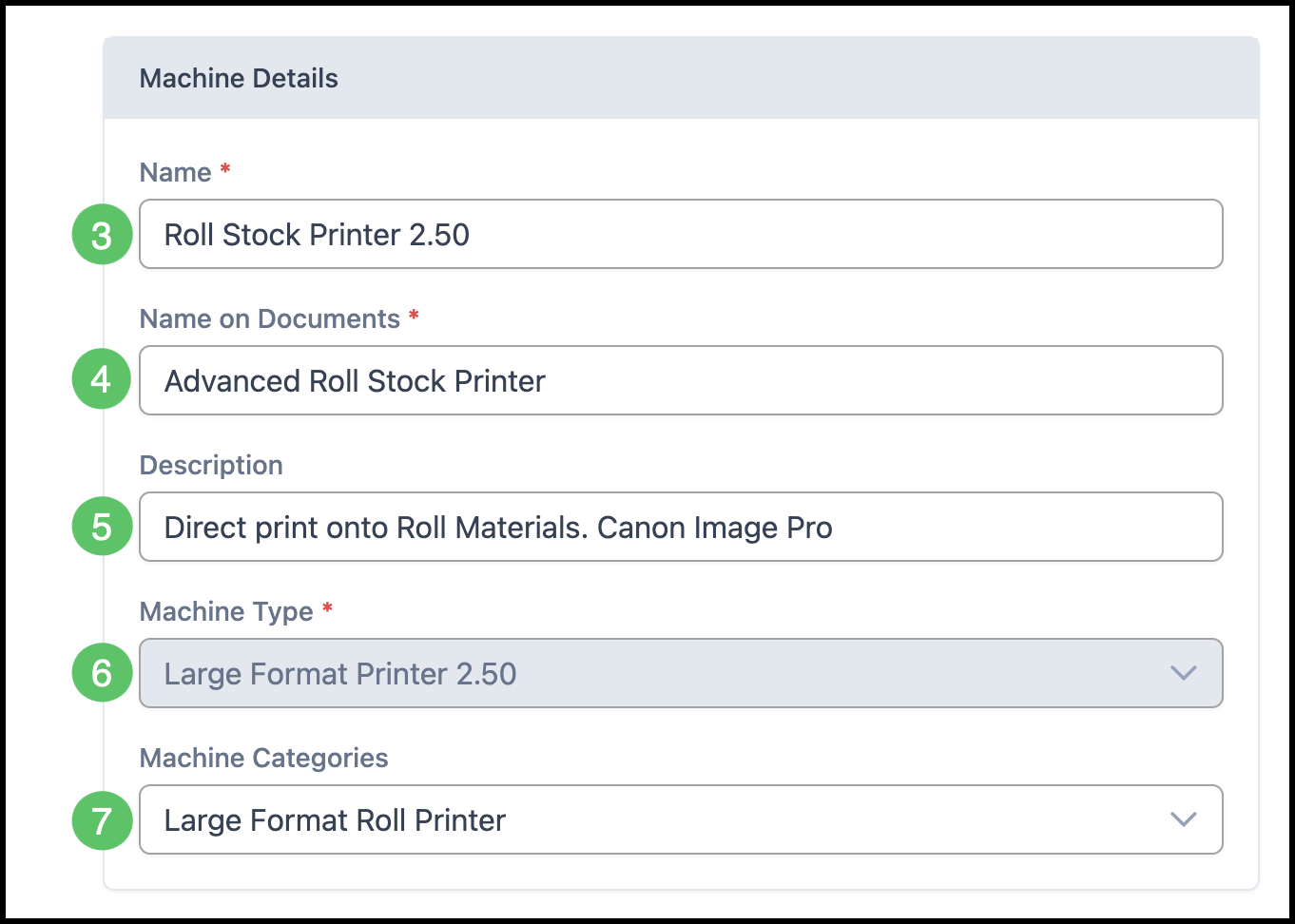
3. Enter the Machine Name.
Note: This name is used inside CoreBridge.
4. Enter the Name on Documents.
Note: This is the name shown to customers.
5. Enter a short Description of the Machine capabilities.
6. Confirm the Machine Type. The Machine Type includes the calculations used for that equipment.
Note: On a clone, Machine Type is already set. After the Machine is saved, Machine Type cannot be changed.
7. Select one or more Machine Categories.
Note: Machine Categories can be managed in System Settings / Components / Component Categories on the Machines tab, or by clicking Manage Machine Categories at the bottom of the dropdown.
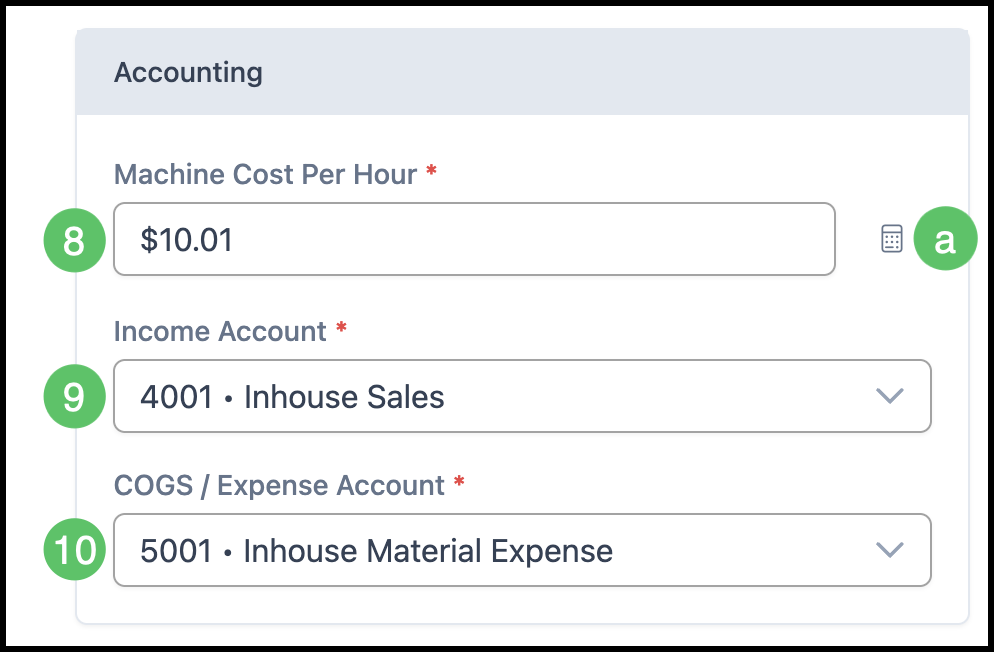
8. Enter the Machine Cost Per Hour.
Note: This amount does not include Labor or Disposable Cost. Those are set on the Machine profile.
a. Click the button beside Machine Cost Per Hour to open Calculate Machine Cost per Hour. For more information, see Machine Cost Worksheet.
9. Select the Income Account.
10. Select the COGS / Expense Account.
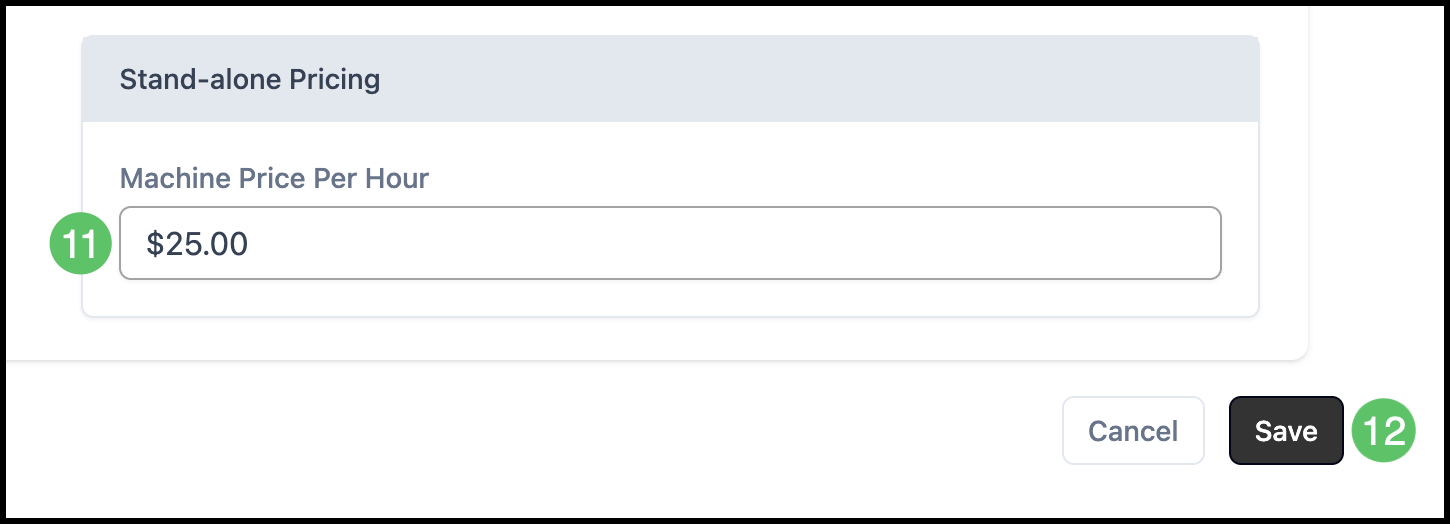
11. Enter a Machine Price Per Hour, if one is used.
Note: This is the price charged for stand-alone work on this Machine.
12. Click Save.
The Profiles tab defines different ways the Machine can be run. The Instances tab tracks physical units of the same Machine.